Build pages faster with true drag and drop freedom. HighLevel’s auto-hierarchical logic lets you drop any element on the canvas while the builder creates Sections, Rows, and Columns for you.”
TABLE OF CONTENTS
- What is Enhanced Drag and Drop with Auto-Hierarchical Layout?
- Key Benefits of Enhanced Drag and Drop
- How To Use the Enhanced Drag and Drop Feature
- Quick Examples of the Enhanced Drag and Drop Experience
- Frequently Asked Questions
- Related Articles
What is Enhanced Drag and Drop with Auto-Hierarchical Layout?
Enhanced drag-and-drop functionality in the builder allows users to add elements to the canvas without needing to manually configure layout structures in advance. Now you can drop any element directly onto the canvas without worrying about setting up the correct structure first. The builder automatically creates the right layout hierarchy behind the scenes. This means fewer clicks, less confusion, and much faster page and funnel building.
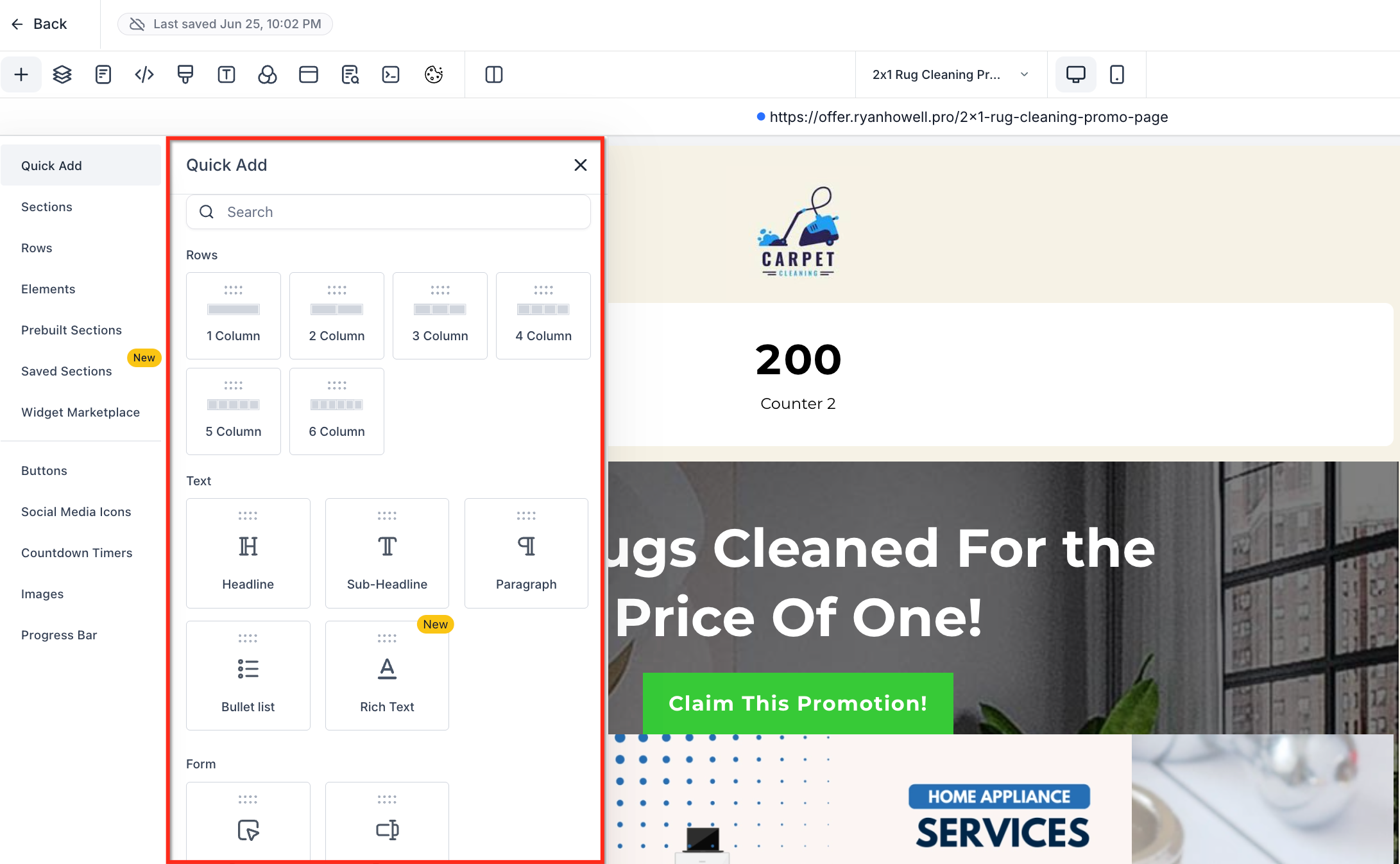
The system automatically wraps each element within the appropriate layout containers, such as Sections, Rows, and Columns. This reduces setup time and helps maintain a clean, consistent structure. Auto-hierarchy logic and visual drop cues support a smoother and more intuitive building experience. Now you can drop any element directly onto the canvas without worrying about setting up the correct structure first. The builder automatically creates the right layout hierarchy behind the scenes. This means fewer clicks, less confusion, and much faster page and funnel building.
Key Benefits of Enhanced Drag and Drop
This functionality significantly improves the speed and usability of page building in HighLevel:
True Drag-and-Drop Freedom: Place any element directly on the canvas—no need to prep the layout.
Auto-Wrap Logic: Builder auto-generates the correct structure (Section > Row > Column) behind the scenes.
Smart Placement Detection: Automatically detects valid drop targets and fits elements accordingly.
Inline Column Controls: Add new columns to existing rows directly from the canvas.
Improved Visual Feedback: Clear ghost outlines and drop zones help you preview where items will go.
How To Use the Enhanced Drag and Drop Feature
This experience is available when Enhanced Drag & Drop is enabled (via Labs). Once enabled, you can drag new elements onto the canvas and also reposition existing elements by grabbing anywhere on the element.
Enable this feature in Agency View → Labs so sub-accounts can use it.
Steps to Try It Out:
- Open any funnel or website page in the builder/editor.
- Drag an element (for example, Text, Button, Image) from the sidebar onto an empty area of the canvas.
- Watch as the builder automatically wraps the element with the correct layout containers.
- Grab anywhere on the element and drag it to a new location (no move handle required).
- Add new columns by hovering over a Row and clicking + Add Column.
- Use visual cues like ghost outlines to align your elements with precision.
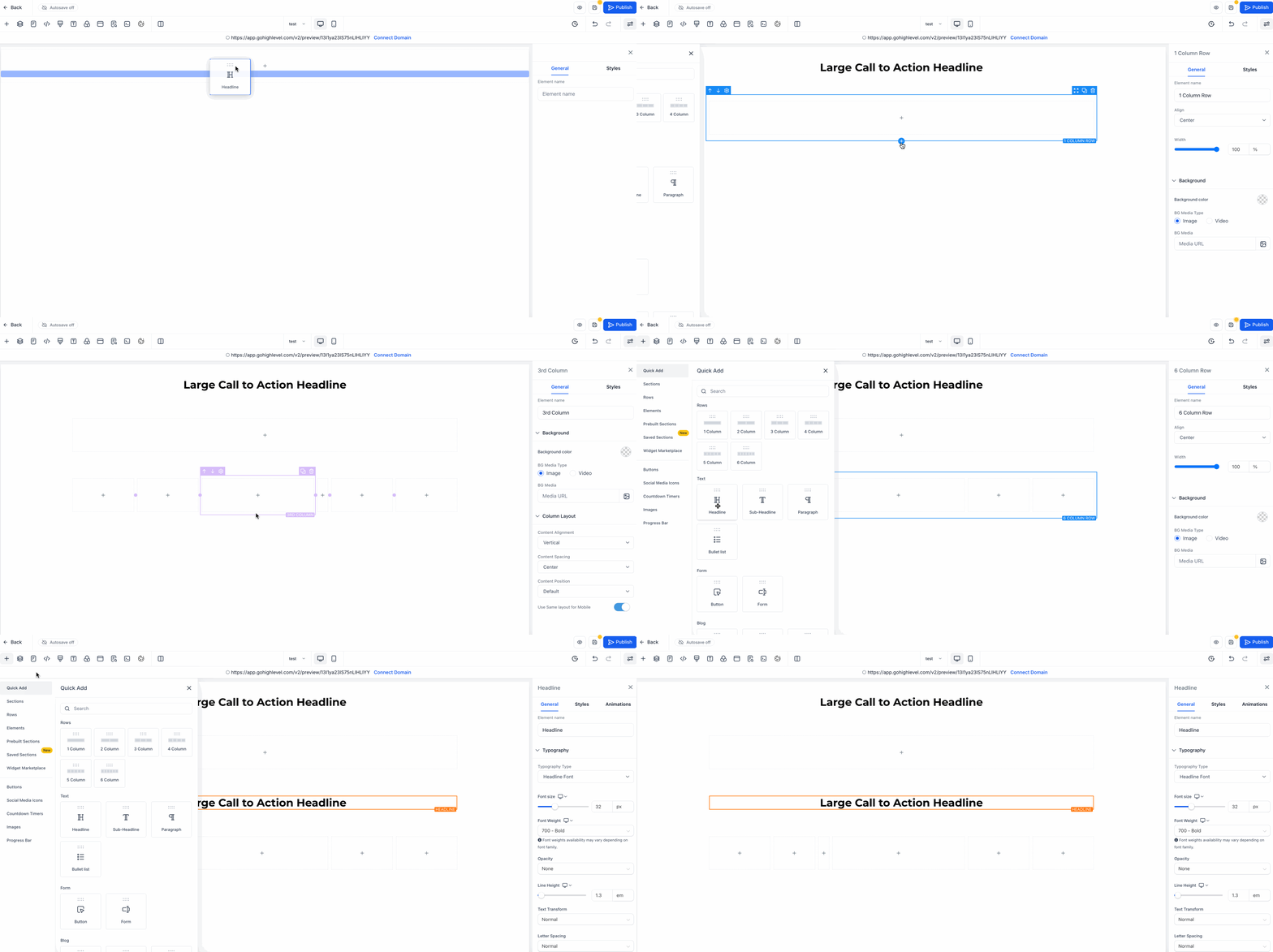
Reorder Columns Within a Row
You can reorder columns within the same row to adjust layout and content flow without rebuilding the section.
Hover over the row to reveal column boundaries and drop zones.
Grab the column and drag it left or right within the same row.
Use the drop indicator to place it in the new position, then release to drop.
Note: Column reordering is currently scoped to the same row. Reordering columns can change responsive stacking. Re-check tablet and mobile views after reordering.Tips for precision placement
Use zoom to make small placement changes easier.
Use rulers/guides (when available) to align elements consistently.
Use Undo/Redo to experiment safely and back out of misdrops quickly.
Quick Examples of the Enhanced Drag and Drop Experience
These examples show how the builder handles layout creation dynamically:
Dragging a Text Element onto a Blank Canvas: Builder auto-creates: Section > Row > Column > Text
Dragging a Row onto a Blank Canvas: Builder auto-creates: Section > Row (with default columns)
Adding Columns to an Existing Row: Simply click the “+ Add Column” button inline on the canvas to expand the layout
Frequently Asked Questions
Q: Do I still need to manually add Sections or Rows?
No, the builder creates them automatically based on what you drag and where you drop it.
Q: Can I disable the auto-wrap behavior?
Currently, this behavior is automatic and cannot be disabled.
Q: What if I want to customize the layout structure manually?
You can still add Sections, Rows, and Columns the traditional way if you prefer full control.
Q: Does this feature work in both Funnels and Websites?
Yes, the drag-and-drop enhancements apply to both Funnels and Websites.
Q: Will this affect my existing pages?
No, this only impacts the experience when creating or editing new elements going forward.
Q: Do I still need the move handle?
No. You can grab any part of the element to move it.
Q: Does this work in mobile view?
Yes. Re-check responsive order after reordering columns to confirm tablet/mobile layout.
Related Articles
Was this article helpful?
That’s Great!
Thank you for your feedback
Sorry! We couldn't be helpful
Thank you for your feedback
Feedback sent
We appreciate your effort and will try to fix the article