Course Tags help creators categorize course content and give learners a faster way to find relevant courses in their library. Creators can assign predefined Language, Difficulty, and Topic values from Course Settings, while learners can use those values to filter courses in All Courses and My Courses. This creates a more organized, catalog-style experience without requiring custom fields or manual sorting.
TABLE OF CONTENTS
- What Are Course Tags?
- Key Benefits of Course Tags
- Course Tag Types
- How Course Tags Appear in the Learner Library
- How to Set Up Course Tags
- How Learners Filter Courses
- Frequently Asked Questions
What Are Course Tags?
Course Tags are predefined labels that describe a course’s language, difficulty level, and topic. These labels give learners useful context before opening a course and make larger course libraries easier to browse.
Creators can assign the following tag types to a course:
- Language: Identifies the language used for the course.
- Difficulty: Communicates the course’s intended skill or experience level.
- Topic: Categorizes the course by its primary subject.
After the course is saved, the selected tags appear on its course card in the learner library. Learners can also use the corresponding filters to narrow the courses displayed in All Courses and My Courses.
Course Tags are designed for categorization and discovery. Course creation, editing, offers, and access are managed through their respective Memberships features. HighLevel’s existing course documentation confirms that courses are created and managed from Memberships → Courses → Products → Choose the respective course.
Key Benefits of Course Tags
Course Tags make course libraries easier to organize and navigate by adding consistent information to every configured course.
- Faster course discovery: Learners can narrow the library based on language, difficulty, or subject.
- Clearer expectations: Course cards help learners understand the content before opening a course.
- Consistent categorization: Predefined values create standardized labels across the course catalog.
- Simpler course management: Creators can organize courses without building custom fields or manually arranging content.
- Improved learner experience: Filters create a polished, catalog-style browsing experience.
- Support for multiple library views: Learners can use course filters in both All Courses and My Courses.
Course Tag Types
Each tag type communicates a different part of the learning experience. Choosing accurate values helps learners determine whether a course matches their language needs, experience level, and interests.
Language
The Language tag identifies the language in which the course is delivered. Learners can use this value to find courses they can comfortably understand.
Difficulty
The Difficulty tag communicates the expected skill or knowledge level for the course. This helps learners select content that is appropriate for their experience.
Topic
The Topic tag identifies the course’s primary subject area. Learners can use Topic filters to focus on content related to their interests or goals.
Note: Course Tags use predefined values for consistent labeling. The supplied release information does not confirm whether these values can be customized or whether more than one value can be selected within each tag type.
How Course Tags Appear in the Learner Library
Tags displayed on course cards give learners useful information without requiring them to open each course. Library filters then allow learners to reduce the displayed catalog to courses matching selected criteria.
After tags are assigned and the course is saved:
- The selected Language, Difficulty, and Topic values appear on the course card.
- Learners can filter the library by Language, Difficulty, and Topic.
- Filters are available in All Courses and My Courses.
- Learners can select Clear all filters to remove the active filters.
HighLevel’s Client Portal documentation identifies membership courses as one of the experiences customers can access through the portal.
Note: The supplied screenshots show different example tag values for the Radiant Life course. Use a consistent example throughout the published article or state in the image captions that the screenshots demonstrate separate configurations.
How to Set Up Course Tags
Accurate course tags help learners understand and discover your content. Complete the configuration from the course’s Settings page, then save the course so the selected values appear in the learner library.
- Go to Memberships from the left navigation menu.
- Select Courses, then open Products.
- Open the course you want to categorize.
Select Settings from the course menu.
- Scroll to the Course tags area.
- Select a value from the Language dropdown.
- Select a value from the Difficulty dropdown.
Select a value from the Topic dropdown.
Review the selected values to ensure they accurately describe the course.
- Click Save.
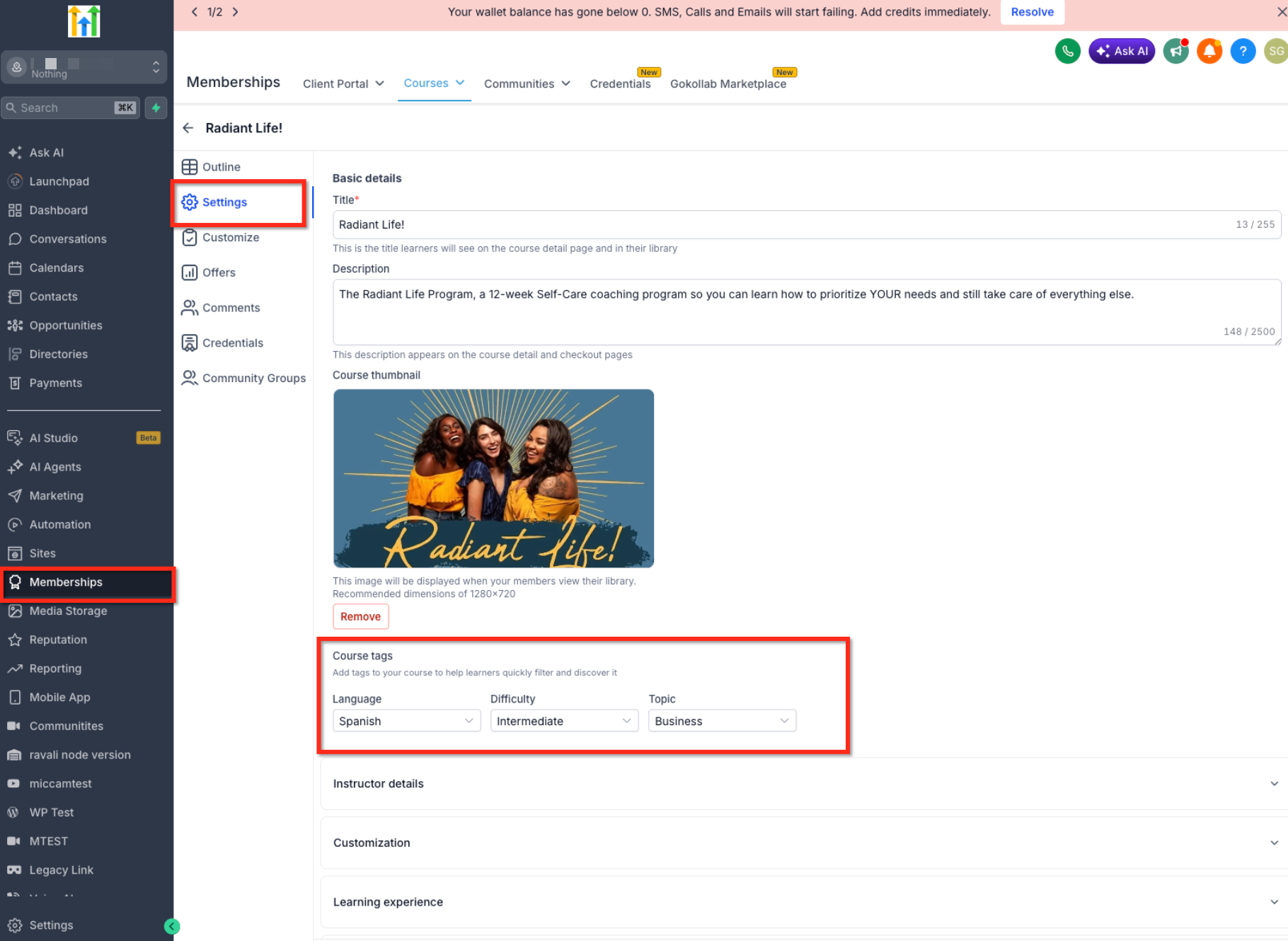
Once saved, the configured tags sync to the learner library, where they can appear on the course card and be used as filters.
How Learners Filter Courses
Course filters help learners focus on content that matches their preferred language, current experience level, or subject interests. This is especially useful when the library contains many courses.
To filter the course library:
- Open the course library in the Client Portal.
- Select either All Courses or My Courses.
- Select one of the available filters:
- Language
- Difficulty
- Topic
- Language
- Choose the value you want to use.
- Review the courses displayed in the filtered results.
- Select Clear all filters to return to the unfiltered library.
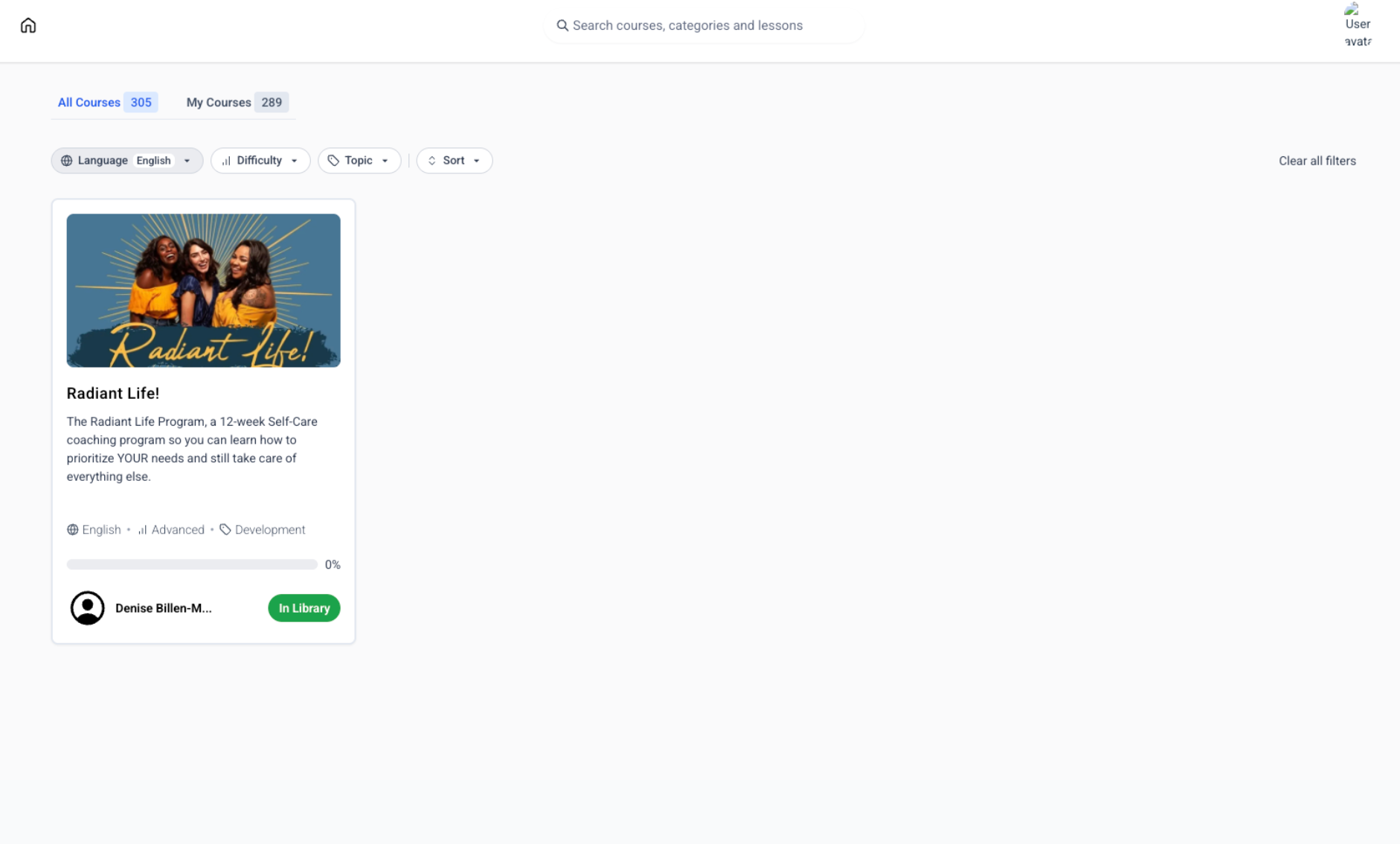
The release information confirms that these filters work in both All Courses and My Courses. It does not confirm whether filter selections remain active after the learner leaves the page.
Frequently Asked Questions
Q: Are Course Tags the same as tagging a course in a Communities post?
No. Course Tags categorize a course by Language, Difficulty, and Topic for display and filtering in the course library. Referencing a course in a Communities post or comment is a separate feature.
Q: Do Course Tags replace course offers or access settings?
No. Course Tags are used to organize and describe courses. Course access can be granted through separate methods, including offers and workflows.
Q: Where do learners see Course Tags?
The selected tags appear on course cards in the learner library.
Q: Which library views support the new filters?
Learners can filter courses in both All Courses and My Courses.
Q: Can creators enter custom tag values?
Course Tags use predefined values for consistent labeling. The supplied release information does not confirm whether those predefined values can be edited or expanded.
Q: Can I assign multiple languages, difficulty levels, or topics to one course?
The supplied release information does not confirm whether each tag category supports multiple selections.
Q: What happens when a course does not have tags?
The supplied release information does not define how untagged courses appear when learners apply filters. Add tags to each course when you want it categorized through the new filter options.
Q: Do Course Tags affect enrollment or permissions?
Course Tags are presented as categorization and discovery tools. Enrollment and access are managed through separate course-access features.
Q: Are Course Tags available in the Communities Learning tab?
The supplied release information confirms support for All Courses and My Courses library views. It does not confirm support for the Communities Learning tab.
Q: Do tag changes appear automatically for learners?
The release information states that saved tags sync to the learner library. A specific synchronization time is not provided.
Was this article helpful?
That’s Great!
Thank you for your feedback
Sorry! We couldn't be helpful
Thank you for your feedback
Feedback sent
We appreciate your effort and will try to fix the article