HighLevel automatically notifies contacts when a new file is shared with them through the Client Portal. These notifications help contacts find important documents, contracts, invoices, and other shared files without relying on a separate message from the business. Contacts can view notifications across supported Client Portal experiences and manage their notification preferences based on how they want to receive updates.
TABLE OF CONTENTS
- What Are File Share Notifications?
- Key Benefits of File Share Notifications
- How File Share Notifications Work
- Supported Notification Channels
- How to Share a File with a Contact
- How Contacts Manage Notification Preferences
- Troubleshooting File Share Notifications
- Frequently Asked Questions
- Related Articles
What Are File Share Notifications?
File share notifications alert contacts when a HighLevel user makes a file available through the Client Portal. This helps businesses keep clients informed while giving contacts a direct way to identify and access newly shared documents.
When a user shares a file from a contact record and enables the option to upload or share it with the Client Portal, HighLevel creates a notification for the contact.
Depending on the contact’s notification preferences, the contact may receive:
- An in-app notification in the Client Portal
- A push notification through the supported White Label Mobile App
A separate workflow is not required to generate the standard file share notification.
Key Benefits of File Share Notifications
File share notifications improve communication by alerting contacts as soon as important files become available. This reduces the need for manual follow-up and helps contacts respond to shared information more quickly.
- Automatic Client Updates: Contacts are notified when a file is shared with them through the Client Portal.
- Improved File Visibility: Important documents are less likely to be overlooked after they are uploaded.
- Fewer Manual Reminders: Businesses do not need to send a separate message each time a file is shared.
- Cross Platform Access: Notifications are supported through the Client Portal web experience and the White Label Mobile App.
- Contact Controlled Preferences: Contacts can choose whether to receive available in-app and push notifications.
- Better Client Experiences: Timely alerts make document sharing feel more organized and reliable.
How File Share Notifications Work
Understanding the notification flow helps users know which action creates the alert and what contacts can expect after a file is shared.
A file share notification is triggered when a HighLevel user:
- Opens a contact record.
- Uploads a new file or selects an available file.
- Enables the option to share or upload the file to the Client Portal.
- Saves the file.
After the file is shared:
- The contact receives an in-app notification.
- The contact may receive a push notification when push notifications are enabled.
- The shared file becomes available through the contact’s Client Portal experience.
File share notifications are generated automatically through the supported file-sharing process. They are separate from custom notifications created with workflow actions such as Smart Push Notifications.
Supported Notification Channels
Notification channels determine where contacts see alerts about newly shared files. Understanding each channel helps businesses set accurate expectations for web and mobile users.
File share notifications support the following channels:
- In-App Notifications: Displayed within the Client Portal notification experience.
- Push Notifications: Delivered through the supported White Label Mobile App when the contact has enabled push notifications.
Push notification delivery may also depend on the contact’s mobile device permissions. When push notifications are disabled at the device level, the contact may still see the notification after opening the Client Portal.
How to Share a File with a Contact
Sharing files through the supported Client Portal flow ensures that the contact can access the document and receive the associated notification.
- In HighLevel, navigate to Contacts.
- Open the contact who should receive the file.
- Open the Files area from the right-side navigation panel.
- Upload a new file or select an existing file.
- Enable Upload to Client Portal.
- Save the file.
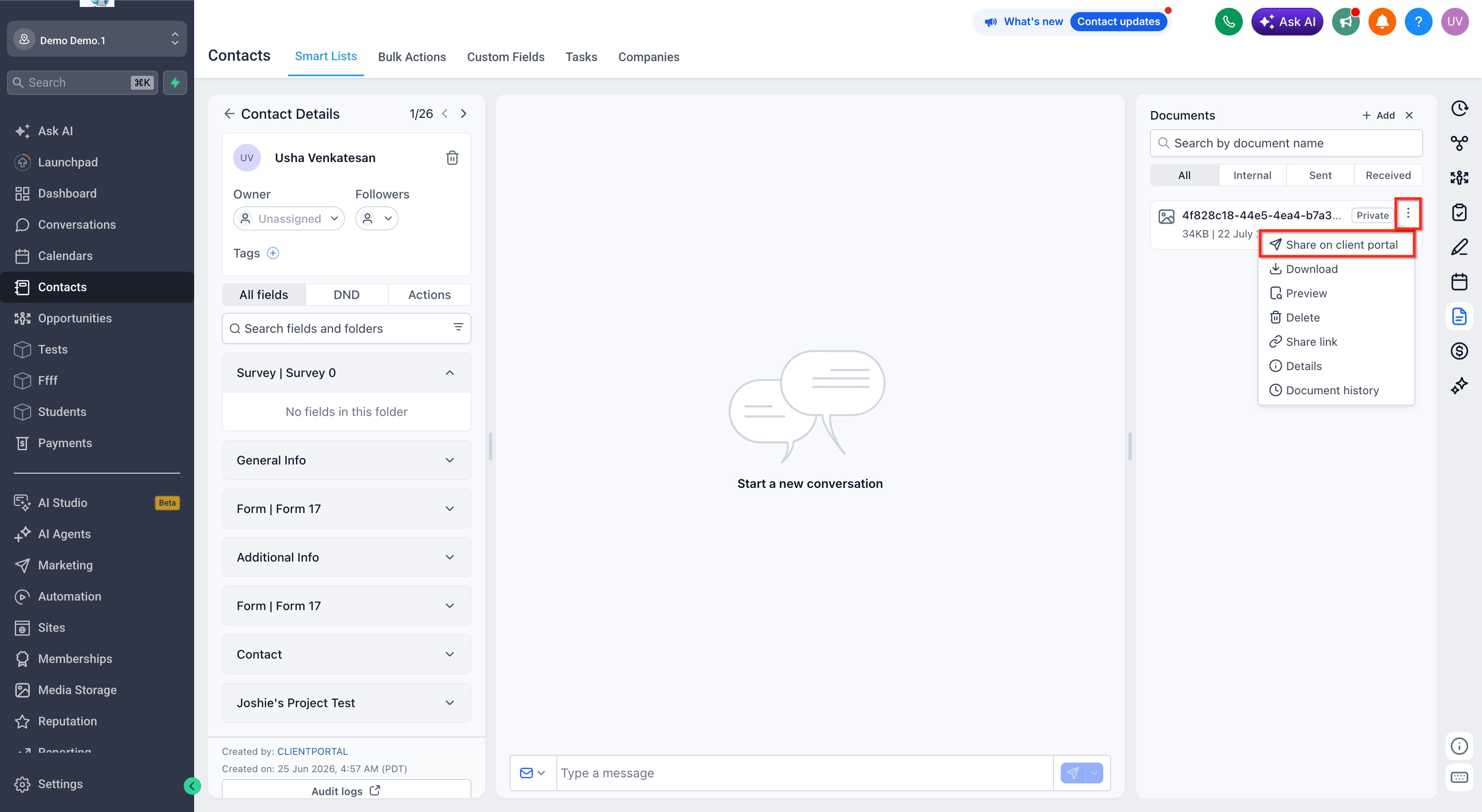
After the file is saved and shared, HighLevel sends the contact an in-app notification and, when enabled, a push notification.
Important: HighLevel may use different labels for uploaded files and Documents & Contracts records. File share notifications described here apply to files shared through the supported contact and Client Portal file-sharing process.How Contacts Manage Notification Preferences
Notification preferences let contacts control how they receive file-related updates. Keeping these settings current helps contacts avoid unwanted alerts while continuing to receive important notifications through their preferred channels.
- Log in to the Client Portal.
- Go to Settings.
- Open Notification Preferences.
- Enable or disable In-app Notifications and Push Notifications.
- Save the changes.
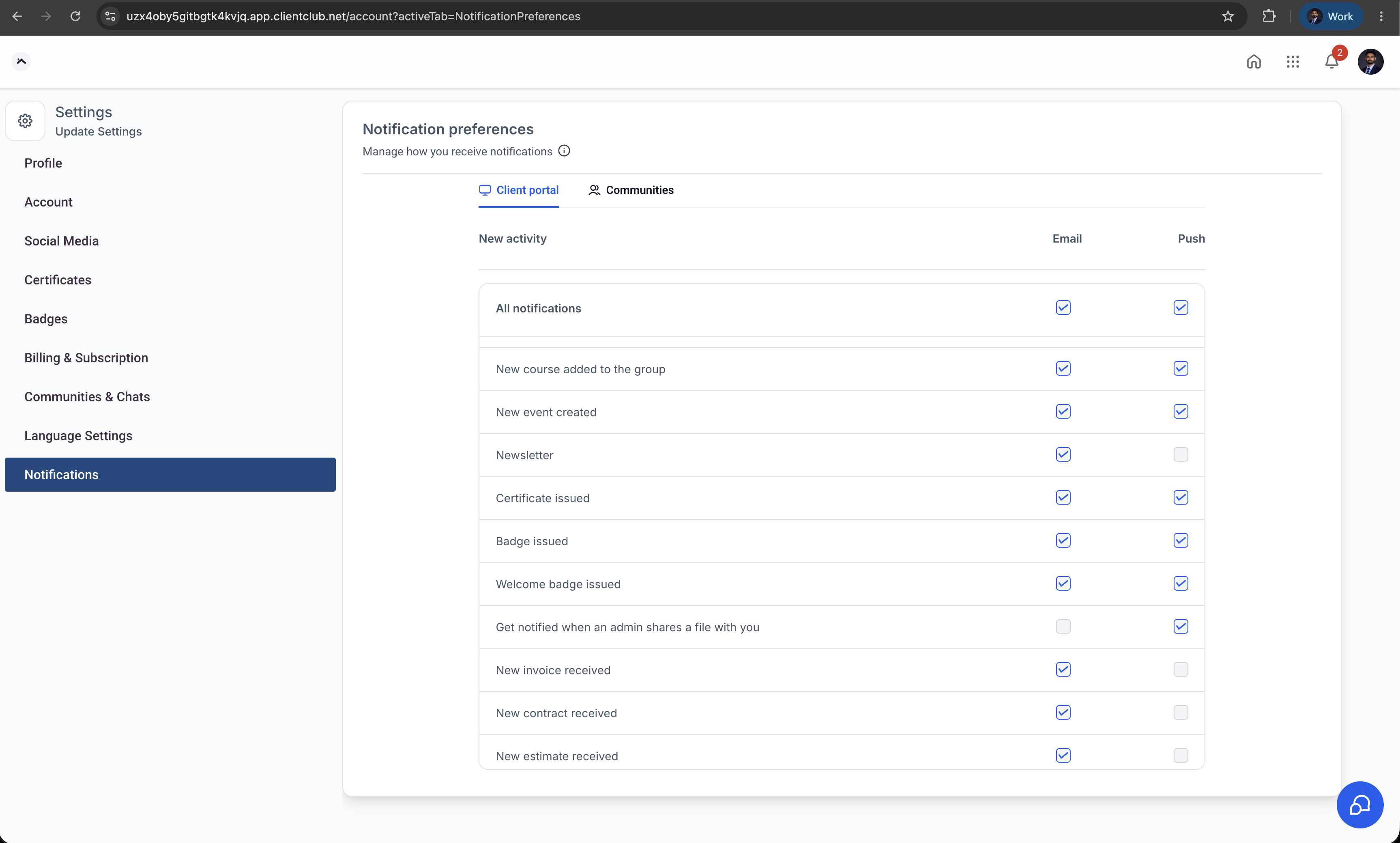
Disabling notifications does not remove the contact’s access to files that have already been shared. It only changes how the contact is alerted about supported activity.
Troubleshooting File Share Notifications
Notification delivery depends on the file being shared through the correct Client Portal process and the contact’s notification settings. Checking both the HighLevel record and the contact’s access helps identify common causes of missing alerts.
When a contact does not receive a notification, review the following:
- Confirm that Upload to Client Portal was enabled before the file was saved.
- Confirm that the file appears as shared in the contact record.
- Verify that the contact has access to the Client Portal.
- Ask the contact to review their Client Portal notification preferences.
- Confirm that push notifications are enabled in the White Label Mobile App.
- Confirm that the mobile device allows notifications from the app.
- Verify that the contact is signed in to the correct Client Portal account.
- Ask the contact to check the notification bell inside the Client Portal.
An in-app notification may still be available even when a device blocks push notifications.
Frequently Asked Questions
Q: Does a workflow need to be created for file share notifications?
A: No. HighLevel automatically generates the notification when the file is shared through the supported Client Portal file-sharing process.
Q: Which notification channels are supported?
A: File share notifications support in-app notifications and push notifications. Push notifications must be enabled by the contact.
Q: Are email or SMS notifications sent when a file is shared?
A: The release information identifies in-app and push notifications as the supported channels. It does not identify email or SMS as part of this feature.
Q: Can contacts disable file share notifications?
A: Contacts can manage available in-app and push notification settings from their Client Portal notification preferences.
Q: Will disabling notifications remove access to a shared file?
A: No. Notification preferences control alerts, not access to files that have already been shared.
Q: Why did the contact receive an in-app notification but not a push notification?
A: Push notifications may be disabled in the Client Portal preferences, the mobile app, or the contact’s device settings.
Related Articles
Was this article helpful?
That’s Great!
Thank you for your feedback
Sorry! We couldn't be helpful
Thank you for your feedback
Feedback sent
We appreciate your effort and will try to fix the article