The Client Portal Notifications feature consolidates notifications from the Client Portal and its associated child apps into one central location: the Notifications tab. This allows users to conveniently access and manage their notifications within the application.
TABLE OF CONTENTS
- How to Access Notifications
- What Notifications You Will Receive
- Managing Notification Preferences
- Notification Options for Individual Users
- Notification Controls for Portal Owners
- How to Manage Your Notification Preferences
- Benefits of Notification Customization
- Frequently Asked Questions
- Related Articles
How to Access Notifications
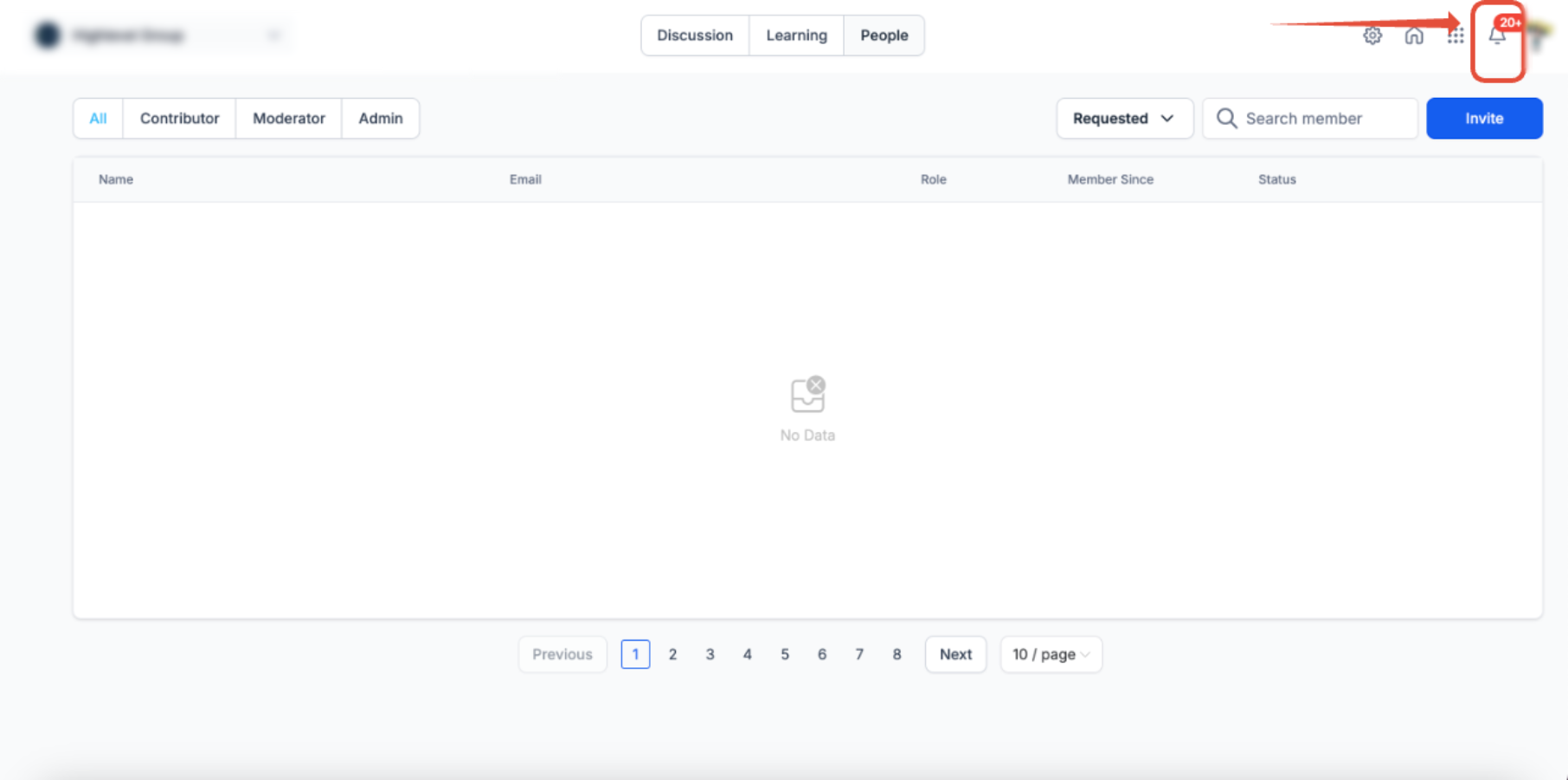
The Notifications tab brings Client Portal and child-app notifications together so users can review activity from one place.
- Navigate to the Bell icon within the application.
- Notifications, including those from child apps such as Courses and Communities, are listed in the same place.
- Click a notification to view its details or take the relevant action.
Community activity can generate in-app and email notifications based on the member's notification preferences.
Note: All notifications sent through the Client Portal, including Communities, are charged. When a notification links to a Community post, the post may open in a dedicated full-page view on the web for easier reading.
What Notifications You Will Receive
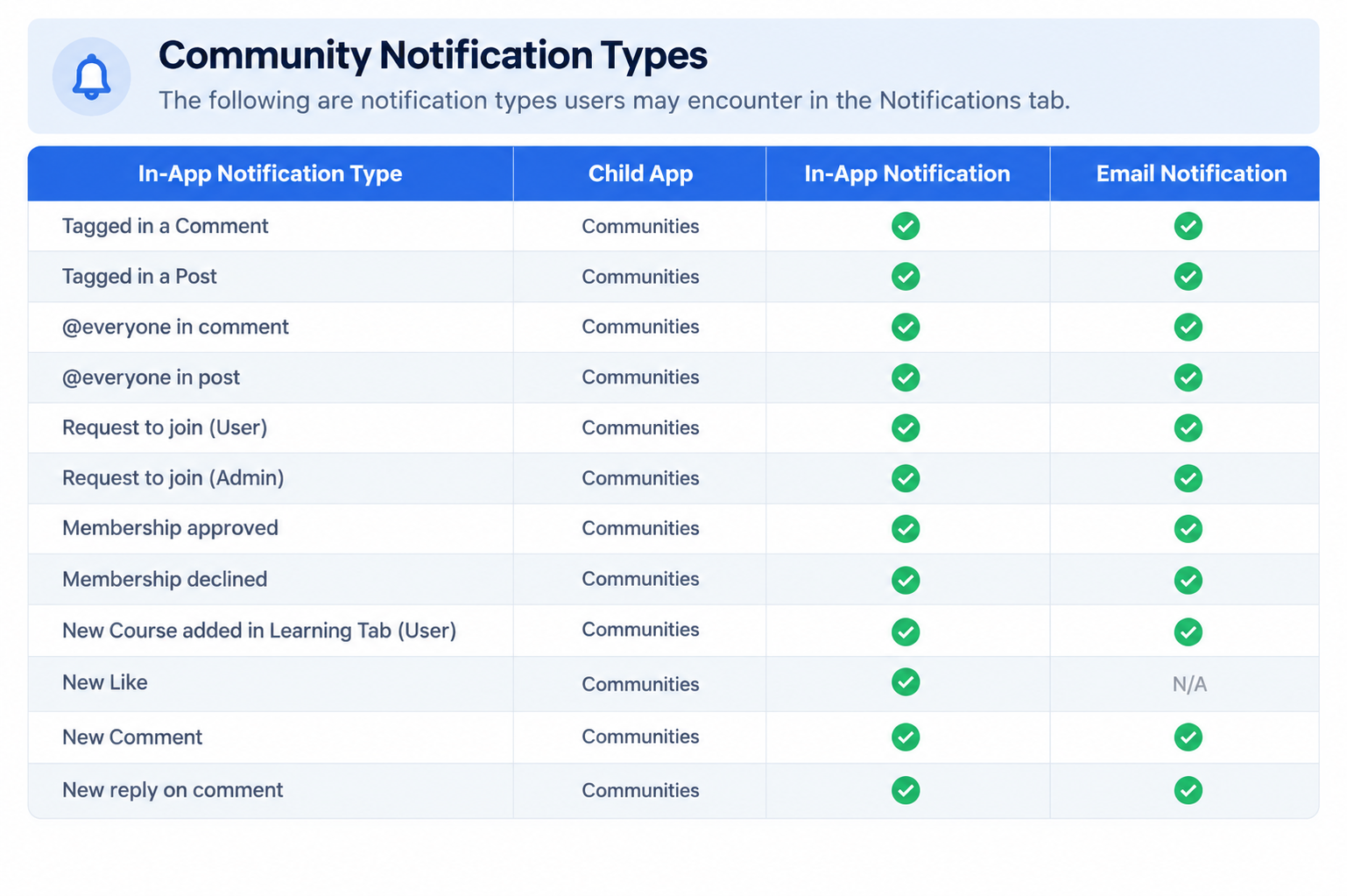
Note: The table describes available notification types. Granular unsubscribe availability can vary by supported Community email notification type.
Managing Notification Preferences
The Client Portal includes notification controls that allow individual users and portal owners to manage how and when alerts are delivered. These settings help users stay informed while minimizing unnecessary notifications.
Notifications can be delivered by email or push for mobile app users, and preferences can be customized by event type.
For eligible Community emails, members can also unsubscribe from a specific notification type for a specific community without disabling other Community or platform emails.
Notification Options for Individual Users
Users can control whether they receive email or push notifications for specific types of events. This helps create a more personalized notification experience while keeping important updates available.
Users can independently enable or disable email and push notifications for the following event types:
- Community updates
- Course certificates
- Likes on posts
- Likes on comments
Notification preferences can be accessed through the Manage Your Account section of the Client Portal.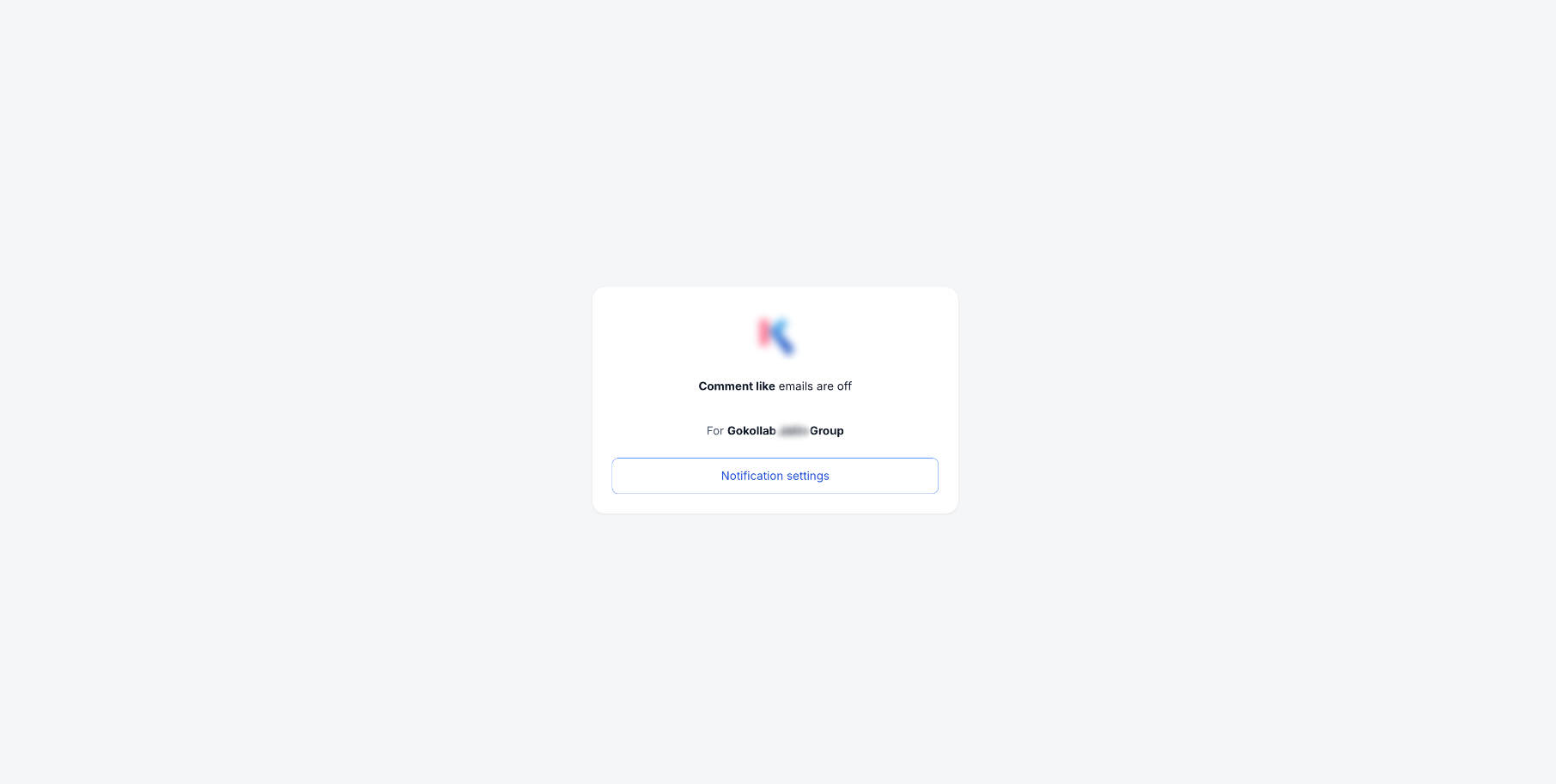
Unsubscribe from a Specific Community Email
Granular unsubscribe controls let members stop an eligible Community email notification without disabling unrelated Community or platform emails. The preference applies only to the community that generated the email and the specific notification type shown on the unsubscribe page.
When you click Unsubscribe in an eligible Community email:
- Review the community name and notification type shown on the confirmation page.
- Confirm the unsubscribe preference.
- Future emails matching that community and notification type stop.
- Other notification types from that community continue as normal.
- The same notification type from other communities continues as normal.
- Unrelated platform emails remain enabled.
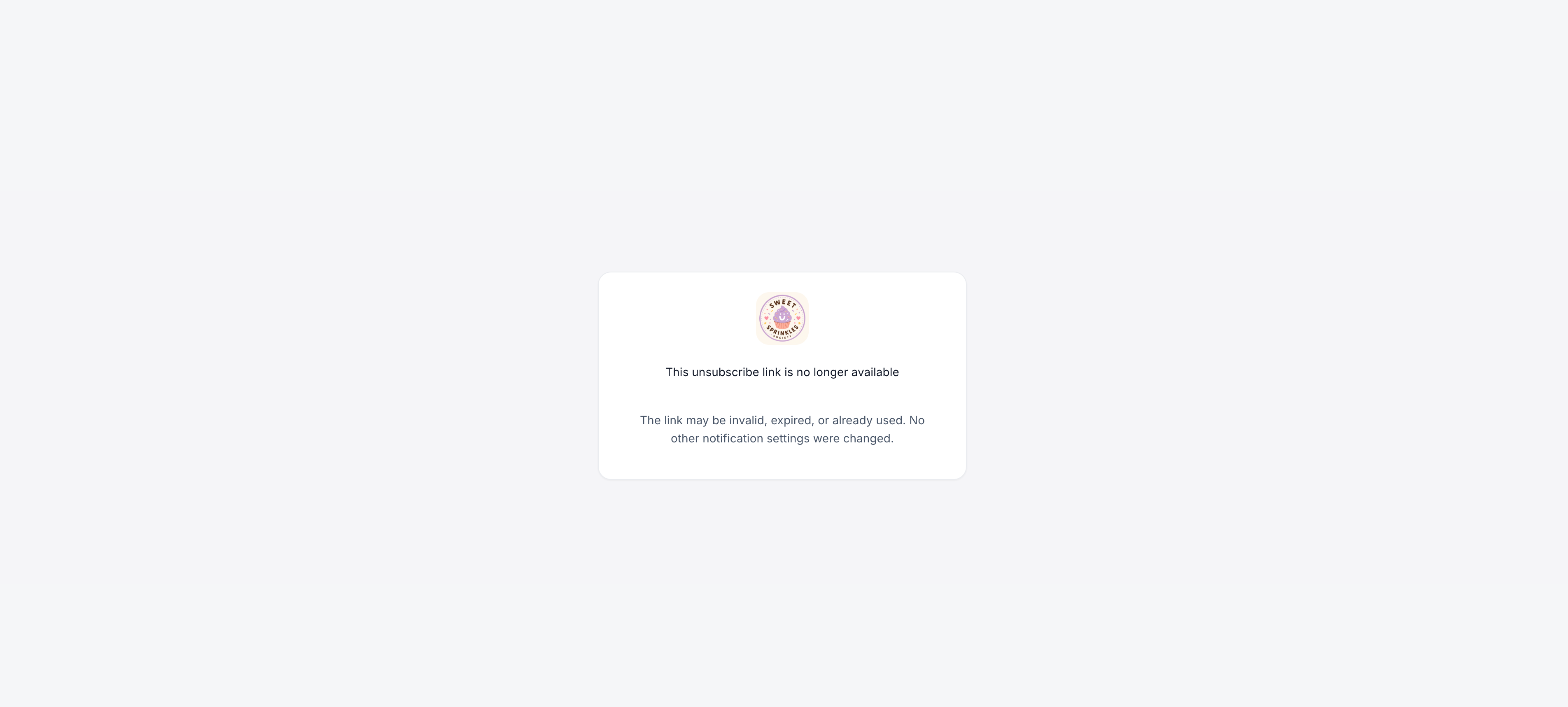
Note: If the unsubscribe link is invalid, has already been used, or has expired, no notification preferences are changed.
Notification Controls for Portal Owners
Portal owners can configure certain notification defaults, specifically around engagement signals such as likes. These settings apply across the portal and may override individual preferences in some cases.
Owner-controlled settings include:
- Enabling or disabling email notifications for post likes
- Enabling or disabling email notifications for comment likes
When a notification setting is locked by the portal owner, the user will see a tooltip explaining that the option is managed by the administrator.
How to Manage Your Notification Preferences
Users can manage their notification preferences directly from their account settings.
- Navigate to the Client Portal, Communities, or Courses area.
- Click your profile icon in the upper-right corner.
- Select Manage Your Account from the dropdown menu.
- Choose Notifications from the left-hand menu.
- Use the toggle switches to turn email or push notifications on or off for each event type.
A Community email notification disabled through an unsubscribe link can be re-enabled from your notification settings at any time.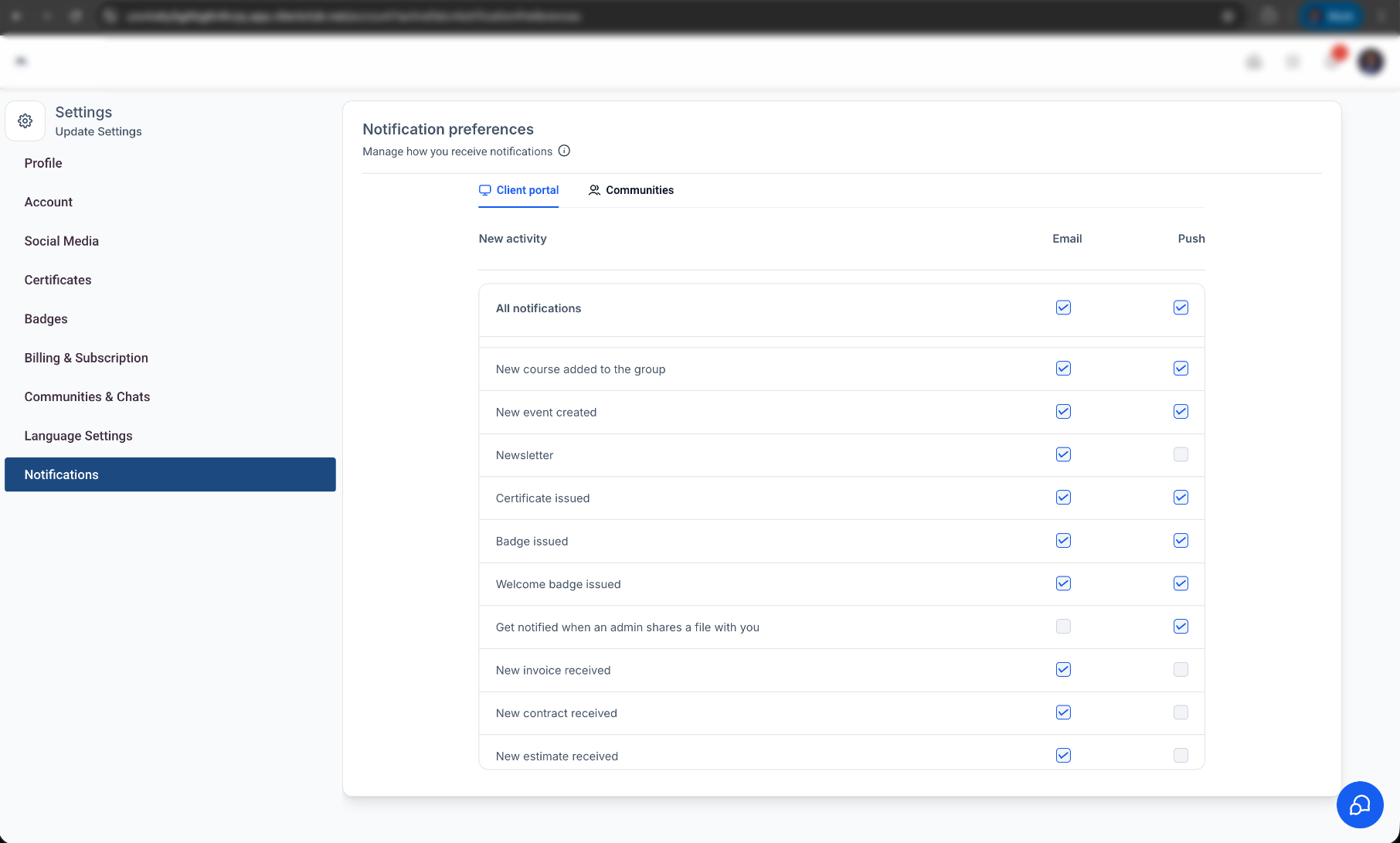
Benefits of Notification Customization
Notification controls help users stay informed while allowing them to choose which alerts are most relevant to them.
Greater Personalization
Users can tailor their notification preferences to reduce inbox clutter and avoid unnecessary alerts.
Push Notification Support
Push notifications can be independently managed in addition to email, giving mobile users more flexibility.
Engagement Awareness
Users can receive alerts when their content receives likes, helping them stay connected to the community.
Simplified User Experience
Clear tooltips indicate when a notification setting is controlled by the portal owner, reducing confusion and support issues.
Frequently Asked Questions
Q: Can I unsubscribe from one Community email without disabling all Community emails?
Yes. For eligible Community emails, you can unsubscribe from a specific notification type for the specific community that generated the email. Other Community and platform emails remain enabled.
Q: Will unsubscribing stop other notification types from the same community?
No. Other notification types from that community continue according to your existing notification preferences.
Q: Will the same notification type be disabled for my other communities?
No. The unsubscribe preference applies only to the community identified on the unsubscribe confirmation page.
Q: What happens if the unsubscribe link is invalid, expired, or has already been used?
No notification preferences are changed. Use your notification settings to review or update your preferences instead.
Q: Can I turn a Community email notification back on after unsubscribing?
Yes. Go to the Client Portal, Communities, or Courses area, click your profile icon, select Manage Your Account, then open Notifications and re-enable the applicable notification.
Q: Why can't I change one of my notification settings?
Some notification settings can be controlled by the portal owner. When a setting is locked, a tooltip explains that the option is managed by the administrator.
Related Articles
- How to Setup, Customize, and Manage Your Communities
- Notification Preferences for Courses in the Client Portal
- Client Portal - File Share Notifications for Contacts
- Client Portal App - Custom Mobile App Notifications
Was this article helpful?
That’s Great!
Thank you for your feedback
Sorry! We couldn't be helpful
Thank you for your feedback
Feedback sent
We appreciate your effort and will try to fix the article