Snapshot Load History gives agencies a clear record of the Snapshots loaded into a HighLevel subaccount. Users can see which Snapshot was loaded, when it was loaded, which version was used, and who completed the load. They can also review each load and inspect the assets included, making account reviews and troubleshooting faster.
TABLE OF CONTENTS
What Is Subaccount Snapshot Load History?
Subaccount Snapshot Load History is an activity record for Snapshots loaded into a specific subaccount. It provides a clear path from a summary of all loaded Snapshots to the history of one Snapshot and then to the assets included in a particular load.
The feature contains three levels of information:
Snapshot Load History: Lists all Snapshots loaded into the subaccount.
Load History: Lists each time a selected Snapshot was loaded.
Asset Details: Shows the asset categories included in a selected load and their statuses.
Snapshot Load History is different from Snapshot Push Update History. Snapshot Load History starts from one subaccount and shows the Snapshots loaded into it. Snapshot Push Update History starts from an agency Snapshot and shows how an update was sent across subaccounts.
Key Benefits of Snapshot Load History
Snapshot Load History gives agencies a reliable record of previous Snapshot activity, helping teams understand account changes without relying on notes, support tickets, or information from other users.
Faster troubleshooting: Identify which Snapshot and version may have introduced a particular account setup.
Clear accountability: See who completed the most recent load and who completed each earlier load.
Better visibility: Review the complete Snapshot setup history of a subaccount from one place.
Version tracking: Confirm which version of a Snapshot was used for each load.
Detailed asset review: Open a load to review the asset categories included and their current status.
Easier team handoffs: Give support and implementation teams a shared record of previous Snapshot activity.
Information Available in Snapshot Load History
Each history view answers a different question about the Snapshot activity in the selected subaccount. Understanding the available columns helps users locate the right Snapshot, load, or asset details quickly.
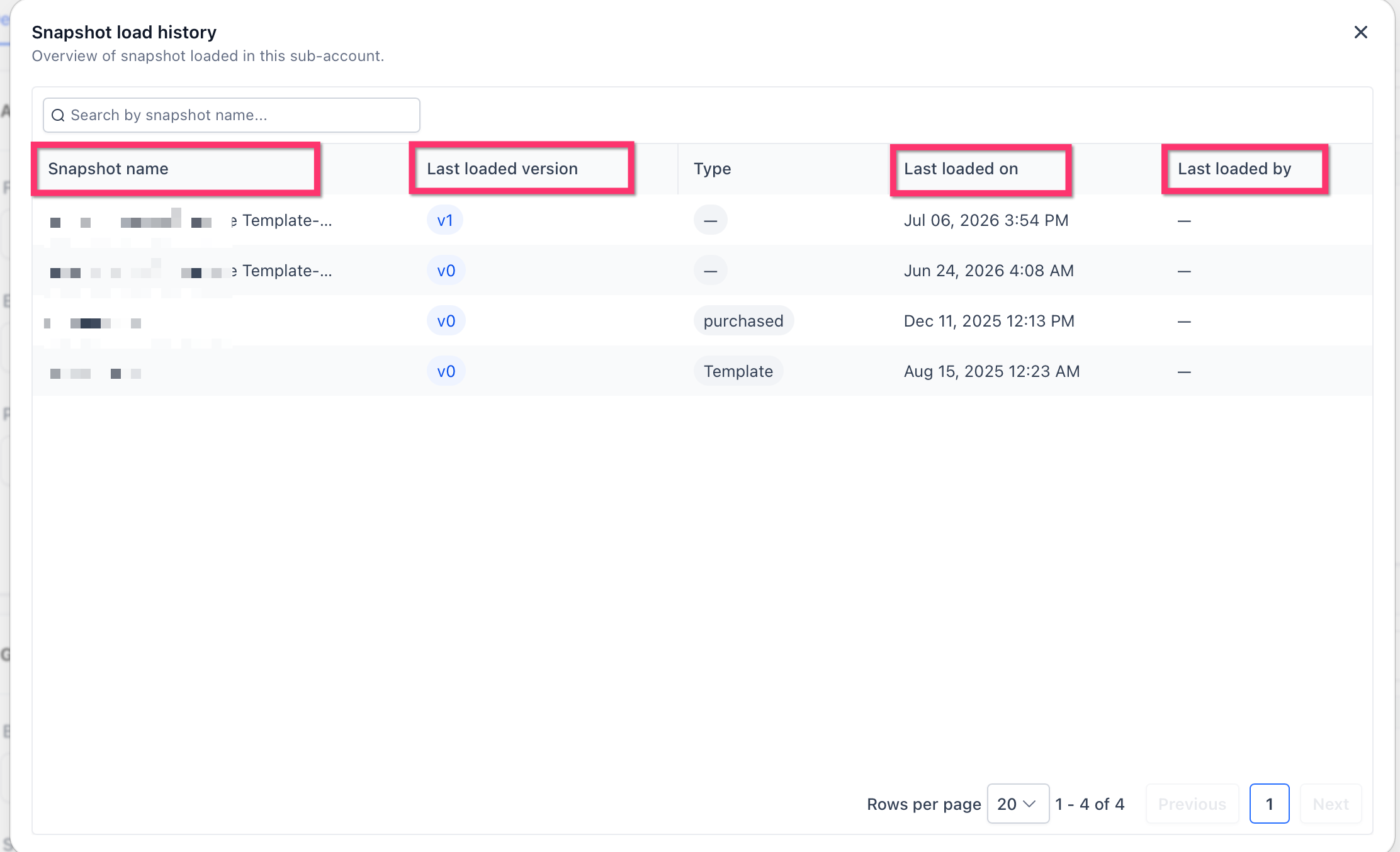
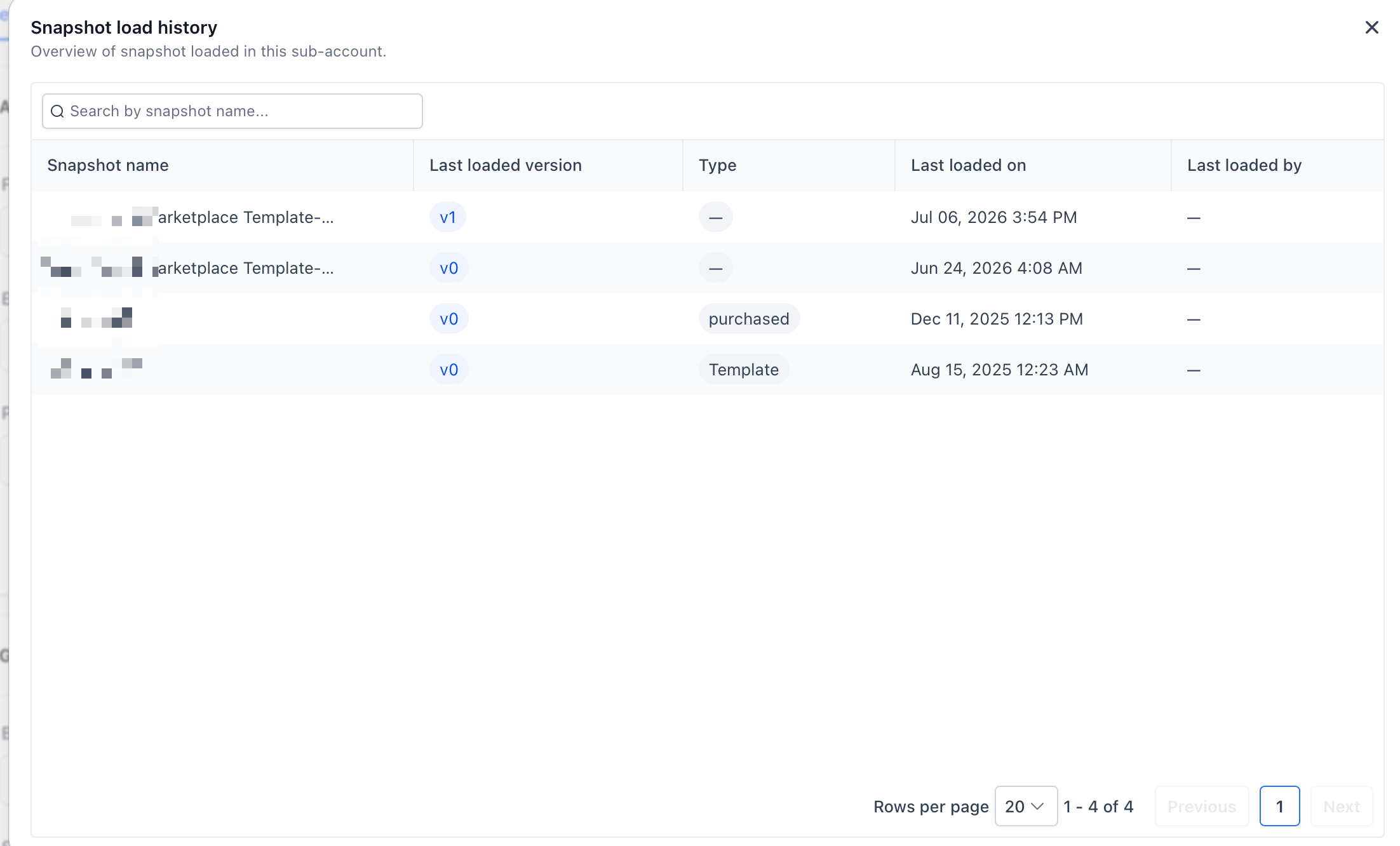
Snapshot Load History Columns
The first screen lists the Snapshots that have been loaded into the subaccount.
Snapshot name: The name of the Snapshot loaded into the subaccount.
Last loaded version: The most recent version of that Snapshot loaded into the subaccount.
Type: The source or ownership type assigned to the Snapshot.
Last loaded on: The date and time of the most recent load.
Last loaded by: The user who completed the most recent load.
The interface may display a dash when user information is unavailable.
Load History Columns
Selecting a Snapshot opens a list of each time that Snapshot was loaded into the subaccount.
Version: The Snapshot version used for the load.
Assets: The number of assets associated with the load.
Status: The result or current state of the load.
Loaded on: The date and time the load occurred.
Loaded by: The user who started the load.
Snapshot versions help users identify the exact version loaded into the subaccount. Snapshot Version Management separately shows what changed between versions after a Snapshot was refreshed.

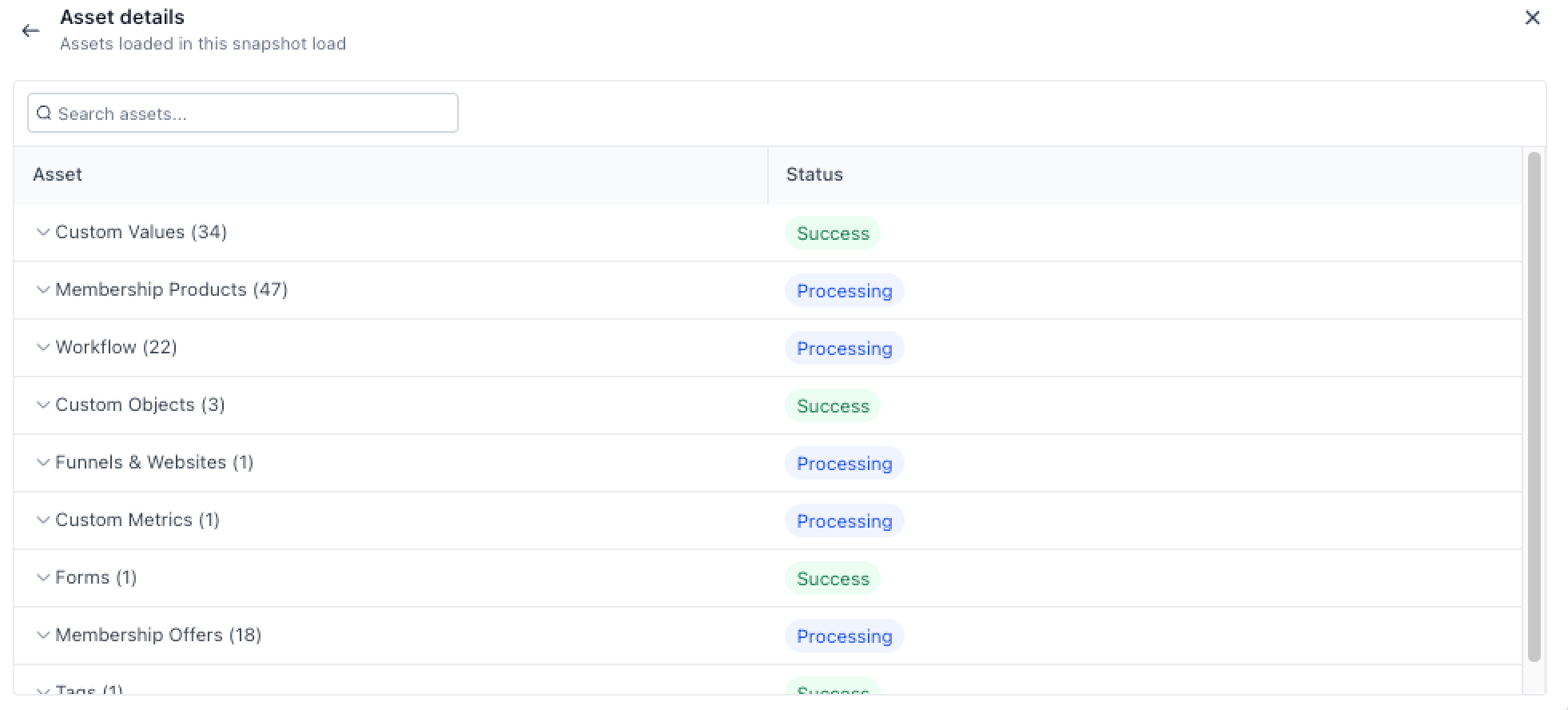
Asset Details
Selecting a load opens its Asset Details screen. Assets are grouped by category so users can review what was included and check the status of each category.
Visible examples may include:
Custom Values
Membership Products
Workflows
Custom Objects
Funnels & Websites
Custom Metrics
Forms
Membership Offers
Tags
The visible status labels may include Success and Processing. A processing status means HighLevel is still working on that asset category.
The Asset Details screen shows assets associated with a historical load. It is different from the Snapshot Asset Viewer, which shows the assets currently stored in a Snapshot.
Searching Snapshot Load History
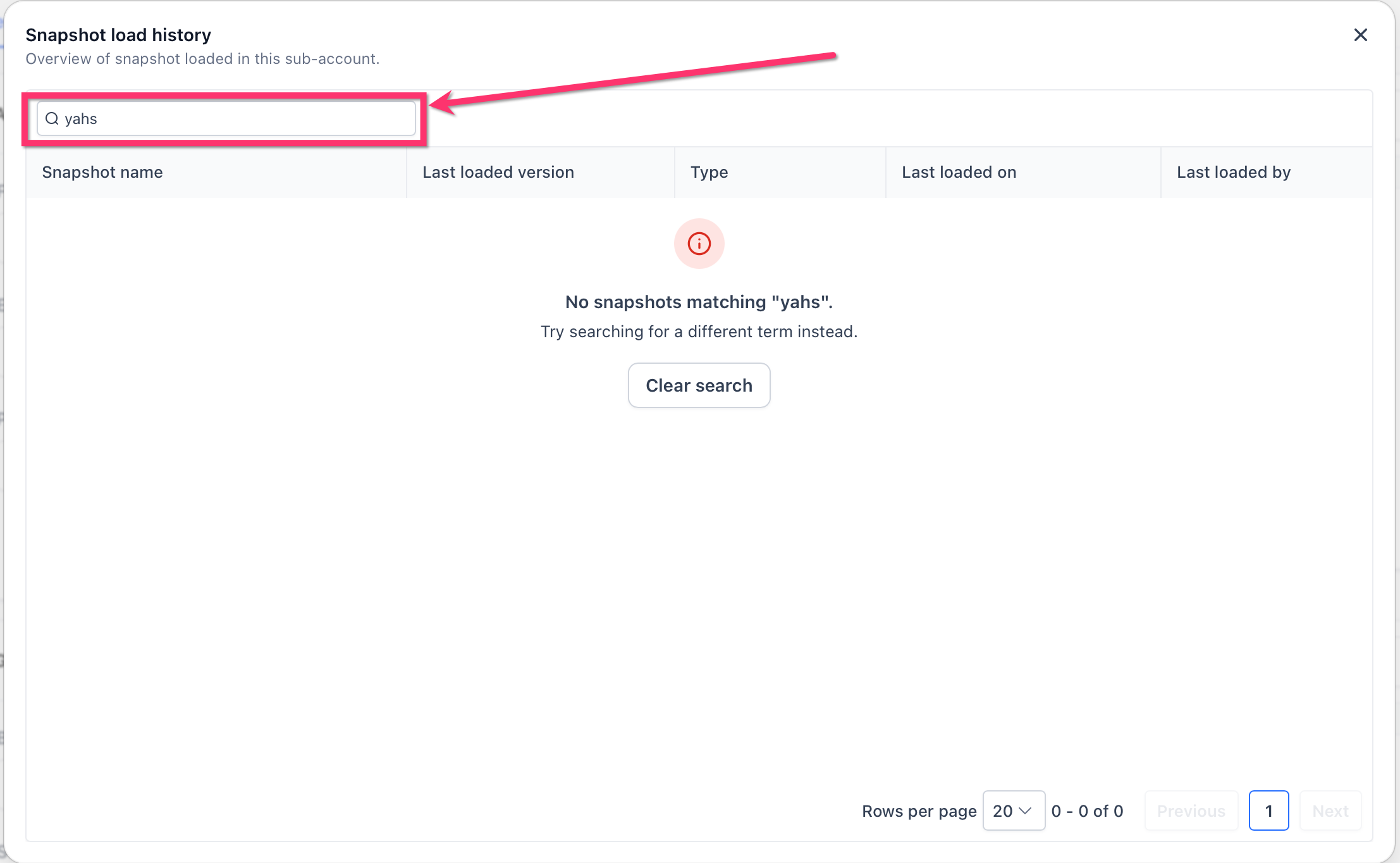
Search helps users find a Snapshot quickly when a subaccount has a long load history. The search field checks Snapshot names and updates the table to show matching results.
To search the history:
Click the Search by snapshot name field.
Enter all or part of the Snapshot name.
Review the matching records.
Click Clear search when no results appear or when you want to return to the complete list.
The table also includes page navigation and a rows-per-page selector for reviewing longer histories.
Snapshot Load History Compared with Other Snapshot Records
HighLevel provides different history and review tools for different Snapshot tasks. Choosing the correct view helps users avoid confusing a Snapshot’s contents, versions, pushes, and subaccount load history.
Subaccount Snapshot Load History: Shows every Snapshot loaded into one subaccount.
Snapshot Push Update History: Shows the results of a Snapshot update pushed across subaccounts.
Snapshot Version Management: Shows assets added, removed, or synchronized when a Snapshot was refreshed.
Snapshot Asset Viewer: Shows the assets currently contained in a Snapshot.
Snapshot Load Retry: Provides recovery options for eligible failed Snapshot loads.
How To View Snapshot Load History
Opening Snapshot Load History from the correct subaccount ensures that the records apply to the account you are reviewing. From there, users can move from the full Snapshot list to a specific load and its asset details.
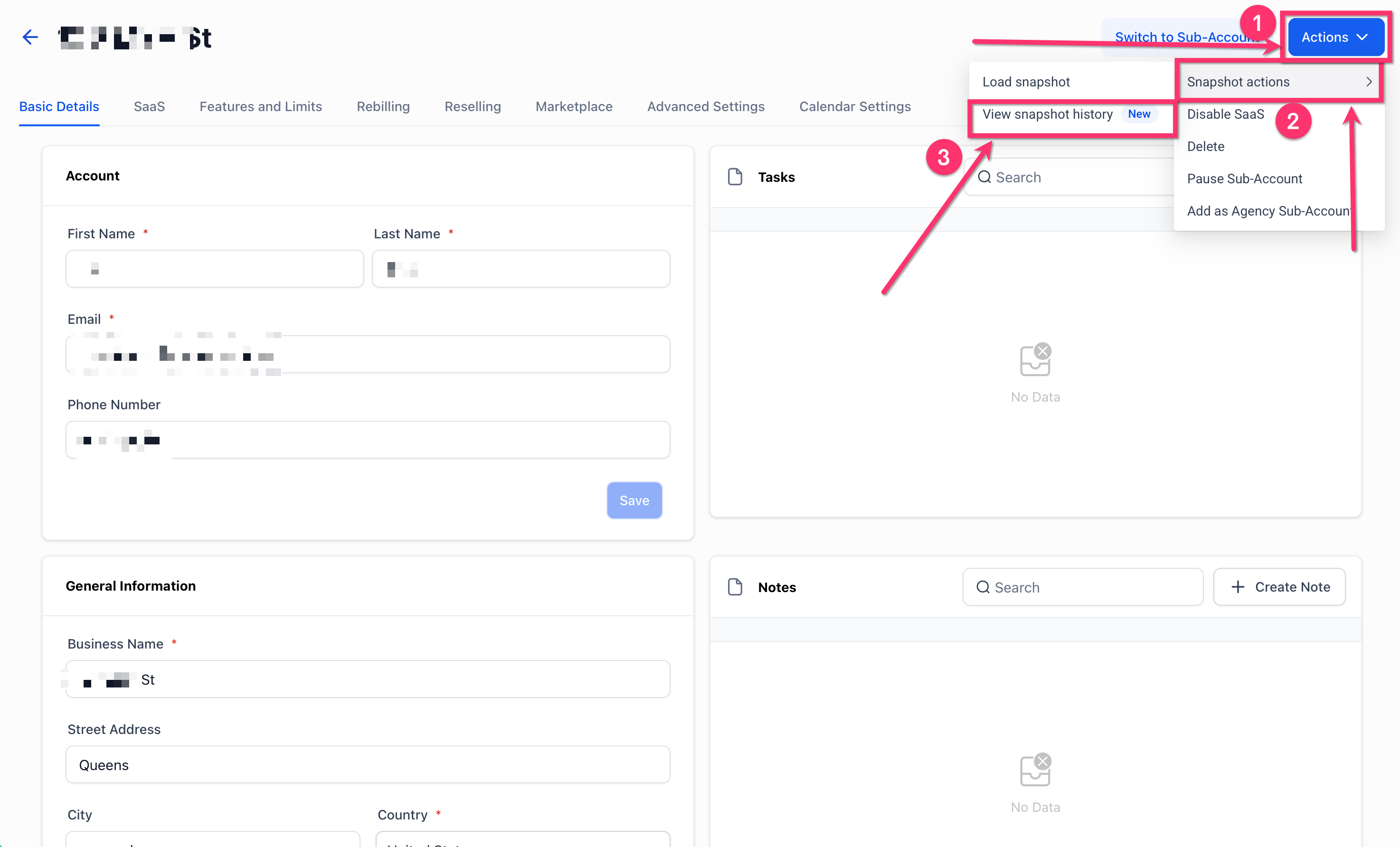
Open Snapshot Load History
Go to Agency View.
Open Sub-Accounts.
Select the subaccount you want to review.
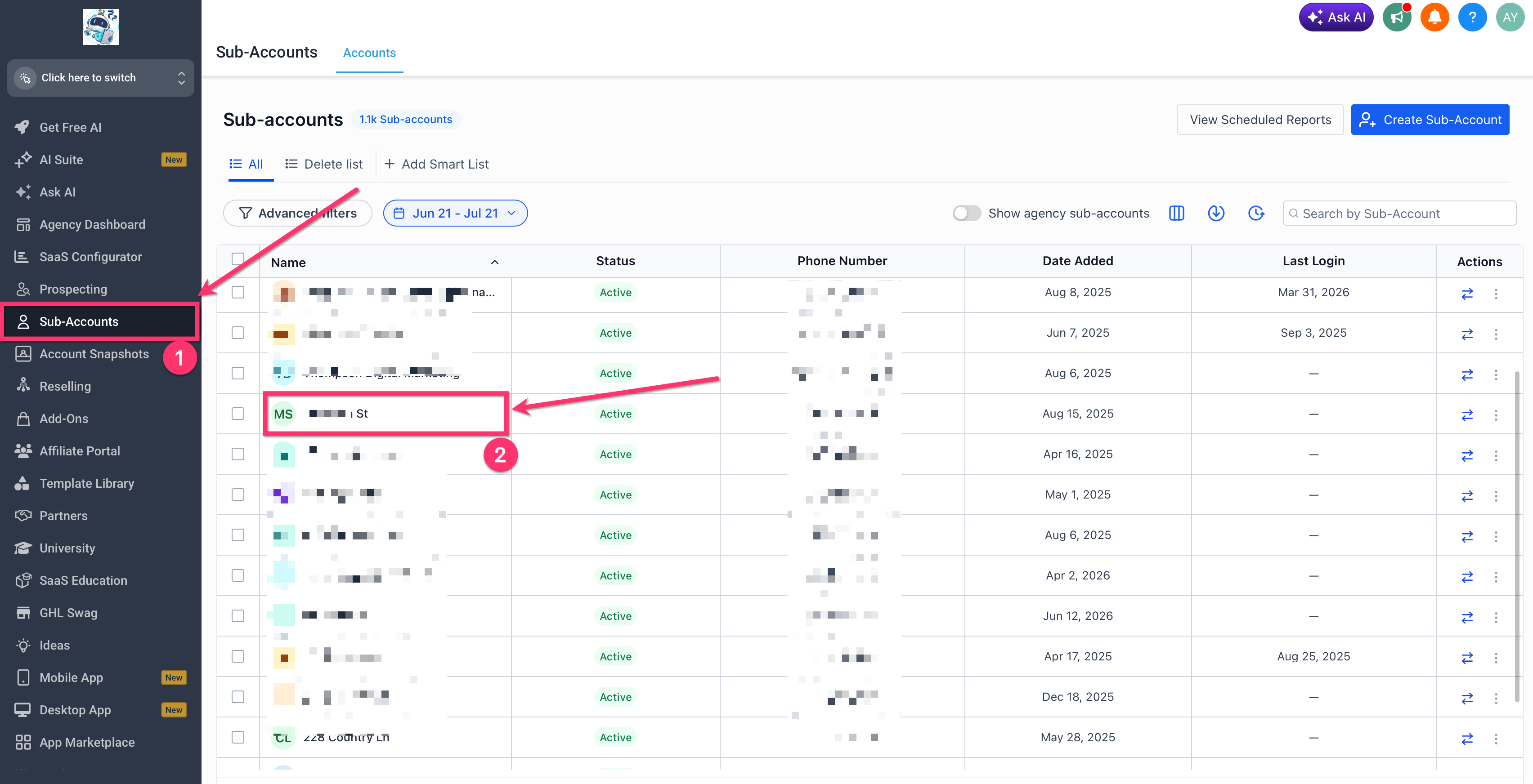
Click Actions.
Open Snapshot actions.
Click View snapshot history.
Review All Snapshots Loaded into the Subaccount
Review the Snapshot Load History table.
Locate the required Snapshot by name.
Check its last loaded version, type, date, and user.
Use the search field when the list contains many Snapshots.
Click the Snapshot row to open its detailed history.
Review a Specific Snapshot’s Load History
Select a Snapshot from the main history table.
Review every recorded load for that Snapshot.
Use the Version column to identify the version used.
Check the asset count and load status.
Review when the load occurred and who started it.
Select a load to open its Asset Details.
Review the Assets Included in a Load
Open the required Snapshot.
Select the load you want to inspect.
Review the asset categories on the Asset Details screen.
Expand a category when additional details are available.
Check the status shown beside each category.
Use the asset search field to find a particular asset or category.
Snapshot loading and Snapshot history serve different purposes. Loading applies selected Snapshot assets to a subaccount, while history provides a record of the loads that already occurred.
Frequently Asked Questions
Q: Does Snapshot Load History show every Snapshot loaded into the subaccount?
It lists the Snapshot records available for the selected subaccount and shows the most recent load information for each one.
Q: Can I see every time the same Snapshot was loaded?
Yes. Select the Snapshot from the main history table to open its individual Load History.
Q: What does Last loaded version mean?
It identifies the most recent version of that Snapshot loaded into the selected subaccount.
Q: Why does the Last loaded by field show a dash?
A dash indicates that user information is not available for that history record.
Q: What does Processing mean in Asset Details?
Processing indicates that HighLevel is still working on that asset category. Check the history again after the load has had time to finish.
Q: Does the Asset Details screen show what is currently inside the Snapshot?
No. It shows the assets associated with a particular historical load. Use the Snapshot Asset Viewer to inspect what the Snapshot currently contains.
Q: Can I load a Snapshot from the history screen?
Snapshot loading is a separate action. Use the subaccount’s Snapshot actions to start a new load.
Q: Is Snapshot Load History the same as Push Update History?
No. Subaccount Snapshot Load History shows the Snapshots loaded into one subaccount. Push Update History shows the results of sending an update from one Snapshot to multiple subaccounts.
Related Articles
Was this article helpful?
That’s Great!
Thank you for your feedback
Sorry! We couldn't be helpful
Thank you for your feedback
Feedback sent
We appreciate your effort and will try to fix the article