Support Access gives agencies a secure way to temporarily allow HighLevel team members to access an account for troubleshooting. Access is controlled from inside HighLevel, can be limited by expiration date, and can be extended or revoked at any time. This helps agencies get support while maintaining stronger visibility and control over account access.
TABLE OF CONTENTS
- What is Support Access?
- Key Benefits of Support Access
- Where to Find Support Access
- When to Enable Support Access
- Support Access Duration
- Extending Support Access
- Revoking Support Access
- Security and Auditability
- How To Setup Support Access
- Frequently Asked Questions
- Related Articles
What is Support Access?
Support Access is a temporary access control setting that allows HighLevel team members to access your account for support and troubleshooting purposes. This setting helps ensure access is explicitly approved by the agency, limited to a defined time period, and managed directly from Company Settings.
Support Access is useful when you are actively working with HighLevel support and need the team to investigate an issue inside your account. Once access is no longer needed, you can revoke it immediately or allow it to expire automatically.
Key Benefits of Support Access
Support Access helps agencies balance fast troubleshooting with stronger account security. By making access temporary and user-controlled, agencies can decide when HighLevel support can access the account and when that access should end.
User-Approved Access: HighLevel team access must be enabled from inside the agency account.
Time-Limited Control: Set an expiration date so access does not remain open indefinitely.
Flexible Troubleshooting: Extend access when a support case requires more time.
Immediate Revocation: Revoke support access at any time when troubleshooting is complete.
Improved Transparency: View when support access is active and when it is scheduled to expire.
Compliance Support: Use a controlled access process that supports internal security and data access requirements.
Where to Find Support Access
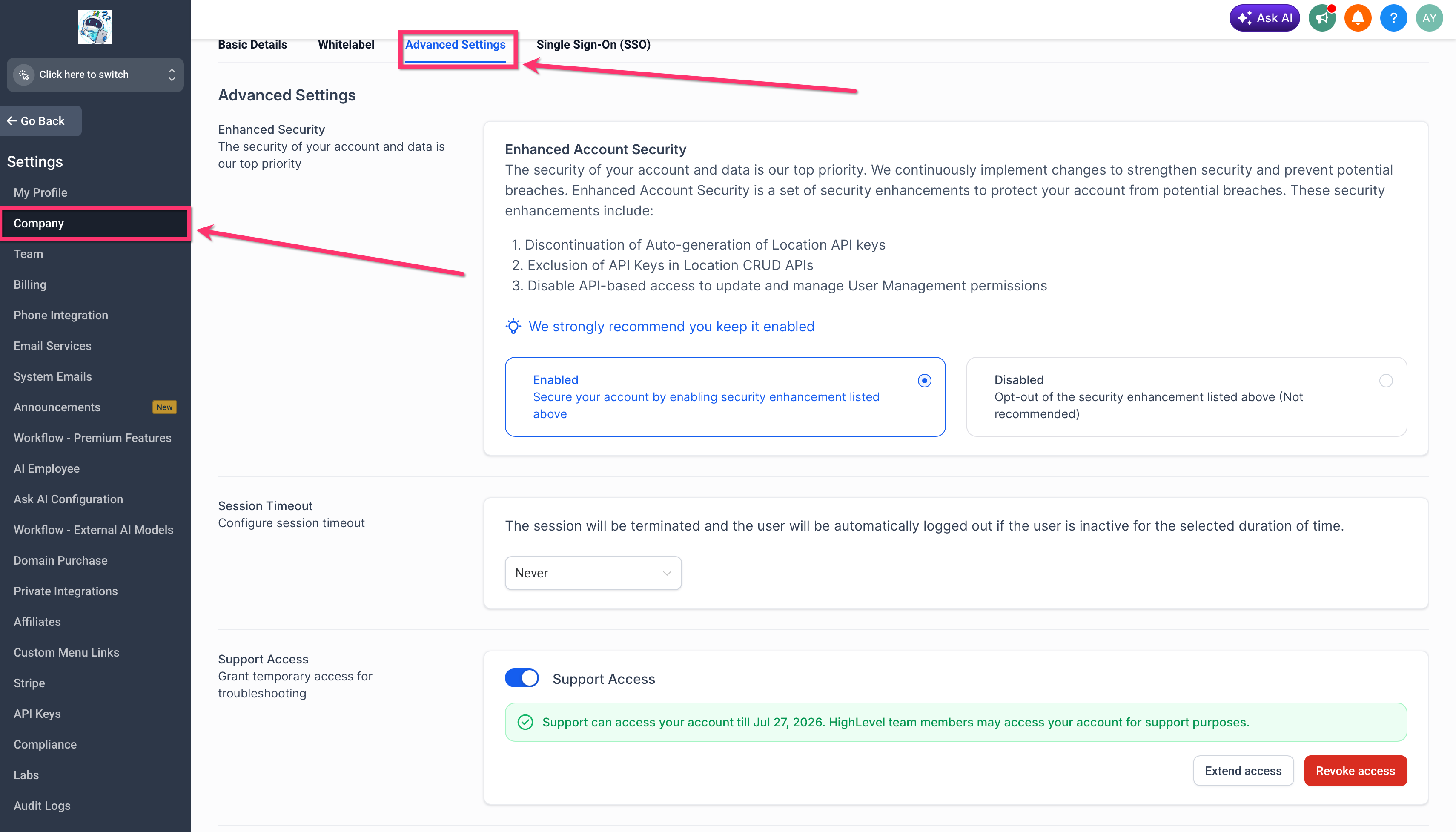
Support Access is located in Company Settings under Advanced Settings. This placement keeps support access controls close to other agency-level security and account configuration settings.
To find Support Access:
Go to Agency View in HighLevel.
Click Settings.
Select Company.
Open the Advanced Settings tab.
Scroll to the Support Access section.
The Support Access section shows whether access is currently enabled and, when active, displays the date support access is available until.
When to Enable Support Access
Support Access should be enabled when you are actively working with HighLevel support and temporary account access is needed to investigate or resolve an issue. Keeping support access limited to active troubleshooting helps reduce unnecessary access exposure.
Common use cases include:
Investigating account configuration issues
Troubleshooting unexpected product behavior
Reviewing settings related to a reported support case
Helping support verify an issue directly inside the account
Support Access is separate from regular user access. Agency users, team members, roles, and permissions are managed separately through user access and role settings.
Support Access Duration
Support Access is designed to be time-bound, which means it remains active only until the selected expiration date. This prevents support access from staying enabled longer than needed.
When Support Access is active, HighLevel displays a message showing the date through which access remains available. If more troubleshooting time is needed, you can extend access by choosing a later expiration date. If access is no longer needed, you can revoke it immediately.
Extending Support Access
Extending support access gives HighLevel support more time to continue troubleshooting without requiring you to disable and re-enable access. This is useful when an issue is still being investigated or when a support case needs additional review.
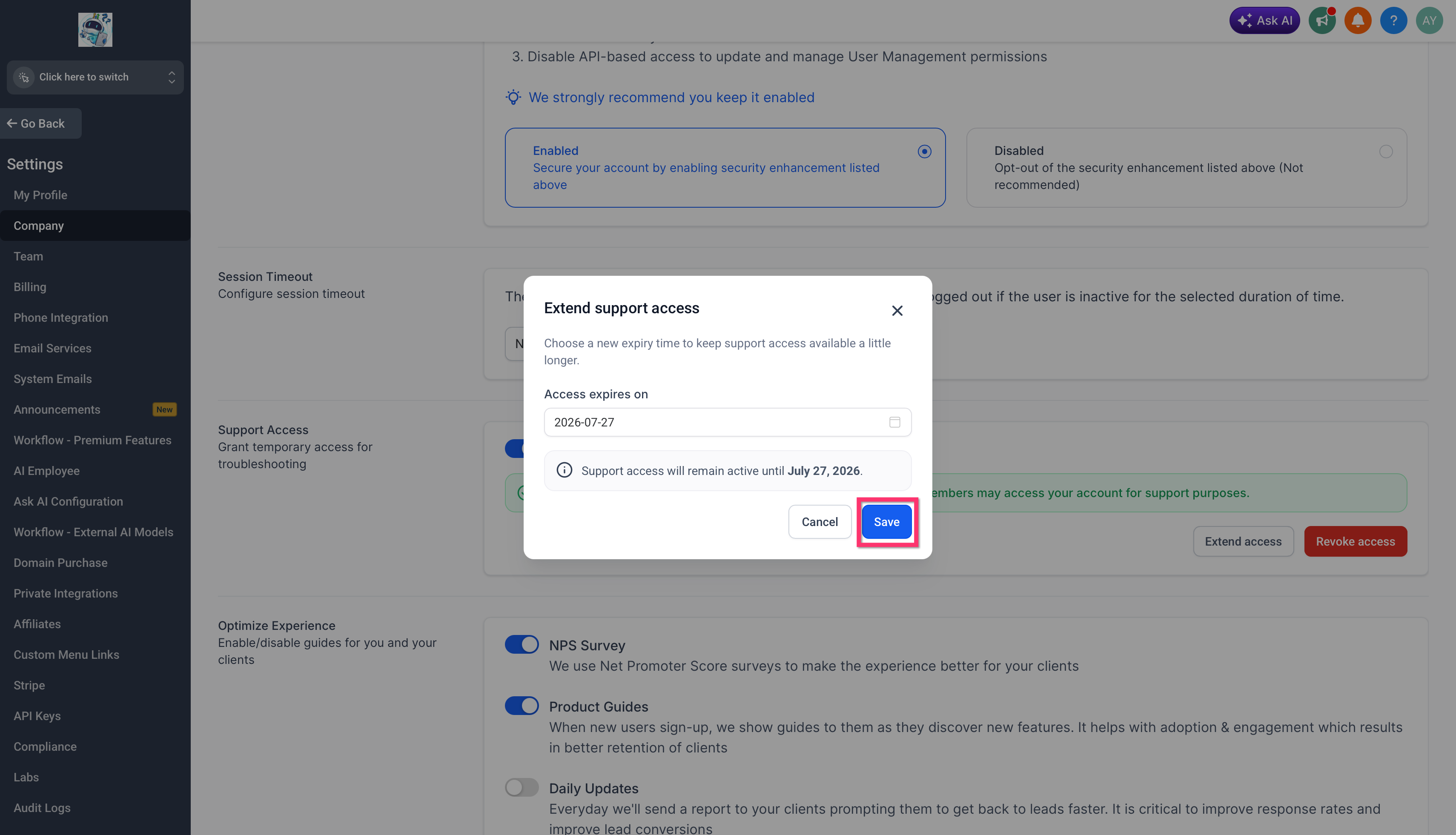
To extend support access:
Go to Agency View → Settings → Company → Advanced Settings.
Scroll to Support Access.
Click Extend access.
Choose the new expiration date in the Access expires on field.
Review the confirmation message showing when support access will remain active until.
Click Save.

Revoking Support Access
Revoking support access immediately blocks HighLevel team members from accessing your account through Support Access. Use this when troubleshooting is complete or when you no longer want temporary support access to remain active.
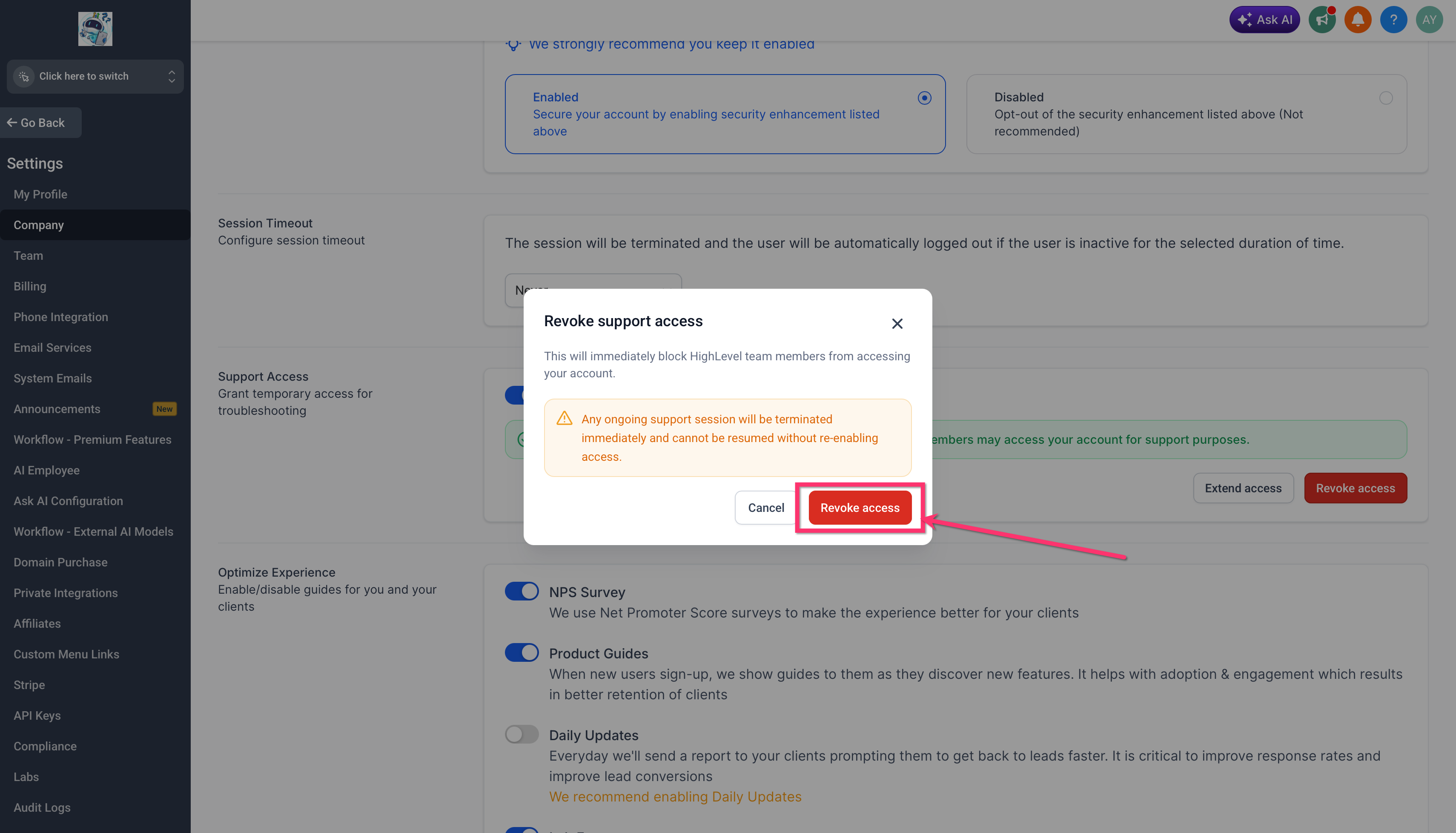
To revoke support access:
Go to Agency View → Settings → Company → Advanced Settings.
Scroll to Support Access.
Click Revoke access.
Review the warning message.
Click Revoke access to confirm.
Important: Revoking access may immediately terminate any ongoing support session and access cannot resume unless Support Access is enabled again.
Security and Auditability
Support Access is designed to give agencies clearer control over support-related account access. Because access is approved from inside the account and limited by expiration date, agencies can better align support troubleshooting with internal security and compliance expectations.
Support Access helps support:
Explicit approval before HighLevel team access
Time-limited access windows
Clear visibility into active access status
Better control over extension and revocation
More transparent access management for troubleshooting
For broader account activity review, use HighLevel audit log resources where available.
How To Setup Support Access
Proper setup ensures HighLevel support can access the account only when needed and only for the time period you choose. Before enabling access, confirm that you are working with HighLevel support or that temporary troubleshooting access is required.
To enable Support Access:
Go to Agency View in HighLevel.
Click Settings from the left menu.
Select Company.
Open the Advanced Settings tab.
Scroll to Support Access.
Toggle Support Access on.
Choose or confirm the access expiration date if prompted.
Save the setting, if required.
Confirm the active access message appears in the Support Access section.
To manage active Support Access:
Click Extend access to choose a later expiration date.
Click Revoke access to end access immediately.
Frequently Asked Questions
Q: What does Support Access do?
A: Support Access allows HighLevel team members to temporarily access your account for support and troubleshooting purposes when enabled by the agency.
Q: Where is Support Access located?
A: Go to Agency View → Settings → Company → Advanced Settings, then scroll to the Support Access section.
Q: Is Support Access permanent?
A: No. Support Access is time-bound and remains active only until the selected expiration date unless extended.
Q: Can I extend Support Access?
A: Yes. Click Extend access, choose a new expiration date, and save your changes.
Q: Can I revoke Support Access before it expires?
A: Yes. Click Revoke access and confirm. Access is blocked immediately after revocation.
Q: What happens if I revoke access during an active support session?
A: Any ongoing support session may be terminated immediately and cannot resume unless Support Access is enabled again.
Q: Should I leave Support Access enabled all the time?
A: No. Enable Support Access only when temporary troubleshooting access is needed, then allow it to expire or revoke it when support is complete.
Q: Is Support Access the same as user permissions?
A: No. Support Access controls temporary access for HighLevel support. Agency team users, roles, and permissions are managed separately.
Q: Can support access be re-enabled after being revoked?
A: Yes. You can enable Support Access again if additional troubleshooting access is needed.
Related Articles
.
Was this article helpful?
That’s Great!
Thank you for your feedback
Sorry! We couldn't be helpful
Thank you for your feedback
Feedback sent
We appreciate your effort and will try to fix the article