Overview
Support Access allows the HighLevel support team to temporarily access your account to help troubleshoot and resolve issues you may be facing. This ensures faster debugging and more effective assistance while keeping you in control of access duration.
Why Enable Support Access?
By enabling support access, you allow the HighLevel support team to:
- Investigate issues directly within your account
- Identify configuration or setup problems
- Provide quicker and more accurate resolutions
Note: Support access is temporary and fully controlled by you.
Steps to Enable Support Access
Follow the steps below to grant temporary access:
- Log in to your HighLevel account and switch to Agency View.
- Navigate to Settings.
- Select Company.
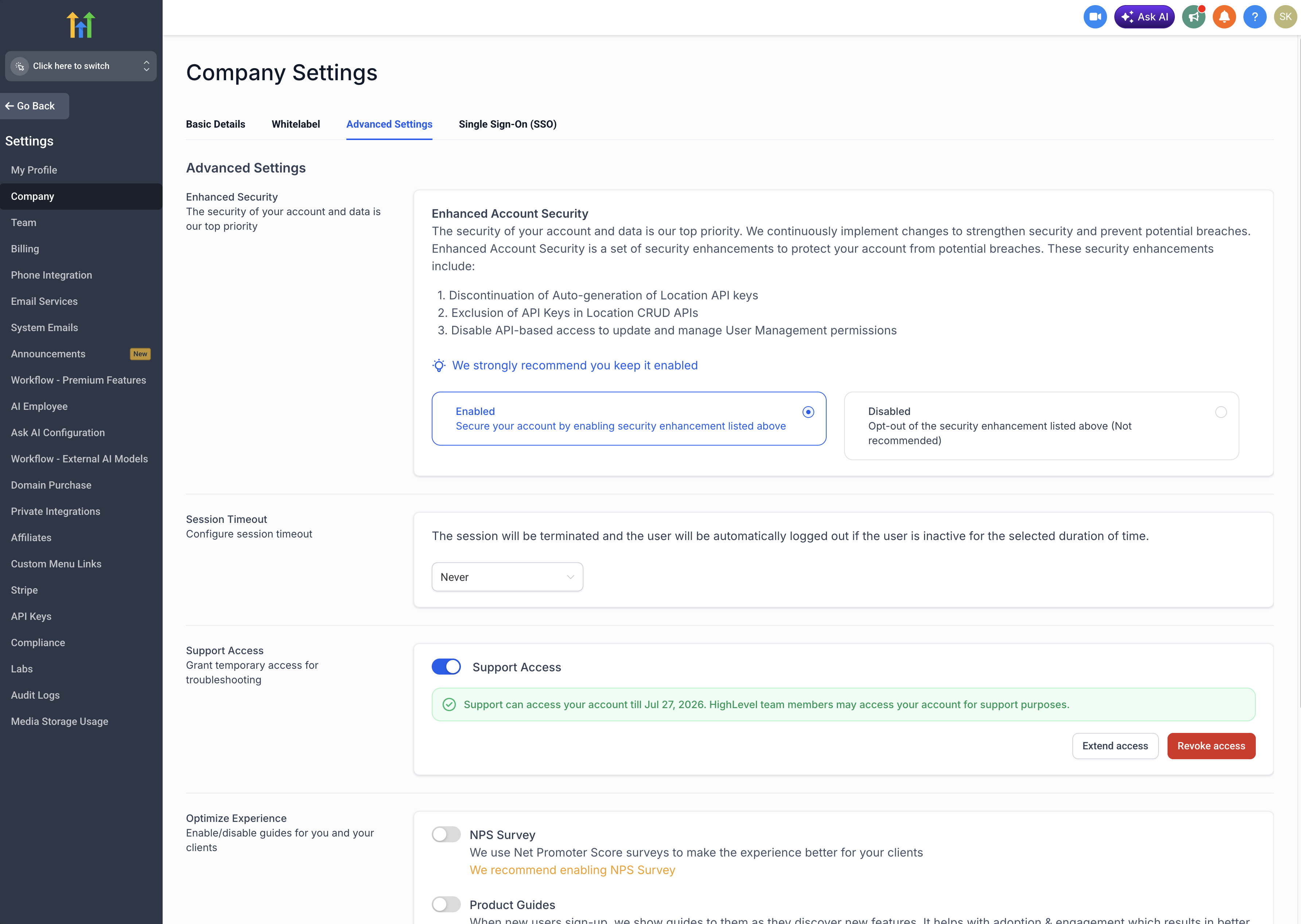
- Go to the Advanced Settings tab.
- Locate the Support Access section.
- Enable Support Access.
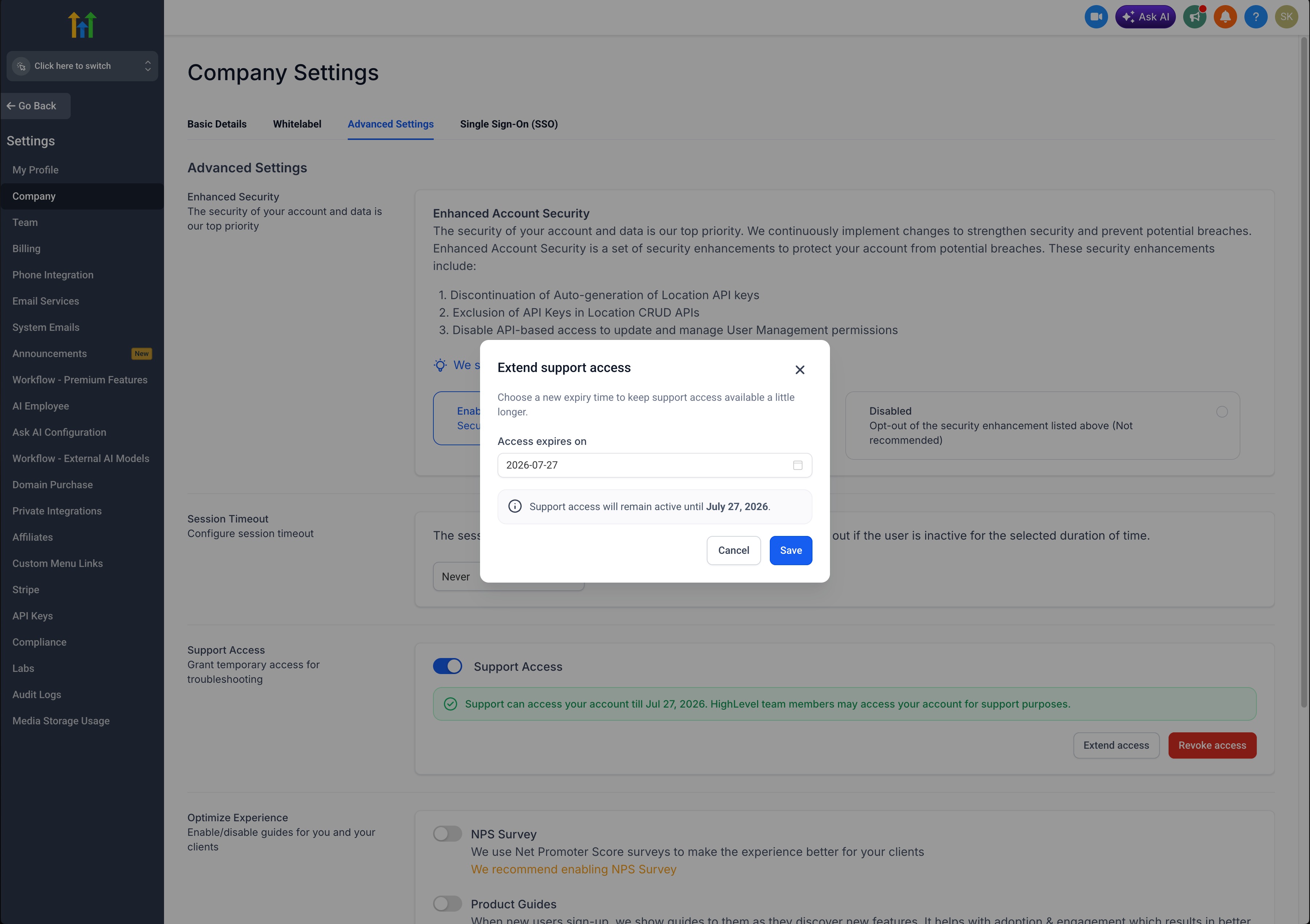
- Choose the duration for which you want to grant access.
- Click Submit to confirm.
Managing Support Access
Once enabled, you have full control over the access:
- You can extend the access duration at any time if further assistance is needed.
- You can disable access immediately once your issue is resolved.
Best Practices
- Enable support access only when actively working with the support team
- Set the minimum required duration
- Disable access after your issue has been resolved
Was this article helpful?
That’s Great!
Thank you for your feedback
Sorry! We couldn't be helpful
Thank you for your feedback
Feedback sent
We appreciate your effort and will try to fix the article