Shared Snapshots Summary helps agencies monitor how their Shared Snapshots are being imported across HighLevel. With daily in-app notifications and email digests, you can see which snapshots are being used, how often they are imported, and where import activity is happening. This gives your team better visibility into snapshot adoption, usage patterns, and setup activity without manually checking each snapshot.
TABLE OF CONTENTS
- What is Shared Snapshots Summary?
- Key Benefits of Shared Snapshots Summary
- Notification Preferences for Shared Snapshots
- In-App Notification Summary
- Email Digest for Shared Snapshot Import Activity
- How To Setup Shared Snapshots Summary
- Step 1: Enable Daily Summary for a Shared Snapshot
- Step 2: Review Daily Activity
- Frequently Asked Questions
- Related Articles
What is Shared Snapshots Summary?
Shared Snapshots Summary gives agency users a daily view of import activity for selected Shared Snapshots. Instead of guessing whether a shared snapshot is being used, teams can receive a quick in-app notification and a more detailed email digest showing snapshot import activity.
Key Benefits of Shared Snapshots Summary
Daily snapshot import visibility helps agencies understand how shared templates are being used after they are distributed. This is especially helpful for teams that share snapshots with clients, partners, affiliates, or internal teams and need a simple way to monitor adoption.
- Visibility & Transparency: Track daily import activity for selected Shared Snapshots in one place.
- Usage Awareness: See whether your Shared Snapshots are being used after they are shared.
- Better Snapshot Management: Identify which snapshots are active, useful, or frequently imported.
- Simplified Monitoring: Receive import updates through daily in-app notifications and email digests.
- Focused Reporting: Choose which Shared Snapshots should be included in the daily summary.
Notification Preferences for Shared Snapshots
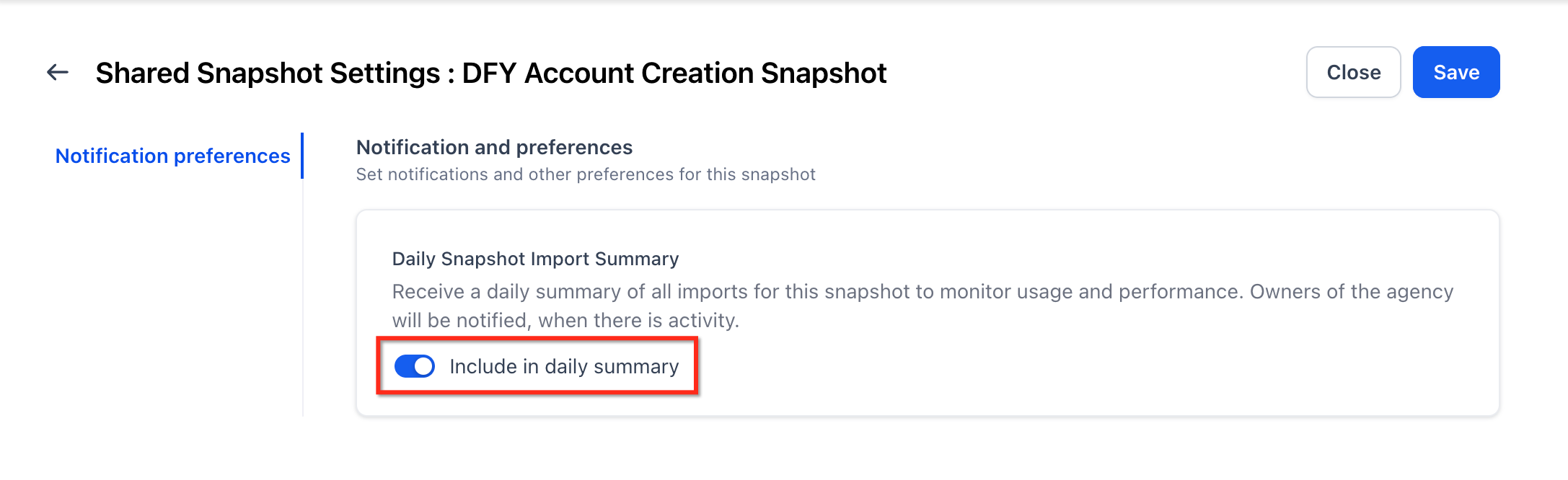
Notification preferences let you control which Shared Snapshots are included in your daily summary. This keeps your summary focused on the snapshots that matter most, instead of sending activity updates for every shared snapshot. To include a Shared Snapshot in the daily summary, enable the summary setting from the Shared Snapshot’s settings area.
The daily summary only includes Shared Snapshots where Include in daily summary is enabled.

You can choose which Shared Snapshots are included based on what your team wants to monitor.

This setting helps agencies track key snapshots without receiving unnecessary activity details.
In-App Notification Summary
The in-app notification gives you a quick daily overview of Shared Snapshot import activity directly inside HighLevel. This is useful when you want a fast snapshot of activity without opening a detailed report or reviewing email.
The in-app notification is designed for quick visibility. It helps you confirm whether selected Shared Snapshots received import activity and gives your team a simple way to stay informed during daily work.
Email Digest for Shared Snapshot Import Activity
The email digest provides a more detailed daily breakdown of each included Shared Snapshot’s import activity. This gives agencies a record of snapshot usage that can be reviewed, shared internally, or used to monitor adoption over time.
The email digest is helpful for agency owners, operations teams, and snapshot managers who need more detail than the in-app notification provides.
Use the email digest to:
- Review import activity for each included Shared Snapshot.
- Monitor which snapshots are being used most often.
- Keep a daily record of Shared Snapshot usage.
- Understand where snapshot import activity is happening.
How To Setup Shared Snapshots Summary
Proper setup ensures that only the Shared Snapshots you want to monitor are included in your daily summary. The feature must first be enabled in Labs, then each Shared Snapshot must be included individually from its settings.
Step 1: Enable Daily Summary for a Shared Snapshot
- Navigate to Snapshots.
- Open Shared Snapshots.
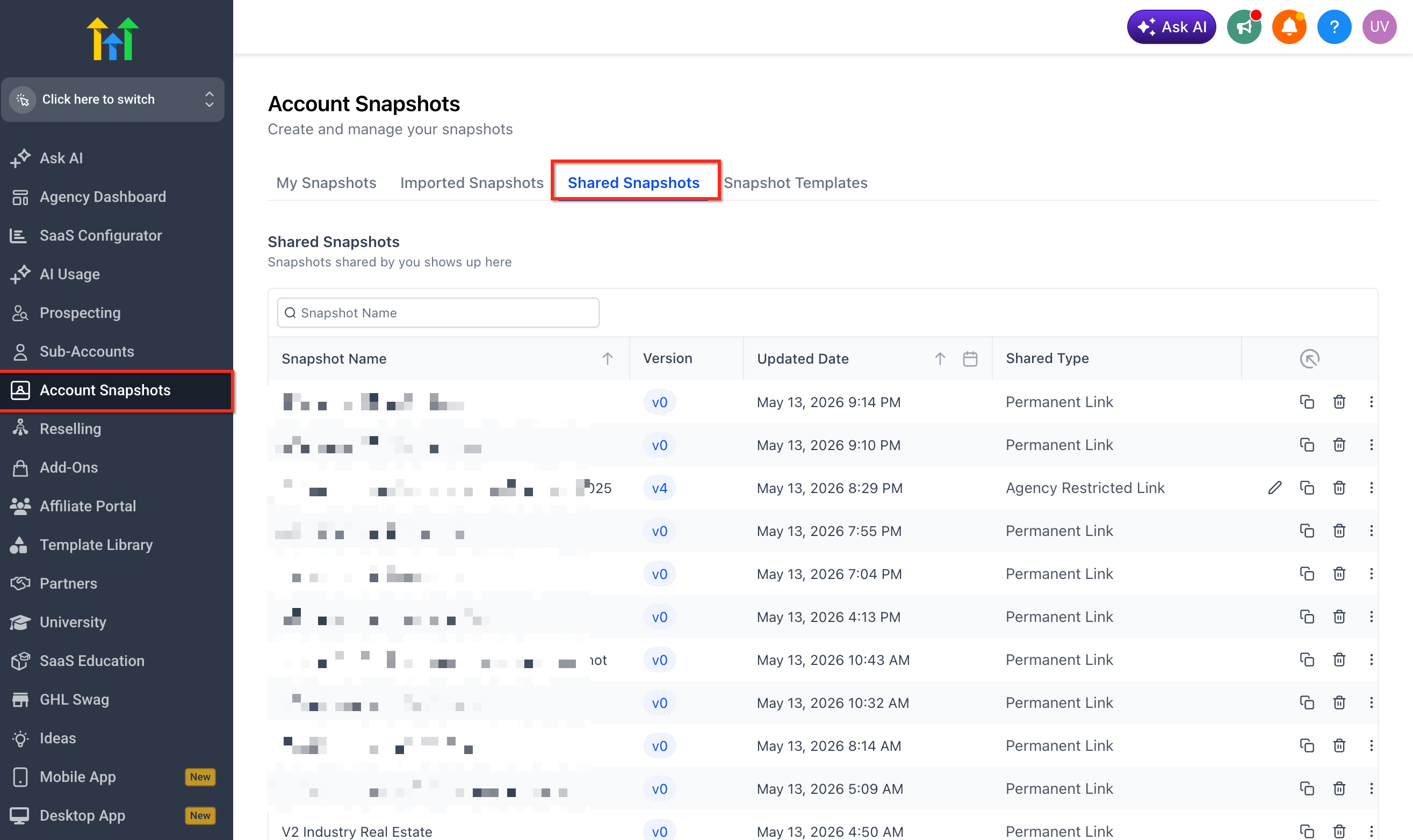
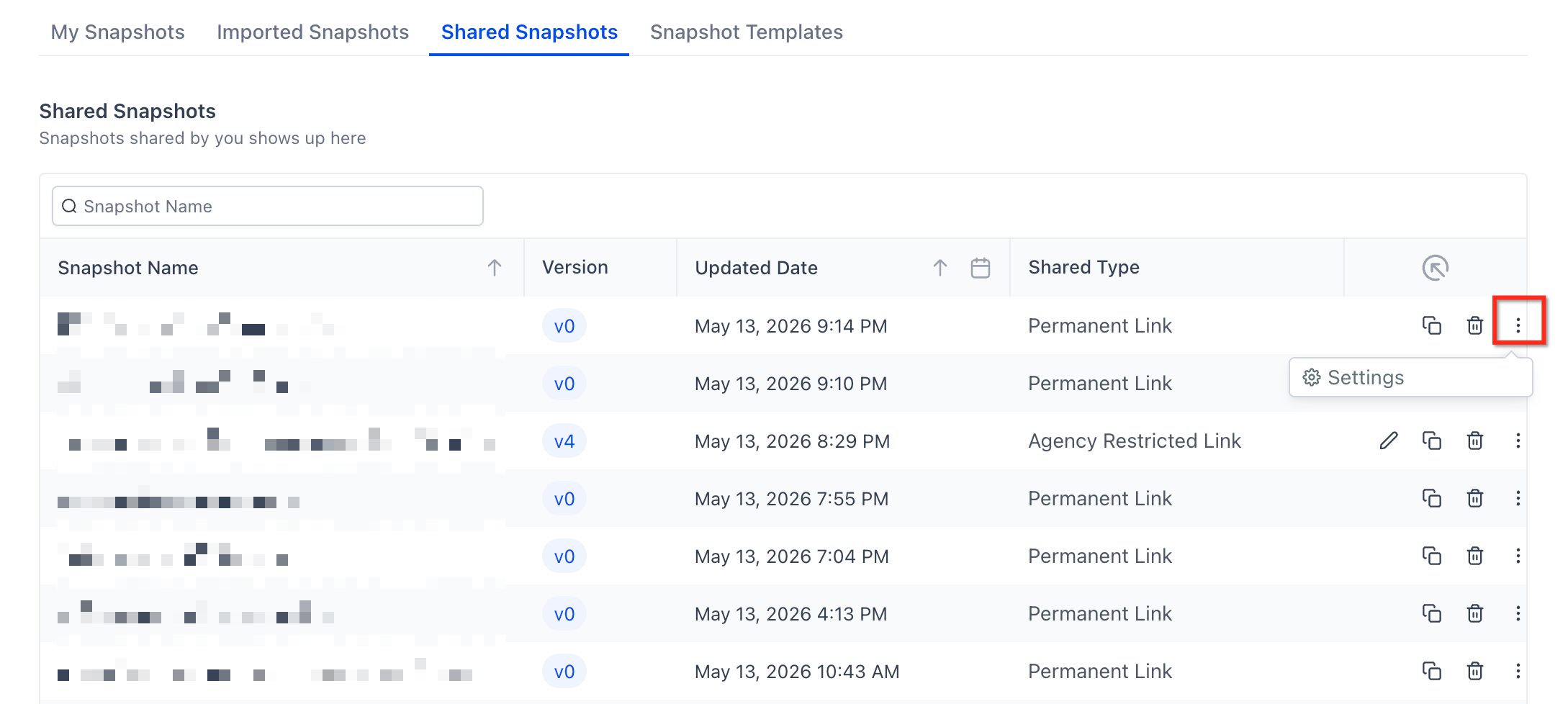
- Select the Shared Snapshot you want to monitor.
- Open the snapshot’s Settings.
- Enable Include in daily summary.
Step 2: Review Daily Activity
Once enabled, HighLevel sends daily visibility through:
- In-app Notification: A quick summary of Shared Snapshot import activity.
- Email Digest: A detailed breakdown of each included Shared Snapshot’s import activity.
Frequently Asked Questions
Q: Do all Shared Snapshots appear in the daily summary automatically?
A: No. Shared Snapshots must be included by enabling Include in daily summary from the Shared Snapshot settings.
Q: What is the difference between the in-app notification and the email digest?
A: The in-app notification provides a quick daily summary inside HighLevel. The email digest provides a more detailed daily breakdown of import activity for included Shared Snapshots.
Q: Can I disable the daily summary for a specific Shared Snapshot later?
A: Yes. Return to the Shared Snapshot settings and turn off Include in daily summary.
Q: Is Shared Snapshots Summary available to all users?
A: The release note states that Shared Snapshots Summary is available in Labs for all users starting May 02.
Q: Does this replace the snapshot import process?
A: No. This feature only helps monitor Shared Snapshot import activity. Users still import or load snapshots through the existing snapshot workflows. HighLevel has separate articles for importing snapshots and loading snapshots into existing sub-accounts.
Q: Should I enable this for every Shared Snapshot?
A: Enable it for the Shared Snapshots where import visibility matters. For example, you may want to monitor client onboarding snapshots, partner snapshots, or snapshots used in active campaigns.
Related Articles
Was this article helpful?
That’s Great!
Thank you for your feedback
Sorry! We couldn't be helpful
Thank you for your feedback
Feedback sent
We appreciate your effort and will try to fix the article