Snapshot sharing lets agencies distribute reusable configurations through controlled share links without rebuilding assets manually. This guide explains the available link types, Assets Protection, mixed Snapshots, protected-asset review, and how Snapshot sharing differs from SaaS provisioning.
You'll also learn how sharing, importing, and loading work together and what to do when you need to distribute an updated Snapshot.
Sharing, importing, and loading are different Snapshot actions. Sharing generates access to a Snapshot, importing adds a shared Snapshot to the recipient's agency-level Snapshot library, and loading applies selected Snapshot assets to a sub-account.
What is Snapshot Sharing?
Snapshot Sharing is the process of generating a share link or invitation that gives another recipient access to a reusable Snapshot. A Snapshot can contain selected configuration assets such as workflows, funnels, forms, templates, calendars, and other supported account settings.
When another agency receives a share link, it imports the Snapshot into its agency-level Snapshot library. The imported Snapshot can then be loaded into the appropriate sub-account according to the access and restrictions associated with the share.
Share-link options let you control who can access a Snapshot, whether the link can be reused, and whether Assets Protection should restrict protected content from being redistributed outside the receiving agency.
Key Benefits of Snapshot Sharing
Snapshot sharing makes repeatable configurations easier to distribute while giving agencies control over recipient access and protected content. Choosing the right sharing method helps balance speed, consistency, and protection.
Link Types & When to Use Them
Each Snapshot sharing option controls who can access the Snapshot and how the link can be used. Selecting the appropriate link type reduces accidental reuse and helps match access to the intended recipient.
| Link Type | Who Can Import | Behavior / Best Use |
|---|---|---|
| Permanent Link | Anyone with the active URL | Reusable for repeated imports. Best when the same Snapshot needs to be distributed more than once. |
| One-Time Link | Anyone with the URL until the permitted import is completed | Designed for a single successful import. Generate another link for another recipient. |
| Email Link | The intended email recipient | A single-use sharing experience delivered by email instead of manually copying the URL. |
| Agency-Restricted Link | Only agencies whose relationship numbers are specified | Restricts access to approved agencies. Multiple agency relationship numbers can be specified when supported by the sharing workflow. |
| Sub-Account Restricted Link | Only the designated sub-account | Best when the Snapshot must be limited to a specific destination rather than broadly reusable. |
| Marketplace Share Link | Eligible buyers through the HighLevel App Marketplace listing | Used as part of Marketplace Snapshot distribution. Assets Protection is automatically applied to help prevent protected assets from being repackaged or resold. |
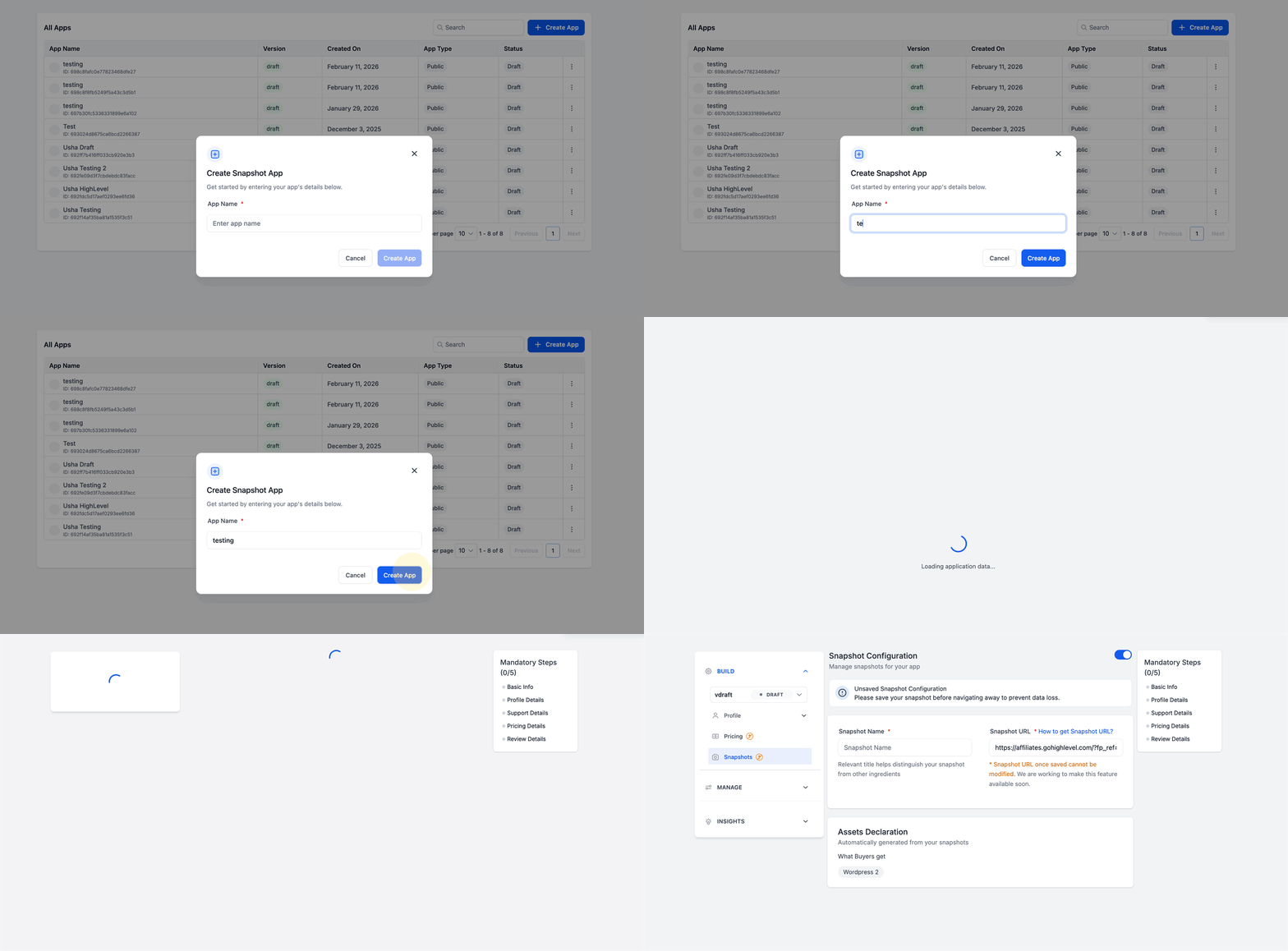
Selling on the Marketplace: From Agency View > Account Snapshots, use the Snapshot action menu and select Sell on Marketplace to begin the guided Marketplace listing workflow.
Sharing Snapshots That Contain Protected Assets
Assets Protection controls what happens when protected Snapshot content would leave an agency. Protected assets can be reused across sub-accounts and Snapshots inside the receiving agency, but the protected status remains attached and restricts external redistribution.
Turn on Assets Protected when generating the share if you want applicable Snapshot assets to remain protected after the recipient imports them. Recipients can use those protected assets within their agency, but protected content remains restricted from external redistribution or resale.
If the Snapshot contains protected assets inherited from an earlier protected Snapshot, those assets can continue to be used internally. When the Snapshot is shared outside the agency, protected assets are excluded while eligible non-protected assets continue through the share.
Important: The presence of protected content does not make the entire Snapshot unshareable. Mixed Snapshots can still be shared externally; only the protected assets are held back.
Review Protected Assets Before Sharing
When protected content is detected during external sharing, HighLevel provides a review of the assets that cannot leave the agency and the eligible assets that can continue. Expand asset groups when you need to inspect individual items before completing the share.
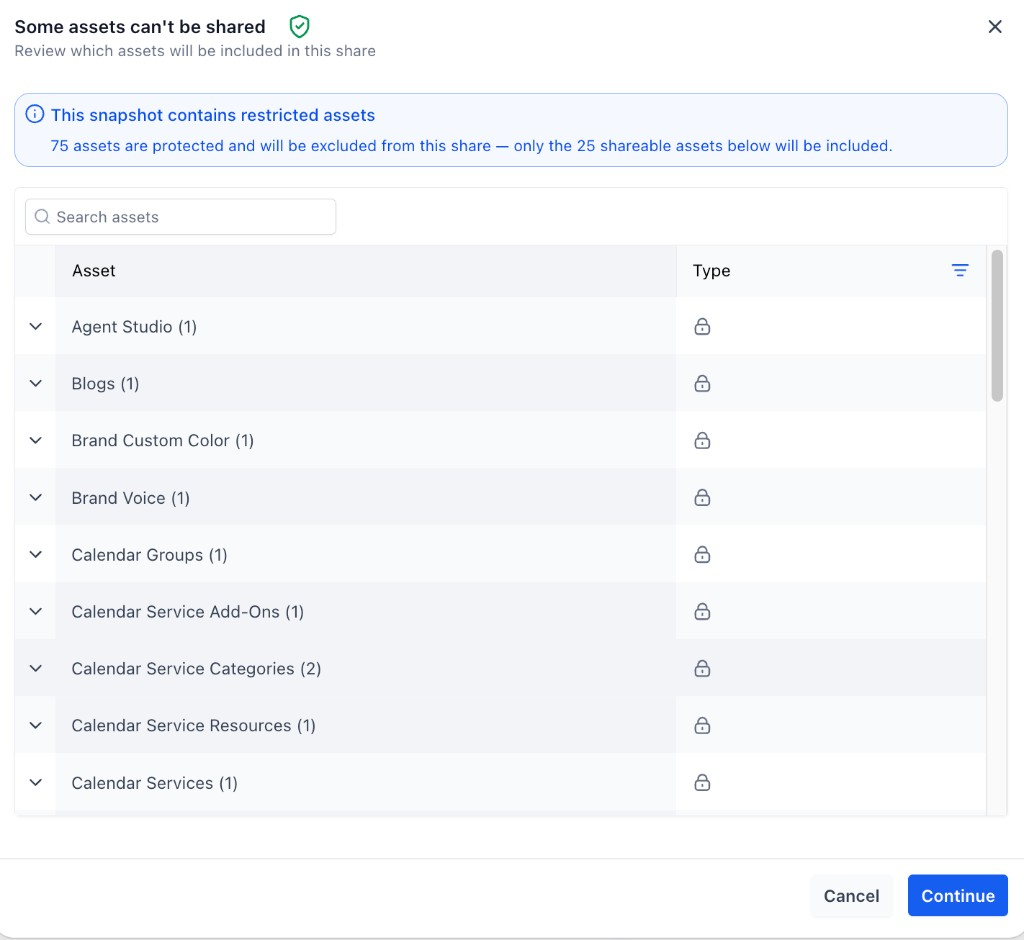
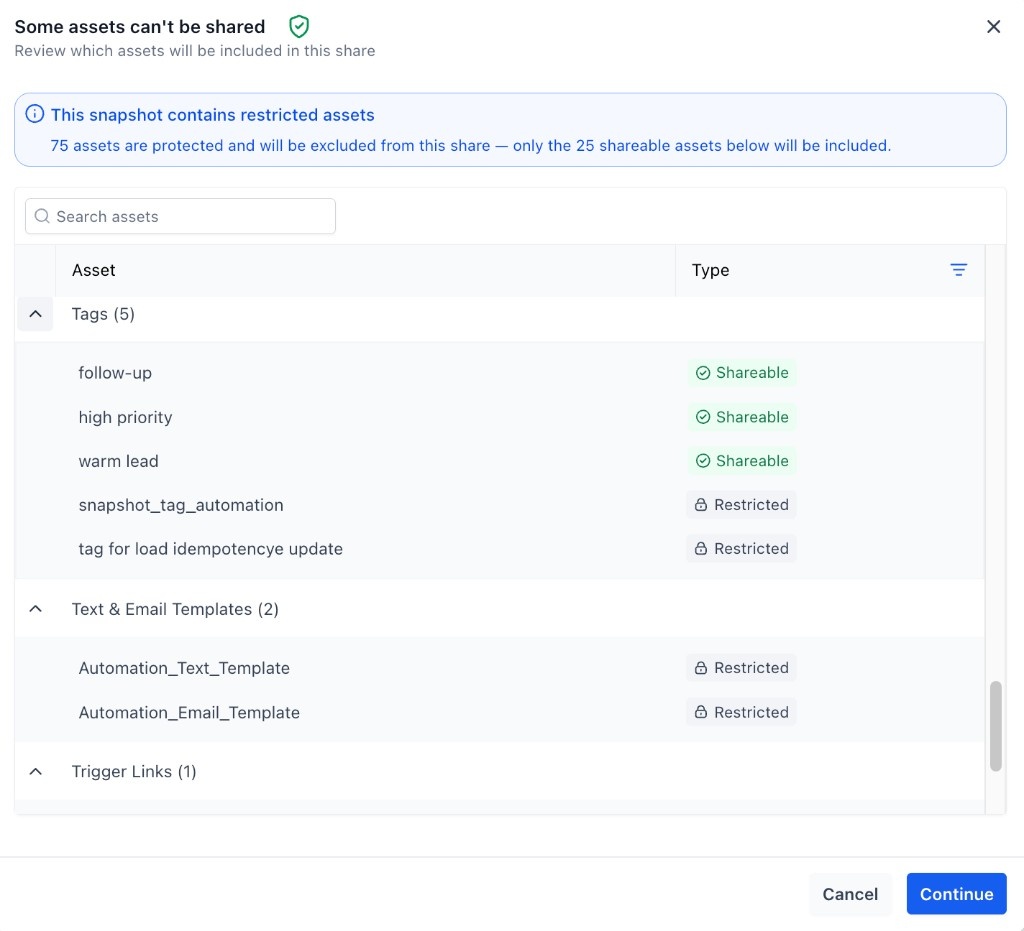
For the complete protection model, see Assets Protected Snapshots (Called "IP Protected" Earlier).
Snapshot Sharing vs. SaaS Provisioning
Manual Snapshot sharing and SaaS provisioning can both distribute Snapshot configurations, but they solve different onboarding needs. Understanding the distinction prevents share links from being confused with automated SaaS account creation.
| Workflow | How It Works | Best For |
|---|---|---|
| Snapshot Sharing | You generate a share link or invite. The recipient imports the Snapshot and then uses it in the appropriate account workflow. | Manual distribution to agencies, clients, partners, or specific destinations. |
| SaaS Provisioning | A Snapshot is attached to a SaaS plan and can be automatically applied when checkout provisions a new sub-account. | Automated SaaS onboarding and repeatable account creation. |
For automated SaaS provisioning, see Getting Started with the SaaS Configurator.
How To Set Up Snapshot Sharing
Proper setup ensures the Snapshot reaches the intended recipient with the correct access and protection settings. Confirm permissions and refresh the Snapshot when needed before generating the share.
The user must have the appropriate Snapshot permissions. If the sharing action is unavailable, verify that Share/Import Snapshots access is enabled for that user.
If the source sub-account changed after the Snapshot was created, refresh the Snapshot first so the share contains the intended current assets.
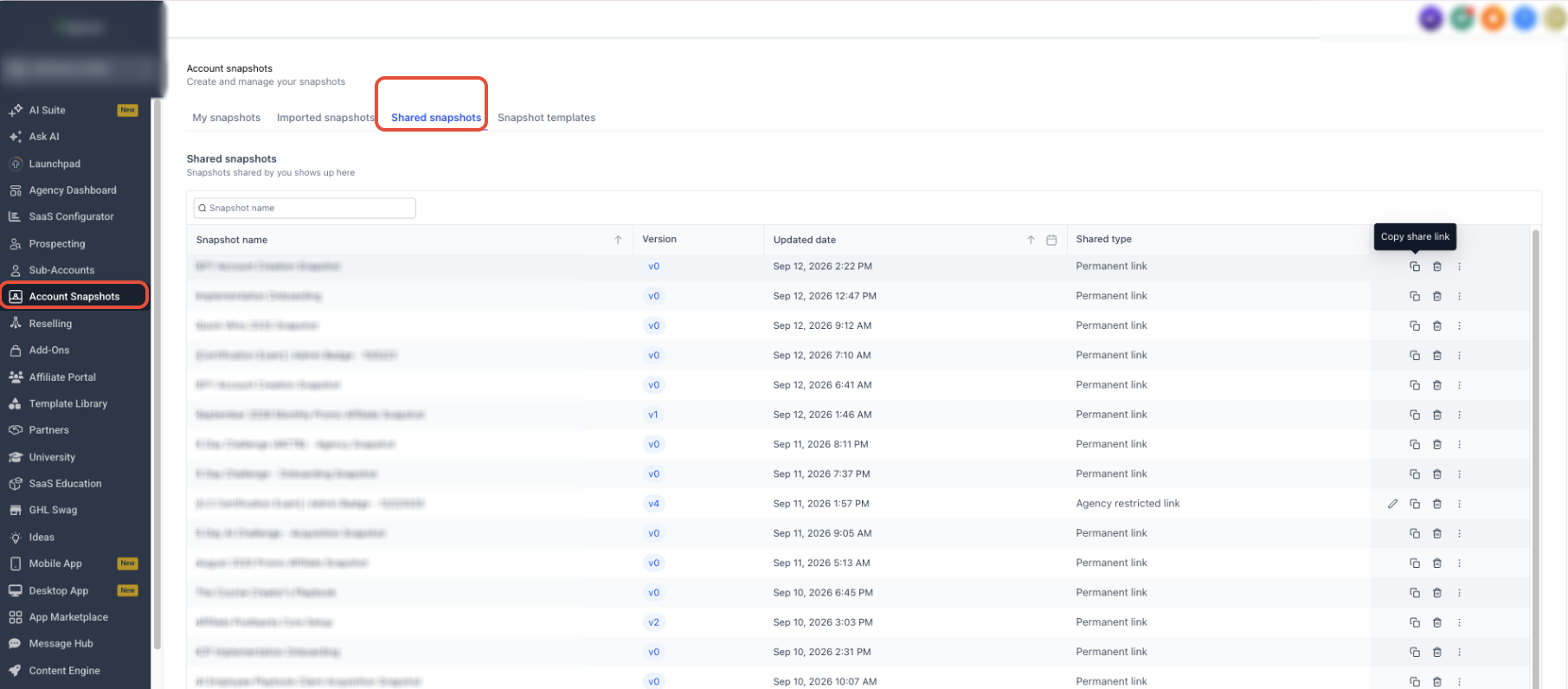
From Agency View, go to Account Snapshots > My Snapshots.

Locate the Snapshot you want to distribute, open the ⋯ three-dot action menu, and select Share Snapshot.

Select the sharing method that matches the intended recipient and reuse requirements:
- Permanent Link for reusable sharing.
- One-Time Link for a single-use share.
- Email Link for single-use delivery by email.
- Agency-Restricted to limit access to specified agencies.
- Sub-Account Restricted to limit the Snapshot to the selected destination.
Turn on Assets Protected when you want the applicable Snapshot assets to remain protected after the recipient imports them. Protected assets can be reused within the receiving agency but remain restricted from external redistribution or resale.
If the Snapshot already contains protected assets and the share would send content outside the agency, review the protected content shown before continuing. Protected assets will be excluded while eligible non-protected assets can continue through the share.
- Click Get Link.
- Copy the generated link and send it to the intended recipient.

Frequently Asked Questions
Was this article helpful?
That’s Great!
Thank you for your feedback
Sorry! We couldn't be helpful
Thank you for your feedback
Feedback sent
We appreciate your effort and will try to fix the article