Appointment timezone preferences let you control how appointment times appear across the HighLevel mobile app. You can view appointments in your user timezone, the business timezone, or a custom timezone without changing booking availability or how clients schedule with you. This helps teams working across regions reduce timezone confusion and manage appointments more confidently from mobile.
TABLE OF CONTENTS
- What is View Appointments in Your Preferred Timezone on the Mobile App?
- Key Benefits of View Appointments in Your Preferred Timezone
- Where the Timezone Preference Applies in the Mobile App
- Important Timezone Behavior to Know
- How To Setup View Appointments in Your Preferred Timezone
- Mobile App Availability
- Backward Compatibility from the Previous Labs Toggle
- Troubleshooting Timezone Display Issues
- Frequently Asked Questions
- Related Articles
What is View Appointments in Your Preferred Timezone on the Mobile App?
View Appointments in Your Preferred Timezone is a user-level calendar preference that controls how appointment times display across supported appointment areas in the HighLevel mobile app. This setting helps each user view appointments in the timezone that makes the most sense for their workflow while keeping booking rules, availability, and client scheduling behavior unchanged.
With this preference, appointment times can display using one of the following options:
User Timezone: Displays appointments in your personal account timezone.
Business Timezone: Displays appointments in the timezone configured for the sub-account.
Custom Timezone: Displays appointments in any timezone you select.
This preference applies to the logged-in user only. Other team members can choose their own timezone view independently.
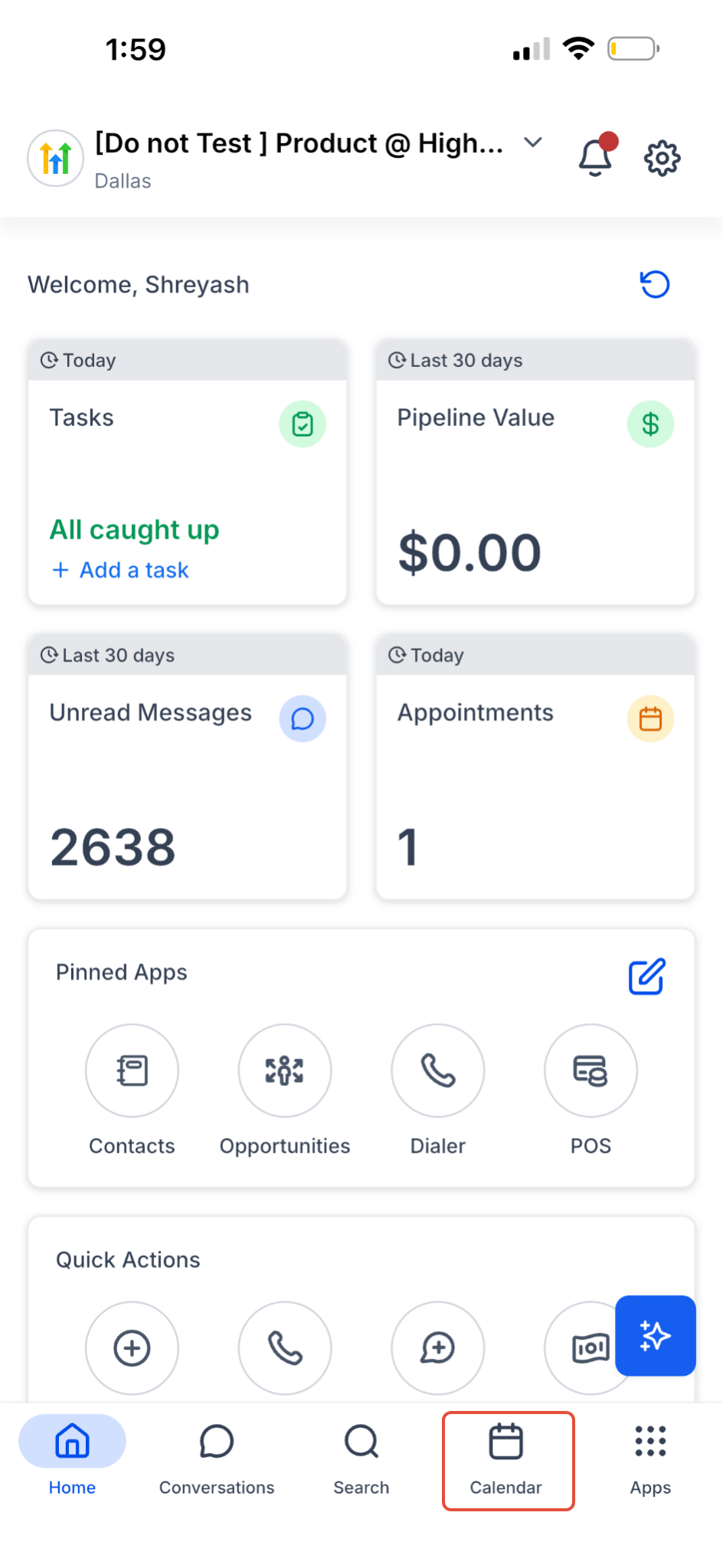
1. Open the mobile Calendar
Open the HighLevel mobile app and tap Calendar in the bottom navigation.
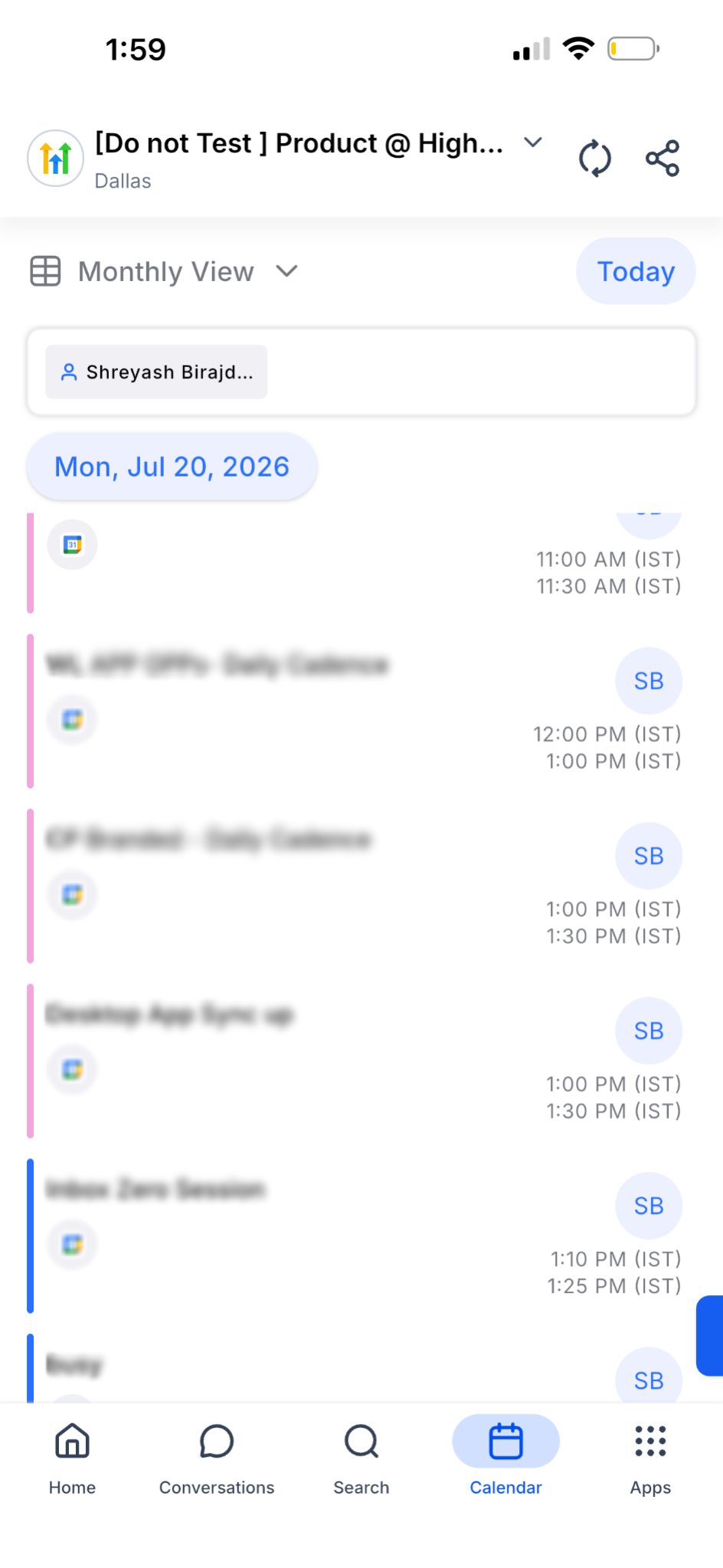
2.Review appointments in Calendar view
Your appointments will now display in the selected timezone. The timezone abbreviation appears beside each appointment time.
Key Benefits of View Appointments in Your Preferred Timezone
Timezone preferences make appointment management easier for users who work with clients, teams, or calendars across multiple regions. Instead of manually converting appointment times, each user can choose the timezone view that matches how they plan their day.
Flexible timezone viewing: View appointments in your user timezone, business timezone, or a custom timezone.
Reduced scheduling confusion: Avoid manually converting appointment times when working across regions.
User-specific control: Each team member can choose their own preferred appointment viewing timezone.
Consistent mobile experience: Appointment times display according to your preference across supported mobile appointment screens.
No booking impact: Changing this setting does not affect availability, booking links, client scheduling, or appointment logic.
Cross-device sync: Your preference is saved to your account and follows you across supported devices.
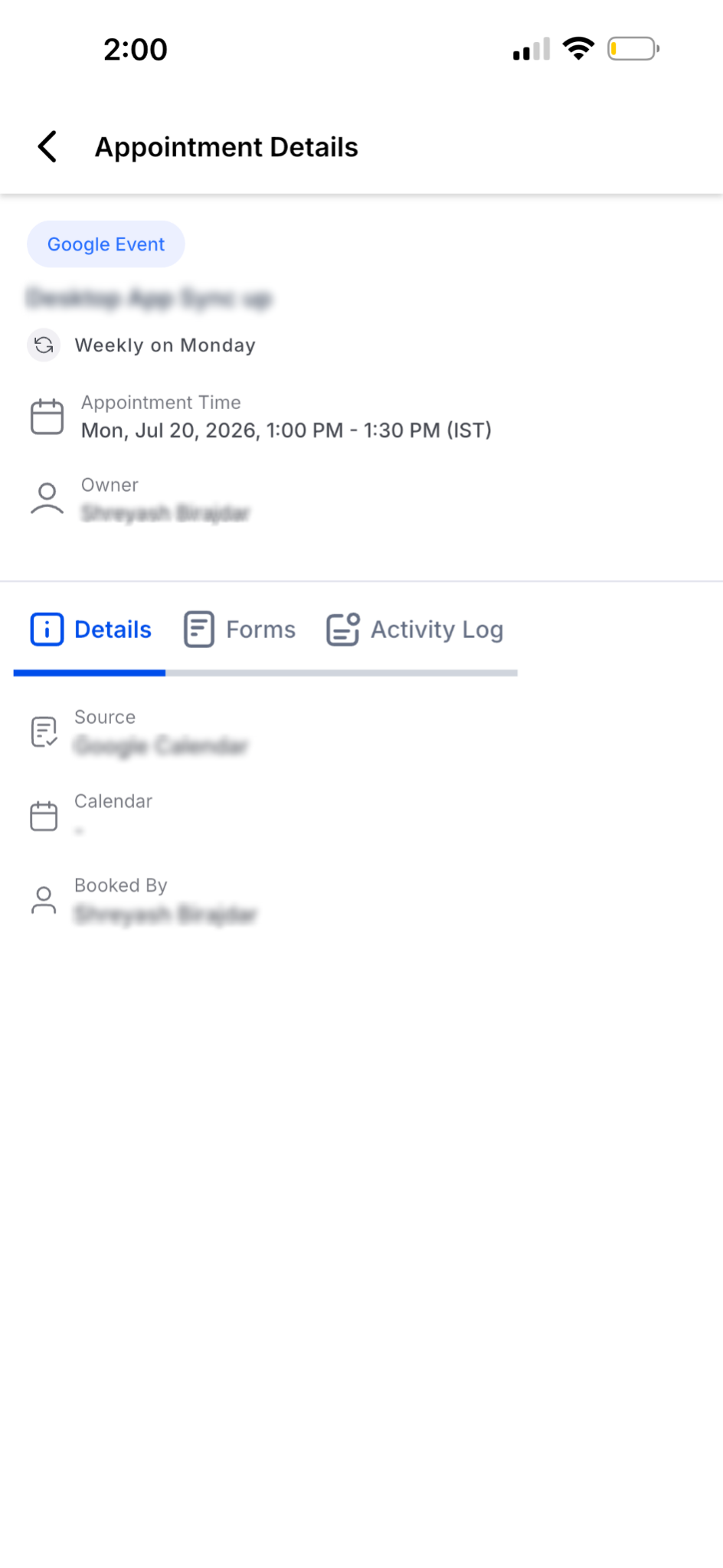
3.Verify the appointment details
Open an appointment and confirm that the Appointment Time is shown in the same selected timezone.
Where the Timezone Preference Applies in the Mobile App
The selected timezone preference controls how appointment times appear in supported appointment views throughout the mobile app. This helps keep appointment times consistent as users move between calendar views, appointment details, and contact records.
The configured timezone applies to appointment time displays in areas such as:
Calendar grid views, including week and month views
Appointment list views
Appointment details
Appointment editor
Contact appointment records
Message Activity scheduler, where available
Important Timezone Behavior to Know
This preference changes how appointment times are displayed for you, not how appointments are booked. Understanding this distinction is important because HighLevel also supports business timezone, user timezone, and contact timezone behavior in other parts of scheduling.
Changing the View Appointments In preference does not change:
When clients can book appointments
Calendar availability
Scheduling rules
Appointment confirmation logic
Client-facing booking page behavior
Other users’ appointment timezone views
For example, if your business is based in New York but you are traveling in Los Angeles, you can view appointments in Pacific Time without changing the business calendar timezone or affecting what clients see when booking.
How To Setup View Appointments in Your Preferred Timezone
Setting your appointment viewing timezone ensures appointment times display in the timezone that fits your daily workflow. Once saved, the preference updates supported appointment views across the app without changing your actual availability or client booking experience.
1. Open Calendars in HighLevel
From the left sidebar, click Calendars to open your calendar area.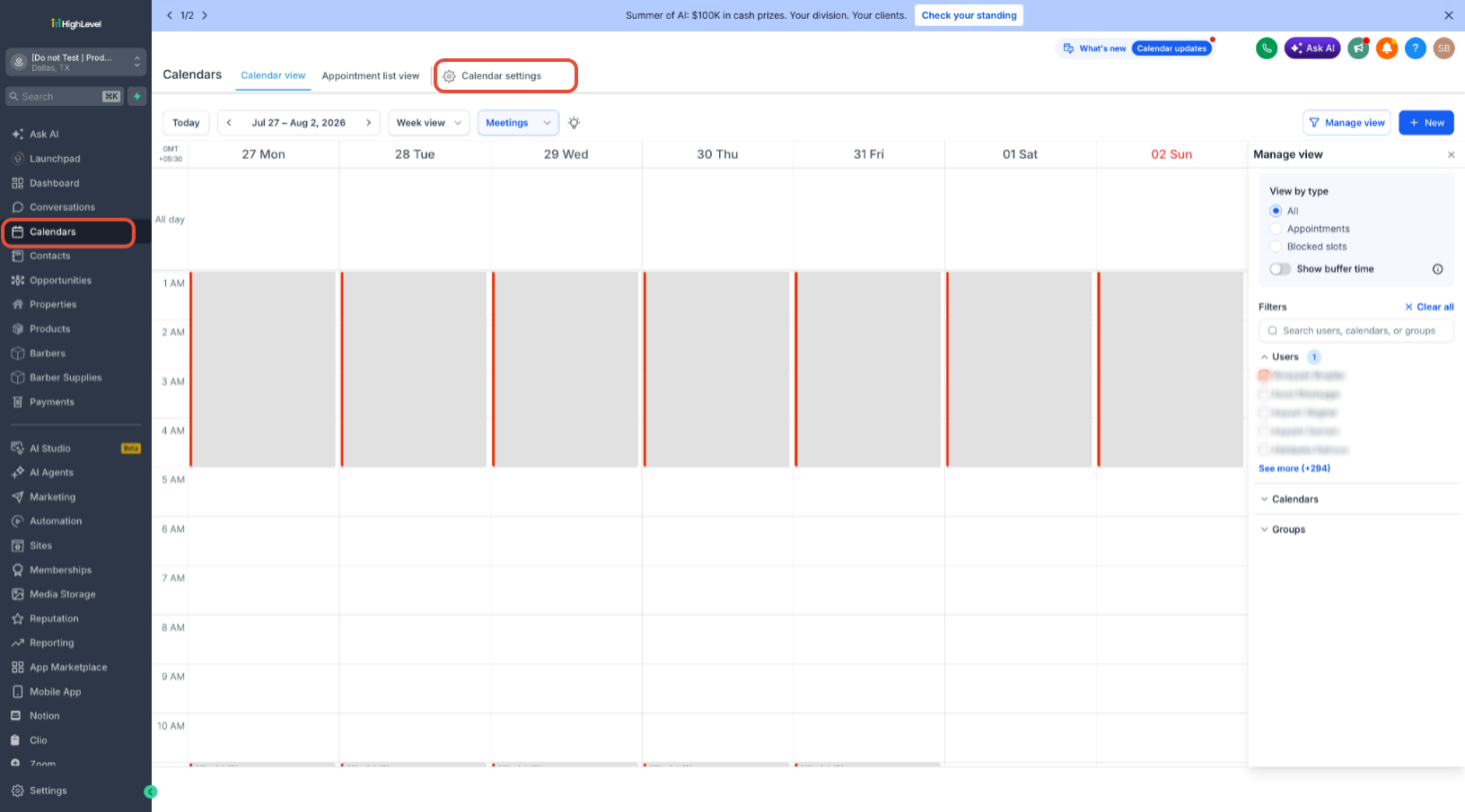
2. Open Calendar Settings
At the top of the Calendars page, click Calendar settings (the gear icon). This opens the calendar configuration screen.
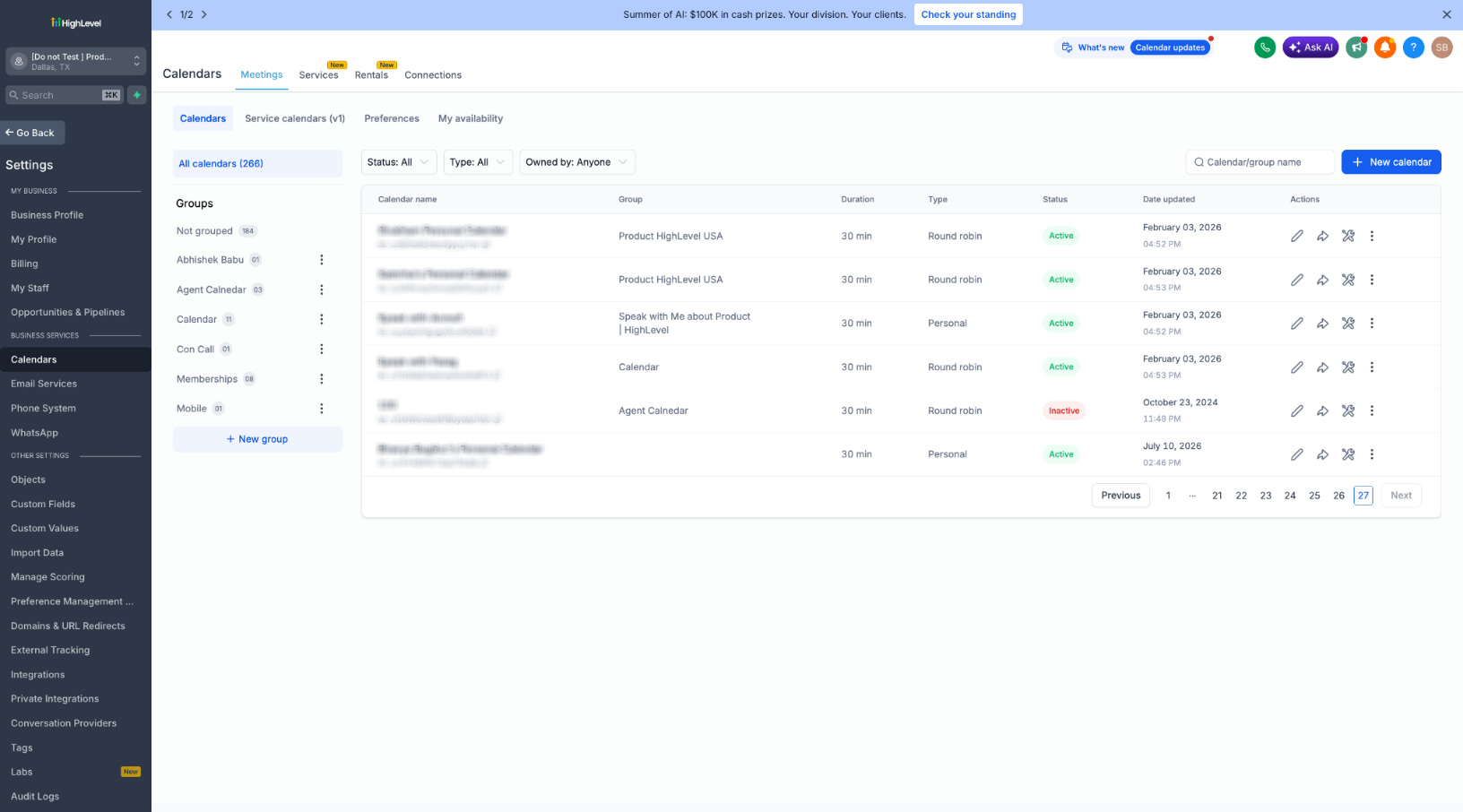
3. Go to the Preferences tab
In Calendar settings, click the Preferences tab.
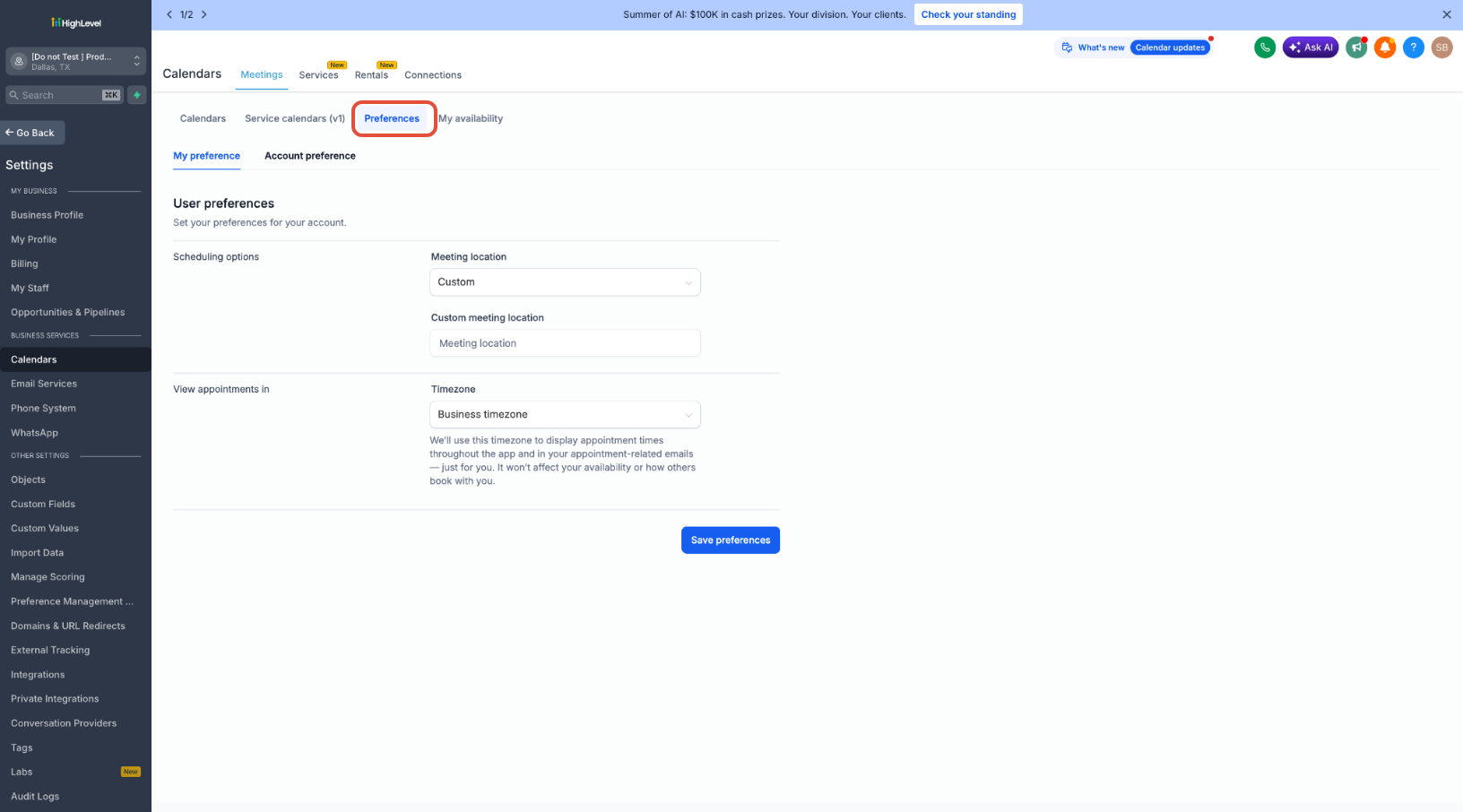
4. Open “My preference” and find “View appointments in”
Inside Preferences, select the My preference tab (not Account preference). Scroll to View appointments in — this is the setting that controls your personal appointment-time display.
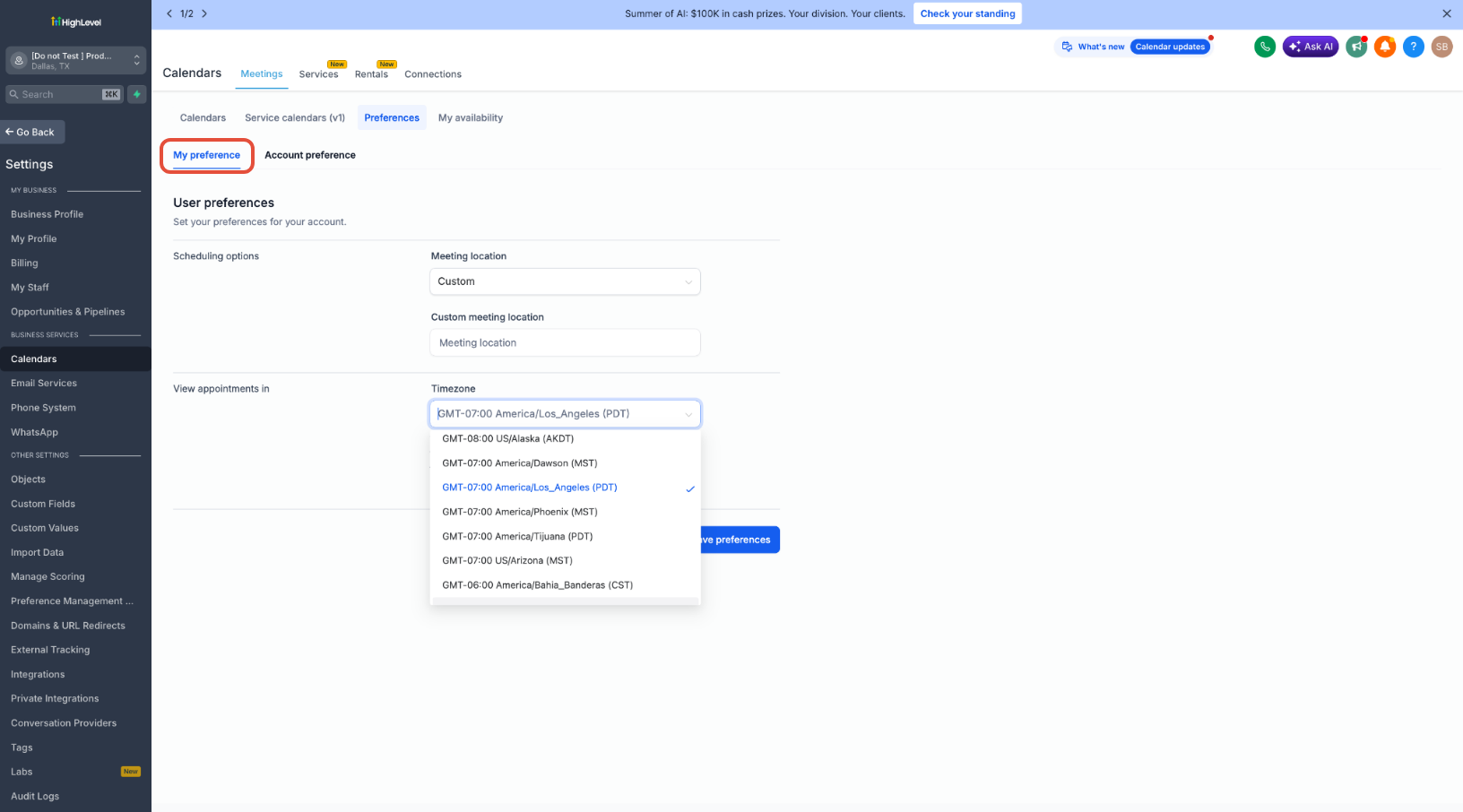
Don’t see “View appointments in”? This field appears under the My preference tab on sub-accounts running the newer calendar experience. If your Preferences page only shows an Account preference tab (with no “My preference”), the field will not be present — see “If the setting isn’t there” below.
5. Choose your timezone and save
Open the Timezone dropdown under “View appointments in” and choose User timezone, Business timezone, or Custom. If you choose Custom, search for and select the timezone you want. Then click Save preferences.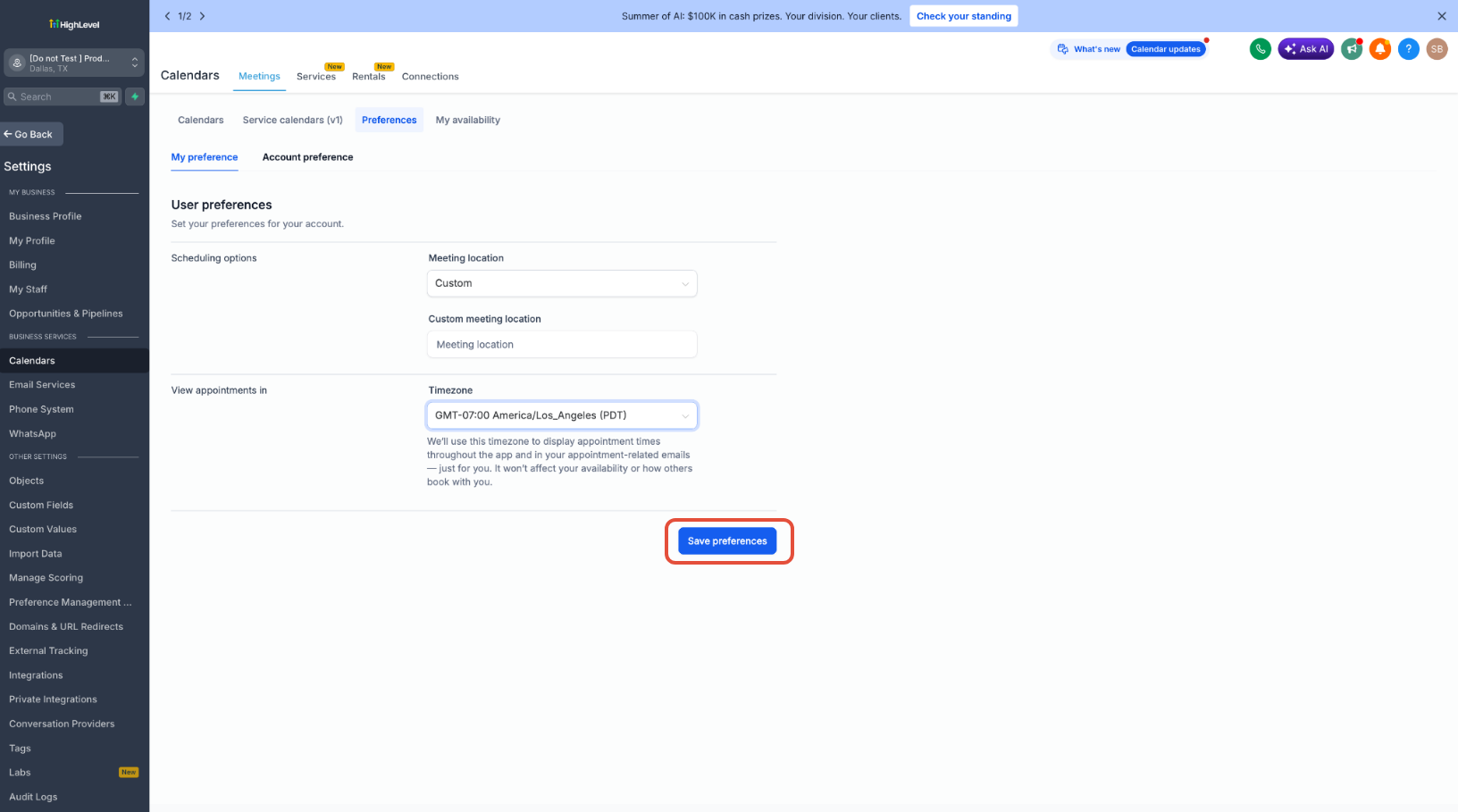
Tip: to see the change clearly on mobile in the next steps, set Custom to a timezone noticeably different from your own.
6. Open the mobile app and go to the Calendar
Open the mobile app and review your appointments in Calendar View, Appointment List, or appointment details.
Mobile App Availability
The configured appointment timezone preference is supported in the mobile app so users can view appointment times consistently while working away from desktop. Keeping the mobile app updated ensures the latest appointment display behavior is available.
Availability:
HighLevel mobile app: Supported
LeadConnector mobile app: Supported
White-labeled mobile apps: Supported when the app is updated to the compatible version
Supported version: Mobile app version 4.10.0 (810) or later
If the setting does not appear or appointment times do not display as expected, update the mobile app and confirm the correct sub-account and user profile are being used.
Backward Compatibility from the Previous Labs Toggle
The previous Labs timezone toggle has been replaced by the user-level View Appointments In preference. Existing behavior is migrated automatically so users do not need to manually reconfigure their timezone preference after the update.
Migration behavior:
If the old Labs timezone flag was enabled, the preference migrates to User Timezone.
If the old Labs timezone flag was disabled, the preference defaults to Business Timezone.
If an invalid or unrecognized timezone is stored, HighLevel falls back to the location or business timezone.
Troubleshooting Timezone Display Issues
Timezone display issues are usually caused by app version, account context, or an unsaved preference. Reviewing these items can help confirm that appointment times are displaying according to the intended timezone.
Try the following checks:
Confirm the View Appointments In preference is set to the correct timezone.
Save the preference again.
Confirm you are using mobile app version 4.10.0 (810) or later.
Confirm you are logged in to the correct sub-account.
Refresh or reopen the mobile app.
For white-labeled apps, confirm the app has been updated to the supported version.
Frequently Asked Questions
Q: Does this change how clients book appointments?
A: No. This is a display preference only. It does not change booking availability, appointment slots, scheduling rules, or client-facing booking pages.
Q: Is this setting shared with my whole team?
A: No. The setting is user-specific. Each team member can choose their own appointment viewing timezone.
Q: Can I use a timezone that is different from my user or business timezone?
A: Yes. Select Custom and choose the timezone you want to use for viewing appointment times.
Q: Does this work in the HighLevel and LeadConnector mobile apps?
A: Yes. The feature is available in supported versions of the HighLevel and LeadConnector mobile apps.
Q: Does this work for white-labeled mobile apps?
A: Yes, as long as the white-labeled app has been updated to the supported version.
Q: What app version do I need?
A: Use mobile app version 4.10.0 (810) or later.
Q: What happened to the old Labs timezone toggle?
A: The Labs toggle has been replaced by the View Appointments In preference. Existing settings are migrated automatically.
Q: Why do my appointment times still look incorrect?
A: Check your selected timezone preference, save it again, confirm your mobile app is updated, and verify that you are viewing the correct sub-account.
Q: Does this affect appointment reminder emails?
A: No. This preference is intended for how appointment times display to the logged-in user in supported app areas. It does not change appointment notification or booking logic.
Related Articles
Was this article helpful?
That’s Great!
Thank you for your feedback
Sorry! We couldn't be helpful
Thank you for your feedback
Feedback sent
We appreciate your effort and will try to fix the article