Generative AI tools in Agent Studio allow you to create AI-generated text, audio, images, and videos inside an agent flow. These tools are added as processing nodes and can use prompts, Brand Voice, Brand Kit settings, and variables to generate content during a conversation or workflow. The generated output is stored in a variable so it can be referenced later in the agent flow.
This article covers Generative AI tools inside Agent Studio. Agent Studio is separate from AI Studio.TABLE OF CONTENTS
- Key Benefits of Generative AI Tools
- How to Configure Each Generative AI Tool in Agent Studio
- Configuring Text Generation
- Configuring Audio Generation
- Configuring Image Generation
- Configuring Video Generation
- Using Variables with Generative AI Tools
- Frequently Asked Questions
What are Generative AI Tools?
Generative AI tools are processing nodes that allow an agent to create content while the agent is running. Instead of manually creating every message, image, audio file, or video asset outside the agent, these tools let the agent generate content based on the prompt and configuration you provide.
The available Generative AI tools are:
- Text Generation: Generates written content such as summaries, responses, descriptions, captions, recommendations, or structured text.
- Audio Generation: Generates audio from a prompt and stores the generated audio URL in a variable.
- Image Generation: Generates images from a prompt and stores the generated image URL in a variable.
- Video Generation: Generates videos from a detailed video prompt and stores or uses the generated output based on the configured setup.
Key Benefits of Generative AI Tools
Generative AI tools help agents create dynamic content without requiring every response or asset to be prepared manually. This makes agent flows more flexible, personalized, and useful across conversations, campaigns, and automation experiences.
- Automated content creation: Generate text, audio, images, and videos directly inside an agent flow.
- Reusable generated outputs: Store AI-generated content in variables so it can be used later in the agent.
- Brand consistency: Use Brand Voice and Brand Kit settings to help generated content follow the business’s tone and visual identity.
- Flexible agent workflows: Add content generation steps wherever the agent needs to create content during the flow.
- Improved personalization: Use variables from earlier steps to generate more relevant and contextual output.
How to Configure Each Generative AI Tool in Agent Studio
Generative AI tools are added from the agent builder as processing nodes. Adding the tool in the correct part of the flow ensures the generated content is created at the right moment and stored for later use.
To add a Generative AI tool to an agent:
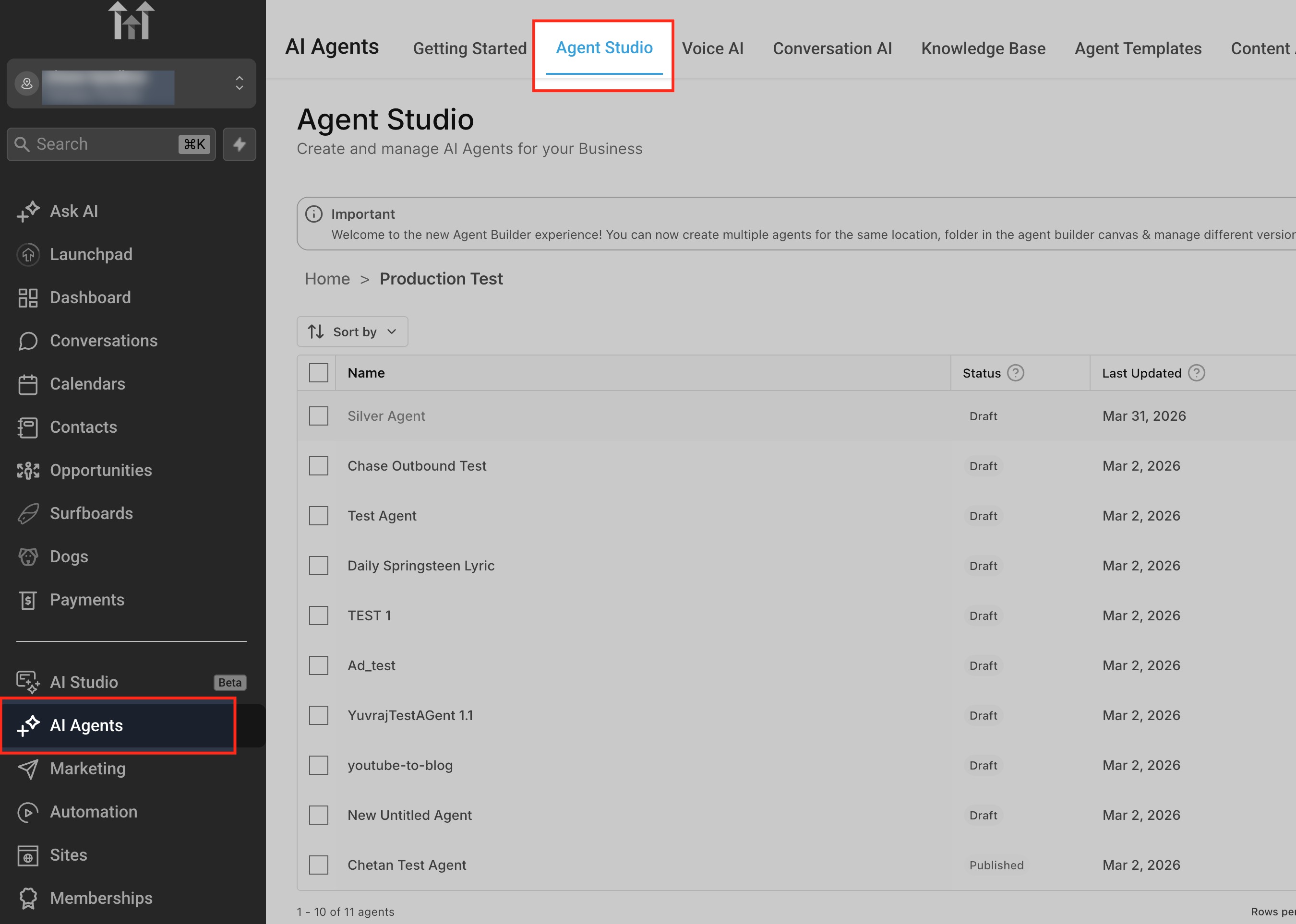
- Go to AI Agents from the left navigation menu.
- Open the Agent Studio tab.
- Select the agent you want to configure.
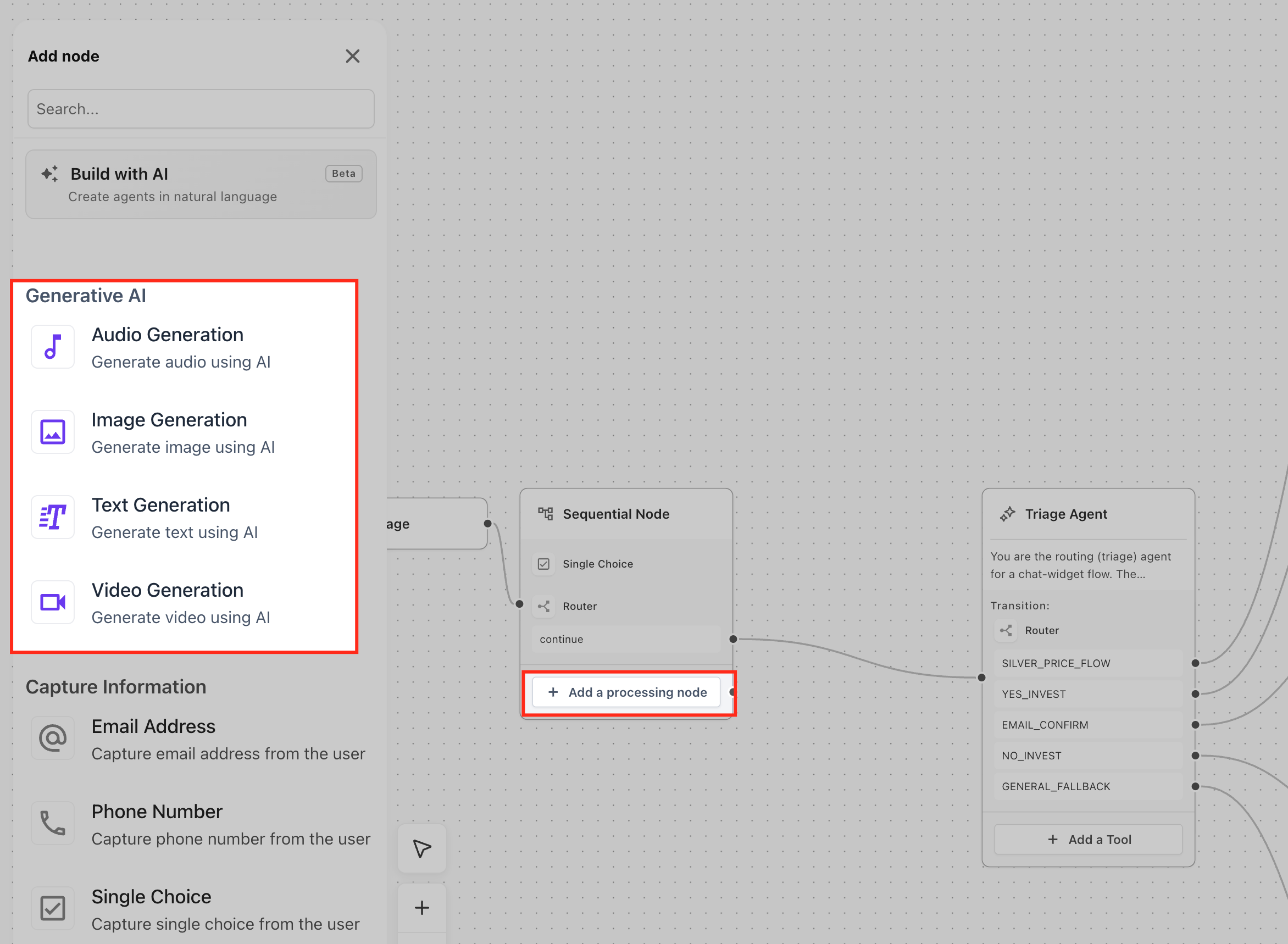
- In the agent builder canvas, locate the node where you want to add the generative AI action.
- Click Add a processing node.
- In the Add node panel, go to the Generative AI section.
- Select the tool you want to add:
- Audio Generation
- Image Generation
- Text Generation
- Video Generation
- Configure the node settings in the side panel.
- Click Save after completing the required fields.
The selected Generative AI tool is added as a processing step inside the node. The generated output can then be stored in a variable and used later in the agent flow.
Configuring Text Generation
Text Generation creates written content from instructions you provide in the node. Use this node when the agent needs to generate replies, summaries, captions, descriptions, recommendations, rewritten text, or structured written output.
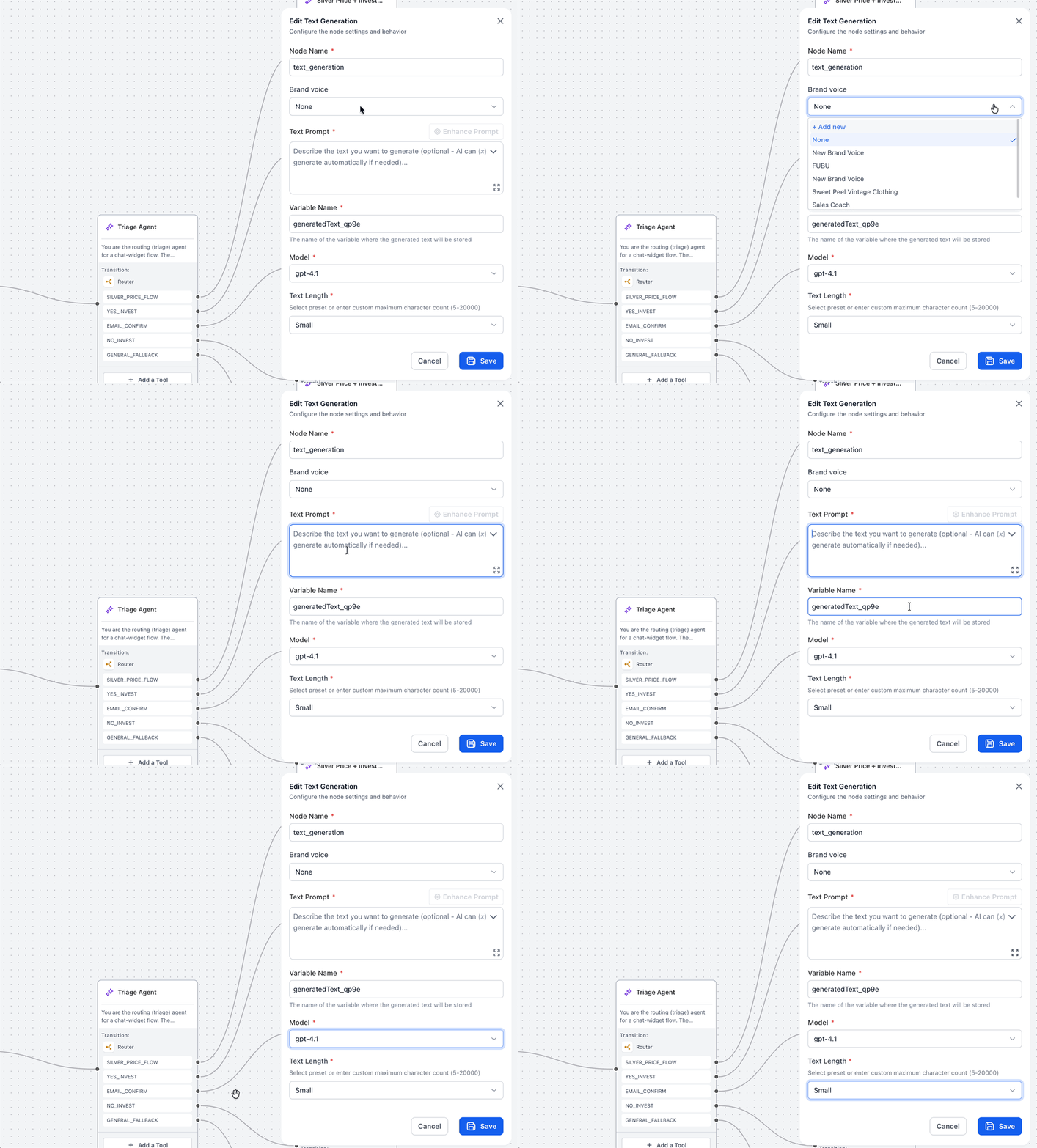
Node Name
The Node Name field identifies the Text Generation step inside the agent builder. This field is required and defaults to text_generation.
Rename the node when you want the purpose of the generated text to be easier to recognize later, especially when the agent includes multiple processing steps.
Examples:
generate_summarycreate_responsewrite_product_description
Brand voice
The Brand voice dropdown lets you apply a saved communication style to the generated text.
From the dropdown, you can:
- Select None
- Choose an existing Brand Voice
- Click + Add new to create a new Brand Voice
Leave this field set to None when no specific Brand voice is needed.
Text Prompt
The Text Prompt field tells the AI what text to generate. This field is required.
You do not need to write the final output yourself. Instead, enter instructions that describe what the AI should create, what information it should use, and how the response should be formatted. The AI uses these instructions to automatically generate the text when the node runs.
A Text Prompt can instruct the AI to:
- Summarize a customer message
- Generate a reply
- Create a short caption
- Write a structured response
- Rewrite text in a specific tone
Use the variable picker inside the Text Prompt field to insert dynamic values into the prompt. Use the search bar to quickly find the variable or value you want to include.
Available variable categories shown in the dropdown include:
- Global Config: Inserts values from the agent’s global configuration.
- Input Variables: Inserts values passed into the agent when it starts or is invoked.
- Runtime Variables: Inserts values created or captured while the agent is running.
- Account: Inserts account-level values.
- Custom values: Inserts saved custom values available in the account.
- Right now: Inserts current date or time-based values.
- Contact: Inserts contact-specific values, such as contact details.
The Enhance Prompt button helps improve or expand your prompt before saving. Use the expand icon in the prompt field to open a larger writing area for longer instructions.
Avoid vague prompts such as “write something.” Instead, describe the goal, audience, tone, and expected format.
Variable Name
The Variable Name field stores the generated text output. This field is required.
Use a meaningful variable name that describes the generated text, such as:
generatedSummarygeneratedReplyproductDescription
Model
The Model dropdown determines which AI model is used to generate the text. This field is required.
Available model options shown in the UI include:
- gpt-4.1
- gpt-5-mini
Select the model that best fits the type of output you want to generate. For general text responses, summaries, and structured content, use the default or recommended model unless your setup requires a different model.
Text Length
The Text Length field controls the maximum length of the generated text. This field is required.
The helper text states that you can select a preset or enter a custom maximum character count between 5 and 20000.
Available Text Length options shown in the UI include:
- Small: Generates a shorter response, such as a quick reply, caption, or brief summary.
- Big: Generates a longer response for more detailed written content.
- Custom: Lets you define a specific maximum character count.
Configuring Audio Generation
Audio Generation creates an audio file from instructions you provide in the node. Use this node when the agent needs to produce spoken content, voice-based responses, audio messages, or narration.
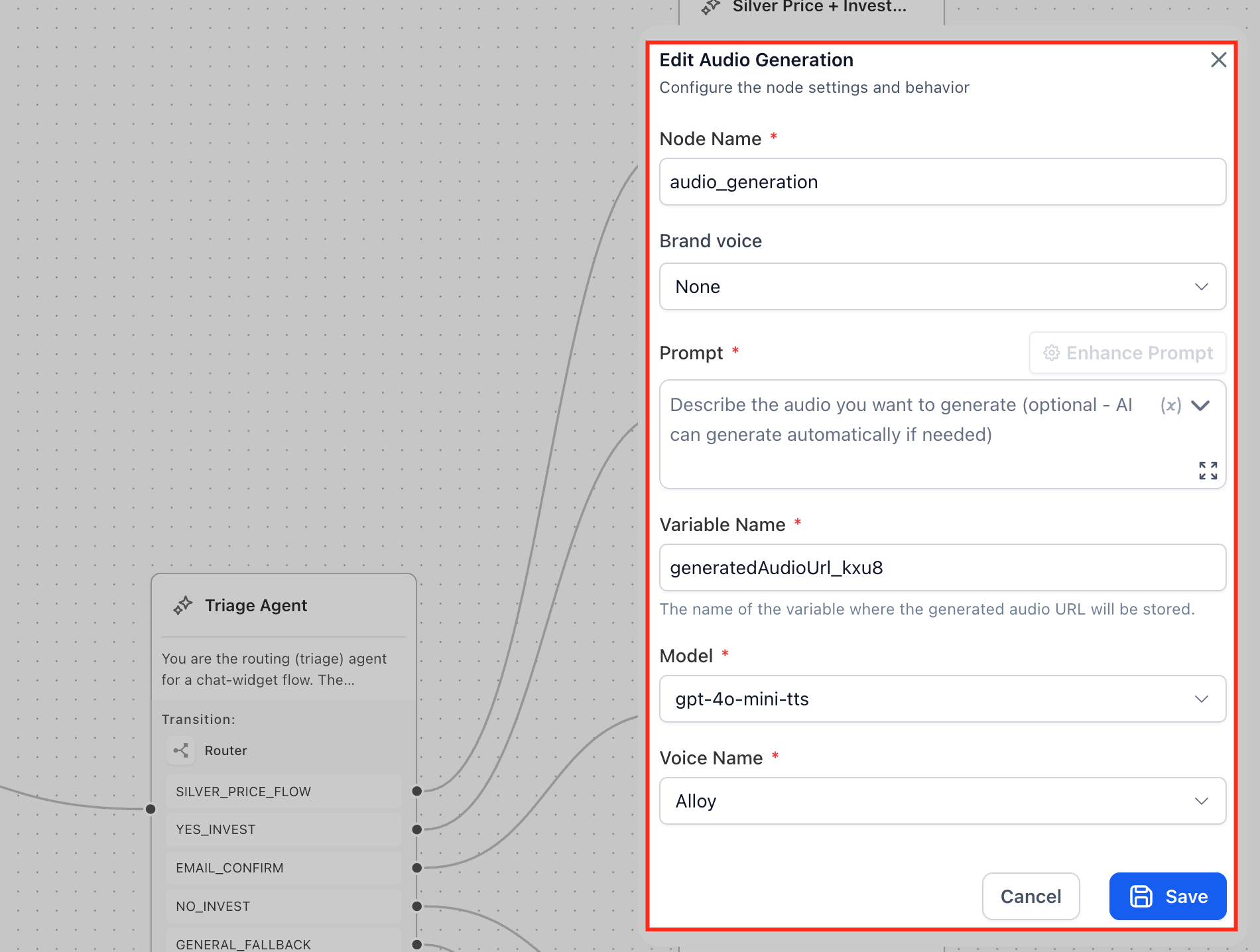
Node Name
The Node Name field identifies the Audio Generation step in the agent builder. This field is required and defaults to audio_generation.
Rename the node when you want the purpose of the generated audio to be easier to recognize later.
Examples:
generate_voice_responsecreate_audio_messageaudio_summary
Brand voice
The Brand voice dropdown works the same way as it does for Text Generation. Use it to apply a saved communication style to the audio prompt.
From the dropdown, you can select None, choose an existing Brand Voice, or click + Add new to create a new Brand Voice.
Prompt
The Prompt field tells the AI what audio to generate. This field is required.
You do not need to create the audio file manually. Instead, enter instructions that describe what the audio should say or represent. You can provide the exact text to be spoken or describe the type of audio content needed.
A good audio prompt can include:
- The spoken message
- Tone
- Style
- Pacing
- Intended audience
Use the variable picker inside the Prompt field to insert dynamic values from the agent flow, such as contact details or information collected earlier.
The Enhance Prompt button helps refine or expand your prompt before saving. Use the expand icon in the Prompt field to open a larger writing area for longer audio instructions.
Variable Name
The Variable Name field stores the generated audio URL. This field is required.
Use a descriptive variable name, such as:
generatedAudioUrlvoiceMessageUrlaudioResponseUrl
Model
The Model dropdown determines which text-to-speech model generates the audio. This field is required.
The model is:
- gpt-4o-mini-tts
Use the selected model unless a different model is required or available for your setup.
Voice Name
The Voice Name dropdown controls which voice is used for the generated audio. This field is required.
Available Voice Name options include:
- Alloy: A balanced voice option suitable for general-purpose audio.
- Ash: A voice option that can be used when its tone fits the intended message.
- Ballad: A voice option that can be used for a smoother or more expressive audio style.
- Coral: A voice option that can be used when its sound matches the desired brand tone.
- Echo: A voice option that can be used for conversational or spoken-response audio.
- Fable: A voice option that can be used for narrative-style or expressive audio.
- Nova: A voice option that can be used for clear, polished spoken content.
Choose the voice that best matches the intended tone of the audio, such as warm, professional, energetic, calm, or conversational.
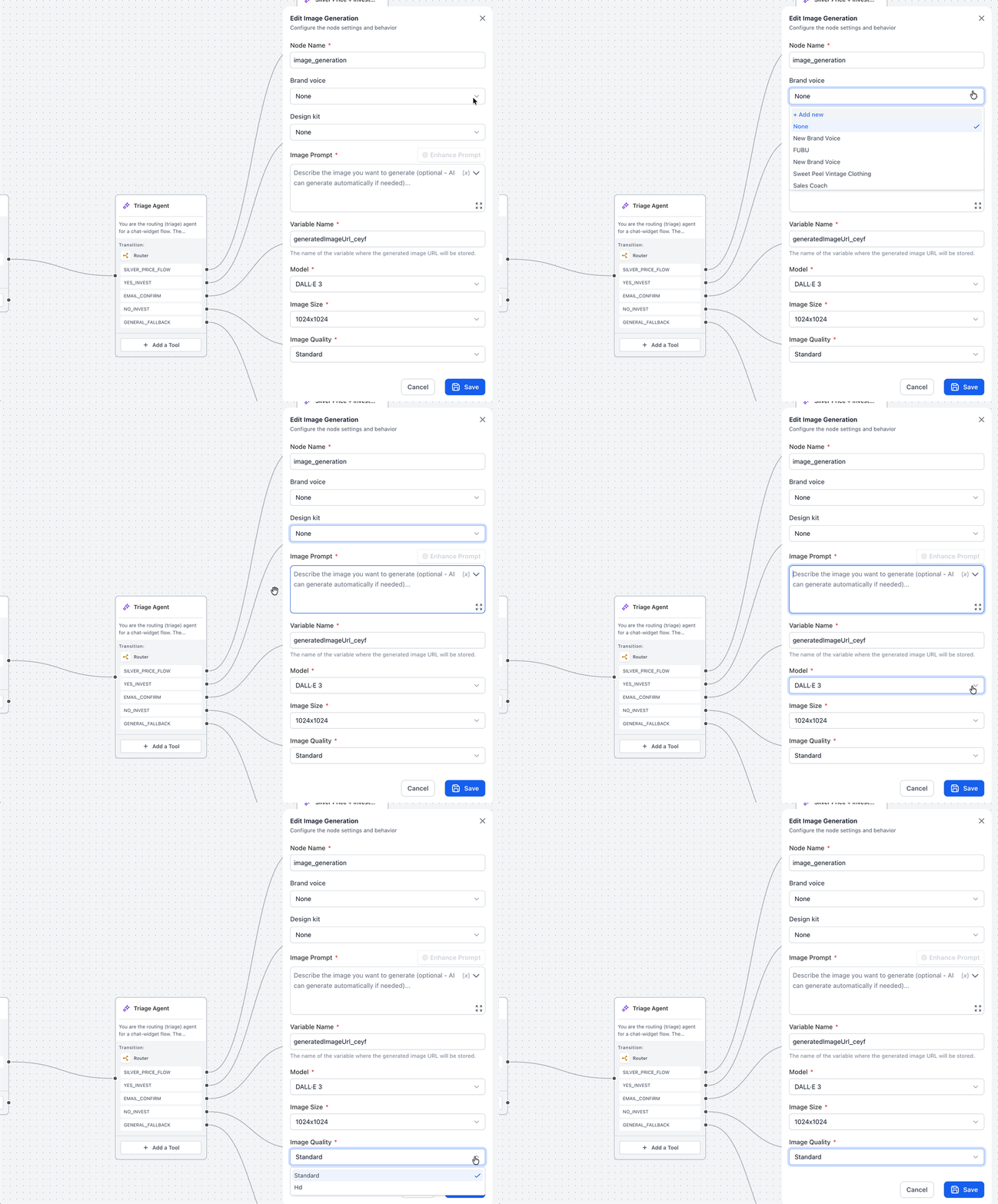
Configuring Image Generation
Image Generation creates an image from instructions you provide in the node. Use this node when the agent needs to generate visual assets for campaigns, social content, product concepts, or other image-based use cases.
Node Name
The Node Name field identifies the Image Generation step in the agent builder. This field is required and defaults to image_generation.
Rename the node when you want the generated image’s purpose to be easier to recognize later.
Examples:
generate_product_imagecreate_social_imageimage_for_campaign
Brand voice
The Brand voice dropdown works the same way as it does for Text Generation. Use it when the image prompt should follow a specific campaign tone, audience, or creative direction.
From the dropdown, you can select None, choose an existing Brand Voice, or click + Add new to create a new Brand Voice.
Design kit
The Design kit dropdown lets you apply saved visual branding to the generated image.
From the dropdown, you can:
- Select None
- Choose an existing design kit
- Click + Add new to create a new design kit
Use a Design kit when the generated image should align with the business’s visual identity. This may include brand colors, fonts, logo usage, or other saved visual preferences depending on the available setup.
Image Prompt
The Image Prompt field tells the AI what image to generate. This field is required.
You do not need to create the image manually. Instead, enter instructions that describe the image the AI should create. Include enough detail for the AI to understand the subject, style, and visual direction.
A strong Image Prompt can include:
- Subject
- Setting
- Style
- Colors
- Composition
- Mood
- Important details that should appear in the image
Example:
“Create a professional photo-style image of a modern restaurant table setup with warm lighting, fresh food on the table, and a welcoming atmosphere.”
Use the variable picker inside the Image Prompt field to insert values from the agent flow, such as a product name, campaign topic, contact detail, or collected response.
The Enhance Prompt button helps improve or expand the prompt before saving. Use the expand icon in the Image Prompt field to open a larger writing area for longer image instructions.
Variable Name
The Variable Name field stores the generated image URL. This field is required.
Use a descriptive variable name, such as:
generatedImageUrlcampaignImageUrlproductImageUrl
Model
The Model dropdown determines which AI image generation model is used. This field is required.
Available model options shown in the UI include:
- GPT Image 1: Generates images using the GPT Image model.
- DALL·E 3: Generates images using the DALL·E 3 model.
- Gemini 2.5 Flash Image Preview: Generates images using the Gemini image preview model.
Select the available model based on the type of image output you want to generate. If a default model is already selected, use it unless a different model is required for your workflow.
Image Size
The Image Size dropdown controls the dimensions of the generated image. This field is required.
Available Image Size options include:
- 1024x1024: Creates a square image for general creative assets, thumbnails, or social posts.
- 1024x1792: Creates a portrait-oriented image for vertical placements.
- 1792x1024: Creates a landscape-oriented image for wider placements.
Image Quality
The Image Quality dropdown controls the quality level of the generated image. This field is required.
Available Image Quality options include:
- Standard: Generates a general-purpose image output.
- Hd: Generates a higher-quality image output for more polished creative assets.
Configuring Video Generation
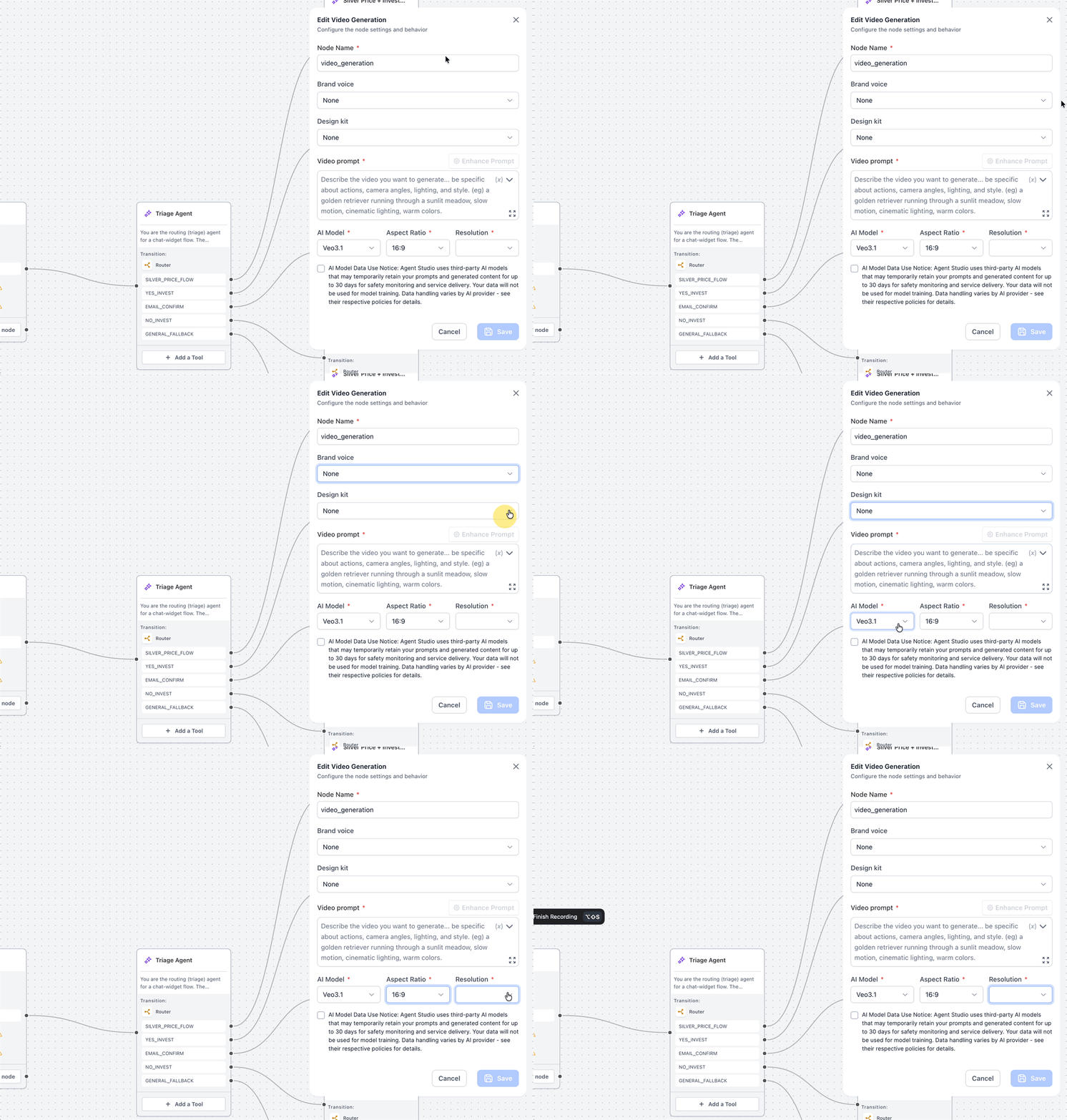
Video Generation creates video content from instructions you provide in the node. Use this node when the agent needs to produce short video content for campaigns, creative assets, social media, or other visual use cases.
Unlike Text, Audio, and Image Generation, the Video Generation UI shown here does not include a Variable Name field. Configure the visible video settings in the panel and review the output behavior in your agent setup.
Node Name
The Node Name field identifies the Video Generation step in the agent builder. This field is required and defaults to video_generation.
Rename the node when you want the purpose of the generated video to be easier to recognize later.
Examples:
generate_promo_videocreate_product_videovideo_for_social_post
Brand voice
The Brand voice dropdown works the same way as it does for Text Generation. Use it when the video prompt should align with a business’s tone, messaging style, or campaign direction.
From the dropdown, you can select None, choose an existing Brand Voice, or click + Add new to create a new Brand Voice.
Design kit
The Design kit dropdown works the same way as it does for Image Generation. Use it when the generated video should follow a specific brand style or visual identity.
From the dropdown, you can select None, choose an existing design kit, or click + Add new to create a new design kit.
Video prompt
The Video prompt field tells the AI what video to generate. This field is required.
You do not need to create the video manually. Instead, enter instructions that describe what should happen in the video and how it should look. The placeholder recommends being specific about actions, camera angles, lighting, and style.
A strong Video prompt can include:
- Subject
- Action
- Scene or setting
- Camera angles
- Lighting
- Visual style
- Motion
- Mood
Example:
“A golden retriever running through a sunlit meadow, slow motion, cinematic lighting, warm colors.”
Use the variable picker inside the Video prompt field to insert values from the agent flow, such as campaign details, product names, or previously collected responses.
The Enhance Prompt button helps improve or expand your prompt before saving. Use the expand icon to open a larger writing area for longer video instructions.
AI Model
The AI Model dropdown determines which video generation model is used. This field is required.
Available AI Model options include:
- Veo3.1: Generates video using the standard Veo3.1 model.
- Veo3.1 Fast: Generates video using the faster Veo3.1 option.
Select the model that best supports the type of video you want to generate. If speed is more important for your use case, choose the faster option when available. If a default model is selected, keep it unless your workflow requires a different model.
Aspect Ratio
The Aspect Ratio dropdown controls the shape of the generated video. This field is required.
Available Aspect Ratio options include:
- 16:9: Creates a landscape video for website content, YouTube-style videos, presentations, or other wide placements.
- 9:16: Creates a vertical video for short-form social content or mobile-first placements.
Resolution
The Resolution dropdown controls the output resolution of the generated video. This field is required.
Available Resolution options include:
- 720p: Generates the video at 720p resolution.
Select the available resolution based on the quality and usage requirements of the video. If the field is blank, select a resolution before saving.
AI Model Data Use Notice
The AI Model Data Use Notice checkbox explains how third-party AI models handle prompts and generated content for Video Generation.
The notice states that Agent Studio uses third-party AI models that can temporarily retain prompts and generated content for up to 30 days for safety monitoring and service delivery. It also states that your data will not be used for model training and that data handling varies by AI provider.
Review the notice before saving the node. Select the checkbox to acknowledge the notice before continuing.
The Save button remains disabled until all required fields are completed and this notice is acknowledged.
Using Variables with Generative AI Tools
Variables help Generative AI tools create more relevant outputs and make generated content available to later steps. Understanding the difference between input variables and output variables helps you configure prompts and reuse generated content correctly.
There are two common ways variables are used with Generative AI tools:
- Input variables in prompts: Existing variables can be inserted into prompts so the AI can generate content using contact details, collected responses, or earlier agent outputs.
- Output variables from the node: Text, Audio, and Image Generation use the Variable Name field to store the newly generated output.
For example, a prompt may include an existing variable such as {{contact.first_name}} or another value collected earlier in the agent flow.
Generated output variables may include:
- A Text Generation node storing generated written content
- An Audio Generation node storing a generated audio URL
- An Image Generation node storing a generated image URL
Use clear and descriptive variable names so the output is easy to identify in later steps.
Good variable names include:
generatedReplygeneratedAudioUrlgeneratedImageUrlcampaignCaptionsummaryText
Avoid unclear names that do not explain the output, especially when the agent contains multiple AI generation steps.
Frequently Asked Questions
Q: Where are Generative AI tools available?
Generative AI tools are available inside Agent Studio when adding a processing node to an agent flow.
Q: What types of content can these tools generate?
The available Generative AI tools can generate text, audio, images, and videos.
Q: Do all Generative AI tools store output in a Variable Name field?
Text, Audio, and Image Generation include a Variable Name field for storing generated output. The Video Generation UI shown here does not include a Variable Name field.
Q: What does the Variable Name field do?
The Variable Name field stores the generated output so it can be referenced later in the agent flow. Text Generation stores generated text, Audio Generation stores a generated audio URL, and Image Generation stores a generated image URL.
Q: Can I use variables inside a prompt?
Yes. Prompt fields include a variable picker that lets you insert values from earlier steps, contact fields, or other available variables.
Q: Do I need to write the final content in the prompt field?
No. The prompt field is where you provide instructions for what the AI should generate. The AI creates the final text, audio, image, or video output when the node runs.
Q: What is Brand voice used for?
Brand voice helps align generated content with the business’s preferred tone, communication style, and messaging guidelines.
Q: What is Design kit used for?
Design kit helps align visual outputs, such as images and videos, with the business’s visual identity when a kit is available.
Q: Why do I not see Brand voice or Design kit options?
You may need to create or add Brand voice or Design kit options first. The dropdowns also include + Add new so you can create a new option directly from the node configuration.
Q: Why does Video Generation show an AI Model Data Use Notice?
Video Generation uses third-party AI models. The notice explains that prompts and generated content can be temporarily retained for up to 30 days for safety monitoring and service delivery, that data will not be used for model training, and that data handling varies by provider.
Q: Why is the Save button disabled?
The Save button remains disabled when required fields are incomplete. For Video Generation, it also remains disabled until the AI Model Data Use Notice is acknowledged.
Related Articles
Was this article helpful?
That’s Great!
Thank you for your feedback
Sorry! We couldn't be helpful
Thank you for your feedback
Feedback sent
We appreciate your effort and will try to fix the article