TABLE OF CONTENTS
- What is Agent Studio?
- Key Benefits of Agent Studio
- Visual Agent Builder
- Node Types
- Conditional Routing
- Knowledge Base for RAG
- Global Variables & Runtime Inputs
- Version Control
- Testing & Deployment
- Pricing
- How to Set Up Agent Studio
- Frequently Asked Questions
What is Agent Studio?
Key Benefits of Agent Studio
- Visual drag-and-drop creation—no code required.
- Hybrid automation that mixes AI reasoning with deterministic logic.
- Conditional edges that branch intelligently based on variables or AI intent.
- Version control with one-click publish and rollback for safe iteration.
- Built-in testing so you can validate logic before going live.
- Free tier for unlimited agents; pay only for LLM tokens.
Visual Agent Builder
Node Types
- AI Agent Node: Connect LLM prompts to tools like Web Search, Knowledge Base Search, GenAI, or external APIs for dynamic reasoning, content generation, and data look-ups.
- Sequential Node: Perform rule-based actions such as API calls, form validation, or webhook triggers when you need absolute control and repeatability.
Conditional Routing
orderTotal > 500) or use AI intent matching to decide which downstream node should fire. This keeps flows compact while enabling highly granular branching.Knowledge Base for RAG
Global Variables & Runtime Inputs
locationId, userId) from the calling app or chat session so every execution feels personal.Version Control
Testing & Deployment
Pricing
Free Tier: nlimited agents, free Knowledge Base & non-AI executions.
How to Set Up Agent Studio
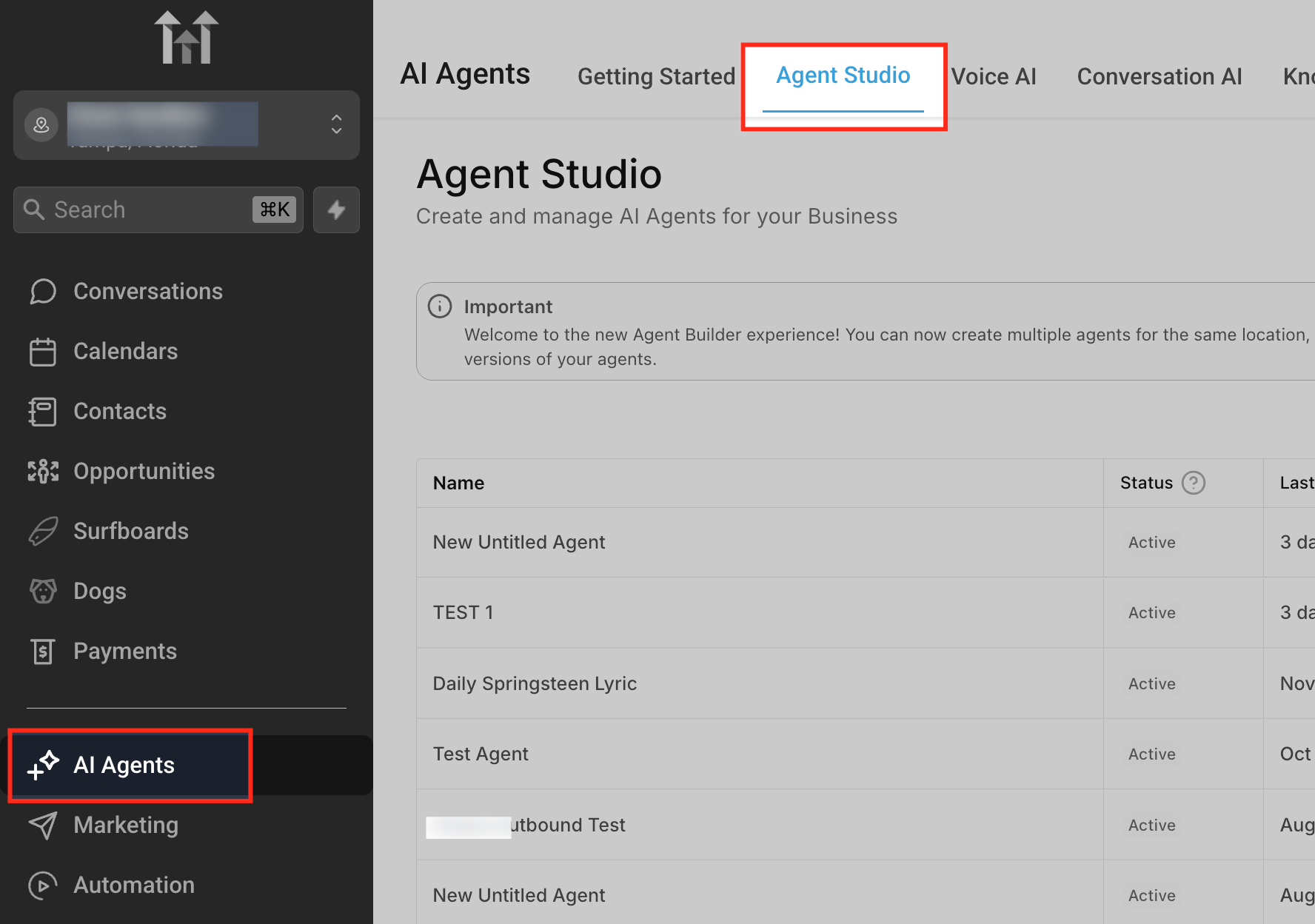
Step 1: Navigate to Agent Studio
From your HighLevel dashboard, click AI Agents in the left sidebar
Select the Agent Studio tab
You will land on the Agent Studio dashboard where all your agents are listed.
Step 2: Create a New Agent
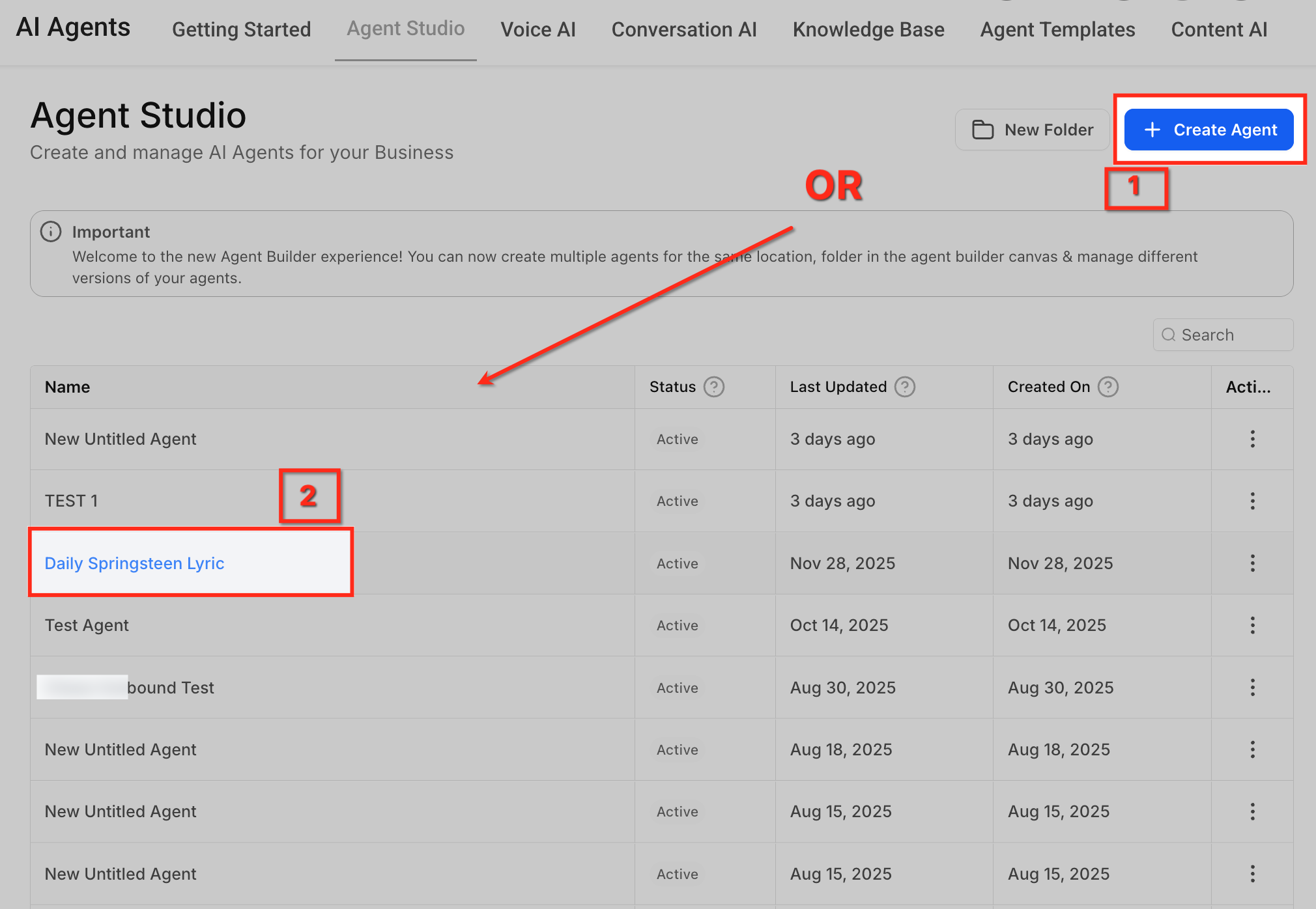
Click + Create Agent in the top-right corner
This opens the canvas, which is your workspace for building workflows.
What you’re seeing:
Left panel → Available nodes (building blocks)
Center → Canvas (where you build your workflow)
Right panel → Settings (where you configure each step)
Click Create Agent to open the blank canvas.
Step 3: Add an AI Agent Node
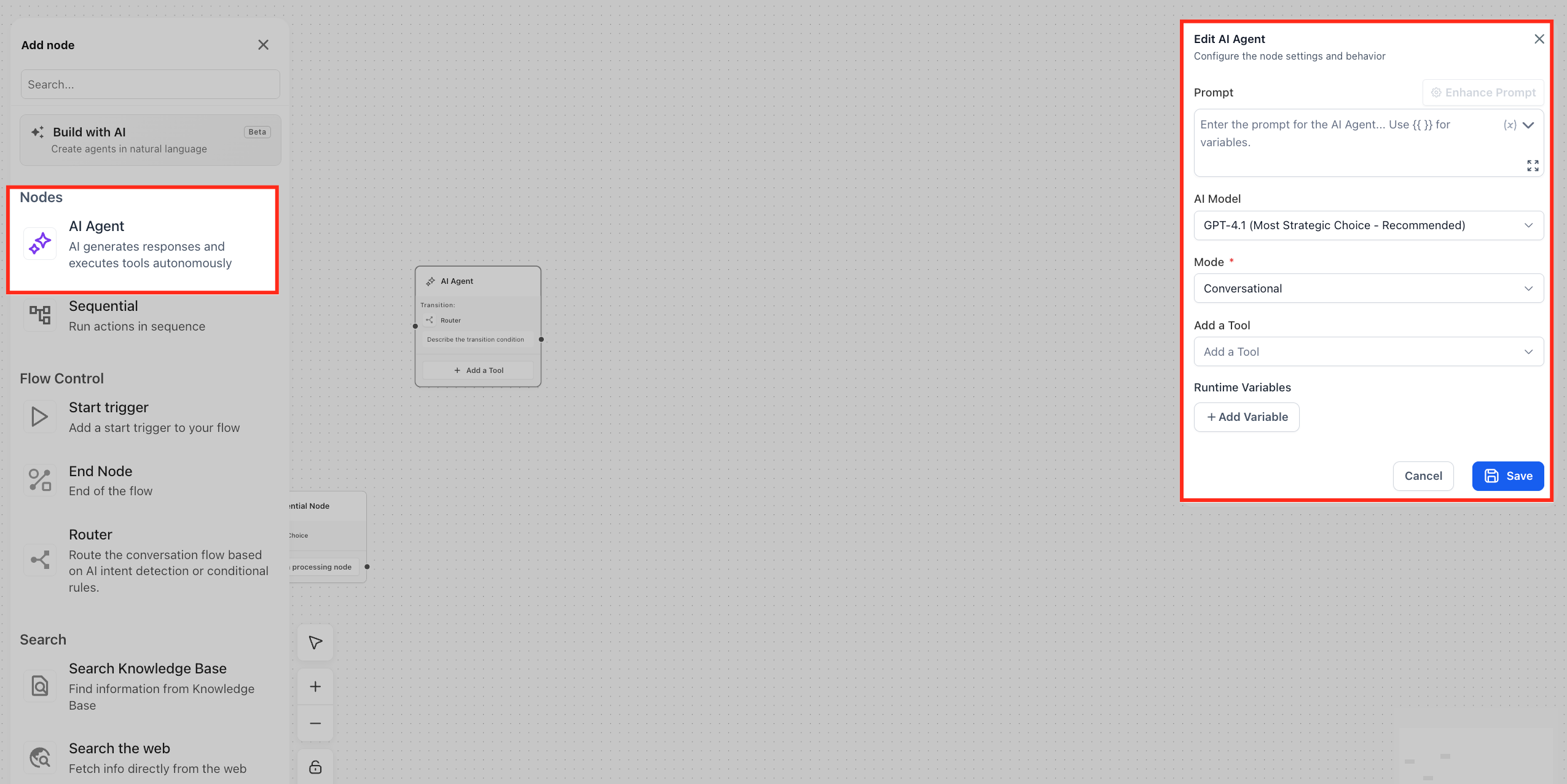
AI Agent Nodes are the core of your workflow. They allow your agent to think, generate responses, and use tools like Knowledge Base or Web Search.
From the left panel, drag AI Agent onto the canvas
This node will handle conversations and decision-making.
Step 4: Configure the AI Agent
Click on the AI Agent node to open its settings panel.
Fill in the following:
Model: Select the recommended model (e.g., GPT-4.1)
Prompt: Define how the agent should behave
Example Prompt :
You are a helpful assistant for a business. Answer user questions clearly and politely. If you don’t know the answer, ask for more details.
The prompt acts as the “instructions” for your AI agent. It directly controls how the agent responds.
Step 6: Connect the Flow
Workflows run from one step to another using connections.
Click and drag from the small connector dot on the node
Connect it to the next step (or leave it as a single-node flow for now)
If no condition is added, the flow simply continues to the next step automatically.
Sequential Nodes
Sequential Nodes are used for structured, rule-based actions like API calls or validations.
Drag a Sequential Node from the left panel if needed
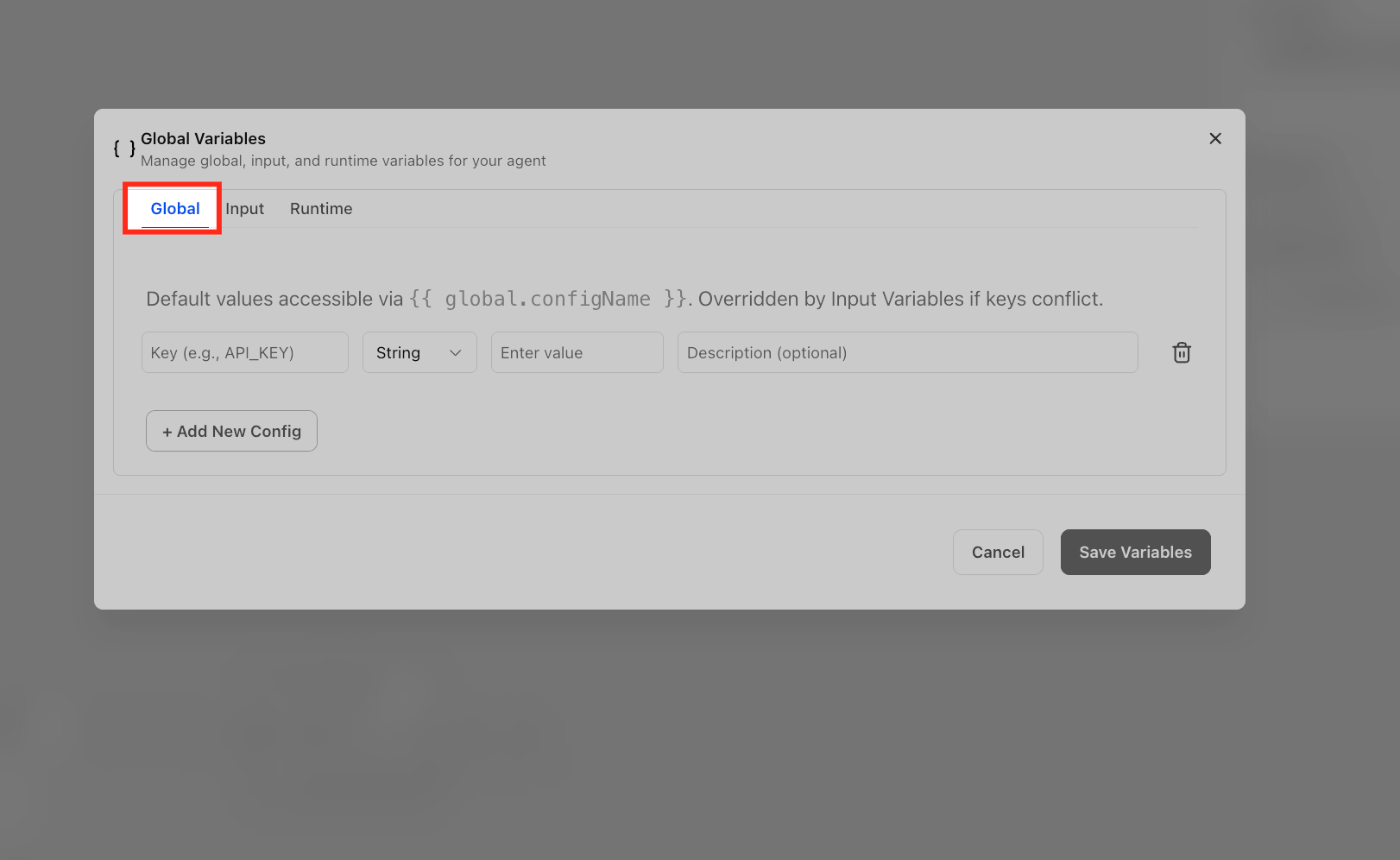
Step 8: Add Variables (Optional but Powerful)
Variables allow you to reuse values like names, IDs, or API keys across your workflow.
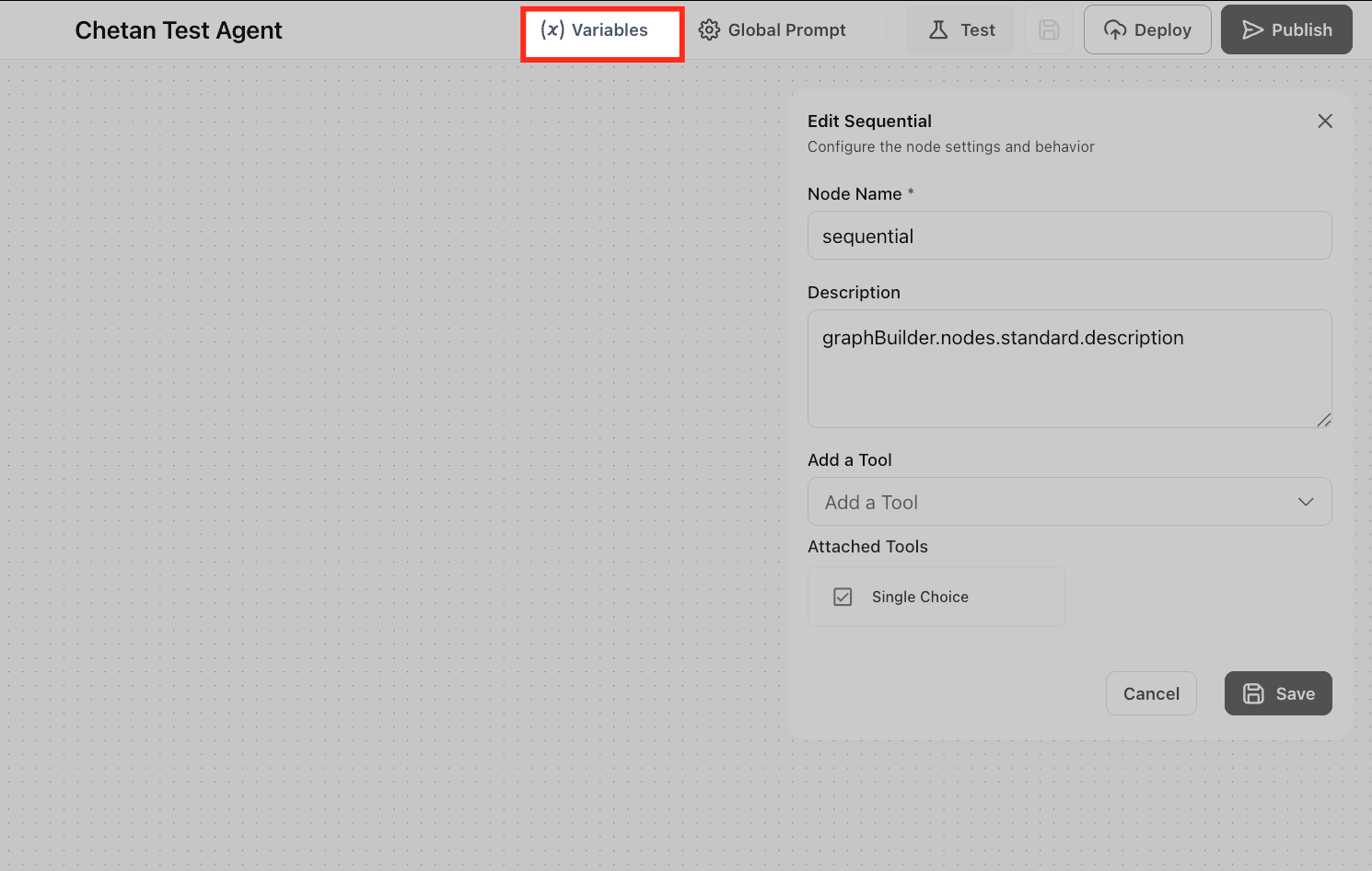
Click Variables at the top of the screen
Add a new variable under the Global tab
Example use cases:
Store API keys
Pass user-specific data
Personalize responses
Step 9: Test Your Agent
Testing ensures your agent behaves correctly before going live.
Click the Test button at the top
Enter a sample question (e.g., “What services do you offer?”)
Review:
Response quality
Tool usage (if added)
Flow behavior
Step 10: Publish Your Agent
Once you’re satisfied with the results:
Click Publish → Production
Frequently Asked Questions
Agency Admins/Users and Subaccount Admins/Users with the proper role permissions can build and manage agents.
Related Articles
Was this article helpful?
That’s Great!
Thank you for your feedback
Sorry! We couldn't be helpful
Thank you for your feedback
Feedback sent
We appreciate your effort and will try to fix the article