Agent Studio in HighLevel helps users manage and optimize existing Flow Agents through a visual builder. Users can edit agent logic, configure tools, and test changes without rebuilding their automations. Managed Agents (formerly Super Agents) are now accessible directly through Agent Studio and are recommended for creating new AI agents.
Important: Existing Flow Agents and their connected triggers continue to work. Use Flow Agents to maintain existing agents and Managed Agents to create new ones.
TABLE OF CONTENTS
- What is Agent Studio?
- Key Benefits of Agent Studio
- Flow Agents vs. Managed Agents
- Flow Agent Builder and Tools
- Version Control
- How to Access and Manage Agents in Agent Studio
- Frequently Asked Questions
- Related Articles
What is Agent Studio?
Agent Studio provides access to two AI agent experiences in HighLevel: Flow Agents and Managed Agents. Flow Agents use a visual, node-based builder for maintaining existing automations, while Managed Agents use conversational instructions to create and configure new AI agents.
Key Benefits of Agent Studio
Agent Studio simplifies AI agent management by providing tools to update existing automations and access the latest agent-building experience.
Centralized Access: Access Flow Agents and Managed Agents directly through Agent Studio.
Visual Management: Edit existing Flow Agents using a drag-and-drop canvas.
Flexible Configuration: Update nodes, variables, and decision paths.
Safe Testing: Test changes in Staging before promoting them to Production.
Automation Continuity: Maintain existing Flow Agents without disrupting connected triggers.
Simplified Creation: Create new AI agents through Managed Agents using natural-language instructions.
Flow Agents vs. Managed Agents
Both agent types are available within Agent Studio, but they serve different purposes. Choosing the appropriate experience helps users manage existing automations or create new agents efficiently.
| Flow Agents | Managed Agents |
|---|---|
| Maintain existing agents | Create new AI agents |
| Visual, node-based builder | Conversational builder |
| Edit nodes and flow logic | Configure agents using natural language |
| Existing agents remain active | Recommended for new agent creation |
Note: Managed Agents were previously called Super Agents. Flow Agents remain a separate experience.
Flow Agent Builder and Tools
The Flow Agent builder allows users to modify existing agent behavior through connected nodes and configurable logic. These capabilities help maintain and improve automations without recreating them.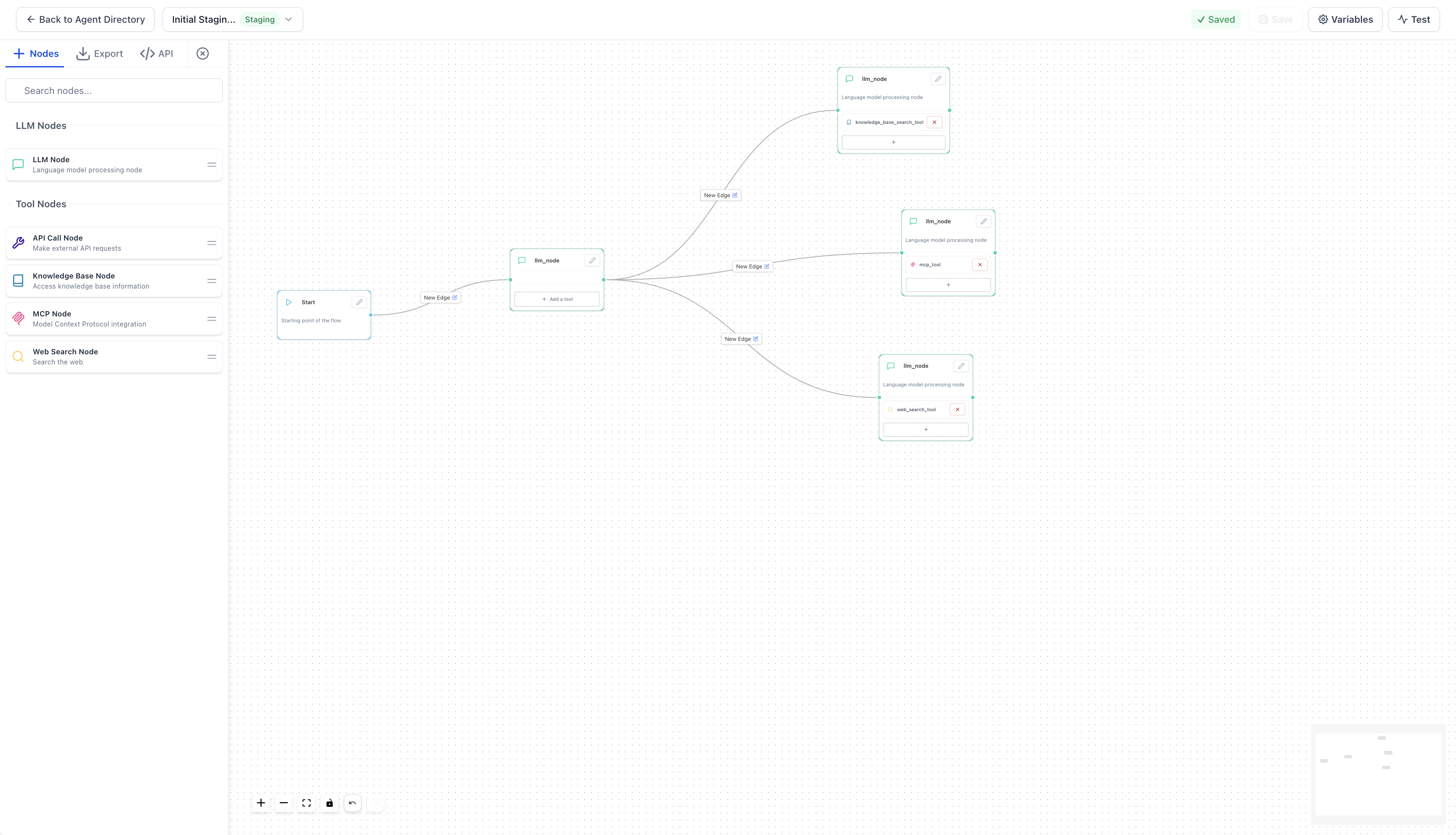
Available tools include:
LLM Node: Generates context-aware responses.
MCP Tool Node: Connects agents to compatible external tools.
API Tool Node: Exchanges information with third-party services.
Knowledge Base Tool Node: Retrieves relevant business information.
Web Search Tool Node: Accesses publicly available web information.
Logic and Variables: Controls decision paths and passes information between nodes.
Version Control
Version control helps users test updates without immediately affecting live automations. Agent Studio separates changes being prepared from configurations currently used in Production.
Staging: Save and test changes before deployment.
Production: Run the live agent configuration after promoting a tested version.
How to Access and Manage Agents in Agent Studio
The updated navigation provides direct access to both agent experiences. Selecting the correct option ensures users can maintain existing Flow Agents or create new Managed Agents.
Access and Update Existing Flow Agents
Open the appropriate Sub-account in HighLevel.
Navigate to AI Agents → Agent Studio → Flow Agents.
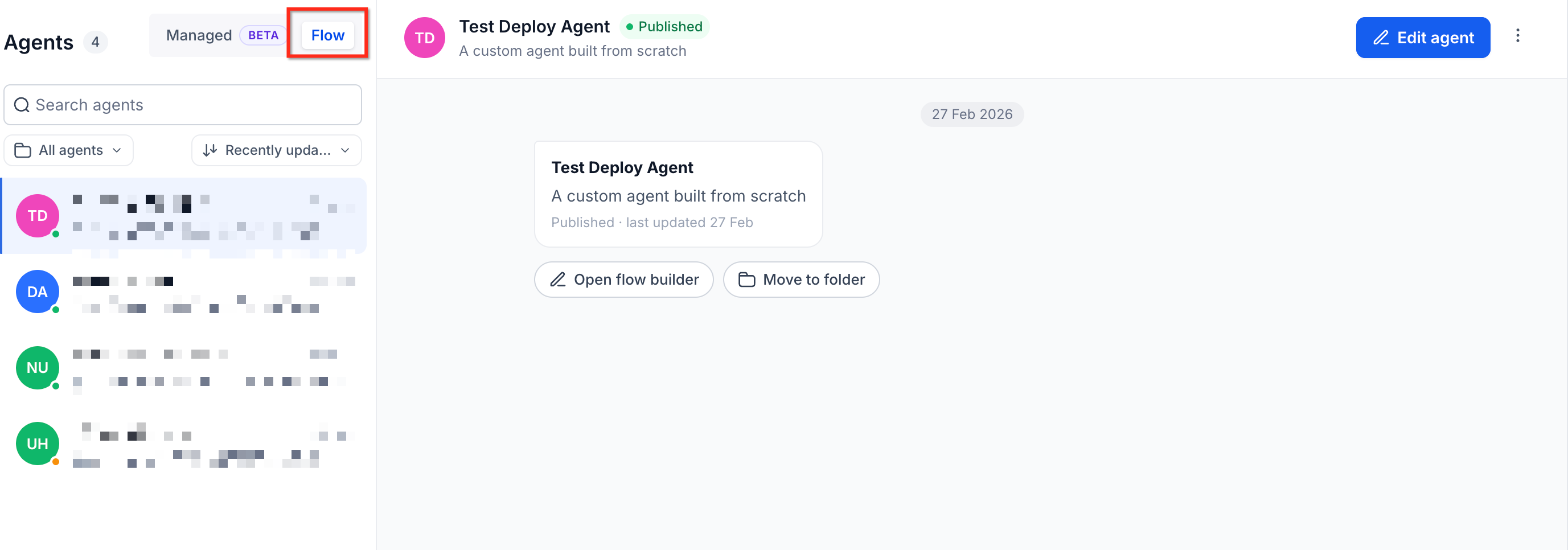
Select an existing Flow Agent.
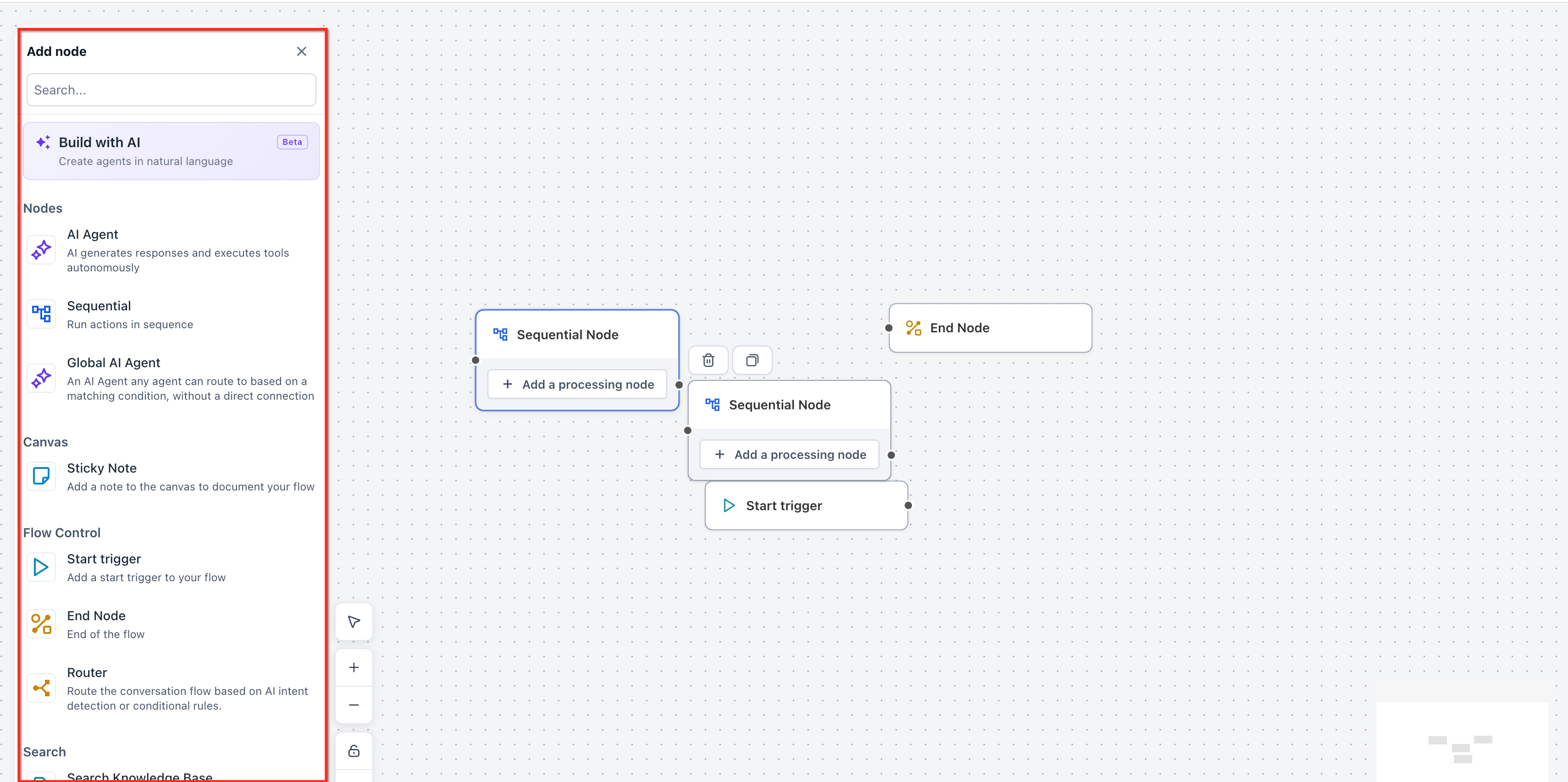
Update its nodes, variables, or logic.
Test the changes using the Test tab.
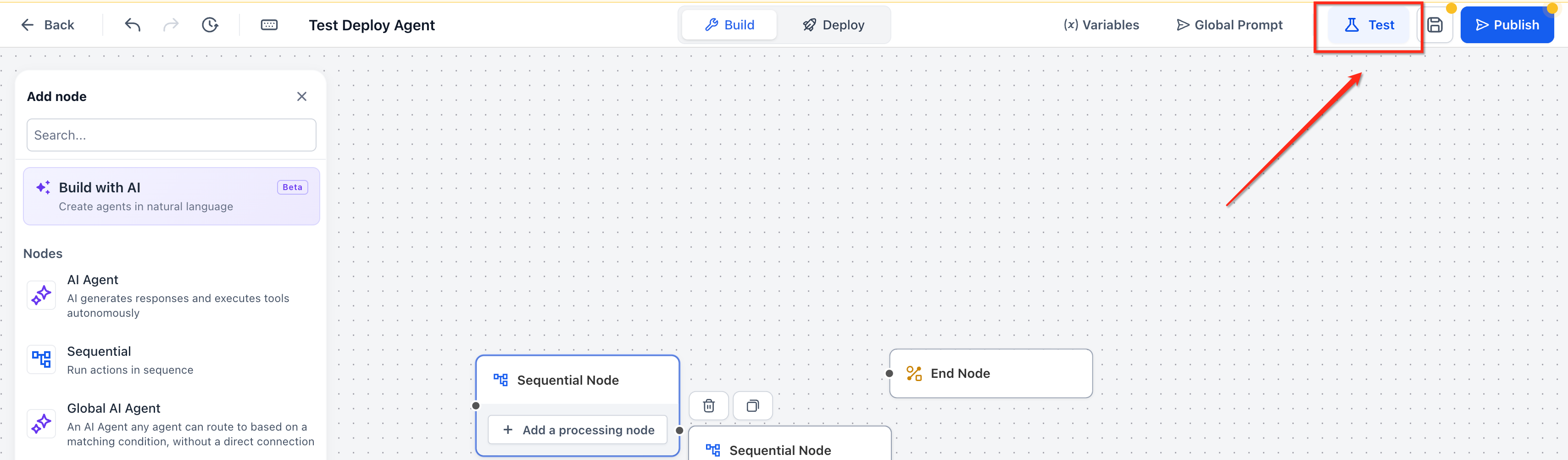
Select Save and Publish to save the Staging version.
Promote the tested version to Production when ready.
Create a New Managed Agent
Managed Agents provide the recommended approach for building new AI agents without manually configuring a visual flowchart.
Open the appropriate Sub-account.
Navigate to AI Agents → Agent Studio → Managed Agents.
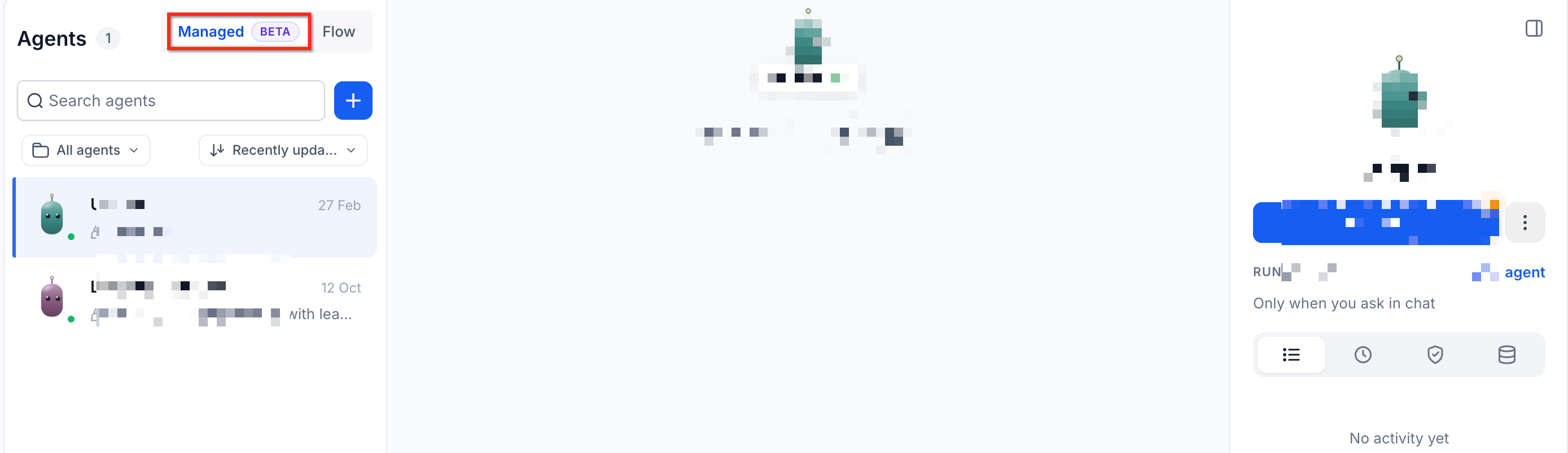
Click + Create Agent.
Describe the agent's goals and required behavior, or select an available prebuilt use case.
Review, test, and publish the agent.
For detailed instructions, see Setup and Use Managed Agents in Agent Studio.
Frequently Asked Questions
Q: Where can I find Super Agents?
Super Agents have been renamed to Managed Agents. Navigate to AI Agents → Agent Studio → Managed Agents.
Q: Do I need to migrate my existing Flow Agents?
No. Existing Flow Agents continue working and remain accessible for maintenance.
Q: Will my existing Flow Agent triggers continue working?
Yes. Existing trigger connections remain active.
Q: Can I create new Flow Agents?
New agent creation is directed to Managed Agents. The Flow Agents builder remains available for existing agents.
Q: Will editing a Flow Agent immediately affect Production?
No. Changes saved in Staging do not affect the live agent until the updated version is promoted to Production.
Related Articles
Was this article helpful?
That’s Great!
Thank you for your feedback
Sorry! We couldn't be helpful
Thank you for your feedback
Feedback sent
We appreciate your effort and will try to fix the article