Launch production-ready AI agents in minutes using the Agent Studio Template Library in HighLevel. Choose from agency-created or official starter templates, then customize variables to match each client. Templates speed onboarding, standardize best practices, and help you scale results across every sub-account.
TABLE OF CONTENTS
- What is the Agent Studio Template Library?
- Key Benefits of the Agent Studio Template Library
- Prerequisites: Enable Template Library
- Access the Template Library
- Explore Template Library Views (Sort, Filter, Categories, Tags)
- All Templates View: Preview vs. Choose
- Edit Your Installed Agent (Agent Studio Builder)
- Where to See the Newly Created Agent (Agent Studio View)
- Upload an Existing Agent to the Template Library (Agency)
- Frequently Asked Questions
What is the Agent Studio Template Library?
The Template Library is a workspace inside Agent Studio that stores reusable agent templates. Each template is a snapshot of an agent’s logic (prompts, tools, variables, and settings) that can be installed with one click. Instead of rebuilding common flows from scratch, teams select a template, personalize it, and deploy.
to learn more about How to Use the AI Agent Studio, you can refer to this articleKey Benefits of the Agent Studio Template Library
Templates create consistency and accelerate delivery for agencies and sub-accounts.
- Speed to value: Remove hours or days of initial build time with one-click installs.
- Best‑practice design: Start from proven agent patterns and guardrails.
- Consistent quality: Enforce naming conventions, prompt hygiene, and lifecycle controls.
- Scalable delivery: Update a template and roll out improvements across many accounts.
- Onboarding enablement: New teammates learn by dissecting working agents.
Prerequisites: Enable Template Library
Enabling the agency-level toggle and confirming permissions ensures your team can access the Template Library and, if eligible, publish new templates for distribution.
Requirements
Agency Admin role.
Agency Pro plan ($497/mo) to upload/publish templates. (Admins on $97/$297 can typically browse/install shared templates but cannot publish.)
Steps
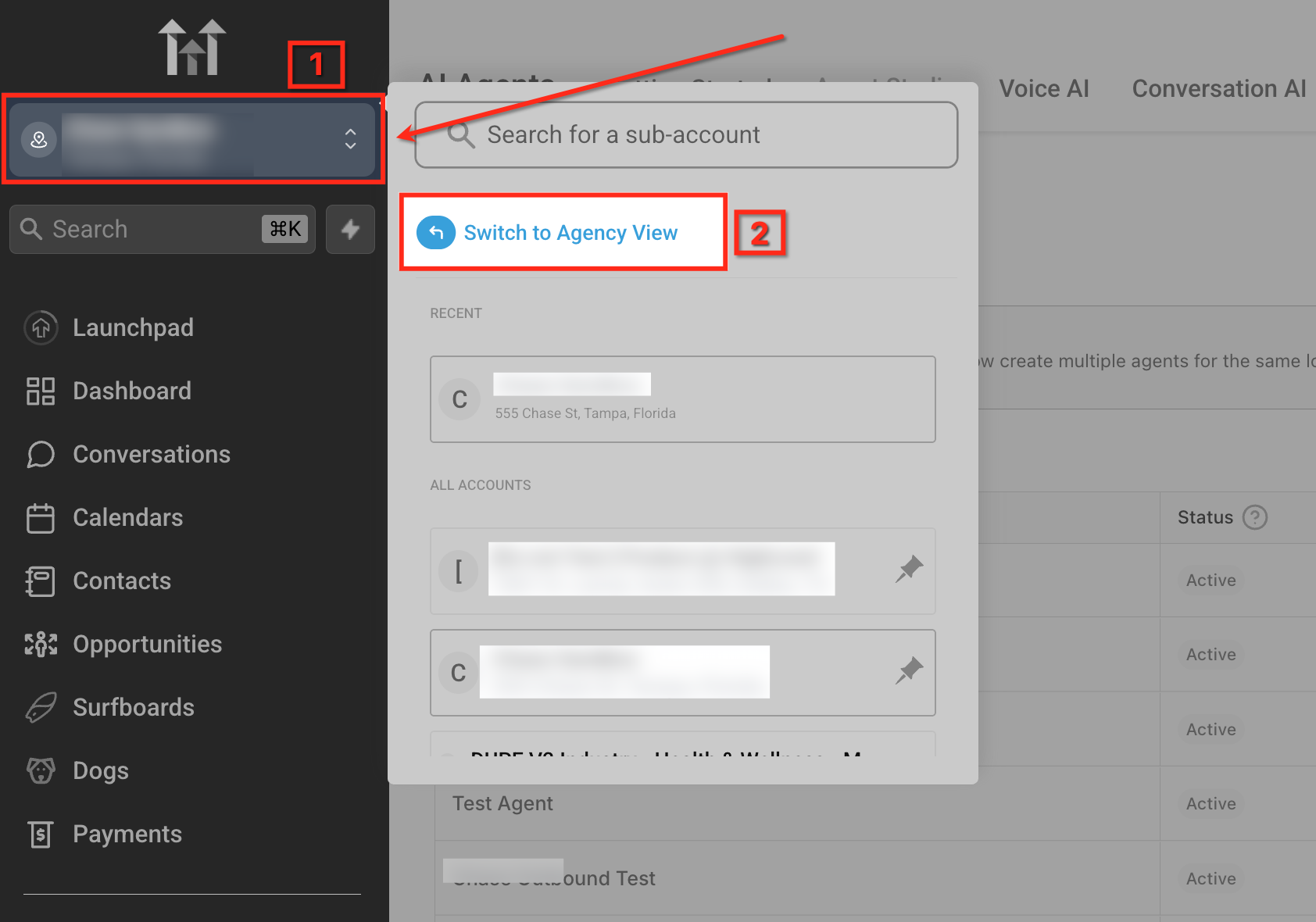
Switch to Agency View
From the left side menu, click the sub- account selector dropdown, click "Switch to agency View"
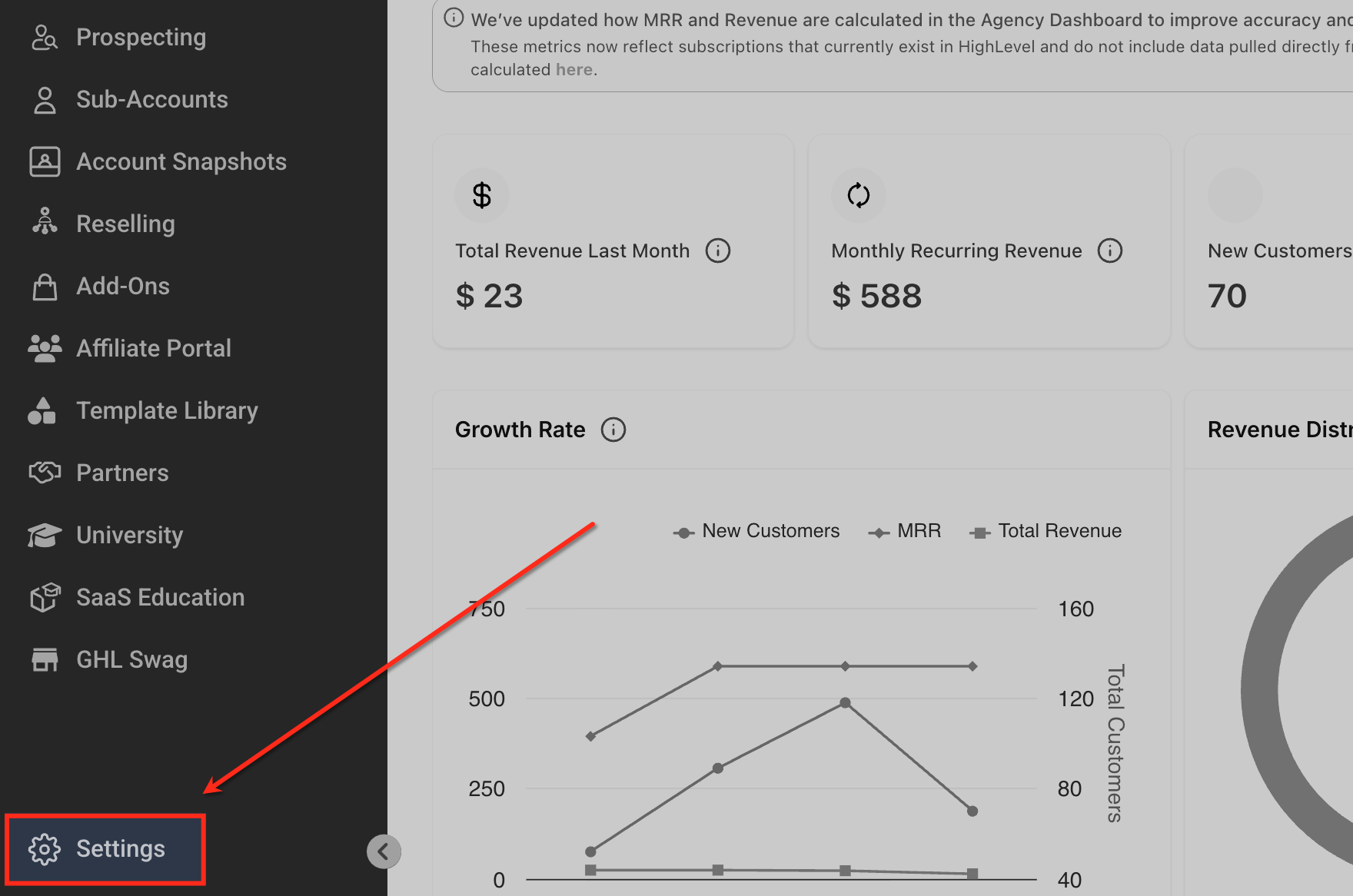
Open Settings
Go to agency settings to access the company settings.
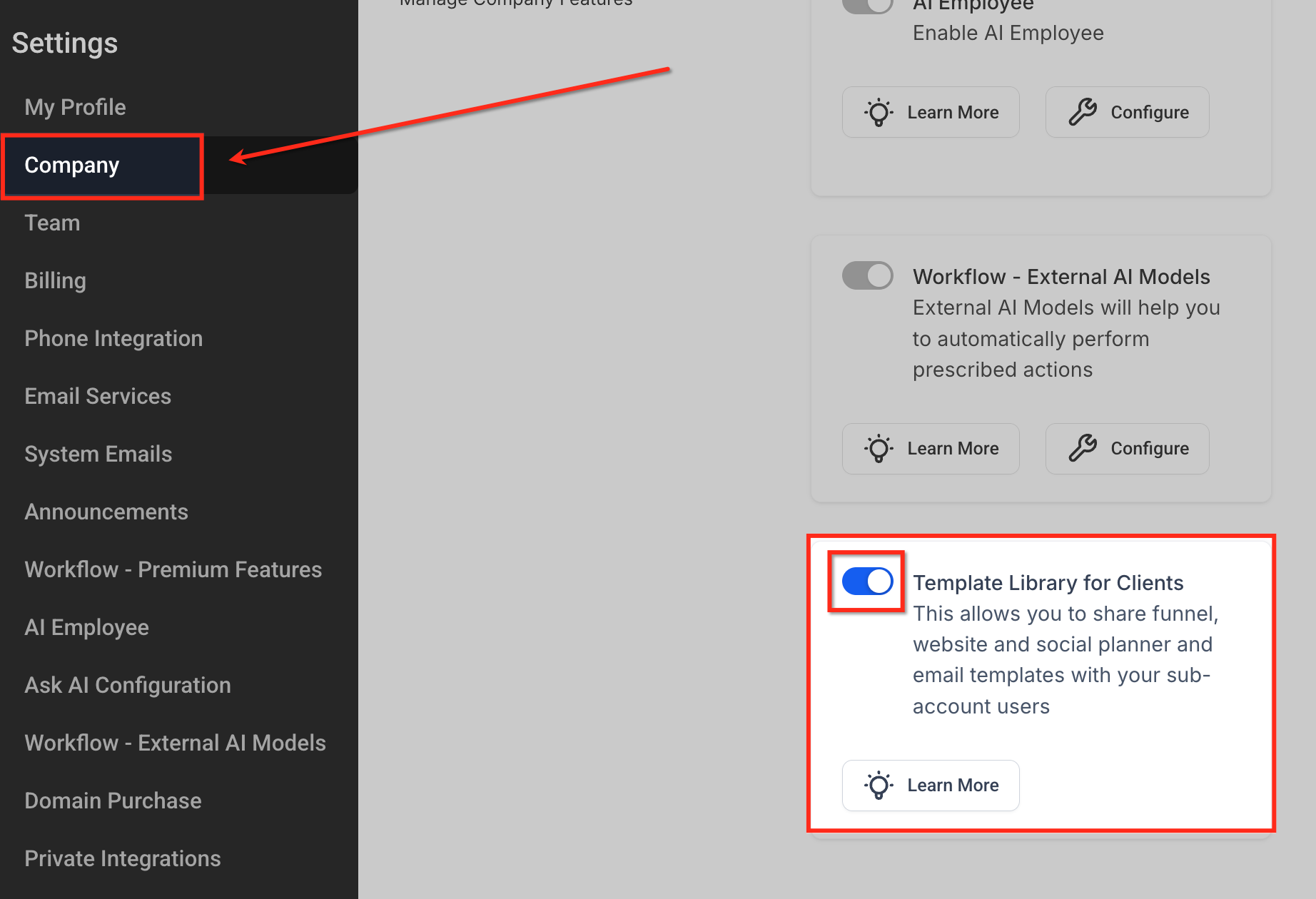
Click Company Tab
Click Company menu. Scroll down and Turn Template Library for Clients ON.
Access the Template Library
Finding templates quickly ensures you’re building in the right place from the start.
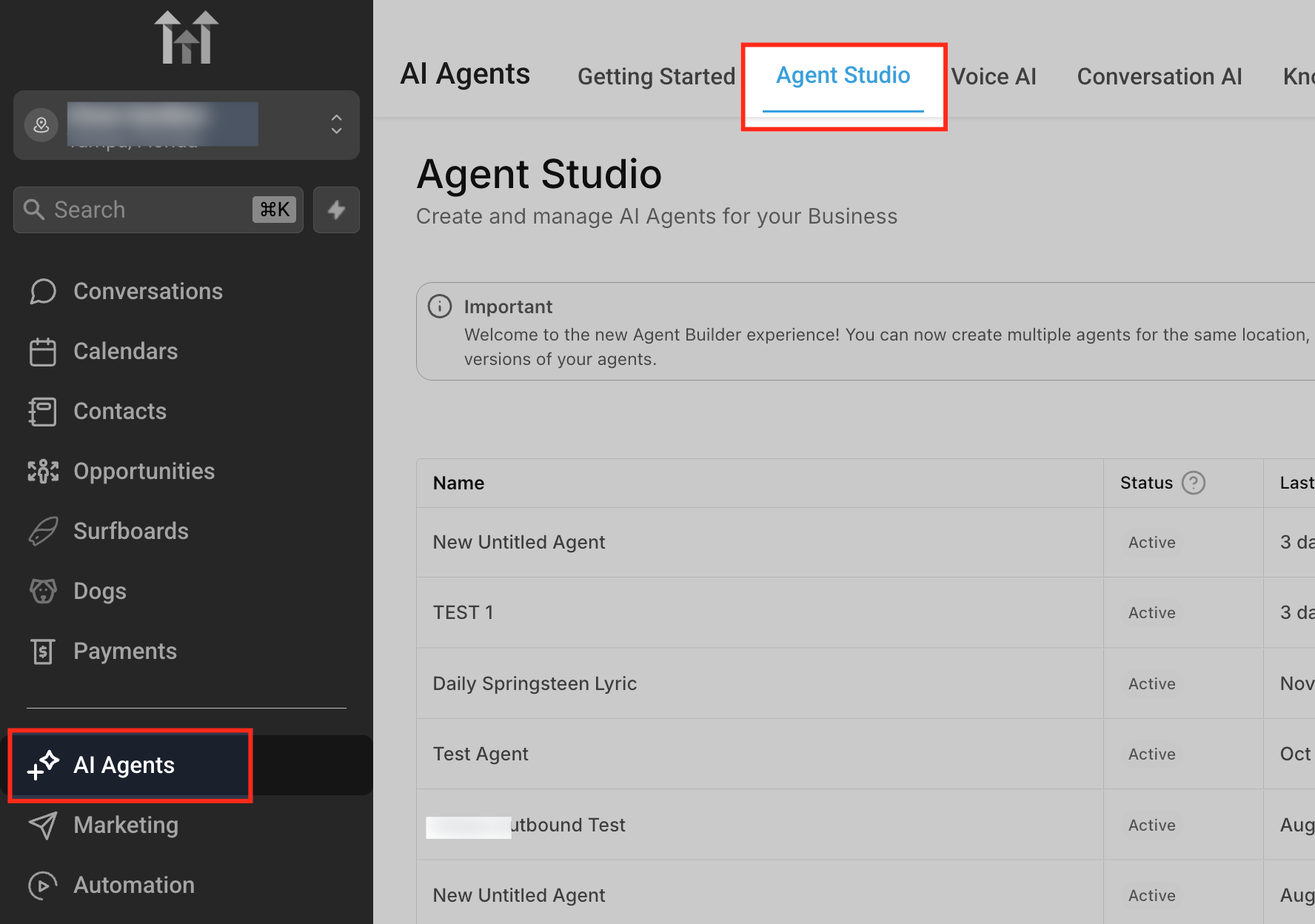
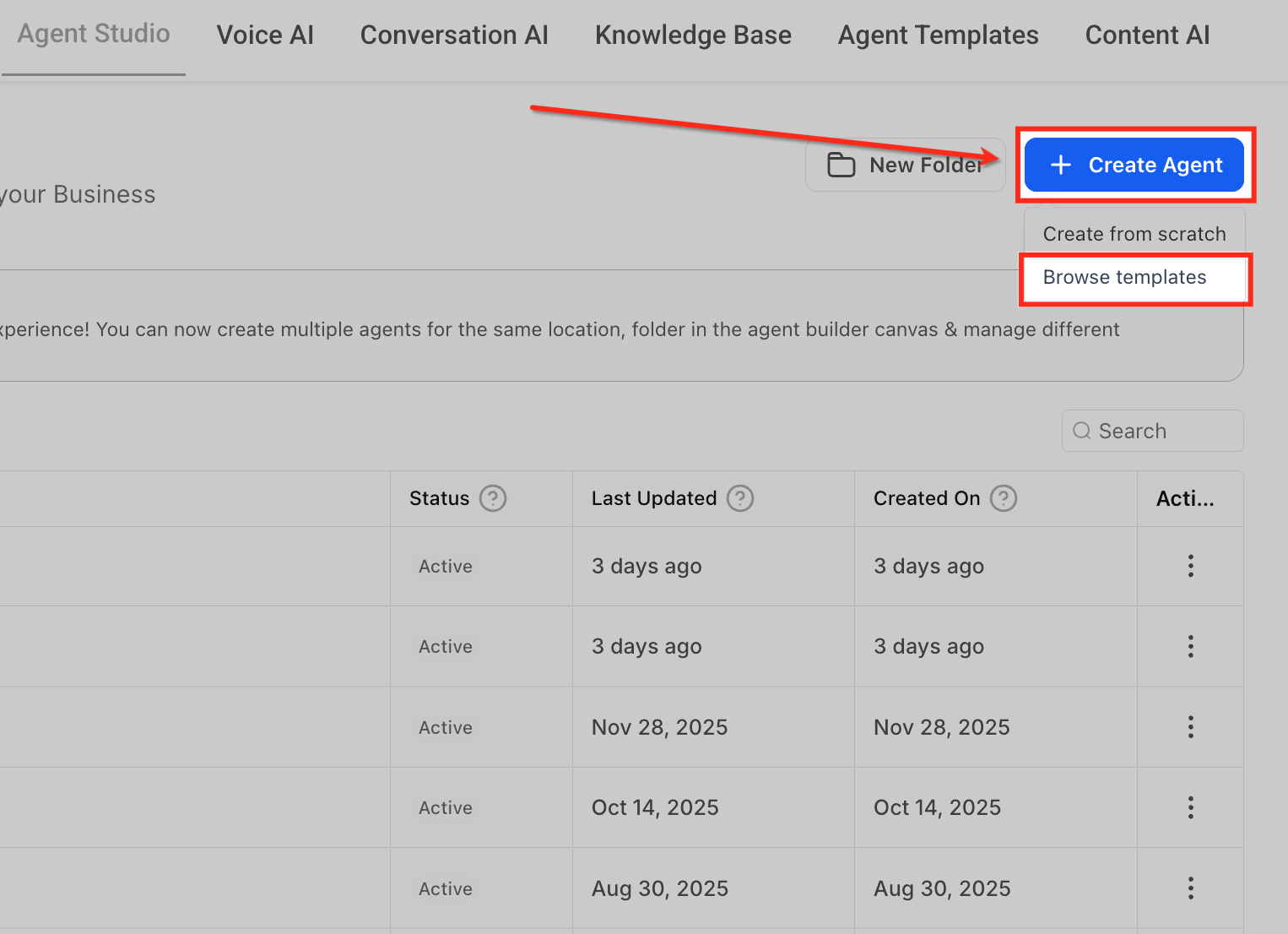
- Go to AI Agents → Agent Studio.
- Click Create Agent → Browse templates to open the Template Library.
Explore Template Library Views (Sort, Filter, Categories, Tags)
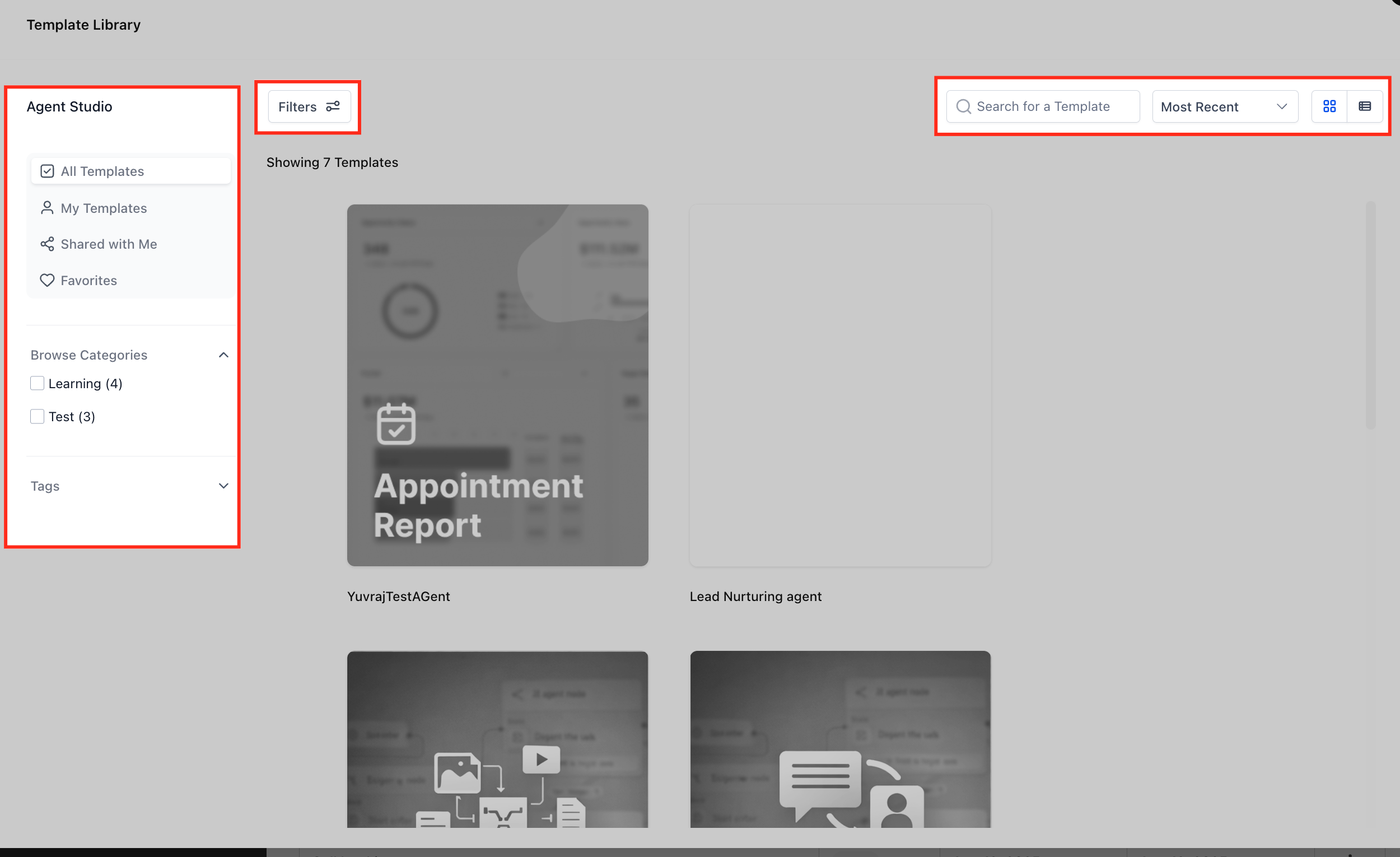
Powerful browsing tools make it easy to find the right template for each scenario.
- Filters: Open Filters to refine by ownership (All Templates, My Templates, Shared with Me, Favorites).
- Browse Categories: Narrow results by category (e.g., Learning, Test, Industry). Categories also support Hidden options managed by Agency Admins.
- Tags: Use tags to surface niche use cases fast.
- Search: Find templates by name or keywords.
- Sort & Layout: Sort by Most Recent or similar options; toggle grid/list view.
All Templates View: Preview vs. Choose
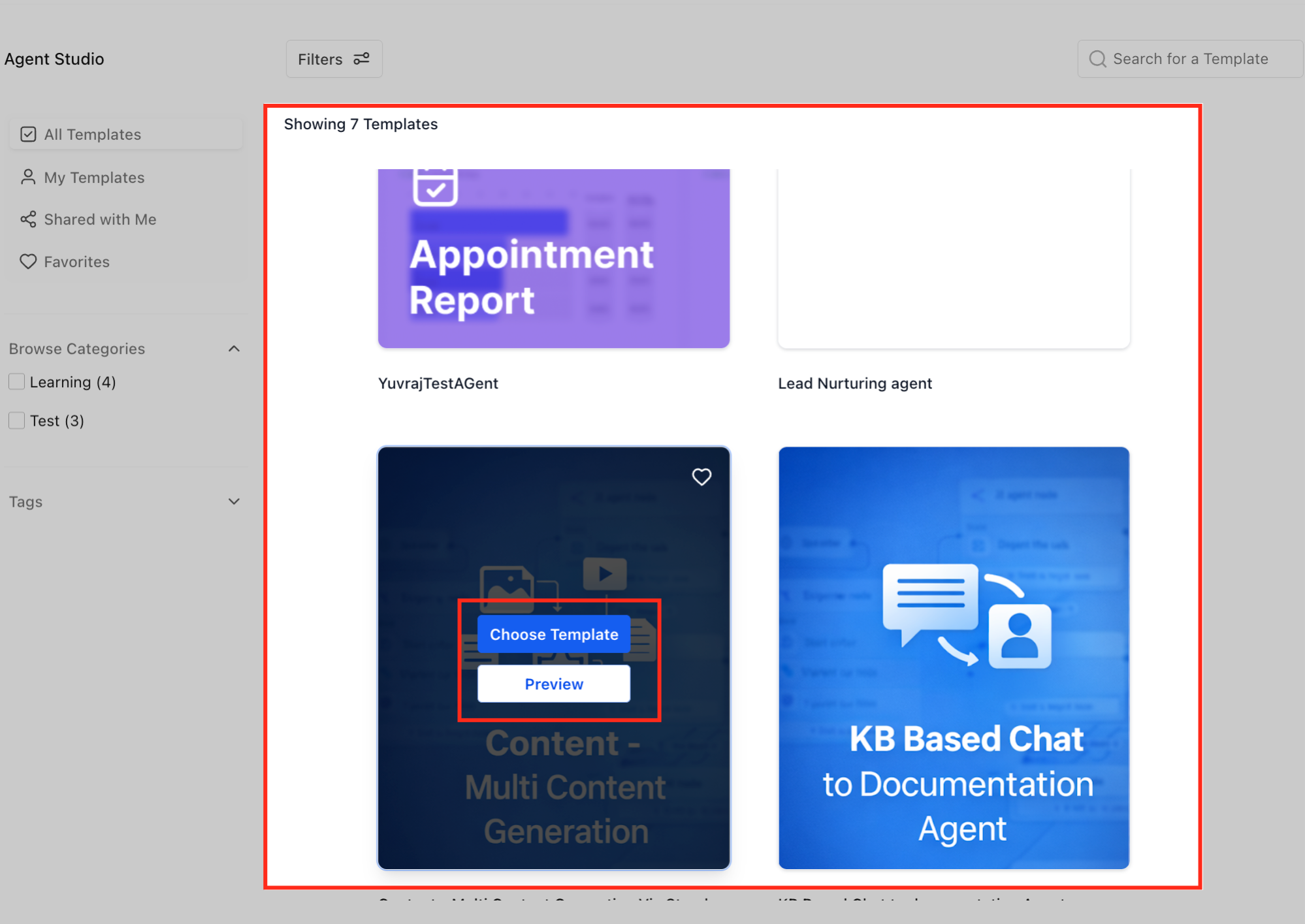
Hover over any template and you will see below options:
- Preview: Opens details to review description, images, and any notes before installing. Once you are sure about the template, you can click "Choose Template" button at the top right corner to use the template.
- Choose Template: This button initiates the process of Installing a copy into your Agent Studio as a new agent draft you can immediately edit.
Edit Your Installed Agent (Agent Studio Builder)
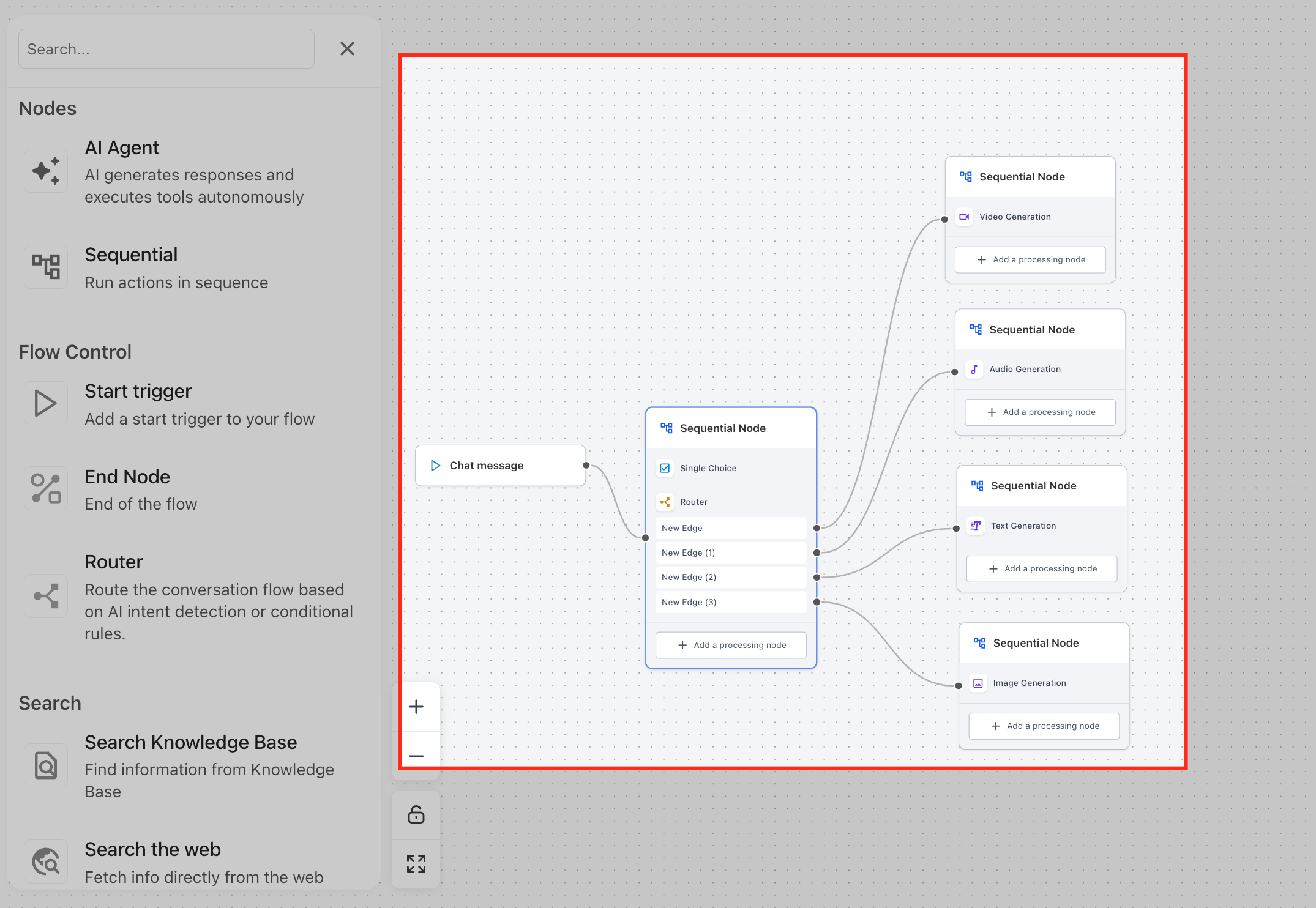
After choosing a template, you’re working on your own agent copy. Changes you make do not edit the original template; you are versioning the agent in your workspace.
- Open the agent canvas to adjust nodes, prompts, tools, variables, and connections.
- Save frequently; promote to Production when testing is complete.
Where to See the Newly Created Agent (Agent Studio View)
Locating your fresh install confirms the agent is ready for configuration and testing.
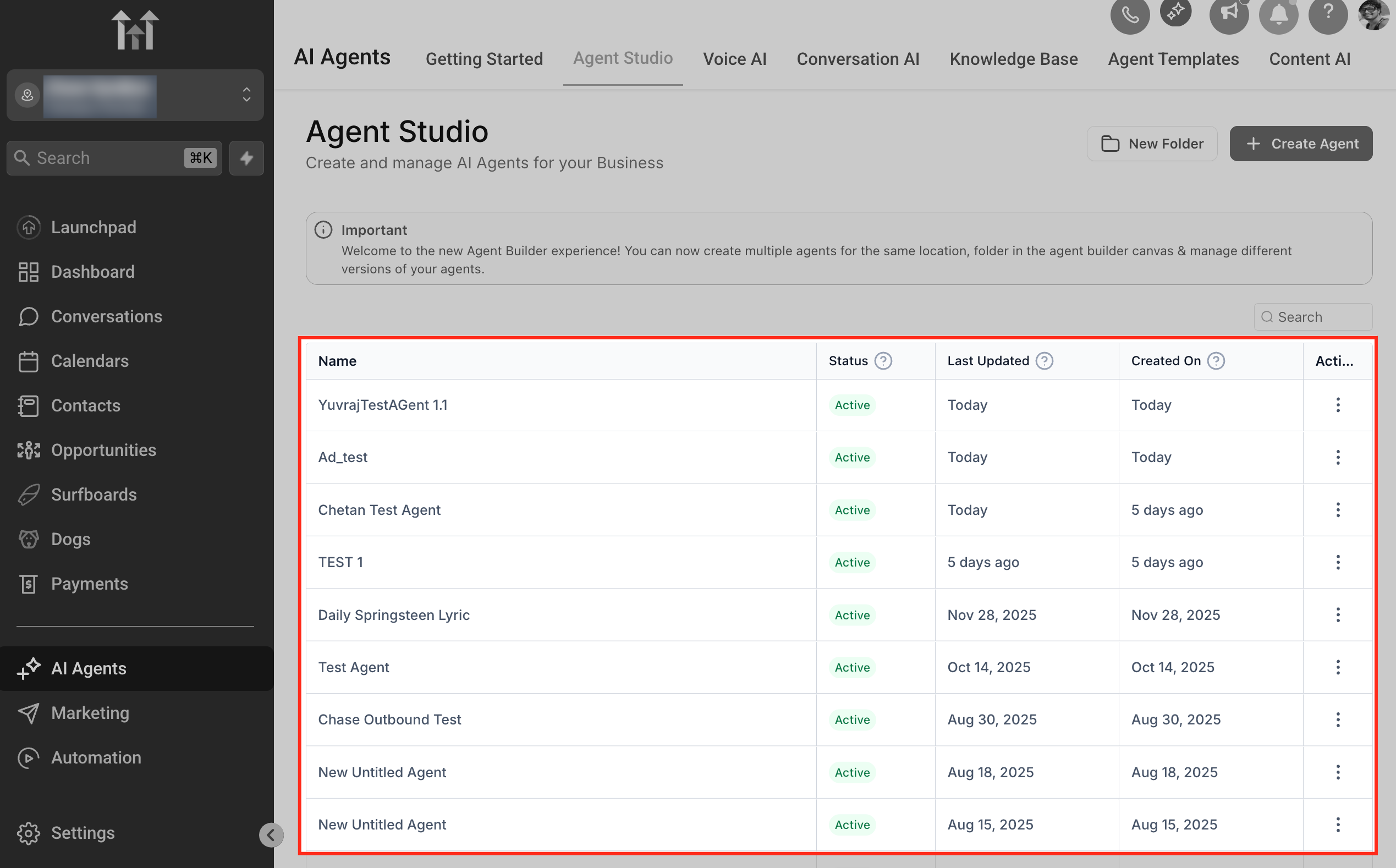
Go to AI Agents → Agent Studio to see the agent listed with Status, Last Updated, and Created On columns.
Upload an Existing Agent to the Template Library (Agency)
Agency Admins on the Pro plan ($497/mo) can share successful agents with all sub-accounts.
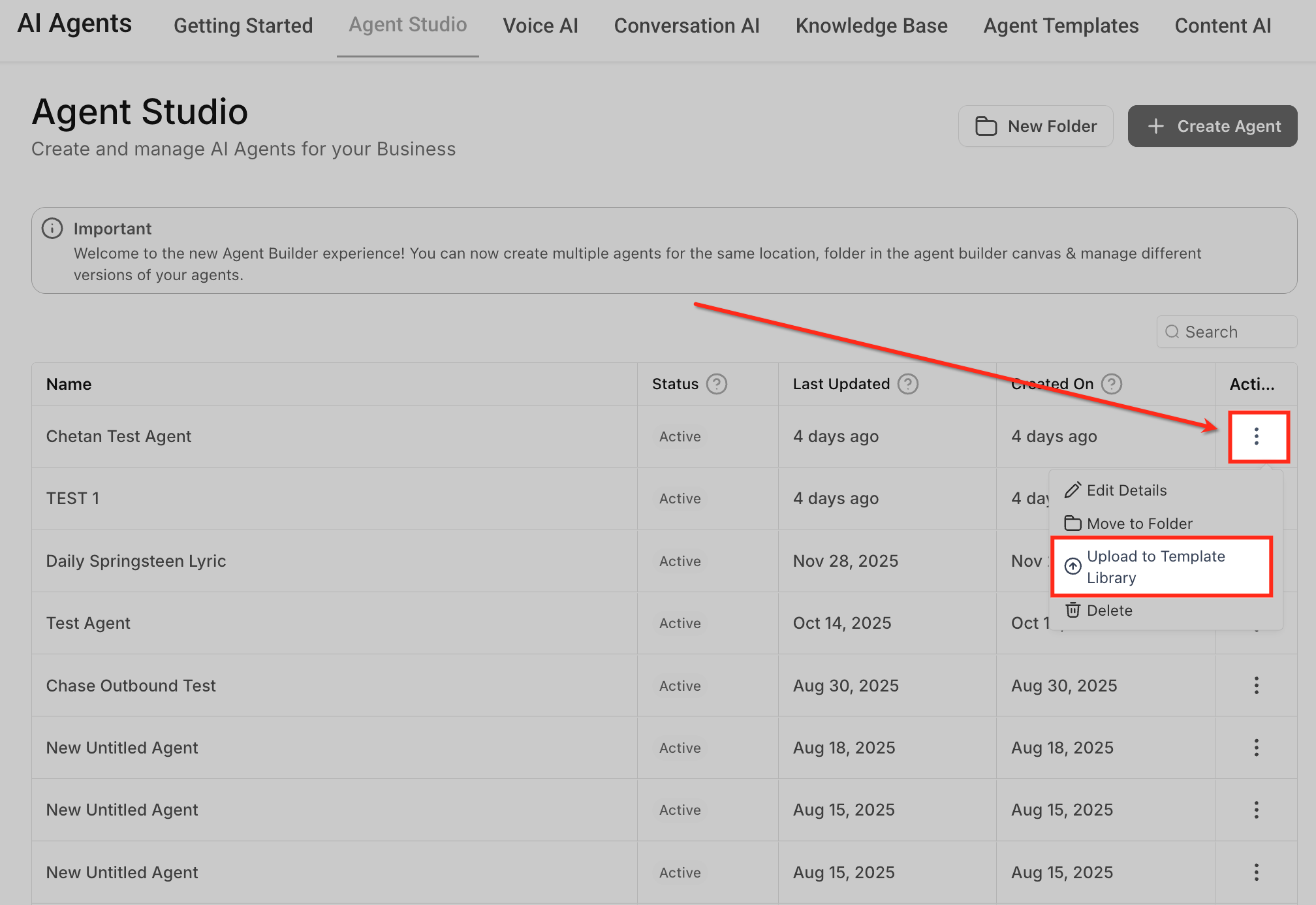
- In Agent Studio, locate the source agent row.
- Click the three dots menu and select Upload to Template Library option.
- In the next step, you will be prompted to Complete the template details (Name, Categories, Cover/Preview images, Prerequisites, Tags, About, Description), then you can publish so other users can install it.
Frequently Asked Questions
Q: What’s the difference between Preview and Choose Template?
Preview lets you read details before installing. Choose Template installs a working copy in your Agent Studio as a draft agent.
Q: Do changes in my agent affect the original template?
No. After installation, edits apply only to your agent copy. The original template remains unchanged.
Q: Where do I find the agent after choosing a template?
Open AI Agents → Agent Studio; the new agent appears in the list view.
Q: Can I control which templates sub‑accounts see?
Yes. Agency Admins manage visibility using categories (including Hidden) and library visibility controls.
Q: How do I contribute my own templates?
Agency Admins on the Pro plan ($497/mo) can publish templates. From Agent Studio, use the ⋯ → Upload to Template Library option on a proven agent, complete details, and publish.
Q: Do template installs use AI credits?
No. Credits are used when agents run not when templates are installed.
Was this article helpful?
That’s Great!
Thank you for your feedback
Sorry! We couldn't be helpful
Thank you for your feedback
Feedback sent
We appreciate your effort and will try to fix the article