Notes on Custom Objects in HighLevel
Modified on: Wed, 27 May, 2026 at 4:57 AM
Notes on Custom Objects allow teams to capture and manage record-specific context directly within Custom Object records in HighLevel. With the same Notes experience available on Contacts and Opportunities, users can add notes, search note histories, apply filters, and associate notes across connected records. This helps teams maintain a single source of truth while ensuring important information is visible wherever it is needed. By extending Notes to Custom Objects, HighLevel makes it easier to collaborate and track important details across complex CRM workflows.
TABLE OF CONTENTS
- What are Notes on Custom Objects?
- Key Benefits of Notes on Custom Objects
- How To Setup Notes on Custom Objects
- Automate notes with workflows
- Frequently Asked Questions
- Related Articles
What are Notes on Custom Objects?
Notes on Custom Objects allow users to record important context directly on Custom Object records in HighLevel. This ensures that relevant information is stored alongside the records it relates to, rather than being buried only in Contact or Opportunity timelines. Teams can add notes, search through note history, and manage large sets of notes using filters and sorting.
In addition to adding notes directly on a Custom Object record, users can also associate notes created on Contacts or Opportunities to related Custom Object records. This allows the same note to appear across multiple connected records without creating duplicates, making collaboration easier while preserving a single source of truth.
Key Benefits of Notes on Custom Objects
Notes on Custom Objects extend the CRM collaboration experience and make Custom Objects more useful in daily
workflows.
- Record-Specific Context: Store notes directly on Custom Object records so important information is always visible where the work is happening.
- Single Source of Truth: Associate one note across multiple records instead of duplicating information across contacts, opportunities, and objects.
- Improved Collaboration: Teams can quickly understand the full context of a record without needing to search through multiple timelines.
- Faster Information Retrieval: Search notes by keyword to quickly locate important updates or historical information.
- Better Organization: Filters and sorting options make it easier to manage long note histories and identify the most relevant updates.
How To Setup Notes on Custom Objects
Properly using Notes on Custom Objects ensures that teams capture relevant information in the correct place and maintain clear visibility across connected records.
- Navigate to Custom Objects in HighLevel.
- Open the Custom Object record where you want to add a note.
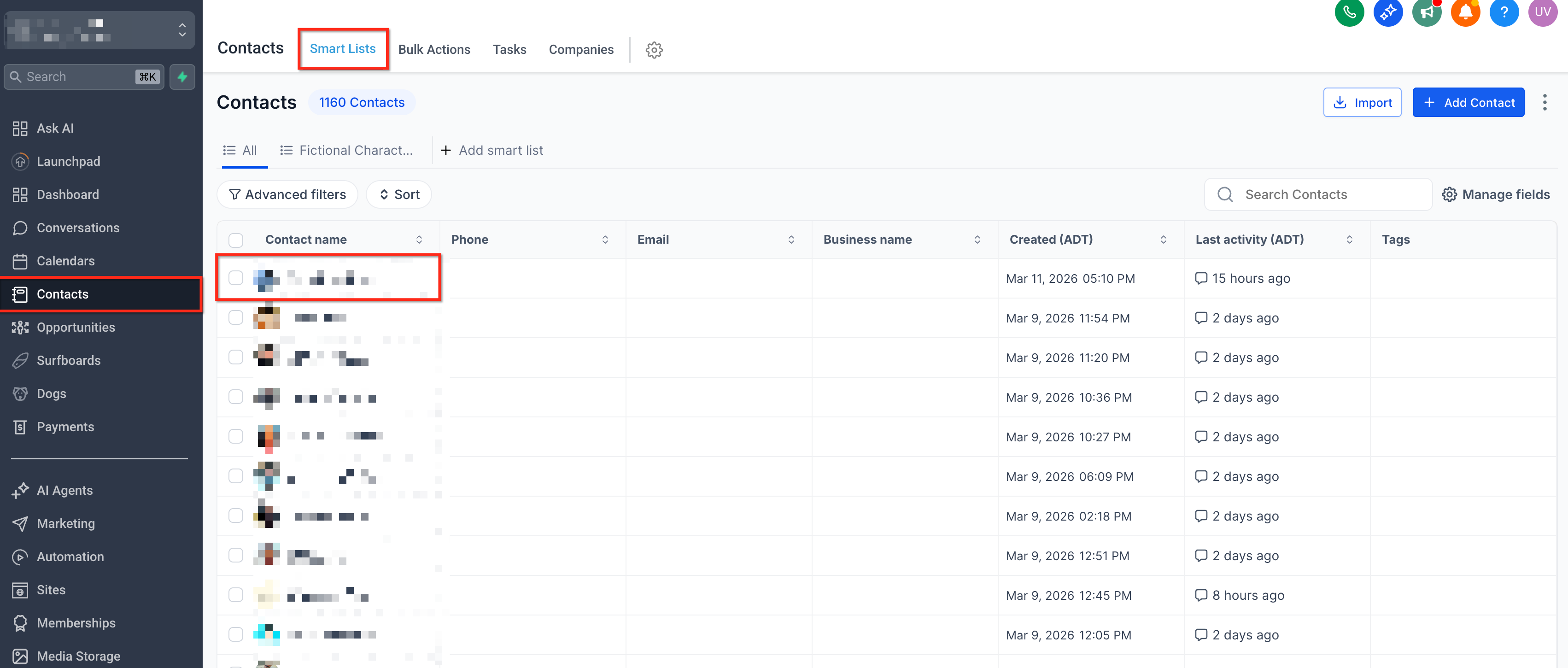
- Locate the Notes panel on the right side of the record.
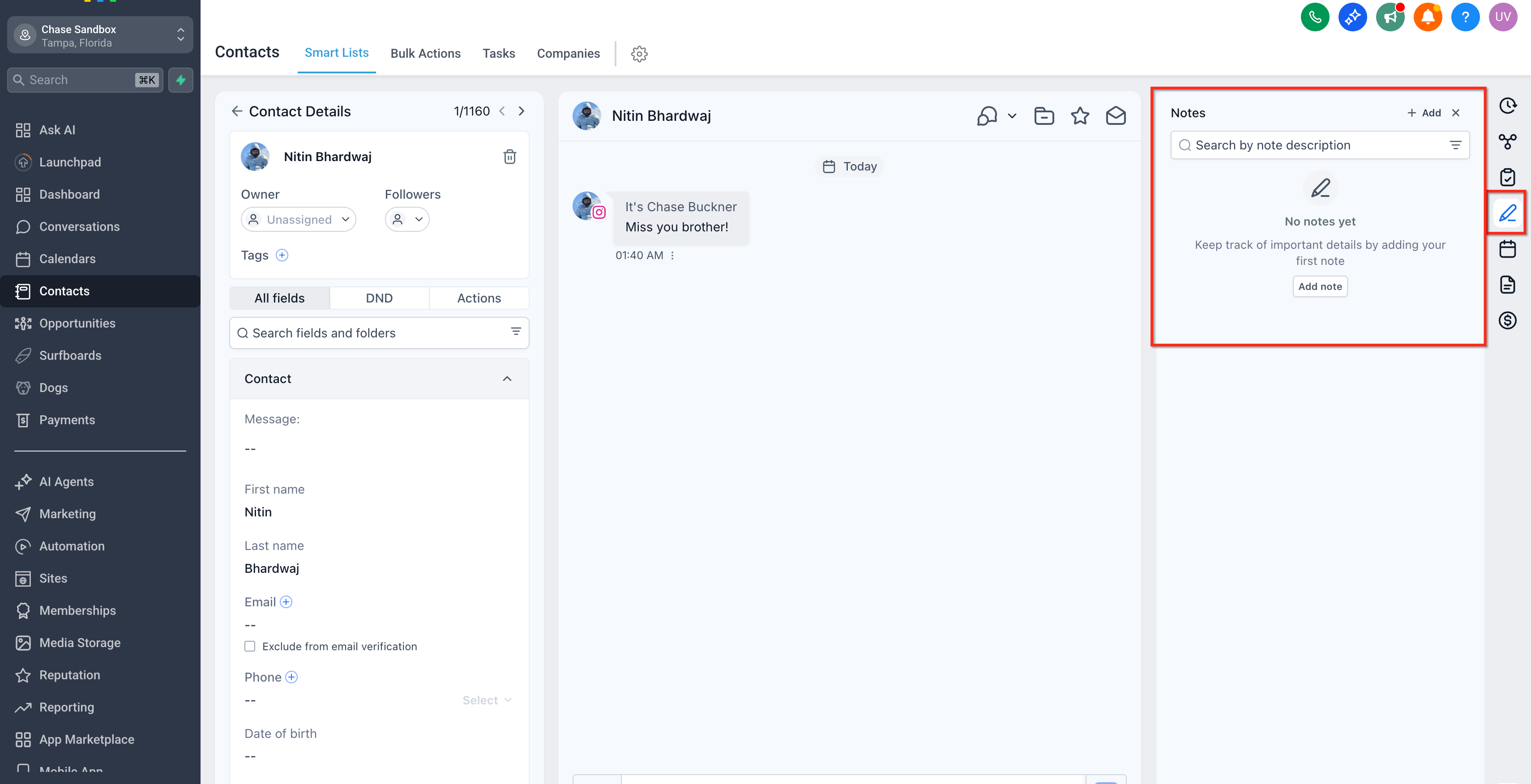
- Click Add Note.
- Enter the note details.
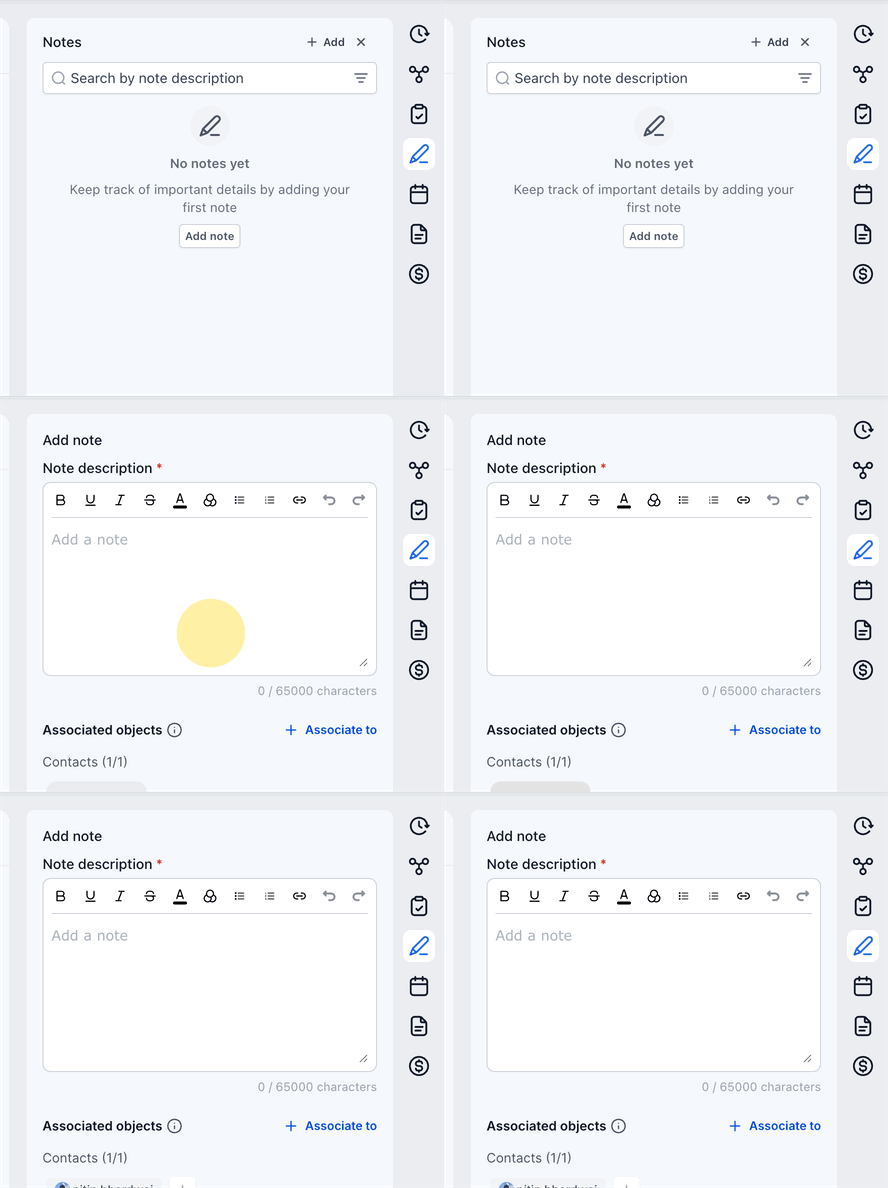
- Click Save.
The note will now appear on both the original record and the associated Custom Object record.
Automate notes with workflows
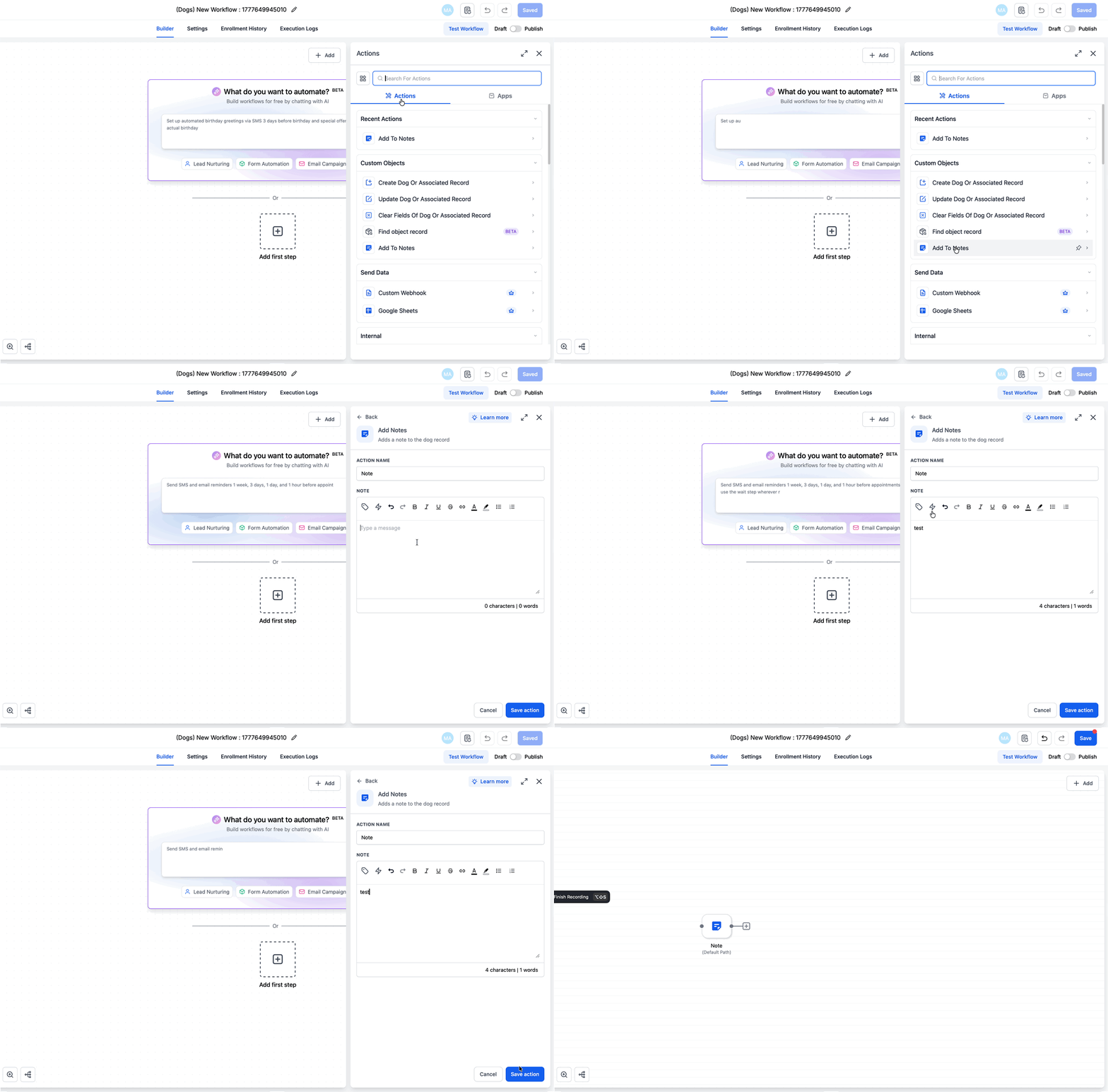
You can also add notes to custom object records automatically using workflows:
1. Open a workflow for your custom object.
2. Add the Add to Note action.
3. Enter the note content, then save and publish.
Note: Note title and note color are not supported yet for custom object workflow notes.
Frequently Asked Questions
Q: Do notes associated with Custom Objects create duplicate copies?
No. Associated notes remain a single note that appears across all connected records.
Q: Can I create a note directly on a Custom Object record?
Yes. Notes can be created directly within the Notes panel of a Custom Object record.
Q: Can I search notes on a Custom Object record?
Yes. The Notes panel includes a search function that allows you to find notes by keyword.
Q: Can notes from Contacts or Opportunities appear on Custom Object records?
Yes. Notes can be associated with related Custom Object records when those records are connected.
Q: If I edit a note, will the changes appear everywhere it is associated?
Yes. Because associated notes are shared rather than duplicated, edits will update across all associated records.
Q: Can I remove an association without deleting the note?
Yes. Associations can be removed while keeping the original note intact.
Related Articles
- Getting Started with Custom Objects
- Creating and Updating Custom Object Records
- Efficiently Using HighLevel Notes for Managing Contacts, Opportunities and Company Records
- CRM Notes Association – Link Notes Across Contacts & Opportunities
- Adding Opportunity Notes in HighLevel
Was this article helpful?
That’s Great!
Thank you for your feedback
Sorry! We couldn't be helpful
Thank you for your feedback
Feedback sent
We appreciate your effort and will try to fix the article