The Code Editor in AI Studio gives you direct access to your project code without leaving the builder. You can edit files, search across your project, catch issues quickly, and review changes in real time from one workspace. This makes it easier to move from AI-generated output to manual refinement when you need more control over your project.
TABLE OF CONTENTS
- What is the Code Editor in AI Studio?
- Key Benefits of the Code Editor
- Core Features of AI Studio Code Editor
- How to Use the Code Editor
- Frequently Asked Questions
- Related Articles
What is the Code Editor in AI Studio?
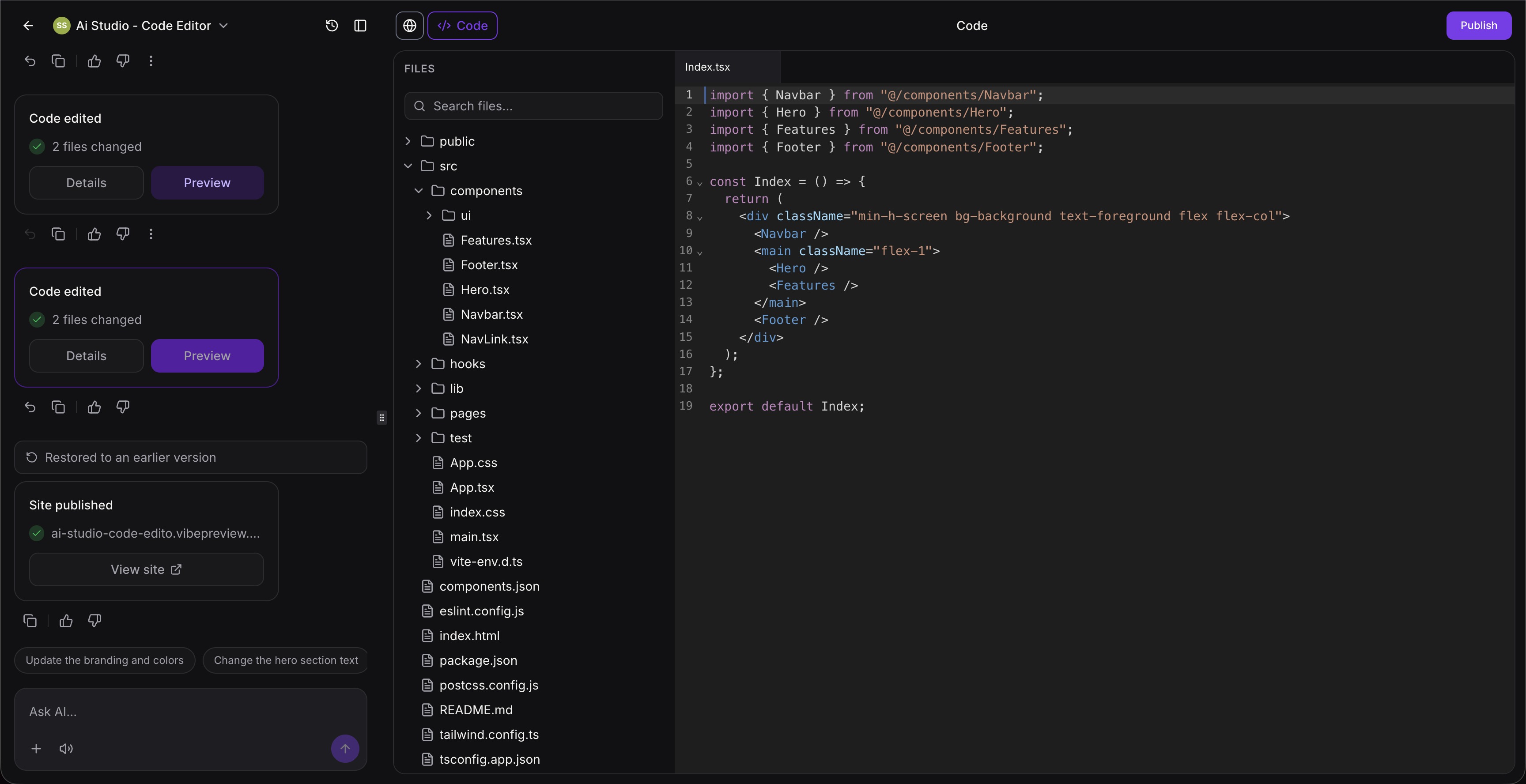
The AI Studio Code Editor is a built-in, CodeMirror‑powered coding environment inside the AI Studio builder. It lets you view, edit, and manage the code behind your AI-generated websites and web apps directly in HighLevel, no external IDE or deploy step required! AI Studio generates a working project from your prompts (idea, URL, or reference design), and the Code Editor gives you precise control over TypeScript, JSX, CSS, JSON, and other files that power that experience.
With the AI Studio Code Editor, you can iterate where you build: edit code, see instant updates in the live preview, and use AI to diagnose and fix errors as you go.
Key Benefits of the Code Editor
- Gain More Control: Make direct code-level updates when you need more precision than AI editing alone can provide.
- Make Granular Changes: Adjust specific text, styling, components, routes, or file behavior without reworking the entire project.
- No Context Switching: Edit code directly in AI Studio without downloading files or leaving the platform.
- Fast Debugging: See errors as soon as they appear and use AI-powered “Try to fix” to generate suggested corrections.
- Safer Experimentation: Rely on built‑in version history to preview, bookmark, and roll back changes at any time.
- Smarter Navigation: Use Find & Replace and Global Project Search to jump instantly to the right file, line, or component.
Core Features of AI Studio Code Editor
The Code Editor includes several built-in tools that make it easier to search project files, review changes, catch errors early, and manage updates with more confidence. Together, these features support a smoother editing experience for both quick fixes and more advanced code changes.
Find & Replace
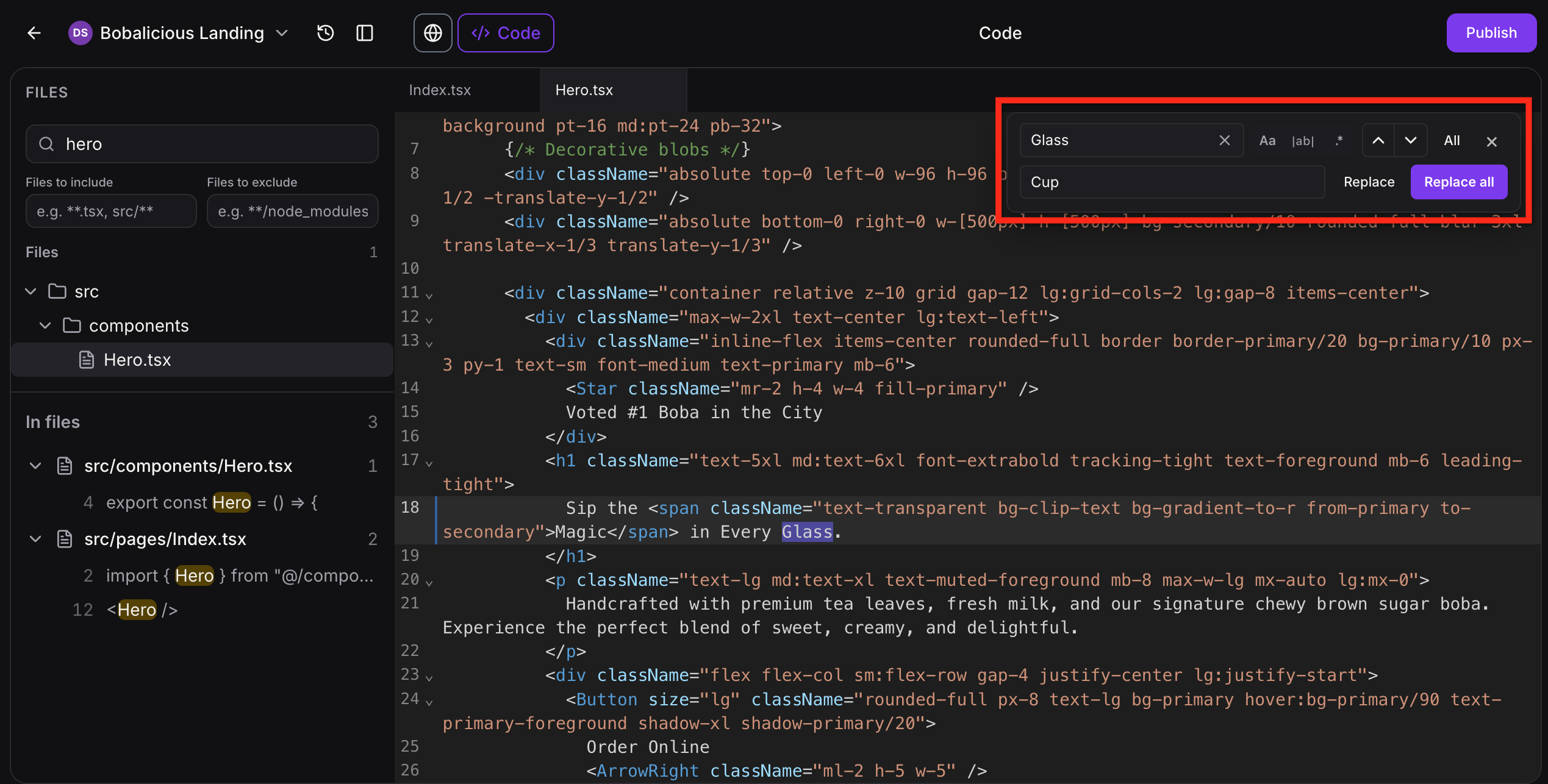
Find & Replace helps you quickly locate and update text inside the current file using an editor-style search experience. This is especially useful when you need to rename components, update hardcoded copy, or refactor variable names consistently.
With Find & Replace, you can:
- Open Find & Replace with Cmd/Ctrl + F to search within the current file using a VS Code-style search experience.
- Type your search term to highlight all matches in the file.
- Use case-sensitive and whole-word options to avoid accidental partial matches.
- Replace matches one-by-one or apply a bulk replace.
Global Project Search
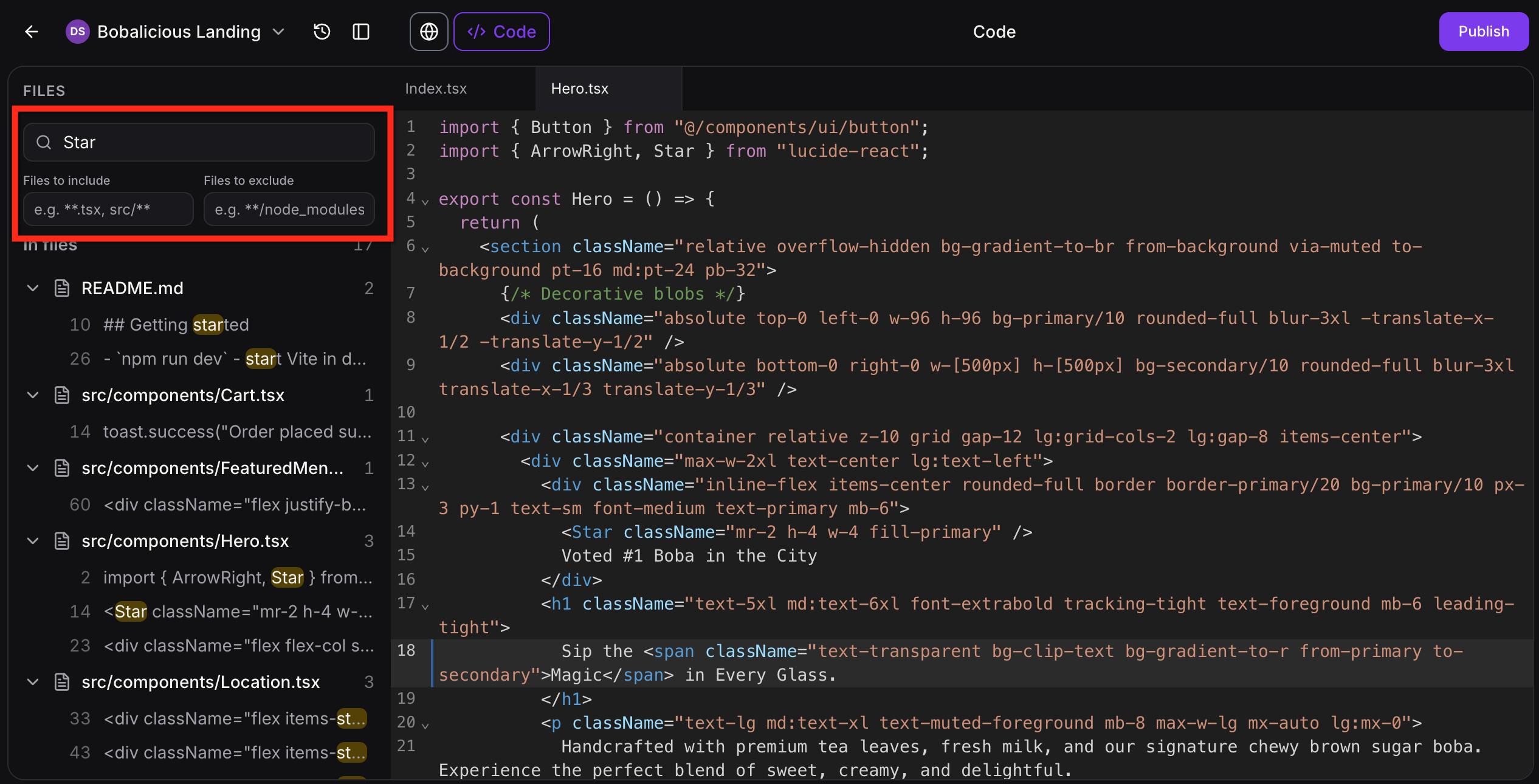
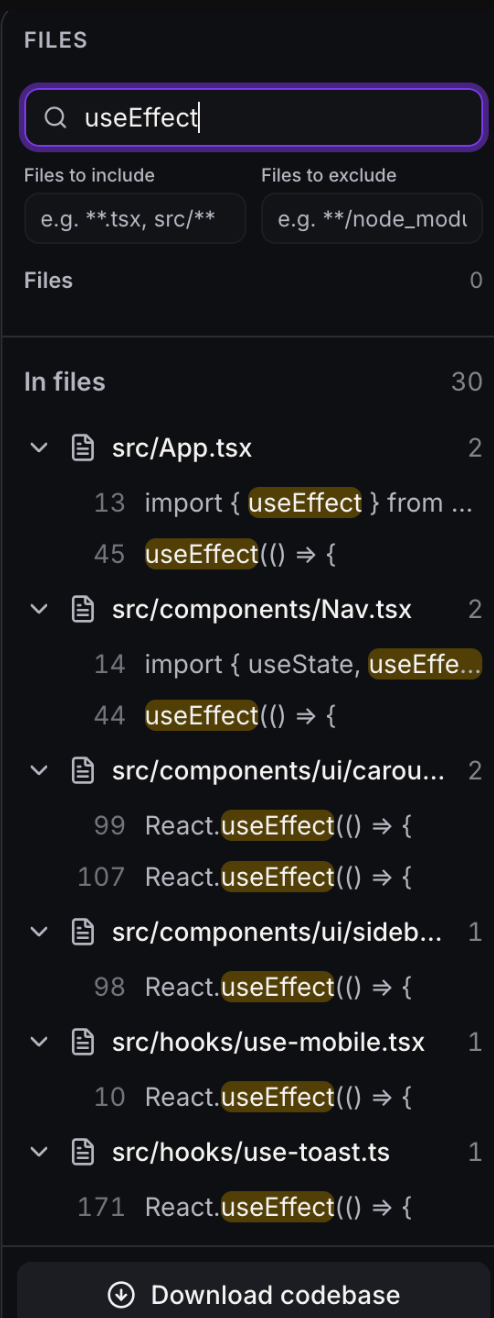
Global Project Search lets you search across your entire AI Studio project, not just the open file. This makes it easier to work across larger projects, reducing the time spent manually opening files.
Global Project Search gives you:
- Project‑wide search results with each match grouped under its file.
- Search results include unsaved changes in project files, so you can find matching content before saving your latest edits.
- Highlighted matches so you can quickly scan relevant lines.
- Line numbers for each result, making it easy to orient yourself in the file.
- One‑click navigation to jump directly into the matching file and line in the Code Editor.
Instant Save & Live Preview
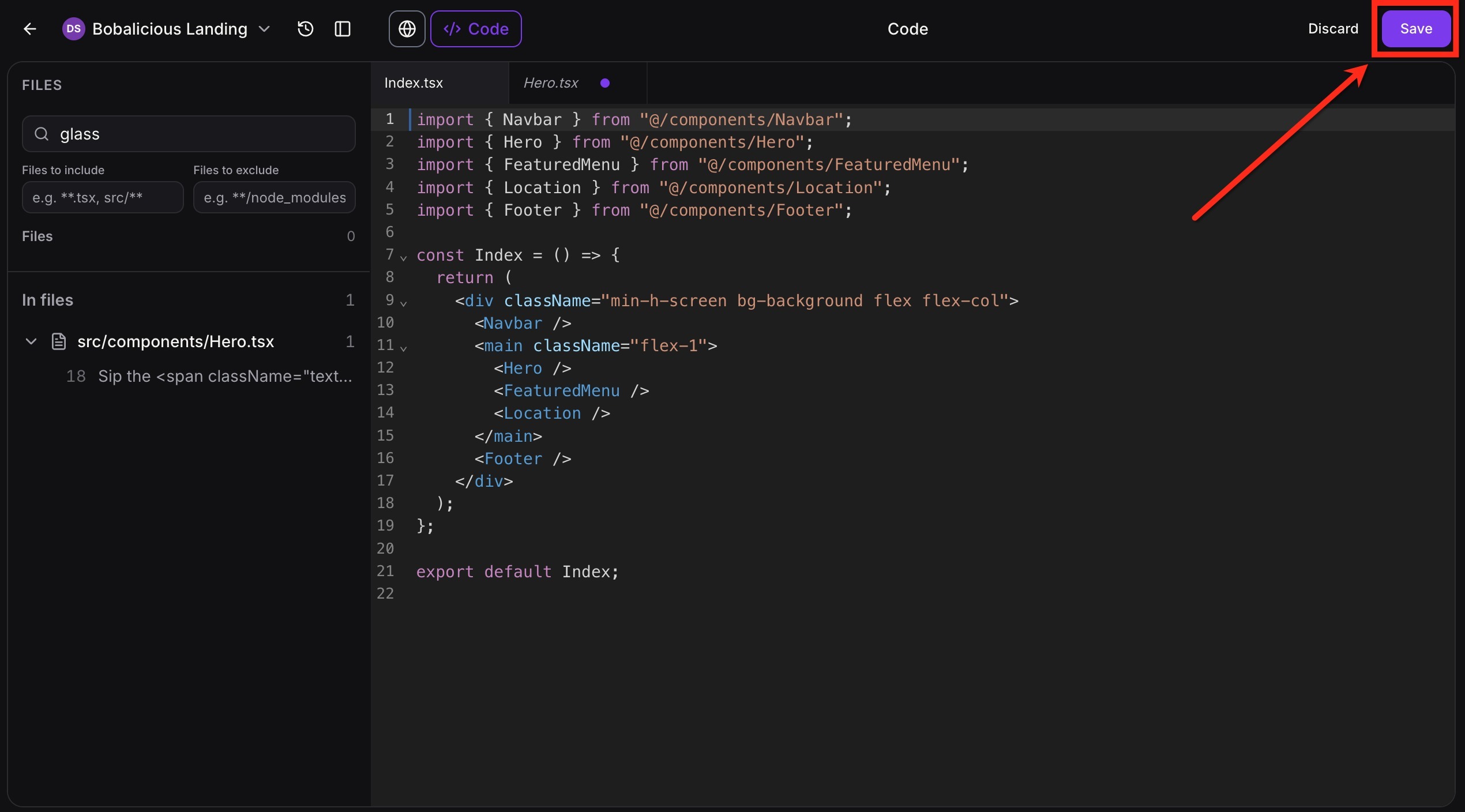
Instant Save & Live Preview help you review changes quickly as you work. Instead of committing changes and waiting on a separate deploy step, you can update code and immediately see the effect in the builder’s preview.
Just click the Save button in the builder and the live preview updates in seconds.
Smart Error Detection
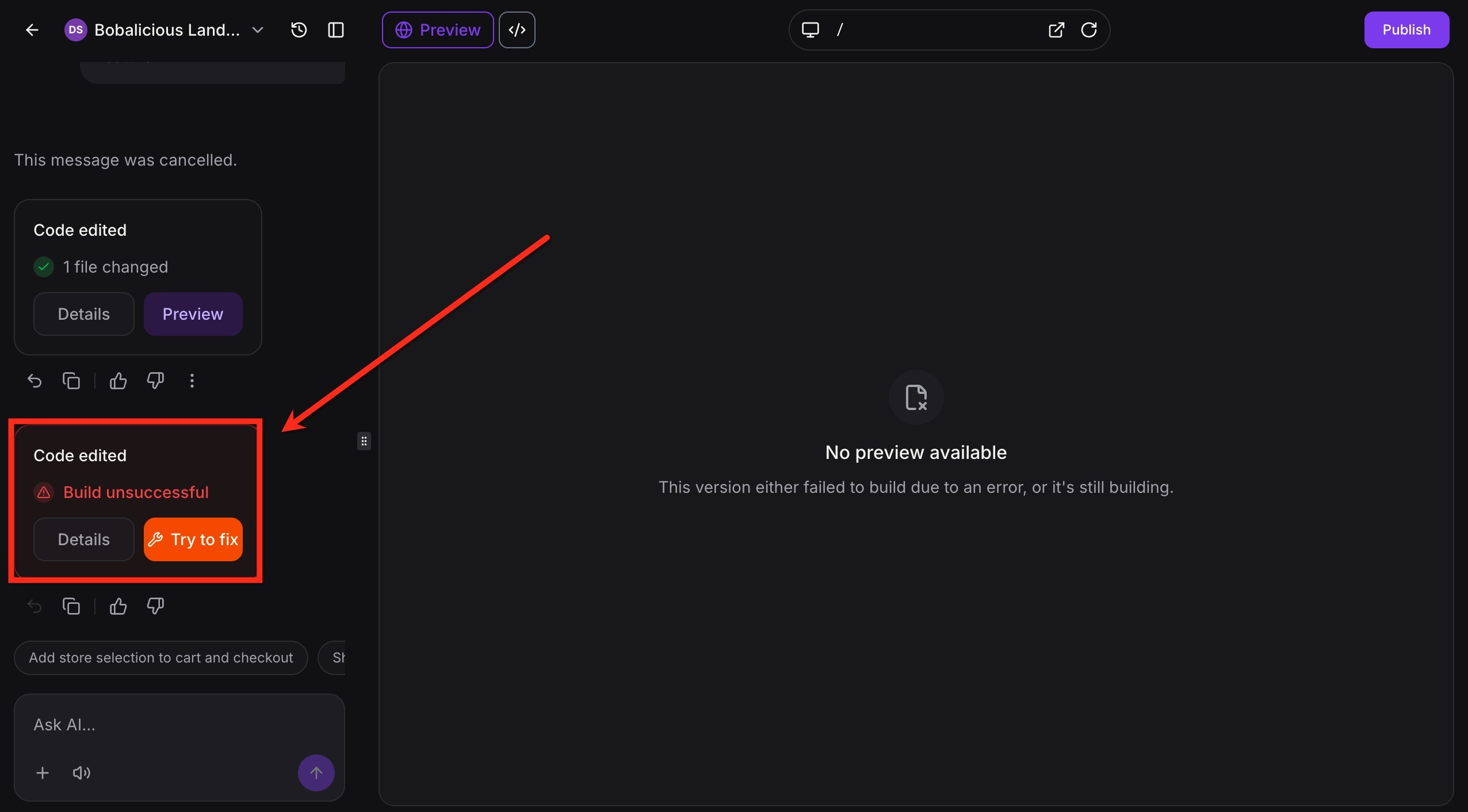
Smart Error Detection helps you catch build and preview startup issues while working in the Code Editor. If a project change prevents the preview from starting successfully, AI Studio surfaces the build error in chat so you can review the issue and use Try to fix to attempt a correction.
When an issue requires deeper investigation, AI Studio can also inspect the running project and test its actual behavior before deciding what to change. This can help distinguish a code issue from problems such as an outdated preview or an unavailable external resource.
After applying a fix, AI Studio can check the project again to verify that the issue is resolved.
How to use Smart Error Detection:
- Review the Build Error and Start the AI Fix
If a code change causes the build or live preview to fail, a Build unsuccessful message appears in the chat.
Click Details to review the error, then click Try to fix to have AI analyze the issue and attempt a correction.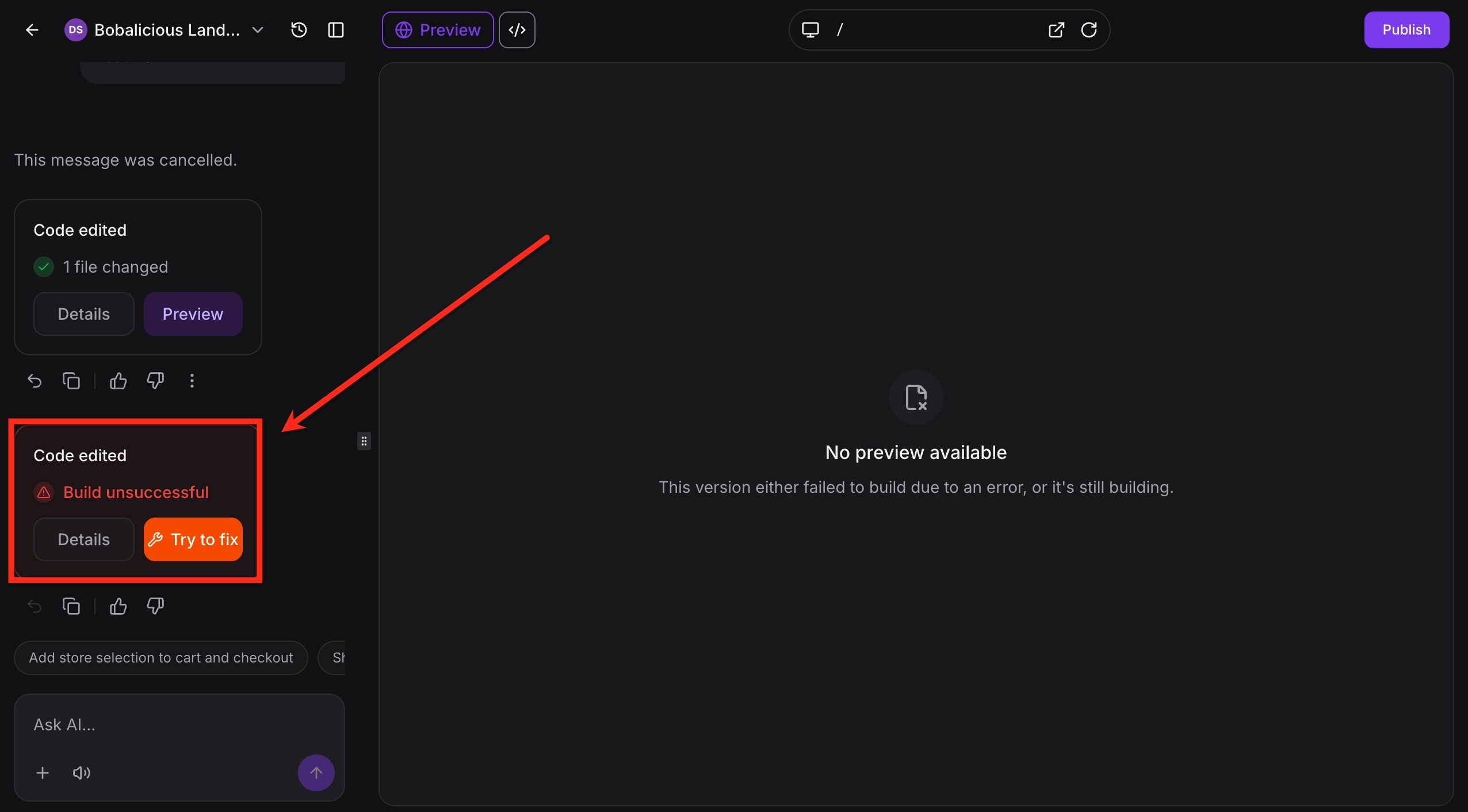
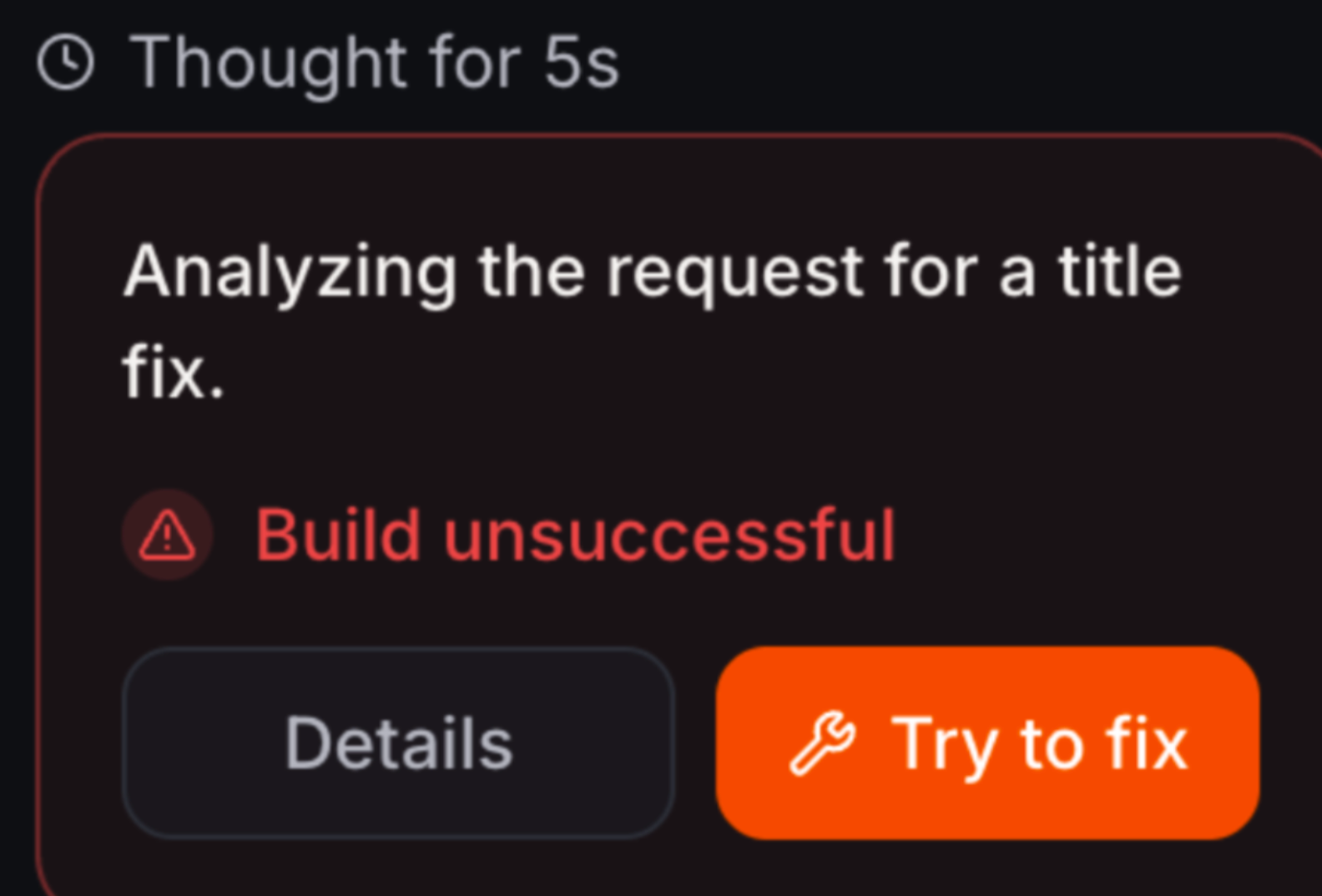
- Review the AI Fix and Rebuilt Preview
AI analyzes the error, updates the project files, and posts a follow-up message explaining the fix.
After a successful fix, AI Studio automatically rebuilds the preview using the updated project files.
Review the refreshed preview to confirm that the issue is resolved.
Automatic Route Detection
Automatic Route Detection helps keep your project structure organized when you add new routes in code. This reduces manual follow-up work and makes it easier to manage navigation inside the project. When a new route is created in code, it appears automatically in the route selector.
Version History
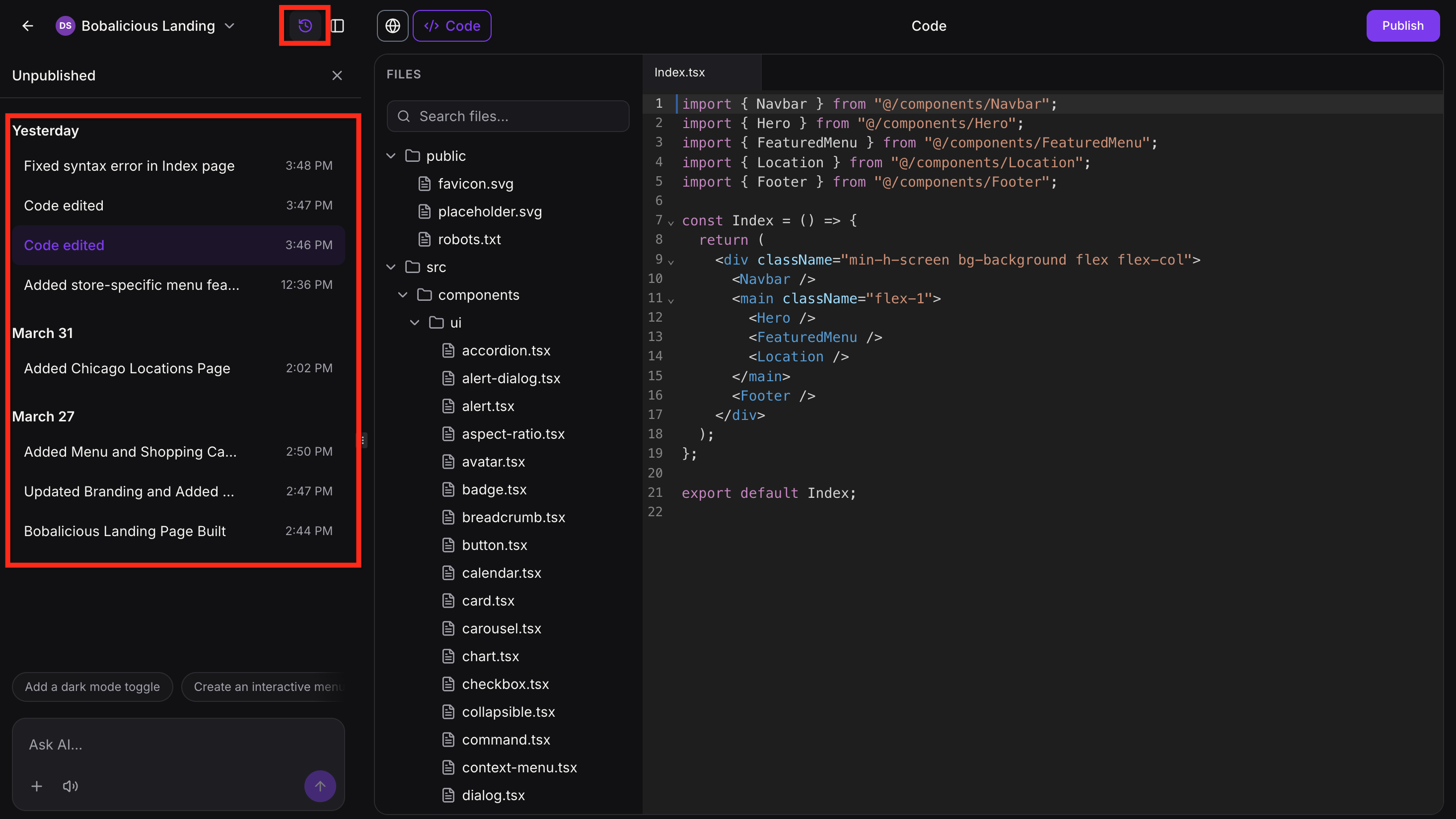
Version history gives you a safer editing workflow by preserving prior states of your project. This makes it easier to review changes, compare updates and recover from mistakes without starting over. Every time you save your code, a new version is created.
To access Version History, click the Clock icon in the top of the builder.
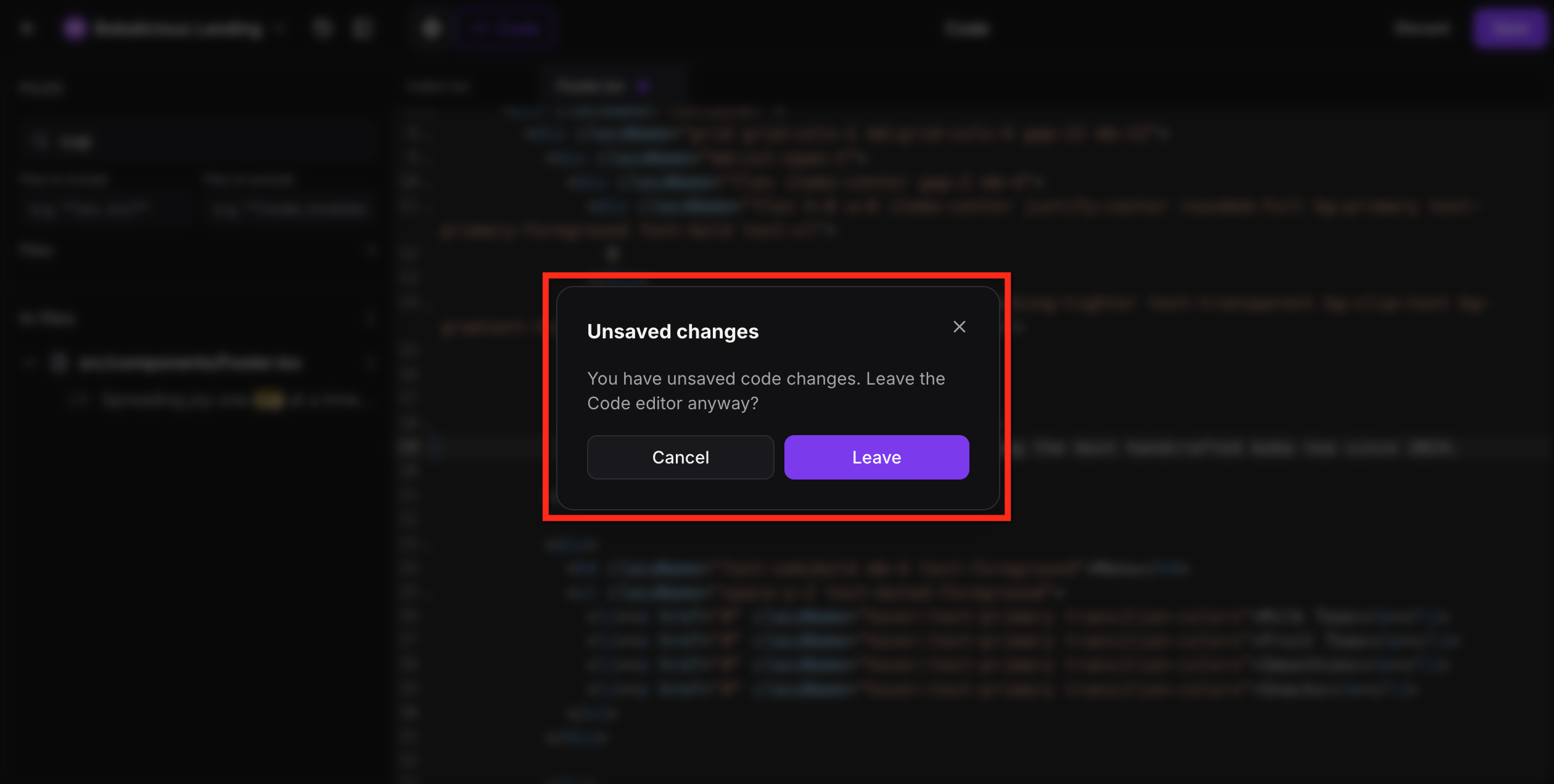
Unsaved Changes Protection
AI Studio warns you before you leave with unsaved code changes, helping prevent lost work. If you attempt to leave with unsaved code changes, a warning pops up so you can save your work before exiting.
How to Use the Code Editor
Using the AI Studio Code Editor starts with an AI-generated project and gives you more control over how that project looks and behaves. Once your project is created, you can open the Code area to make direct updates, review them in preview, and publish when everything is ready.
Follow these steps to get started with the Code Editor:
Step 1: Open the Code Editor
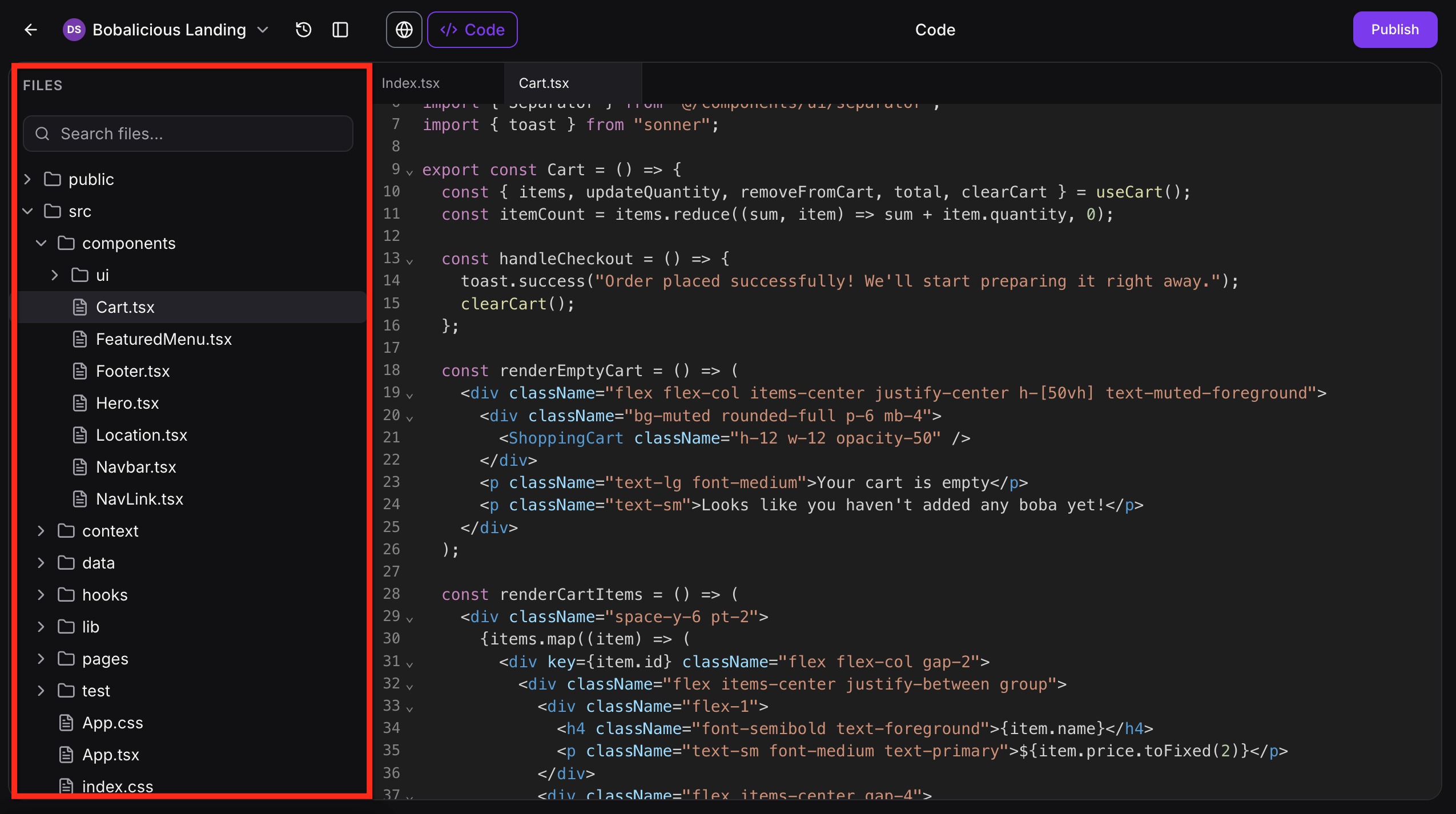
Open the AI Studio project you want to update. In the project workspace, click Code to access the Code Editor.
Step 2: Select the file and update the code
Open the file you want to edit from the file tree, then make your code changes directly in the editor. Use Find & Replace or Global Project Search if you need help locating the right content or file.
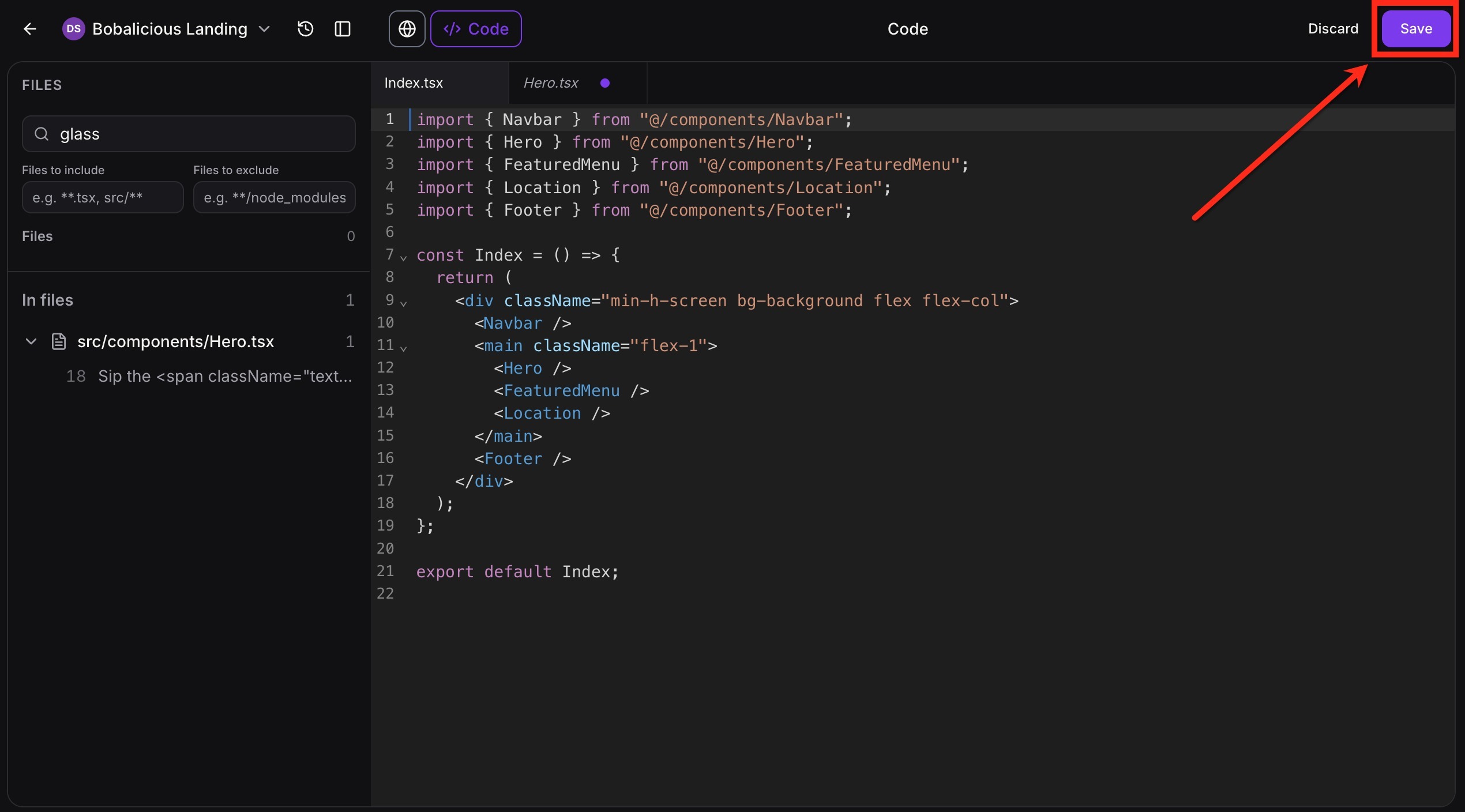
Step 3: Save your changes
Click Save to apply your updates and refresh the latest preview.
Step 4: Review the preview & fix any errors
Check the preview to confirm that the content, layout, and functionality appear as expected.
If a build error appears after saving, click Details to review the issue, then click Try to fix to let AI attempt a correction.
After AI successfully fixes the issue, AI Studio automatically rebuilds the preview with the updated project files so you can review the result.
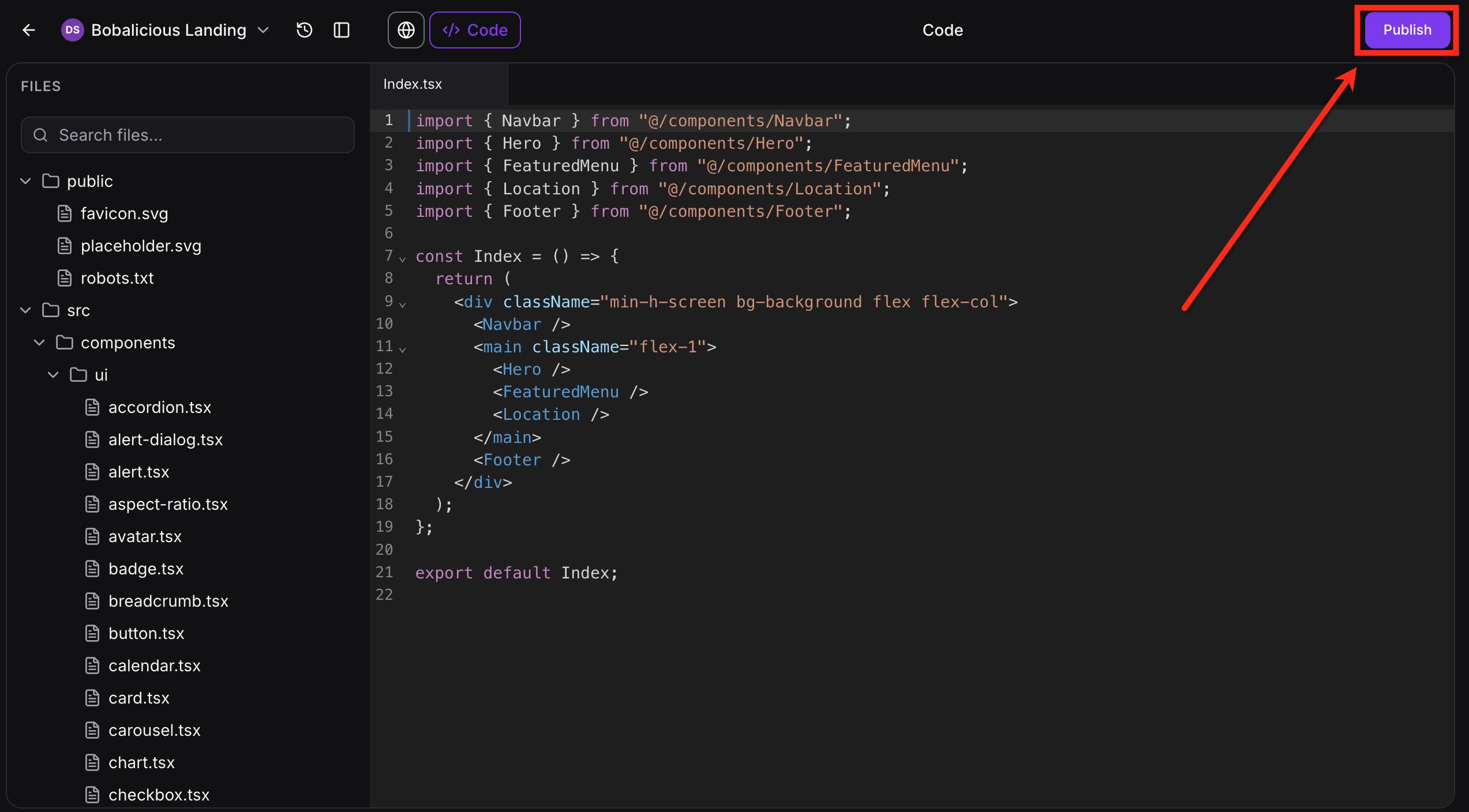
Step 5: Publish your project
Once your changes look correct and your project is ready, publish the project to make the updates live.
For more information, see Publishing an AI Studio Project
Frequently Asked Questions
Q: Do I have to use the Code Editor to benefit from AI Studio?
No. AI Studio can generate complete pages and flows from your prompts without any manual coding. The Code Editor is for users who want deeper control over layout, styling, logic, or integrations beyond what the chat and visual builder provide.
Q: Which languages and file types does the AI Studio Code Editor support?
The Code Editor is CodeMirror-powered and supports editing TypeScript, JSX, CSS, JSON, and other text-based project files used inside AI Studio.
Q: Does the Code Editor auto-save my work?
Changes to your code are saved when you click Save. AI Studio will warn you before leaving with unsaved code changes, helping reduce the risk of losing work.
Q: Do edits in the Code Editor immediately affect my live, public site?
No. Saving updates the live preview but your public site depends on publishing the AI Studio project. Review the preview first, then publish when you are ready for the changes to go live.
Related Articles
Was this article helpful?
That’s Great!
Thank you for your feedback
Sorry! We couldn't be helpful
Thank you for your feedback
Feedback sent
We appreciate your effort and will try to fix the article