Speed matters when you're building and refining agent logic. Graph Builder copy, paste, and bulk delete in HighLevel make it easier to reuse node setups, duplicate connected flows, and clean up your canvas without rebuilding work manually. These tools help you move faster in Agent Studio while keeping your graphs organised and easier to manage.
TABLE OF CONTENTS
- Graph Builder Copy, Paste, and Bulk Delete in Agent Studio
- Key Benefits of Graph Builder Copy, Paste, and Bulk Delete
- Supported Actions and How They Work
- Copy one or more nodes
- Paste copied nodes into the same graph
- Paste copied nodes into another Agent Studio tab
- Preserve copied connections
- Generate fresh IDs for pasted nodes
- Delete multiple selected nodes
- Use keyboard shortcuts
- How To Setup Graph Builder Copy, Paste, and Bulk Delete
- Shortcut Reference
- Best Practices for Reusing Node Groups
- Frequently Asked Questions
- Related Articles
Graph Builder copy, paste, and bulk delete allow you to duplicate one or more nodes inside Agent Studio using keyboard shortcuts, paste them into the same graph or another Agent Studio tab, and remove multiple selected nodes at once. This is especially helpful when you want to reuse a proven flow pattern, test variations, or quickly clean up an existing graph.
Key Benefits of Graph Builder Copy, Paste, and Bulk Delete
These tools reduce repetitive work and make it easier to build, test, and refine agent flows with less manual effort. They are especially useful when you're managing larger graphs or reusing similar logic across different agents.
Faster graph building: Copy existing nodes instead of recreating them from scratch.
Easier flow reuse: Paste copied node groups into another Agent Studio tab to reuse logic across agents.
Preserved internal connections: When you copy multiple connected nodes, the connections between the copied nodes are rebuilt automatically after paste.
Cleaner graph editing: Bulk delete helps remove multiple unwanted nodes in one action.
Better canvas organisation: Pasted nodes appear with an offset so they do not stack directly on top of the original selection.
Reliable duplication: Newly pasted nodes receive unique IDs to help prevent conflicts in your graph.
More efficient keyboard-based editing: Standard keyboard shortcuts make common graph actions quicker and more intuitive.
Supported Actions and How They Work
Understanding what happens during copy, paste, and bulk delete helps you use the feature more confidently. These behaviors are designed to make node editing faster while keeping your graph structure stable and easier to follow.
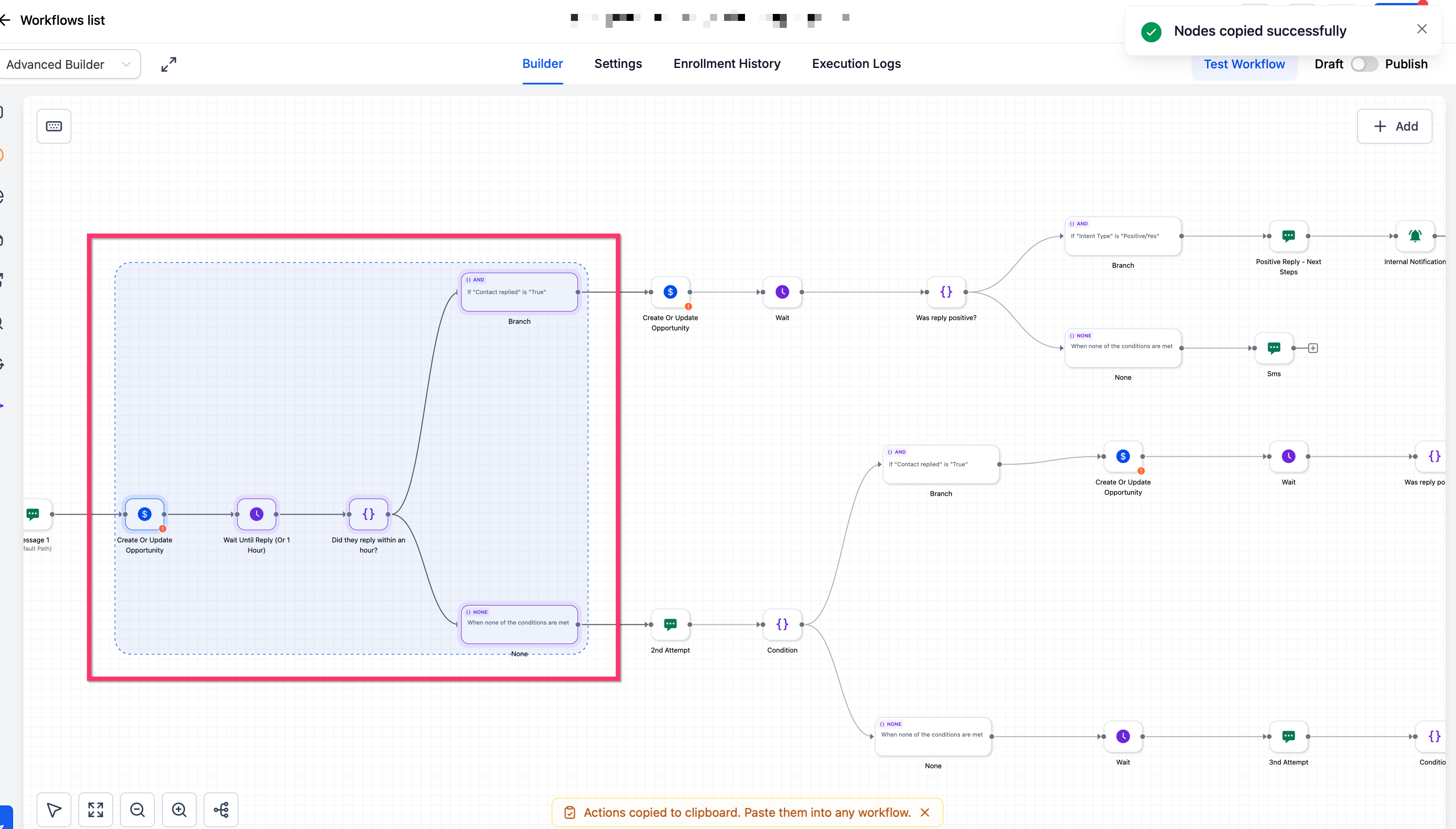
Copy one or more nodes
You can copy a single node or a group of selected nodes inside Graph Builder. This makes it easier to duplicate a simple step or reuse a larger sequence of logic.
Paste copied nodes into the same graph
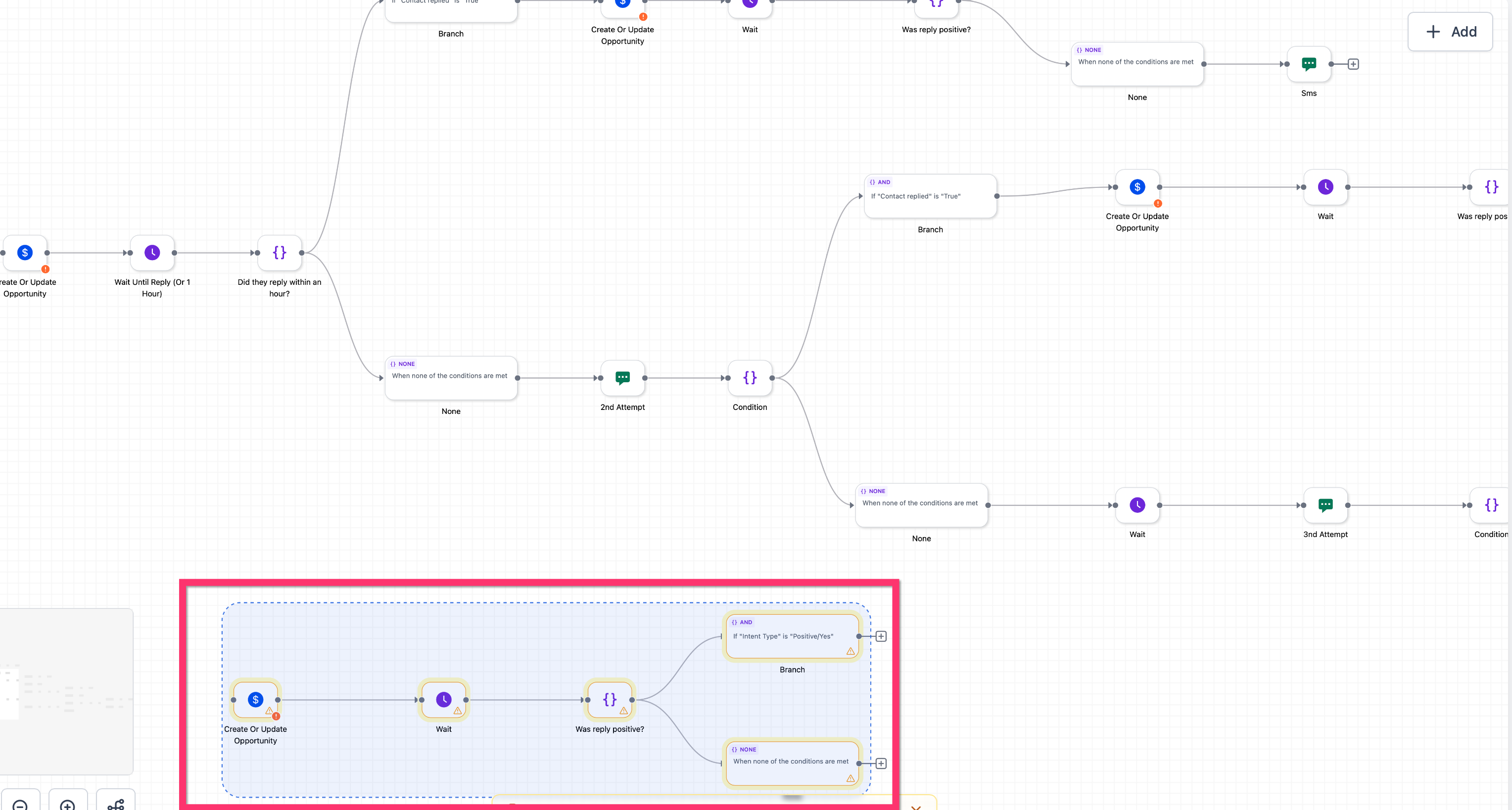
After copying, you can paste the selected node or node group back into the current graph. Pasted nodes appear with a slight offset so they are easier to spot and do not overlap directly with the original nodes.
Paste copied nodes into another Agent Studio tab
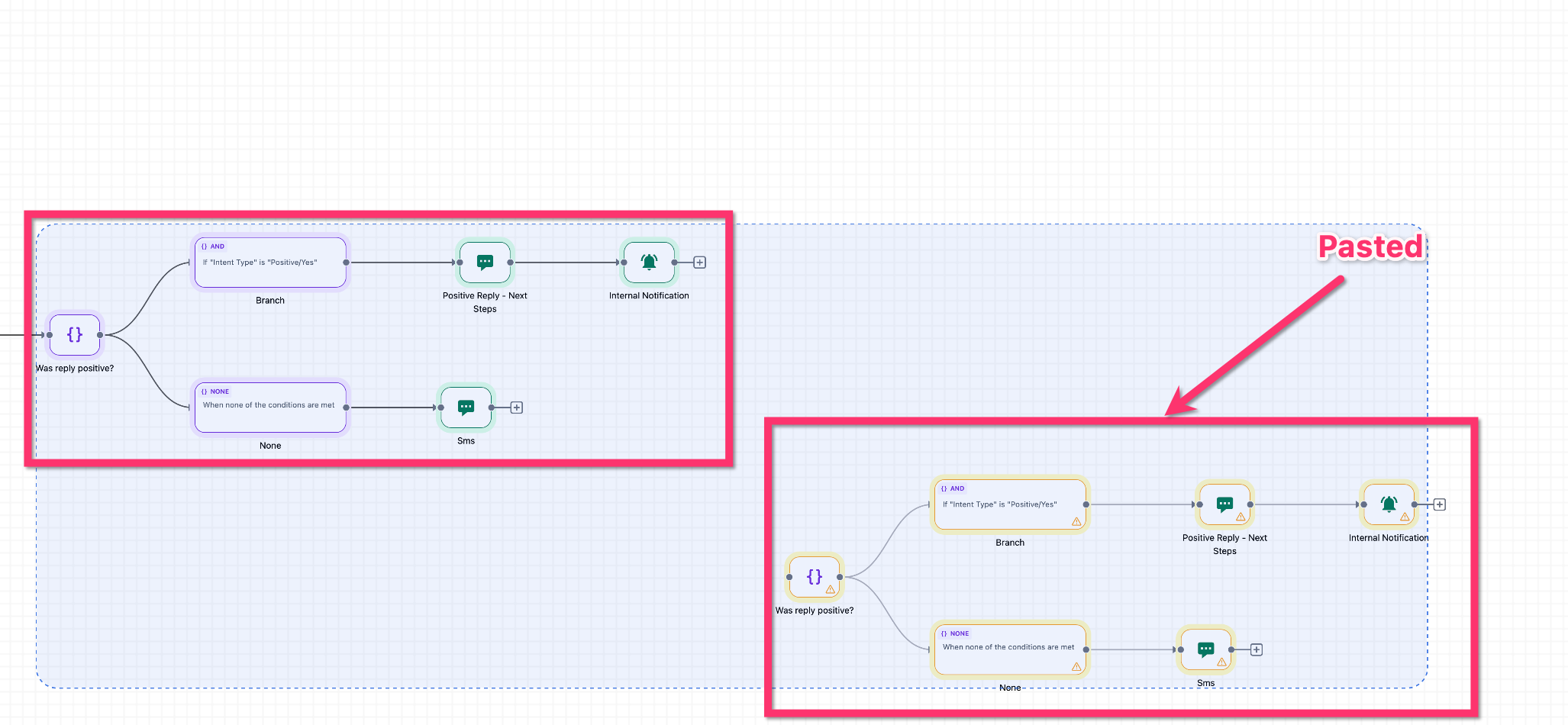
Copied nodes can also be pasted into another open Agent Studio tab. This helps you reuse flow sections between different agents without rebuilding the structure manually.
Preserve copied connections
When you copy multiple connected nodes together, the connections between those copied nodes are reconstructed automatically after paste. This reduces the need to reconnect the same paths manually.
Generate fresh IDs for pasted nodes
Each pasted node receives a new unique ID. This helps keep the graph stable and avoids conflicts with the original nodes.
Delete multiple selected nodes
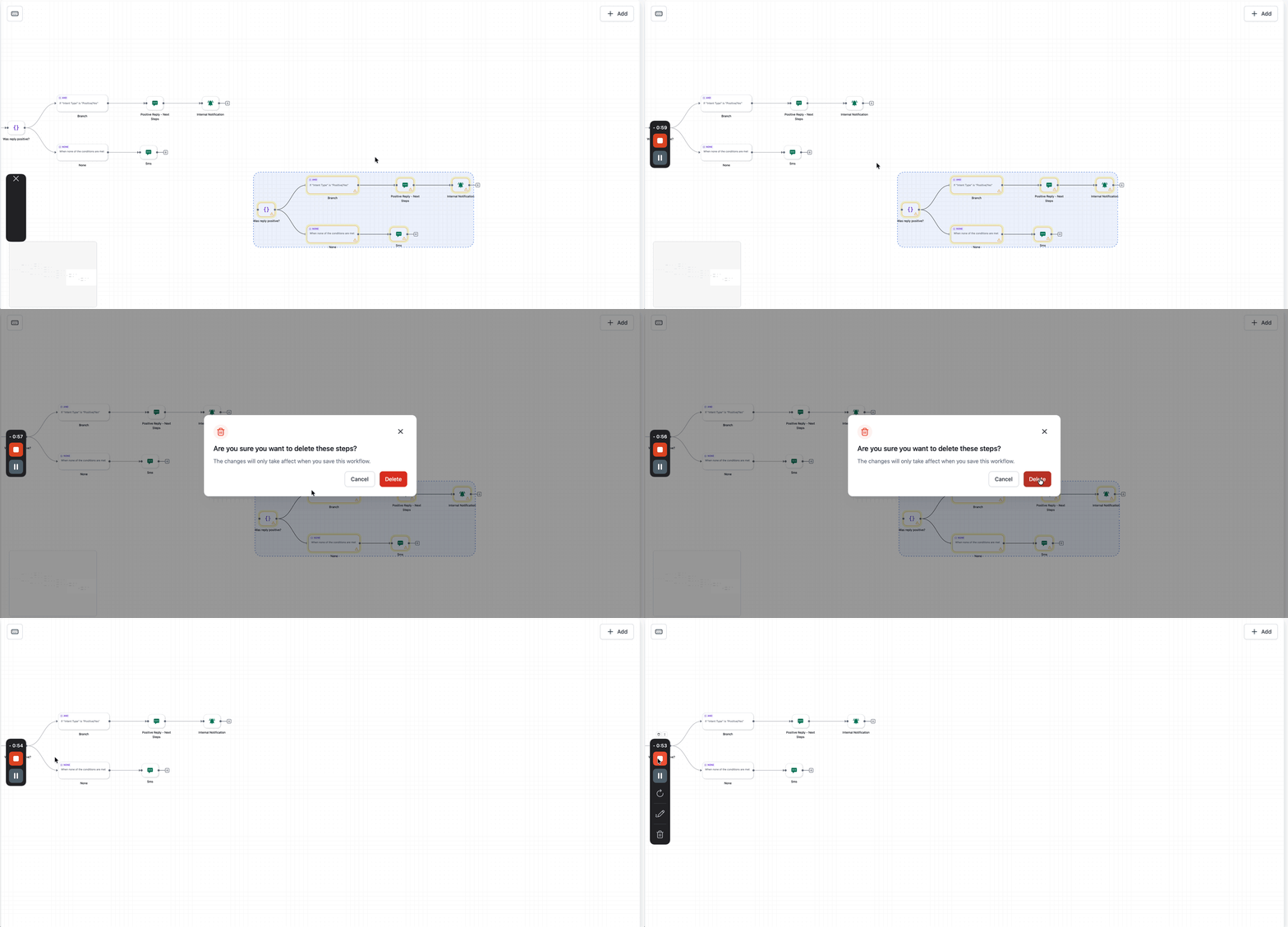
Bulk delete allows you to remove multiple selected nodes in one action. This is useful when cleaning up test branches, outdated logic, or extra copied nodes you no longer need.
Use keyboard shortcuts
The feature supports familiar keyboard shortcuts so you can perform common graph-editing actions quickly. A shortcut guide is also available in the product for quick reference.
How To Setup Graph Builder Copy, Paste, and Bulk Delete
Using these tools correctly can save significant time when building or updating agent flows. Following a clear process helps ensure you duplicate the right nodes, preserve useful connections, and avoid unnecessary cleanup later.
Open Agent Studio and go to the graph you want to edit.
Select the node you want to copy, or select multiple nodes if you want to duplicate a larger flow section.
Use the appropriate keyboard shortcut to copy the selected node or nodes.
Windows:
Ctrl + CMac:
Cmd + C
Paste the copied content where needed.
To paste into the same graph, stay on the current canvas and use the paste shortcut.
To paste into another graph, open the destination agent in another Agent Studio tab and use the paste shortcut there.
Windows:
Ctrl + VMac:
Cmd + V
Review the pasted nodes on the canvas. They should appear slightly offset from the original location so they are easier to identify.
Confirm that the copied nodes and any preserved internal connections match your intended flow.
Update any node-specific settings or paths if you want the duplicated flow to behave differently from the original.
To remove nodes you no longer need, select one or more nodes and use the delete shortcut supported in Graph Builder.
Save and publish your changes after confirming the updated graph works as expected.
Shortcut Reference
Keyboard shortcuts make graph editing much faster, especially when working with larger or repeatable node patterns. Learning the core shortcuts can help you build and clean up graphs with fewer clicks.
Copy selected node or nodes
Windows:
Ctrl + CMac:
Cmd + C
Paste copied node or nodes
Windows:
Ctrl + VMac:
Cmd + V
Bulk delete selected node or nodes
Use the delete shortcut available in Graph Builder for your device.
HighLevel also includes a keyboard shortcut guide in the product so you can reference supported shortcuts while working in Agent Studio.Best Practices for Reusing Node Groups
Copy and paste can speed up graph building even more when paired with a thoughtful structure. Reusing clean, well-organised node groups makes it easier to maintain consistency across agents and reduce setup time for similar use cases.
Copy complete logic blocks when you want to reuse a proven path rather than rebuilding each node individually.
Review pasted nodes before publishing to make sure the duplicated flow still matches your intended use case.
Rename or adjust duplicated nodes when testing variations so the graph remains easy to read.
Use bulk delete to remove old branches, test nodes, or extra copies that are no longer needed.
For full agent replication or sharing across broader environments, use snapshots rather than relying on node-level copy and paste.
Frequently Asked Questions
Q: Can I copy more than one node at a time?
A: Yes. Graph Builder supports copying a single node or multiple selected nodes at once.
Q: What happens to the connections between copied nodes?
A: When connected nodes are copied together, the connections between those copied nodes are rebuilt automatically after paste.
Q: Can I paste copied nodes into another Agent Studio tab?
A: Yes. The feature supports cross-tab pasting between Agent Studio tabs.
Q: Why do pasted nodes appear slightly moved from the original nodes?
A: Pasted nodes are placed with an offset so they do not stack directly on top of the original nodes, which makes them easier to find and edit.
Q: Do pasted nodes keep the same ID as the original nodes?
A: No. Each pasted node gets a new unique ID.
Q: Can I delete multiple nodes at the same time?
A: Yes. Bulk delete allows you to remove multiple selected nodes in one action.
Q: Does this replace snapshots for cloning an entire agent?
A: No. Copy and paste is useful for node-level reuse inside Graph Builder, while snapshots are better suited for cloning or sharing a full agent structure.
Q: Is there a shortcut guide available in the product?
A: Yes. HighLevel includes a keyboard shortcut guide to help you reference supported shortcuts while using Agent Studio.
Related Articles
Was this article helpful?
That’s Great!
Thank you for your feedback
Sorry! We couldn't be helpful
Thank you for your feedback
Feedback sent
We appreciate your effort and will try to fix the article