Get a single, consolidated view of performance across all Conversation AI agents in HighLevel. The Conversation AI Dashboard helps teams monitor trends, compare agent performance, and spot opportunities faster using filters like Date Range, Channel, and Agent. Access is permission-based, so you can confidently share insights with the right team members.
TABLE OF CONTENTS
- What is the Conversation AI Dashboard?
- Key Benefits of the Conversation AI Dashboard
- Where to Find the Dashboard
- Using Filters to Drill Down Into Performance
- Date Range
- Channel
- Agent
- Controlling Access With Roles & Permissions
- What Changes With This Update
- How To Set Up the Conversation AI Dashboard
- Frequently Asked Questions
- Related Articles
What is the Conversation AI Dashboard?
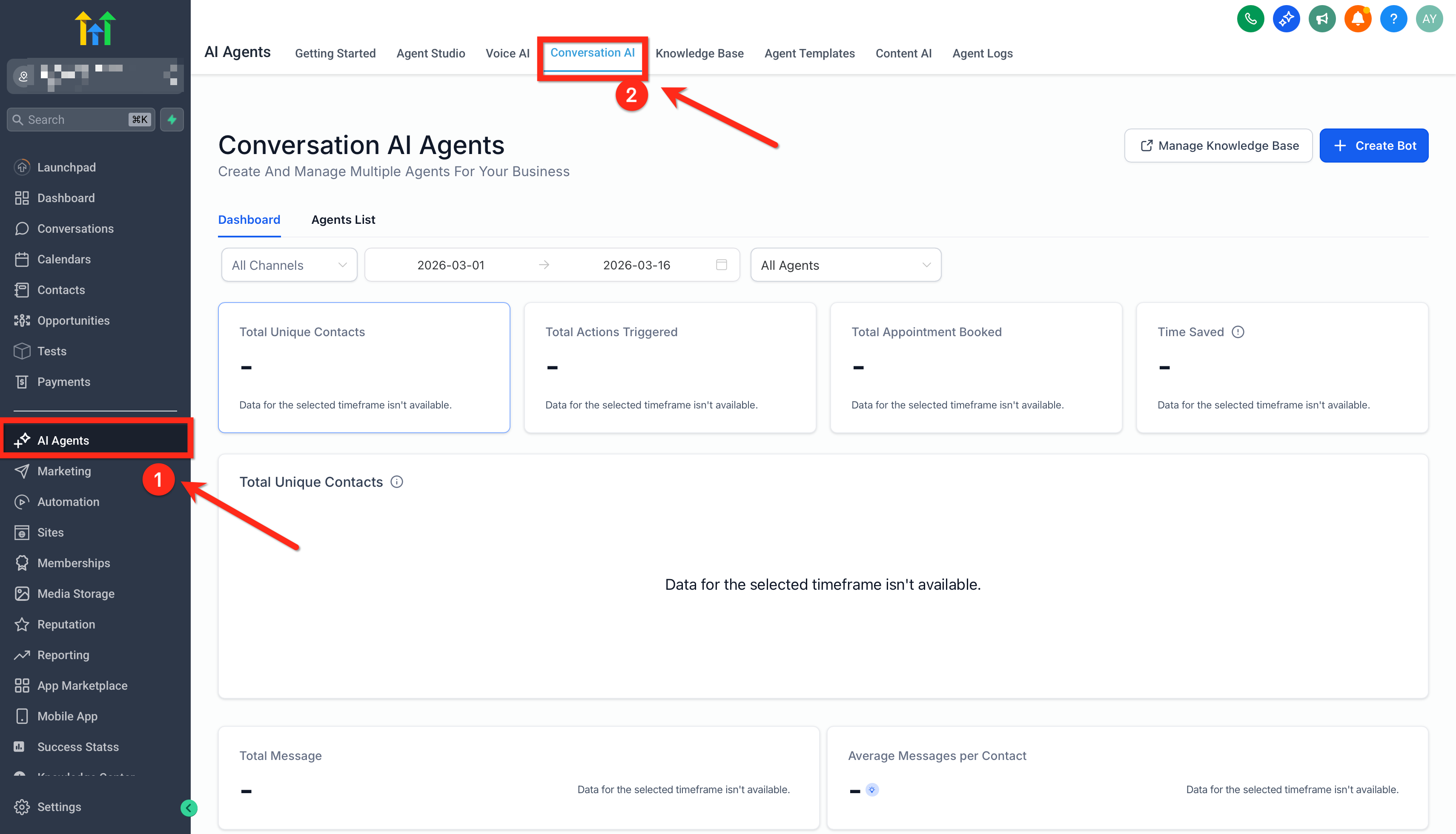
The Conversation AI Dashboard is a centralized analytics view that consolidates performance data for all Conversation AI agents into one place. Instead of opening each agent individually to check results, teams can review key metrics at a glance and then narrow the view using filters for more targeted insights.
Screenshot placeholder: Conversation AI home page showing the consolidated dashboard and top-level metrics.
Key Benefits of the Conversation AI Dashboard
A consolidated analytics view makes it easier to understand performance across your AI agents and act quickly on what the data is telling you.
One dashboard for all agents: Monitor performance across every Conversation AI agent without switching between agent pages.
Faster decision-making: Identify trends and changes over time using date-based comparisons.
Channel-level visibility: Understand how Conversation AI performs across different communication channels.
Agent-level drill-down: Isolate performance for a specific agent to validate improvements or troubleshoot issues.
Permission-controlled access: Share dashboard visibility with the right users while limiting access for others.
Where to Find the Dashboard
Knowing where the dashboard lives in HighLevel helps teams access analytics quickly, whether they’re reviewing overall trends or checking a single agent.
Open AI Agents → Conversation AI to view the consolidated metrics dashboard.
When enabled by permission, the dashboard can appear:
On the Conversation AI home page (consolidated view)
At the agent level (scoped view for a specific agent)
Using Filters to Drill Down Into Performance
Filters help you turn high-level analytics into actionable insights by narrowing the dashboard view to the time period, channel, or agent that matters most.
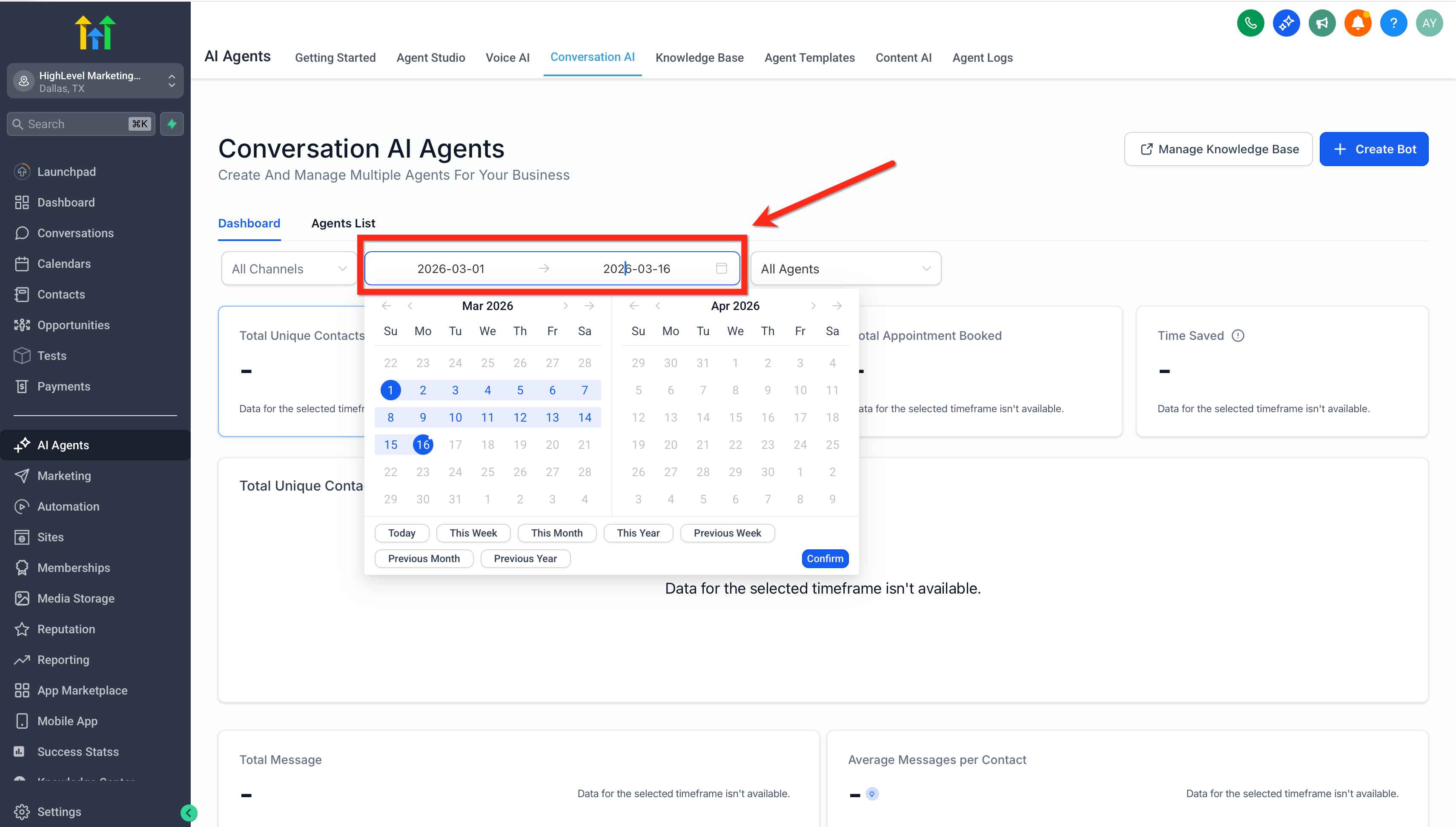
Date Range
Use Date Range to compare performance over time (for example, this week vs last week).
Apply a narrower window to investigate spikes or drops.
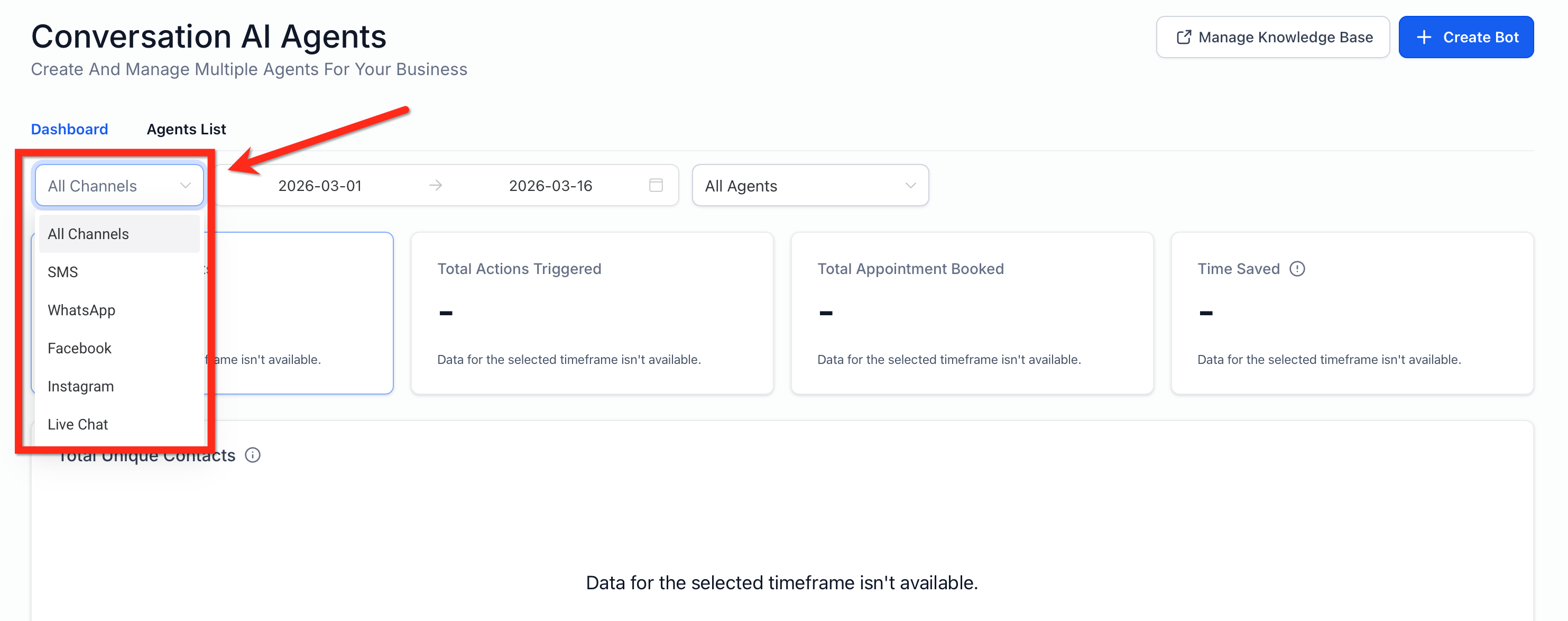
Channel
Use Channel to focus on where conversations are happening (based on the channels available in your account).
Compare channel performance to understand where agents are most effective.
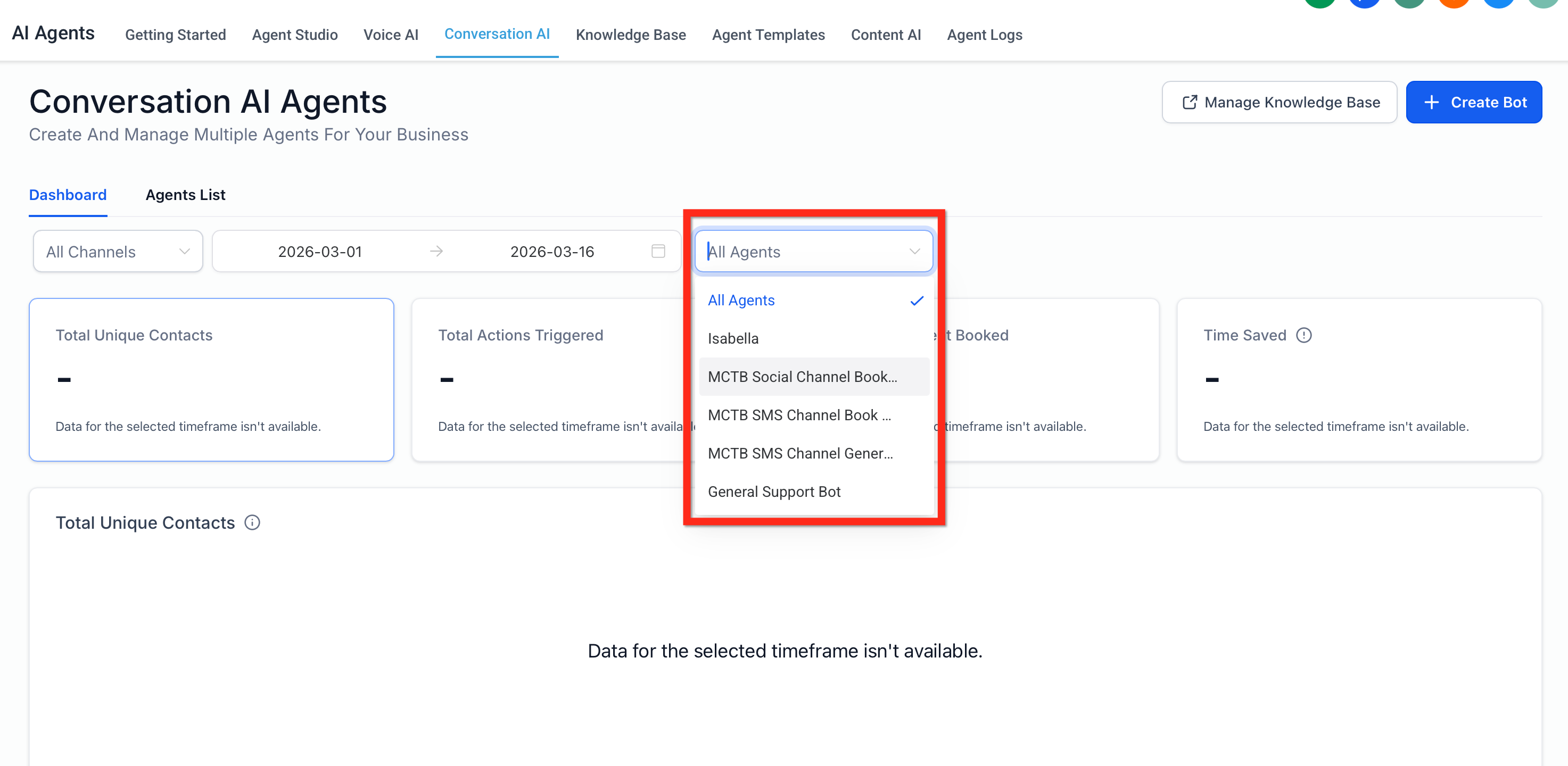
Agent
Use Agent to isolate analytics for a single Conversation AI agent.
This is especially helpful for validating changes after updating prompts, workflows, or routing.
Controlling Access With Roles & Permissions
Permission-based access ensures the right users can view analytics while keeping reporting visibility restricted where needed. This is especially important in multi-user agency environments.
To control access to the dashboard:
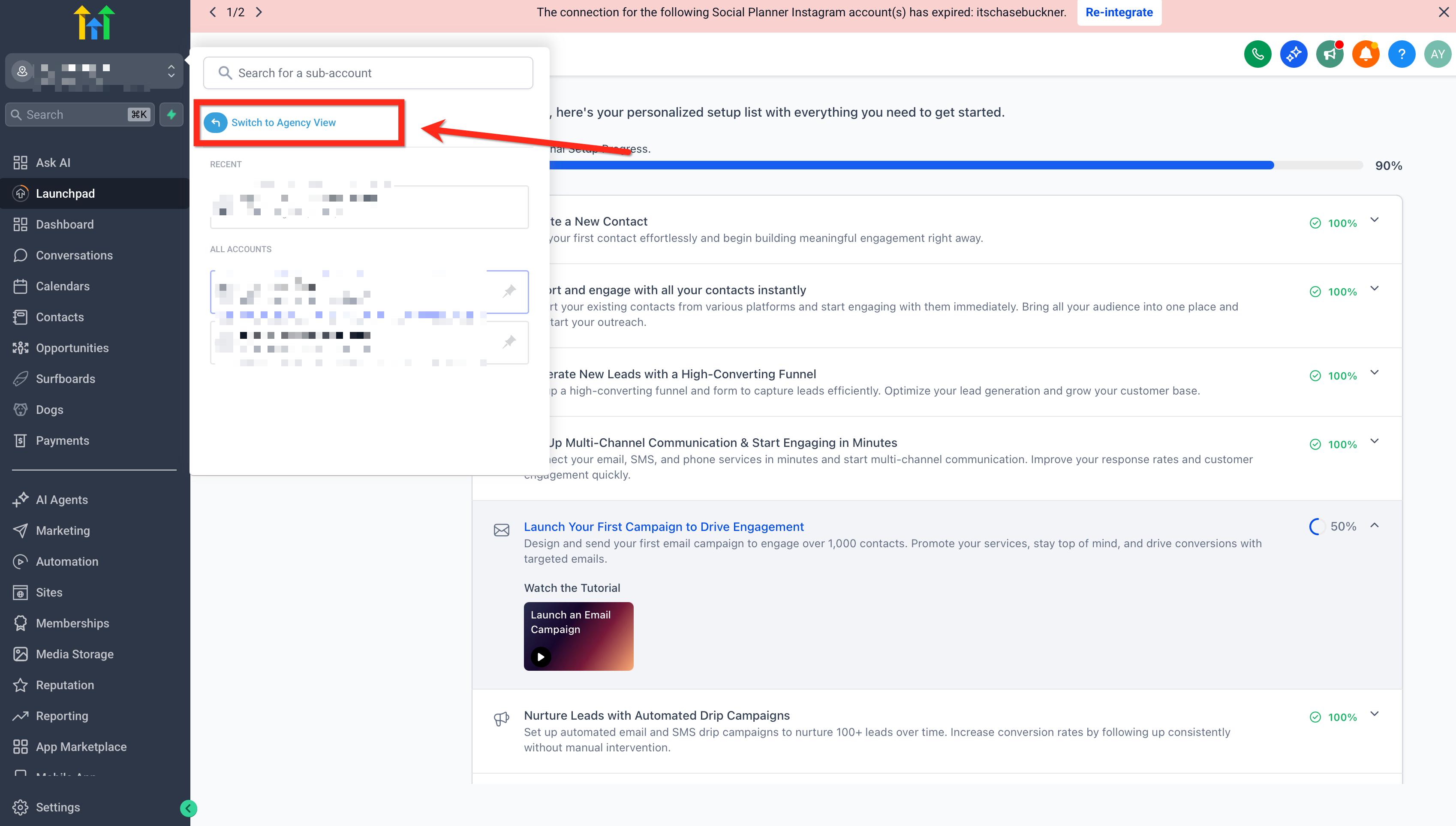
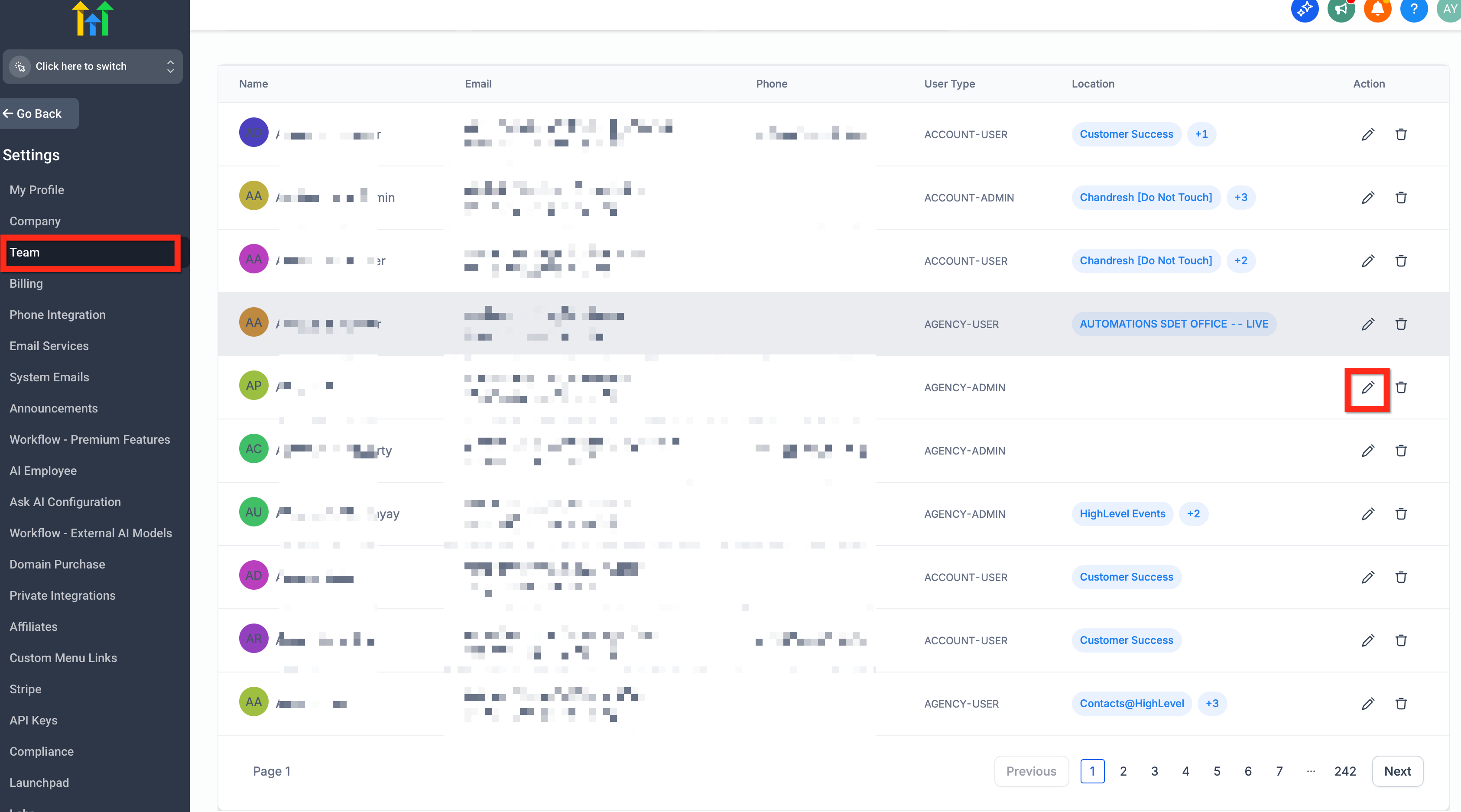
Go to Agency Settings → Team.
Select the user and click Edit User.
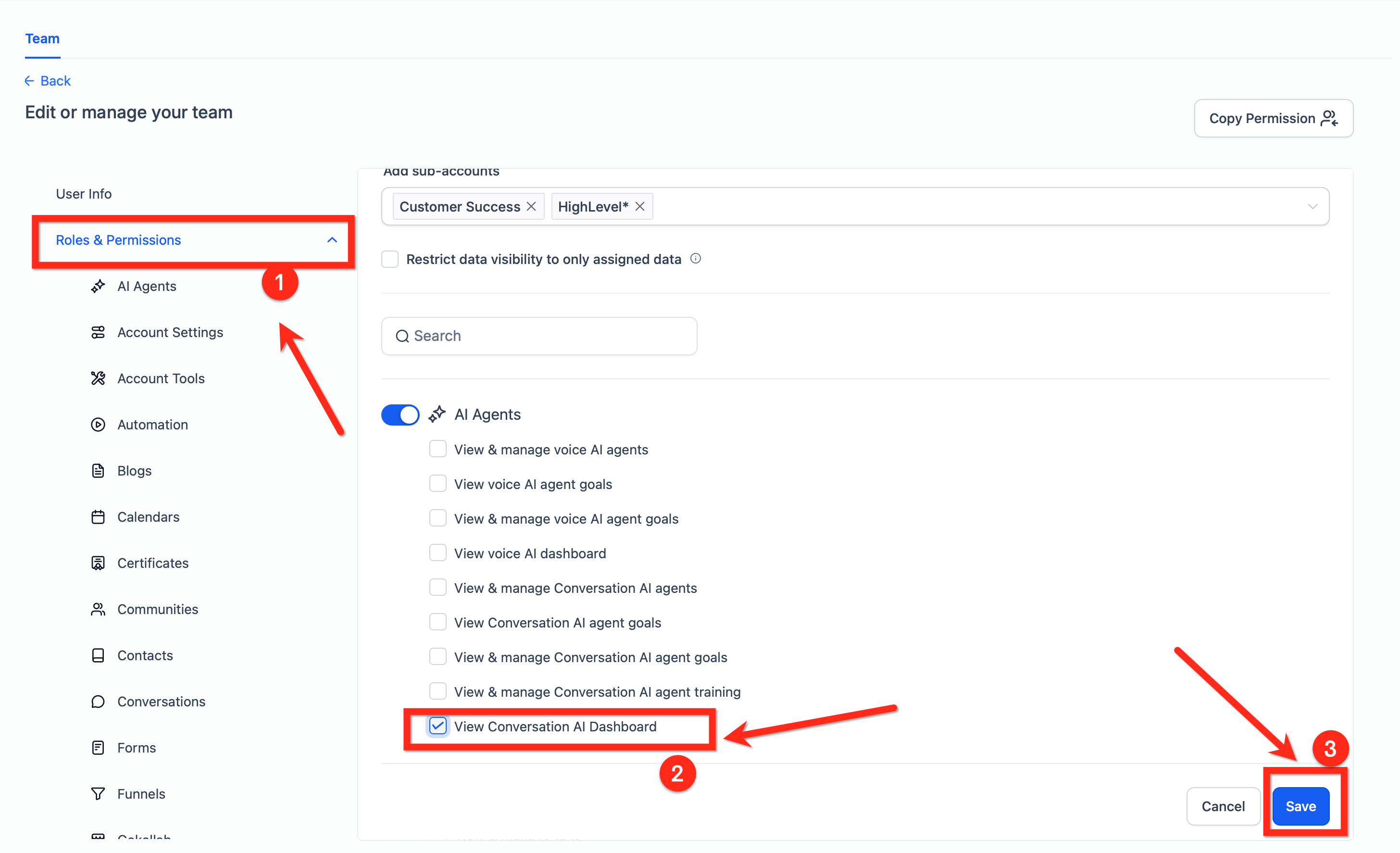
Open Roles & Permissions.
Expand AI Agents.
Locate View Conversation AI Dashboard.
Toggle the permission On or Off.
Click Save.
Important behavior:
If View Conversation AI Dashboard is enabled, the dashboard appears on the Conversation AI home page and at the agent level.
If disabled, the dashboard is hidden from both locations.
What Changes With This Update
Understanding what this release does (and doesn’t) change helps teams adopt the dashboard confidently without worrying about configuration impacts.
No setup changes required: This update adds analytics visibility only.
Existing Conversation AI configurations remain unchanged: Your agents, routing, prompts, and related settings continue to work as they do today.
New Metrics Under Total Actions Triggered
The dashboard now includes additional drill-down metrics under Total Actions Triggered so you can better understand which bot actions are happening most often.
These metrics appear when you click the Total Actions Triggered card.
- Cancel Appointment: Count of bot-initiated appointment cancellations confirmed with the contact during a conversation.
- Reschedule Appointment: Count of bot-initiated appointment reschedules completed during a conversation.
- Transfer Bot: Number of times the bot triggered a Transfer Bot action to hand off the conversation to another bot.
These metrics help you measure how often Conversation AI handles appointment changes and bot-to-bot transfers.
How To Set Up the Conversation AI Dashboard
Proper setup is mostly about ensuring the correct permissions are assigned, so users can access analytics without exposing data more broadly than intended.
Confirm you have access to Agency Settings.
Navigate to Agency Settings → Team.
Edit the intended user.
Go to Roles & Permissions → AI Agents.
Enable View Conversation AI Dashboard.
Navigate to AI Agents → Conversation AI and verify the dashboard loads.
Use the filters (Date Range, Channel, Agent) to confirm you can drill down into the view you need.
Screenshot placeholder: Final confirmation view showing the dashboard visible after enabling permission.
Frequently Asked Questions
Q: Why can’t I see the Conversation AI Dashboard?
A: Verify your user has the View Conversation AI Dashboard permission enabled under Agency Settings → Team →
Edit User → Roles & Permissions → AI Agents.
Q: If I disable the permission, where does the dashboard disappear from?
A: Disabling View Conversation AI Dashboard hides the dashboard from both the Conversation AI home page and the agent-level pages.
Q: Does this update change my existing Conversation AI agents or their settings?
A: No. This update adds reporting visibility only—your existing Conversation AI configurations remain unchanged.
Q: Can I view analytics for just one agent?
A: Yes. Use the Agent filter to isolate performance for a specific Conversation AI agent.
Q: How do I compare trends over time?
A: Use the Date Range filter to switch between time windows and identify changes in performance.
Q: What does the Channel filter do?
A: The Channel filter narrows analytics to the communication channel(s) available in your account, making it easier to compare performance by channel.
Q: Do I need to configure anything to start using the dashboard?
A: No additional setup is required beyond enabling the View Conversation AI Dashboard permission for the users who need access.
Q: What new action metrics are available in the dashboard?
A: Under Total Actions Triggered, you can now view Cancel Appointment, Reschedule Appointment, and Transfer Bot. These drill-down metrics show how often the bot cancels appointments, reschedules appointments, or transfers the conversation to another bot.
Related Articles
Was this article helpful?
That’s Great!
Thank you for your feedback
Sorry! We couldn't be helpful
Thank you for your feedback
Feedback sent
We appreciate your effort and will try to fix the article