Invoke Agent Studio Agent connects HighLevel Workflows with Agent Studio so your automation can send context to an AI agent, receive a response, and continue to the next step without custom code. This setup is useful for summaries, lead qualification, content generation, structured outputs, and workflow branching based on agent results.
TABLE OF CONTENTS
- What is Invoke Agent Studio Agent?
- Key Benefits of Invoke Agent Studio Agent
- Prerequisites & Permissions
- Workflow Action Settings
- Using Agent Output Downstream
- Best Practices & Use Cases
- How To Set Up Invoke Agent Studio Agent
- Add the Workflow Action
- Configure the Workflow Action
- Select Agent (Required)
- Message Field (Optional but Recommended)
- Important Configuration Notes
- Configure Inputs and Save
- Frequently Asked Questions
What is Invoke Agent Studio Agent?
Invoke Agent Studio Agent is a workflow action that runs a selected Agent Studio agent from inside a workflow. When the workflow reaches this step, the agent executes in the background, returns its response, and makes that output available for later workflow steps. This allows you to combine workflow logic with agent reasoning, generated content, and structured data in one connected process.
Key Benefits of Invoke Agent Studio Agent
Using an agent inside a workflow helps you move from simple automation to decision-based automation. It is especially helpful when a workflow needs to analyze context, create a response, classify information, or return structured output that later steps can use.
- AI-powered workflow execution: Run an Agent Studio agent at a specific point in your workflow and continue the automation with the returned result.
- Flexible data handling: Send instructions through the Message field, map workflow data into input variables, and reuse the response in later actions.
- Better downstream automation: Use agent output in emails, internal notifications, field updates, If/Else branches, and webhooks.
- Structured decision-making: Return machine-readable JSON from the agent to support cleaner branching and more dependable automation logic.
- Scalable operational workflows: Apply the same workflow pattern to lead enrichment, summaries, routing, follow-up preparation, and record updates across sub-accounts.
Prerequisites & Permissions
A smooth setup depends on having the right access and building the agent for the correct entry point before adding it to a workflow. Verifying these requirements early helps prevent confusion when the agent does not appear in the workflow action.
Before using this action, confirm the following:
You have an active AI Employee add-on with access to Agent Studio.
The agent is published to Production. Draft or Staging versions do not appear in the workflow action selector.
You have permission to edit workflows and AI agents in the location.
Important:

Build the agent with the Workflows trigger when the goal is to run that agent from the Invoke Agent Studio Agent workflow action. This trigger is designed for agents that need to be launched directly by a workflow, making it easier to pass inputs correctly, receive the agent’s response, and use that output in later steps.
Workflow Action Settings
Each setting in the action panel controls what the agent receives and how the workflow can use the result afterward. Understanding these fields helps you build actions that are easier to test, easier to troubleshoot, and more useful in downstream automation.
The action includes these core settings:
- Agent: Select the Production agent you want the workflow to run.
- Message: Add free-text instructions for the run. You can use merge fields to send contact-specific or workflow-specific context.
- Input Variables: Map workflow values or static text to the agent’s named inputs. Missing required inputs can stop the action from completing successfully.
- Store Output As: Save the full agent response as a custom value for later workflow steps.
Using Agent Output Downstream
The value of this action comes from what happens after the agent responds. Saving and reusing the output lets the workflow make smarter decisions, personalize communications, and send richer data to later actions or outside systems.
Common downstream uses include:
- Save the summary or result to a custom field or note.
- Branch with If/Else logic using values returned by the agent.
- Insert the response into Email, SMS, WhatsApp, or internal notifications.
- Send the full response object to a webhook or external service.
- Reference the response in later workflow steps using the agent response variable documented in the action article.
Best Practices & Use Cases
Well-structured agent actions are easier to maintain and produce more consistent results. Clear prompts, mapped variables, and structured outputs help reduce errors while making the workflow easier for teams to understand and improve over time.
Best practices:
- Keep prompts concise and provide detailed context through mapped variables when possible.
- Ask the agent to return structured JSON when the result will be used for branching or field updates.
- Rename each action clearly if the workflow uses more than one agent.
- Test the agent’s expected output format before using it in important downstream actions. Agent Studio supports testing and debugging so you can review agent behavior before broader use.
- Publish agent changes to Production before expecting them to appear in the workflow action.
Example use cases:
- Lead enrichment after a form submission
- Conversation summaries after a chat is closed
- Sales triage based on the latest inquiry
- Internal handoff notes for service teams
- Structured output sent to webhooks or external tools
How To Set Up Invoke Agent Studio Agent
Proper setup starts in Agent Studio and finishes in the workflow builder. Building the agent for workflow invocation first helps ensure the action can locate the correct agent and return a response that later steps can use reliably.
Build the Agent in Agent Studio
The trigger you choose determines how the agent starts. For this use case, the agent should be built for workflow invocation so the workflow can intentionally launch it, pass input data, and receive a response back for later actions. HighLevel’s trigger guide explains that trigger types define how agents start in response to specific events or entry points.
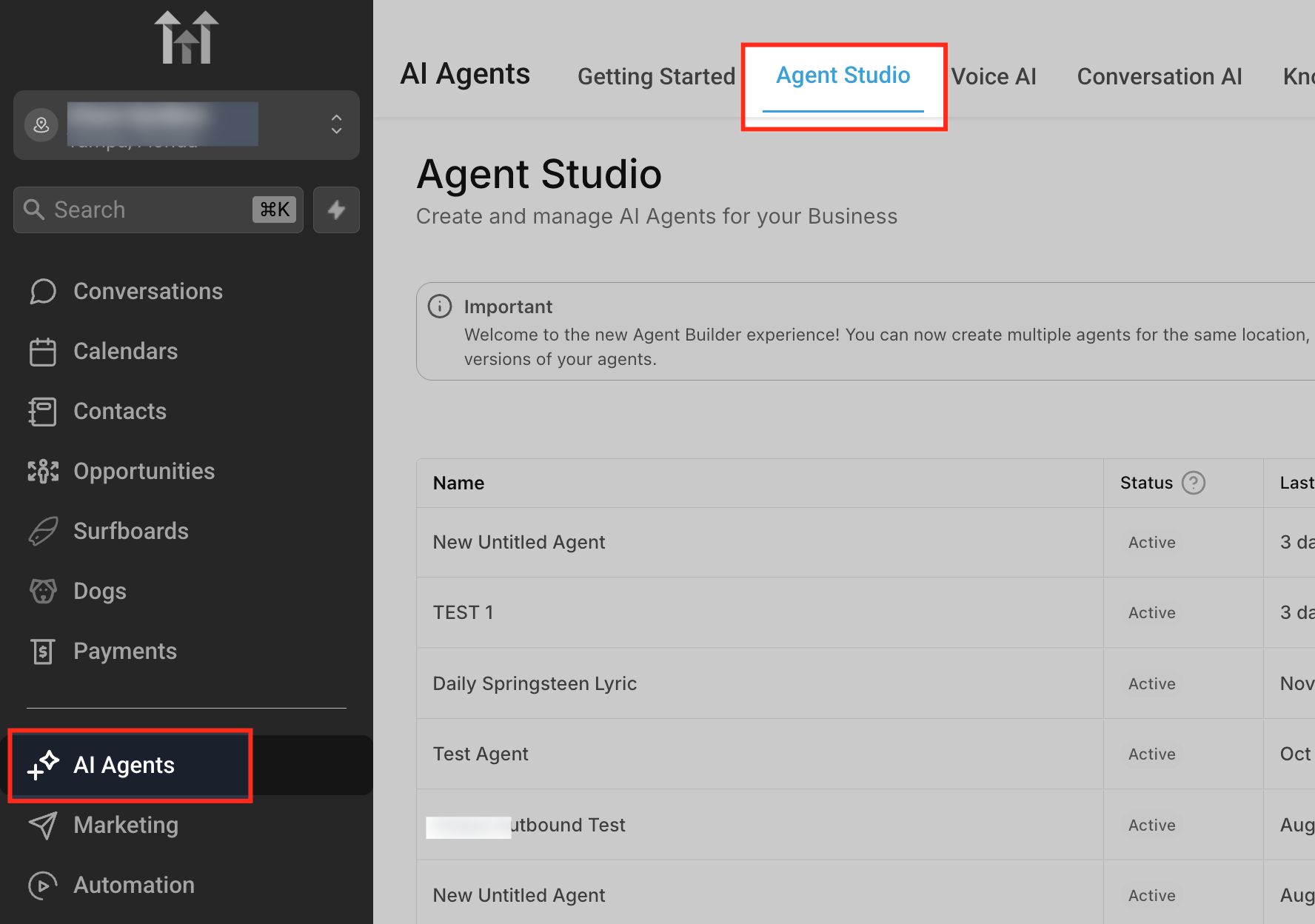
Navigate to Agent Studio.
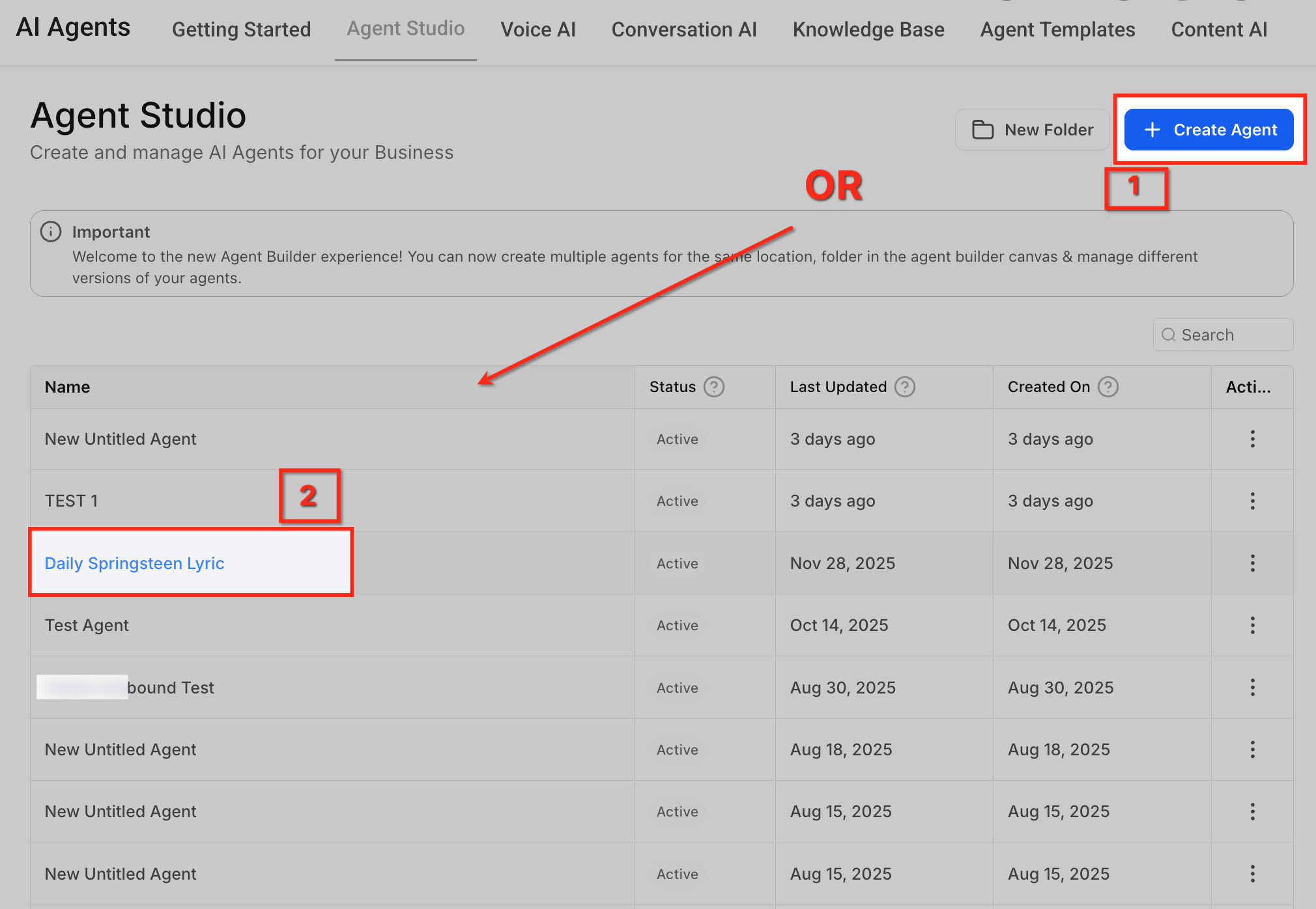
Click Create Agent, or open an existing agent you want to use.
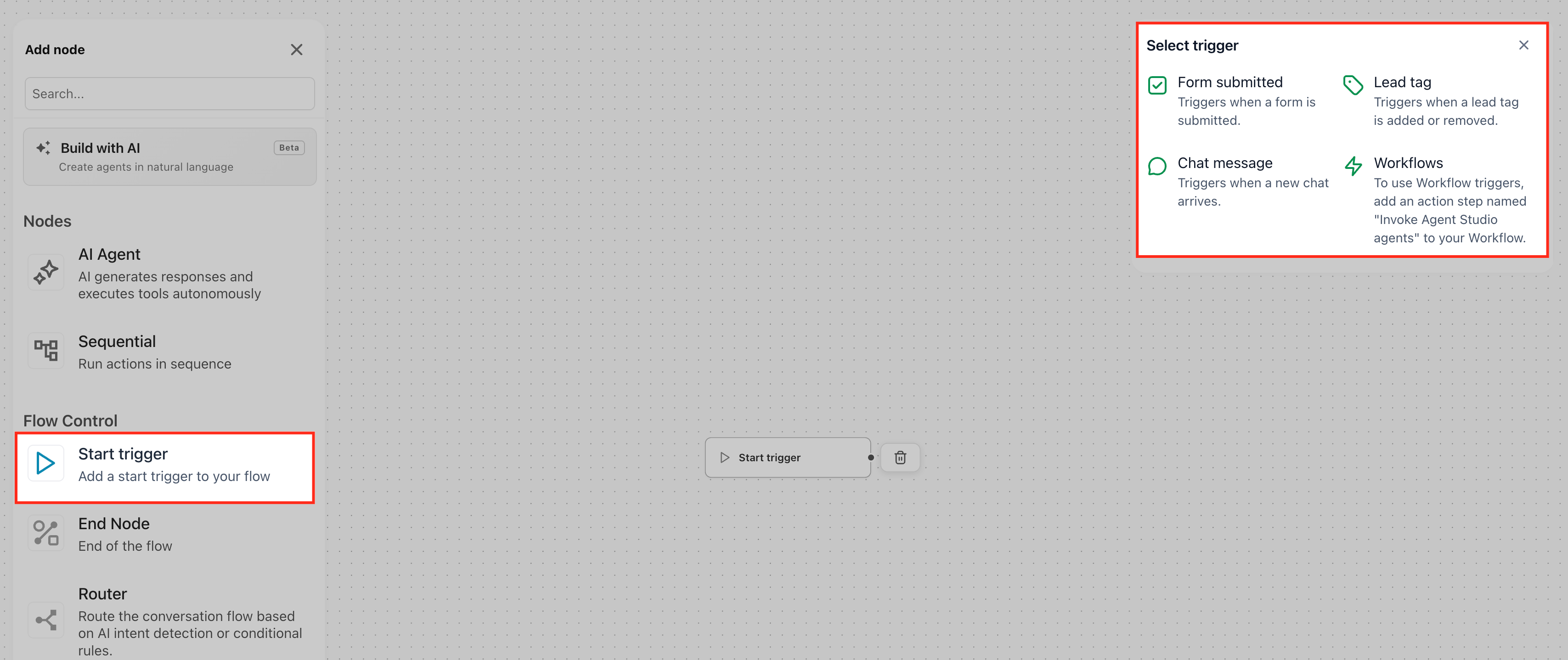
In the trigger selection panel, choose Workflows.
Configure the agent’s instructions, tools, and input variables based on the data you want to pass from the workflow. HighLevel’s Agent Studio documentation explains that variables can be used to personalize inputs and build reusable agents.
Test the agent and confirm the output format matches your workflow needs. HighLevel’s Agent Studio documentation and overview emphasize testing and iteration as part of agent setup.
Click Publish to Production. Only Production-published agents are available in the workflow action selector.
Add the Workflow Action
Adding the action places the agent directly into your automation path. This makes it possible to combine normal workflow logic with an agent’s response in the same sequence of actions.
Navigate to Automation > Workflows. HighLevel’s workflow documentation explains that workflows are built from triggers and actions.
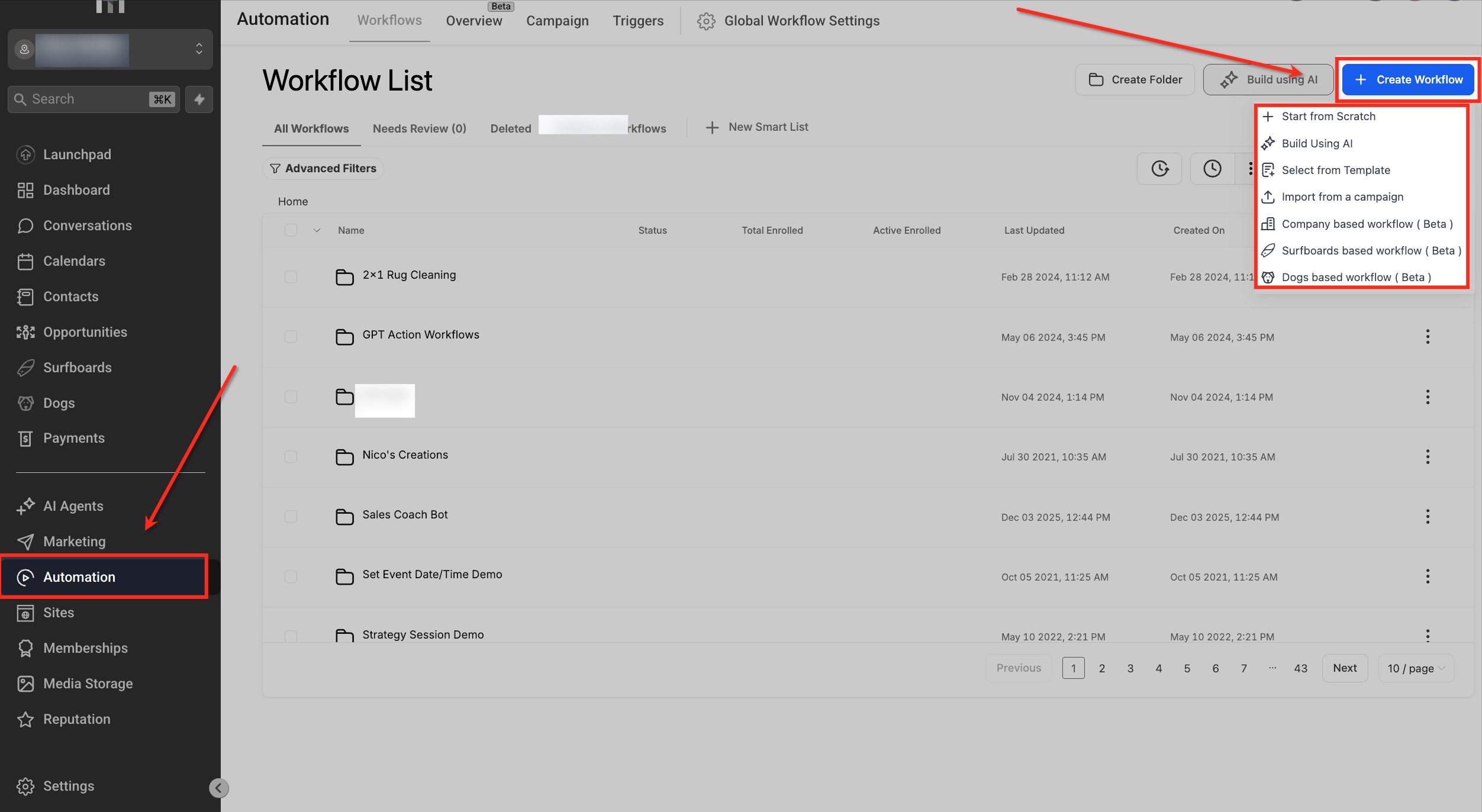
Open an existing workflow or create a new one.
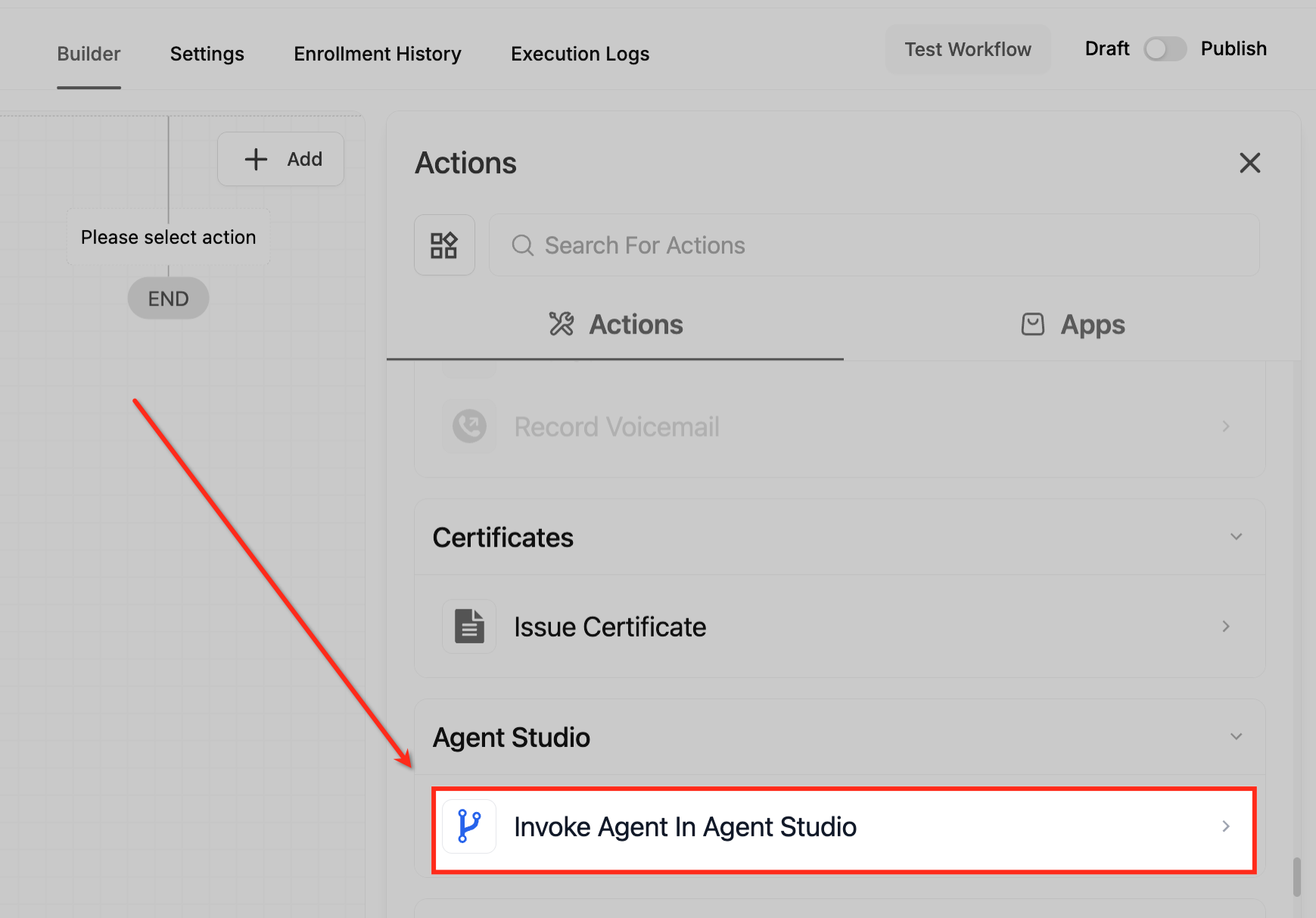
Click + Add Action.
Under Agent Studio, select Invoke Agent Studio Agent. The current HighLevel article confirms that this action appears in the workflow action selector.
Configure the Workflow Action
The configuration panel controls which agent runs, what the workflow sends to it, and how the returned data is stored. Careful setup here helps the workflow behave consistently and keeps later actions easier to manage.
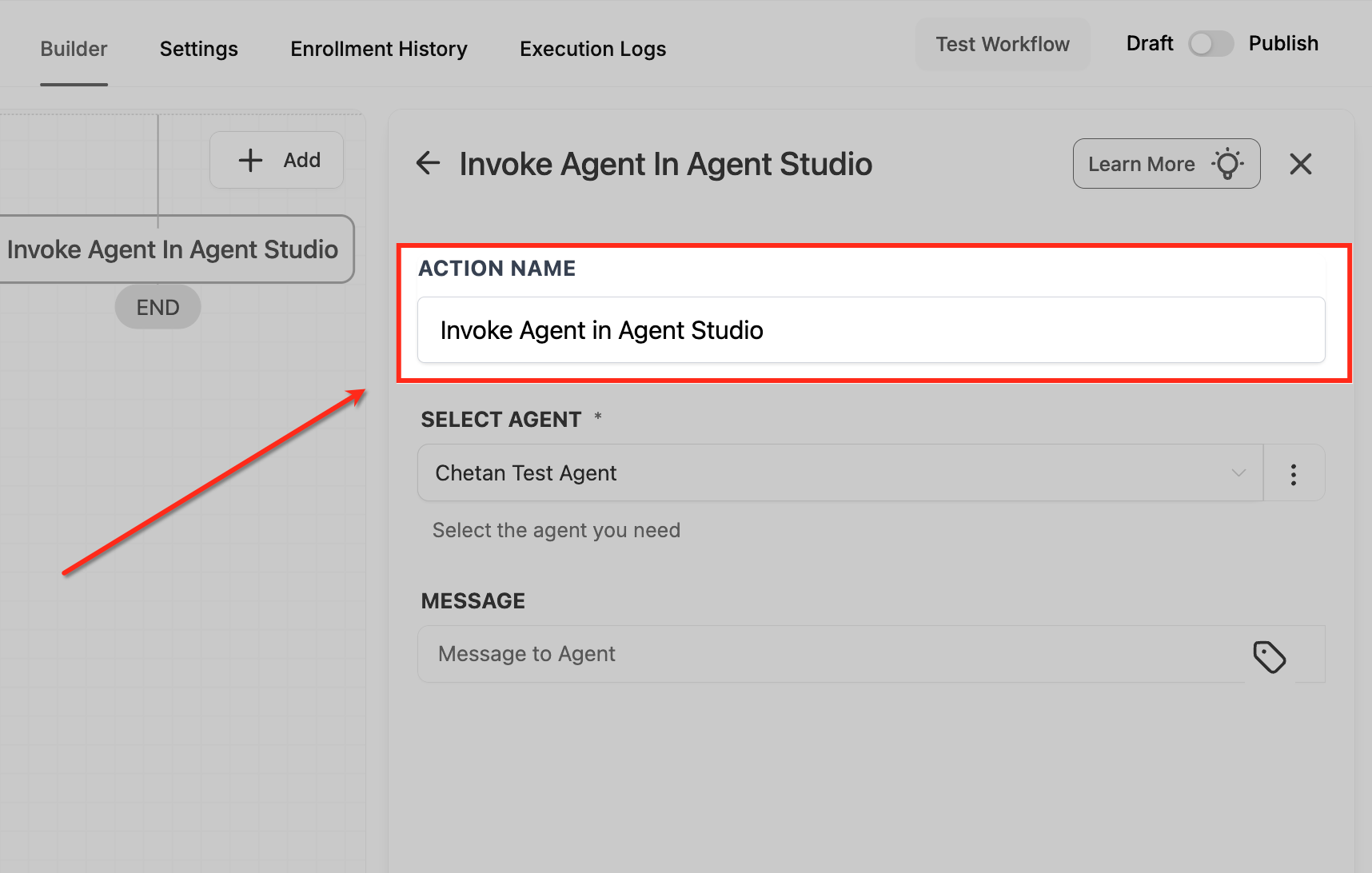
Action Name
A clear action name makes the workflow easier to read, especially when several AI steps appear in the same automation. This field does not change agent behavior, but it improves organization and troubleshooting.
Examples:
Lead Message Analyzer
AI Summary Step
Sales Insight Generator
Select Agent (Required)
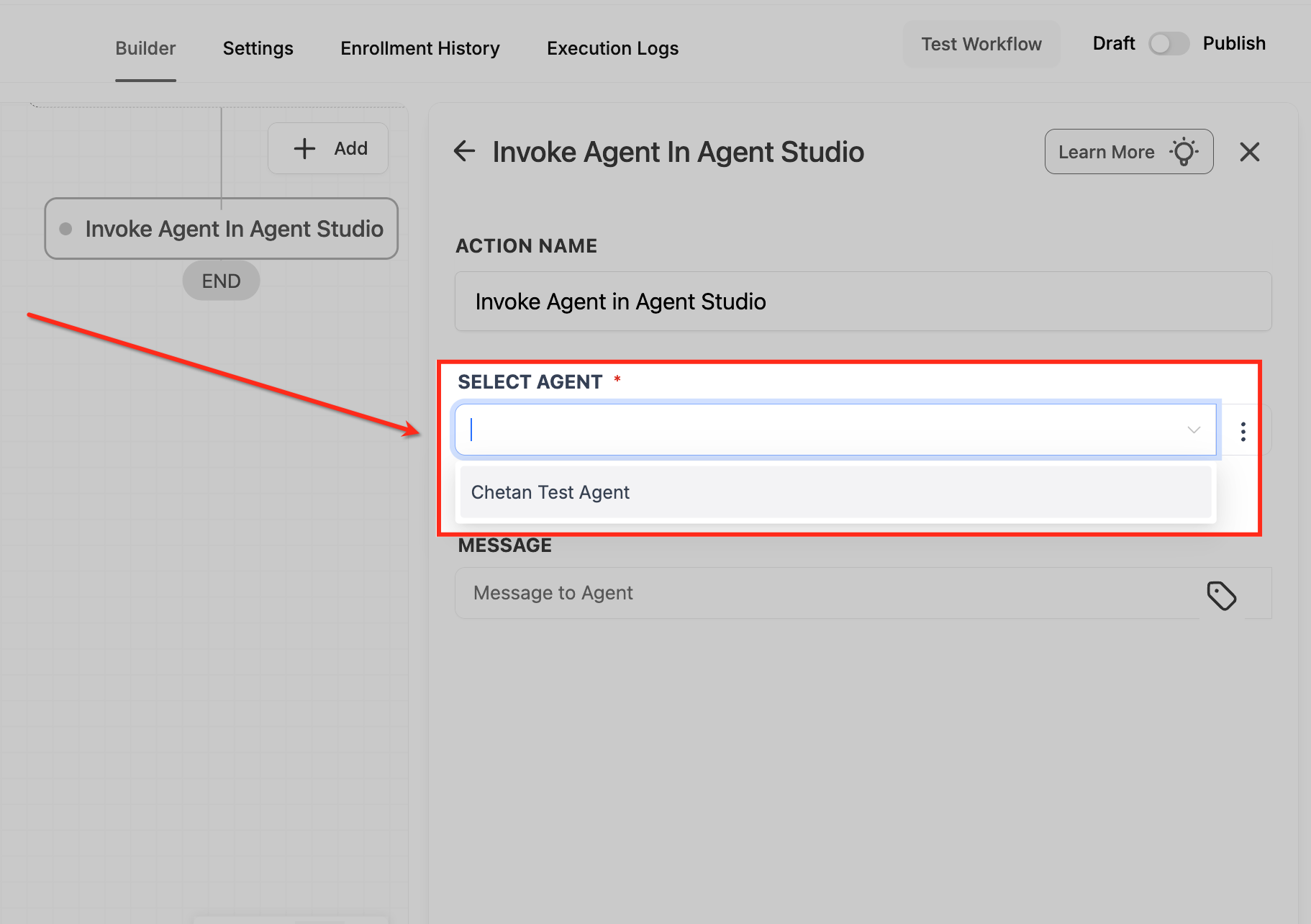
The Select Agent dropdown is where you choose the agent the workflow should run. Production status matters here because only Production-published agents are available in the selector.
Choose the agent you want to run in this workflow.
If the correct agent does not appear:
- Confirm it is published to Production.
- Confirm it was built with the Workflows trigger for this use case.
- Refresh the builder and reopen the action if needed.
Message Field (Optional but Recommended)
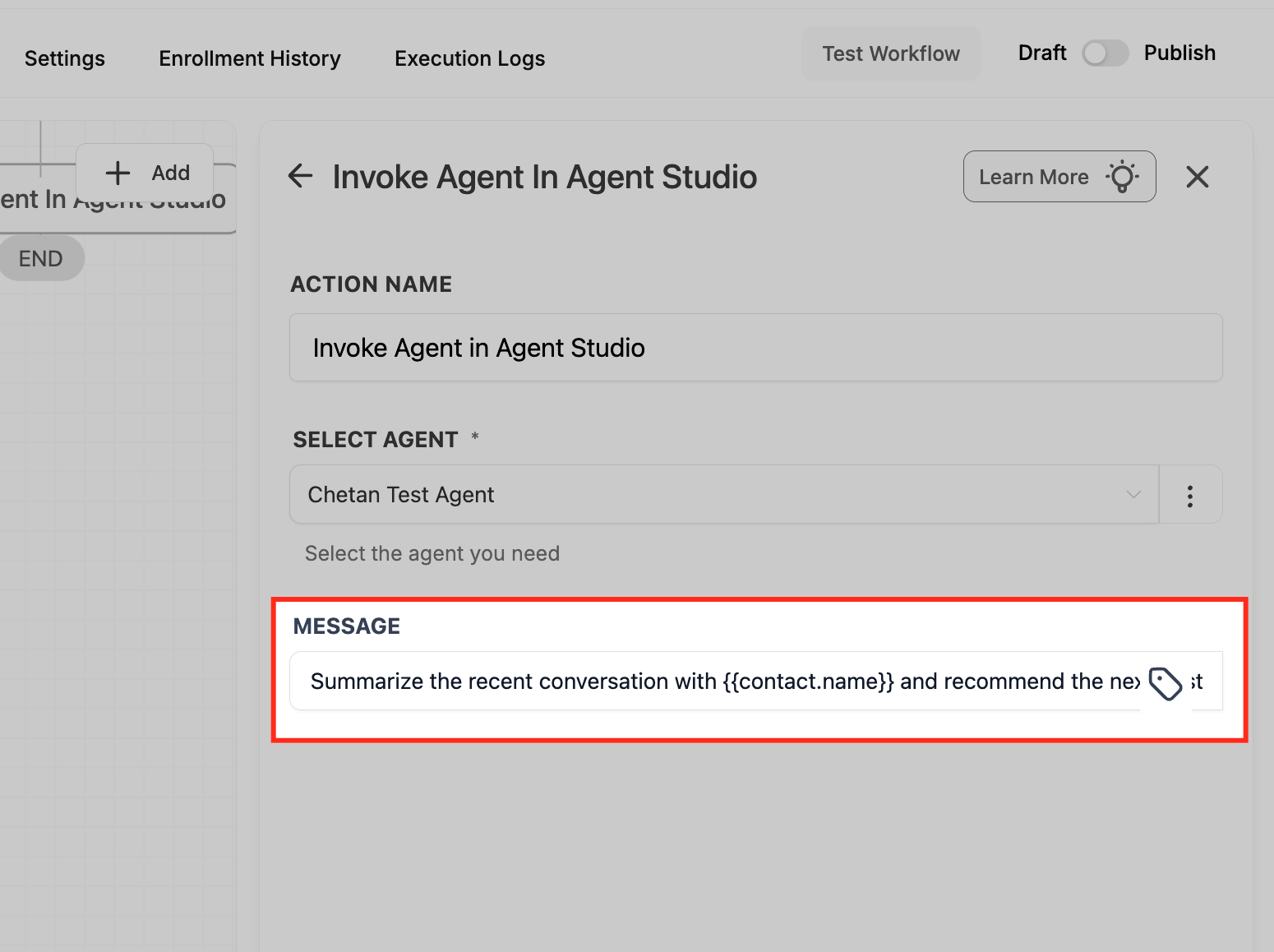
The Message field helps define what the agent should do when the workflow reaches this step. This is useful when you want the same agent to handle different instructions depending on where it is used. The action article confirms that this field accepts free text and can use merge fields for dynamic values.
Example:
Analyze the contact’s last inbound message and provide a short summary along with recommended next actions for the sales team.
Example with personalization:
Analyze the most recent message from {{contact.name}} and provide a short summary along with recommended next actions for the sales team.
Important Configuration Notes
Reliable setup depends on accurate mapping and clear expectations for what the agent returns. Paying attention to required variables and stored output helps prevent failed runs and makes the response easier to use later.
- Required input variables defined in the agent must be mapped correctly.
- Missing required inputs can cause the action to fail.
- The agent runs when the workflow reaches this step.
- The response is available for downstream use through the documented agent response object.
- Use Store Output As when you want to save the full response for later workflow steps.
Configure Inputs and Save
Mapping inputs correctly ensures the workflow sends the right context every time the action runs. Saving the full output can also make later actions easier to configure.
- Map each required input variable.
- Add optional instructions in the Message field.
- Choose Store Output As if you want to save the full response.
- Click Save Action.
Frequently Asked Questions
Q: Why doesn’t my agent appear in the dropdown?
Only eligible agents appear in the selector. Confirm the agent is published to Production, belongs to the current sub-account, and is built for workflow invocation. HighLevel’s current action article confirms the Production requirement.
Q: Can one workflow call multiple agents?
Yes. You can add multiple Invoke Agent Studio Agent actions in the same workflow and place them sequentially or in separate branches.
Q: What happens if the agent errors out?
The action fails and the error appears in the workflow log. HighLevel’s current article recommends handling failures through workflow logic when needed.
Q: Are additional AI credits consumed?
HighLevel’s current action article states that agent runs use the same metering as when the agent is run from Agent Studio, with no separate workflow surcharge.
Q: Is there a timeout?
Yes. HighLevel’s current action article states that agents must respond within 60 seconds.
Q: Can I test this in a Draft workflow?
Yes. HighLevel’s current article states that the action can be tested in Draft mode, and contacts process once the workflow is published.
Q: How do I troubleshoot variable mapping issues?
Review the workflow’s execution log and compare it with the inputs and outputs shown in Agent Studio testing or logs. HighLevel’s Agent Studio documentation includes testing and debugging guidance.
Q: What type of output should the agent return?
Return plain text when the result will be inserted into a message or note. Return structured JSON when the result will be used in branching, updates, or downstream integrations. This aligns with the downstream usage patterns described in HighLevel’s current action article.
Related Articles
Was this article helpful?
That’s Great!
Thank you for your feedback
Sorry! We couldn't be helpful
Thank you for your feedback
Feedback sent
We appreciate your effort and will try to fix the article