This article explains how the Web Search Tool works within Agent Studio and how to use it to fetch real-time information from the internet. You will learn when to use it, how to configure it correctly, and how to control its behavior for accurate and reliable responses.
By the end, you’ll understand how to combine Web Search with other tools to build more intelligent and responsive AI agents.
TABLE OF CONTENTS
- What is the Web Search Tool in Agent Studio
- When to Use Web Search ToolHow Web Search Tool Works
- Key Benefits of Web Search Tool
- Core Elements of Web Search Tool
- Using Variables in Web Search
- How to Configure Web Search Tool (Step-by-Step)
- Frequently Asked Questions
- Related Articles
What is the Web Search Tool in Agent Studio
The Web Search Tool is a capability within the AI Agent Node that allows the agent to retrieve real-time information from the internet. It enables the agent to go beyond predefined data sources and fetch external information dynamically when required.
Within the AI Agent Node, the Web Search Tool acts as an external knowledge source. Instead of relying only on internal data such as a Knowledge Base, the agent can use this tool to answer queries that require up-to-date or publicly available information.
The real-time nature of the Web Search Tool makes it especially useful when the agent needs to respond to queries where information changes frequently or is not stored internally.
When to Use Web Search Tool
Use the Web Search Tool when the agent needs to answer questions that are not covered in your Knowledge Base, require real-time information, or involve general knowledge. This includes scenarios such as current events, market trends, or product information that may change over time.
How Web Search Tool Works
When a user asks a question, the agent interprets the request, converts it into a search query, and uses the Web Search Tool to retrieve relevant results. The agent then uses this information to generate a response based on the retrieved data.
Key Benefits of Web Search Tool
The Web Search Tool enhances the capabilities of your AI agent by allowing it to access external data in real time.
- Provides access to real-time information from the web
- Expands the agent’s knowledge beyond internal data sources
- Enables handling of unknown or dynamic queries
- Reduces dependency on pre-configured Knowledge Bases
Core Elements of Web Search Tool
The Web Search Tool is configured using three key elements that control how the agent searches and uses external data. Understanding these elements is essential for ensuring accurate and relevant results.
Query
The Query defines what the agent will search for when the Web Search Tool is triggered. It acts as the input sent to the search engine and determines the relevance of the results returned.
In most cases, the query should be dynamic and based on user input rather than hardcoded text. This allows the agent to perform different searches depending on what the user asks, ensuring that responses are relevant and context-aware.
Instructions
Instructions define how and when the Web Search Tool should be used by the agent. They guide the agent’s decision-making by specifying conditions such as using Web Search only when internal data is unavailable or when real-time information is required.
Well-defined instructions help control the quality of responses by limiting unnecessary searches and ensuring the agent uses the tool only in appropriate scenarios. This is especially important when combining Web Search with other tools like Knowledge Base.
Variables
Variables provide the dynamic input used in the query, allowing the agent to adapt searches based on user interactions. These are typically runtime variables that store user questions or inputs during the conversation.
By using variables, the agent can convert user queries into search requests, making the Web Search Tool flexible and responsive. Without variables, the tool would return the same results every time, reducing its usefulness in real-world scenarios.
Using Variables in Web Search
The effectiveness of the Web Search Tool depends on how the query is defined. Instead of using fixed queries, it is recommended to use runtime variables so the search adapts based on user input.
When a user asks a question, that input is captured and stored as a runtime variable. This variable is then used as the query for the Web Search Tool, allowing the agent to perform dynamic searches.
Example:
- User asks: “Find Nike running shoes”
- Input is stored as a variable
- That variable is used as the search query
This ensures that the agent retrieves relevant results based on the user’s request rather than returning the same output every time.
How to Configure Web Search Tool (Step-by-Step)
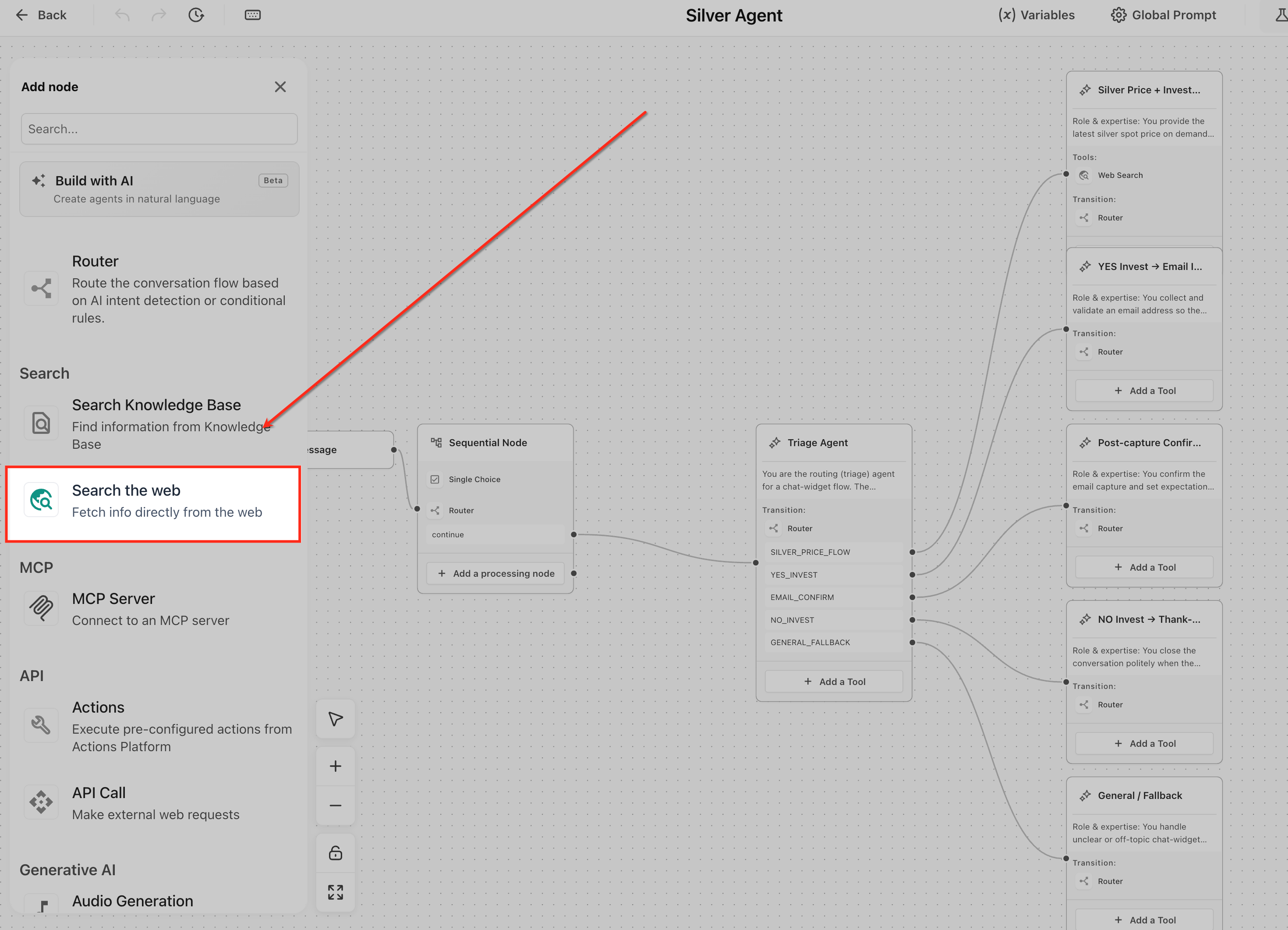
Step 1: Add Tool
Open the AI Agent Node, click Add a Tool, and select Search the Web from the list.
Step 2: Configure Web Search Tool
Add Instructions
Define how the agent should use the tool. For example, you can instruct the agent to use Web Search only when the Knowledge Base does not contain the answer.
Define Query
Specify what the agent should search for. This can be a fixed query or a dynamic value using variables.
Use Variables
Insert runtime variables using the {} picker to make the query dynamic based on user input.
In the example below, the Web Search Tool is added to an AI Agent and configured to fetch real-time information from the internet. The Instructions field is used to guide the agent on when to use the tool, such as “Search the web for current information,” which helps the agent understand the purpose of the search.
The Query field defines what the agent should search for. This can either be a fixed query or a dynamic value using variables. In most cases, this should be connected to user input so that the agent searches based on what the user asks.
The {} variable picker (shown inside the fields) allows you to insert runtime variables. This is important because it makes the search dynamic — instead of returning the same result every time, the agent uses the user’s input as the search query.
In this configuration:
- The agent is instructed to search the web only when needed
- The query is set up to retrieve relevant information
- Variables can be used to pass user input into the search
When the agent receives a question, it uses these settings to perform a web search and return results based on the user’s request.
Note: Instructions and Query shown in the screenshot are only for demo purpose. Keep your instructions clear and use variables in the query to ensure the Web Search Tool returns relevant and context-aware results.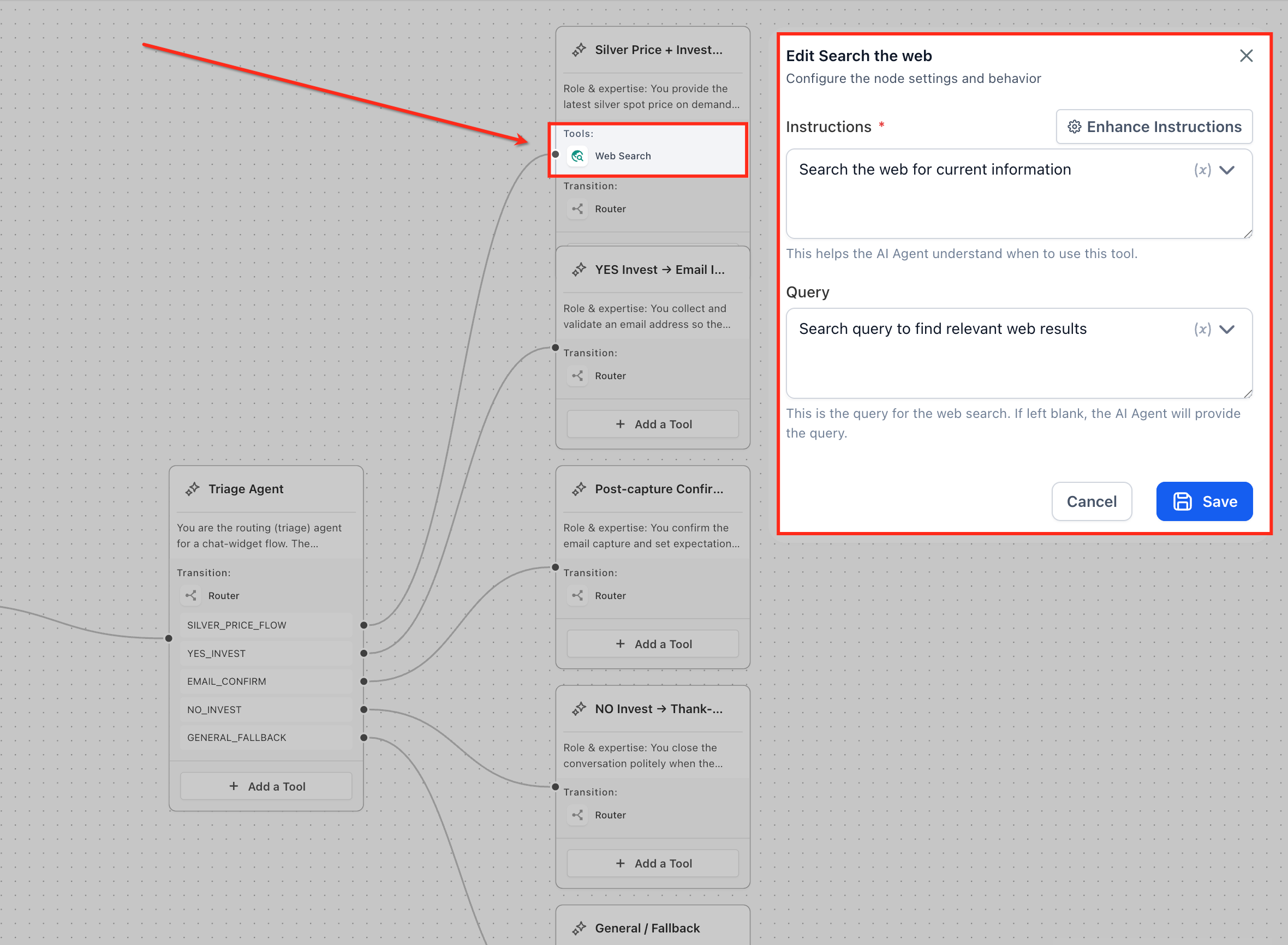
Step 3: Test
Test the agent with different inputs to ensure the Web Search Tool returns relevant and accurate results.
Frequently Asked Questions
Q: Why are Web Search results sometimes inconsistent?
Web Search relies on external data sources, which can change over time. The results depend on the query and the available information on the internet, so responses may vary.
Q: When should I use Web Search instead of Knowledge Base?
Use Knowledge Base for controlled, consistent information. Use Web Search when the information is not available internally or requires real-time updates.
Q: How can I control when the agent uses Web Search?
You can control tool usage through prompt instructions. Clearly define when the agent should use Web Search, such as only when internal data is insufficient.
Q: Can I limit what the Web Search Tool looks for?
Yes, you can guide the search using instructions and queries, including restricting it to specific types of sources or topics.
Related Articles
Was this article helpful?
That’s Great!
Thank you for your feedback
Sorry! We couldn't be helpful
Thank you for your feedback
Feedback sent
We appreciate your effort and will try to fix the article