Connect Canva directly in HighLevel Media Storage so your team can access designs from a dedicated Canva view. This article covers how the integration works, how to connect it, and how to use Canva designs in Media Storage.
TABLE OF CONTENTS
- What is Canva Integration in Media Storage?
- Key Benefits of Canva Integration in Media Storage
- How To Setup Canva Integration
- How to Edit in Canva
- How to Download Canva Designs
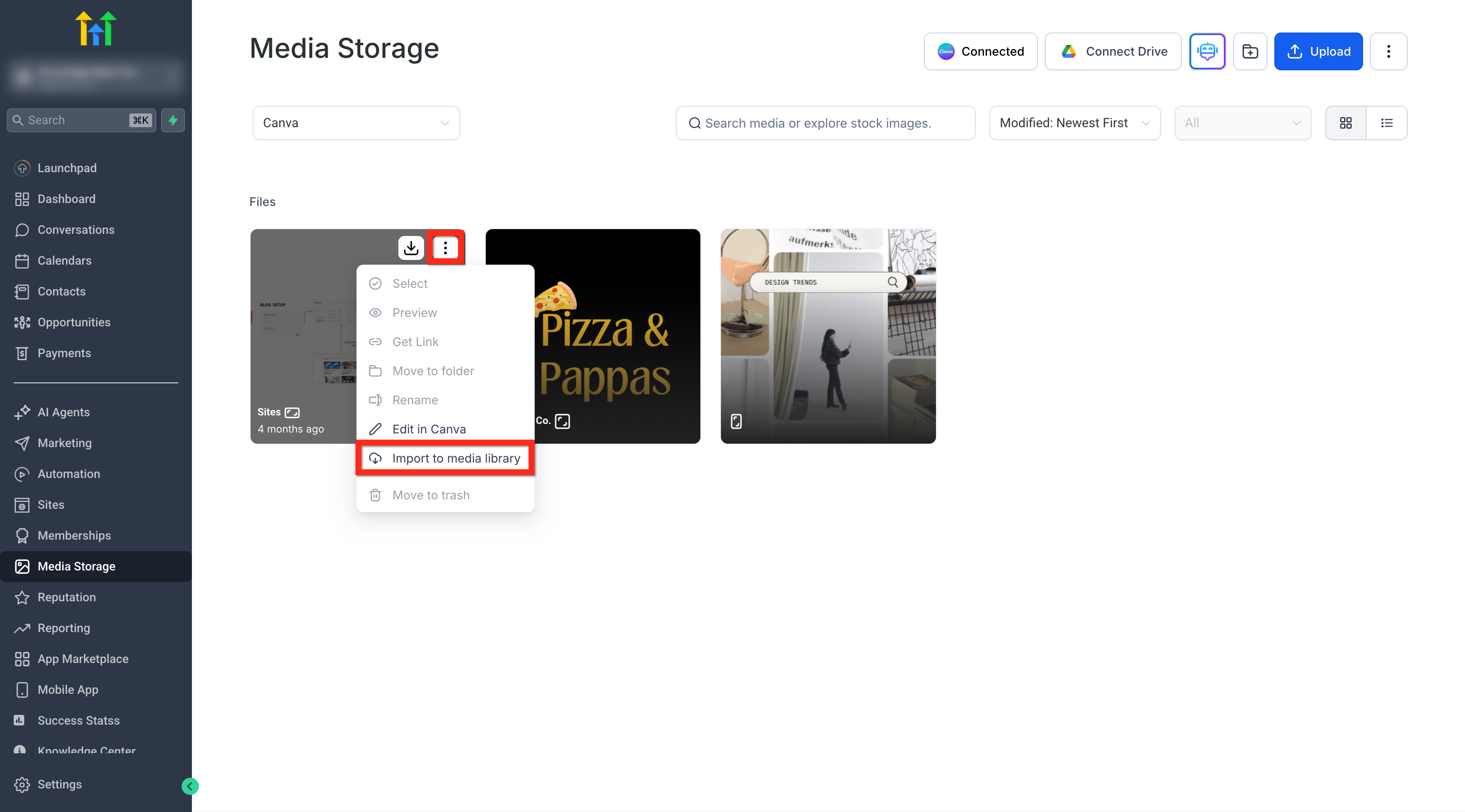
- How to Import Canva Designs to Media Library
- Multi-User Access Behavior
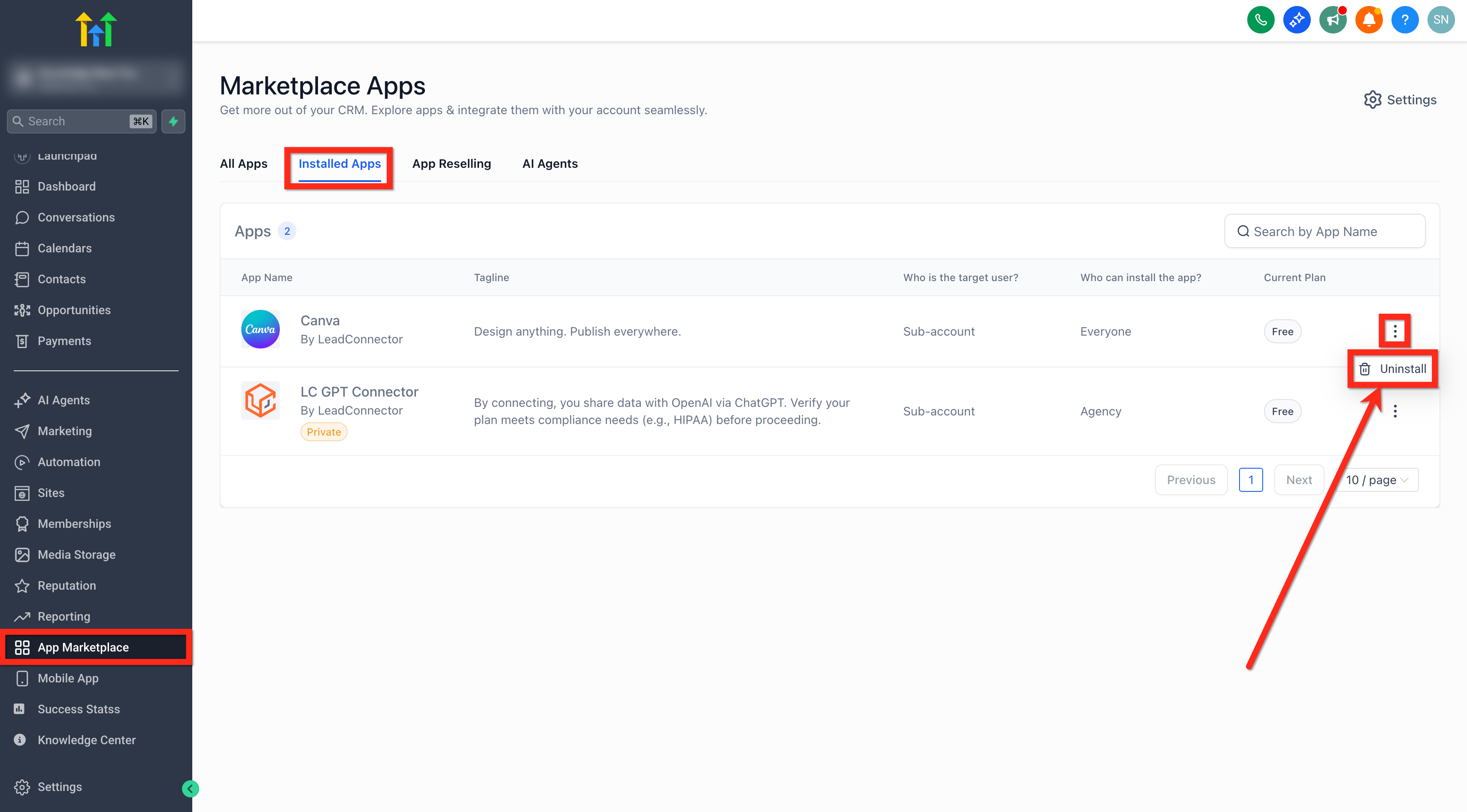
- How to Disconnect Canva
- Frequently Asked Questions
- Related Articles
What is Canva Integration in Media Storage?
Canva Integration connects a single Canva account to a specific HighLevel location (sub-account) so Canva designs can be accessed from a dedicated Canva view inside Media Storage. From there, users can browse designs, download exports, open supported designs in the Canva editor, and import copies into My Media for use across HighLevel.
Key Benefits of Canva Integration in Media Storage
Faster creative workflow: Browse, open, download, and import Canva designs without leaving Media Storage.
Centralized asset management: Import finalized designs into My Media to store and reuse them across HighLevel.
Team visibility: Once connected, all users in the location can view Canva assets.
Cleaner collaboration: Import creates independent assets, reducing confusion caused by shared links or manual downloads.
How To Setup Canva Integration
Connecting Canva correctly ensures your location can browse designs, export files, and import finalized assets into My Media without permission issues.
Go to Media Storage.
Click Connect Canva.
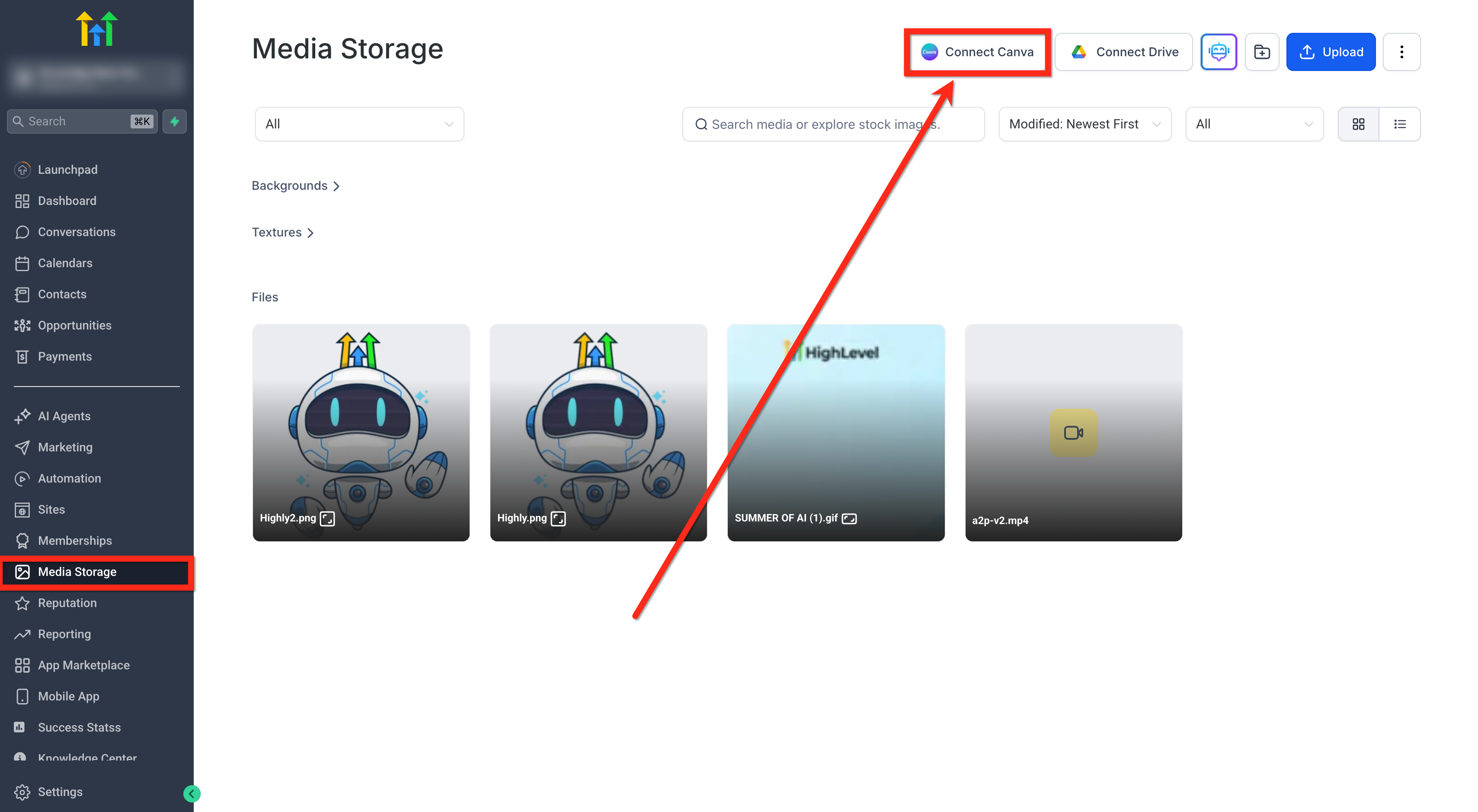
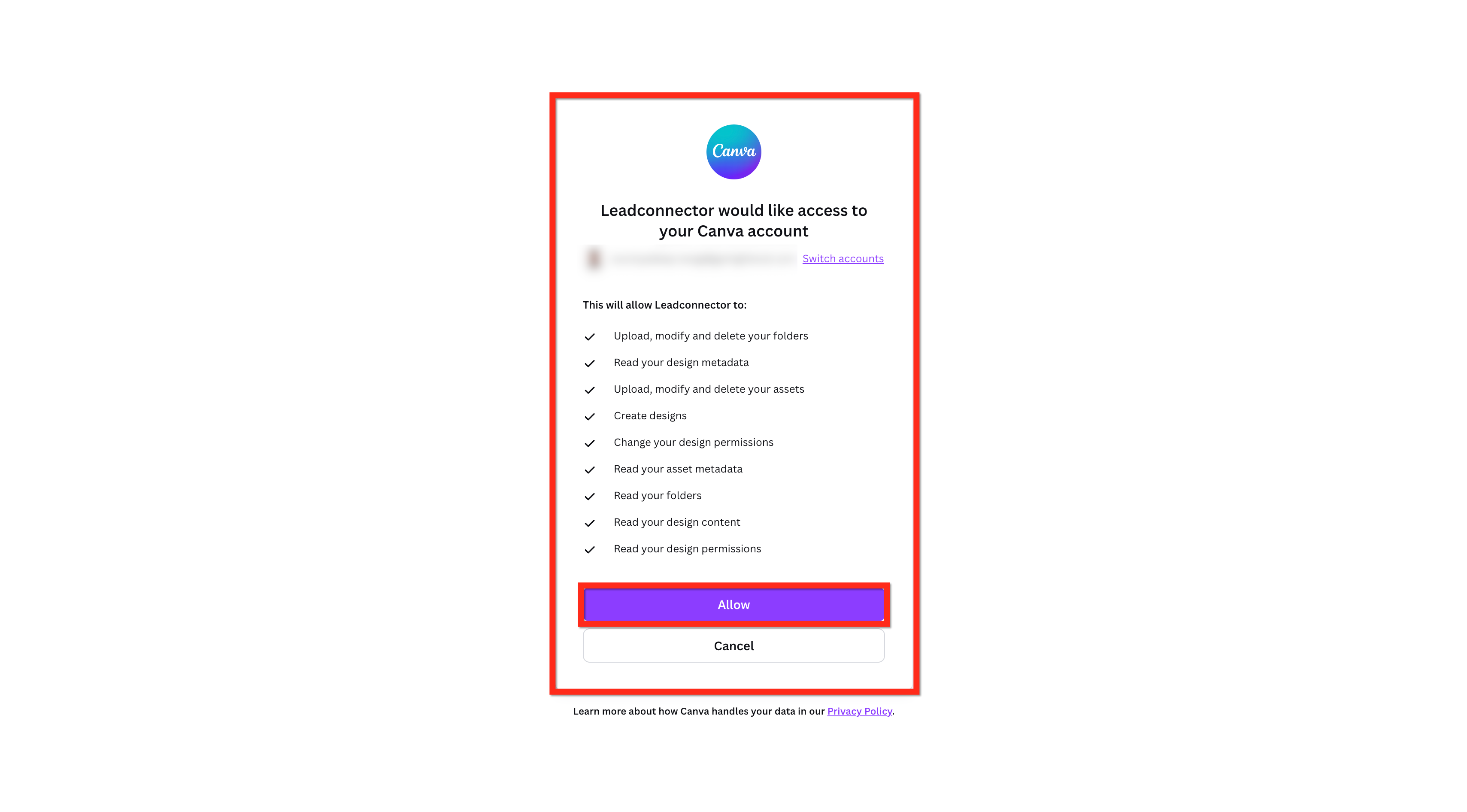
Complete the Canva OAuth login in the new browser tab.
Click Allow to grant access.
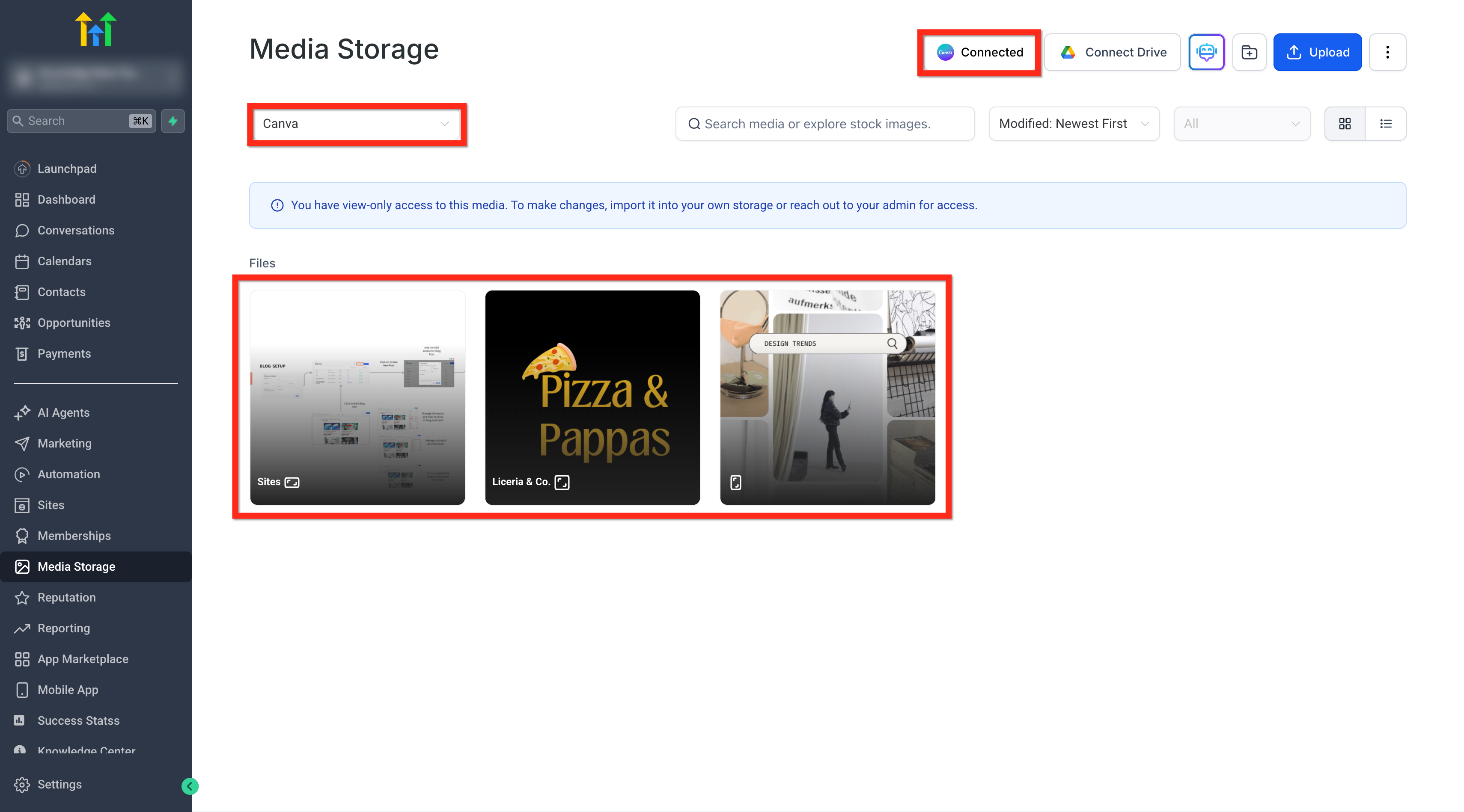
Return to Media Storage, the Canva button will show as Connected.
Select Canva from the My Media dropdown to see, edit and import designs.
How to Edit in Canva
Editing from HighLevel opens the Canva editor in a new browser tab. Editing access depends on who connected Canva for the location and on Canva file permissions.
Editing supported
Canva designs opened from the Canva view (when allowed)
My Media files with these file types:
PNG
JPG
JPEG
Editing limitations
Private Canva files cannot be edited.
If a user is not the installer and attempts to edit a Canva design, they’ll see:
“You have view-only access to this media. To make changes, import it into your own storage or reach out to your admin for access.”
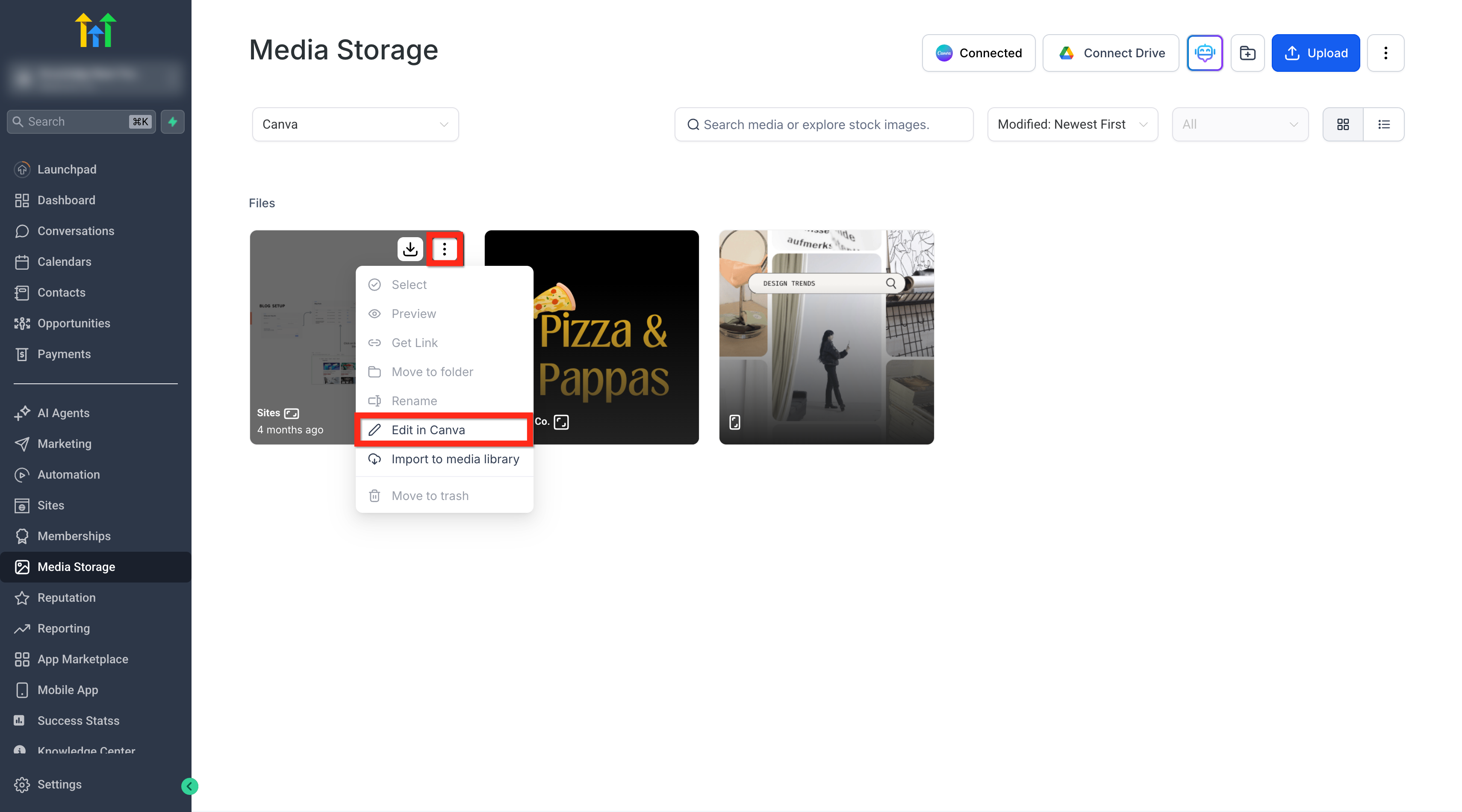
- To edit a design in Canva from the Media Storage, click on the three dots on the top right of the design.
- Click on Edit in Canva button.
How to Download Canva Designs
Downloading exports Canva designs from Canva with a consistent format based on the number of pages.
Download formats:
1-page design → PNG
Multi-page design → PDF
To download a Canva design directly from the Media Library to your local storage, click on the Download button on the top right of the design.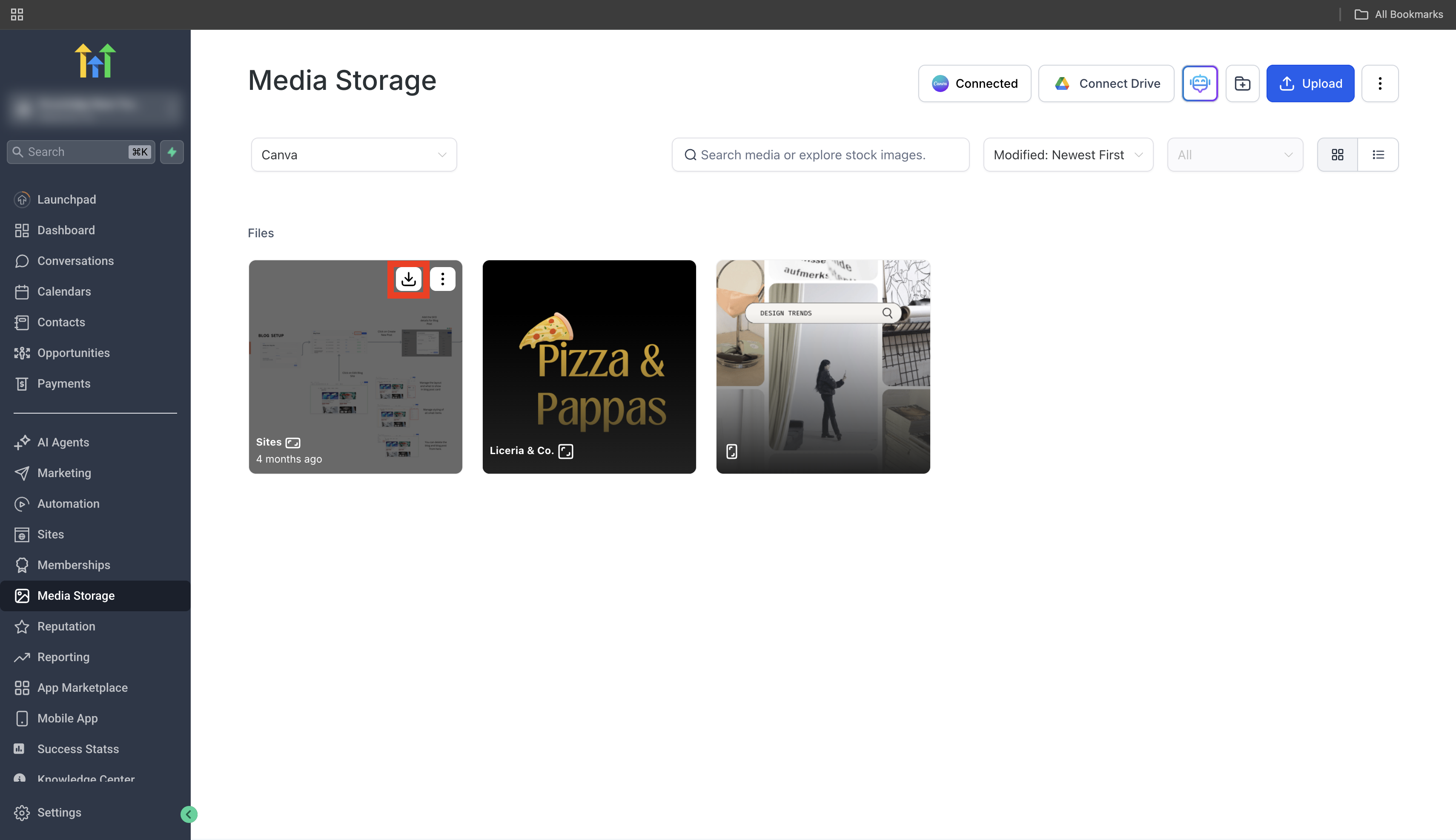
How to Import Canva Designs to Media Library
Importing creates a new, independent asset in My Media. Imported files are not linked to the original Canva design, so changes made later in Canva will not automatically update the imported copy.
Important behavior
Canva designs must be imported before they can be used elsewhere in HighLevel.
The same Canva design can be imported multiple times (similar to Unsplash behavior).
Import formats
1-page design → PNG
Multi-page design → PDF
- To import a design in to Media Storage, click on the three dots on the top right of the design.
- Click on Import to Media Library button.
Multi-User Access Behavior
Because the Canva connection is installed at the location level, access differs depending on whether a user connected the integration.
Installer (the user who connects Canva)
Full edit access in Canva (when the Canva file allows editing)
Can import designs
Other users in the same location
Can view, search, and browse Canva assets
Can download designs
Can import designs into their own My Media
Cannot connect a different Canva account unless the integration is uninstalled
Cannot directly edit Canva designs (view-only limitation)
Not supported
Proxy users (Login As) do not have access.
How to Disconnect Canva
Disconnecting removes the OAuth connection and stops Canva designs from appearing in Media Storage, while keeping any previously imported assets in My Media.
To disconnect
Go to App Marketplace > Installed Apps > Canva > Uninstall
After disconnecting
OAuth access is revoked
Canva designs no longer appear in the Canva view
Previously imported files remain in Media Storage
A different Canva account can be connected after uninstalling and reconnecting
Frequently Asked Questions
Q: Is Canva connected at the agency level or location level?
Canva is connected per location (sub-account). Each location supports one connected Canva account.
Q: Can multiple Canva accounts be connected to the same location?
No. Only one Canva account per location is supported.
Q: Why can’t I edit Canva designs even though I can see them?
Only the installer has direct edit access due to Canva Marketplace constraints. Other users can browse, download, and import, but will have view-only access when attempting to edit.
Q: What does “view-only access” mean when editing?
If you are not the installer, you may see: “You have view-only access to this media. To make changes, import it into your own storage or reach out to your admin for access.” Importing creates your own independent copy in My Media.
Q: Why do I have to import a Canva design before using it in HighLevel?
Canva designs in the Canva view are a content source. To use an asset across HighLevel, import it into My Media first.
Q: Are imported Canva files linked to the original Canva design?
No. Import creates a new independent asset in My Media and does not sync future Canva changes.
Q: How does HighLevel prevent duplicate Canva designs when I edit from My Media?
When you edit a supported file from My Media in Canva, HighLevel checks for an existing Canva design ID and reopens the same design instead of creating a duplicate.
Q: What file types can I edit from My Media in Canva?
PNG, JPG, and JPEG.
Q: What format will my design download or import as?
1-page designs export as PNG. Multi-page designs export as PDF.
Related Articles
- Google Drive Integration in Media Storage
- Complete Guide to Media Storage!
- Multi-Select in Media Storage
- Media Storage & File Upload Limits
Was this article helpful?
That’s Great!
Thank you for your feedback
Sorry! We couldn't be helpful
Thank you for your feedback
Feedback sent
We appreciate your effort and will try to fix the article