The new File Type Filter for Media Center lets you zero-in on photos, videos, audio, docs, PDFs, and more with a single click—so you spend less time scrolling and more time creating.
TABLE OF CONTENTS
- What is the File Type Filter in Media Center?
- Key Benefits of the File Type Filter
- File Type Categories
- Smart Context Awareness
- Persistent Search Integration
- Cross-Module Consistency
- How To Set Up & Use the File Type Filter
- Frequently Asked Questions
- Related Articles
What is the File Type Filter in Media Center?
File Type Filter is a dropdown control added to the Media Center toolbar that hides non-matching files and shows only the categories you choose (Photos, Videos, Audio, Docs, PDFs, Other, or All). The filter works across My Media, Google Drive, and any connected libraries, intelligently de-activating in sources where file-type filtering isn’t relevant (e.g., Unsplash).
Key Benefits of the File Type Filter
- Simplified file discovery: locate the right asset in seconds
- Cleaner workspace: unclutter large libraries by hiding irrelevant formats
- Fewer clicks: apply once and keep browsing; search terms persist as you move between tabs(help.gohighlevel.com)
- Consistent experience: same dropdown in My Media, Google Drive, and External sources
- Context-aware: automatically disables when browsing image-only libraries (Unsplash, Pixabay)
- Backend-optimised: server-side filtering delivers results faster even in very large folders
File Type Categories
File Type Filter groups extensions into easy-to-understand buckets so you don’t have to remember every format.
- Photos – JPG, PNG, SVG, GIF
- Videos – MP4, MOV, WEBM, AVI
- Audio – MP3, WAV, OGG
- Docs – DOCX, TXT, CSV, XLSX, PPTX
- PDFs – Portable Document Format files
- Other – ZIP, RAW, and miscellaneous formats
Smart Context Awareness
Smart Context Awareness automatically disables the dropdown when a source already contains one file type (for example, Unsplash returns only images). This prevents confusing “empty” states and keeps the UI clean.
Persistent Search Integration
Search terms you enter in the Media Center now “stick” as you hop between My Media, Google Drive, and External Libraries. The File Type Filter respects and preserves those search terms so you can refine results without starting over.
Cross-Module Consistency
Because Media Center powers uploads for Social Planner, Funnels, Email Builder, Communities, and more, the File Type Filter instantly improves every workflow that opens the Media dialog. Edits you make in one module are reflected everywhere thanks to shared Media Storage infrastructure.(help.gohighlevel.com)
How To Set Up & Use the File Type Filter
These steps focus only on using the File Type control so you can quickly narrow results, combine with search, and understand reset behavior across sources.
In Media Storage, locate the File Type dropdown in the top toolbar (beside Sort).
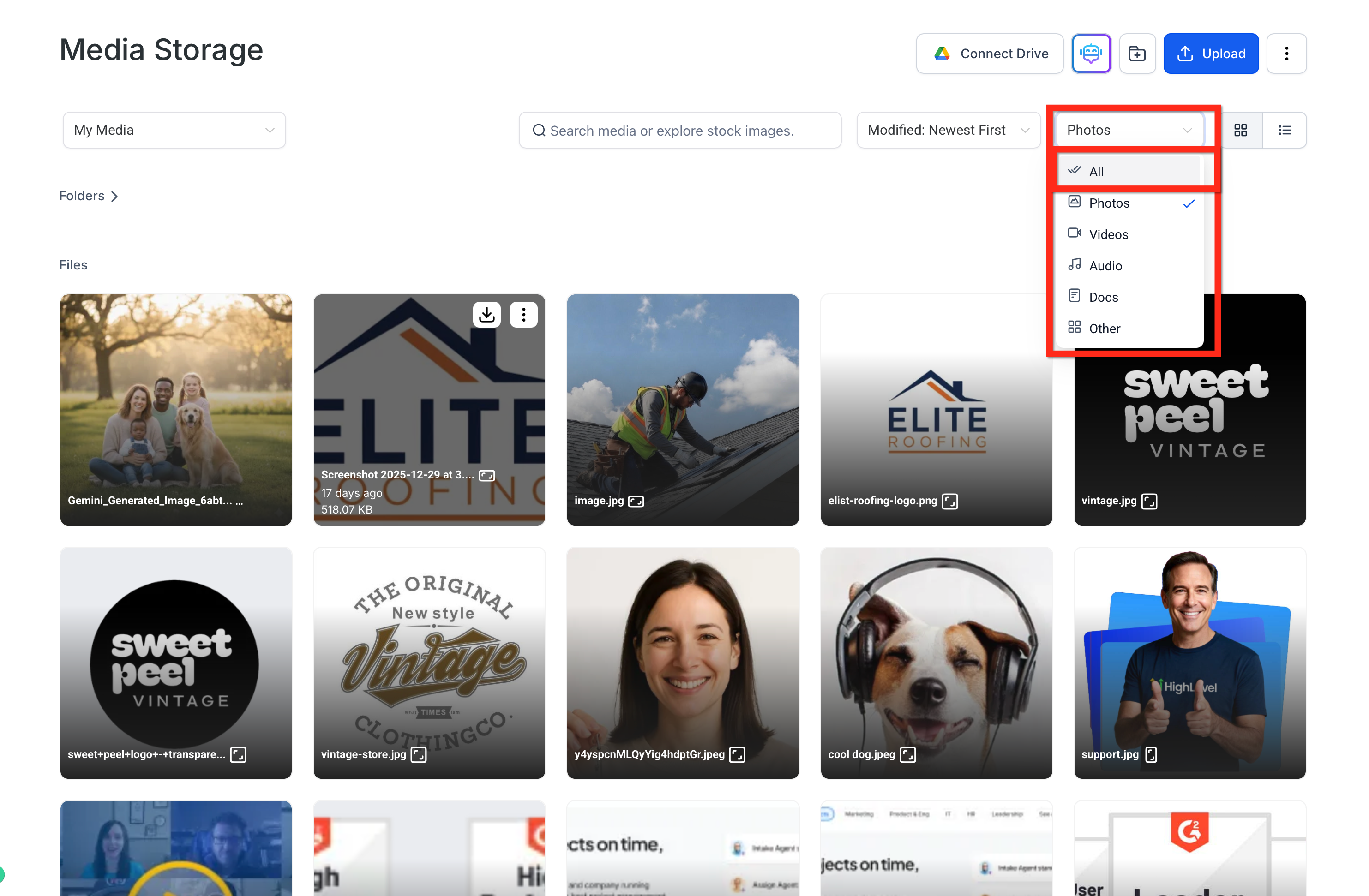
Click File Type and choose a category: Photos, Videos, Audio, Docs, PDFs, Other, or All (default).
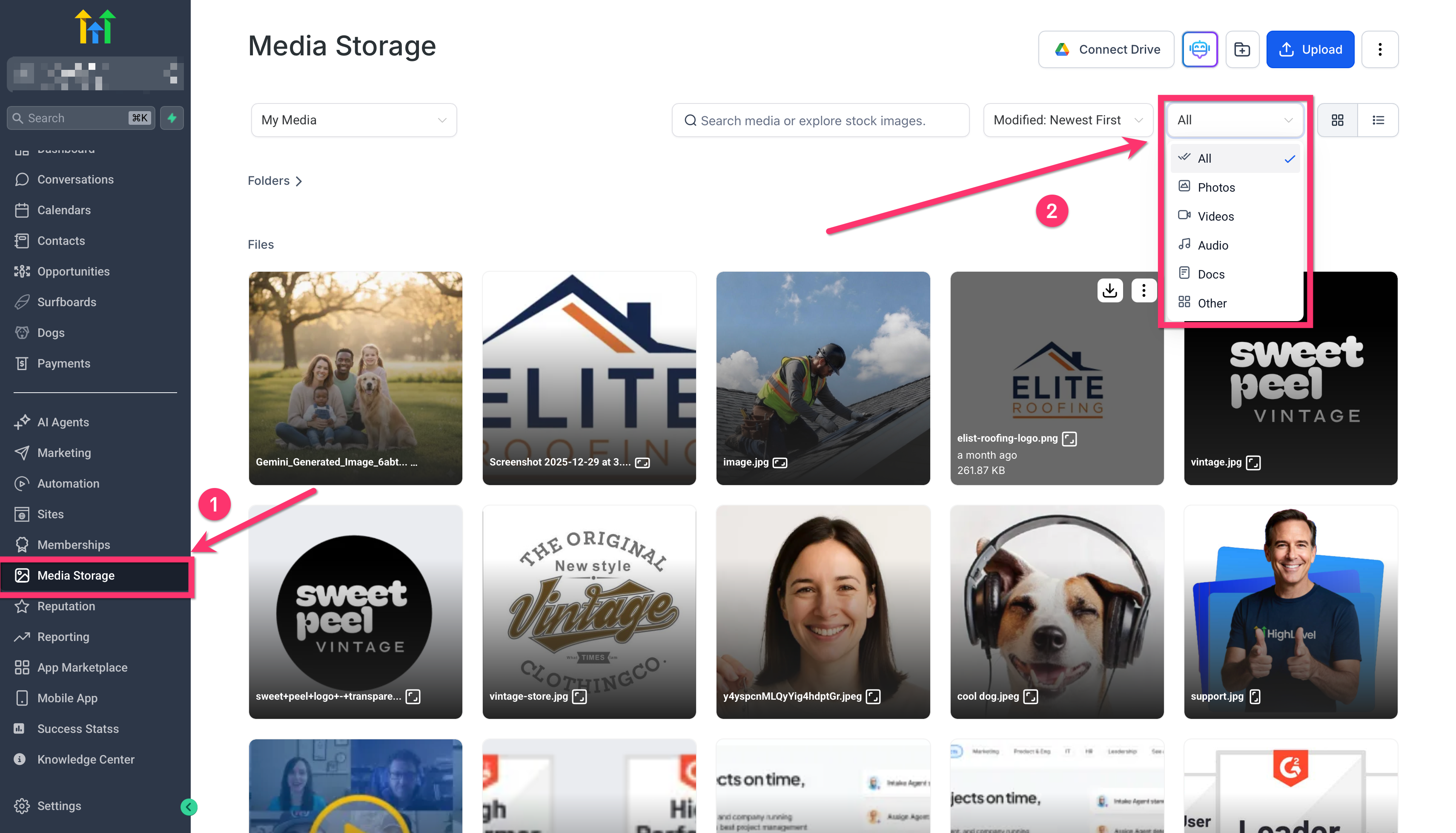
Browse or use Search; only matching files remain visible.
Reset options:
Change File Type back to All to see everything in the current source, or
Switch sources (My Media, Google Drive, External Libraries) to clear the File Type selection. Search persists.
Callouts
Does not affect storage: Filters change what you see, not what you store.
Availability: Desktop app and web. Mobile filtering not yet available.
Frequently Asked Questions
Q: Does the filter affect upload limits or storage usage?
No. It only changes what you see; storage policies remain the same.
Q: Can I multi-select files across different types after filtering?
Yes—switch back to All, then multi-select. Multi-select only works within the current view.
Q: Why is the dropdown greyed out in Unsplash?
Smart Context Awareness disables the control in sources where every file is already an image to avoid redundant filtering.
Q: Will my filter choice sync to other team members?
No. File Type is a user‑level preference and resets per session for each user.
Q: Is the filter available in the Mobile App?
Not yet. Mobile Media Library already includes basic search and upcoming updates will introduce mobile filtering.
Q: Which API endpoint powers backend filtering for developers?
MediaService → /medias?type={photo|video|audio|doc|pdf|other}. For channels authenticated with OAuth, this endpoint honors the `type` parameter consistently and can return folders (in addition to files) when a valid type is provided.
Q: Does “Docs” include Google Docs links?
No. Docs refers to uploaded document files (DOCX, TXT, etc.). Linked Google Docs appear under “Other.”
Related Articles
Was this article helpful?
That’s Great!
Thank you for your feedback
Sorry! We couldn't be helpful
Thank you for your feedback
Feedback sent
We appreciate your effort and will try to fix the article