Bulk importing Custom Object records lets you quickly onboard large datasets while maintaining clean, conflict-free records. With create/update options, unique-field dedupe controls, and detailed import reporting, teams can scale Custom Object setup without losing accuracy. A dedicated Bulk Actions page adds operational control like pause, resume, and cancel so you can manage imports confidently.
TABLE OF CONTENTS
- What is Custom Object Bulk Import?
- Key Benefits of Custom Object Bulk Import
- Import Modes (Create, Update, Create + Update)
- Dedupe and Unique Field Conflict Handling
- Importing Primary Fields, Required Fields, and Custom Fields
- Update Empty Values
- Bulk Actions – Custom Objects (Track, Pause, Resume, Cancel)
- How To Setup Custom Object Bulk Import
- Frequently Asked Questions
- Related Articles
What is Custom Object Bulk Import?
Custom Object Bulk Import allows you to upload a CSV file to create new Custom Object records, update existing ones, or do both in a single import. It also includes dedupe controls based on unique fields and a centralized Bulk Actions page for tracking progress and resolving issues. This makes Custom Object onboarding faster while helping prevent duplicates and import conflicts.
Key Benefits of Custom Object Bulk Import
Reliable bulk imports reduce manual work and help keep Custom Object data consistent as it grows.
Faster Onboarding: Import large sets of Custom Object records from a CSV instead of creating records one-by-one.
Flexible Import Modes: Create, Update, or Create + Update records depending on your use case.
Cleaner Data with Dedupe: Use unique fields to prevent duplicates and reduce record conflicts.
Operational Control: Pause, resume, or cancel imports from the Bulk Actions page.
Better Visibility: View import stats, row-level errors, warnings, and resolution guidance.
How To Setup Custom Object Bulk Import
A clean CSV and correct mappings are the difference between a smooth import and a long troubleshooting cycle. Following a consistent setup process helps you avoid duplicates, reduce row-level errors, and ensure records are created or updated accurately.
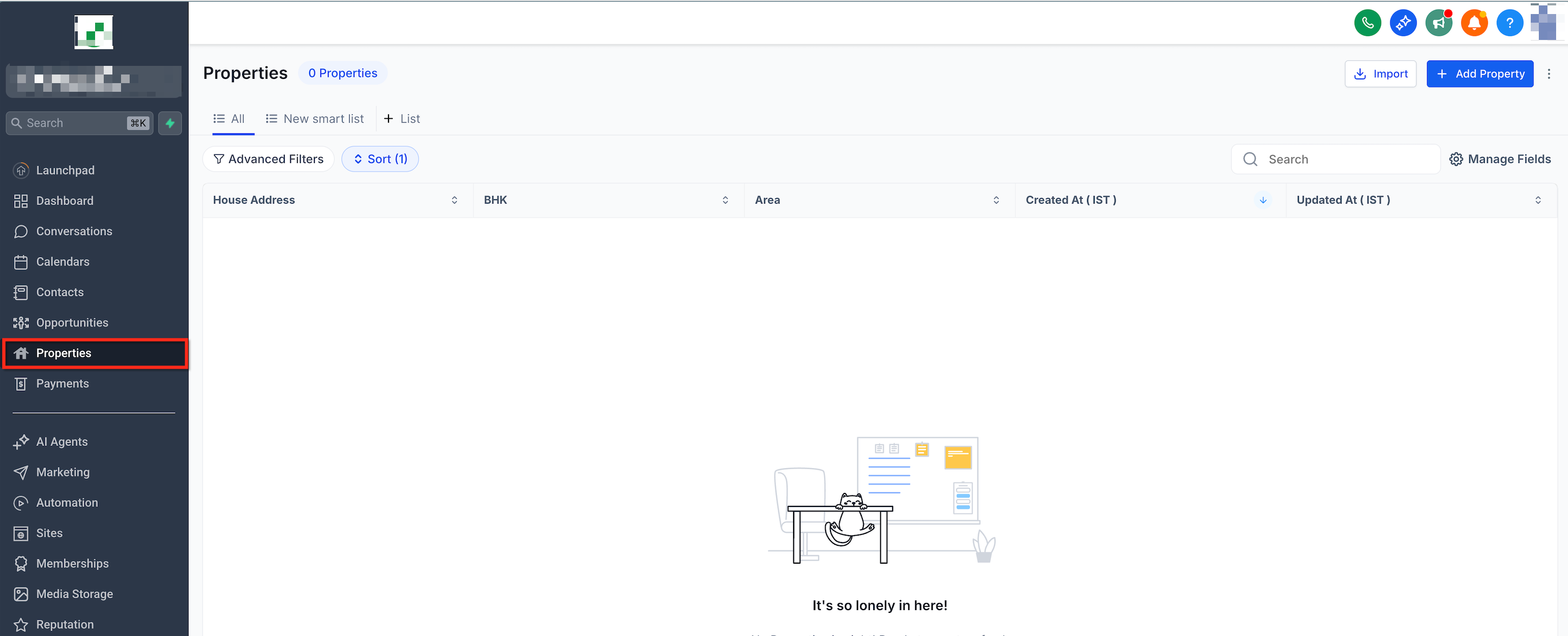
Open Custom Objects in your sub-account and select the Custom Object you want to import records into.
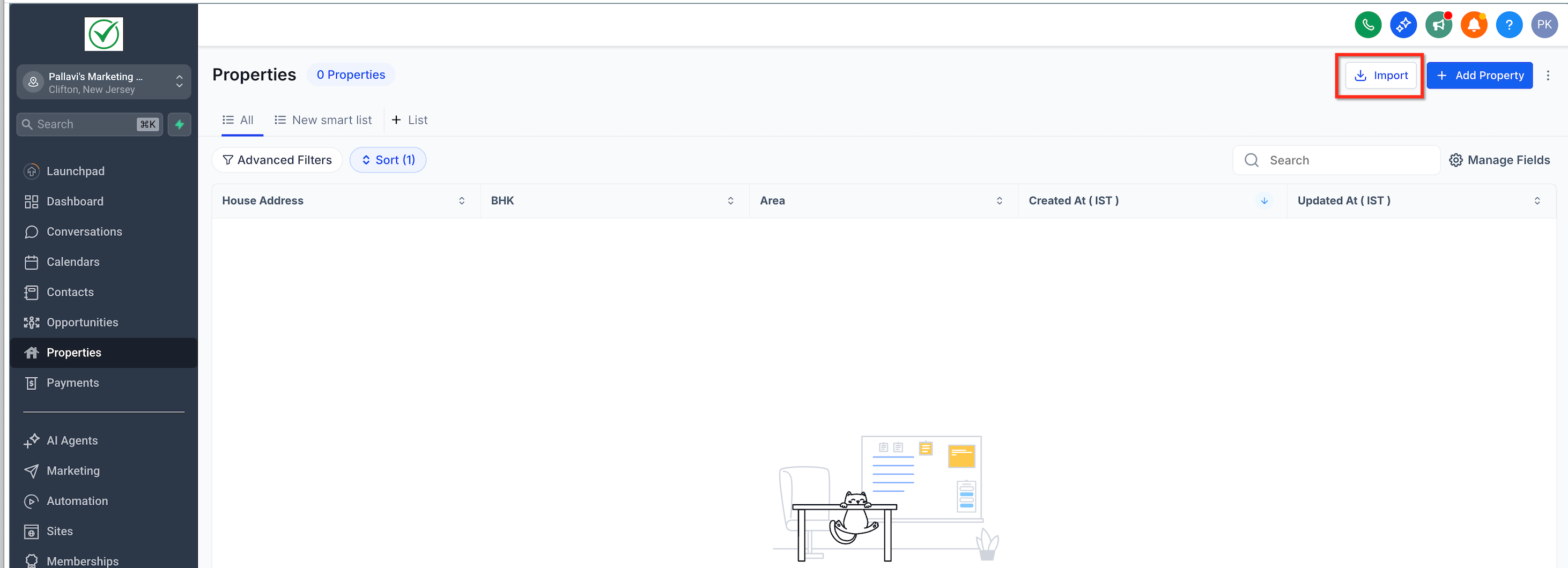
Click Import (top right).
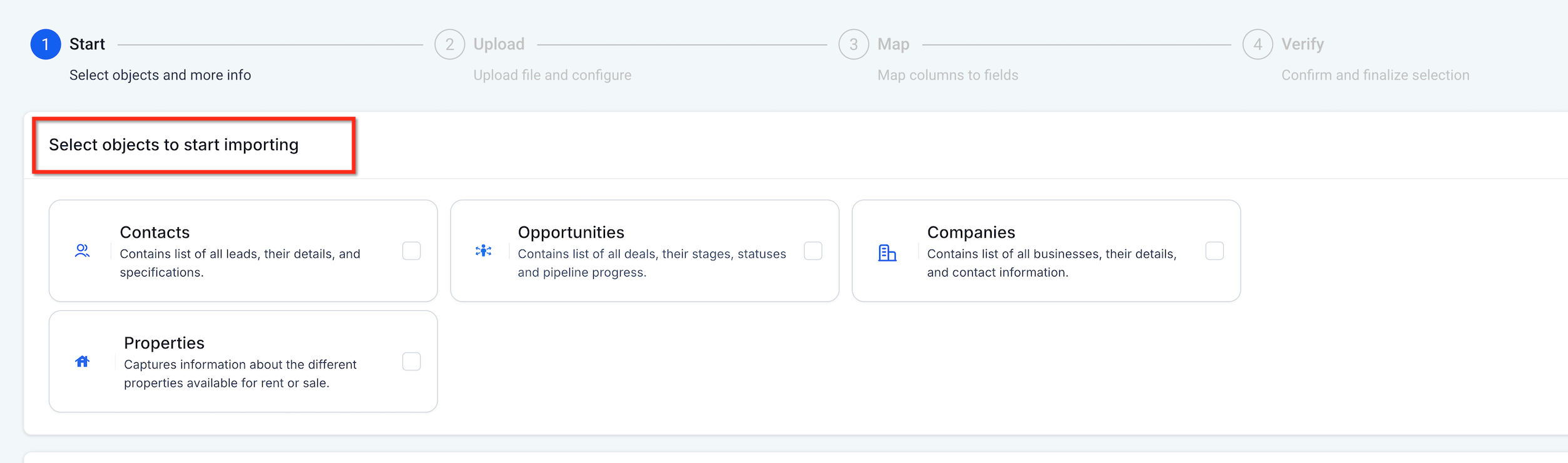
Select objects to start importing.
Choose an import mode: Create & Update.
If prompted, select the dedupe unique field (only appears when multiple unique fields are mapped).
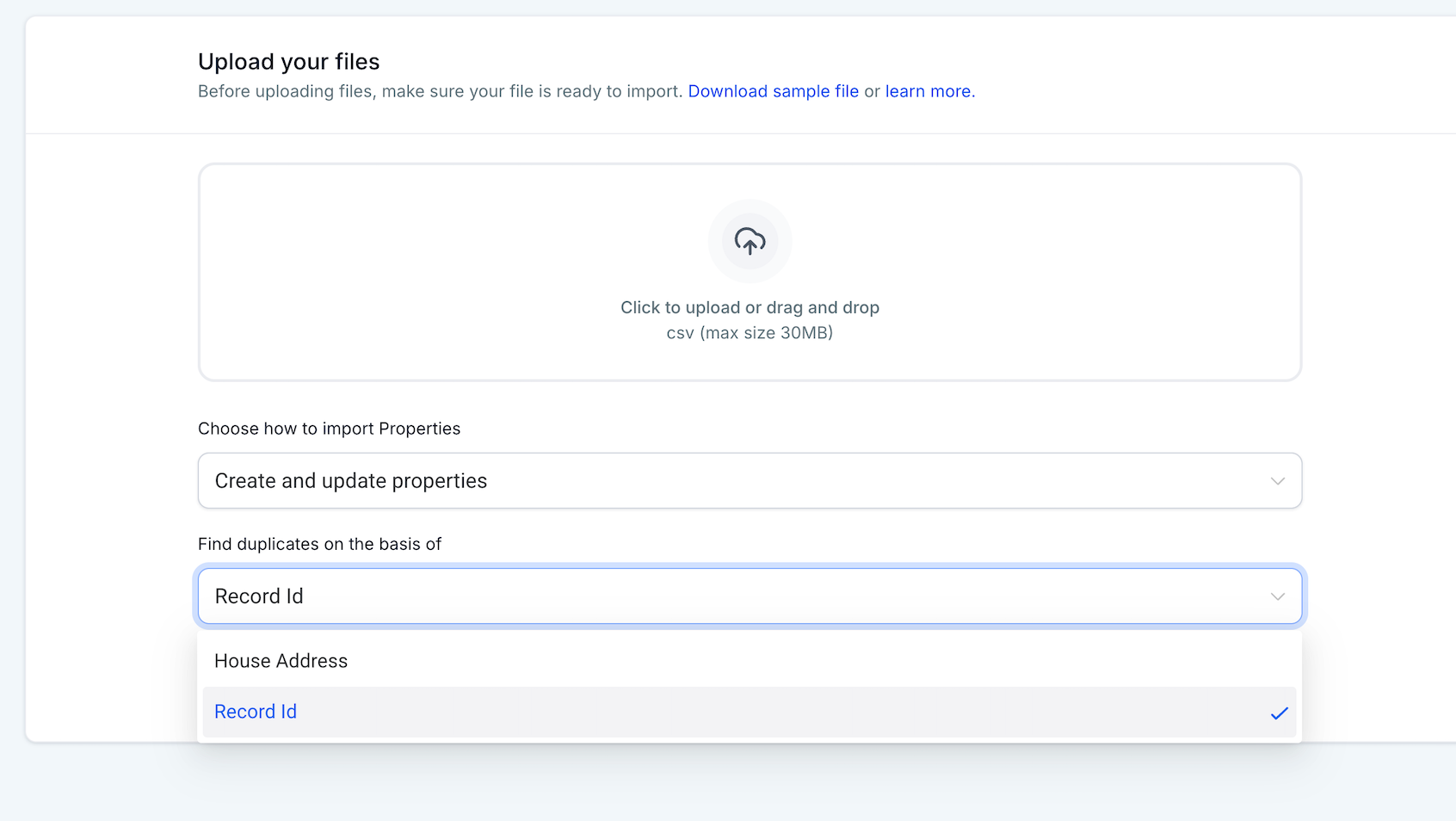
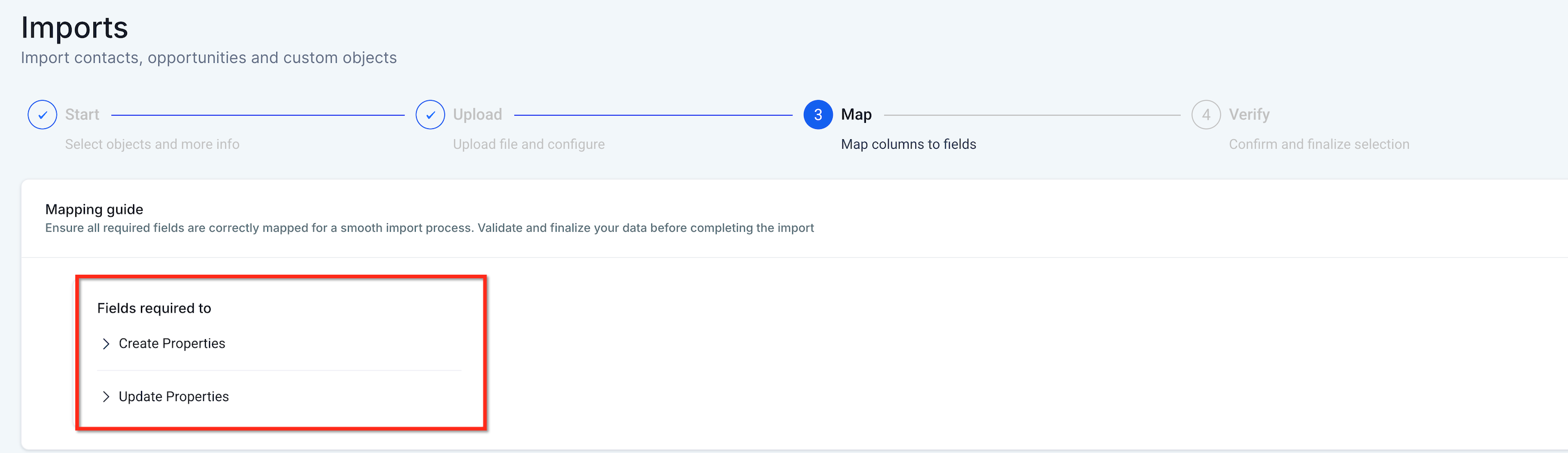
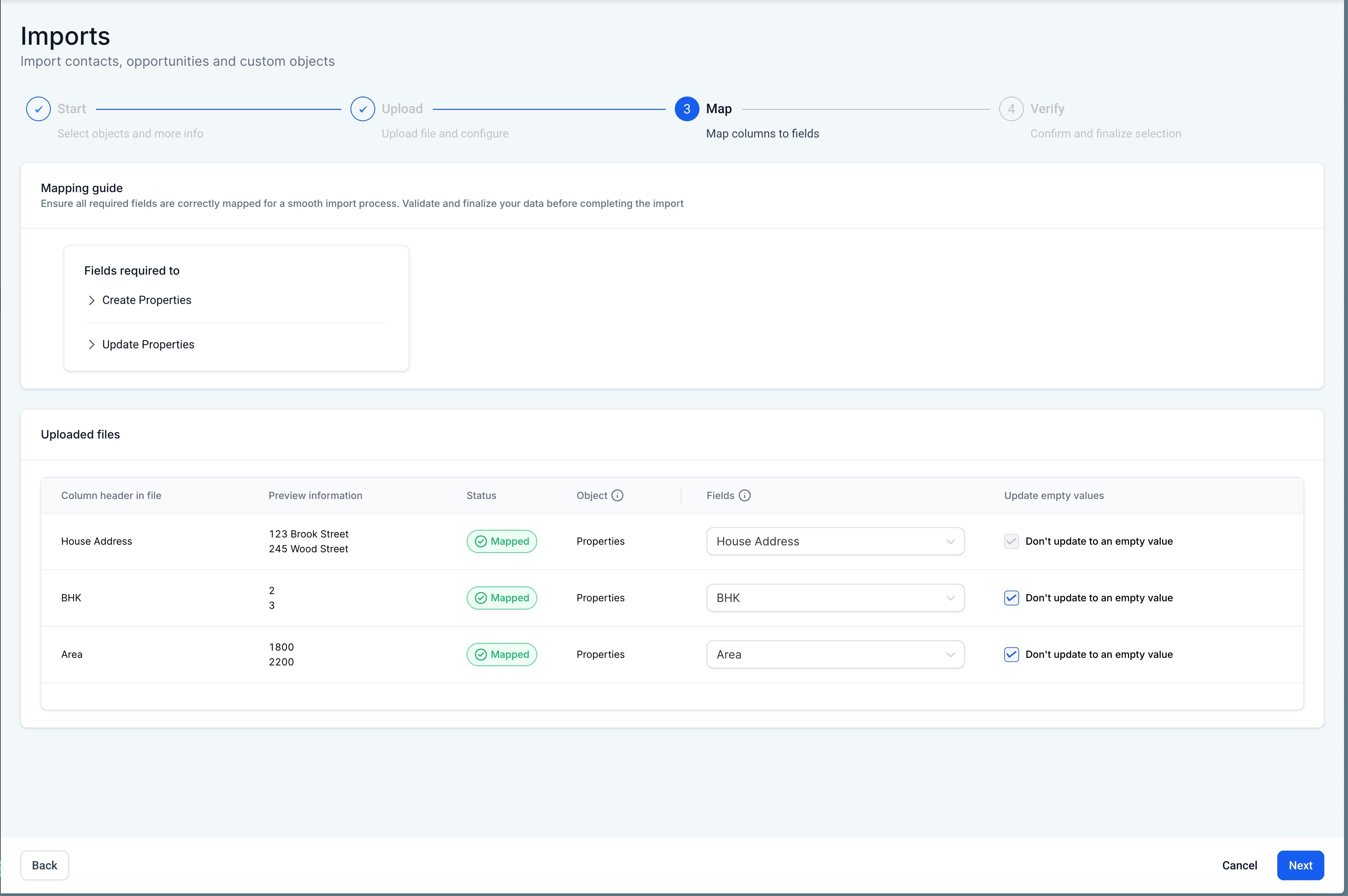
Map your fields:
Map Primary/Required fields first
Then map additional fields (including Owner and Followers, if needed)
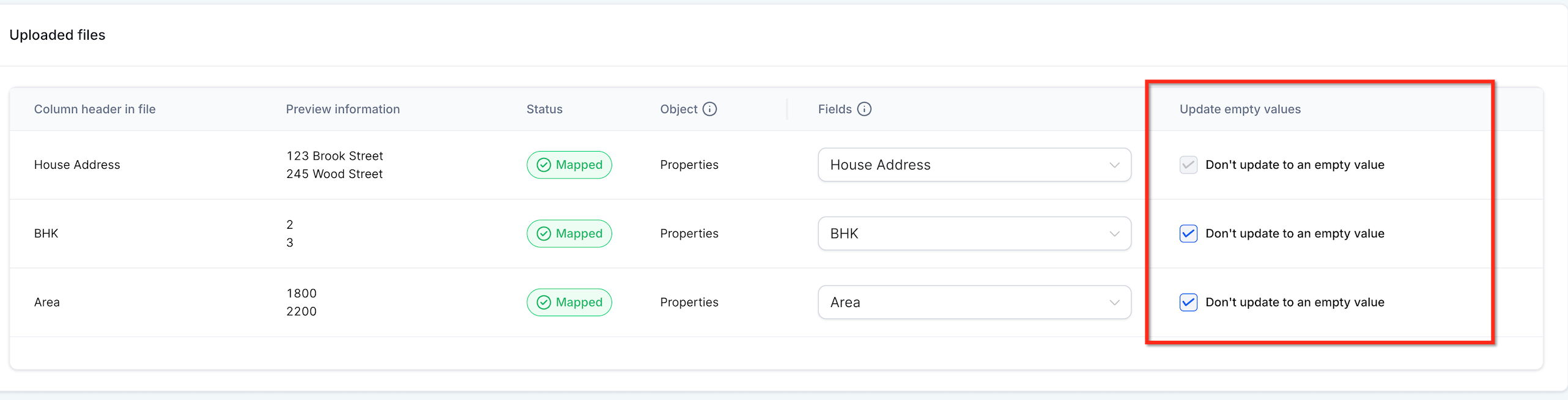
Enable Update empty values if your use case requires applying blank values during update imports (primary/required exclusions still apply).
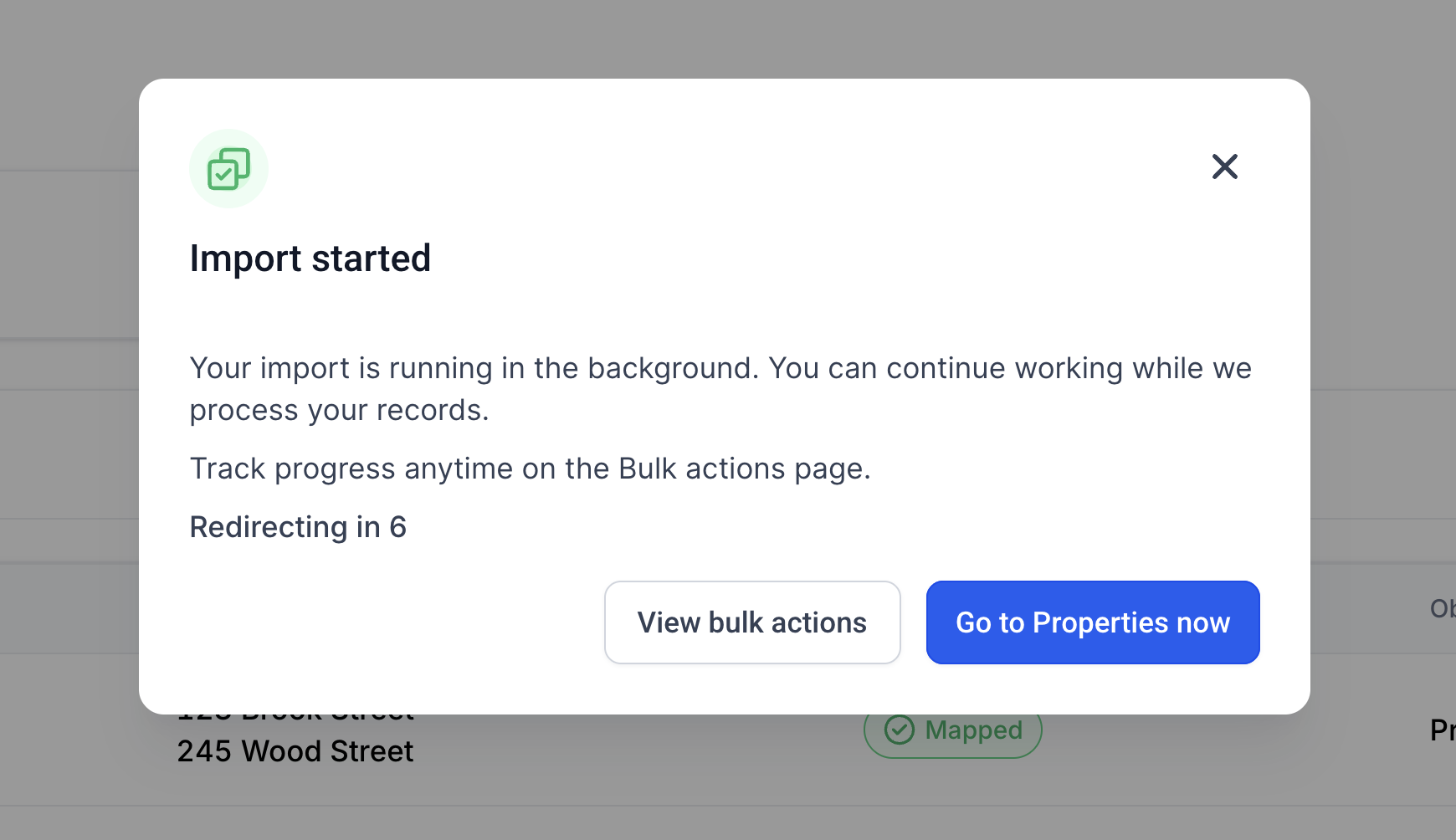
Click Start Import.
Track and control your import from Bulk Actions → Custom Objects:
Pause, Resume, or Cancel as needed
Open the import to view stats and row-level results
Frequently Asked Questions
Q: When should I use Create vs Update vs Create + Update?
A: Use Create for brand-new datasets, Update to modify existing records only, and Create + Update when your CSV contains a mix of new and existing records.
Q: Why am I asked to select a dedupe field?
A: If multiple Unique Fields are mapped, HighLevel prompts you to choose which unique field should be used for dedupe matching during the import.
Q: What does “strict conflict handling across unique fields” mean?
A: If a row would violate unique field rules (such as attempting to assign a unique value that already exists on another record), the import flags that row with errors or warnings so you can correct it.
Q: What does “Update empty values” do?
A: It allows empty CSV values to be applied during updates, but Primary/Required fields are excluded from empty-value updates.
Q: Can I pause an import and resume it later?
A: Yes. Imports can be Paused and Resumed from Bulk Actions → Custom Objects.
Q: What happens if I cancel an import?
A: Canceling stops the import from continuing. Already-processed rows may remain applied, depending on what was completed before canceling.
Q: Where do I see which rows failed and how to fix them?
A: Open the import details and use the Stats modal tabs to view Errors and Warnings. Row-level messages include How to Resolve guidance.
Q: Can I import multiple Custom Objects in one CSV?
A: Not yet. Multi-object import is currently disabled and shows “Coming soon.”
Related Articles
Was this article helpful?
That’s Great!
Thank you for your feedback
Sorry! We couldn't be helpful
Thank you for your feedback
Feedback sent
We appreciate your effort and will try to fix the article