This feature is not available for SaaS V2 or non-Stripe payment providers.TABLE OF CONTENTS
Step 1: Enable Automatic Tax Collection
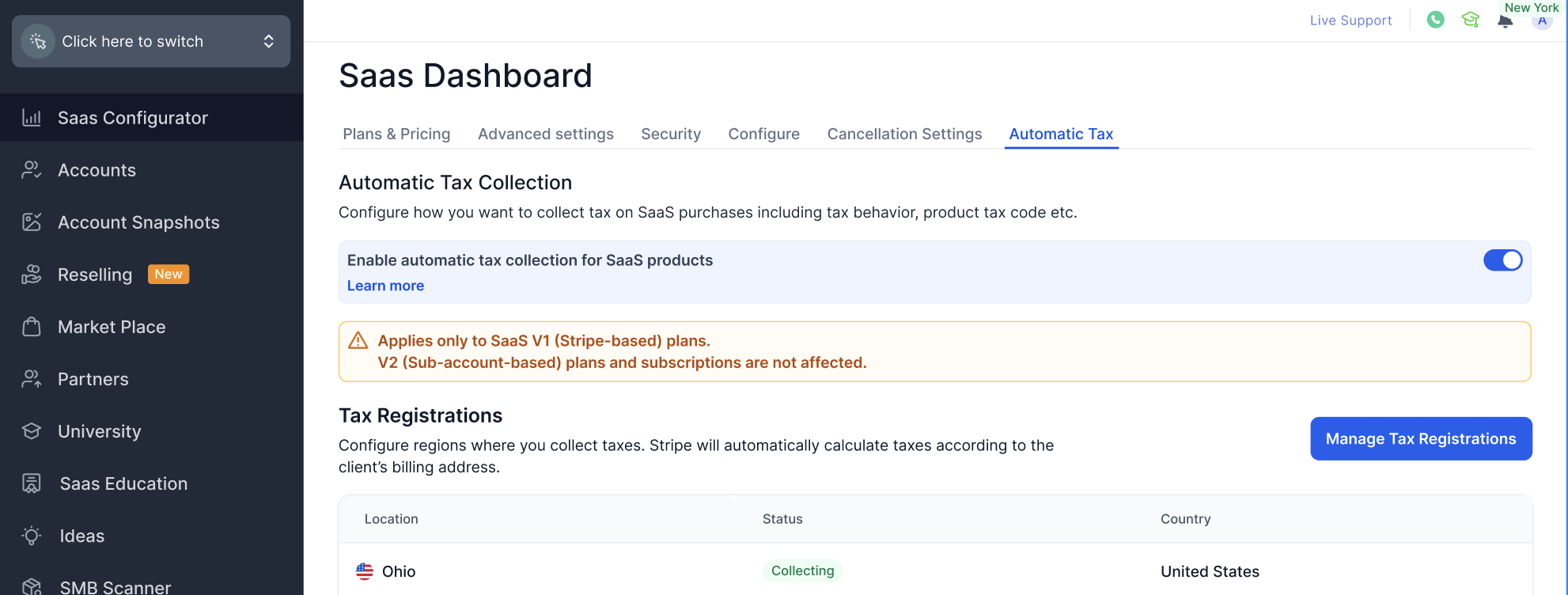
- Navigate to SaaS Configurator → Automatic Tax.
- Toggle Enable automatic tax collection for SaaS products to ON.
Step 2: Configure Tax Registrations
Under Tax Registrations, click Manage Tax Registrations.
You will be redirected to your connected Stripe account.
Add or manage the jurisdictions (countries/states) where you are required to collect taxes.
Once configured in Stripe, the registrations will be visible inside HighLevel.
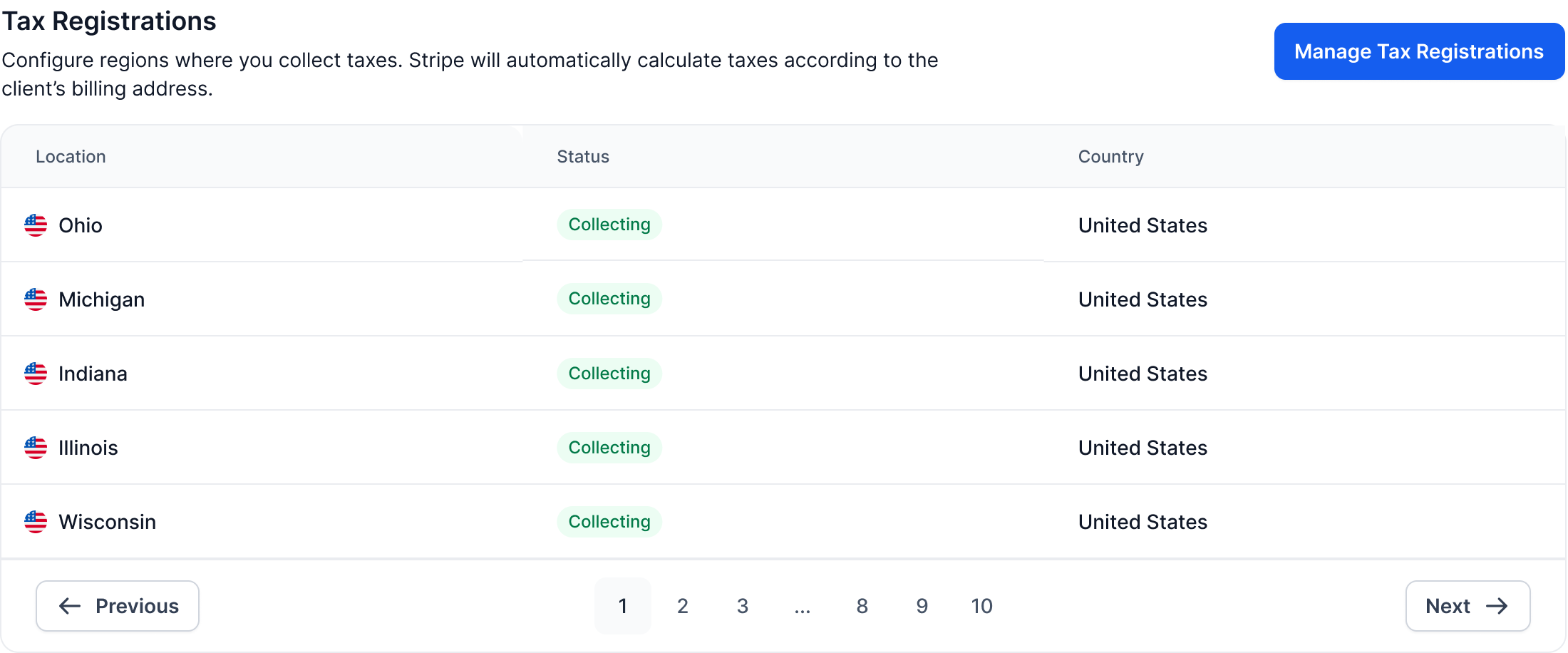
Stripe automatically calculates taxes based on the customer’s billing address and your registered jurisdictions.
Step 3: Select Product Tax Code
- Under Product Tax Code, choose the appropriate tax code from the dropdown.
- Click Save.

The selected tax code determines how Stripe calculates taxes for your SaaS products.
Choose a tax code based on the type of product you sell and guidance from your local tax consultant.
Step 4: Configure Tax Behavior
Under Tax Behaviour, select your preferred default tax setting:
Automatic – Uses exclusive pricing in the US & Canada, inclusive pricing in all other jurisdictions.
Inclusive – Taxes are included in the displayed price.
Exclusive – Taxes are added on top of the displayed price.
Click Save.

Step 5: Configure Category-Level Overrides (Optional)
Scroll to Category Level Overrides.
Click the edit icon next to a category.
You can:Enable or disable tax collection for that category
Customize tax behavior (Inclusive/Exclusive/Default)
Save your changes.
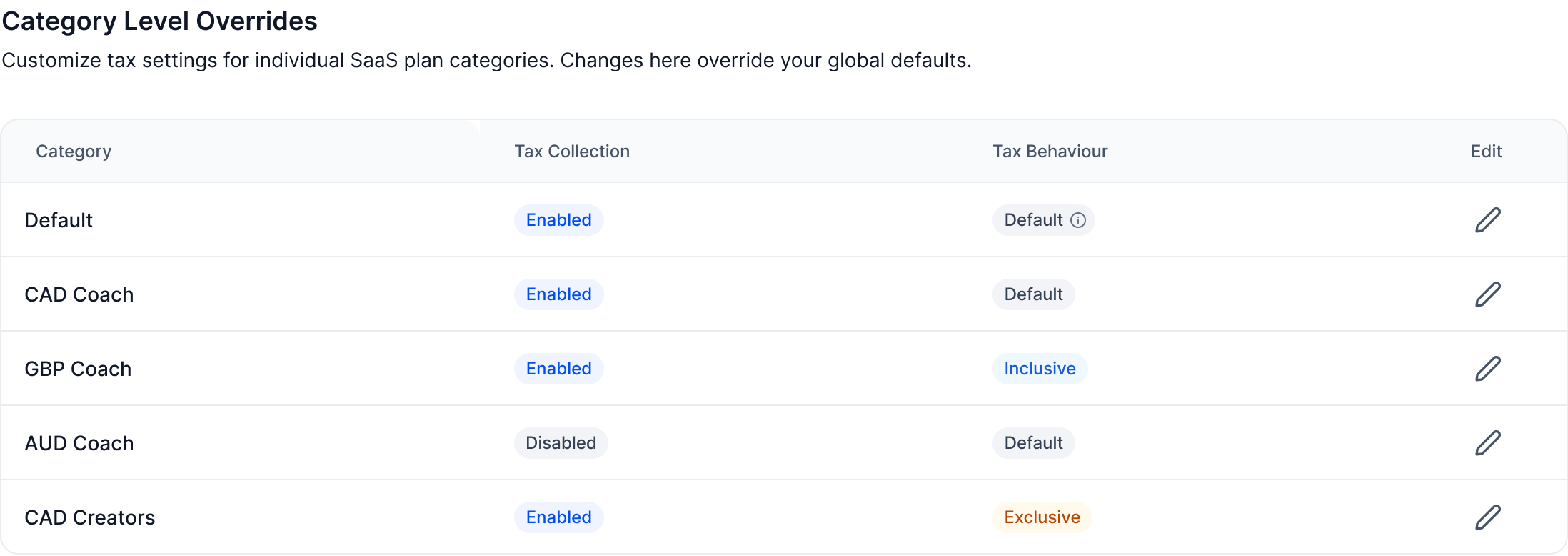
Overrides here apply only to the selected category and take precedence over global settings.
Topic 1: Important Behavior Notes
All tax configurations apply going forward only.
Existing active subscriptions are not updated retroactively.
If settings are changed mid-billing cycle, active subscriptions retain their original tax configuration.
If a subscription becomes inactive (failed payment/cancellation) and is later reactivated, the latest tax settings will apply.
This feature is available only for agencies using Stripe in SaaS V1. SaaS V2 and other payment providers are not supported.
Topic 2: Tax & Compliance Disclaimer
Was this article helpful?
That’s Great!
Thank you for your feedback
Sorry! We couldn't be helpful
Thank you for your feedback
Feedback sent
We appreciate your effort and will try to fix the article