Learn how Stripe Tax works with SaaS V1, configure tax registrations and tax codes, choose inclusive or exclusive pricing behavior, apply category-level overrides, and understand how applicable tax behaves after supported SaaS plan changes.
Automatic Tax for SaaS subscriptions is available for Stripe-based SaaS V1. It is not currently supported for SaaS V2 or non-Stripe SaaS payment providers. Enabling or changing tax settings does not retroactively update existing active subscriptions.
What is Automatic Tax Calculation with Stripe?
Automatic Tax Calculation with Stripe allows SaaS V1 agencies to use Stripe Tax to calculate applicable tax for SaaS subscriptions. Tax calculations are based on factors such as configured tax registrations, the customer billing address, product tax treatment, and the tax behavior selected for the SaaS offer.
Agencies configure the SaaS tax experience from SaaS Configurator > Automatic Tax, while tax registrations are managed through the connected Stripe account. Stripe then performs supported tax calculations during applicable billing events.
Tax and compliance notice: HighLevel does not provide tax, legal, or compliance advice. Your agency is responsible for determining where it must register, collect, report, and remit tax. Consult a qualified tax professional for guidance specific to your business and jurisdictions.
Key Benefits of Automatic Tax Calculation with Stripe
Automating applicable tax calculations can reduce manual billing work and provide more consistent tax treatment across supported SaaS transactions. The configuration remains flexible enough to support different tax classifications, pricing strategies, and SaaS categories.
- Automated Tax Calculation: Stripe Tax calculates applicable tax using your registrations, customer information, and selected product tax treatment.
- Flexible Pricing: Choose Automatic, Inclusive, or Exclusive tax behavior based on how you want pricing presented.
- Product Classification: Select a Product Tax Code that helps Stripe determine the appropriate treatment for your SaaS product.
- Category-Level Control: Override global settings for individual SaaS categories when different offers need different tax behavior.
- Billing Transparency: Applicable taxes can be reflected in checkout and billing totals based on the configured tax behavior.
- Plan-Change Consistency: For eligible V1 subscriptions already using applicable tax configuration, supported upgrades and downgrades can use current plan information when tax is recalculated.
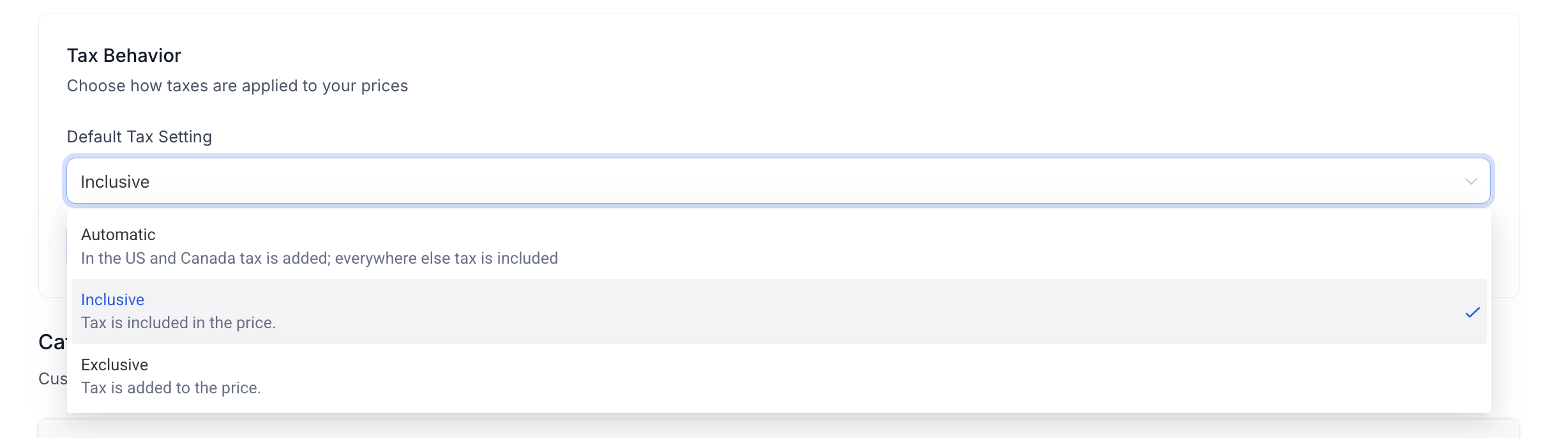
Automatic, Inclusive, and Exclusive Tax Behavior
Tax behavior controls whether applicable tax is included in the configured price or added separately. Choosing the correct behavior helps keep displayed pricing consistent with your billing strategy and the markets where you sell.
| Tax Behavior | How It Works |
|---|---|
| Automatic | Uses exclusive pricing in the United States and Canada and inclusive pricing in other supported jurisdictions. |
| Inclusive | Applicable tax is included within the displayed price instead of being added on top. |
| Exclusive | Applicable tax is calculated separately and added on top of the configured base price. |
Product Tax Codes for SaaS
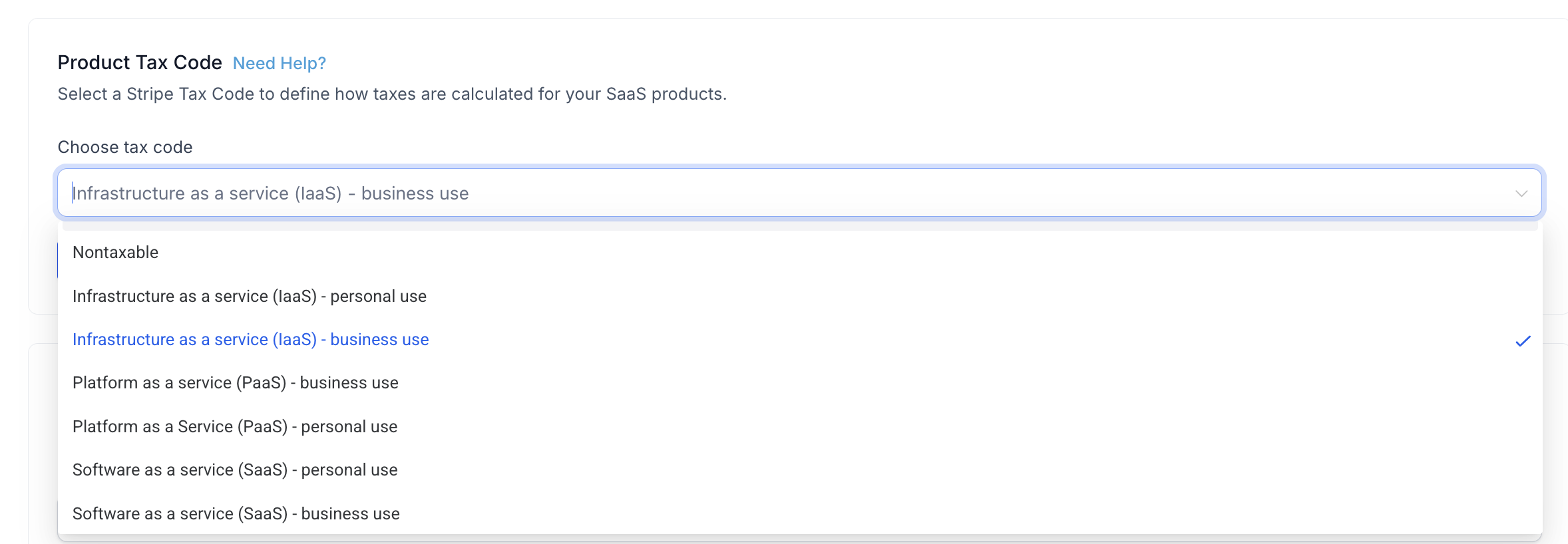
A Product Tax Code classifies what you sell so Stripe Tax can apply the appropriate tax treatment in supported jurisdictions. Selecting a code that matches your SaaS product is an important part of producing useful automatic tax calculations.
- Go to SaaS Configurator > Automatic Tax.
- Locate Product Tax Code.
- Choose the tax code that best represents the SaaS product or service you sell.
- Click Save.
How the code is used: The code selected in the SaaS Configurator is used by Stripe Tax when determining the applicable tax treatment. Choose the classification based on what you sell and guidance from your tax professional.
Category-Level Tax Overrides
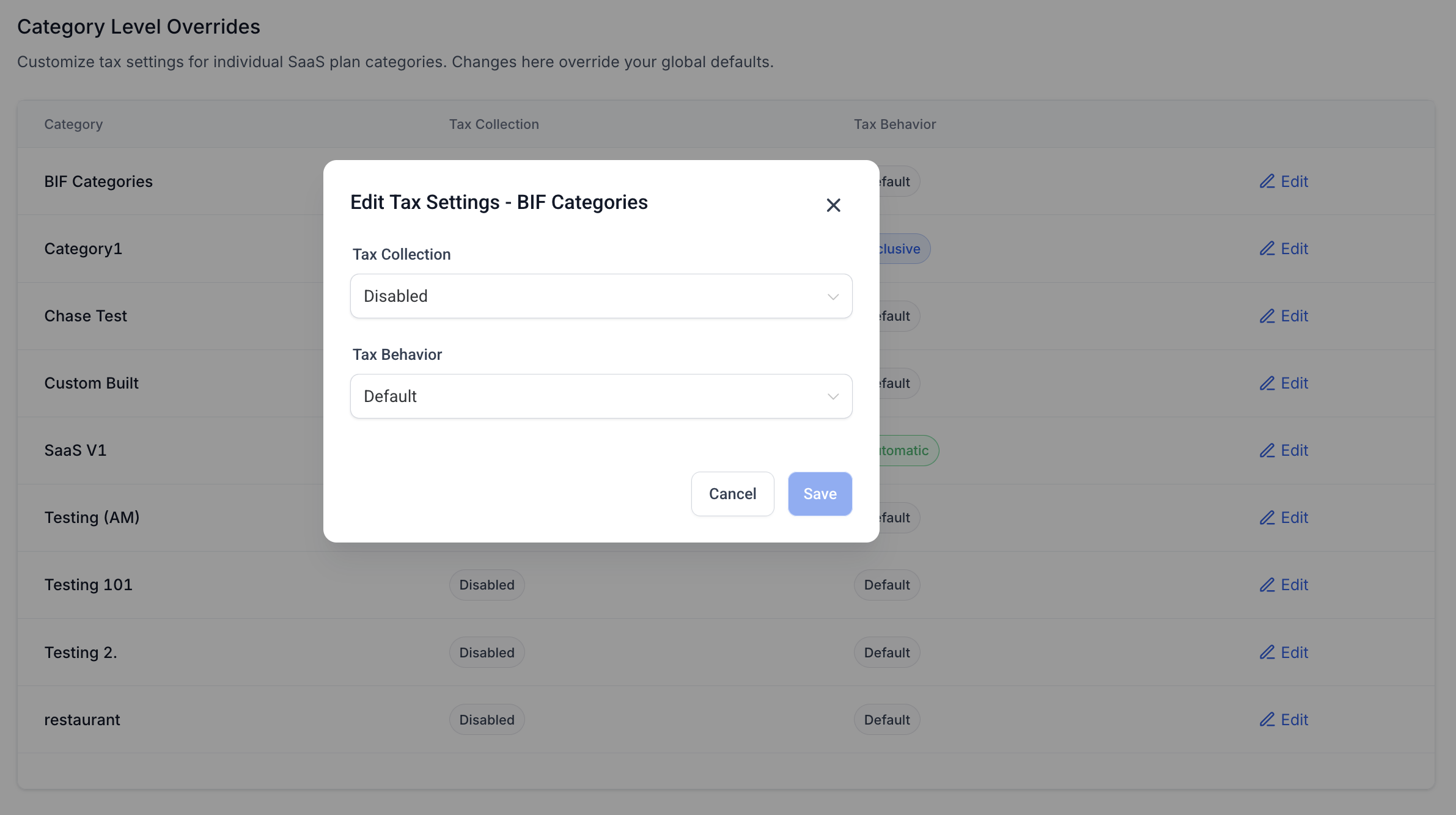
Category-level overrides let agencies use different tax behavior for specific SaaS categories without changing the global configuration for every plan. An override takes precedence over the default tax settings for the selected category.
- Scroll to Category Level Overrides in the Automatic Tax settings.
- Select the edit option next to the category you want to customize.
- Enable or disable tax collection for that category.
- Choose the desired tax behavior, such as Inclusive, Exclusive, or the default configuration.
- Save the override.
Tax Recalculation After SaaS V1 Plan Changes
For eligible SaaS V1 subscriptions sold through a selling sub-account, supported upgrades and downgrades can update both the Stripe subscription and the corresponding selling-sub-account subscription. When the subscription is already configured for applicable tax, the updated plan information can be used when tax is recalculated.
| Plan-Change Stage | Tax Impact |
|---|---|
| Before the supported change | The subscription continues using its existing applicable tax configuration and current plan information. |
| Supported upgrade or downgrade | The qualifying V1 flow updates the current product and price in Stripe and the corresponding selling-sub-account subscription. |
| Applicable tax recalculation | When tax is already configured and applicable, current plan information can be used to determine the updated taxable amount. |
This does not enable tax on an existing subscription. If Automatic Tax was not already configured for the subscription under the supported tax setup, a plan change should not be treated as automatically enabling Stripe Tax.
Not retroactive: Existing subscription, invoice, or tax-data mismatches are not automatically backfilled. The synchronization applies when a qualifying SaaS upgrade or downgrade occurs through the supported flow.
Manual Stripe changes: Do not assume arbitrary edits made directly to a Stripe product, price, subscription, or tax setting invoke the selling-sub-account synchronization. The bridge is documented for supported SaaS upgrade and downgrade events.
How To Set Up Automatic Tax Calculation with Stripe
Proper tax configuration starts with enabling Automatic Tax in the SaaS Configurator and then defining the registrations, classification, and pricing behavior Stripe Tax should use. Review the complete configuration before selling new SaaS subscriptions so applicable taxes are calculated from the intended settings.
Step 1: Enable Automatic Tax Collection
Enabling Automatic Tax makes the SaaS V1 tax configuration available for new or otherwise eligible subscription flows going forward.
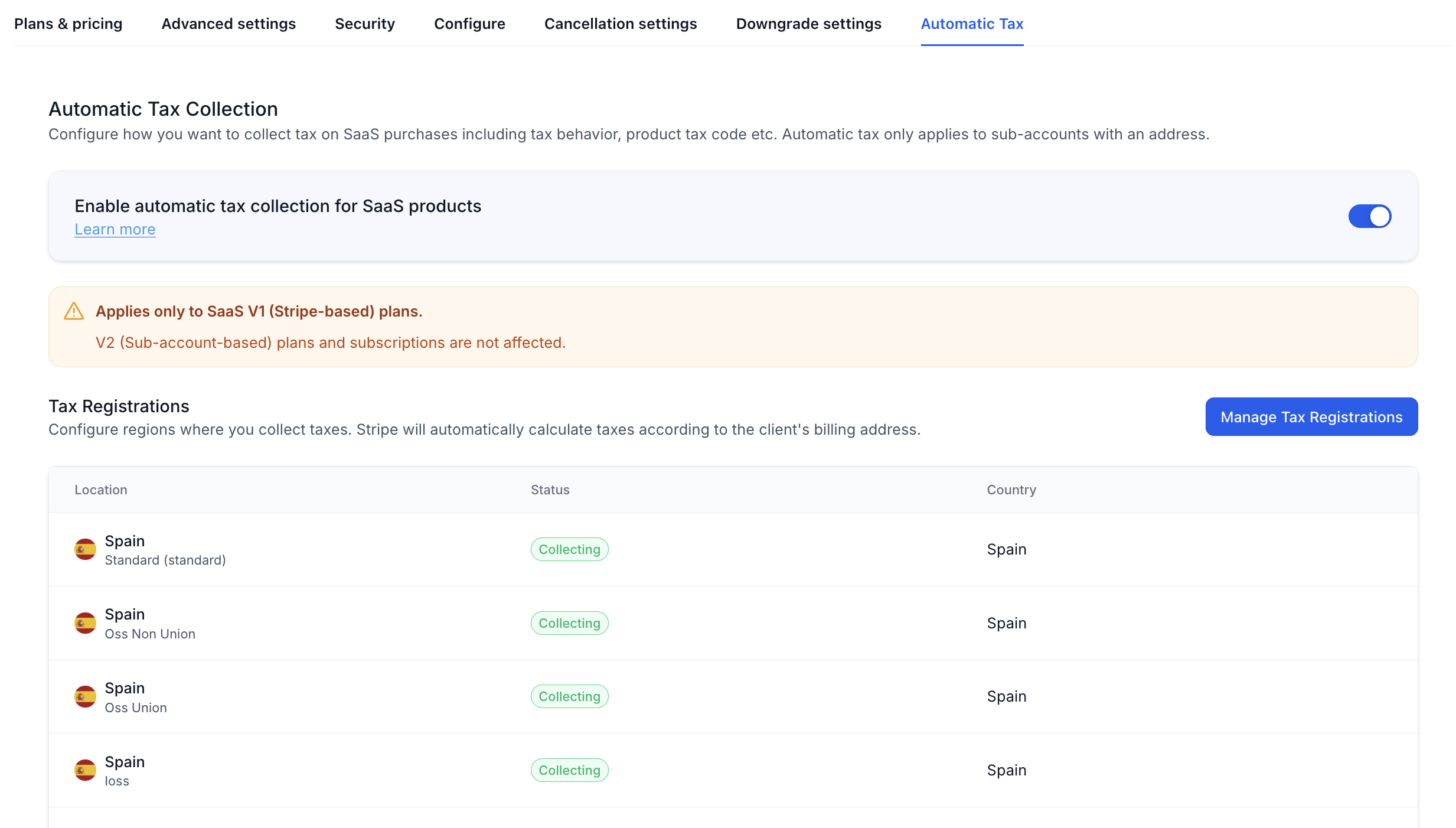
- From Agency View, go to SaaS Configurator > Automatic Tax.
- Turn Enable automatic tax collection for SaaS products ON.
Step 2: Configure Tax Registrations
Tax registrations identify the jurisdictions where your agency has configured tax collection. These registrations are managed through Stripe and then reflected in the SaaS tax configuration.
- Under Tax Registrations, click Manage Tax Registrations.
- Complete or update the applicable registrations in your connected Stripe account.
- Return to the SaaS tax settings and confirm the registrations are available.
Step 3: Select the Product Tax Code
The Product Tax Code helps Stripe identify what type of product is being sold and determine the applicable treatment in supported jurisdictions.
- Locate Product Tax Code.
- Choose the code that best represents your SaaS product.
- Click Save.
Step 4: Configure Tax Behavior
The default tax behavior determines whether applicable tax is included in the configured price or added separately when a category-specific override is not present.
- Locate Tax Behaviour.
- Choose Automatic, Inclusive, or Exclusive.
- Click Save.
Step 5: Configure Category-Level Overrides
Use an override when one SaaS category needs different tax collection or pricing behavior from the global default.
- Scroll to Category Level Overrides.
- Click the edit icon for the category.
- Configure whether tax collection is enabled.
- Choose the category's tax behavior.
- Save your changes.
Step 6: Test the Checkout Experience
Testing before selling to customers helps confirm that the intended tax configuration, pricing behavior, and totals are being used.
- Create a test subscription using the intended SaaS offer.
- Use customer information appropriate for the jurisdiction you are testing.
- Review the tax amount and final total.
- Confirm the displayed result matches the configured Inclusive, Exclusive, or Automatic behavior.
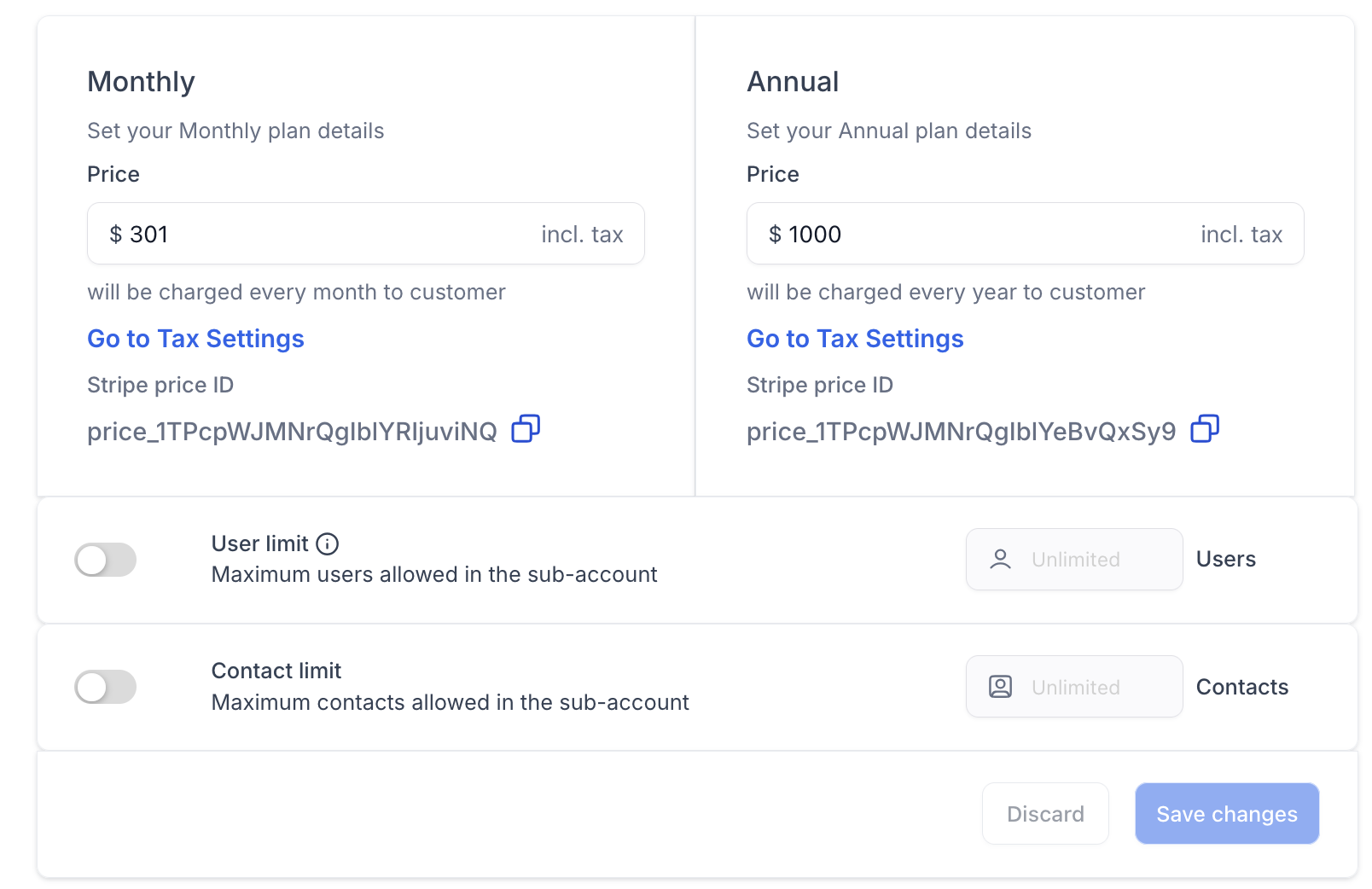
Existing active subscriptions: Turning on Automatic Tax or changing the tax configuration does not retroactively rewrite the tax configuration of existing active subscriptions. Tax settings apply according to the supported subscription lifecycle going forward.
Frequently Asked Questions
Was this article helpful?
That’s Great!
Thank you for your feedback
Sorry! We couldn't be helpful
Thank you for your feedback
Feedback sent
We appreciate your effort and will try to fix the article