The Payments tab in HighLevel’s appointment modal centralizes payment tracking and collection for any booking. Use it to view balances, attendee-level statuses, transactions, and to collect remaining amounts. This guide explains how it works, how to enable it, and how to reconcile common scenarios.
TABLE OF CONTENTS
- What is the Payments Tab in Calendars?
- Key Benefits of the Payments Tab
- Key Features
- How Payments Work Behind the Scenes
- Common Payment Scenarios (Quick Reference)
- How To Use the Payments Tab
- Important Notes & Limitations
- Frequently Asked Questions
- Related Articles
What is the Payments Tab in Calendars?
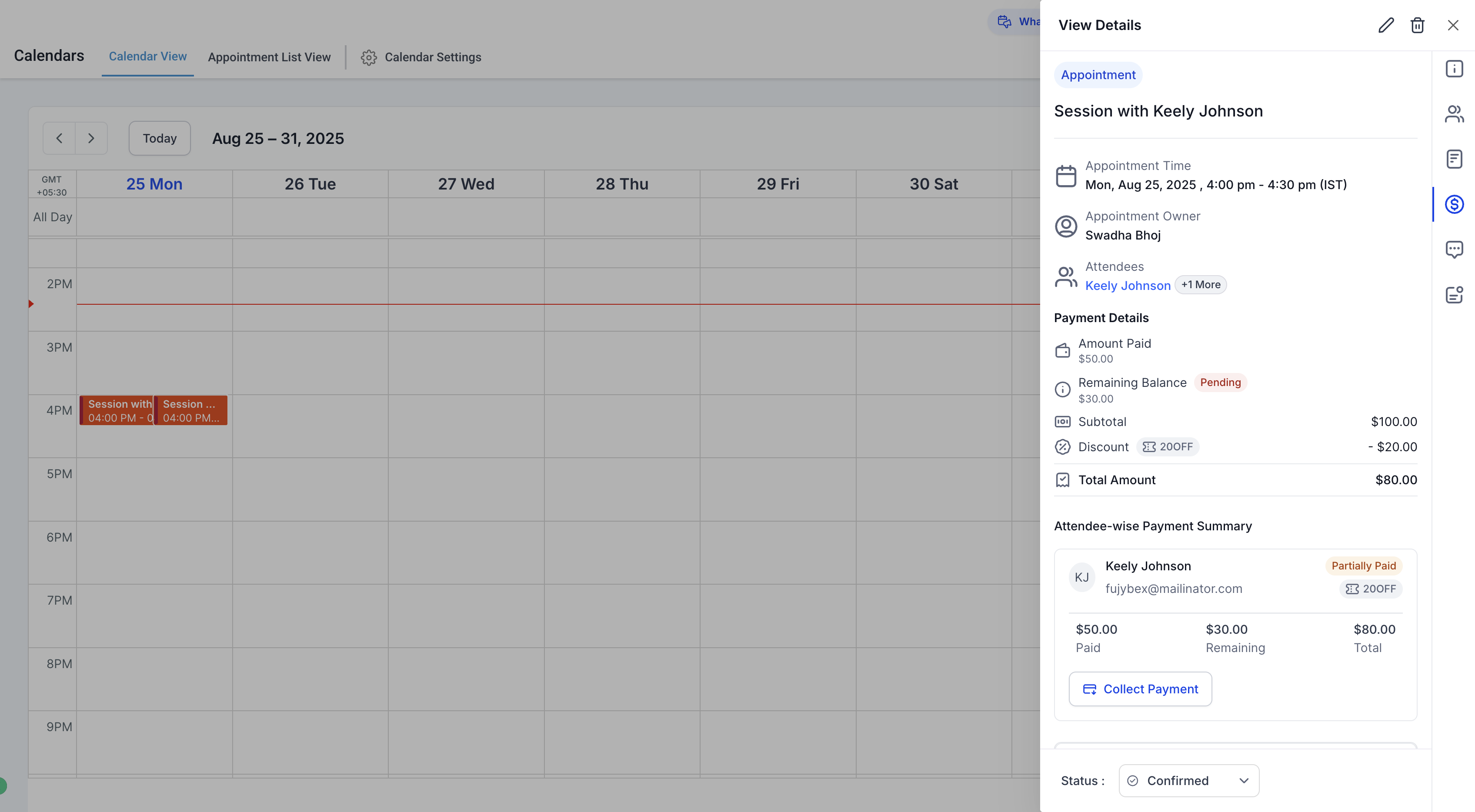
The Payments Tab in the Appointment Modal allows you to manage all payment-related details for an appointment in one place. You can track the amount paid, remaining balance, attendee-wise payment breakdown, transactions, and collect pending payments if needed.
Key Benefits of the Payments Tab
Understanding the advantages helps teams decide when to adopt the feature and how to train staff for faster collections and fewer billing questions.
Single source of truth: All appointment‑level amounts, attendees, and transactions in one place.
Faster collections: Trigger Collect Payment right from the modal to charge a card or record an offline payment.
Attendee clarity: See who’s paid, partially paid, or still owes; ideal for Add Guests bookings.
Discount visibility: Coupon use and adjusted totals are reflected directly in the summary and transactions.
Cleaner bookkeeping: A related Order is created automatically when calendar payments are enabled, making downstream reporting easier.
Key Features
1. Payment Summary
Amount Paid: Total amount already collected for the appointment.
Remaining Balance: Pending payment that still needs to be collected.
Total Amount: Overall cost of the appointment after discounts/coupons.
2. Attendee-Wise Payment Details
See payments at the individual attendee level (Booker + Guests).
Each attendee’s status is shown clearly:
Paid: Full payment received.
Partially Paid: Some amount still pending.
Remaining: Outstanding balance to be collected.
3. Transaction History
View a list of all transactions associated with the appointment.
When a Gift Card is used with another payment method, Transaction History shows the Gift Card amount and the remaining amount collected through the other payment method separately.
4. Collecting Remaining Payments
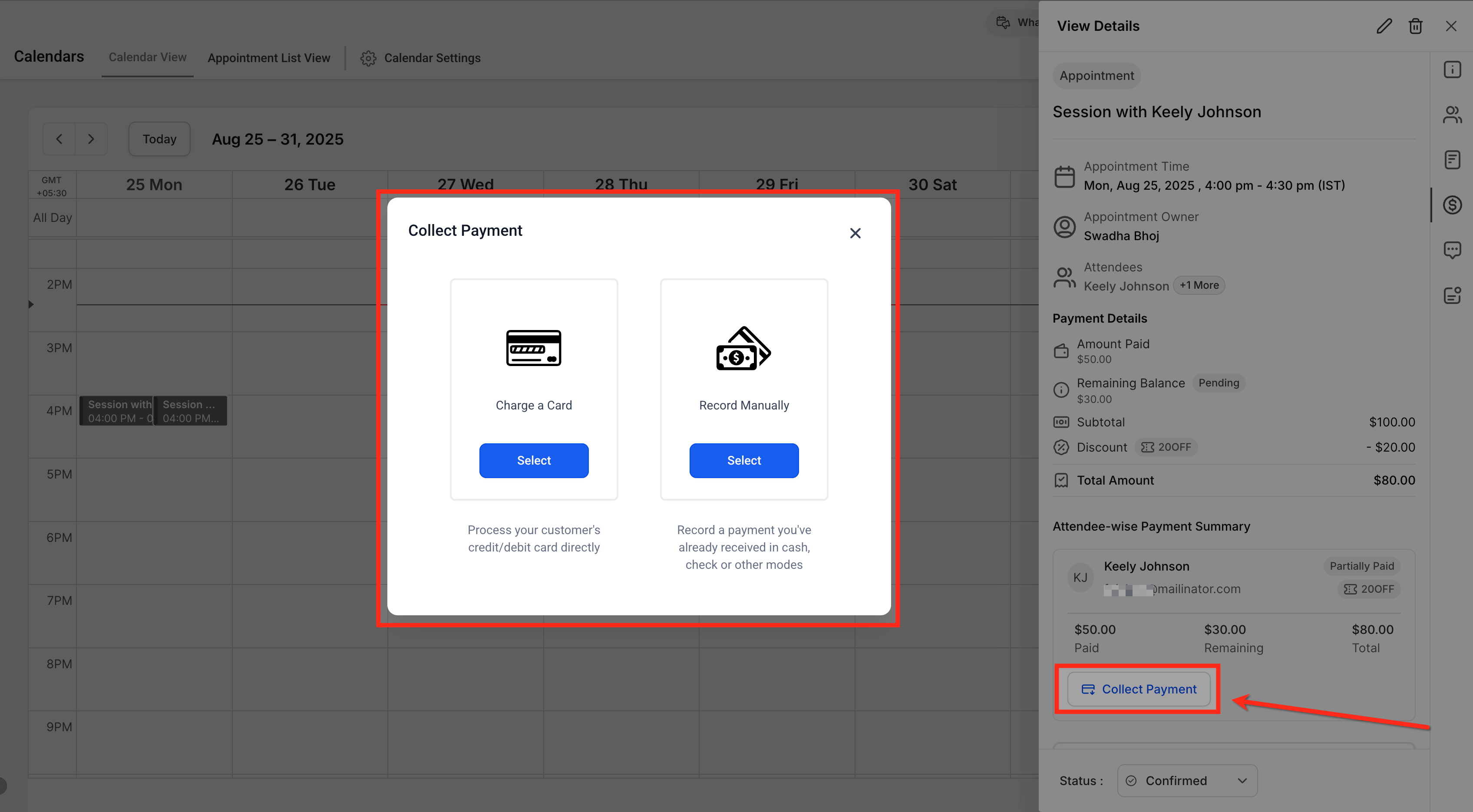
If a balance is due, you’ll see a Collect Payment button.
Options include:
- Charge a Card – Process credit/debit card payments directly.
Redeem a Gift Card: When charging a customer from an appointment, you can apply their available Gift Card balance before collecting any remaining amount from their saved payment method. If the Gift Card covers the full payment, no additional payment method is charged.
Record Manually – Mark payments collected outside the system (cash, check, etc.).
How Payments Work Behind the Scenes
When payments are enabled for a calendar, an associated product is automatically created (visible in the Products Tab) with a Calendar tag.
These calendar-linked products cannot be deleted directly from the Products Tab.
When an appointment is booked, an order is automatically created (visible in the Orders Tab). You don’t need to manage orders separately; everything can be handled directly from the appointment modal.
Common Payment Scenarios (Quick Reference)
Use this mini‑guide to anticipate how totals, statuses, and transactions will look based on typical flows.
| Scenario | Setup/Action | What You’ll See in Payments Tab |
|---|---|---|
| Pay in Full at Booking | Enable Accept Payments on the calendar; book normally | Amount Paid equals Total Amount; attendee statuses = Paid; transactions show charge(s) |
| Deposit (Partial Payment) | Enable Partial Payment/Deposit; collect deposit at booking | Remaining Balance shows due; after collecting later via Collect Payment, statuses update from Partially Paid to Paid |
| Coupon Applied | Enable Coupon Codes on the calendar; customer applies a coupon that leaves an amount due | Summary shows the Discount (Coupon) line; Total Amount reflects the discount; the remaining discounted amount is collected |
| Collect Card on File | Enable Collect Card on File in Calendar Payment settings | The customer provides card details during booking. The card is saved for future use, but the customer is not charged and no payment transaction is created during booking |
| Add Guests Post‑Booking | Edit appointment → add guests → collect per attendee | One order exists from initial booking; additional orders may be created on subsequent saves when Collect Payment for Guest is enabled |
| Recurring – First Only | Collect only for first occurrence on the widget | Initial appointment shows the payment; later occurrences require manual collection and will initially show balances due |
| Recurring – All Occurrences | Collect for all occurrences on the widget | The series total is collected upfront; the appointment record shows paid totals and transactions for the full amount |
Collect Card on File
Use Collect Card on File when you want to securely save a customer's card details without collecting an upfront payment.
When Collect Card on File is enabled:
The customer is asked to provide their card details during booking.
The card is securely saved for future use.
The customer is not charged during booking.
No payment transaction is created during booking.
This is different from a free or $0 booking. When Charge upfront is enabled and the final amount due is $0, card collection and payment are skipped.
How To Use the Payments Tab
Correct setup ensures the tab appears and that totals, discounts, and attendee statuses behave as expected.
Enable Accept Payments on a Calendar
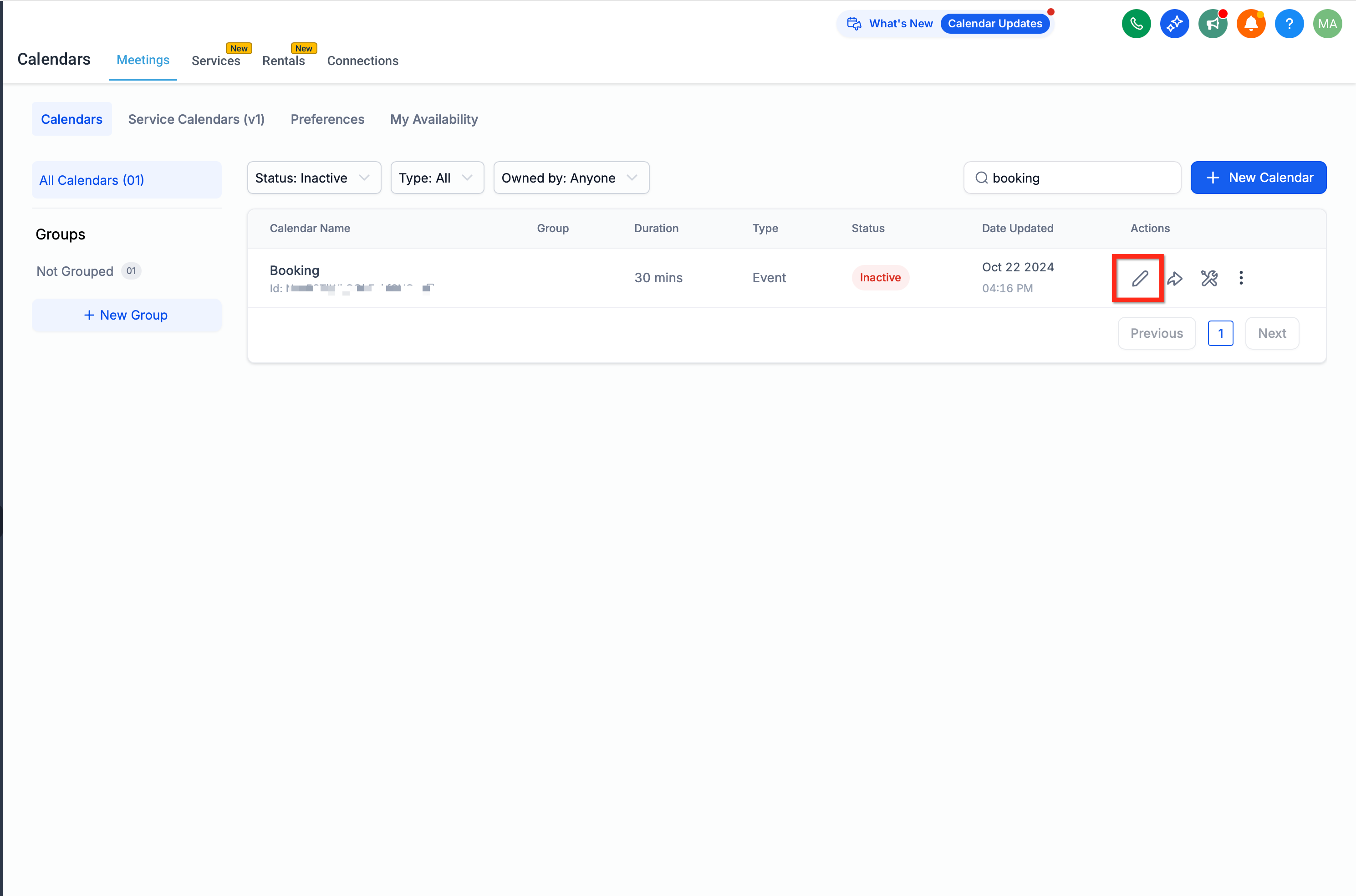
Go to Calendars → Settings → Edit the desired Calendar
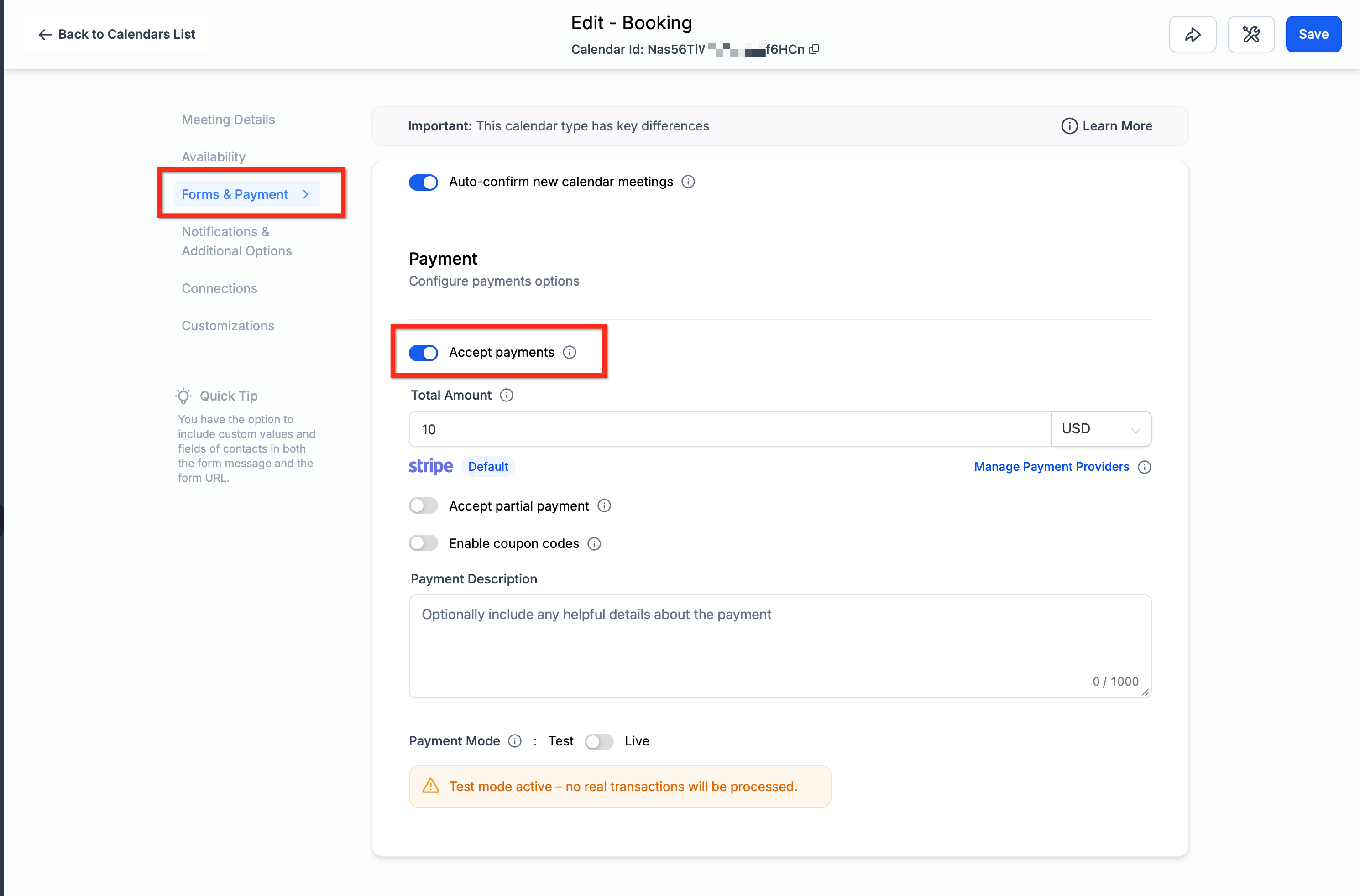
Toggle Accept Payments. HighLevel will auto‑create a Product tagged Calendar.
(Optional) Toggle Enable Coupon Code to add a coupon field on the widget.
(Optional) Configure Partial Payment/Deposit rules for deposits at booking.
(Optional) For recurring bookings, choose whether to charge for First Appointment Only or All Appointments on the booking widget.
Finding the Payments Tab
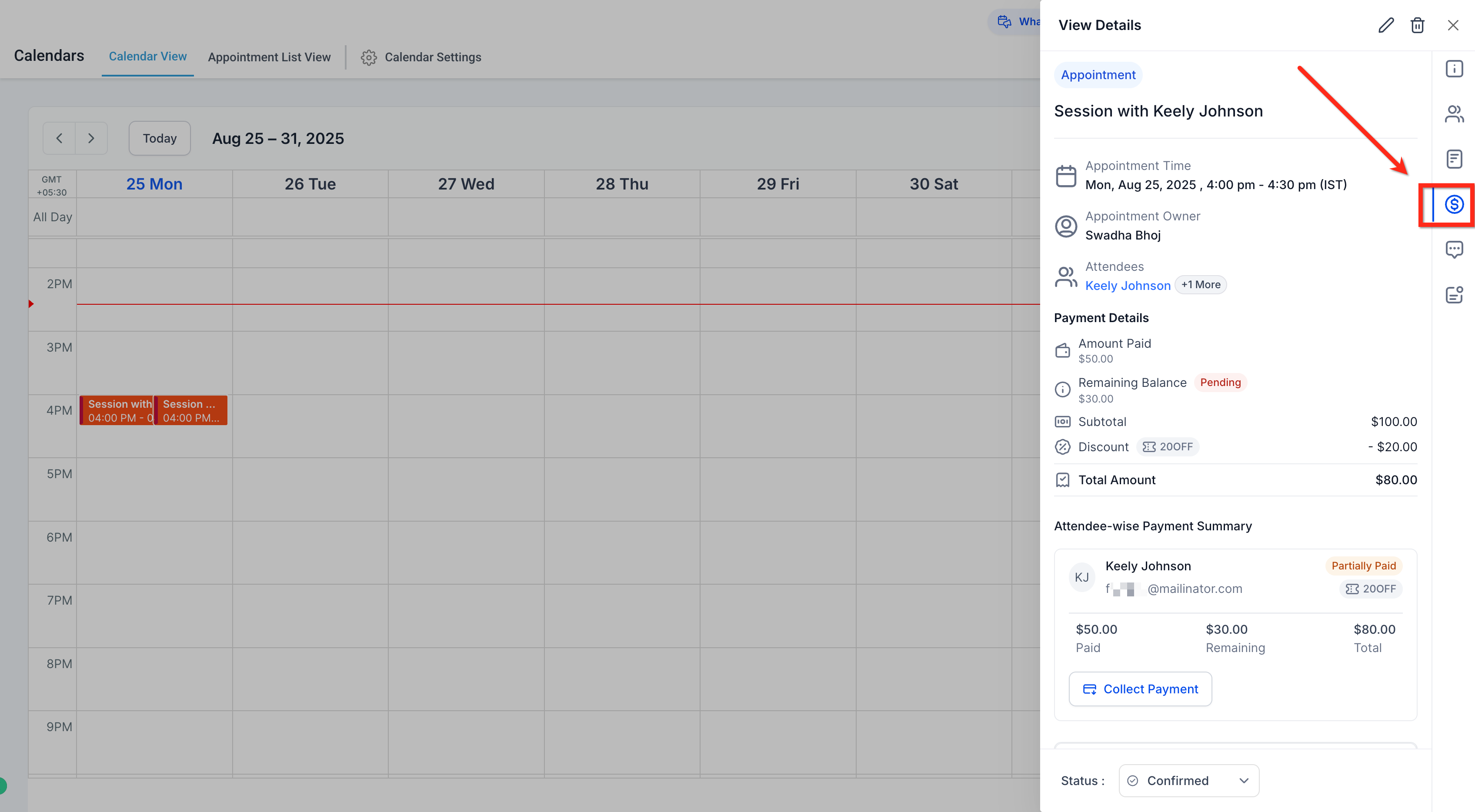
Go to Calendars → Appointments.
Open any appointment.
Click Payments.
Collect or Log a Payment from the Appointment
Open the appointment and go to Payments.
Click Collect Payment → choose Charge a Card or Record Manually.
If the customer has an available Gift Card, select Redeem a Gift Card and apply the available balance. The Gift Card amount is applied first, and any remaining balance is charged to the customer’s saved payment method.
Complete the required fields and save.
Verify that Amount Paid, Remaining Balance, and attendee statuses update accordingly.
Important Notes & Limitations
These constraints help you avoid edge cases that lead to confusion or duplicate orders.
Not supported for bookings via older Service Menu (v1).
Not supported for custom recurring appointments created directly via the in‑app modal.
Group bookings: one order is created for the full group at initial booking.
Editing an appointment and adding guests with Collect Payment for Guest enabled can create a new order each time you save. Plan your edits and collections carefully to avoid unintended multiple orders.
Frequently Asked Questions
Q: Where do coupon discounts show after booking?
In the appointment’s Payments tab, the Payment Summary reflects Discount (Coupon) and the Total Amount after discount. The Transaction History shows charges recorded against the discounted total.
Q: Can I refund a charge from the Payments tab?
Refunds are managed in Payments → Transactions (or via your gateway, e.g., PayPal). Once refunded, the appointment’s Transaction History reflects the refund entry.
Q: Does PayPal work with the Payments tab?
Yes. PayPal transactions collected via the booking widget appear in Transaction History and are tied to the appointment’s order.
Q: How do recurring series charges display?
If you collect for the first appointment only, later instances will show balances due until collected. If you collect for all appointments, the total appears as paid upfront in the initial booking’s record.
Related Articles
Was this article helpful?
That’s Great!
Thank you for your feedback
Sorry! We couldn't be helpful
Thank you for your feedback
Feedback sent
We appreciate your effort and will try to fix the article