WhatsApp Audit Logs
WhatsApp Audit Logs give you full visibility into changes made to your WhatsApp Business setup in a sub-account. You can quickly see who made a change, what they changed, when it happened, and which WhatsApp asset it affected.
TABLE OF CONTENTS
What Are WhatsApp Audit Logs?
WhatsApp Audit Logs are part of CRM's shared Audit Logs system. Each entry records:
- The user who performed the action
- The action taken
- The timestamp
- The affected WhatsApp entity (such as a phone number, template, or flow)
These logs help you troubleshoot issues faster, maintain accountability across your team, and keep a reliable history of important WhatsApp changes.
Key Benefits of WhatsApp Audit Logs
- Instant visibility: Quickly see who changed a WhatsApp number, template, or flow, and when it happened.
- Greater accountability: Hold team members responsible for changes to WhatsApp assets across the sub-account.
- Faster troubleshooting: Use the audit trail to identify when a change caused an issue and who can help fix it.
- Reduced miscommunication: Eliminate guesswork and back-and-forth when something breaks or behaves differently.
- Stronger operational control: Keep a clear record of important WhatsApp configuration changes over time.
Actions Tracked for WhatsApp
The following WhatsApp-related actions are logged at the sub-account level:
| WhatsApp Entity | Logged Actions |
|---|---|
| Phone Number | Added |
| WhatsApp Business Account (WABA) | Deleted, Deactivated |
| Default Phone Number | Updated |
| Template | Created, Updated, Deleted |
| Phone Number Profile | Updated |
| Flow | Created, Published, Deprecated, Deleted |
Each event creates a time-stamped log entry so you can reconstruct what happened when changes impact your WhatsApp conversations or workflows.
How to Access WhatsApp Audit Logs
WhatsApp Audit Logs are available inside each sub-account.
1 | Open the sub-account you want to review, and go to Settings → Audit Logs. |
2 | Use the search and Module filter to focus on the WhatsApp-related activity you want to investigate. 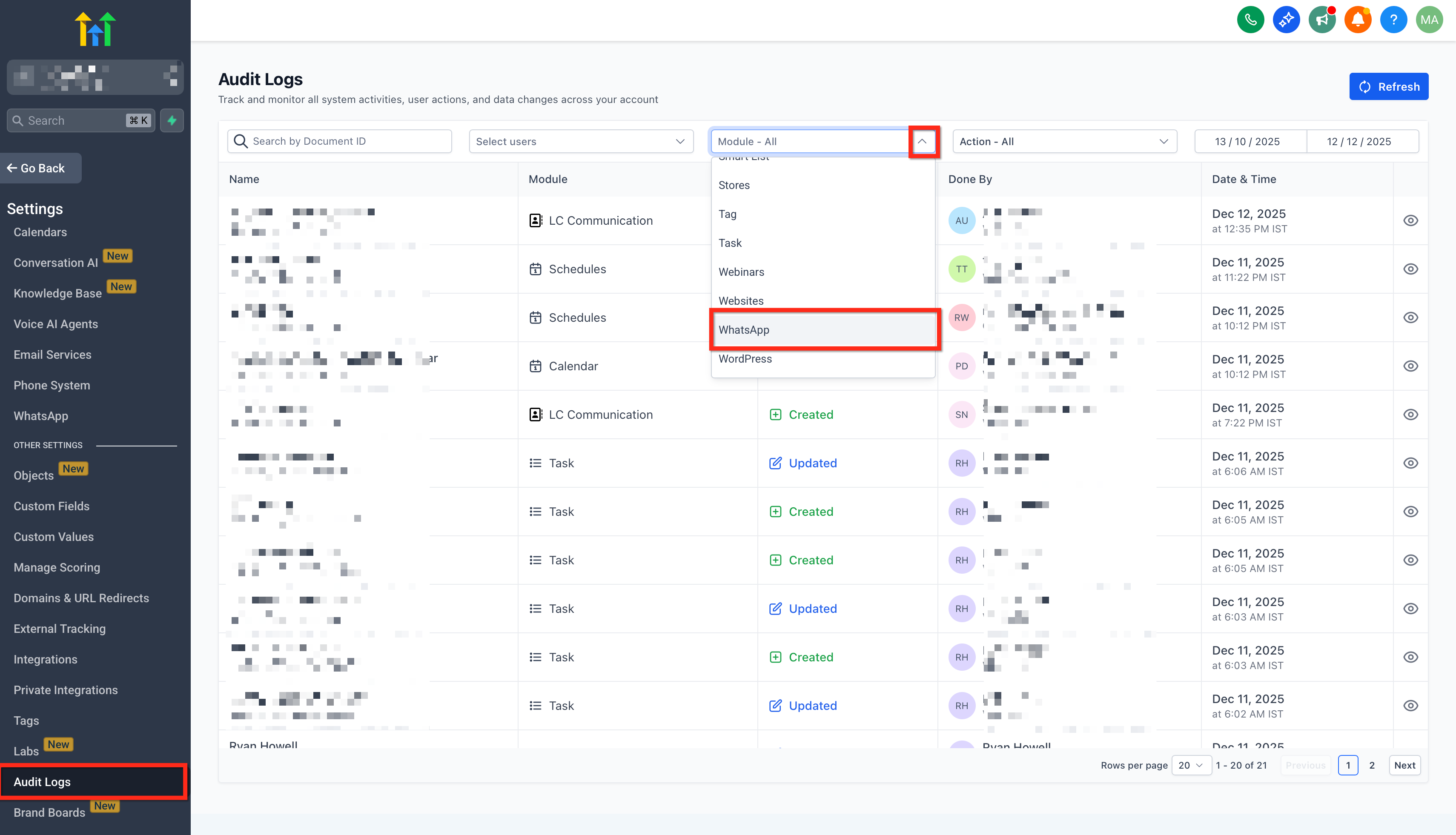 |
3 | Click any row to open the details drawer and review who changed what and when. 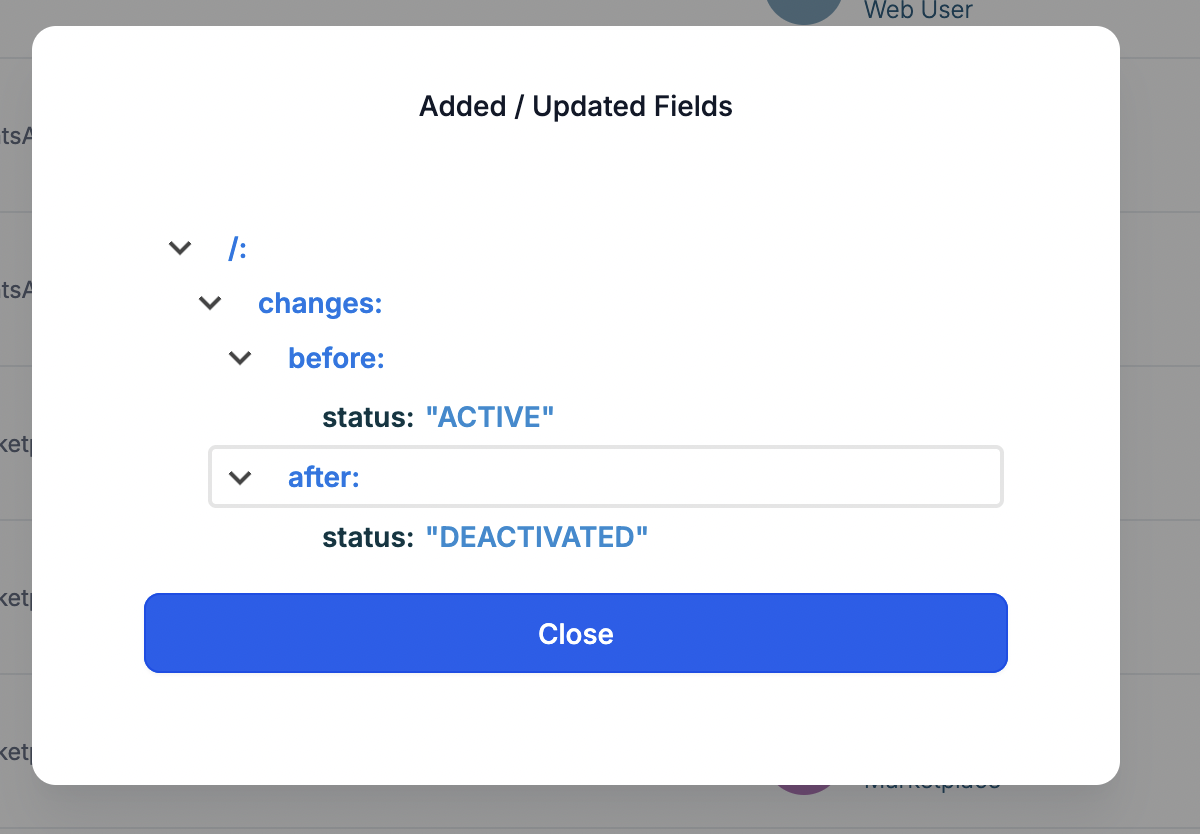 |
Using WhatsApp Audit Logs for Troubleshooting
Here are some common investigation scenarios:
A WhatsApp phone number disappeared or changed.
Check for events where a phone number was added, a default phone number was updated, or a WABA was deleted or deactivated.
Templates stopped sending or were modified unexpectedly.
Look for Template – Created / Updated / Deleted events to see which user changed or removed a template.
Flows behave differently than before.
Filter for Flow – Created / Published / Deprecated / Deleted to find recent configuration changes.
By reviewing the user, action, time, and entity, you can reduce guesswork, resolve issues quickly, and assign follow-up tasks to the correct team member.
Scope and Retention
- WhatsApp Audit Logs are recorded at the sub-account level only.
- Audit Log entries are retained for 60 days and then automatically removed, in line with other Audit Logs in CRM.
Frequently Asked Questions
Q: Are Audit Logs available in every sub-account?
Yes, access is provided at the sub-account level. Open the sub-account where WhatsApp is configured to view its logs.
Q: I don't see WhatsApp events, what should I check?
Confirm you're in the correct sub-account, expand your date range, and remove restrictive filters (like a specific user or entity) to broaden results.
Q: How long are WhatsApp audit events kept?
Audit events are retained for a limited window (for example, 60 days). Plan your review cadence accordingly.
Q: Can I get alerts when certain events happen?
Built-in notifications are not currently available. Consider scheduled log reviews during key projects.
Q: Who can view Audit Logs?
Visibility depends on sub-account roles/permissions. Contact a sub-account admin if you can't access Settings → Audit Logs.
Related Articles
Audit Logs: Introducing the New Design Experience (UI)
Audit Logs in Funnels, Websites, Webinars & Stores
Custom Object Audit Logs
WhatsApp Full Setup Guide for Agency
How to Set Up WhatsApp for a Sub-Account in CRM
Was this article helpful?
That’s Great!
Thank you for your feedback
Sorry! We couldn't be helpful
Thank you for your feedback
Feedback sent
We appreciate your effort and will try to fix the article