Dashboard Summary AI brings actionable insights to HighLevel dashboards, helping you spot trends, identify risks, and make data-driven decisions without manually analyzing every chart.
Generate AI-powered summaries of dashboard metrics, explore important findings through Ask AI, and save summaries as dashboard widgets for easy access. With customizable formats, module priorities, and automatic refreshes, Dashboard Summary AI makes it easier to monitor performance and identify what needs attention.
TABLE OF CONTENTS
- What is Dashboard Summary AI?
- Key Benefits of Dashboard Summary AI
- Dashboard AI Summary
- Generated AI Insights
- Visual and Text Summary Formats
- Suggested Follow-Ups and Dig Deeper
- Dashboard Summary Widget
- Summary Refresh and Data Filters
- Summary Settings
- Excluded Widgets and Missing Data
- Widget-Level AI Summaries
- Report Summary AI
- How to Set Up and Use Dashboard Summary AI
- Important Notes
- Frequently Asked Questions
- Related Articles
What is Dashboard Summary AI?
Dashboard Summary AI is a built-in analysis tool that reviews dashboard widgets and generates easy-to-understand summaries of key metrics, performance trends, and potential risks. It helps you understand what is happening across your dashboard without having to review each widget individually.
The feature uses Ask AI to analyze dashboard data based on the selected date range and applicable filters. It organizes important insights by module, allowing you to quickly understand performance across areas such as Opportunities, Lead Sources, and Tasks.
You can generate a summary whenever needed, ask follow-up questions, or add the summary directly to your dashboard as a persistent widget. Dashboard Summary AI also supports individual widget-level insights for examining specific metrics in greater detail.
Key Benefits of Dashboard Summary AI
Dashboard Summary AI simplifies performance monitoring by turning multiple dashboard metrics into meaningful insights. Instead of manually comparing charts and identifying important changes, you can quickly understand performance, investigate potential issues, and focus on areas that need attention.
Instant Dashboard Insights: Generate AI-powered summaries of dashboard metrics with one click, reducing the time spent reviewing individual charts.
Proactive Detection: Identify potential risks, downward trends, and performance changes before they become larger issues.
Visual and Text Summaries: Choose between visual insights with charts and key metrics or text-based summaries organized by module.
Persistent Summary Widgets: Add an AI-generated summary directly to your dashboard so important insights remain accessible across visits.
Automatic Data Refresh: Keep summaries updated with daily refreshes and changes to dashboard date ranges or applicable quick filters.
Customizable Insights: Prioritize relevant modules and choose whether summaries emphasize positive results, areas needing improvement, or a balanced overview.
Guided Exploration: Use suggested follow-up questions and Dig deeper to explore important metrics without manually creating detailed prompts.
Widget-Level Analysis: Generate focused AI insights for individual dashboard widgets to better understand specific metrics and performance patterns.
Transparent Data Reporting: Identify widgets excluded from summaries because of missing data or configuration errors.
Dashboard AI Summary
Dashboard AI Summary provides a consolidated overview of your dashboard's performance. It analyzes available widget data and organizes key findings into meaningful groups, making it easier to identify performance changes, important trends, and areas that may require attention.
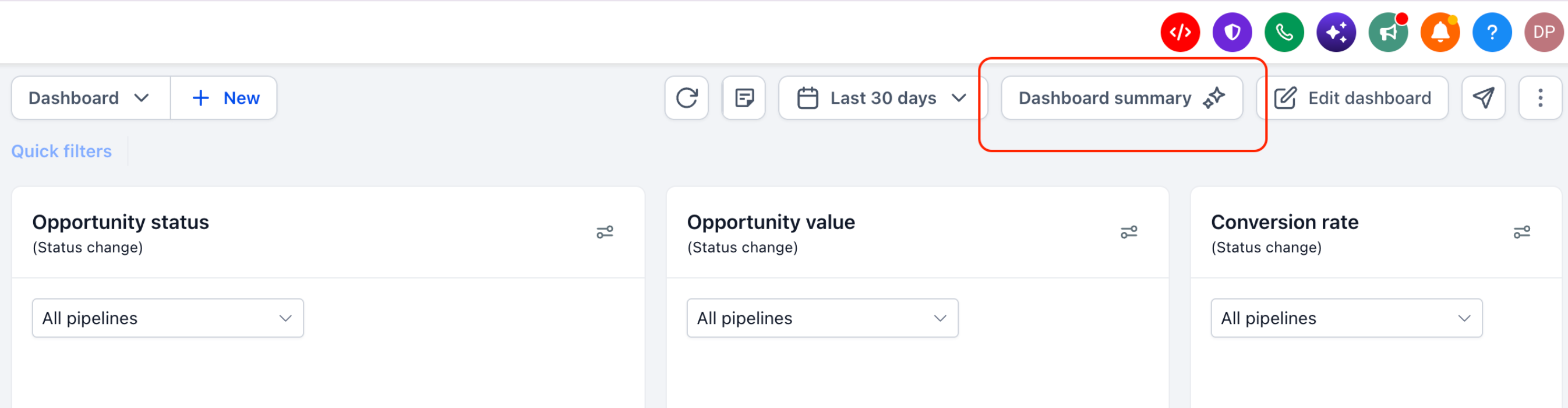
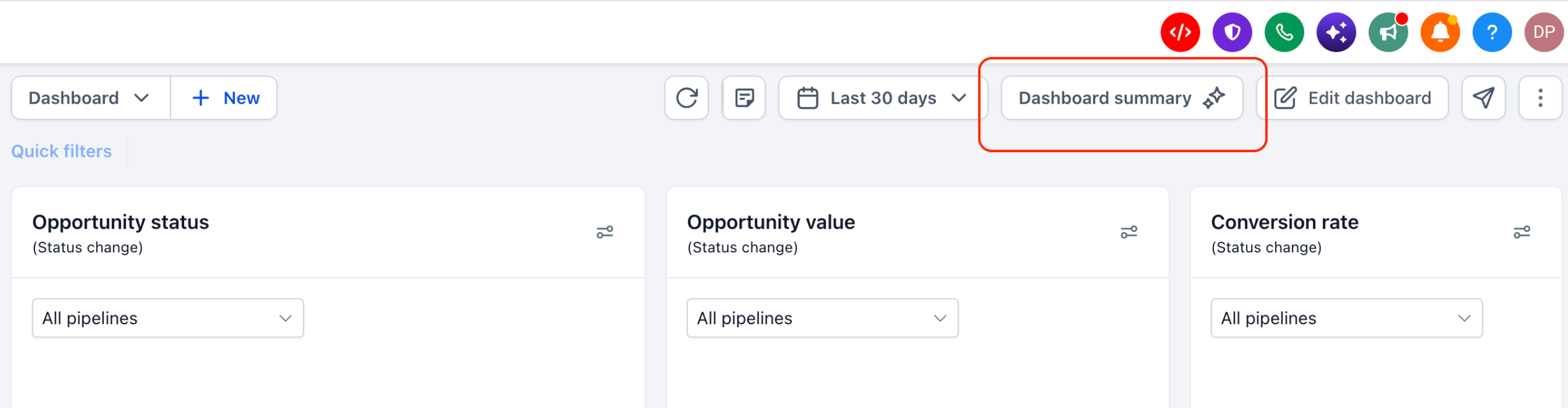
To generate a dashboard summary, open the desired dashboard and click Dashboard summary in the dashboard header.
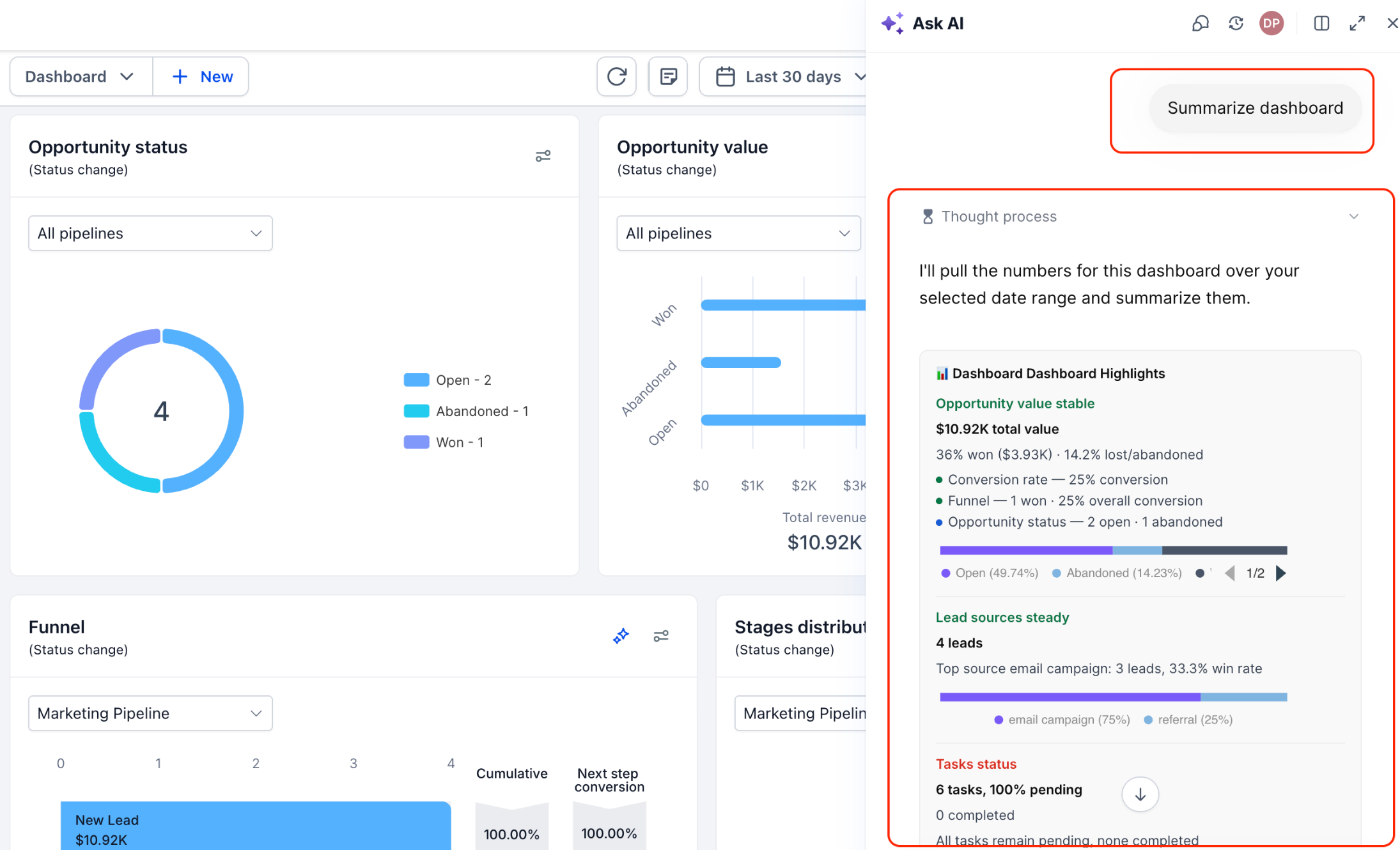
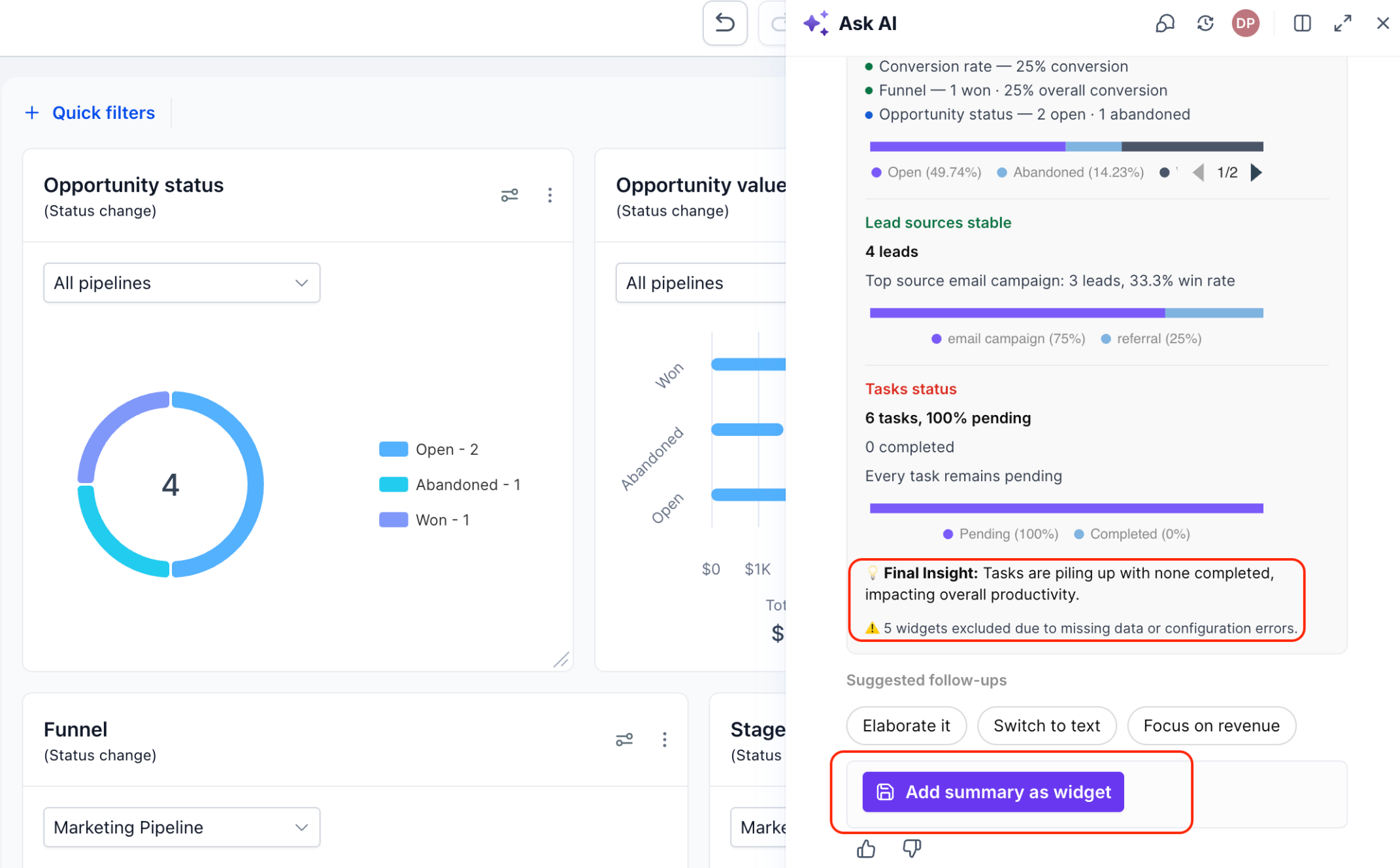
HighLevel opens the Ask AI panel and generates a summary based on the dashboard's selected date range and applicable filters.
Depending on the available dashboard data, the summary may highlight:
Opportunity values, statuses, and conversion rates.
Lead source performance and distribution.
Task completion and pending activities.
Sales efficiency and other relevant module metrics.
Important trends, potential risks, and performance highlights.
Dashboard Summary AI evaluates the available widgets and groups related insights by module, helping you understand overall performance without reviewing every chart individually.
Generated AI Insights
AI-generated insights help you understand more than the numbers displayed on your dashboard. By identifying meaningful patterns and providing context around important metrics, these insights help you determine where further investigation or action may be needed.
Depending on the available data, generated insights may include:
Performance Highlights: Important metrics indicating positive results or improvements.
Potential Risks: Unfavorable trends, incomplete tasks, or metrics requiring attention.
Metric Breakdowns: Supporting figures that provide context for the overall performance summary.
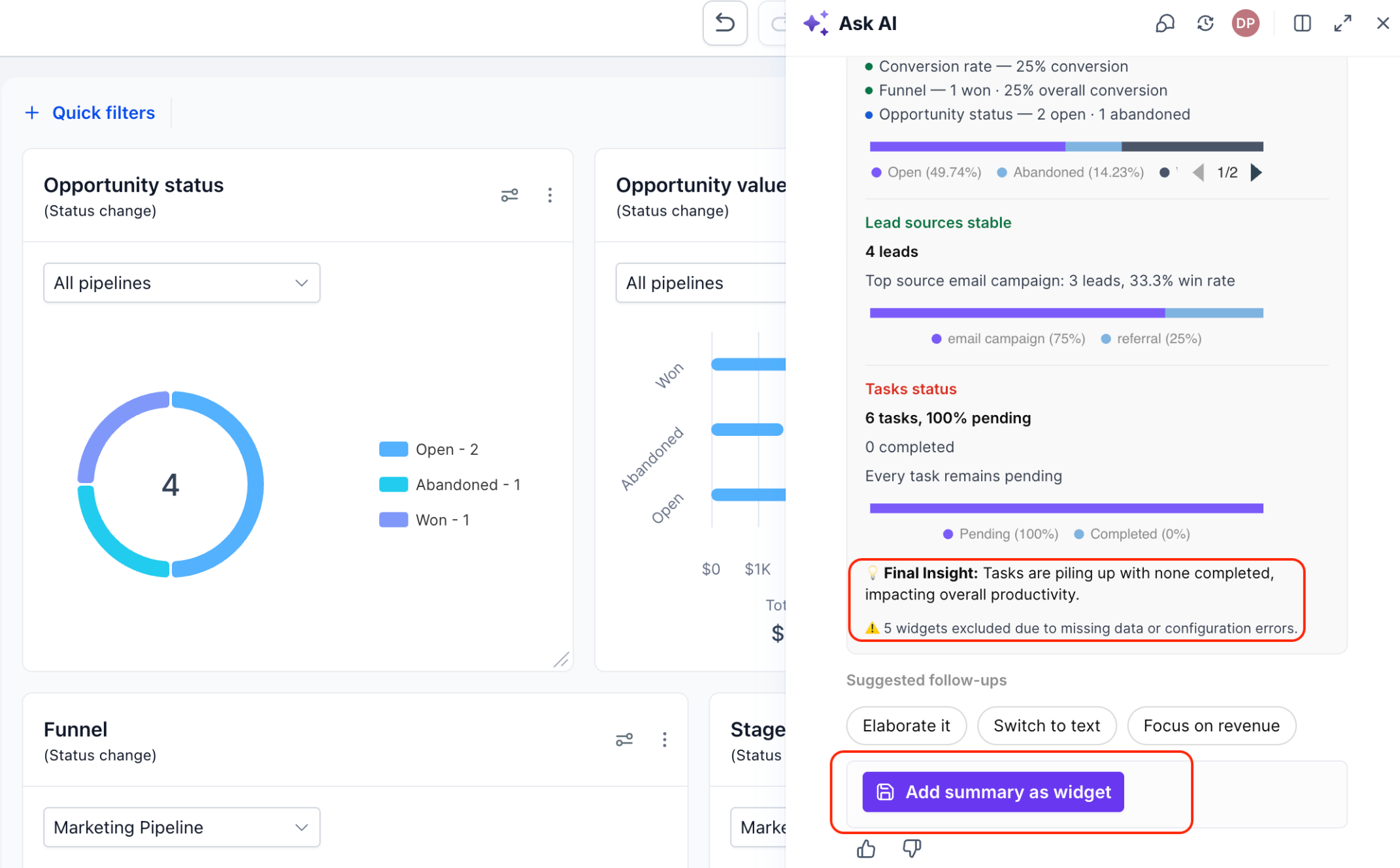
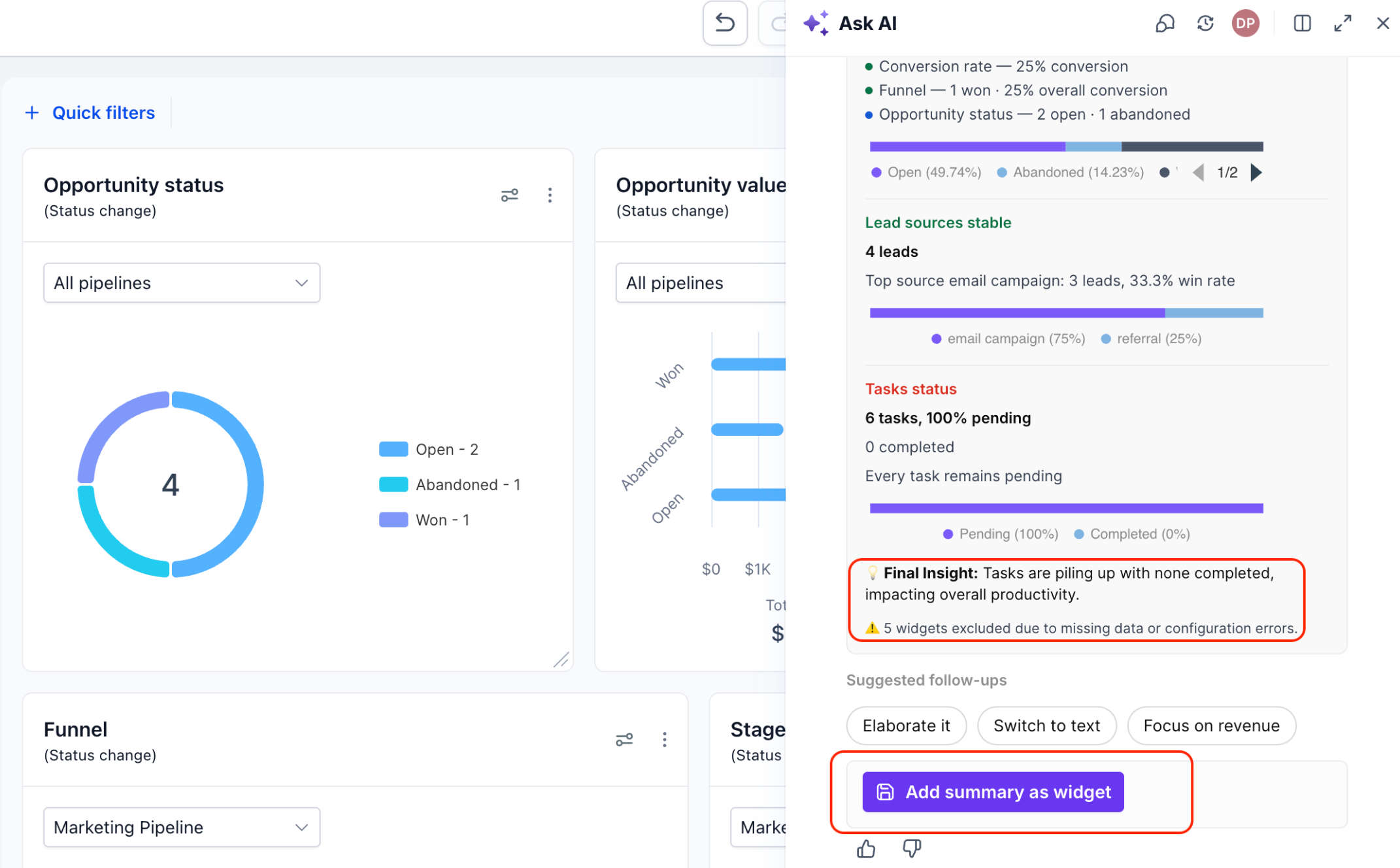
Final Insight: A concluding observation highlighting a significant finding across the analyzed dashboard information.
For example, if your dashboard contains a large number of pending tasks and no completed tasks, the summary may highlight this as an area requiring attention.
You can use these insights to guide further analysis, review individual widgets, or ask Ask AI for additional details.
AI-generated insights should be reviewed alongside the underlying dashboard metrics when making important business decisions.
Visual and Text Summary Formats
Dashboard Summary AI supports visual and text-based formats so you can review performance information in the way that works best for your needs. Visual summaries help you identify important metrics quickly, while text summaries provide a structured written explanation of the analyzed data.
Visual Summary
The Visual format presents important findings through insight cards and compact graphical representations.
Depending on the available information, these may include:
A headline describing the performance signal.
A key metric or performance figure.
Supporting context explaining the result.
A visual breakdown showing relevant metric distribution.
A final insight highlighting an important finding.
Visual summaries are useful when you want to quickly scan dashboard performance and identify areas that need attention.
Text Summary
The Text format provides a written breakdown of dashboard performance organized by relevant modules.
For example, the summary may present separate explanations for Opportunities, Lead Sources, Tasks, and other available modules.
Text summaries are useful when you need a descriptive overview for performance reviews or further analysis.
Both formats include a final insight highlighting an important takeaway.
You can change the summary format using the available Ask AI follow-up suggestions or the Format option in Summary settings.
Suggested Follow-Ups and Dig Deeper
Suggested follow-ups make it easier to explore AI-generated insights without writing a new prompt each time. Ask AI provides contextual suggestions based on the current summary, allowing you to adjust its presentation or investigate specific areas of dashboard performance.
Suggested Follow-Ups
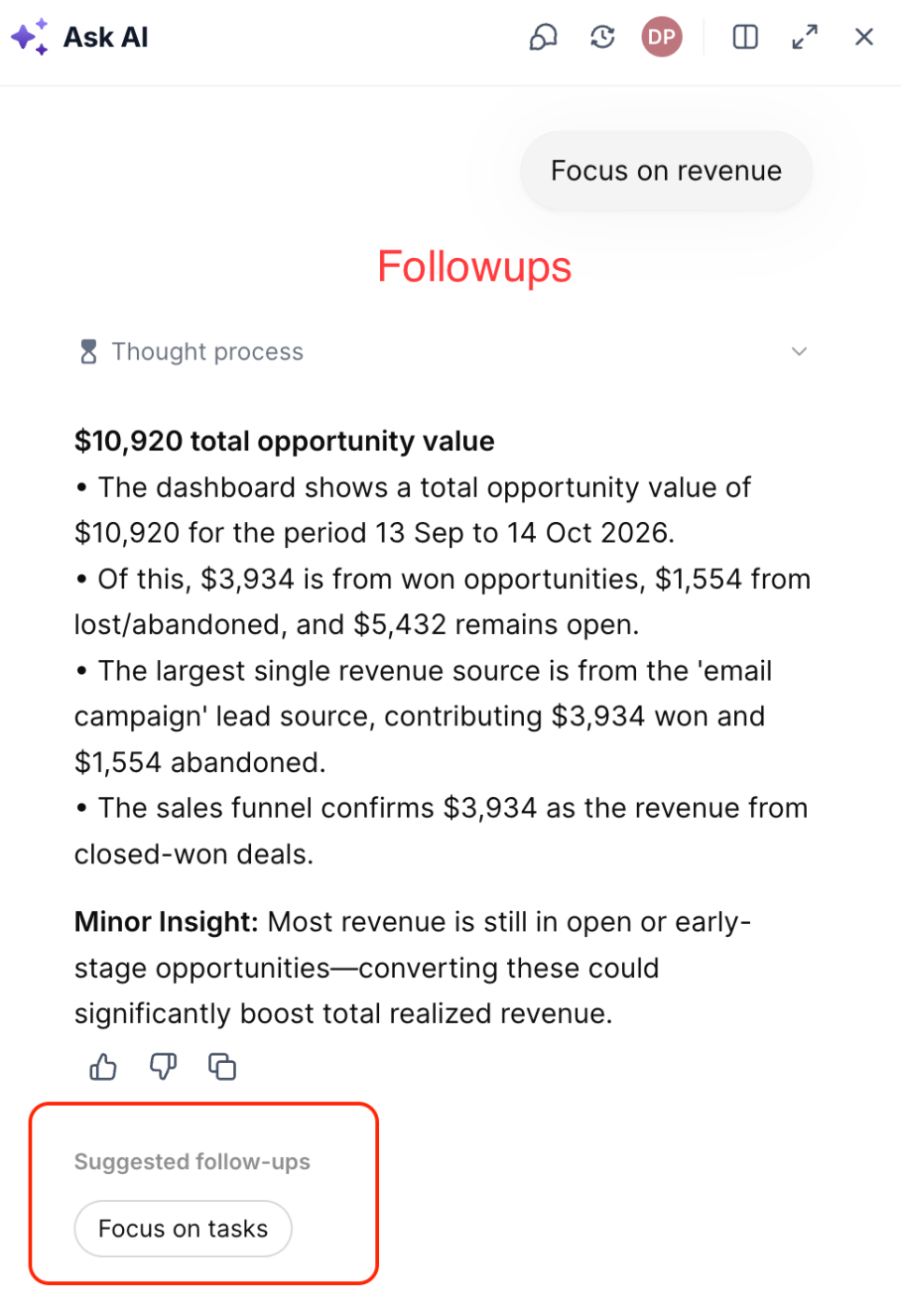
After generating a dashboard summary, Ask AI may display suggestions such as:
Elaborate it: Request a more detailed explanation of the generated summary.
Make it shorter: Condense the summary into a shorter overview.
Switch to text / visual: Change how the summary is presented.
Focus on revenue: Explore revenue-related metrics and opportunities.
Focus on tasks: Investigate task completion and pending activities.
Available suggestions may change depending on the summary and the current conversation.
Click a suggested follow-up to continue the analysis within Ask AI.
Dig Deeper
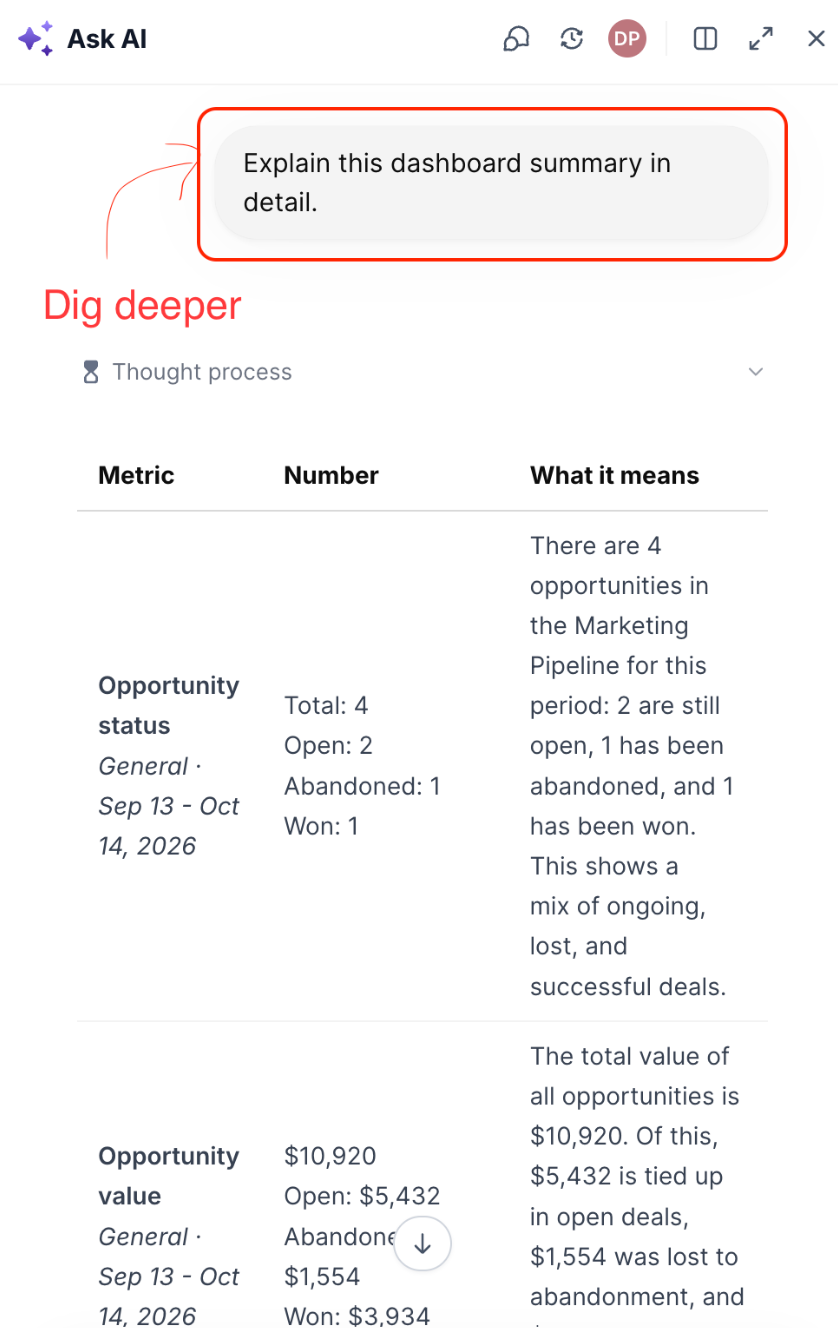
The Dig deeper action provides additional analysis of information contained in the summary.
For example, if the summary identifies a change in opportunity performance, Dig deeper can provide a more detailed explanation of the relevant opportunity metrics.
To investigate an insight:
Locate the AI-generated summary or saved summary widget.
Click Dig deeper.
Review the additional analysis generated in Ask AI.
Ask further questions or use suggested follow-ups to explore specific metrics.
This helps you move from a high-level performance overview to a more detailed understanding of the underlying dashboard information.
Dashboard Summary Widget
The Dashboard Summary Widget allows you to save an AI-generated summary directly to your dashboard. Unlike a temporary chat-based summary, the saved widget remains available when you return to the dashboard, making it easier to review important insights without generating a new summary every time.
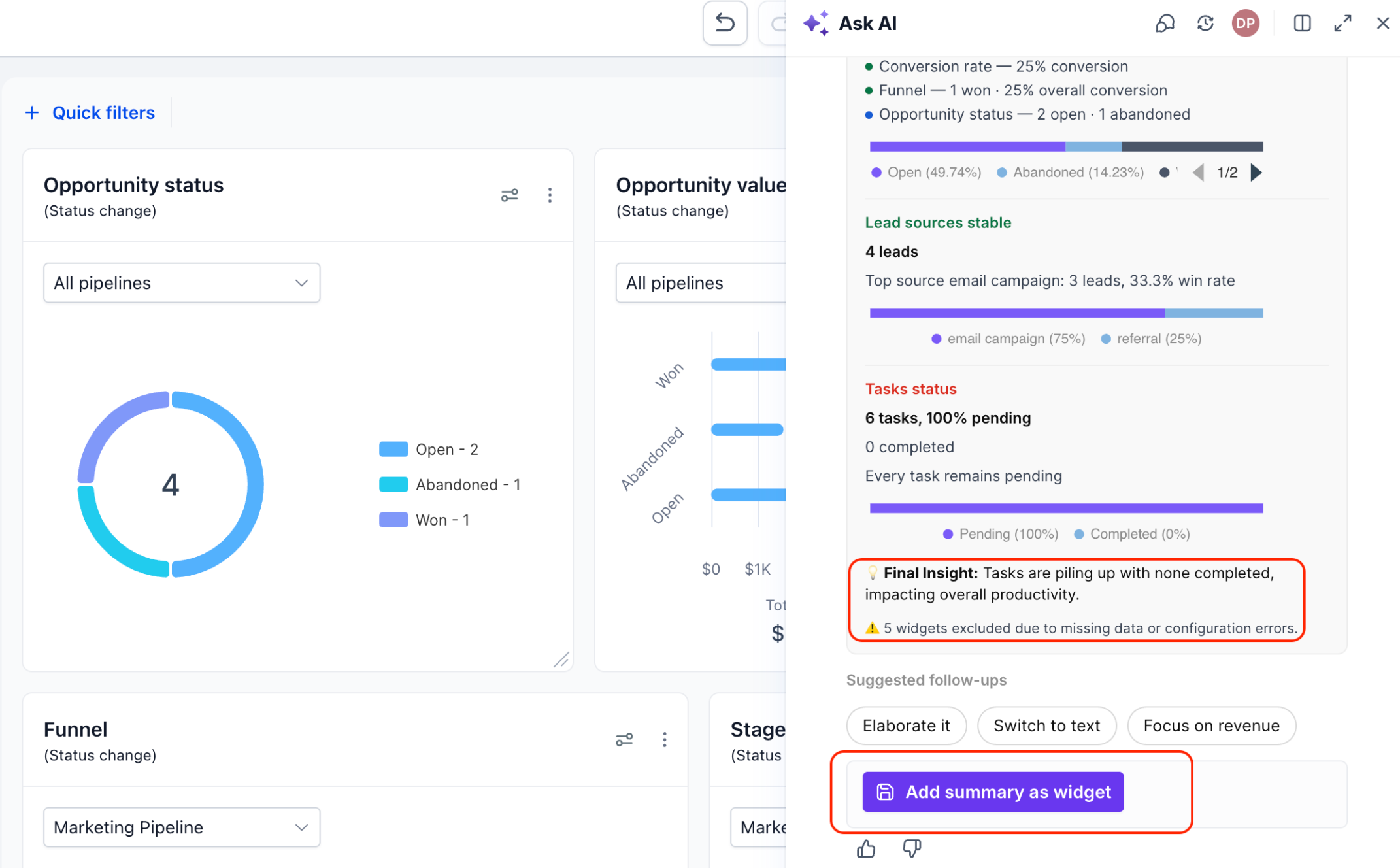
After generating a dashboard summary in Ask AI, click Add summary as widget.
The summary is added to the current dashboard and can be viewed alongside your existing widgets.
The saved summary widget displays important metrics, module-based insights, and supporting information based on the available dashboard data.
Important: Only one AI Summary Widget can be added to each dashboard. The widget also provides controls for refreshing the summary, adjusting its settings, and exploring the generated insights in greater detail.
Summary Refresh and Data Filters
Dashboard Summary AI keeps saved summaries relevant by updating the analyzed information as dashboard data changes. Understanding when summaries refresh helps ensure you are reviewing insights for the intended reporting period and selected filters.
Automatic Daily Refresh
A saved Dashboard Summary Widget automatically refreshes once per day when the dashboard is first opened.
This provides updated insights without requiring you to manually regenerate the summary on every visit.
Manual Refresh
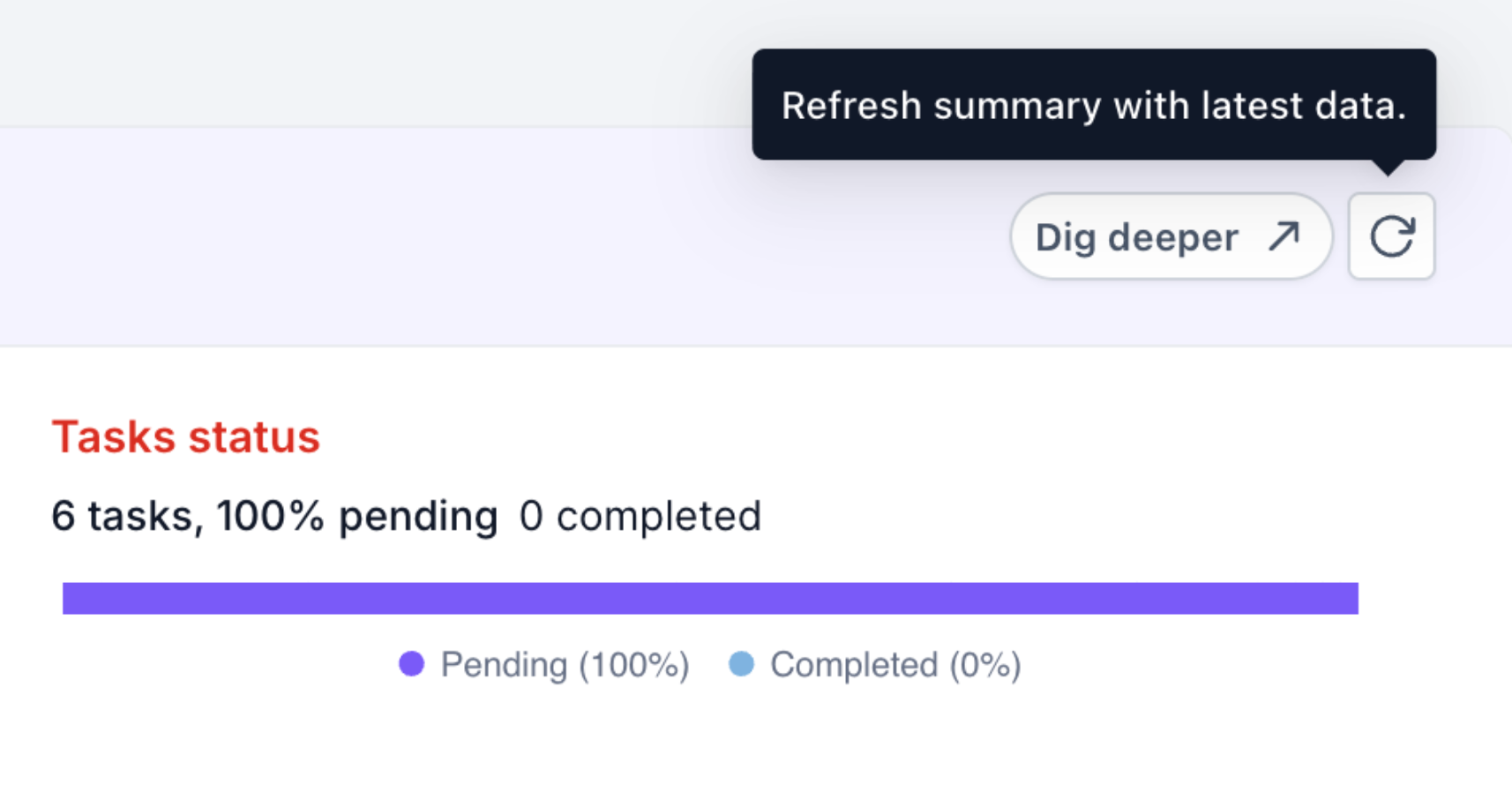
You can manually refresh the summary whenever you want to retrieve the latest available dashboard data.
To refresh a saved summary:
Open the dashboard containing the AI Summary Widget.
Locate the Refresh icon on the summary widget.
Click the icon to update the summary using the latest available data.
Date Range and Quick Filter Updates
Dashboard Summary AI also updates when the dashboard's selected date range or applicable quick filters change.
For example, changing the dashboard from Last 30 days to another reporting period updates the summary to reflect the selected date range.
Quick filters affect compatible dashboard widgets based on their supported data sources and configurations. The AI summary reflects the applicable filtered data rather than assuming every widget is affected by every filter.
For more information about dashboard filtering behavior, see Quick Filters on Dashboards.
Summary Settings
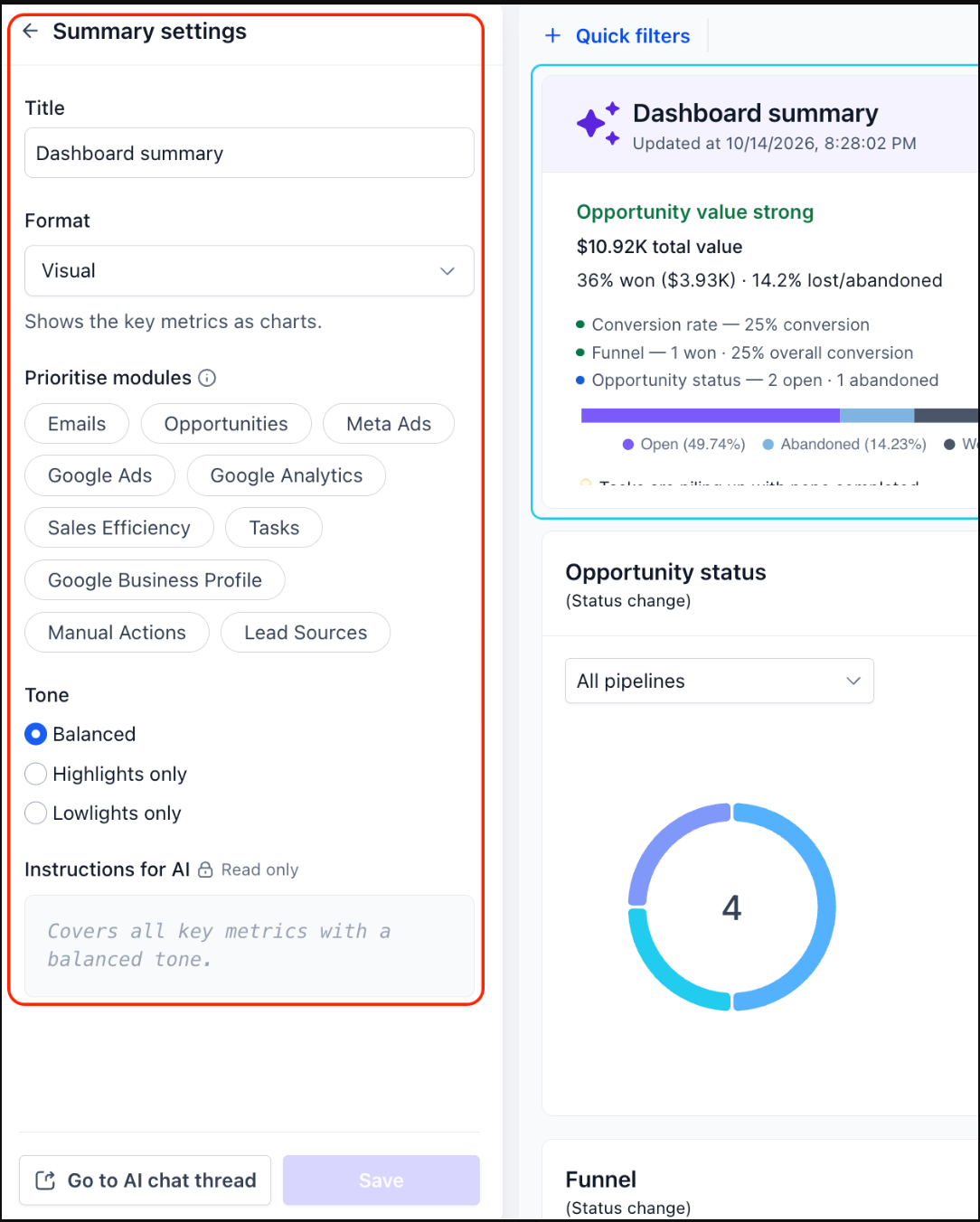
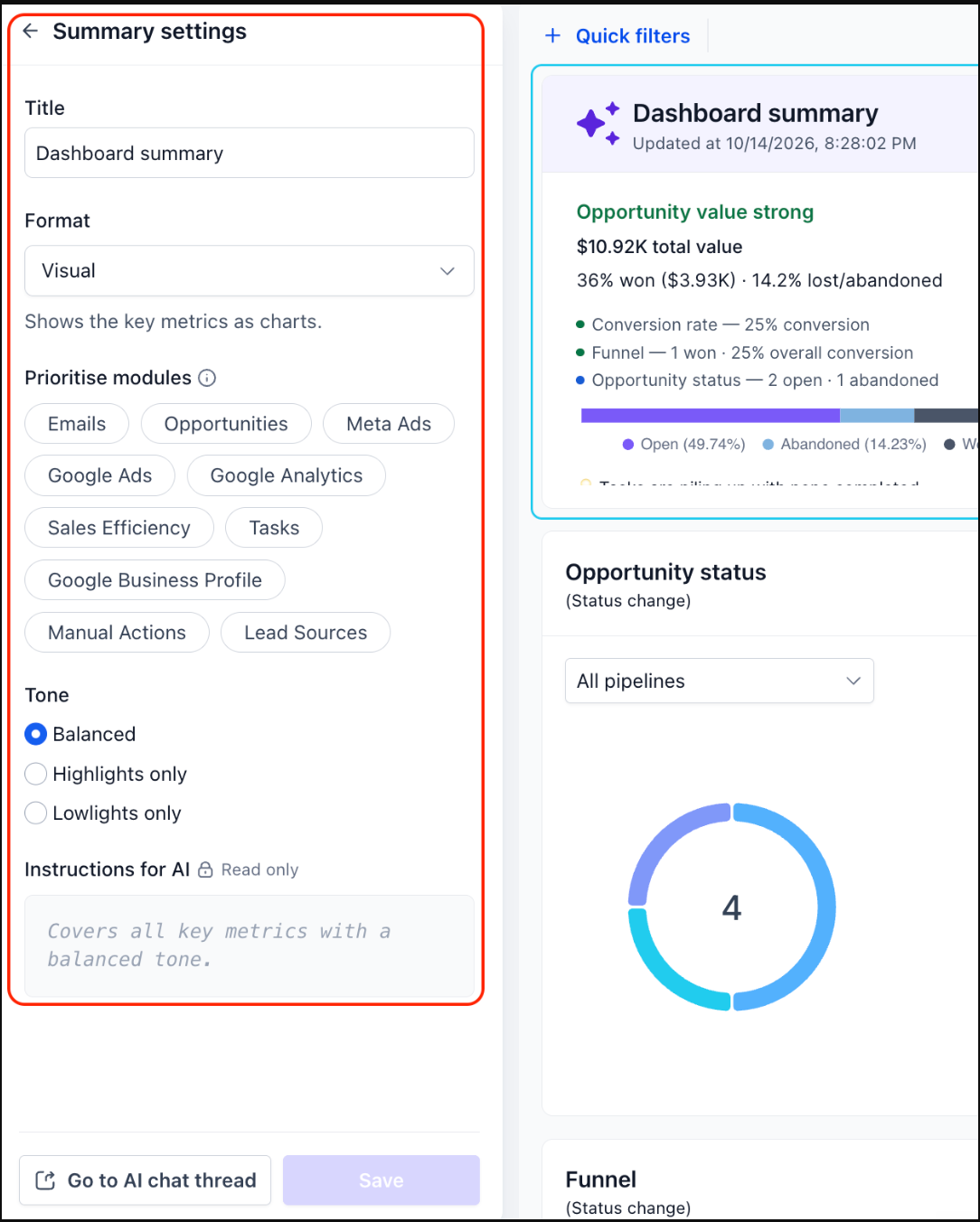
Summary settings allow you to customize how Dashboard Summary AI presents and prioritizes information. By adjusting the title, format, module priorities, and tone, you can make the summary more relevant to the metrics and performance areas that matter most to your business.
The available settings include:
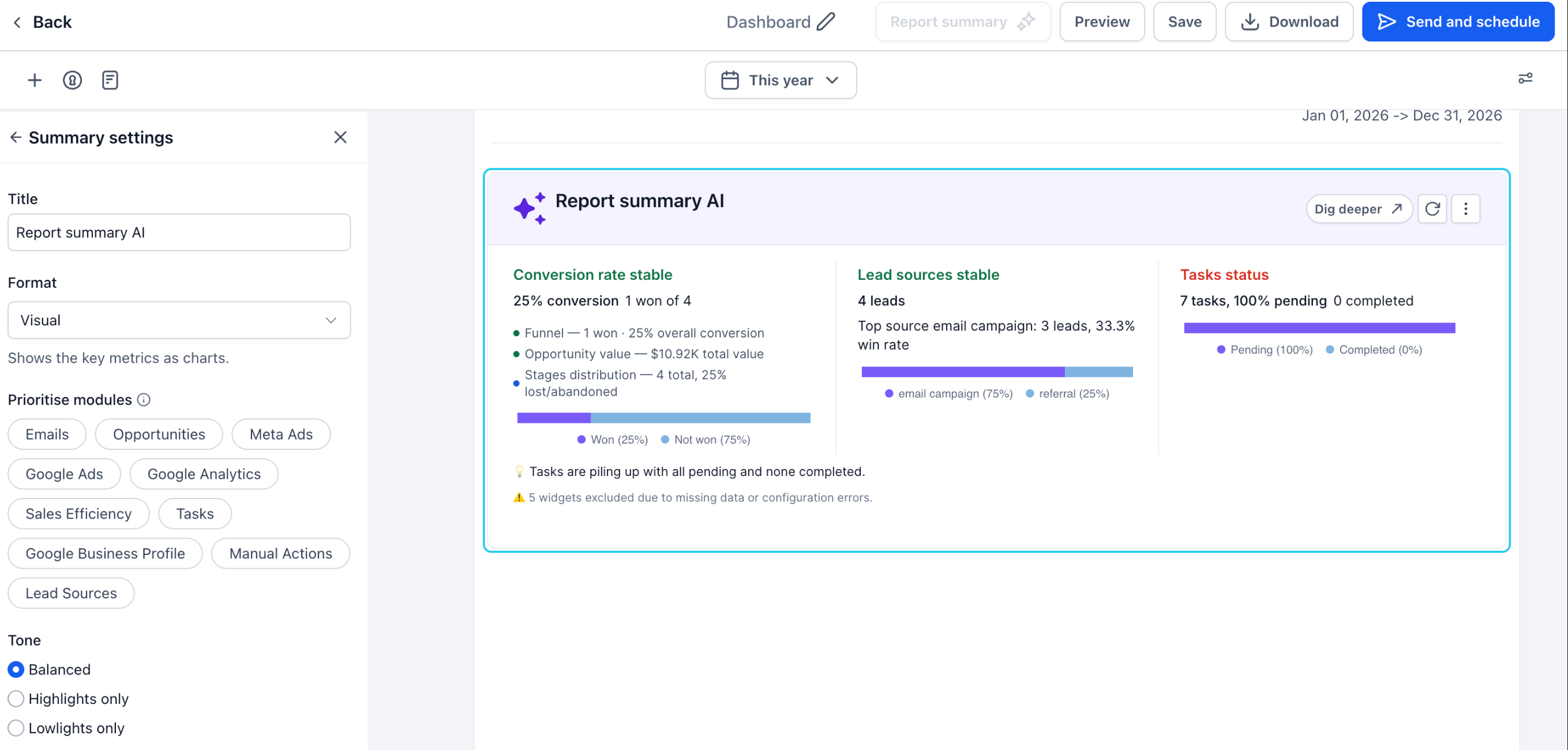
Title: Customize the name displayed on the summary widget to make it easier to identify.
Format: Choose how the summary presents its insights.
Visual: Displays key metrics and insights using charts and visual breakdowns.
Text: Provides a written summary organized by relevant modules.
Prioritise Modules: Select the modules you want the AI summary to prioritize.
Available modules shown in the current interface include:
Emails
Opportunities
Meta Ads
Google Ads
Google Analytics
Sales Efficiency
Tasks
Google Business Profile
Manual Actions
Lead Sources
Prioritizing modules helps direct the summary toward the information most relevant to your reporting goals.
Tone: Choose how the summary emphasizes performance findings.
Balanced: Includes both positive results and areas requiring attention.
Highlights only: Emphasizes positive performance findings.
Lowlights only: Focuses on areas needing improvement.
Instructions for AI: The Instructions for AI field is currently displayed as read-only in the demonstrated release.
Custom instructions that allow users to define additional summary guidance are planned for a future update.
Go to AI Chat Thread: Use Go to AI chat thread to open the associated Ask AI conversation and continue exploring the summary.
Excluded Widgets and Missing Data
Dashboard Summary AI relies on available and correctly configured dashboard information to generate meaningful insights. If certain widgets contain missing data or configuration errors, they may be excluded from the generated summary to avoid presenting incomplete or misleading information.
When this happens, the summary displays a warning indicating that some widgets were excluded.
For example, the warning may indicate that five widgets were excluded because of missing data or configuration errors. The number depends on the dashboard and its available data.
If your summary reports excluded widgets:
Review the dashboard widgets for missing data.
Check the relevant widget configurations and data sources.
Confirm that the selected date range and applicable filters are appropriate.
Correct any identified configuration issues.
Refresh the summary to analyze the available dashboard data again.
For additional guidance on widget configuration, see Customizing Dashboard Widgets.
Widget-Level AI Summaries
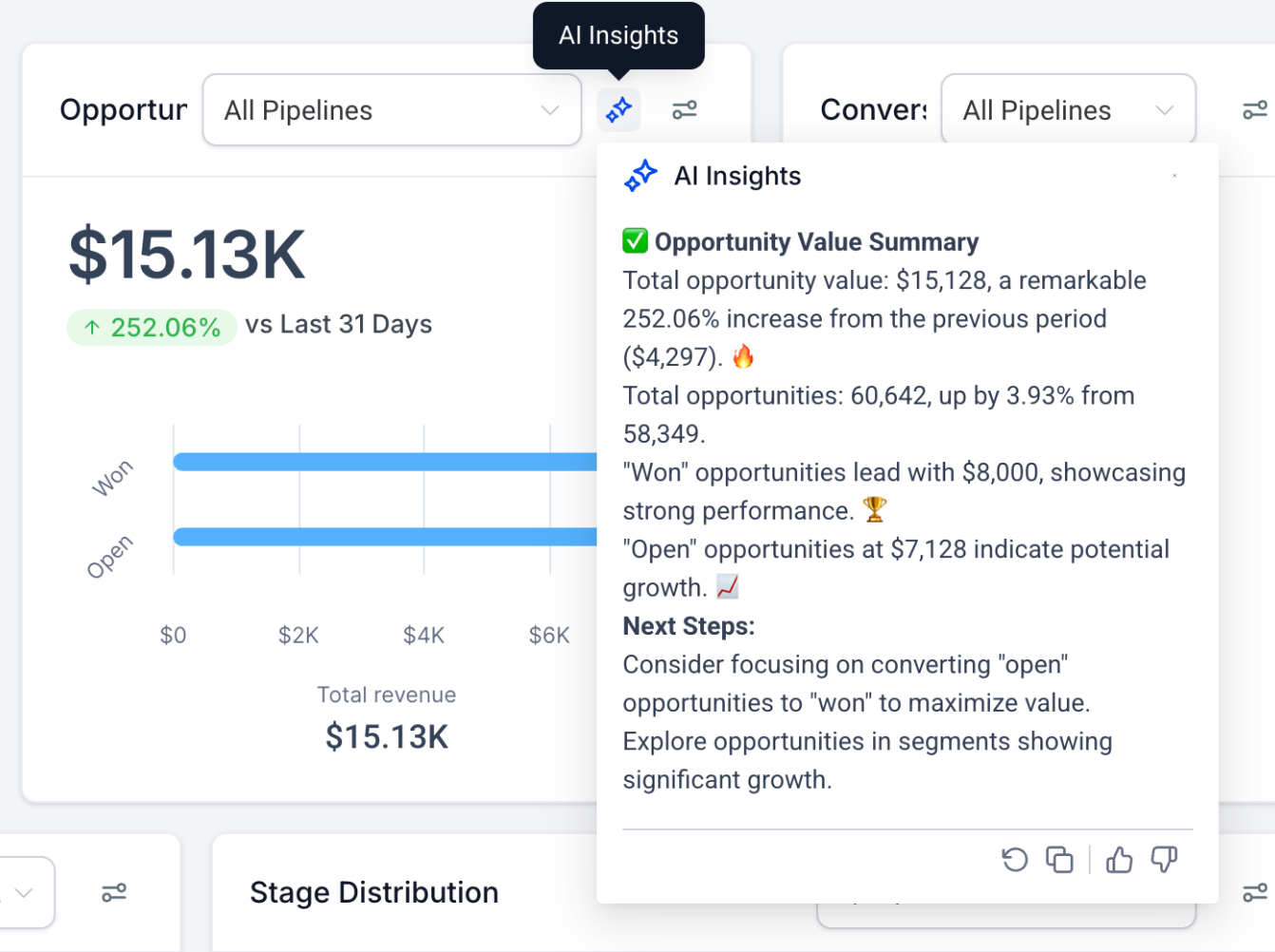
Widget-level AI summaries provide focused insights into individual charts, tables, or KPI widgets. This is useful when you want to investigate a specific metric, identify an unusual result, or better understand the information displayed in a particular widget.
To generate a widget-level insight:
Open the dashboard containing the widget you want to analyze.
Hover over the chart, table, or KPI widget.
Select the available AI icon.
Review the AI-generated insight for that widget.
Widget-level insights can help identify outliers, review trends, and understand specific performance metrics without navigating through multiple reports.
These insights complement dashboard-wide summaries by allowing you to focus on individual metrics when additional detail is needed.
To create or configure dashboard widgets, see How to Create & Add Dashboard Widgets.
Report Summary AI
Report Summary AI extends AI-powered analysis to custom reports, helping users understand important reporting metrics without manually reviewing every report component. It provides a consolidated view of key findings and supports a shorter summary on the report's title page.
Report Summary AI supports capabilities similar to Dashboard Summary AI, including:
AI-generated report insights.
Visual and text summary formats.
Module prioritization.
Balanced, Highlights only, and Lowlights only tone options.
Dig deeper for additional analysis.
A TL;DR overview on the report's title page.
Within the custom report editor, the Report Summary AI component includes settings for customizing its title, format, module priorities, and tone.
For instructions on creating and managing custom reports, see How to Create a Custom Report, Schedule and Export as PDF.
How to Set Up and Use Dashboard Summary AI
Proper setup helps ensure Dashboard Summary AI can access the intended dashboard data and generate relevant insights. After confirming that Ask AI is available for your account, you can create a summary, explore its findings, add it to your dashboard, and customize how the saved summary appears.
Step 1: Access Dashboard Summary AI
Log in to your HighLevel Sub-Account.
Navigate to Dashboards.
Open the dashboard you want to analyze.
Select the appropriate date range and apply any relevant quick filters.
Click Dashboard summary in the dashboard header.
Step 2: Generate and Review the Dashboard Summary
The Ask AI panel opens with the dashboard summary request.
Ask AI analyzes the available dashboard metrics based on the selected date range and applicable filters.
Review the generated summary for important findings, performance highlights, and potential risks.
Check the final insight and any warnings about excluded widgets.
Step 3: Explore Insights Using Follow-Ups
Review the suggested follow-up options beneath the summary.
Select an option such as Elaborate it, Switch to text, or Focus on revenue.
Review the additional information generated by Ask AI.
Continue using suggested follow-ups or enter your own question.
Step 4: Add the Summary as a Dashboard Widget
Return to the generated dashboard summary in Ask AI.
Click Add summary as widget.
Locate the saved summary on your dashboard.
Review the summary alongside the other dashboard widgets.
Only one AI Summary Widget can be added per dashboard.
Step 5: Customize the Summary Settings
Open the Summary settings for the saved widget.
Update the Title if needed.
Select the preferred Format.
Choose the modules to prioritize.
Select a Tone: Balanced, Highlights only, or Lowlights only.
Click Save to apply your changes.
You can also use Go to AI chat thread to return to the related Ask AI conversation.
Step 6: Refresh or Investigate the Summary
Open the dashboard containing the saved summary.
Review the latest available insights.
Click Refresh if you want to manually update the summary.
Use Dig deeper to investigate specific findings.
Adjust the dashboard date range or applicable quick filters when you need insights for a different reporting view.
The saved summary also refreshes automatically once per day when the dashboard is first opened.
Important Notes
Dashboard Summary AI requires Ask AI to be enabled for the account.
The enhanced dashboard summary experience is not currently available on mobile dashboards.
A maximum of one AI Summary Widget can be added to each dashboard.
Widgets with missing data or configuration errors may be excluded from the generated summary.
Frequently Asked Questions
Q: Can I add multiple AI Summary Widgets to the same dashboard?
No. Each dashboard supports one AI Summary Widget. You can customize the existing summary widget using its settings.
Q: Will my saved summary remain available after I close Ask AI?
Yes. Once you select Add summary as widget, the summary remains on your dashboard and is accessible on subsequent visits.
Q: Does the saved summary automatically update throughout the day?
The widget automatically refreshes once per day on the first dashboard open. You can manually refresh it when needed, and it also updates when the dashboard date range or applicable quick filters change.
Q: Why are some dashboard widgets missing from my AI summary?
Widgets with missing data or configuration errors may be excluded. Review the warning displayed in the summary and check the affected dashboard widgets.
Q: Can I create my own custom instructions for Dashboard Summary AI?
Custom AI instructions are planned for a future update. The Instructions for AI field is read-only in the demonstrated release.
Q: Is Dashboard Summary AI available on mobile dashboards?
Not currently. The enhanced Dashboard Summary AI experience is not yet available on mobile dashboards.
Q: Can I use Dashboard Summary AI to focus on a specific area of my business?
Yes. You can prioritize relevant modules in Summary settings, select an appropriate tone, or use Ask AI follow-ups such as Focus on revenue or Focus on tasks.
Q: Is Report Summary AI the same as the Dashboard Summary Widget?
Both provide AI-generated performance insights, but they are used in different places. Dashboard Summary AI analyzes dashboards, while Report Summary AI provides summaries within custom reports.
Related Articles
Was this article helpful?
That’s Great!
Thank you for your feedback
Sorry! We couldn't be helpful
Thank you for your feedback
Feedback sent
We appreciate your effort and will try to fix the article