Use Conversation AI in HighLevel to generate a summary and transcript after a conversation becomes inactive. This helps teams review interactions faster, route important details to internal records, and notify the right users without reading every message manually. With the right setup, you can also send the summary or transcript into a workflow so it can be saved for future reference.
TABLE OF CONTENTS
- What is Conversation Summary and Transcript?
- Key Benefits of Conversation Summary and Transcript
- Conversation Summary Settings
- Available settings
- Send the Summary or Transcript to a Workflow
- Send the Summary by Email
- Frequently Asked Questions
What is Conversation Summary and Transcript?
Conversation Summary and Transcript help you capture what happened during a Conversation AI interaction after the conversation has been inactive for a set amount of time. A summary gives you a condensed overview of the conversation, while a transcript provides the full message history that can be used for recordkeeping, internal follow-up, or workflow automation.
- Conversation Summary: A shortened overview of the key points from the interaction.
- Conversation Transcript: A fuller record of the conversation that can be used in workflows and internal documentation.
By default, conversation summaries are turned off. Also, generated summaries are not automatically stored in the CRM unless you send them somewhere, such as a workflow action or email notification.
Key Benefits of Conversation Summary and Transcript
Conversation summaries and transcripts make it easier to review conversations, share outcomes internally, and keep important details from being lost. This is especially helpful for teams managing large volumes of conversations across leads, customers, and assigned users.
Faster review: Quickly understand the outcome of a conversation without reading every message.
Better internal visibility: Send summaries to admins, users, or assigned owners so the right people stay informed.
Improved recordkeeping: Save summaries or transcripts into workflows for notes, follow-up, or documentation.
More efficient follow-up: Use captured conversation details to guide the next action for your team.
Flexible automation: Route generated summaries and transcripts into workflow steps based on your process.
Conversation Summary Settings
The Conversation Summary settings control when a summary is generated and where it can be sent. Properly configuring these options helps ensure the summary is created at the right time and delivered to the correct destination.
To enable conversation summaries:
Navigate to AI Agents > Conversation AI.
Select an existing bot or create a new one.
Open the Bot Goals tab.
Turn on Enable Conversation Summary.
By default, no summary will be generated for the conversation. The toggle has to be switched on to generate a summary.

Also, by default, the summary will not be saved anywhere. The summary needs to be sent somewhere and/or saved in a separate action to be retained.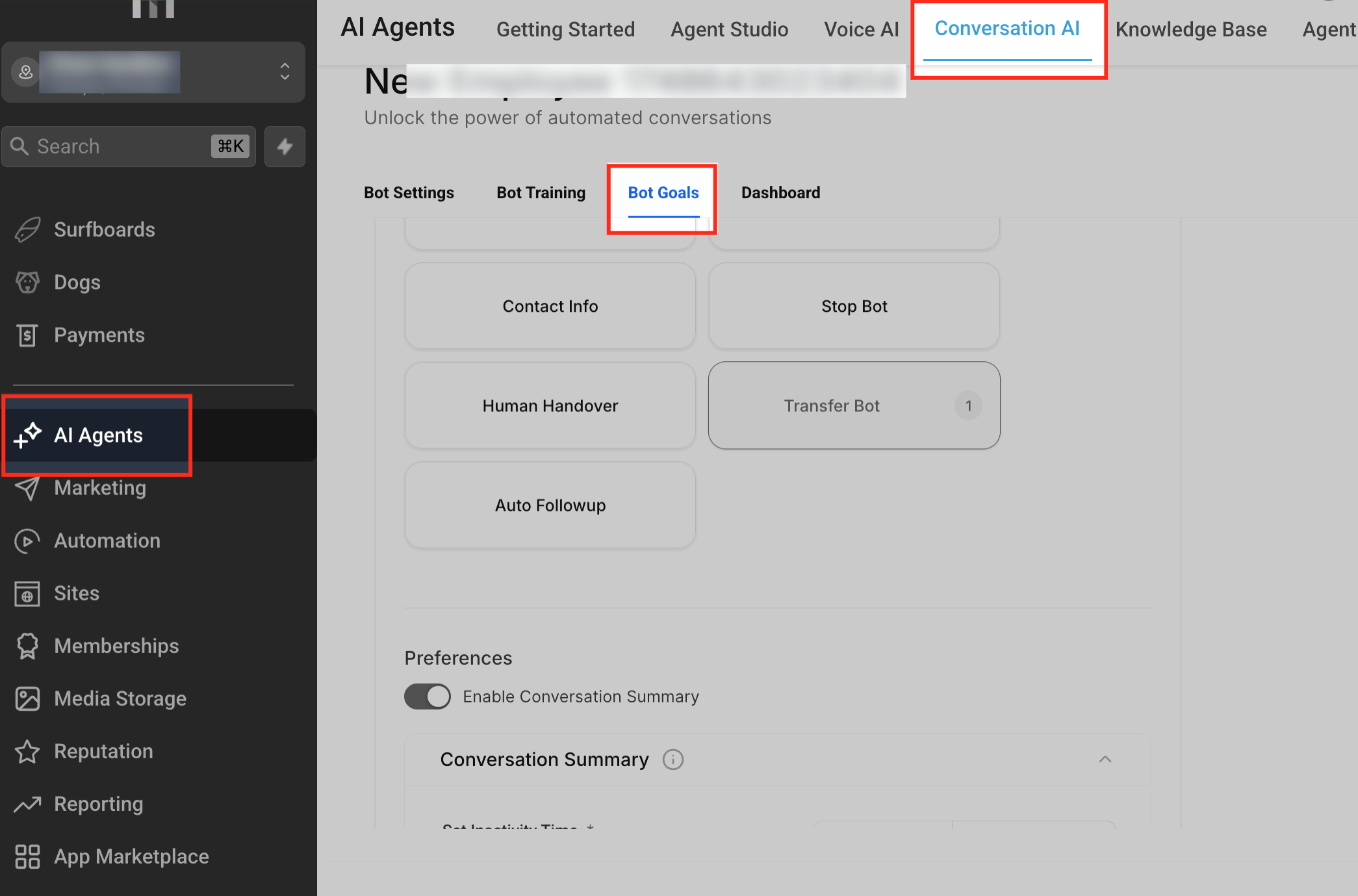
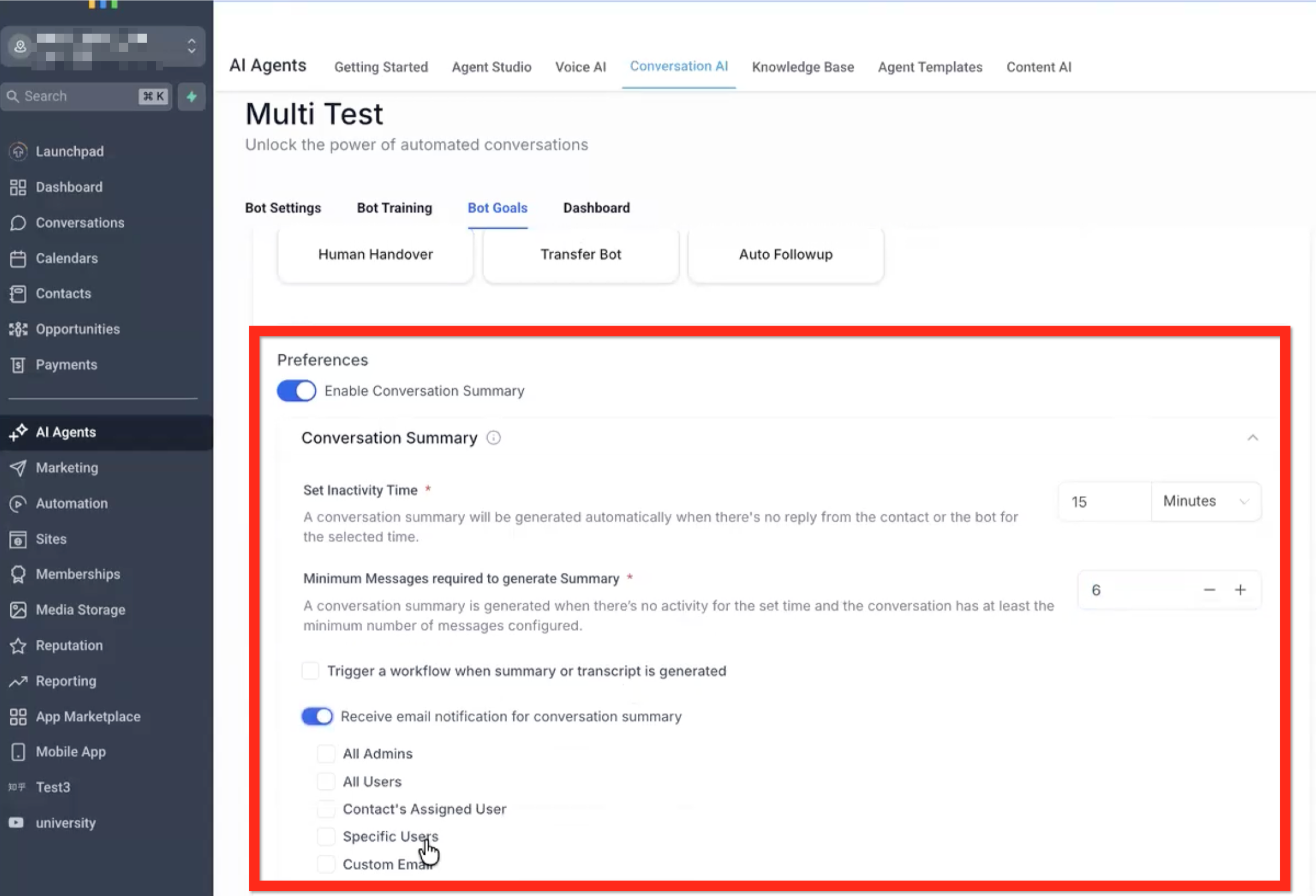
Available settings
Set Inactivity Time
This setting determines how long the conversation must remain inactive before a summary is generated. For example, if the inactivity time is set to 15 minutes, HighLevel waits until there are no new messages from the contact or the bot for 15 minutes before generating the summary.
Minimum Messages Required to Generate Summary
This setting prevents summaries from being created for very short conversations. If the total conversation message count is below the configured minimum, no summary will be generated even after the inactivity time has passed.
Trigger a Workflow When Summary or Transcript is Generated
Use this option when you want to send the generated output into a workflow. This is especially useful if you want to save the summary or transcript to a note, internal log, or other CRM-related action.
Receive Email Notification for Conversation Summary
This option sends the generated conversation summary by email. You can choose one or more recipients from the available options:
All Admins
All Users
Contact’s Assigned User
Specific Users
Custom Email
Conversation Summary Settings
Set inactivity time - For example, 15 minutes with no messages from user or bot. This is an additional way to put this bot to sleep (on top of the Bot Settings > Max Messages, or Conversations > switch bot to inactive, Bot Goals > Stop Bot, etc). Conversation AI - Bot Inactive (Sleep) Conditions
Minimum messages required to generate summary - If the conversation has fewer total messages than this minimum a summary will not be generated even when the inactivity time expires.
Trigger a workflow - Select workflow from dropdown. This is required if you want to save the summary in the CRM and this workflow must be triggered from the Conversation AI.
In Automation -> Workflows create a workflow without a trigger.
Add an action (ex: Add To Note).
Add merge fields like Conversation AI-> Summary and Conversation AI -> Transcript
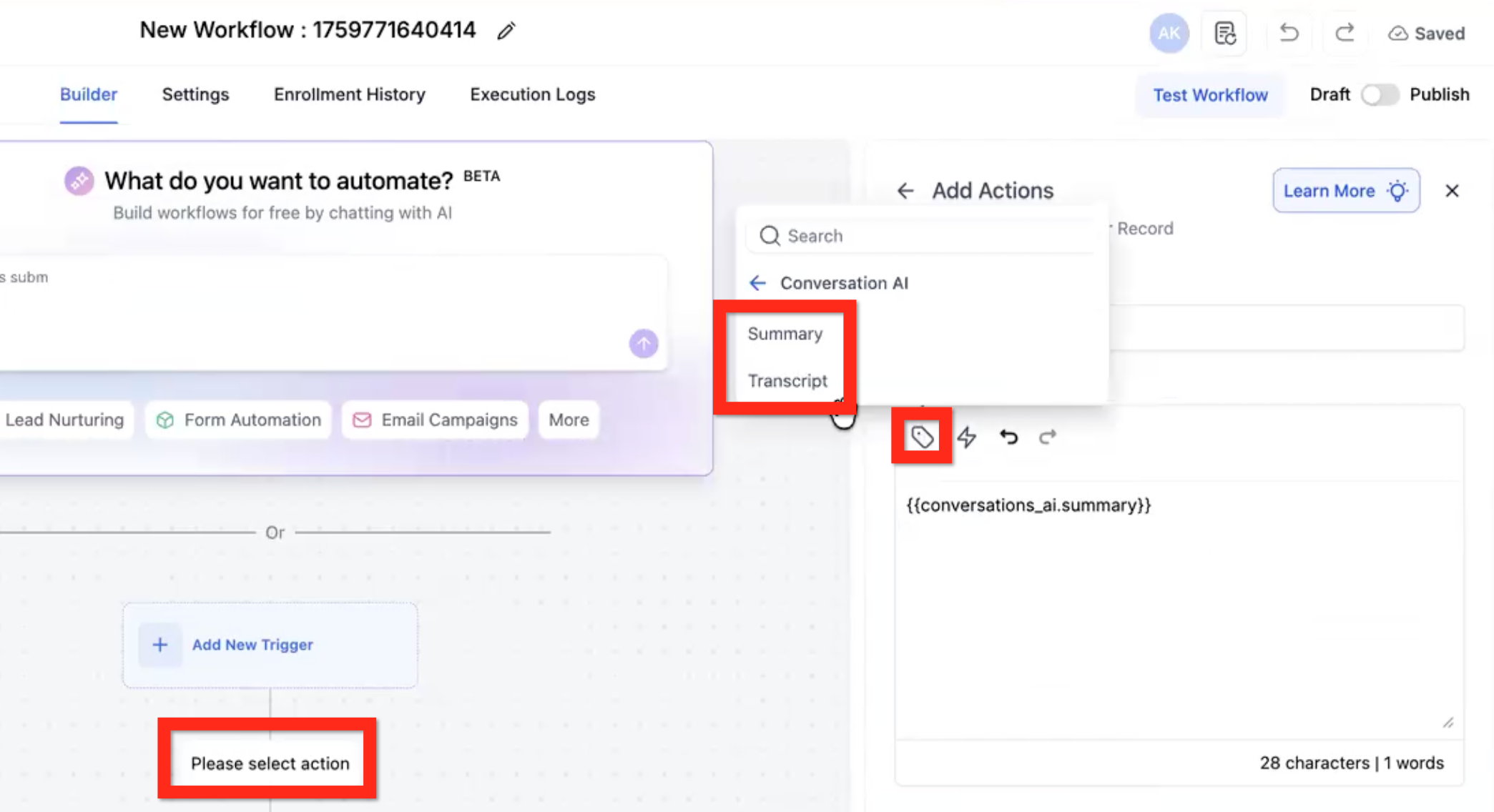
Receive email notification for conversation summary - Select none, one, or many recipients (all admins, all users, contact's assigned user, specific users, custom email).
Send the Summary or Transcript to a Workflow
Go to Automation > Workflows.
Create a new workflow.
Leave the workflow without a standard trigger if your process requires it to be triggered directly from Conversation AI.
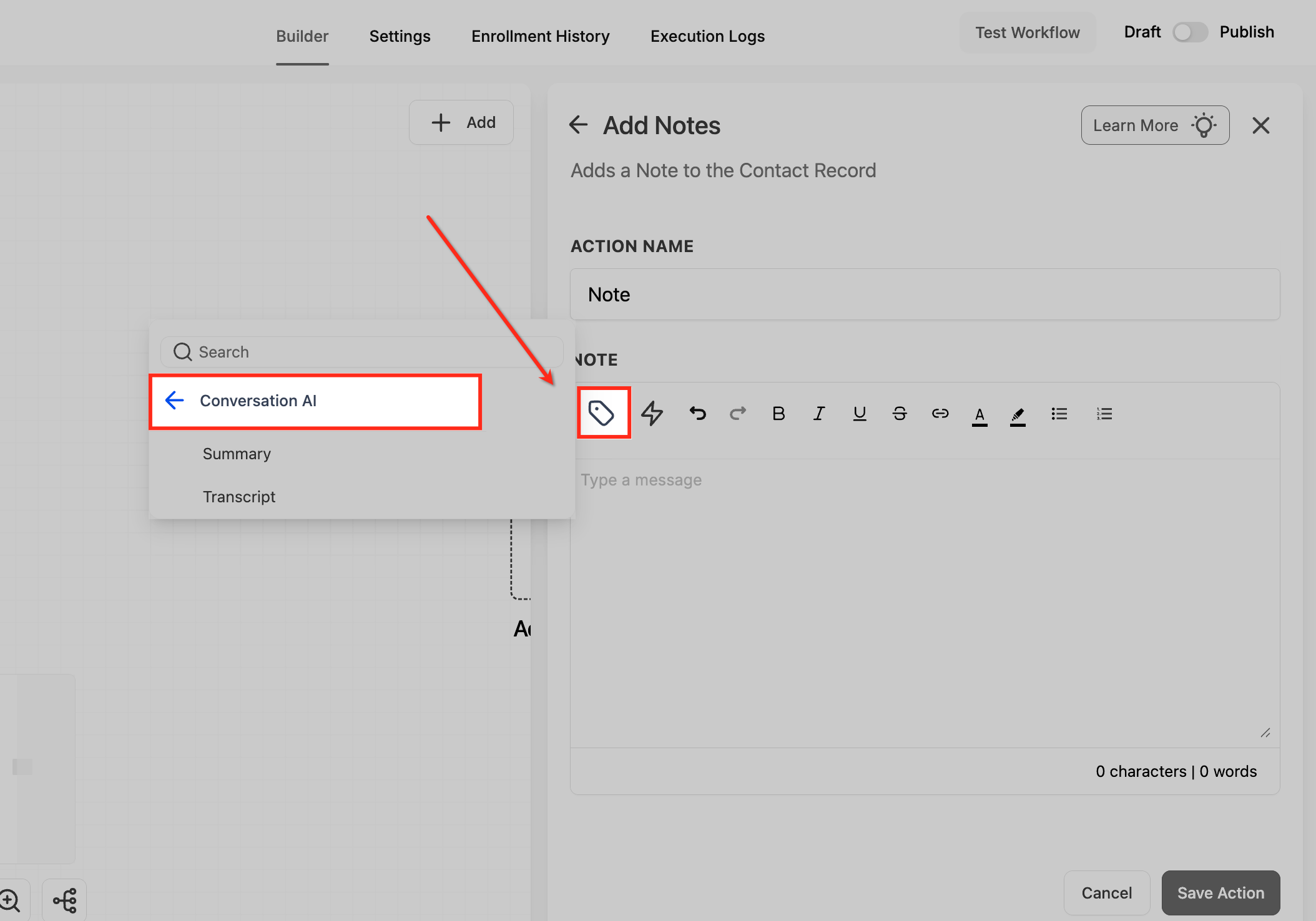
Add an action such as Add To Note.
In the action content, insert the appropriate merge fields:
Conversation AI > Summary
Conversation AI > Transcript
Return to the bot’s Conversation Summary settings.
Enable Trigger a workflow when summary or transcript is generated.
Select the workflow from the dropdown.
Send the Summary by Email
In the bot’s Conversation Summary settings, turn on Receive email notification for conversation summary.
Select one or more recipients:
All Admins
All Users
Contact’s Assigned User
Specific Users
Custom Email
Save your bot settings.
Frequently Asked Questions
Q: What is the difference between a conversation summary and a transcript?
A conversation summary gives a condensed overview of the interaction, while a transcript captures the fuller conversation record.
Q: Are conversation summaries turned on by default?
No. You must enable the Enable Conversation Summary toggle in the bot’s Bot Goals settings.
Q: Is the summary automatically saved in the CRM?
No. A generated summary is not automatically retained unless you send it to a workflow, note, email, or another configured destination.
Q: Will a summary be created for every conversation?
Not always. The conversation must remain inactive for the configured time and meet the minimum message requirement.
Q: Can I use both summary and transcript in the same workflow?
Yes. You can insert both merge fields into workflow actions when you want to capture both a condensed overview and the fuller conversation content.
Q: Can I email the conversation summary to more than one recipient?
Yes. You can select one or more recipient types, including admins, users, assigned users, specific users, or a custom email address.
Q: What happens if the conversation is too short?
If the conversation does not meet the minimum message threshold, no summary will be generated.
Q: Do email notifications include the transcript too?
The setting shown here is specifically for conversation summary email notifications. For transcript retention, use a workflow and add the transcript merge field where needed.
Related Articles
Was this article helpful?
That’s Great!
Thank you for your feedback
Sorry! We couldn't be helpful
Thank you for your feedback
Feedback sent
We appreciate your effort and will try to fix the article