Learn how the Conversation AI Workflow Action interacts with contacts, how to configure its prompt and response settings, how Time Out and No Condition Met routing works, and how to test the workflow before publishing it.
The Conversation AI Workflow Action currently documents SMS, Facebook, Instagram, WhatsApp, and Live Chat as selectable channels. Conversation AI may support additional channels elsewhere in the platform, but broader bot-level channel support does not automatically mean the same channel is available in this workflow action.
2. Key Benefits of the Conversation AI Workflow Action
3. How the Conversation AI Workflow Action Works
4. Conversation AI Configuration Options
5. Before You Begin
6. How To Set Up the Conversation AI Workflow Action
7. How Branches and Conditions Route Contacts
8. How To Test and Publish the Workflow
9. Frequently Asked Questions
10. Related Articles
What Is the Conversation AI Workflow Action?
The Conversation AI Workflow Action adds an AI-powered conversational step to a workflow. It can send the configured question to a contact, wait for the contact's response, continue the AI exchange based on the action settings, and route the contact through different workflow paths.
The AI can use the configured Personality, Additional Instructions, Question, bot training, and conversation history to provide context-aware responses.
Branches allow the workflow to react differently depending on the contact's reply, while built-in fallback paths handle unanswered conversations and responses that do not meet a configured condition.
Key Benefits of the Conversation AI Workflow Action
Combining AI conversations with workflow routing helps automate qualification, follow-up, and decision-making without requiring every contact response to be handled manually.
- Targeted Outreach: Ask a specific question and wait for the contact to respond before continuing the workflow.
- Multi-Turn AI Conversations: Allow the AI to continue responding within the action up to the configured Bot responses limit.
- Smart Routing: Evaluate contact replies against branches and conditions to determine the next workflow path.
- Prompt-Aware Responses: Use bot configuration, training, instructions, the configured question, and conversation context to guide responses.
- Response Controls: Set timeout, wait time, response limits, and Skip if answered behavior.
- Channel Choice: Run the action through one supported communication channel per action.
How the Conversation AI Workflow Action Works
Understanding the action lifecycle makes it easier to choose the right timeout, response limit, and branch conditions. The contact remains inside the action while the AI interaction is active and is routed when one of the configured outcomes is reached.
| Stage | What Happens |
|---|---|
| 1. Action starts | The workflow reaches the Conversation AI action and sends the configured Question through the selected channel. |
| 2. Contact replies | The action waits for the contact's response according to the configured Timeout. |
| 3. AI evaluates the conversation | The AI uses the action and bot context to respond and evaluate whether a configured branch condition has been met. |
| 4. Conversation continues if needed | The AI can continue the exchange until a branch matches, the contact times out, or the Bot responses limit is reached. |
| 5. Contact is routed | The workflow continues through a matching custom branch, Time Out, or No Condition Met. |
Conversation AI Configuration Options
Each setting controls a different part of the conversation lifecycle. Reviewing these options before building branch logic helps prevent unnecessary messages, premature timeouts, and contacts reaching the wrong fallback path.
| Setting | Purpose |
|---|---|
| Advanced Bot Configuration | Lets you override the bot's default Personality and Additional Instructions for this workflow action. |
| Personality | Defines the tone or style the AI should use for the conversation when Advanced Bot Configuration is enabled. |
| Additional Instructions | Adds workflow-specific goals, intent, or guidance for the AI. |
| Question | Defines the message or question that begins the Conversation AI interaction. Custom values can be used. |
| Timeout | Controls how long the action waits for the contact to reply before routing through Time Out. The value can be configured in minutes, hours, or days. |
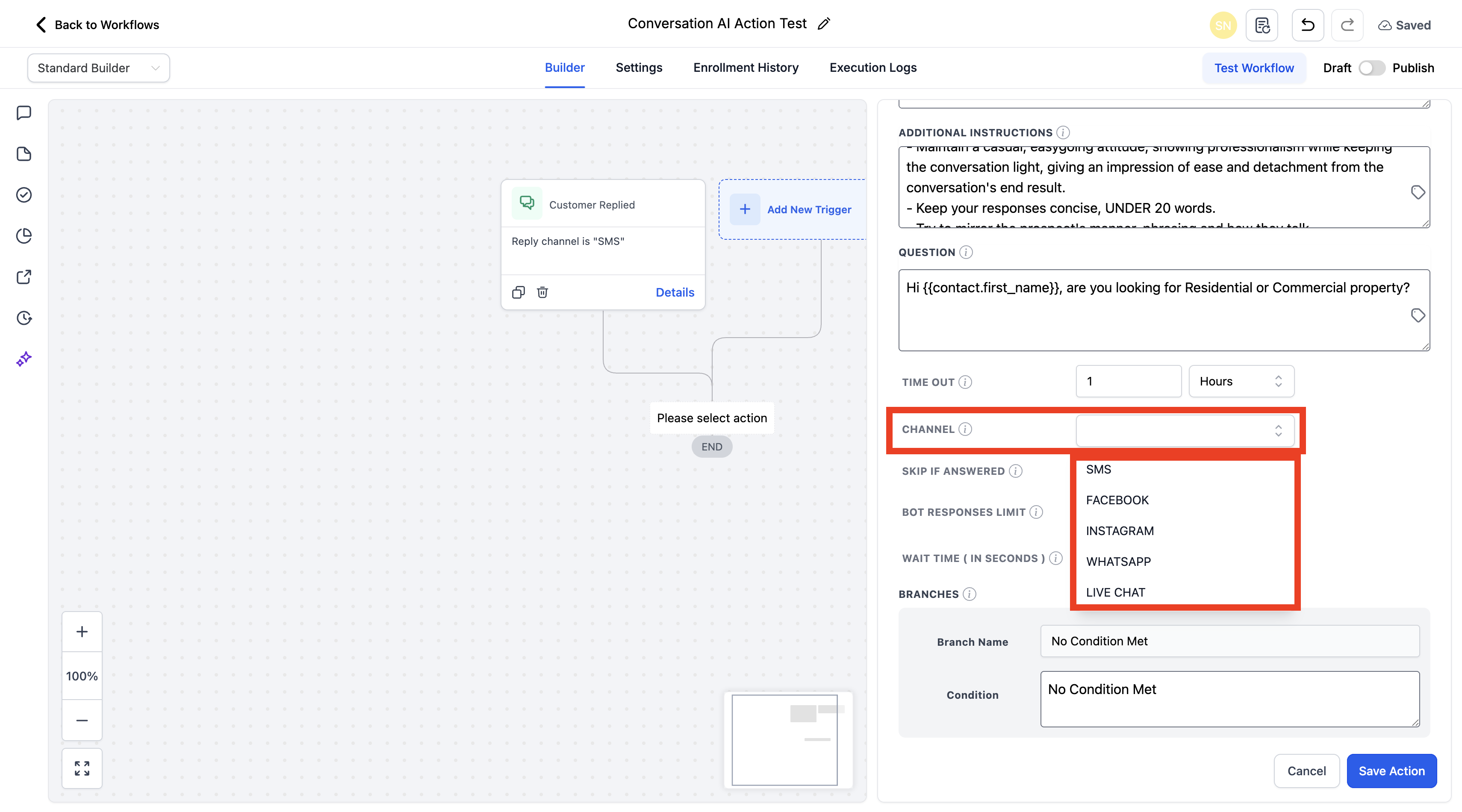
| Channel | Selects the communication channel for the action. Current workflow-action options are SMS, Facebook, Instagram, WhatsApp, and Live Chat. |
| Skip if answered | Skips the action when the question has already been answered manually, helping prevent redundant AI outreach. |
| Bot responses limit | Limits how many AI messages this action can send before routing to No Condition Met when no branch condition has matched. |
| Wait time in seconds | Adds a delay before the AI responds so incoming messages can be collected before the next AI reply is generated. |
| Branches & Conditions | Defines where the workflow should continue after evaluating the contact's response. |
Bot responses limit vs. bot-level message limits: The Bot responses limit configured here controls this workflow action. Conversation AI bots can also have broader message-limit settings outside the workflow. Treat these as separate controls.
Before You Begin
A successful Conversation AI workflow depends on both the workflow structure and the bot configuration. Confirm the workflow entry point, communication channel, and intended branch outcomes before configuring the action.
- Use the applicable Sub-Account and open Automations → Workflows.
- Create a workflow or open an existing workflow where the AI conversation should occur.
- Configure the workflow trigger that matches your use case. Customer Replied is only one example and is not required for every Conversation AI workflow.
- Confirm that the communication channel you plan to use is available for the workflow and bot configuration.
- Decide what response or intent each custom branch should represent before writing the branch conditions.
- Plan what should happen when the contact does not reply or when none of the custom conditions are met.
How To Set Up the Conversation AI Workflow Action
Configure the action in stages so the AI receives the right instructions, waits an appropriate amount of time, and routes the contact predictably after the conversation.
Step 1: Open the Workflow
- Log in to the applicable sub-account.
- Go to Automations → Workflows.

3. Create a new workflow or open the existing workflow you want to update.

Step 2: Configure the Workflow Entry Point
Add or review the trigger that should place contacts into the workflow. The correct trigger depends on your automation goal. For example, a workflow responding to inbound messages may use Customer Replied and a Reply Channel filter.

Step 3: Add the Conversation AI Action
- Click the + icon where you want to add the workflow action.
- Search for Conversation AI.
- Select the Conversation AI action.
- Give the action a clear name so its purpose is easy to identify on the workflow canvas.

Step 4: Configure the AI Instructions
Turn on Advanced Bot Configuration when you want this action to override the bot's default conversational instructions.
- Personality: Define the tone and communication style for this action.
- Additional Instructions: Add goals, intent, or specific guidance the AI should follow. When Advanced Bot Configuration is not enabled, the action uses the bot's existing configuration.

In Question, enter the message or question that should begin the interaction. Use custom values when the message needs contact-specific or workflow-specific information.

Step 5: Configure Timeout and Channel
Set Timeout to define how long the action should wait for the contact's reply. Select the appropriate duration in minutes, hours, or days.

Select one Channel for the action. Current documented options are:
- SMS
- Live Chat
Step 6: Configure Conversation Controls
Turn on Skip if answered when the action should be bypassed if the question has already been answered manually.

Set Bot responses limit to control the maximum number of AI messages the action can send before using No Condition Met when no custom branch has matched.

Set Wait time in seconds to add a delay before the AI replies. This allows incoming messages to be collected before the next AI response is generated.

How Branches and Conditions Route Contacts
Branches turn the AI conversation into workflow logic. Create conditions around the outcomes you care about, then define what should happen for contacts who reply differently or do not reply at all.
| Branch | When It Is Used |
|---|---|
| Custom Branch | Used when the contact's response meets the conditions you define for that branch. |
| Time Out | Used when the contact does not reply within the configured Timeout period. |
| No Condition Met | Used when no configured custom condition is matched, including when the action reaches its Bot responses limit without a matching outcome. |
Built-in branches: Time Out and No Condition Met are always included in the Conversation AI action and cannot be removed. Add your own branches for specific outcomes you want the workflow to recognize.
Add additional branches and define clear conditions for each intended outcome.

After configuring the settings and branches, click Save Action.

How To Test and Publish the Workflow
Testing helps confirm that the selected channel works, responses are interpreted correctly, and each branch sends contacts to the expected next step before real contacts enter the automation.
- Save the Conversation AI action and any other workflow changes.
- Use Test Workflow to run a test contact through the workflow when appropriate.
- Test at least one reply that should match each important custom branch.
- Test the Time Out and No Condition Met paths when practical.
- Confirm that the AI messages use the expected channel and instructions.
- Save any final changes.
- Set the workflow to Publish when you are ready for real contacts to enter it.
Testing note: Workflow tests are useful for validating configuration, but reused test contacts can retain previous activity. For important automations, validate the final behavior carefully before relying on the workflow in production.

Frequently Asked Questions
Was this article helpful?
That’s Great!
Thank you for your feedback
Sorry! We couldn't be helpful
Thank you for your feedback
Feedback sent
We appreciate your effort and will try to fix the article