Import existing Stripe products into the HighLevel SaaS Configurator and link active Stripe subscriptions to client sub-accounts. This Legacy/V1 workflow helps agencies move their existing Stripe product setup into SaaS Mode without manually rebuilding every product. You can configure SaaS plan settings after importing a product and associate an existing customer's Stripe subscription with the corresponding sub-account. Follow the instructions below to complete both tasks.
Table of Contents
- What Is Importing Stripe Products into SaaS Configurator?
- Key Benefits of Importing Stripe Products
- Legacy/V1 Compatibility and Payment Provider Selection
- Stripe Products, Price IDs, and SaaS Plan Settings
- How to Set Up Stripe Imports and Subscription Linking
- Before You Begin
- Step 1: Import Products from Stripe
- Step 2: Link Existing Stripe Subscriptions to Sub-Accounts
- Important Notes
- Frequently Asked Questions
- Related Articles
What Is Importing Stripe Products into SaaS Configurator?
Importing Stripe products allows agencies using the Legacy/V1 SaaS system to bring existing Stripe product details into the HighLevel SaaS Configurator. This provides a starting point for creating SaaS plans while keeping Stripe as the billing system for the V1 architecture.
After importing a product, agencies can configure plan categories, pricing, features, snapshots, trial periods, and rebilling options. They can also link an existing Stripe customer's active subscription to a HighLevel SaaS sub-account.
Key Benefits of Importing Stripe Products
Importing existing Stripe products can reduce manual setup during an agency's transition to SaaS Mode. Linking active subscriptions helps agencies connect existing billing relationships to the appropriate client sub-accounts.
- Faster Plan Setup: Import existing Stripe product details instead of entering each product from scratch.
- Existing Client Continuity: Link an active Stripe subscription to a client sub-account through the existing-customer flow.
- Configurable SaaS Plans: Set categories, pricing, features, snapshots, trials, and rebilling preferences as part of plan creation.
- Clearer Billing Selection: Identify the correct Legacy/V1 Stripe configuration before linking an existing subscription.
Legacy/V1 Compatibility and Payment Provider Selection
This import-and-link workflow applies to the Legacy/V1 SaaS system. Selecting the correct provider card matters because HighLevel may display Stripe under both V1 and V2, which use different subscription-management architectures.
- V1 (Agency): Use the Stripe provider card labeled V1 (Agency) when following these Legacy/V1 subscription-linking steps. Stripe manages the V1 customer and subscription records.
- V2 (Sub-account): A separate billing configuration. It is not the Legacy/V1 Stripe subscription-linking path described in this guide.
For an illustrated explanation of provider-card labels, see Choose a Payment Provider in the Getting Started with the SaaS Configurator guide.
Stripe Products, Price IDs, and SaaS Plan Settings
Importing a Stripe product transfers the product details used to begin SaaS plan configuration, but it does not preserve the original Stripe price IDs. Understanding what must be configured afterward helps prevent confusion when reviewing the new SaaS plan.
| Setting | What to Expect |
|---|---|
| Stripe product details | Imported into SaaS Configurator for plan setup. |
| Price IDs | New price IDs are created; existing Stripe price IDs are not carried over. |
| Plan category and hierarchy | Configure these for your intended plan organization and upgrade paths. |
| Features and billing options | Review features, snapshots, trials, and rebilling settings before saving. |
How to Set Up Stripe Imports and Subscription Linking
Complete the product import before linking an existing customer's Stripe subscription to a sub-account. Confirm that you are working in the intended Legacy/V1 SaaS setup and that you select the correct existing Stripe customer and active subscription.
Before You Begin
The procedure uses agency-level SaaS configuration and existing Stripe records. Have access to the agency's Stripe-backed SaaS setup and identify the product, customer, and active subscription you intend to use.
- Access to Agency View and SaaS Configurator.
- An existing Stripe product to import.
- For subscription linking, an existing Stripe customer with an active subscription.
Step 1: Import Products from Stripe
Importing the existing Stripe product creates the starting point for a SaaS plan. Review the imported product and complete the plan settings before saving, particularly the newly created price IDs.
- In Agency View, select SaaS Configurator. Open Plans & pricing and click Add your plan. Select the Stripe card labeled V1 (Agency), then click Continue to create plan.
- Click Import from Stripe in the upper-right corner.
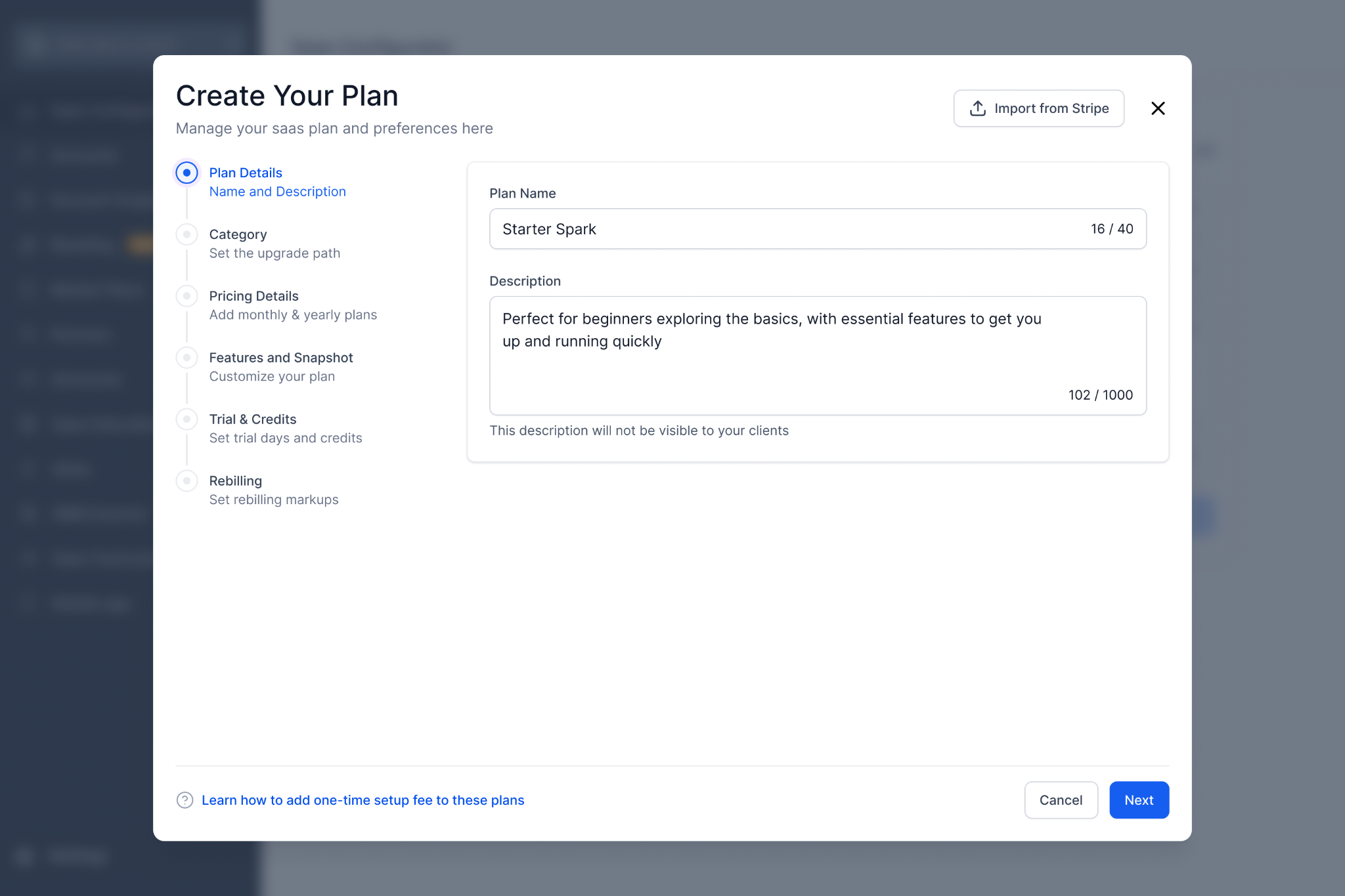
Select Import from Stripe to bring an existing product into the SaaS Configurator.
- Search for the Stripe product by name.
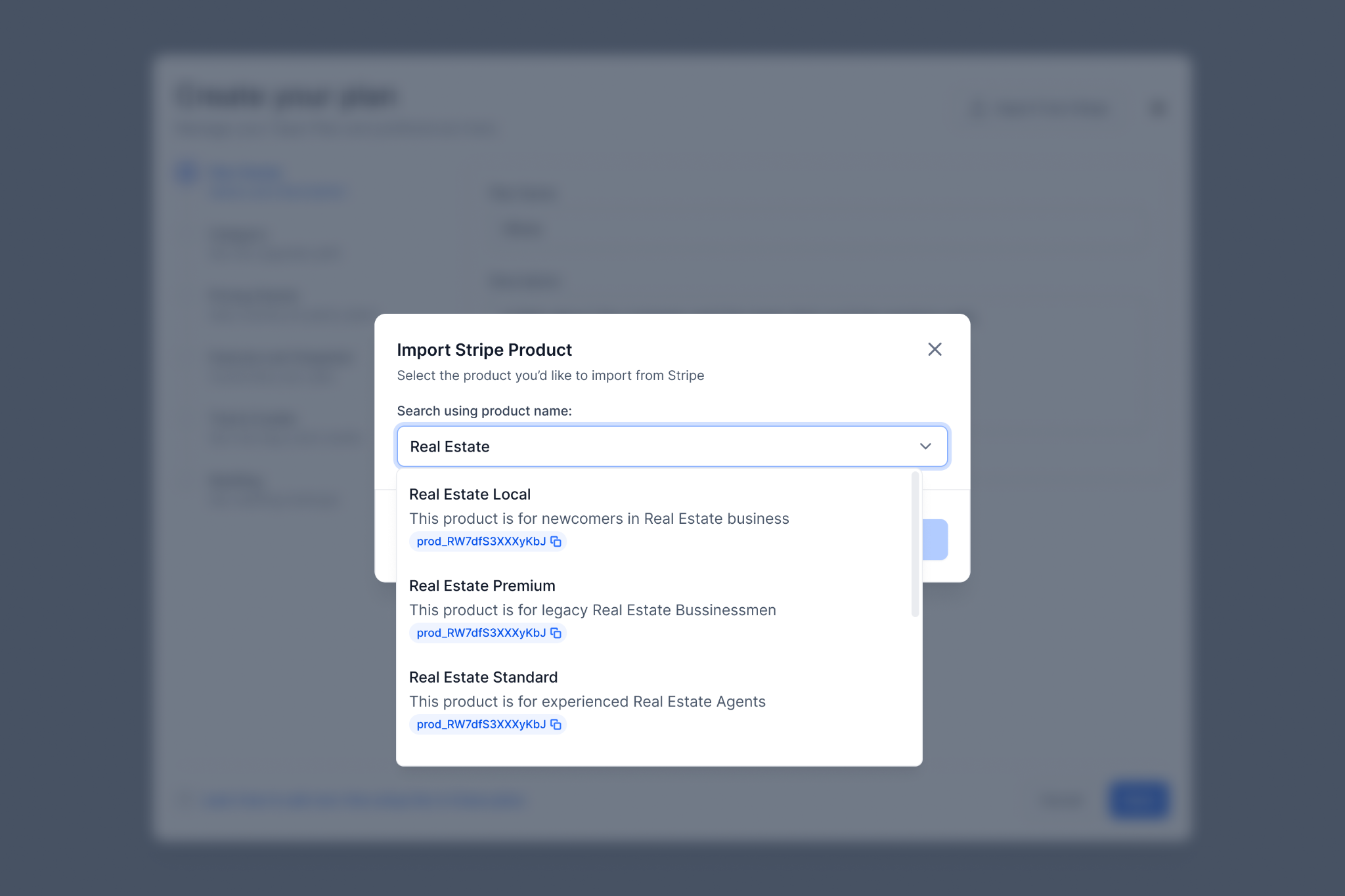
Search by name to locate the Stripe product.
- Select the product and confirm the import.
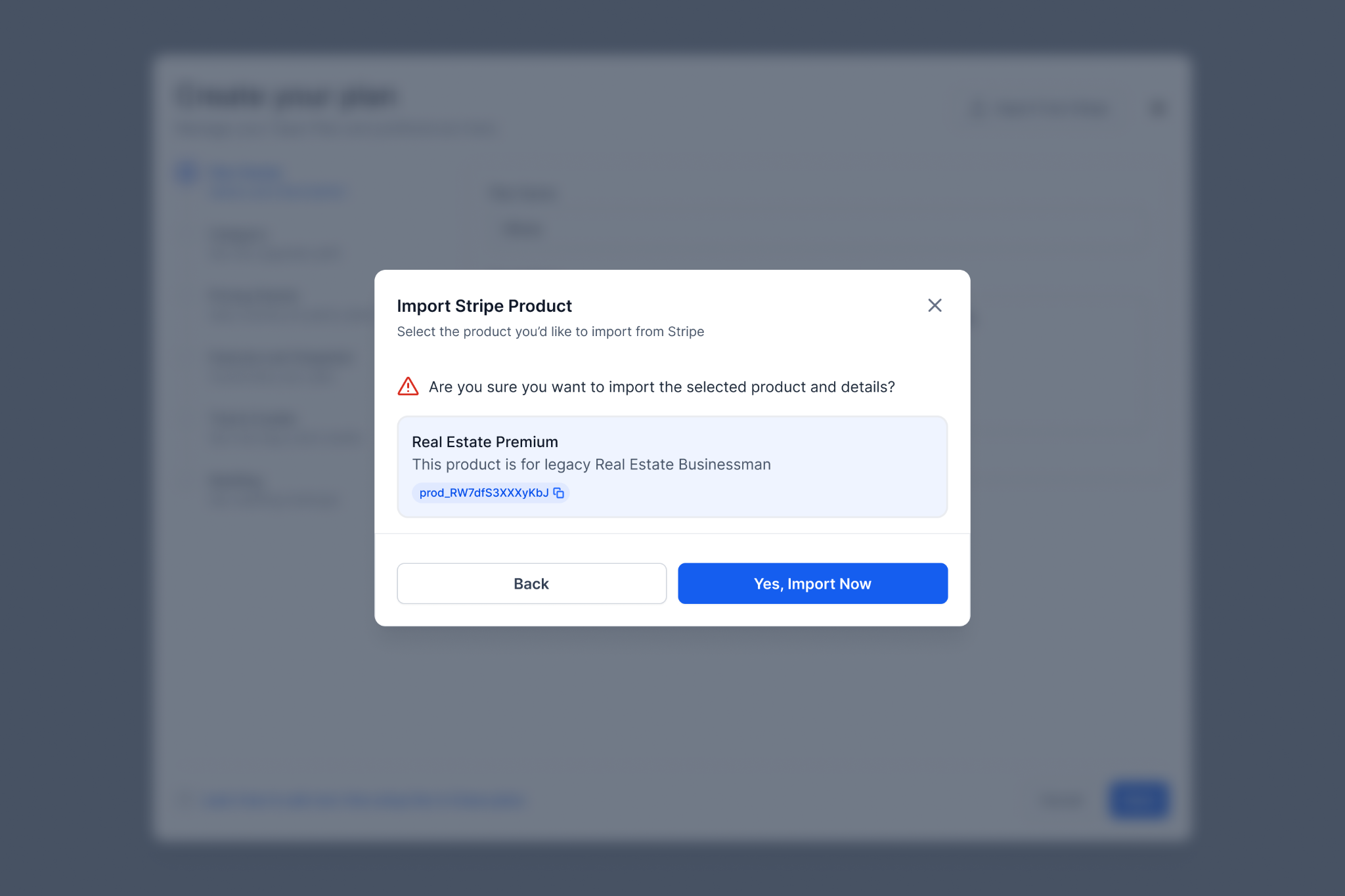
Review the selected Stripe product before confirming the import.
- Confirm that the product details are imported into SaaS Configurator.
- Complete the remaining plan configuration:
- Category and hierarchy: Organize the plan for upgrade paths.
- Pricing: Review the pricing configuration; new price IDs are created.
- Features, snapshots, trials, and rebilling: Select the applicable options for the plan.
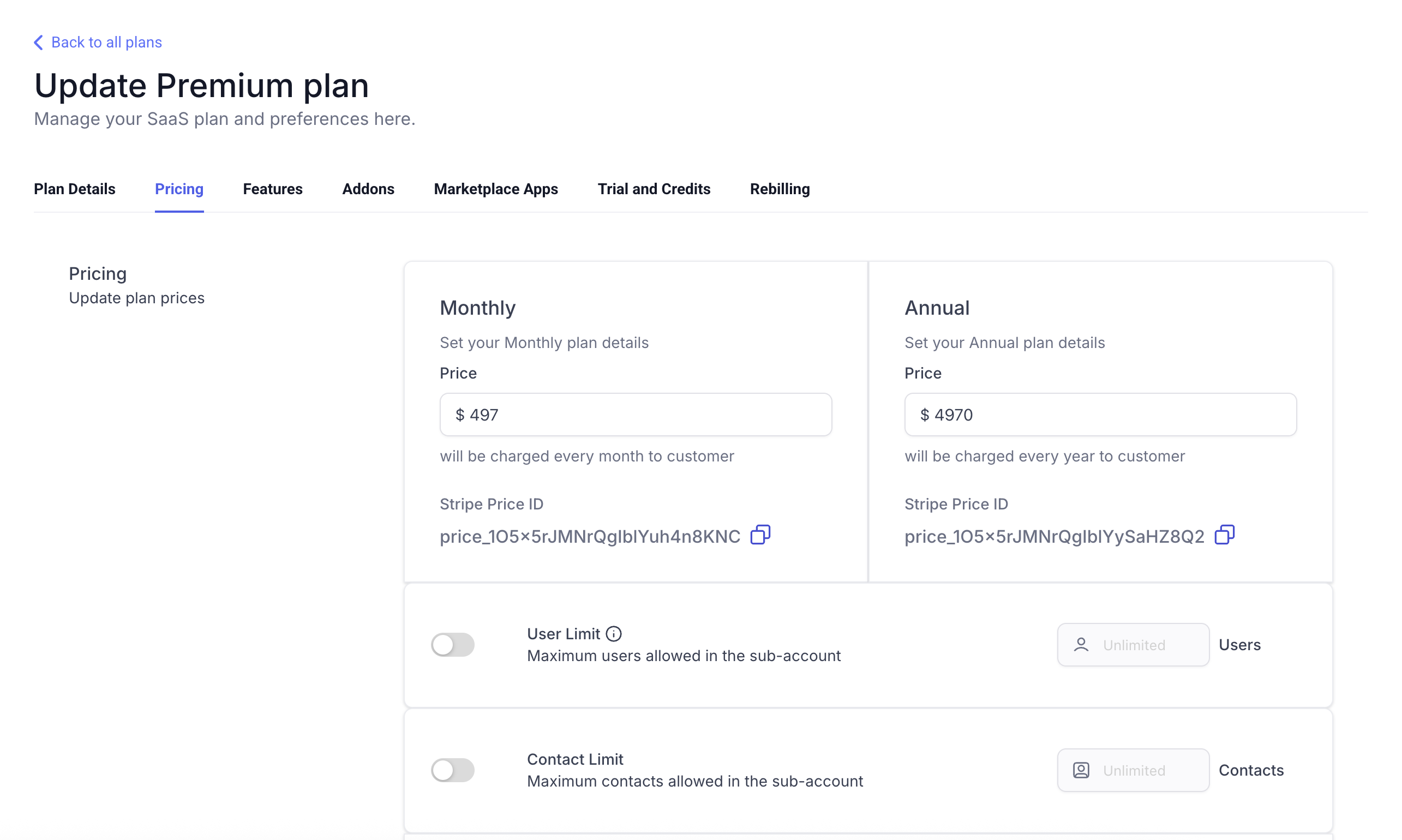
Configure the imported plan's features, snapshots, trials, and rebilling settings.
- Category and hierarchy: Organize the plan for upgrade paths.
- Save the plan.
Step 2: Link Existing Stripe Subscriptions to Sub-Accounts
Linking an active Stripe subscription associates an existing customer's billing record with a HighLevel SaaS sub-account. Select the Stripe V1 (Agency) provider card so the workflow uses the Legacy/V1 architecture.
- From Agency View, open Sub-Accounts → Manage Client for the applicable sub-account.
- Open the SaaS tab.
- Click Add a SaaS Subscription.
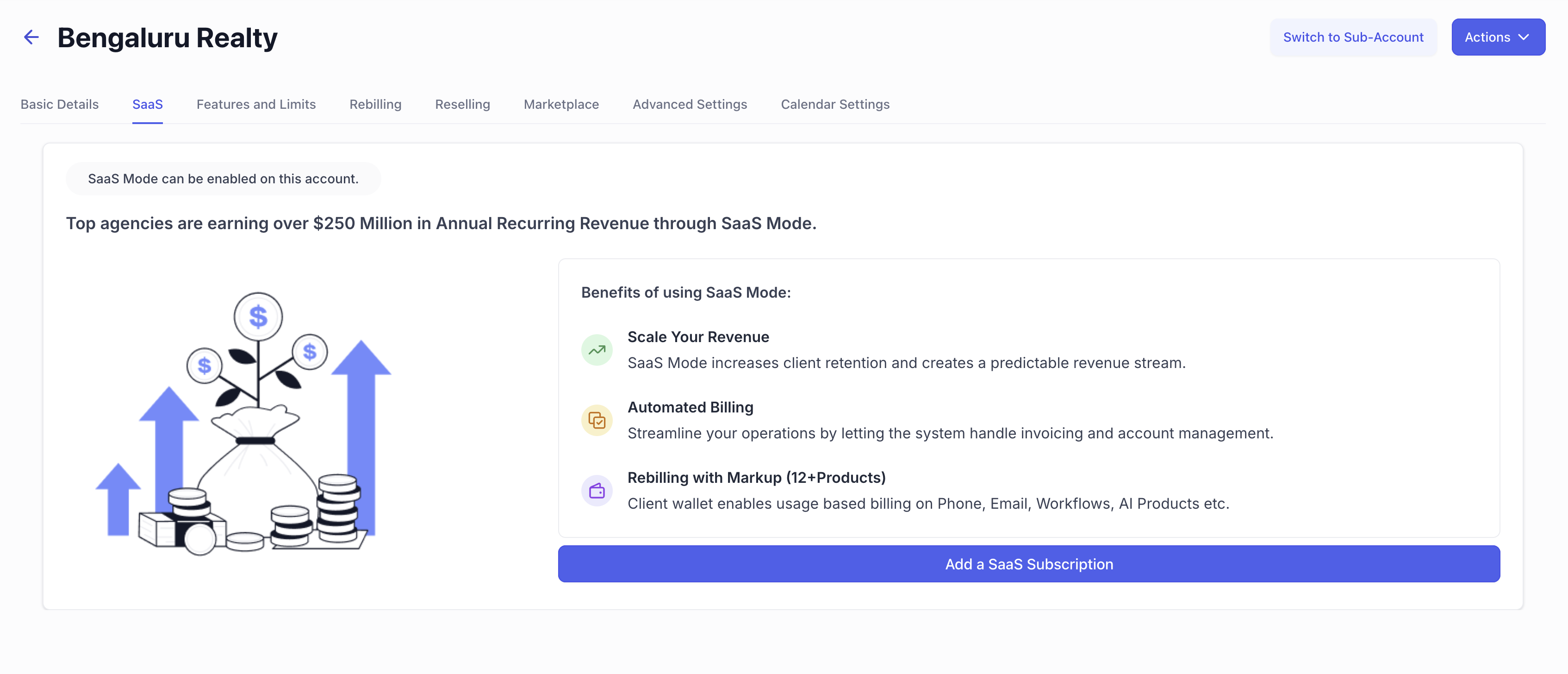
Open the SaaS subscription flow from the client's sub-account.
- Choose the Stripe payment-provider card labeled V1 (Agency). Review the provider-card label rather than selecting by provider name alone. For an example, see Choose a Payment Provider.
- In the Request Client Payment Details window, select Link Existing Customer in Stripe.
- Choose the existing Stripe customer profile with an active subscription.
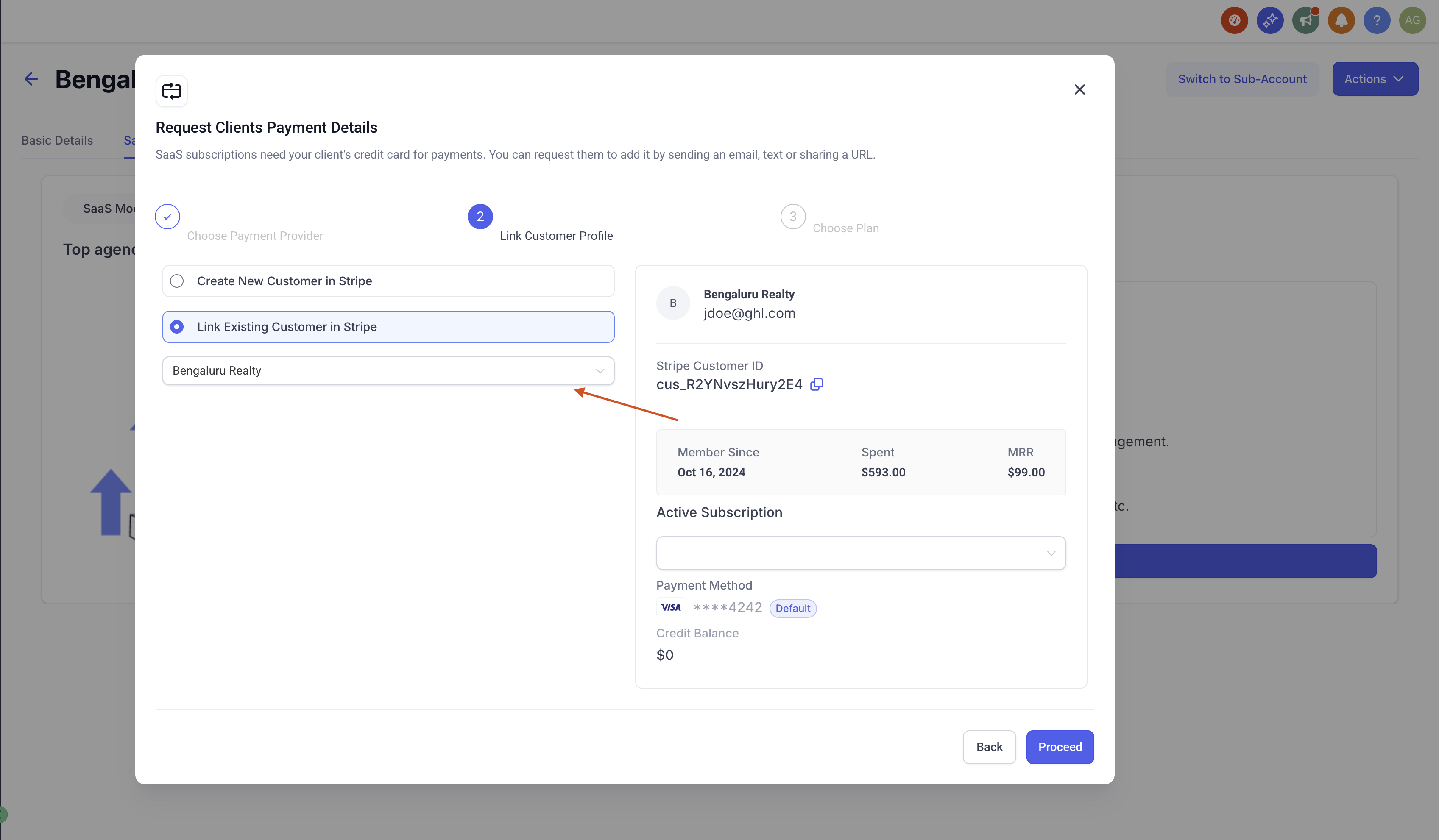
Choose the Stripe customer whose subscription will be linked.
- Select the existing subscription from the right-hand panel.
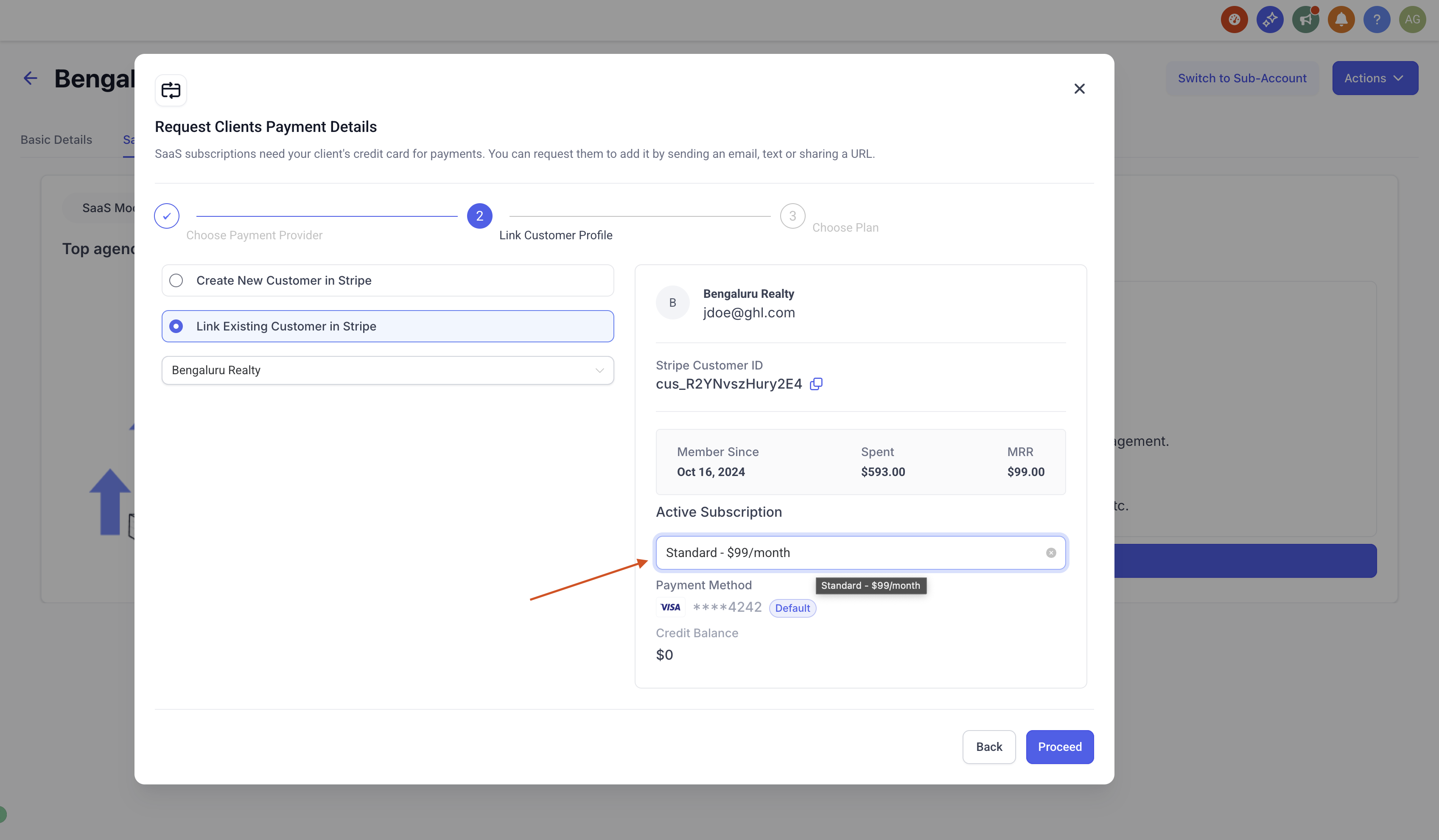
Select the Stripe subscription to associate with the sub-account.
- Confirm to enable SaaS for the sub-account.
Important Notes
These limits help distinguish the product-import process from the separate task of linking an existing subscription. Review them before completing the migration or assuming the steps apply to another SaaS architecture.
- New price IDs: Imported products do not retain their existing Stripe price IDs. The SaaS Configurator creates new IDs.
- Existing subscriptions: Use the existing-customer linking flow to map an active Stripe subscription to the appropriate sub-account.
- Legacy/V1 only: This import-and-link procedure is intended for the Legacy/V1 SaaS system, not SaaS V2.
Frequently Asked Questions
Q: Can I import several Stripe products in one batch?
A: The documented import flow selects products individually by searching for and confirming each product.
Q: What should I check if the subscription I expect is not available to select?
A: Confirm that you selected the correct existing Stripe customer and that the customer has an active subscription. The documented linking procedure uses an active subscription.
Related Articles
Was this article helpful?
That’s Great!
Thank you for your feedback
Sorry! We couldn't be helpful
Thank you for your feedback
Feedback sent
We appreciate your effort and will try to fix the article