This article shows you how to create drop-down categories in your website or funnel’s navigation menu by nesting menu items under parent items. This helps organize your navigation and improves the user experience with cleaner, more intuitive menus.
TABLE OF CONTENTS
- What Are Categories in the Navigation Menu?
- Key Benefits of Navigation Menu Categories
- How Navigation Menu Categories Work
- How to Create Categories in the Navigation Menu
- Previewing and Organizing Menu Items
- Frequently Asked Questions
- Related Articles
What Are Categories in the Navigation Menu?
Navigation Menu categories group related links beneath a parent menu item so visitors can access them from a dropdown. This structure is useful when several pages belong to the same topic or area and displaying every page as a top-level menu item would make the navigation crowded.
A navigation category consists of:
Parent Item: The top-level navigation item that contains the dropdown.
Sub Item: A nested menu item displayed beneath the parent.
Dropdown Menu: The menu visitors see when they interact with the parent item.
For example, a business could use Services as the parent item and place Consulting, Coaching, and Training underneath it as sub items.
Standard Navigation Menus support one level of nested menu items.
Key Benefits of Navigation Menu Categories
Organizing related links into dropdown categories makes it easier for visitors to understand your site's structure while reducing visual clutter. Categories are especially useful when a website or funnel contains several related destinations that should remain grouped together.
Cleaner Navigation: Declutters the main navigation bar by nesting related links
Improved UX: Users can find grouped pages quickly and intuitively
Drag-and-Drop Simplicity: Build drop-down menus easily with no code
Flexible Structure: Rearrange or update categories by dragging items
Responsive-Friendly: Menus adapt to desktop and mobile layouts
How Navigation Menu Categories Work
Navigation categories use a parent-and-child relationship to determine which items appear at the top level and which items appear inside a dropdown. Understanding this hierarchy makes it easier to organize the menu correctly before publishing the page.
A standard Navigation Menu can contain:
Top-level menu items
Parent items that contain dropdowns
Multiple sub items beneath the same parent
One level of nested sub items
When a menu item is nested beneath another item, HighLevel displays it as part of that parent's dropdown menu.
You can create sub items using the available Add Sub Item option or organize existing menu items using drag-and-drop indentation.
Note: Standard Navigation Menu dropdowns support one level of nested menu items. If you need a larger or more visual navigation structure, consider using a Mega Menu.
How to Create Categories in the Navigation Menu
Creating categories requires defining a parent item and then adding or nesting related menu items underneath it. Building the hierarchy correctly ensures visitors see the intended dropdown structure when they use your navigation.
Open your funnel or website in the builder
Select the Navigation Menu element in your layout
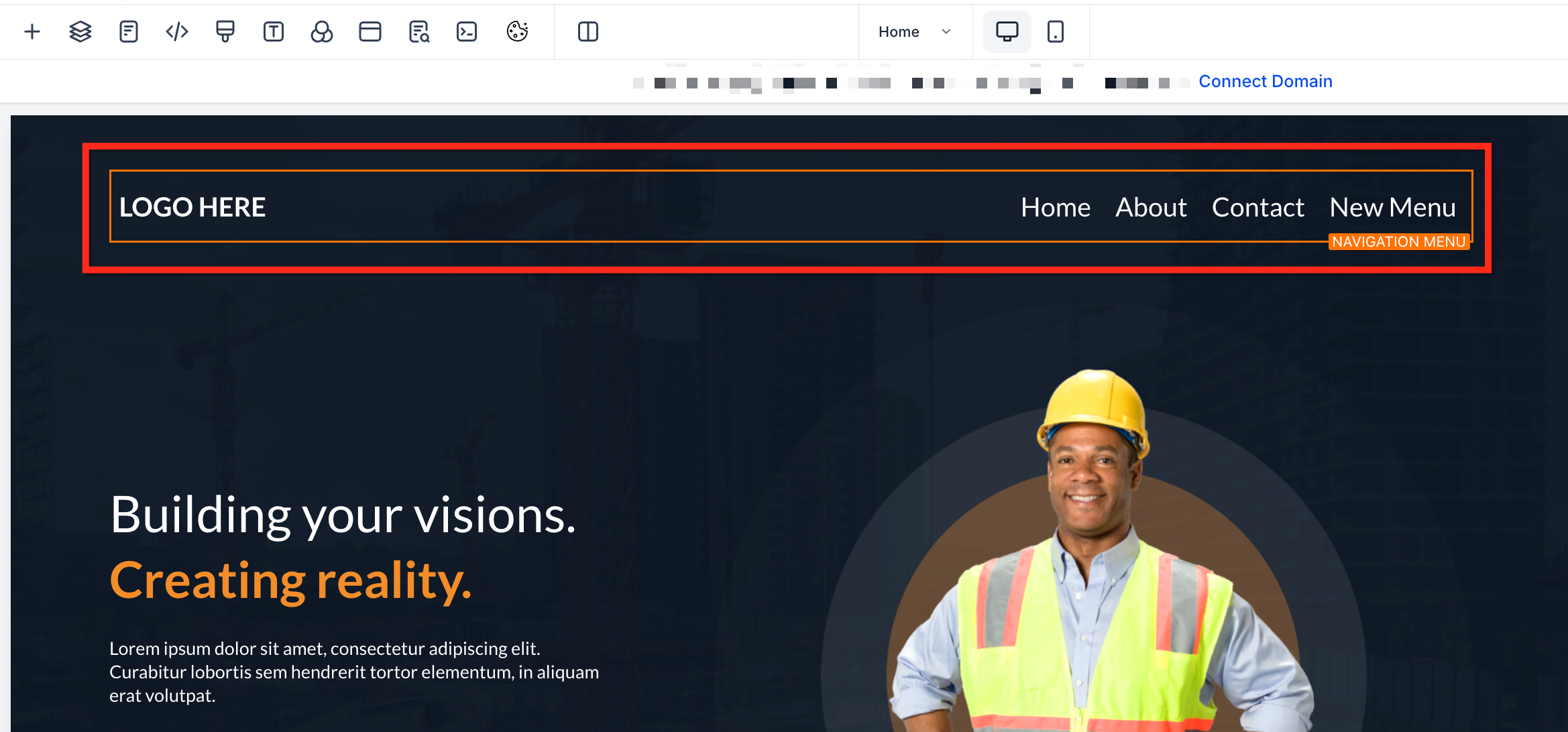
In the right-hand panel, click Add Item → New Menu Item
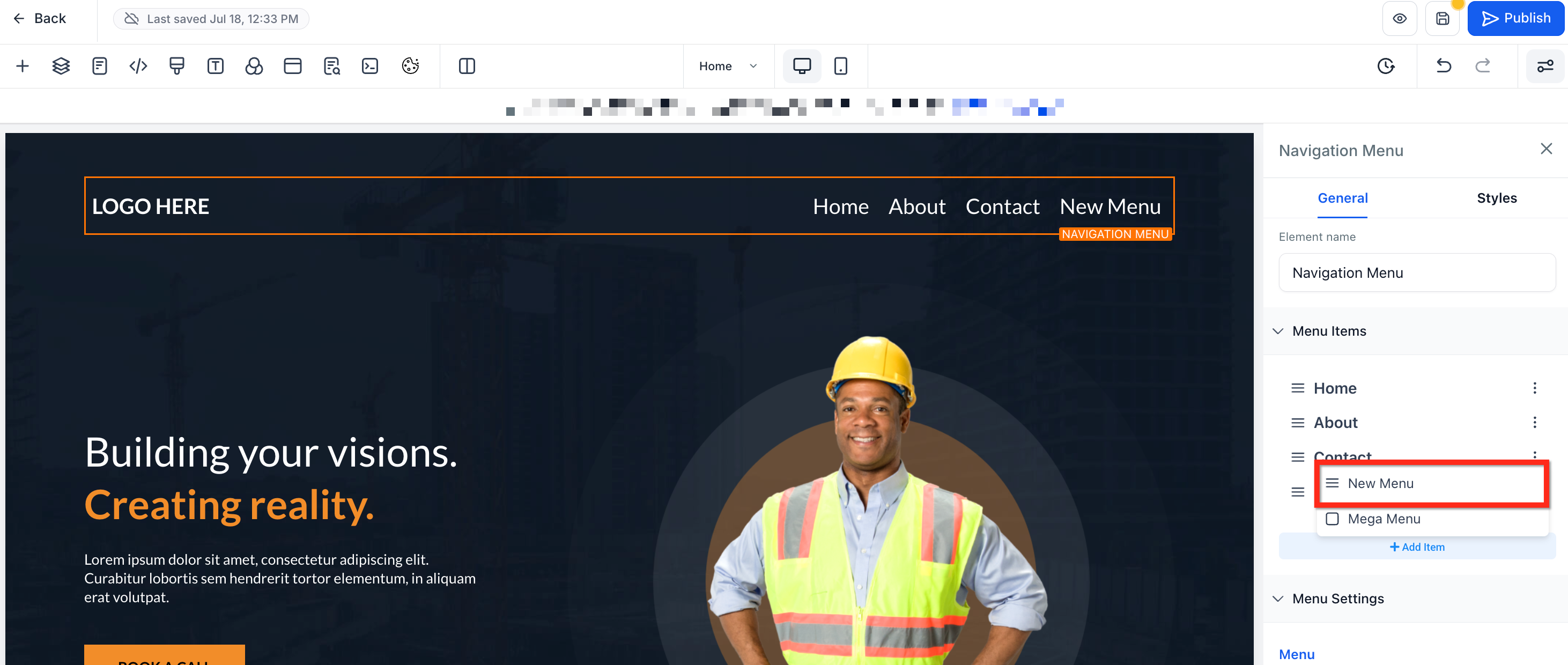
Name the item something descriptive
Drag and drop the new item underneath a parent item (e.g., “Home”). When it indents slightly, that means it’s nested and will appear as a drop-down
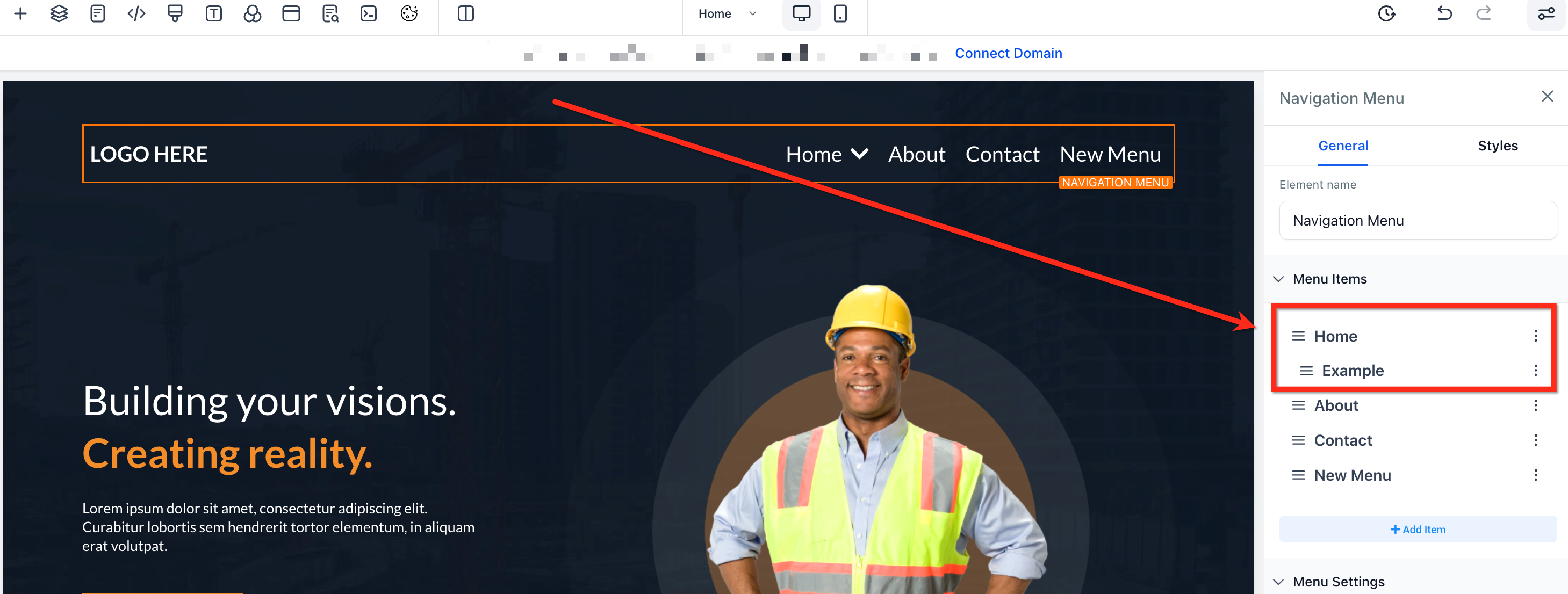
Click Save then Preview and hover over the parent item to see the drop-down appear
Previewing and Organizing Menu Items
When reviewing the menu:
Confirm each sub item appears under the correct parent.
Verify each menu item's destination.
Drag menu items to change their order.
Rename items when labels are unclear or too long.
Remove menu items that are no longer needed.
Preview both desktop and mobile layouts.
Test each dropdown before publishing.
Frequently Asked Questions
Q: Can I create more than one level of drop-downs?
No, To keep navigation user-friendly, especially on mobile, it is limited to one layer of nested pages.
Q: Can menu items link to sections within the same page?
Yes. Use anchor links to scroll to sections. For more info, see Scroll to Elements or Sections in Websites or Funnels.
Q: How do I remove or rename items?
Click on the 3 dots next to the item in the sidebar. Edit the name or click the Delete button to delete.
Q: Is this process the same in funnels and websites?
Yes, the Navigation Menu element behaves the same across both.
Q: Is the category workflow the same for Funnels and Websites?
Yes. Funnels and Websites use the same core builder experience for Navigation Menu configuration.
Related Articles
Was this article helpful?
That’s Great!
Thank you for your feedback
Sorry! We couldn't be helpful
Thank you for your feedback
Feedback sent
We appreciate your effort and will try to fix the article