When you generate leads through the Prospecting Tool in a HighLevel sub-account, you can save prospects and automatically create CRM contacts when Contact creation is enabled.
Once contacts are created, you can use them for email and SMS outreach, contact segmentation, and workflow automation.
This article explains how to find your prospecting contacts in the CRM and use them for follow-up.
Where Can You Use Prospecting?
Prospecting is available in two areas:
Agency View – for lead discovery and basic prospecting
Sub-Account View – for advanced engagement and automation
Only Sub-Accounts can send emails, SMS, and run workflows. That’s why prospecting efforts are most powerful when done (or migrated) inside a sub-account.How to enable Prospecting in Sub Account
- If you already have an active Prospecting Subscription at Agency
- You can Link a sub account with it to get access
- And then Migrate the Prospects to that Sub Account (it will automatically copy them to your contacts, and triggers workflow if any)
- Go to that sub account and find Prospecting inside the Marketing Tab
- If you want it for more than one sub account
- Go to Reselling Tab inside Agency View
- Toggle ON Prospecting Tab
- If you already have a sub account
- You can simply migrate prospects from Agency to Sub Account (it will automatically add them to your contacts, and triggers workflow if any)
How Prospects Are Added to Your Contact List
Prospecting can automatically create CRM contacts when prospects are saved in a sub-account.
The Contact creation setting is enabled by default. You can manage it under Marketing → Prospecting → Settings → Contacts.
- Enabled: Saving a prospect automatically creates a business contact in the CRM.
- Disabled: Saving a prospect does not automatically create a CRM contact.
For more information about contact enrichment, additional phone numbers, email addresses, and points of contact, see How Prospecting creates contacts in your CRM.
Manual Google Business Search
Embedded Prospecting Widget on your site
This means you can immediately:
Start email/SMS outreach
Add them to your CRM pipelines
Trigger workflows for automated nurturing
Migrating (Copying) from Agency to a Sub Account
While generating a new prospect - you will also get notified for this
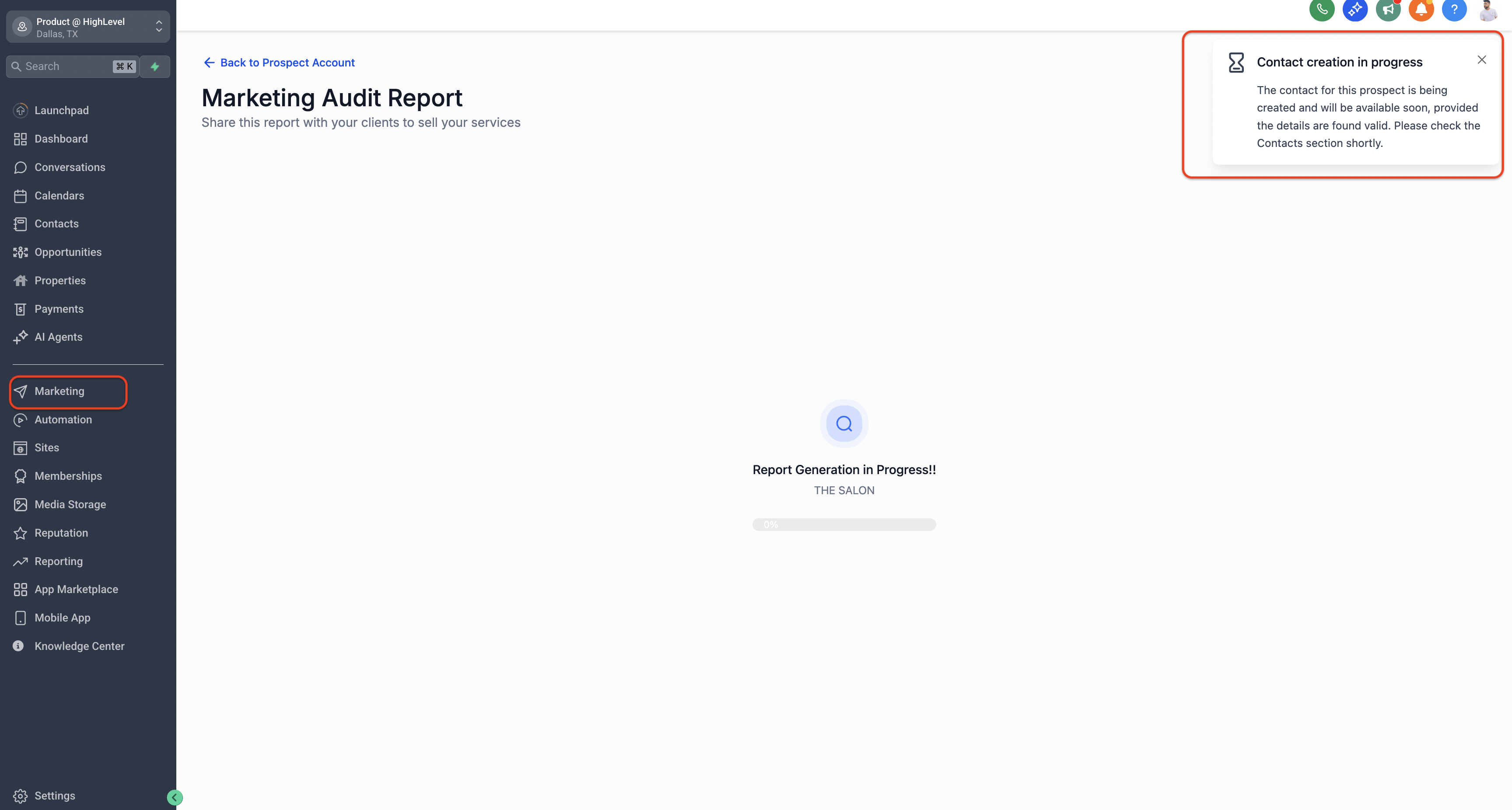
Steps to Find Prospects in Your Contact List
Navigate to Your Sub-Account
From your Agency view, enter the Sub-Account where prospecting was done.Go to the “Contacts” Tab
Find this in the left navigation sidebar inside the sub-account dashboard.Filter for Prospect Leads
Click on the “More Filters” button on the top-right of the Contacts page.
Under the filter dropdown, choose:
Field: Tag
Condition: is
Value:
New Prospect Received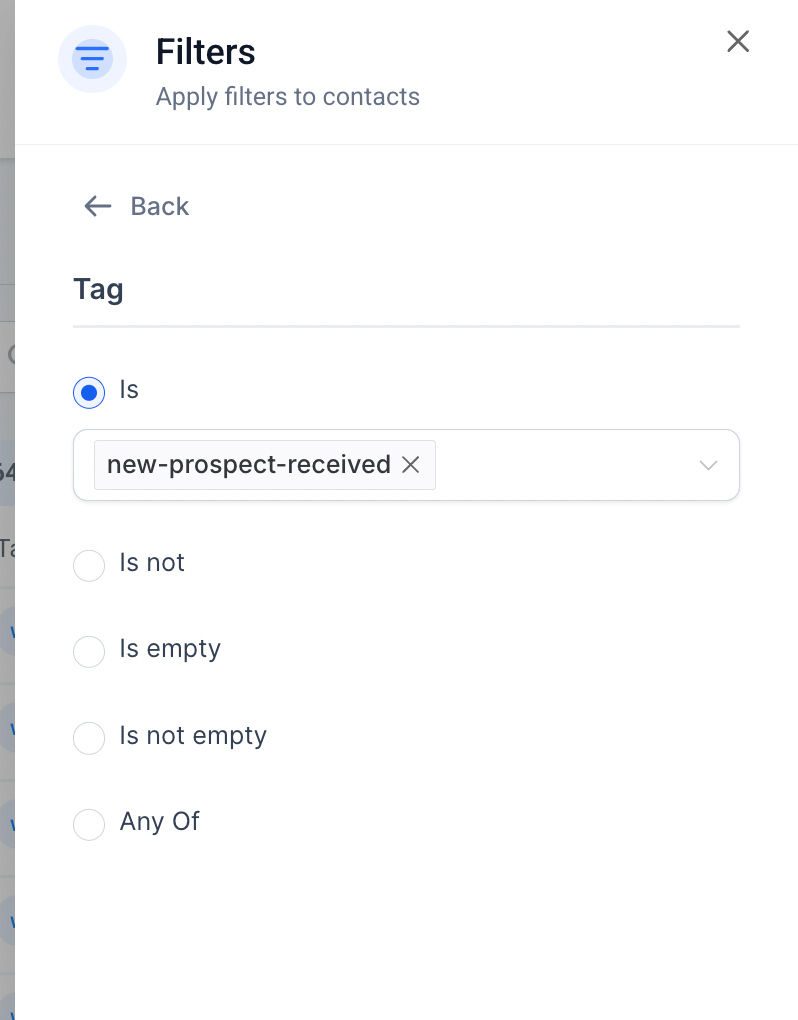
Apply the Filter
You’ll now see a list of all contacts generated through the Prospecting Tool.
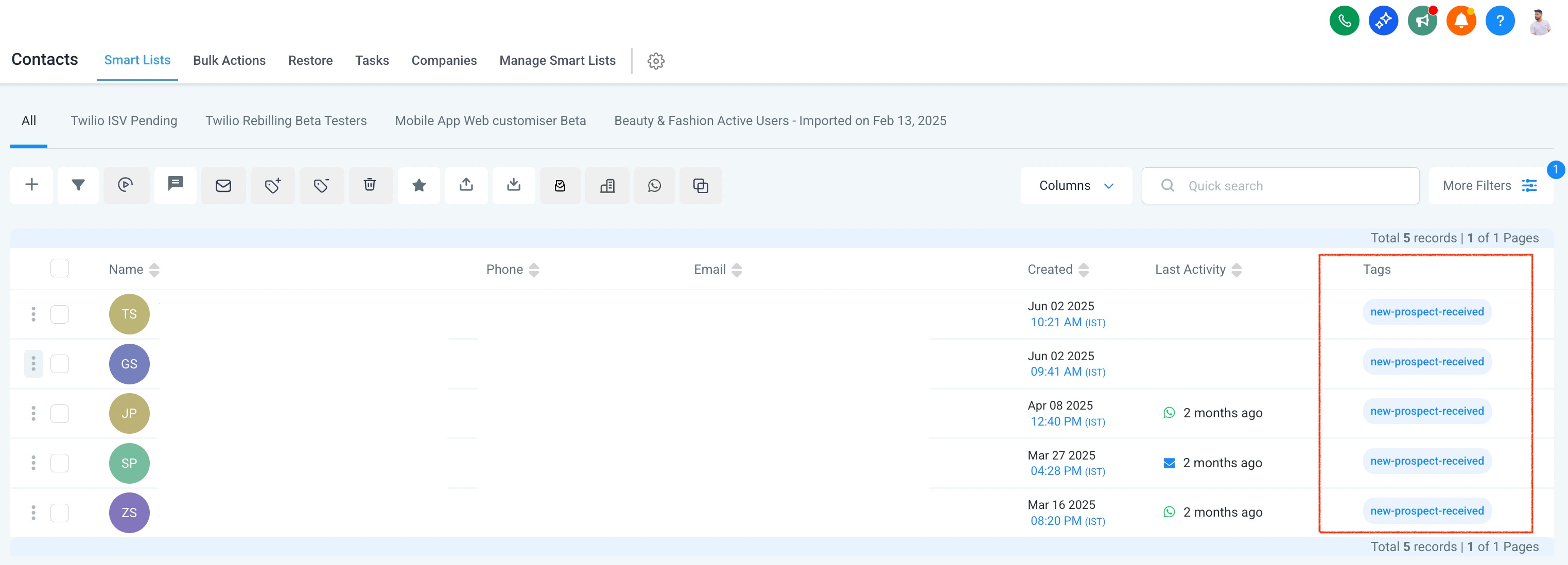
How to Engage with a Prospect
- Inside Prospect Tool: Open a Prospect Report and Click Share Option to share via SMS or Email
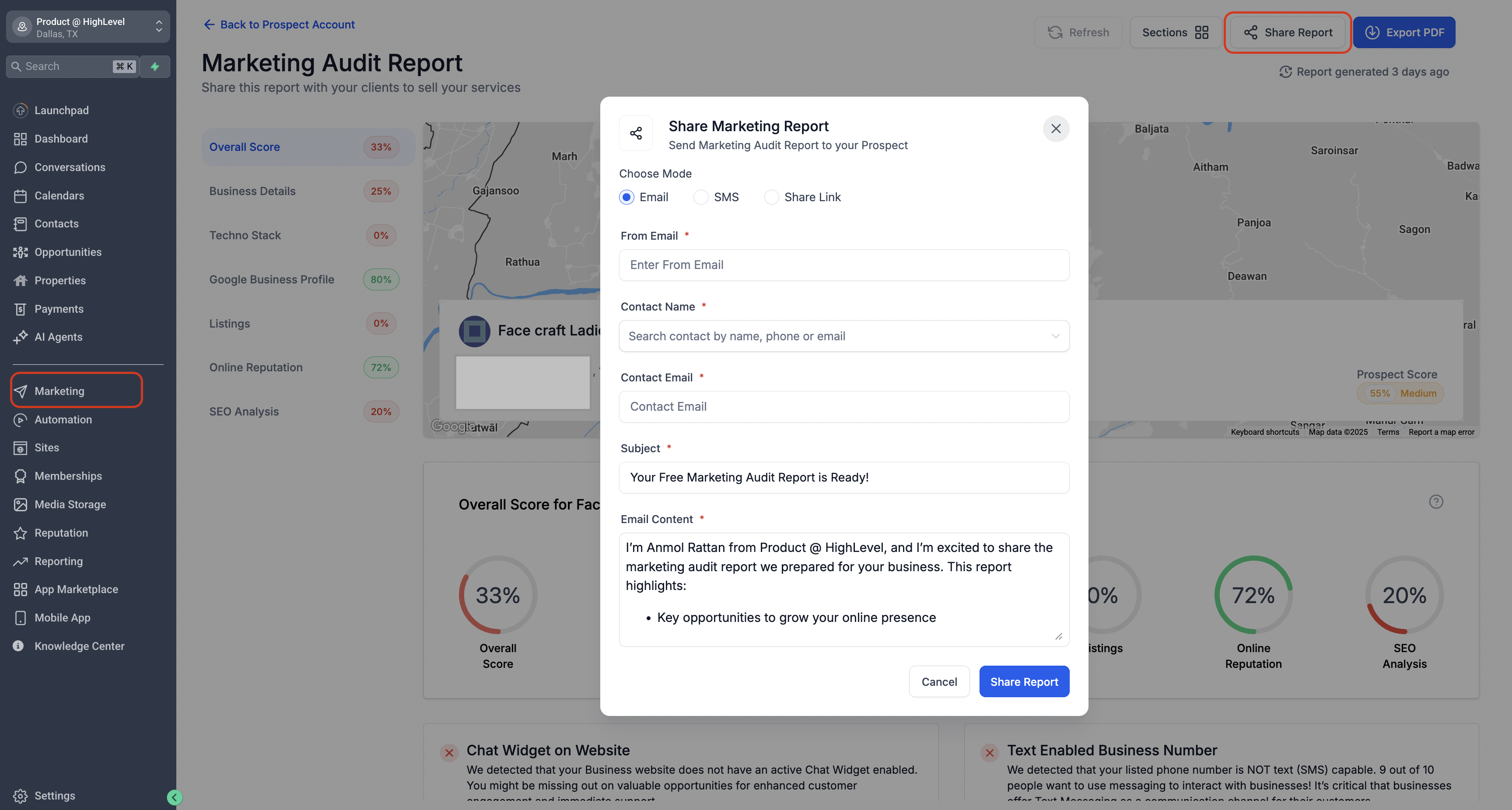
- Once you locate a prospect in your contact list, you can:
Click on a Contact Card
View full contact details and manually send an Email or SMS. You’ll also see their linked Marketing Audit Report.Click the Three Dots (⋮) on a Contact
Quick actions include:Add to Opportunities/Pipelines
Schedule an appointment
Engage from a Prospect Card (Prospecting dashboard)
In Sub-Account Prospecting, use the Prospect Card Lead Actions icon to:
- View contact details.
- Open recent conversations (SMS, email, or calls) from the same screen.
In Agency Prospecting, these actions can prompt you to switch into a linked sub-account (or create one) before you continue interacting with the lead.
Automate Prospect Follow-Up Using Workflows
Want to make your follow-up process hands-free? You can use the Prospecting Workflow Trigger to automatically engage with leads the moment they’re added to your CRM.
With automation, you can:
Instantly send a welcome email or SMS with their Marketing Audit Report
Create tasks or internal notifications for your sales team
Add the lead to your pipeline or nurture sequences
Enrich data or assign tags automatically
View the Complete Guide to Prospecting Workflow Triggers →
Set it up once — and let the system do the work for every new prospect.
What If a Prospect Doesn't Appear in Contacts?
If a saved prospect does not appear in Contacts, first check whether Contact creation is enabled under Marketing → Prospecting → Settings → Contacts.
When this setting is disabled, prospects can be saved without creating CRM contacts.
If Contact creation is enabled and the contact is still missing, temporary synchronization delays or interruptions may be responsible.
Here’s What You Can Do:
Manually create a contact using the details from the Prospecting Tool
Tag them as
New Prospect Receivedto stay consistentAdd them to workflows or pipelines as needed
Tip: Always check if Prospecting is enabled and active in the sub-account. Only then will prospects sync properly to CRM.Pro Tips
Create automated workflows that trigger when new prospects are added (using the “New Prospect Received” tag).
Use Smart Lists in Contacts to segment and track performance by prospect source.
Include AI message suggestions directly in SMS/email outreach for faster follow-ups. (Coming Soon)
Related Guides
Was this article helpful?
That’s Great!
Thank you for your feedback
Sorry! We couldn't be helpful
Thank you for your feedback
Feedback sent
We appreciate your effort and will try to fix the article