HighLevel makes it easy to add relevant Insight Widgets to your dashboard directly from Opportunities, Appointment Reports, and Call Reports. Instead of navigating between pages to configure your dashboard, you can select suggested widgets while working on these pages. This helps you track important business metrics and keep your reporting organized.
TABLE OF CONTENTS
- Key Benefits of Adding Insight Widgets
- Where Can You Add Insight Widgets?
- Step 1:
- Step 2:
- Step 3: Click Add to add the selected widgets to your dashboard.
Key Benefits of Adding Insight Widgets
Save Time: Add widgets without switching between pages.
Relevant Insights: Find suggested widgets based on the page you're viewing.
Simplified Reporting: Keep important business metrics organized in one dashboard.
Easy Customization: Manage and customize widgets after adding them to your dashboard.
Where Can You Add Insight Widgets?
Opportunities: Add widgets related to opportunity and pipeline performance.
Appointment Reports: Add widgets related to appointment activity.
Call Reports: Add widgets related to call activity and performance.
Step 1:
Navigate to Opportunities, Appointment Reports, or Call Reports in your HighLevel sub-account.
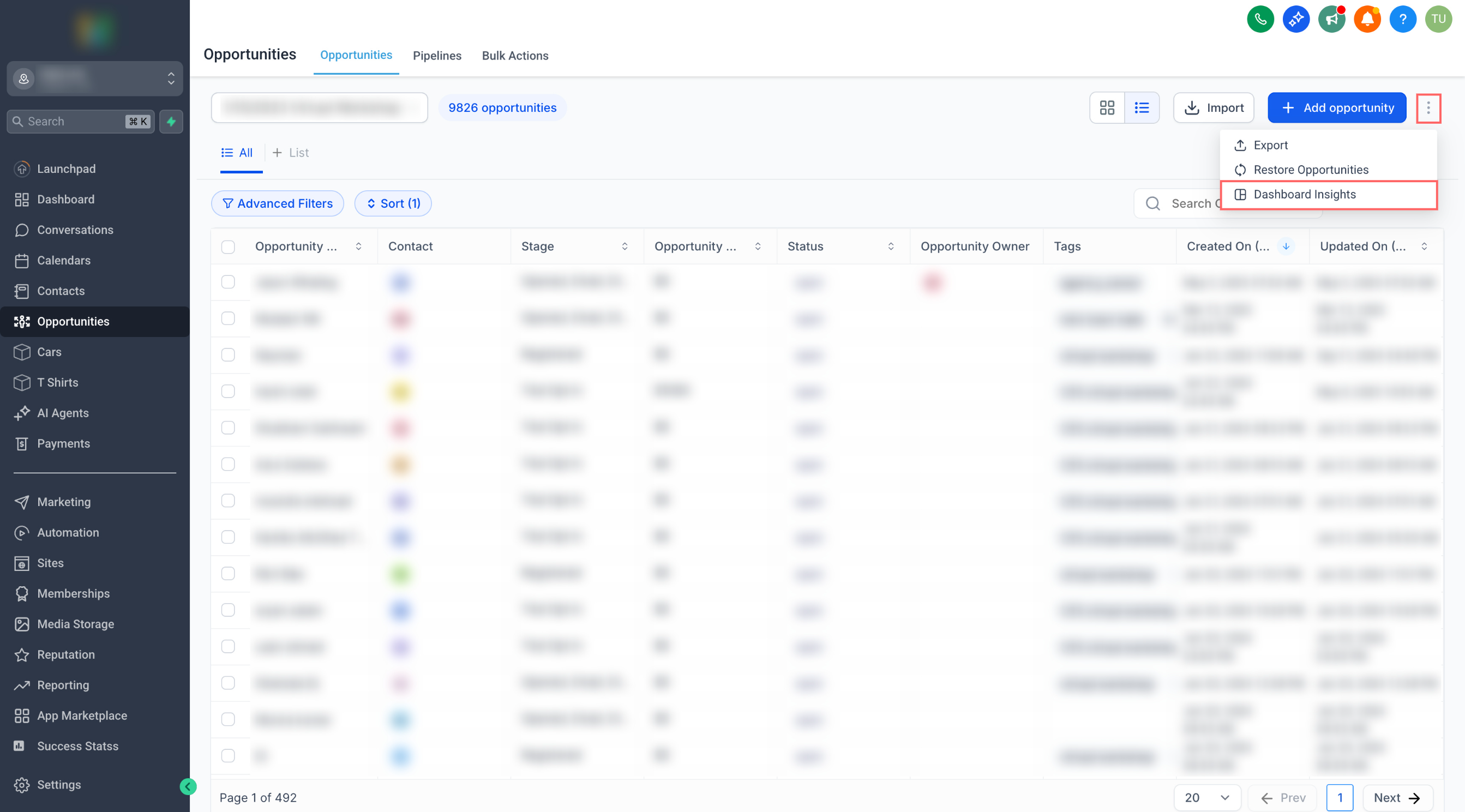
Step 2:
Select the dashboard where you want to add the widgets.
Review the suggested widgets and select the ones you want to add.
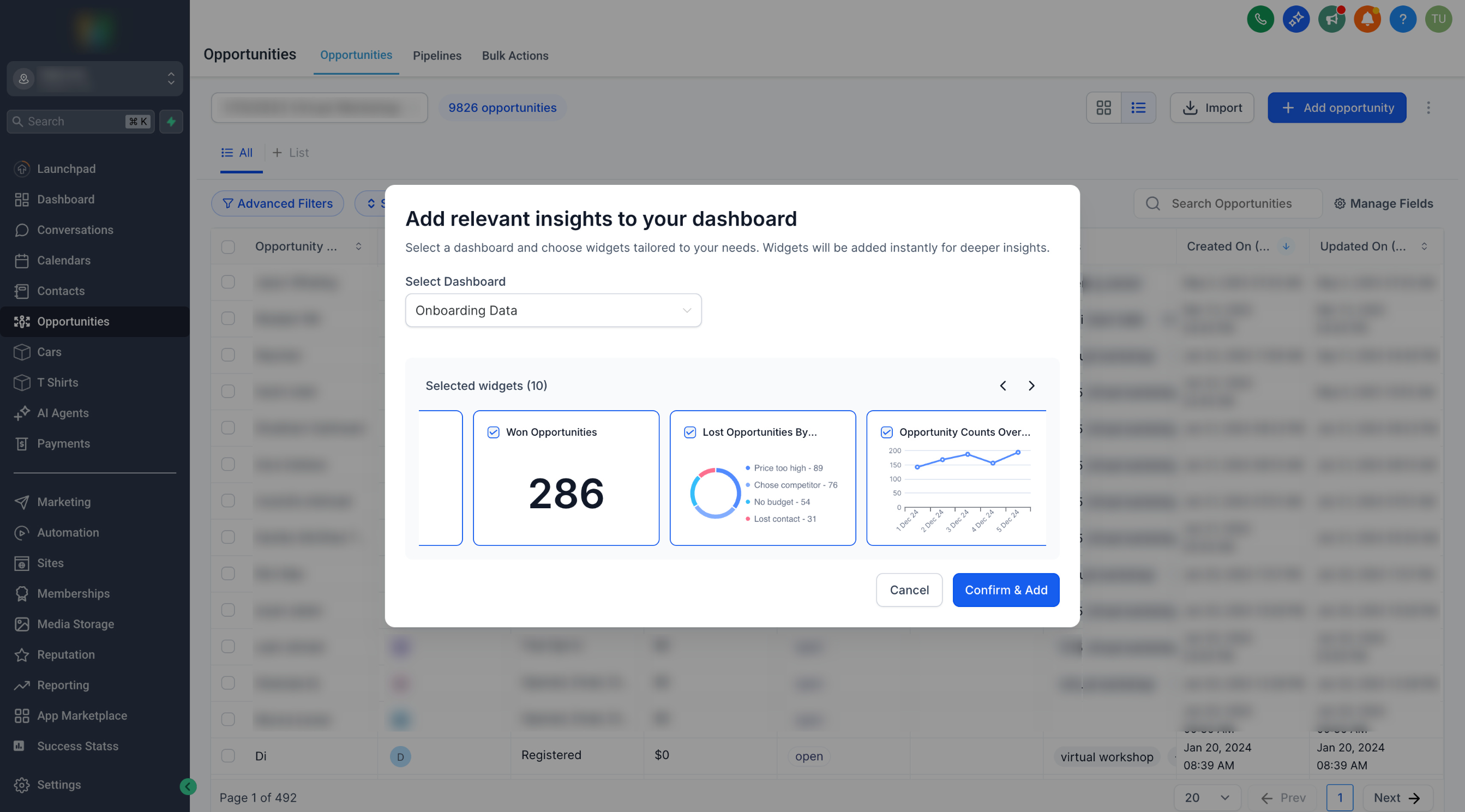
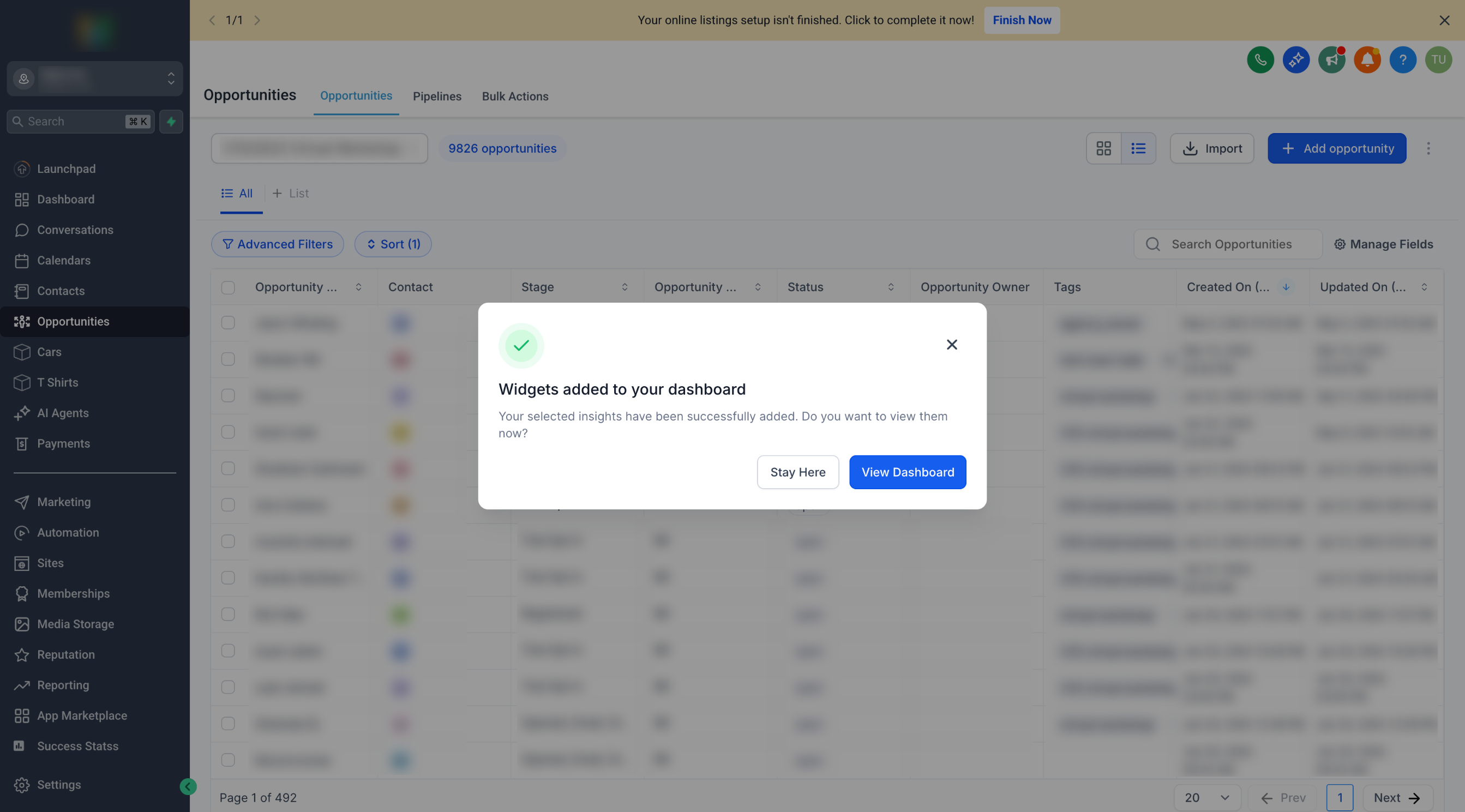
Step 3: Click Add to add the selected widgets to your dashboard.
You can continue working on the current page or visit your dashboard to view and customize the added widgets.
Was this article helpful?
That’s Great!
Thank you for your feedback
Sorry! We couldn't be helpful
Thank you for your feedback
Feedback sent
We appreciate your effort and will try to fix the article