Workflow errors can prevent automations from working as intended when required settings are missing or incorrectly configured. HighLevel identifies supported configuration issues directly in the Workflow Builder, consolidates detected errors into a single Resolve Errors sidebar, and helps you address them before publishing. You can continue saving your progress while errors remain, while publish-blocking issues must be resolved before the workflow can go live.
TABLE OF CONTENTS
- What is Workflow Error Highlighting and Resolution?
- Key Benefits of Workflow Error Highlighting and Resolution
- Types of Workflow Errors
- Error Indicators on the Workflow Canvas
- Saving a Workflow with Errors
- Resolve Errors Sidebar
- How To Resolve Workflow Errors Before Publishing
- Error Resolution Types
- Pre-Publish Errors vs. Workflow Execution Errors
- Frequently Asked Questions
What is Workflow Error Highlighting and Resolution?
Workflow Error Highlighting and Resolution identifies supported configuration issues in workflow triggers and actions and makes them easier to locate and correct. Visual indicators highlight affected steps on the workflow canvas, while the Resolve Errors sidebar brings detected issues into a centralized view. This helps reduce the time spent manually reviewing individual workflow steps when troubleshooting configuration problems.
HighLevel can detect configuration issues such as missing mandatory fields, disconnected integrations, or incomplete settings in supported triggers and actions. Validation coverage also includes configurations such as If/Else and Wait actions.
Errors can be reviewed directly from the workflow canvas, and detected publish-blocking issues must be resolved before the workflow can be published.
Key Benefits of Workflow Error Highlighting and Resolution
- Centralized error management: Frontend and backend validation issues are brought together in the Resolve Errors sidebar.
- Safer publishing: Detected publish-blocking configuration issues must be corrected before the workflow can go live.
- Flexible saving: Continue using manual save or autosave even when detected errors remain on the workflow canvas.
- Visual identification: Error indicators help you quickly identify affected triggers and actions.
- Direct troubleshooting: Open step takes you directly to the workflow component associated with an error.
- AI-assisted resolution: How to fix provides AI assistance for understanding and resolving supported configuration issues.
- Automatic cleanup: After supported issues are corrected, their error indicators and corresponding error entries are automatically cleared.
Types of Workflow Errors
Workflow errors can originate from different parts of an automation, including triggers, actions, required fields, and integrations. Understanding what caused an error helps you determine which workflow component needs attention and what configuration may need to be corrected.
Examples of supported errors include:
- Missing mandatory fields in a trigger or action
- Missing or invalid configuration selections
- Disconnected or unavailable integrations
- Invalid If/Else configurations
- Invalid Wait action configurations
- Required information that has not been entered
For example, a workflow could identify a missing calendar in an appointment trigger, an empty message body in an SMS action, or missing subject and body content in an email action.
HighLevel continues to expand workflow validation coverage, so the specific errors available can vary depending on the trigger, action, and configuration being used.
Error Indicators on the Workflow Canvas
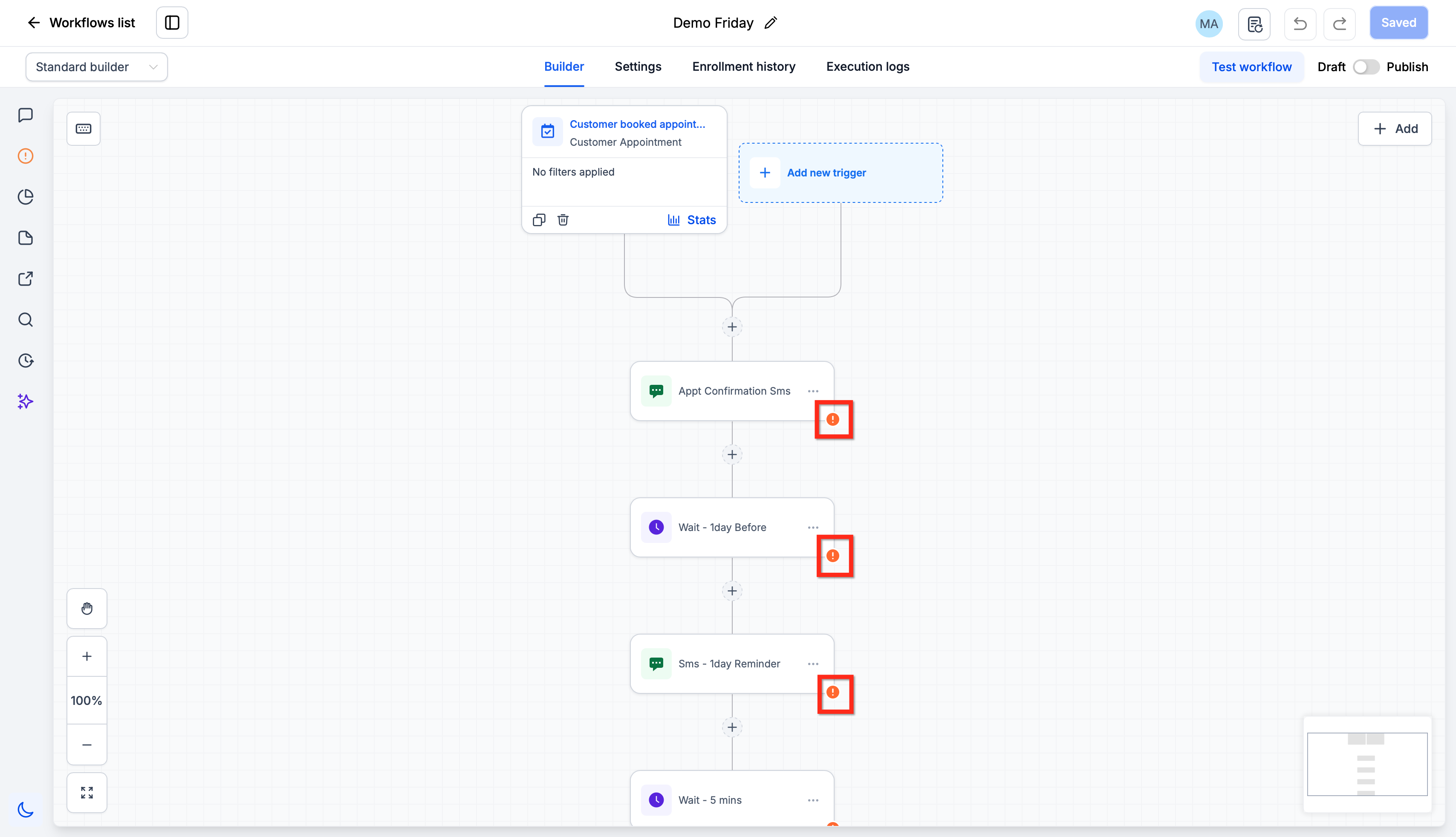
Visual error indicators make configuration problems easier to locate in larger workflows. Instead of opening every trigger and action to check its settings, you can use the indicators on the canvas to identify steps that HighLevel has flagged for attention.
When HighLevel detects a supported configuration issue, an error indicator appears on the affected workflow component. These indicators correspond with errors available through the Resolve Errors sidebar.
After a supported issue is corrected, HighLevel automatically removes its error indicator and clears the corresponding error from the error list.
Saving a Workflow with Errors
Saving and publishing serve different purposes in the Workflow Builder. Saving preserves the changes you are making, while publishing determines whether the workflow can operate live. Keeping these states separate allows you to work on incomplete configurations without having to resolve every detected problem in one session.
Manual save and autosave can preserve your workflow progress even when errors are present on the canvas. You can leave an incomplete workflow, return later, and continue resolving its configuration issues.
Validation can still identify and display errors while you work. The presence of those errors does not require you to finish resolving them before preserving your progress.
Resolve Errors Sidebar
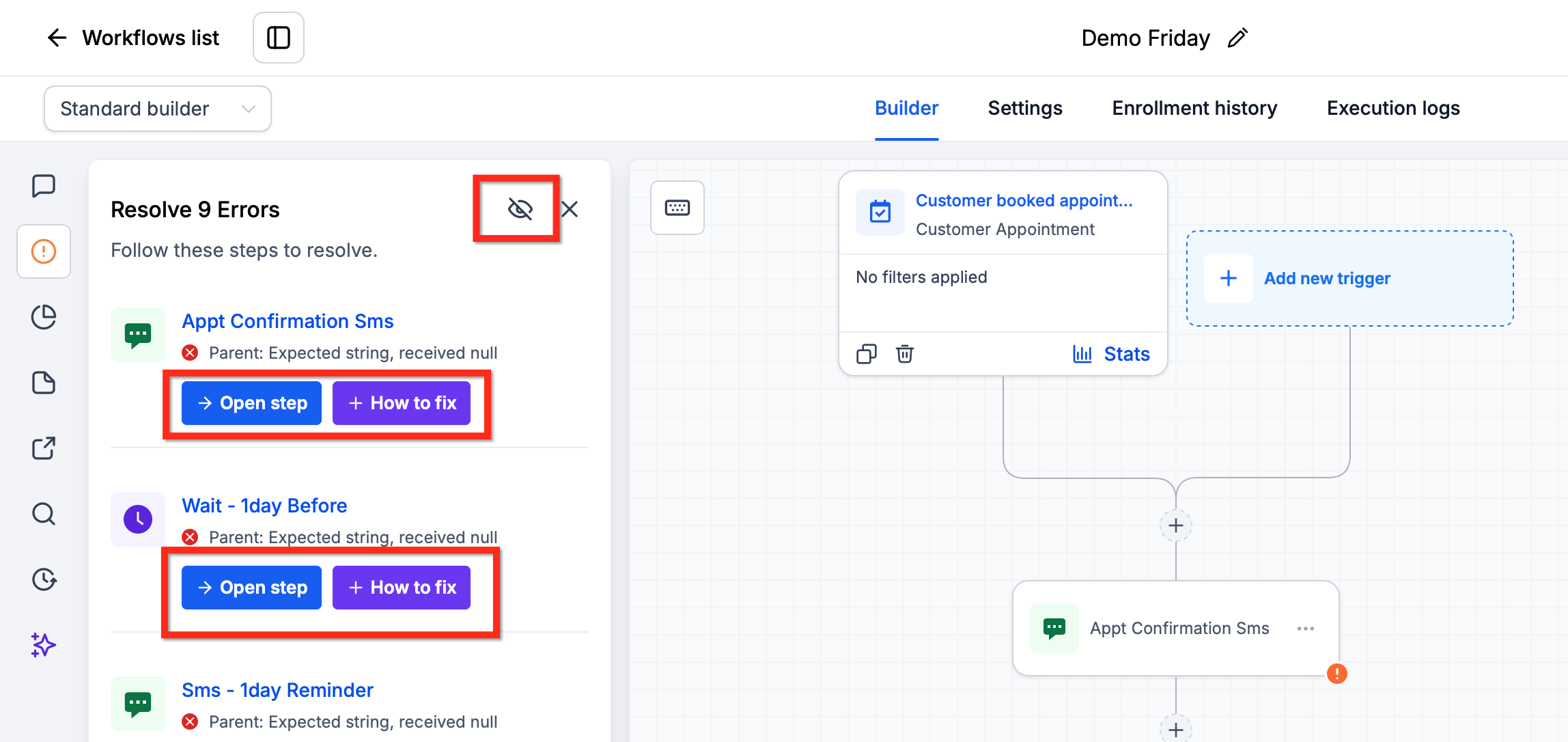
The Resolve Errors sidebar provides a centralized view of detected configuration issues from the workflow. Bringing these errors together makes it easier to understand what needs attention and move directly to the affected trigger or action.
After selecting Review issues, the Resolve Errors sidebar displays affected workflow components and their associated errors.
Each applicable error provides two troubleshooting options:
- Open step: Opens the affected trigger or action so you can review and update its configuration.
- How to fix: Uses AI assistance to help explain the detected problem and provide guidance for resolving it.
AI-assisted resolution can help explain the error and suggest how to address it, but you should still review the resulting workflow configuration to make sure it matches the intended automation.
Error visibility controls can make it easier to work on the workflow canvas when you do not need error indicators displayed. Hiding an indicator changes its visibility rather than correcting the underlying configuration problem, so unresolved issues may still require attention before publishing.
How To Resolve Workflow Errors Before Publishing
Resolving detected configuration issues before publishing helps ensure that required settings are in place before contacts enter the automation. The publish validation flow lets you move from the warning directly to the affected workflow components without manually searching through every step.
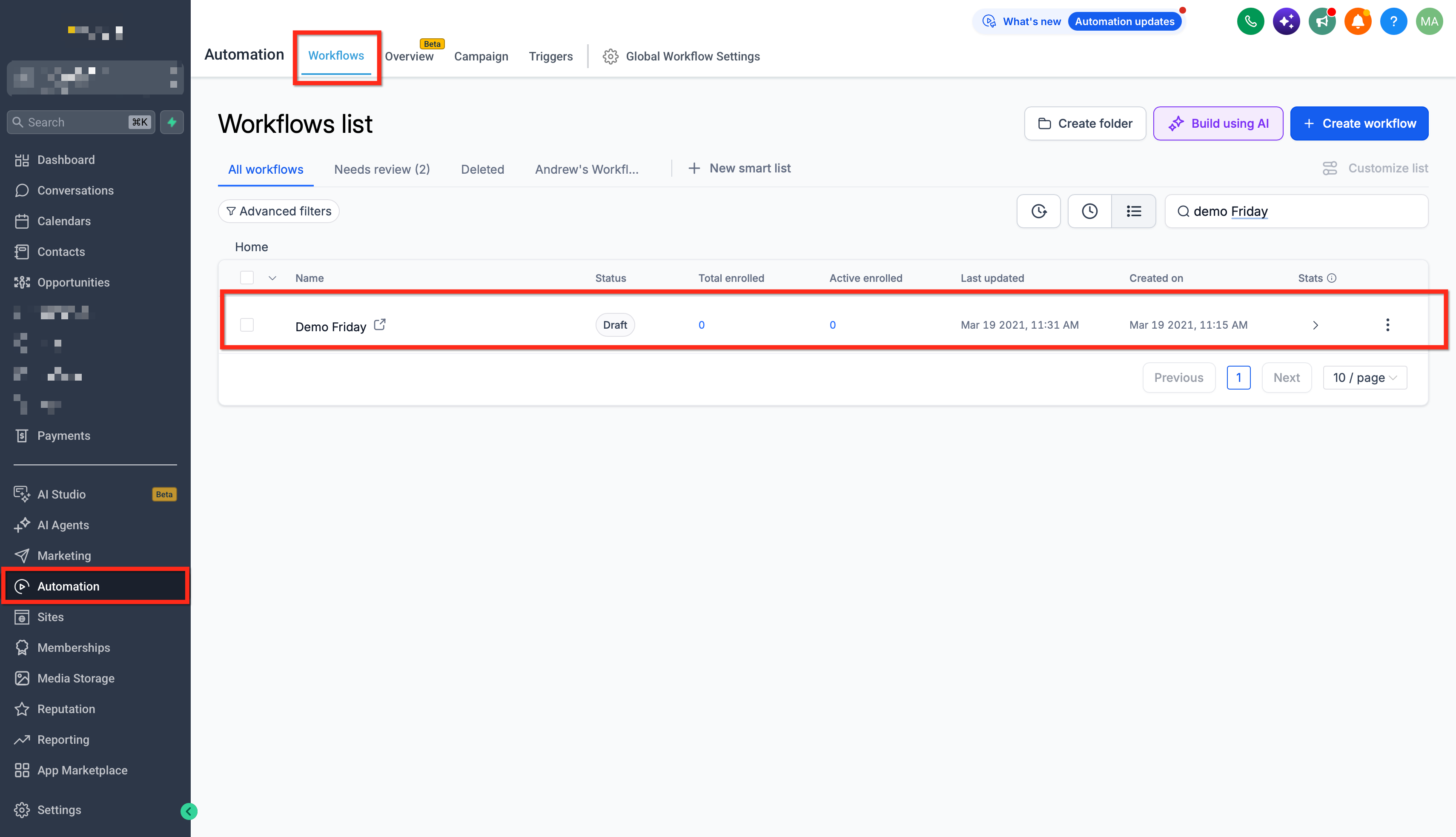
- Open the Automation > workflow you want to review.
- Continue building and save your progress as needed, even if detected errors remain.
- Click Publish when you are ready for the workflow to go live.
- If unresolved publish-blocking issues are detected, review the affected components listed in the Workflow can't be published yet modal.
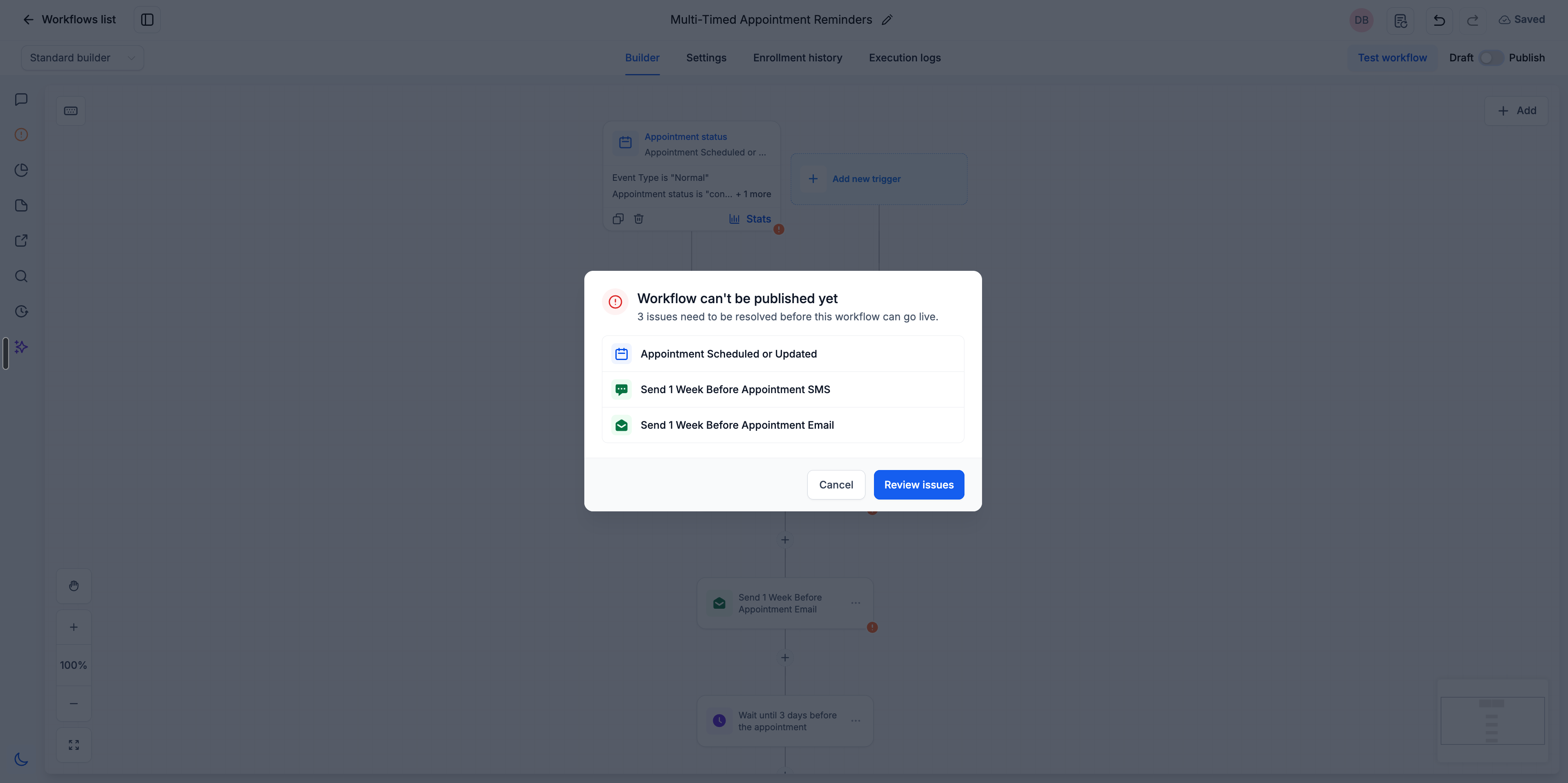
Click Review issues. Review the errors listed in the Resolve Errors sidebar.
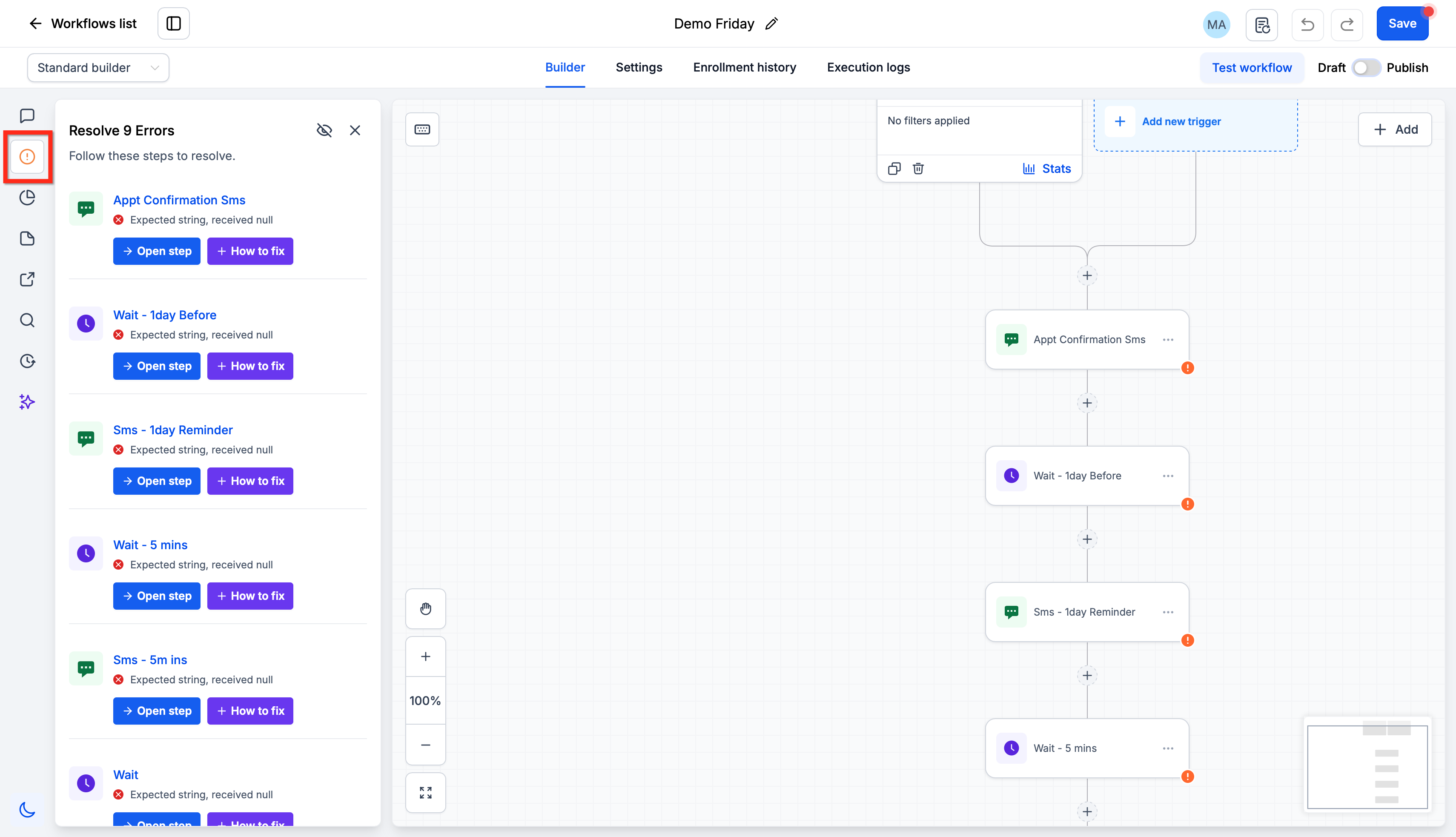
- Locate the trigger or action you want to correct. Click Open step to go directly to its configuration, or click How to fix for AI-assisted guidance.
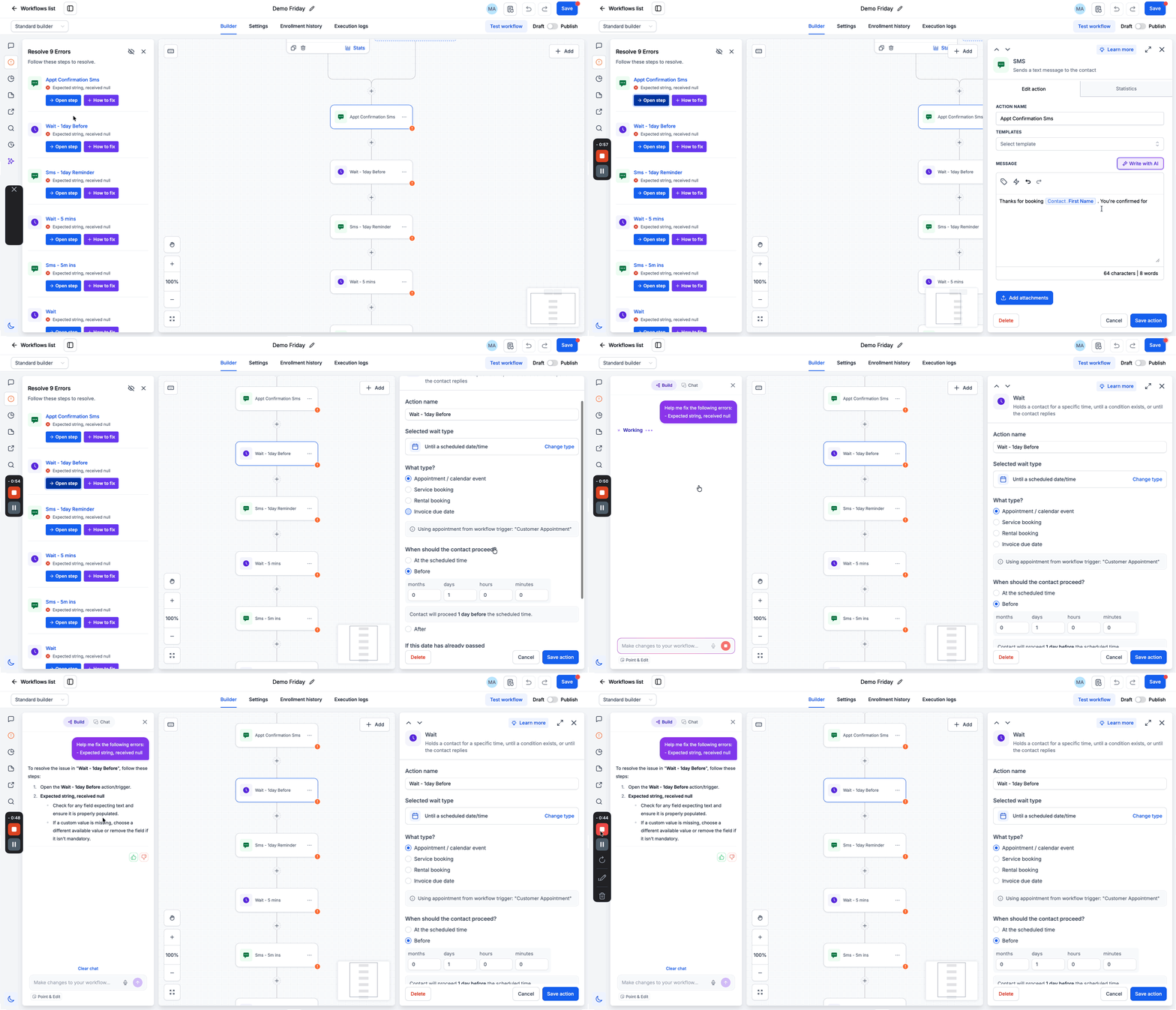
- Correct the identified configuration.
- Repeat the process for the remaining publish-blocking issues. After the applicable issues have been resolved, publish the workflow.
Error Resolution Types
1: Integration Issues
- Error: Integration with Facebook failed due to incorrect authentication.
- Resolution:
The AI Assistant prompts you to reconnect or re-authenticate the integration.
2: Missing Mandatory Fields
- Error: Snapshot import is missing required fields (e.g., Appointment Date, Custom Fields, etc.).
- Resolution:
The AI Assistant lists the missing fields and provides options to either map them or create new ones.
Pre-Publish Errors vs. Workflow Execution Errors
Configuration validation and workflow execution errors occur at different stages of an automation's lifecycle. Knowing which type of issue you are troubleshooting helps you choose the appropriate HighLevel tools rather than relying on the pre-publish error experience for problems that occur after a workflow begins running.
| Error Type | What It Means | Where to Find It |
|---|---|---|
| Pre-publish configuration errors | Identify supported problems in workflow triggers, actions, or required settings while building or publishing a workflow. These issues may need to be resolved before the workflow can be published. | In the left-side error panel on the Workflow Canvas. If publishing is blocked, click Review issues to open the same error panel and review the affected steps. |
| Execution errors | Occur when contacts move through a workflow and an issue happens during execution. These errors help you troubleshoot what happened after the workflow is running. | In Execution Logs, available from the top menu bar within the workflow. |
Note: Successfully resolving pre-publish errors does not guarantee that every workflow execution will succeed. Continue testing and monitoring live workflows when appropriate.Frequently Asked Questions
Q: Can I save a workflow when it still has configuration errors?
Yes. Manual save and autosave can preserve your progress while detected configuration errors remain. Publishing is handled separately.
Q: Can I publish a workflow with an unresolved publish-blocking error?
No. When HighLevel detects an unresolved publish-blocking configuration issue, the publish attempt is stopped so the applicable issue can be corrected.
Q: Will an already published workflow automatically return to Draft if HighLevel finds an error?
No. Existing HighLevel documentation states that a published workflow does not automatically move back to Draft when an error is found.
Q: Does HighLevel detect every possible workflow problem before publishing?
Do not assume that every possible workflow problem will be caught by pre-publish validation. Validation coverage applies to supported configurations and continues to expand. Testing and monitoring workflows after publication remains important.
Q: What is the difference between Open step and How to fix?
Open step takes you directly to the affected workflow component so you can modify its configuration. How to fixprovides AI-assisted guidance for understanding and resolving the detected error.
Q: What happens after I fix an error?
For supported errors, the error indicator disappears and the corresponding error is automatically removed from the error list once the issue is resolved. (help.gohighlevel.com)
Q: Does hiding an error resolve it?
No. Hiding an error changes its visibility but does not correct the underlying configuration. If the issue blocks publishing, it must still be resolved.
Q: Are Resolve Errors issues the same as errors shown in Execution Logs?
Not necessarily. Resolve Errors focuses on supported configuration problems while building and publishing. Execution Logs and Error Notifications help troubleshoot problems encountered when workflows run.
Related Articles
- Workflow Builder Walkthrough in HighLevel | Automation Guide
- Error Notifications in Workflows
- Getting Started with Workflows in HighLevel
- A List of Workflow Triggers
- A List of Workflow Actions
- Workflow AI Builder: Generate and Edit Workflows with AI
Was this article helpful?
That’s Great!
Thank you for your feedback
Sorry! We couldn't be helpful
Thank you for your feedback
Feedback sent
We appreciate your effort and will try to fix the article