Custom Unsubscribe Links in HighLevel
A clean, branded opt-out flow built on trigger links and workflows — keeping you CAN-SPAM and GDPR compliant while protecting your sender reputation.
Ensuring that your email recipients have a clear and easy way to unsubscribe isn't just a best practice — it's essential for maintaining trust and improving engagement. HighLevel lets you create custom unsubscribe links, giving your contacts a seamless branded experience while keeping you compliant with email regulations.
Table of Contents
What Are Custom Unsubscribe Links?
Custom unsubscribe links are personalized opt-out links embedded in marketing emails, allowing recipients to unsubscribe from future communications in a way that aligns with your brand.
Unlike default unsubscribe links — which often redirect users to a generic confirmation page — custom unsubscribe links give you full control over the experience, from the click through to the confirmation screen.
Key Benefits of Custom Unsubscribe Links
Four reasons to replace the default unsubscribe experience with a custom flow:
- Enhance User Experience: Direct users to a branded landing page that confirms their opt-out decision.
- Provide Subscription Preferences: Allow users the option to opt out of specific types of emails instead of all communications.
- Maintain Compliance: Ensure compliance with email marketing regulations like the CAN-SPAM Act and GDPR.
- Improve Deliverability: Reduce spam complaints by offering a clear and easy way for recipients to unsubscribe.
Note
Custom unsubscribe links in HighLevel use trigger links and workflows to automatically mark contacts as "Do Not Disturb" (DND), preventing them from receiving further emails.
Setup Guide
Creating Custom Unsubscribe Links
Follow these four steps to set up a complete custom unsubscribe flow in HighLevel.
Step 1: Create an Unsubscribe Landing Page
Design a landing page that confirms the unsubscribe action. This page should inform users they have successfully unsubscribed — and, if desired, offer options to manage their subscription preferences.
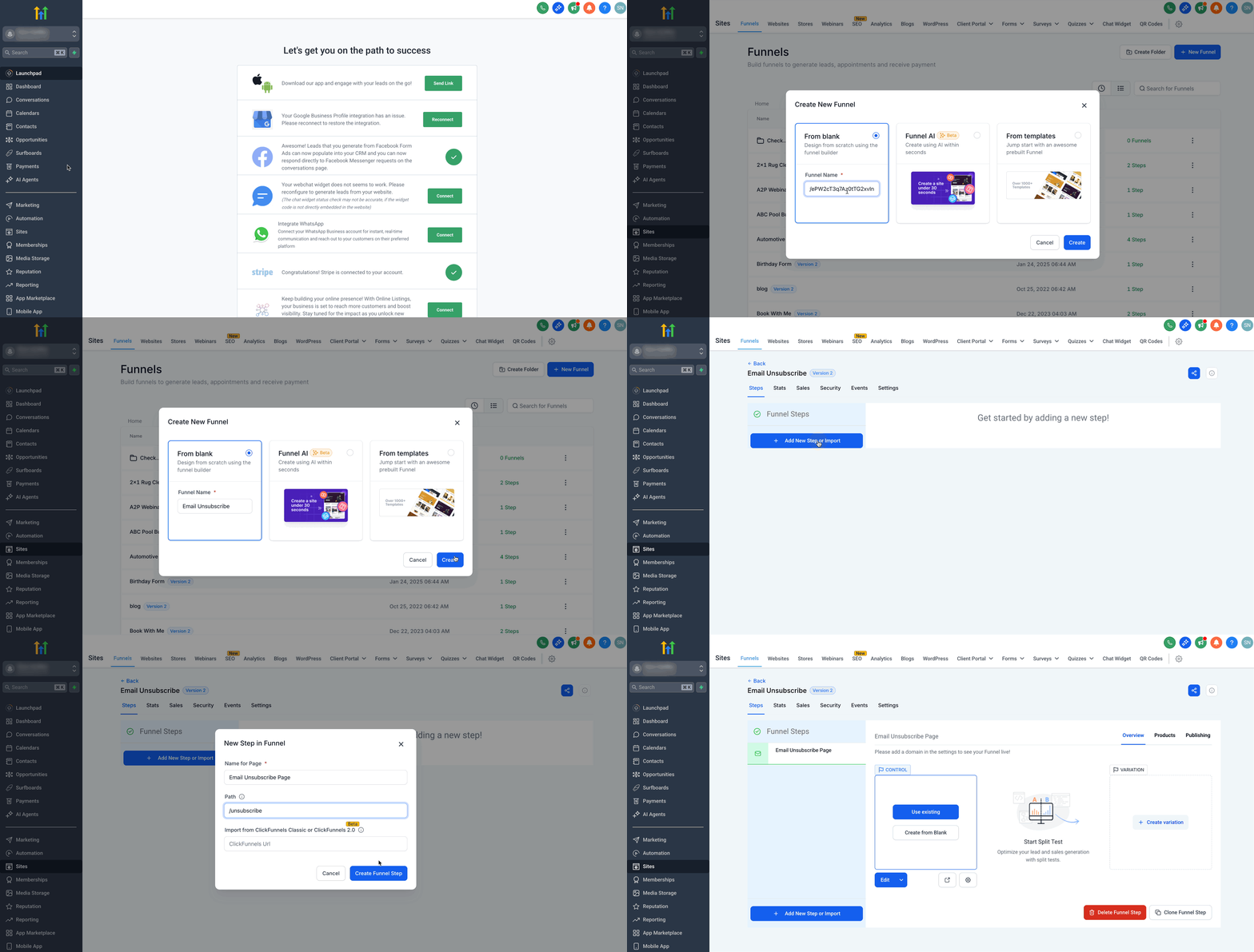
- Navigate to Sites and then Funnels from your HighLevel sub-account.
- Click on + New Funnel and name it Email Unsubscribe.
- Within this funnel, add a new step named "Email Unsubscribe Page" with a path like /unsubscribe.
Design Tip
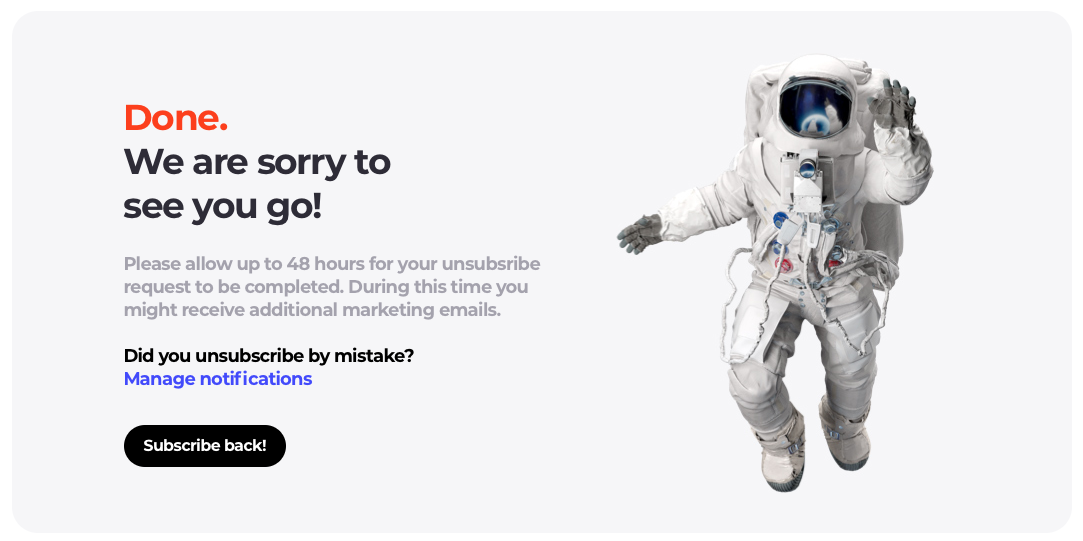
Design the page content to reflect the unsubscribe confirmation message. A demo page is shown below for reference. Check out the Funnel Styling guide for more information.
Step 2: Set Up a Trigger Link
A trigger link in HighLevel allows you to perform specific actions when a contact clicks on a particular link. In this case, clicking the unsubscribe link will update their preferences.
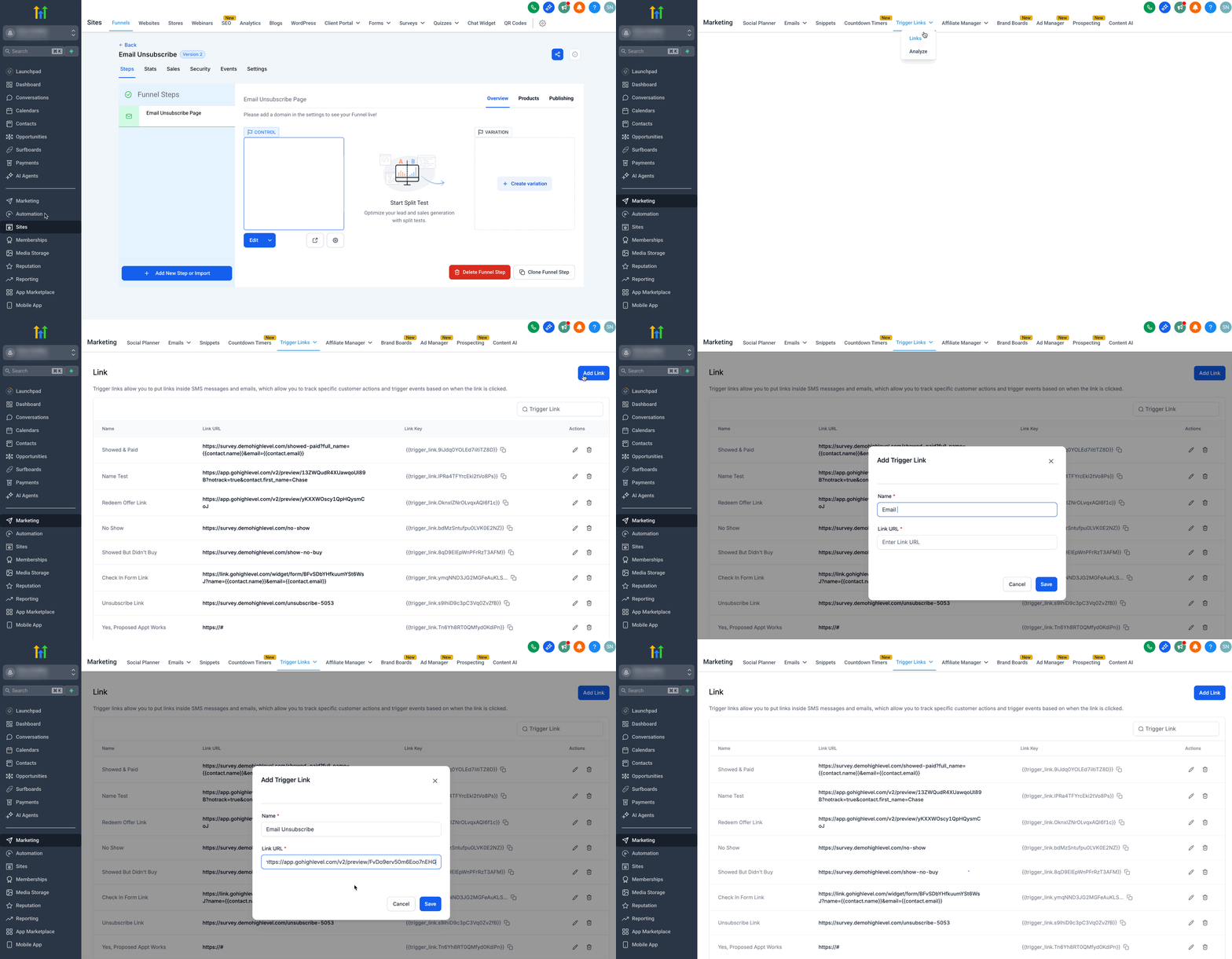
- Go to Marketing then Trigger Links from your HighLevel sub-account.
- Select Links from the dropdown and click the Add Link button.
- Add the name of the link.
- Paste the URL of the unsubscribe landing page you created earlier into the Link URL field.
- Click Save.
Step 3: Create a Workflow to Manage Unsubscribes
Set up a workflow that automatically updates the contact's status when they click the unsubscribe link.
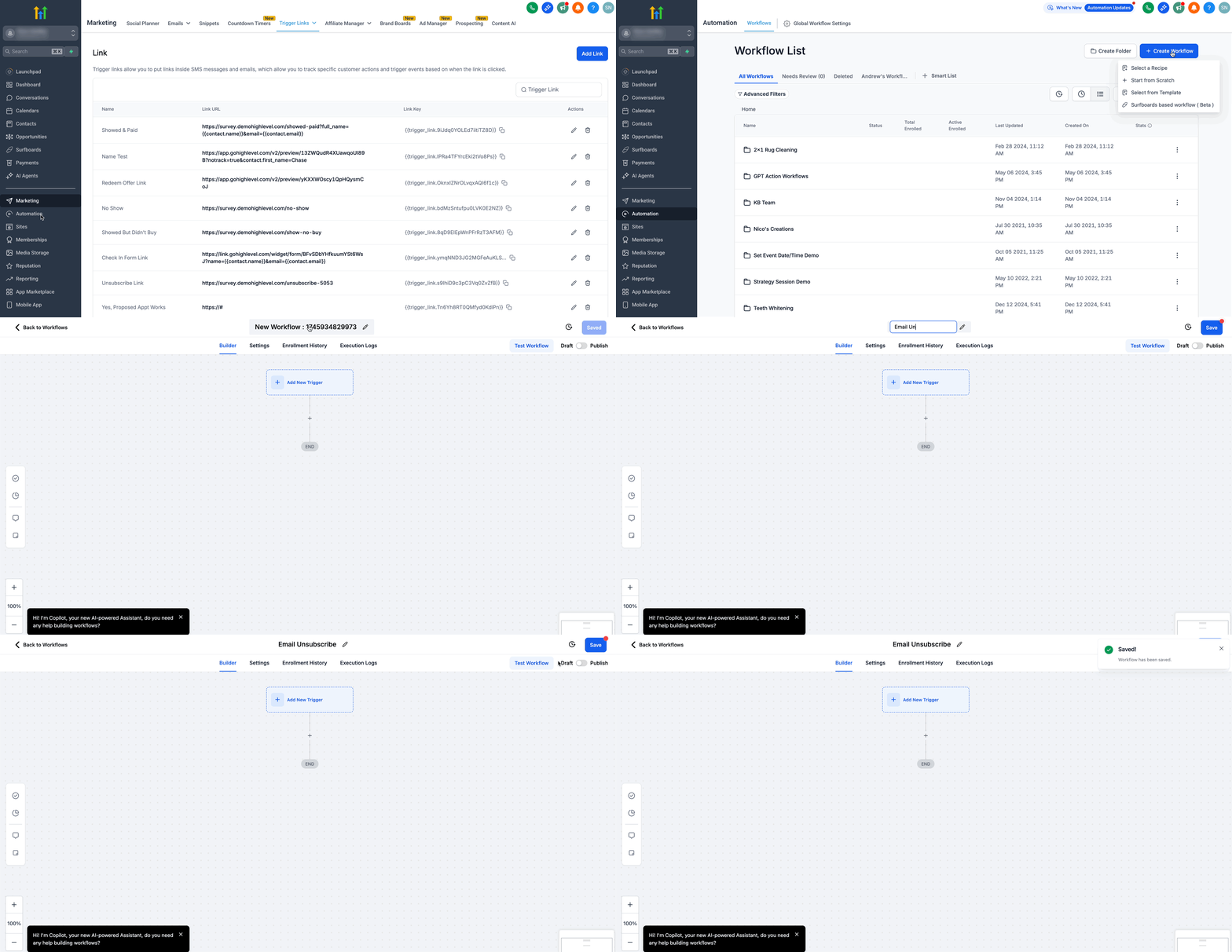
- Navigate to Automation from your HighLevel sub-account and select Workflows.
- Click + Create Workflow and select + Start from Scratch.
- Name the workflow.
Sub-step A
Set Up the Trigger
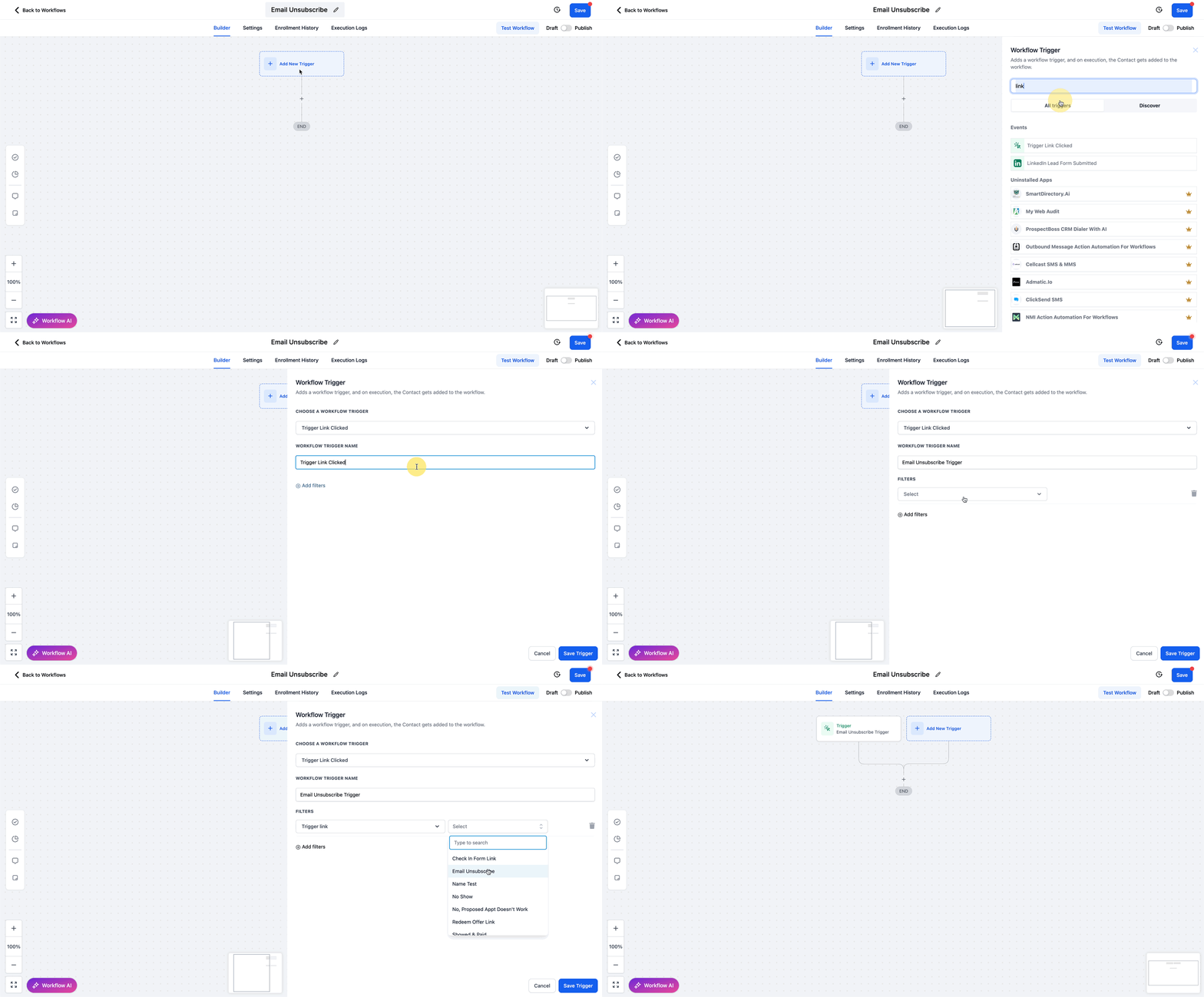
- Click Add New Trigger and select Trigger Link Clicked from events.
- Add the Workflow Trigger Name.
- Click Add Filter and select Trigger Link from the drop-down.
- Select your previously saved Email Unsubscribe Trigger Link from the drop-down.
- Click the Save Trigger button.
Sub-step B
Add the DND Action
- Click the + button to add an Action.
- Select the Enable/Disable DND action.
- Select Enable DND for Specific Channels and Email from the Channels drop-down.
- Save and Publish the workflow.

Step 4: Insert the Unsubscribe Link Into Your Emails
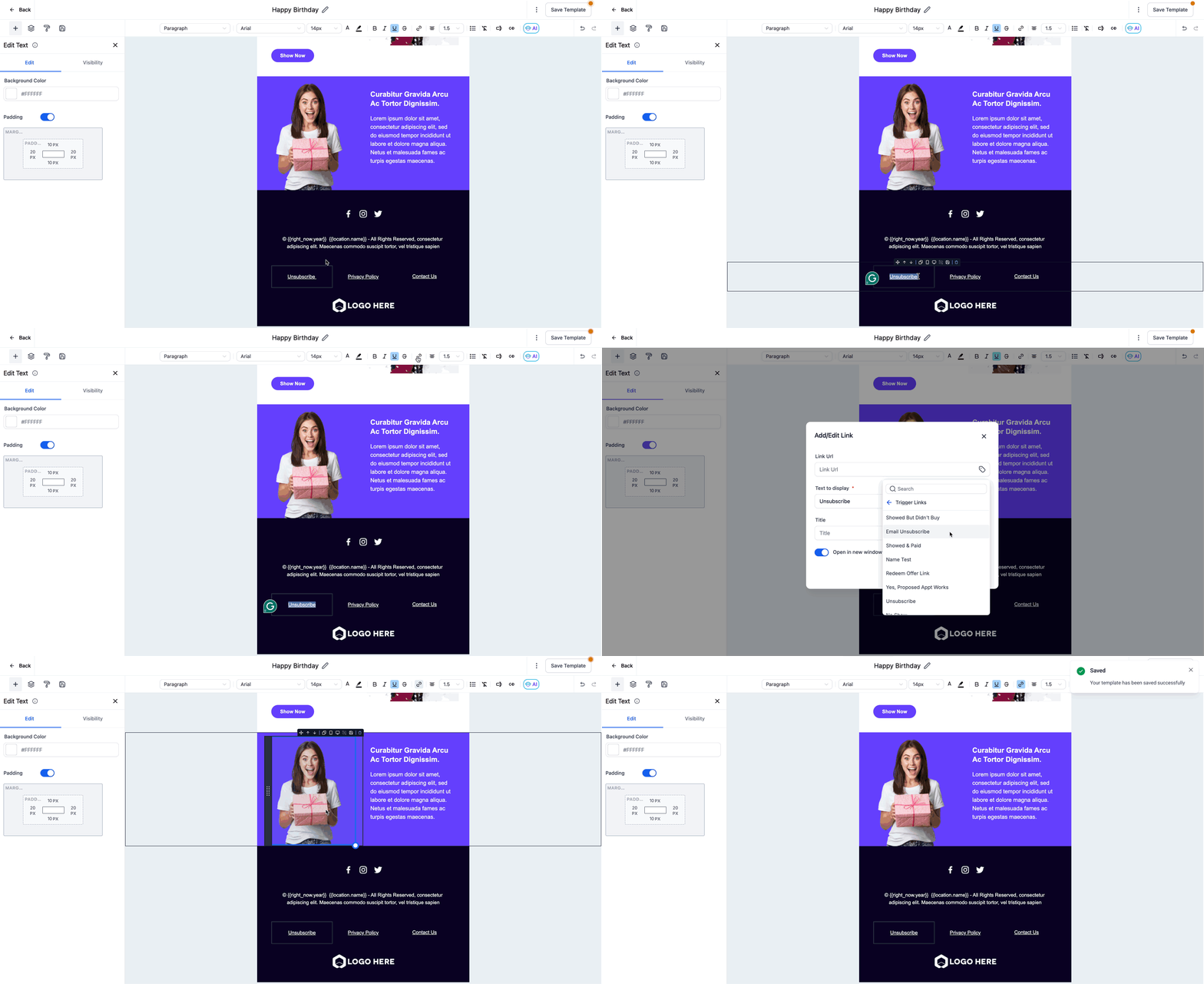
- In your email template editor, add text like Unsubscribe or Unsubscribe from this list.
- Highlight this text and click the link icon.
- Click Trigger Links from the Link URL dropdown and select the saved Unsubscribe Link.
- Save the template.
Important: Workflow Emails Need Manual Unsubscribe Links
Emails sent via workflows do not automatically include unsubscribe links. To stay compliant, you must manually add the unsubscribe trigger link to each email template used in a workflow.
Highlight text such as "Unsubscribe" or "Click here to unsubscribe" in your email template, click the link icon, and select your custom unsubscribe trigger link from the dropdown. This ensures recipients can opt out no matter where the email originates.
You're All Set
Custom unsubscribe links protect your sender reputation, keep your list healthy, and give your audience a clean, branded experience. Once these four steps are in place, every email you send can carry a compliant opt-out path.
Frequently Asked Questions
Was this article helpful?
That’s Great!
Thank you for your feedback
Sorry! We couldn't be helpful
Thank you for your feedback
Feedback sent
We appreciate your effort and will try to fix the article