Reviews AI Drip Mode helps you work through older, unreplied reviews without publishing every response at once. Control which reviews qualify, how many replies are sent, when they are published, and which Reviews AI Agents generate them. This guide explains how to create, monitor, and manage a Drip Mode campaign.
TABLE OF CONTENTS
- What Is Reviews AI Drip Mode?
- Key Benefits of Reviews AI Drip Mode
- How Drip Mode Selects and Schedules Reviews
- Monitor and Manage a Drip Mode Campaign
- Before You Begin
- How To Set Up Reviews AI Drip Mode
- Best Practices for Drip Mode
- Limitations and Good to Know
- Frequently Asked Questions
- Related Articles
What Is Reviews AI Drip Mode?
Drip Mode is a Reviews AI campaign that gradually responds to historical reviews that have not received a reply. It uses your selected Reviews AI Agents while following campaign rules for review age, frequency, reply limits, and publishing hours.
Campaigns allow you to optionally define a specific Review Date Range so you can control which unreplied reviews are eligible.
Important: Drip Mode is designed for an existing review backlog. Continue using your regular Reviews AI settings to manage new reviews.
Key Benefits of Reviews AI Drip Mode
Drip Mode provides a controlled way to improve response coverage without manually replying to every historical review.
- Backlog cleanup: Respond to older, unanswered reviews automatically.
- Controlled pacing: Limit reply volume and distribute responses over time.
- Brand consistency: Use Reviews AI Agents with the appropriate tone and assignment rules.
- Campaign control: Pause, edit, resume, or delete a campaign as priorities change.
- Clear progress: Track sent replies, daily activity, pending reviews, and campaign completion.
How Drip Mode Selects and Schedules Reviews
The campaign's eligibility and timing settings determine which reviews receive a response and when each reply is published.
- Review date range: Sets the start and end dates for reviews that can qualify for the campaign.
- Unreplied reviews: Limits the campaign to reviews that do not already have a response.
- Frequency: Controls how often the campaign processes replies.
- Replies per day: Limits how many replies can be sent during one day.
- Time window: Restricts replies to the selected hours in the displayed local time.
- Reviews AI Agents: Determines which configured agents can generate the responses.
When the campaign reaches its reply limit, remaining eligible reviews stay pending until the next available campaign window.
Monitor and Manage a Drip Mode Campaign
The campaign dashboard shows whether replies are publishing at the expected pace and provides controls for future campaign activity.
The dashboard displays:
- Responses sent: Total replies published by the campaign
- Replied today: Replies published during the current day
- Pending reviews: Eligible reviews still waiting for a response
- Progress: Completed replies compared with the campaign target
- Frequency and time window: The campaign's active scheduling rules
- Next reply: The next scheduled response when one is pending
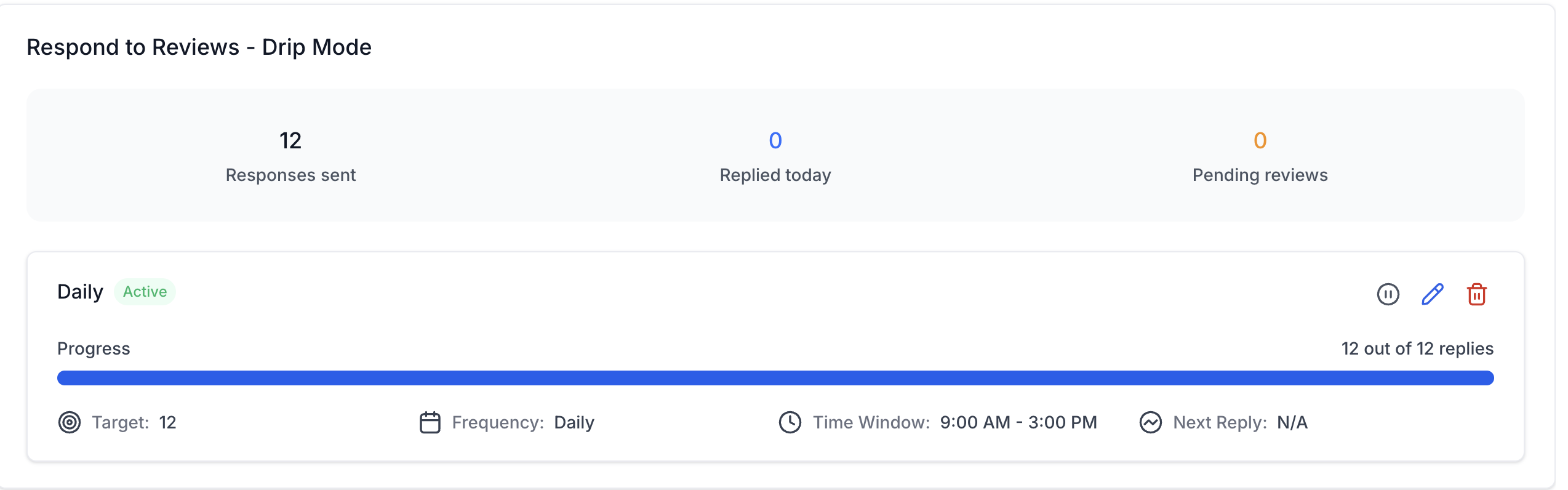
Campaign controls work as follows:
- Pause: Stops future replies while preserving the campaign settings.
- Edit: Changes future eligibility, timing, limits, or agent settings. Sent replies are not changed.
- Delete: Cancels pending replies and removes the campaign. Previously published replies remain available.
Before You Begin
A connected review source and at least one configured Reviews AI Agent are required before Drip Mode can generate responses.
Confirm that:
- Reviews AI is available and not set to Off for the sub-account.
- A supported review source is connected.
- The account contains older, unreplied reviews.
- At least one Reviews AI Agent is configured.
- Each selected agent has the appropriate tone, source, review type, and assignment rules.
- You have permission to manage Reviews AI Agents when agent changes are required.
Permissions: If agent-management options are missing, ask an administrator to enable the Manage Reviews AI Agents permission for your role.
How To Set Up Reviews AI Drip Mode
A well-configured campaign targets the intended review backlog, stays within your preferred publishing hours, and uses agents that match your brand voice.
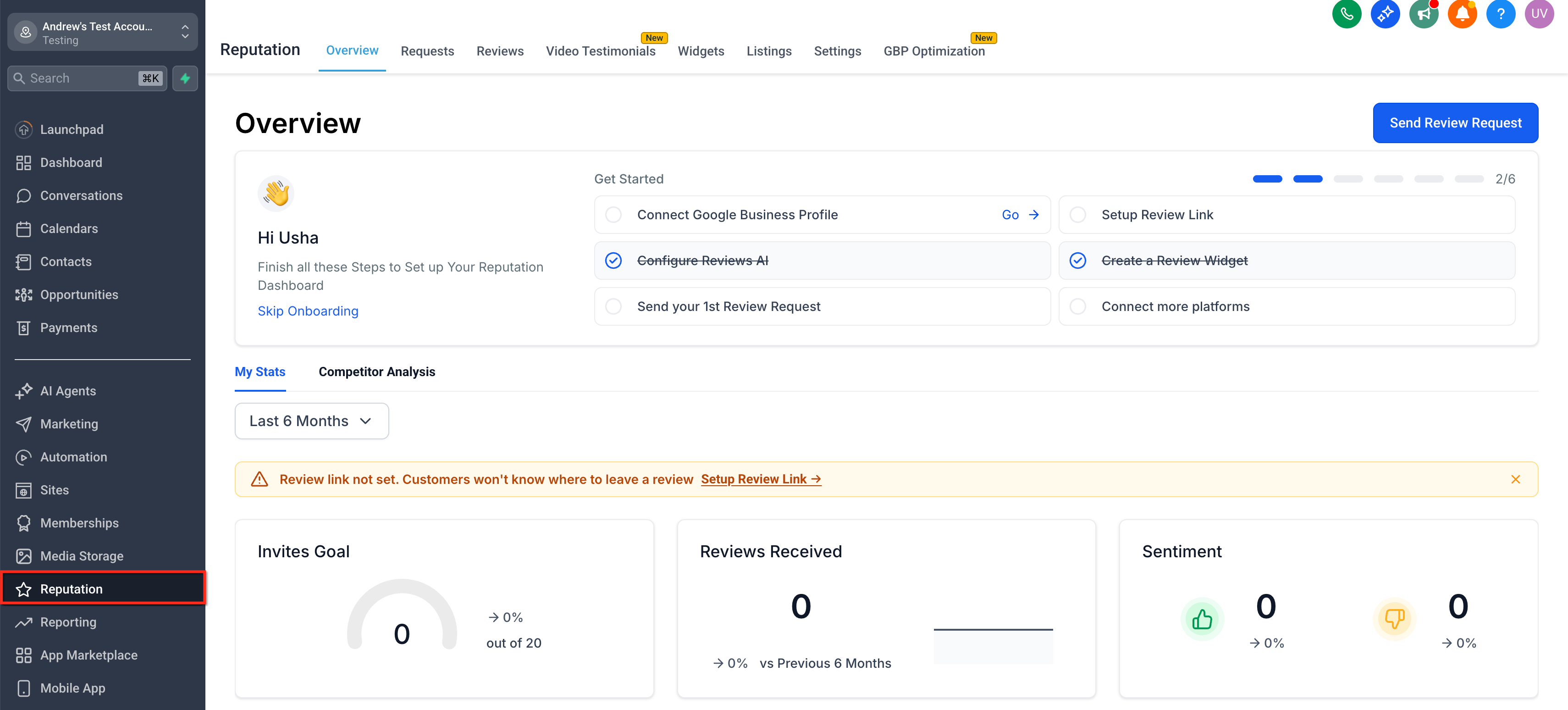
- Go to Reputation in the sub-account.
- Select Settings → Reviews AI.
- Confirm that Reviews AI is enabled.
- If prompted, click Integrate Now and connect the required review source.
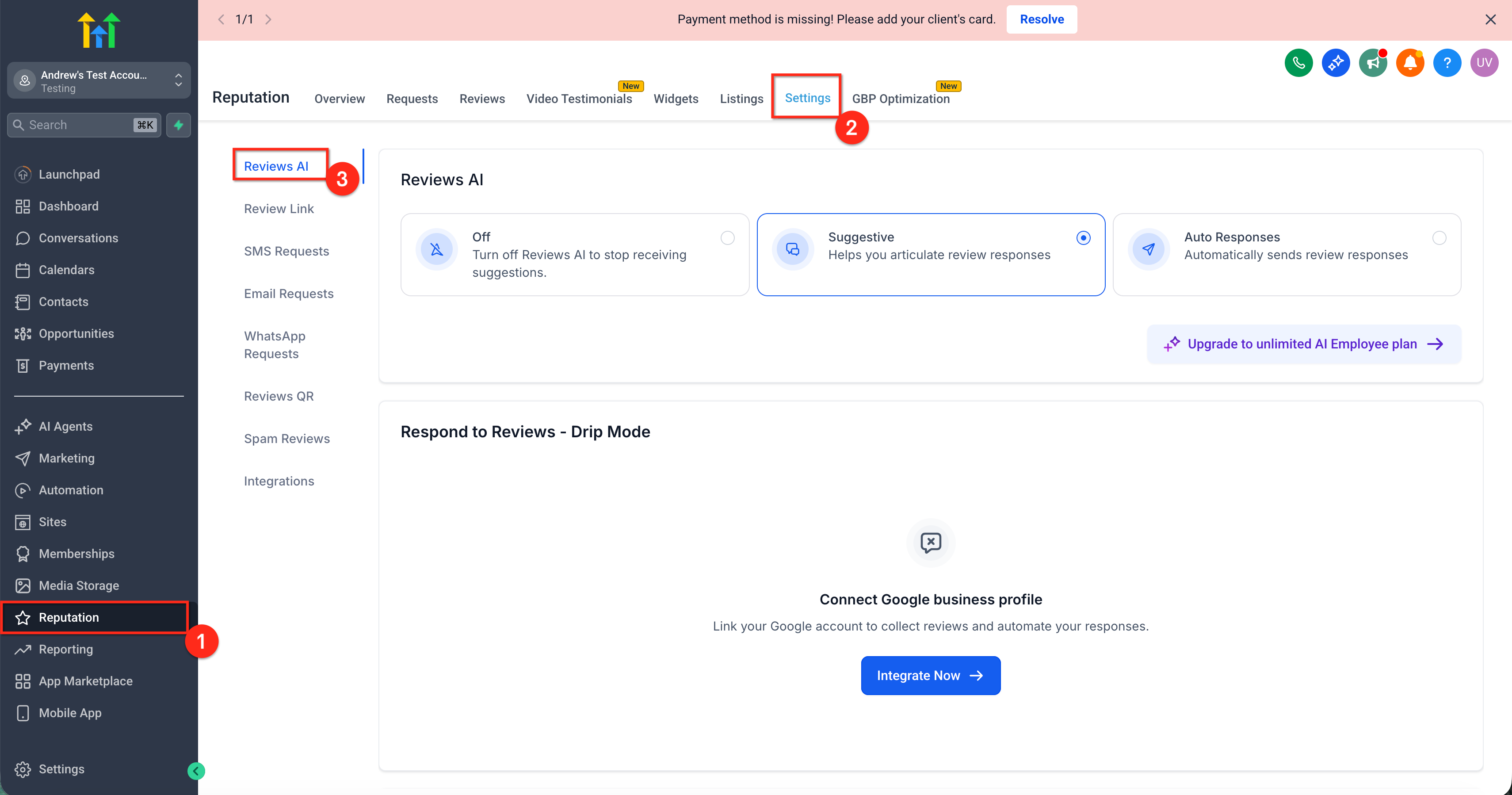
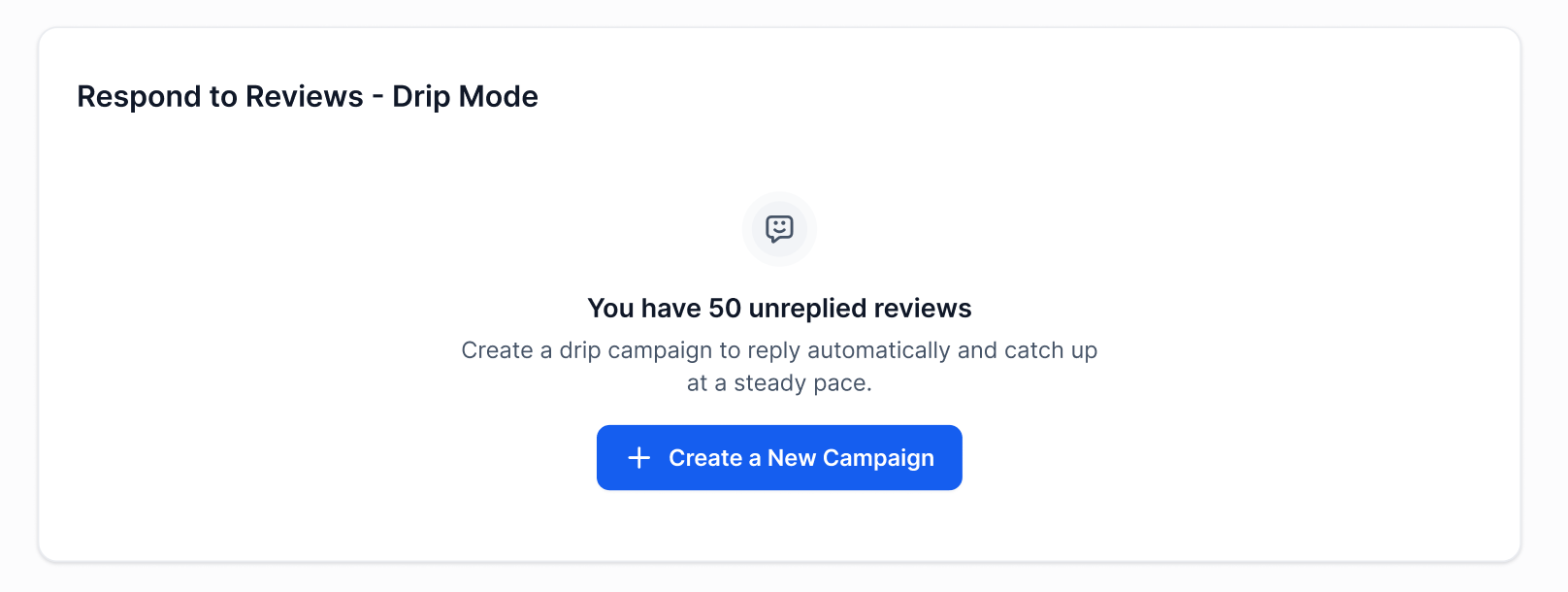
- Locate Respond to Reviews – Drip Mode.
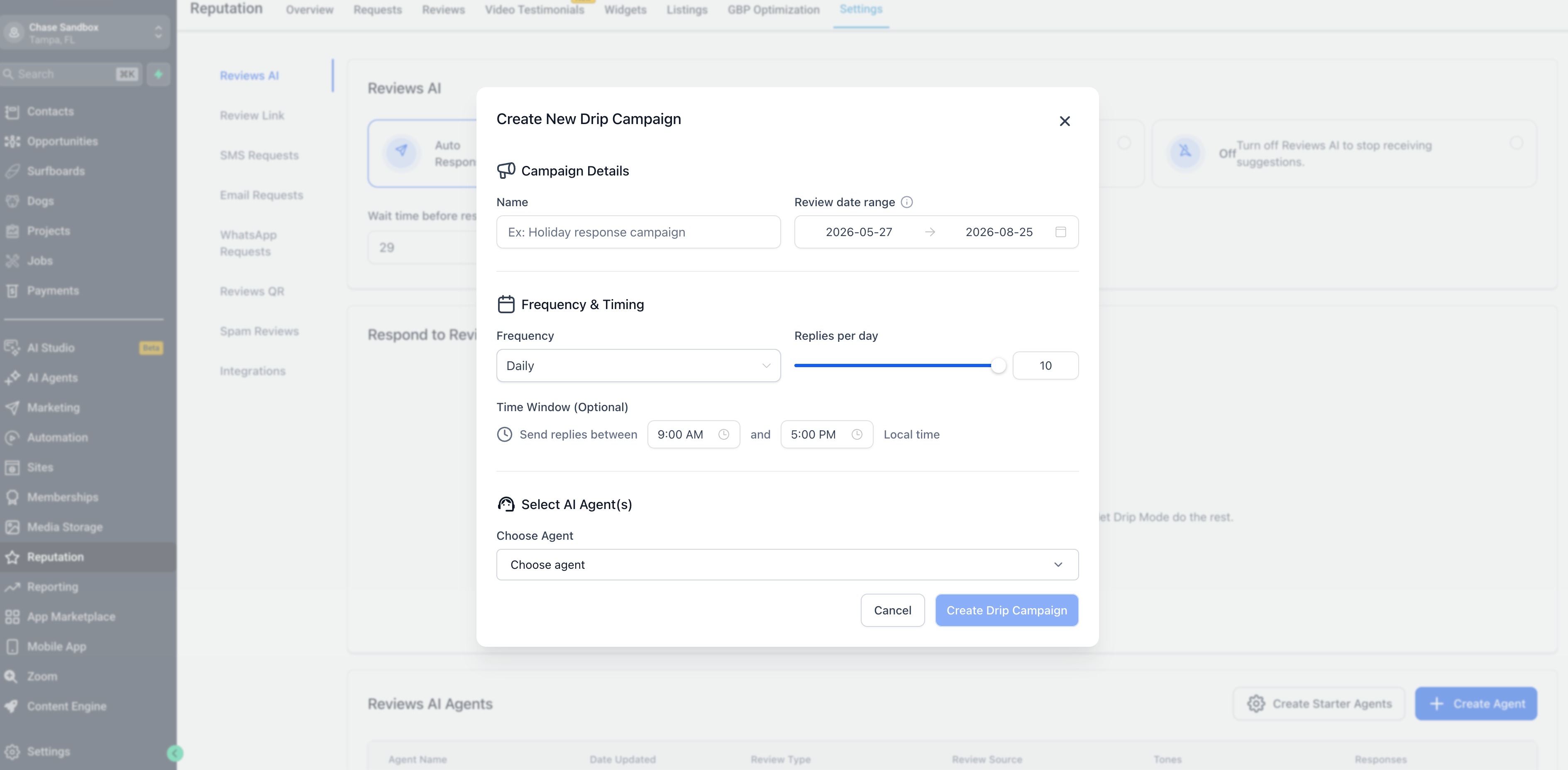
- Click Create a New Campaign.
- Enter a descriptive campaign Name, such as
Older Google Reviews – Daily. - Set Date Range.
- Configure Frequency & Timing:
- Select the campaign frequency.
- Set the number of replies per day.
- Optionally select a time window for publishing replies.
- Select the campaign frequency.
- Under Select AI Agent(s), choose one or more Reviews AI Agents.
- Review each agent's platform, review type, and tone.
- Review the campaign settings and eligible-review count.
- Click Create Campaign or Start to activate a new campaign.
- When editing an existing campaign, click Update Campaign.
- Return to the Drip Mode dashboard and confirm the campaign status, target, and pending-review count.
Best Practices for Drip Mode
Reviewing the campaign settings and sample replies helps maintain a consistent brand voice while the backlog is processed.
- Use a campaign name that identifies the review source, backlog, or schedule.
- Start with a conservative reply limit and increase it after reviewing the results.
- Use an empathetic, solution-focused agent for negative reviews.
- Keep the time window within normal business hours.
- Review sample responses shortly after starting the campaign.
- Avoid overlapping campaigns that could target the same review backlog.
- Keep Drip Mode focused on historical reviews and manage new-review automation separately.
- Pause the campaign before making major agent or tone changes.
Limitations and Good to Know
Understanding how campaign settings affect pending and completed replies helps prevent unexpected scheduling or reporting results.
- Drip Mode processes older, unreplied reviews that meet the campaign's age rule.
- Campaign edits apply only to future replies.
- Pausing stops future replies but preserves the campaign.
- Deleting a campaign removes pending work but does not remove previously published replies.
- Actual reply timing depends on the campaign frequency, reply limit, and time window.
- Available review sources depend on the integrations connected to the sub-account.
- If Google or Facebook deletes a review in an active campaign, HighLevel does not repeatedly retry it or generate additional billable AI responses for that deleted review.
Frequently Asked Questions
Q: Which reviews are included in a Drip Mode campaign?
Reviews must be unreplied and within the date range configured in the campaign.
Q: What happens after the reply limit is reached?
Remaining eligible reviews stay pending and continue during the next available campaign window.
Q: Do campaign edits change replies that were already sent?
No. Changes apply only to future replies.
Q: Can I pause a campaign without losing its settings?
Yes. Pausing stops future replies and preserves the campaign configuration until you resume it.
Q: Why does Next Reply show N/A?
The campaign may have no pending eligible reviews, may be complete, or may not currently have another response scheduled. Check the pending-review count and campaign status.
Q: How should I handle negative reviews?
Use a Reviews AI Agent with an empathetic, solution-focused tone. Direct sensitive resolution conversations to a private support channel when appropriate.
Q: Will Drip Mode conflict with automatic replies for new reviews?
Keep Drip Mode limited to older reviews and configure new-review automation separately. Review the date range rule before activating the campaign.
Q: What happens if a review is deleted from Google or Facebook?
HighLevel does not repeatedly retry the deleted review or create additional billable AI responses for it.
Related Articles
Was this article helpful?
That’s Great!
Thank you for your feedback
Sorry! We couldn't be helpful
Thank you for your feedback
Feedback sent
We appreciate your effort and will try to fix the article