TABLE OF CONTENTS
- What’s New?
- How It Works
- Why This Feature?
- Removing Outdated or Irrelevant Custom Fields
- Related Articles
Please Note: When a custom field contains the word "score" in its name, the system automatically interprets it as a numeric scoring element. This happens across: Forms, Surveys and Quizzes. This behavior is hardcoded and tied to how we currently identify scoring elements in its implementations.
TABLE OF CONTENTS
What’s New?
Quick Add Custom Fields:
Custom Fields which we can be draggable now:
- Radio Select
- Single and Multi Dropdown
- Checkbox
- File upload
- Single Line
- Multi line
- Textbox List
- Date picker
- Number
- Monetary
Customization Options:
Simplified Workflow:
Editing Capabilities:
To edit a custom field added to a form or survey:
Click on the custom field within the form or survey builder.
A navigation bar will appear on the right side.
Use the options in the General Settings and Advanced Settings dropdowns to make the required changes.
Field Locking:
How It Works
Create New or Open an Existing form:
Go to Sites > Forms > Builder
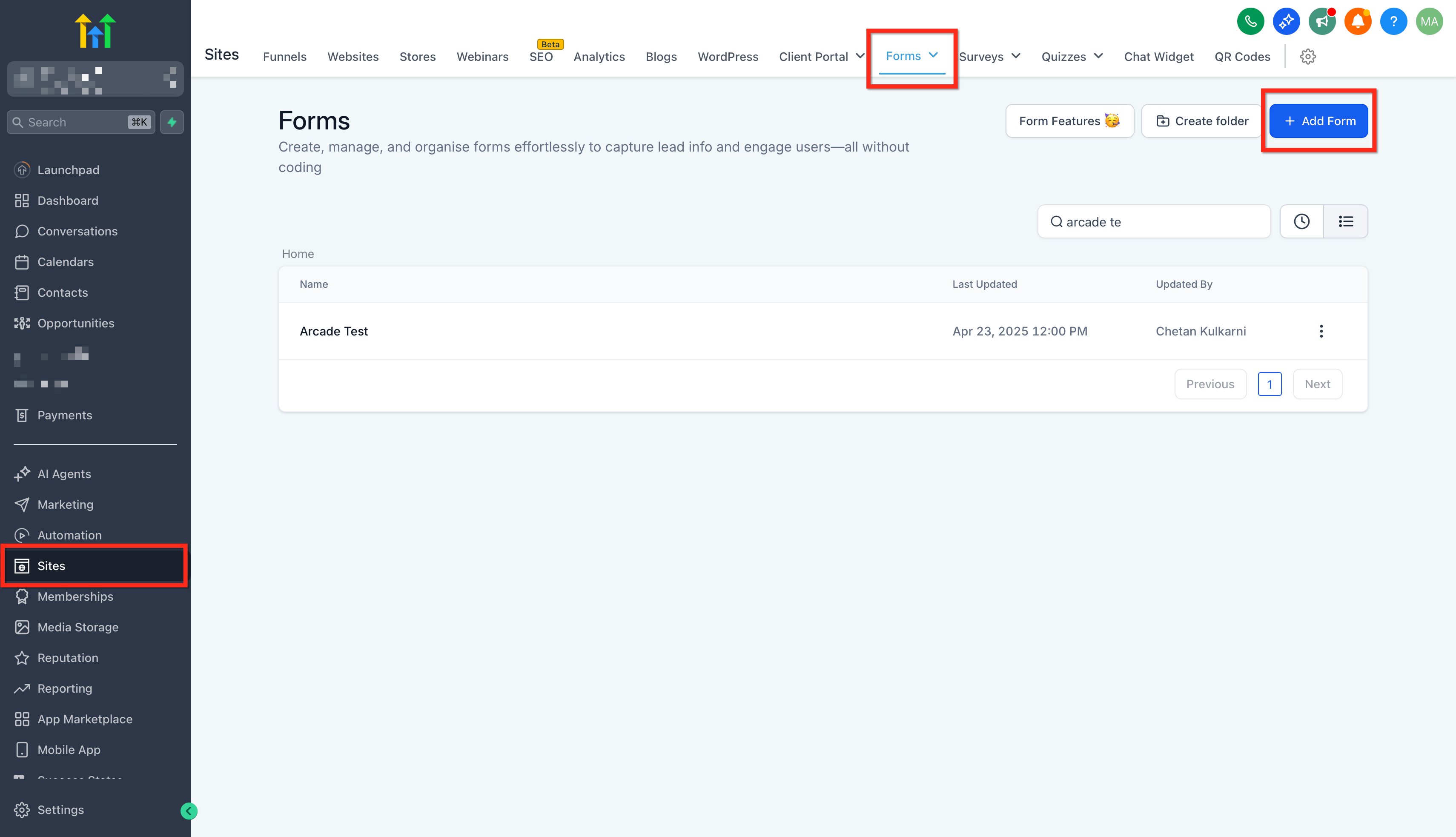
Add One or Multiple Fields
You can add fields individually or select multiple fields before adding them to the builder.
Open Add Object Fields to browse or search the available fields. Select the fields you want using the checkboxes, then add them using either option:
- Click Add N fields to add all selected fields at once.
- Drag any selected field onto the canvas to add the selected fields as a group.
Bulk-added fields are inserted in the same order they appear in the sidebar. If an element is active on the canvas, the fields are inserted after that element. If no element is active, they are added at the end of the page or slide.
You can also continue to drag and drop individual fields onto the canvas. Dragging fields provides smooth movement and visual feedback. Long forms and surveys automatically scroll when you drag near the top or bottom of the builder.
For details about selecting fields by object, identifying fields by type and query key, and managing multi-field selections, see Custom Objects and Company Objects in Forms, Surveys & Quizzes.
Customize:
Save:
Edit:
Why This Feature?


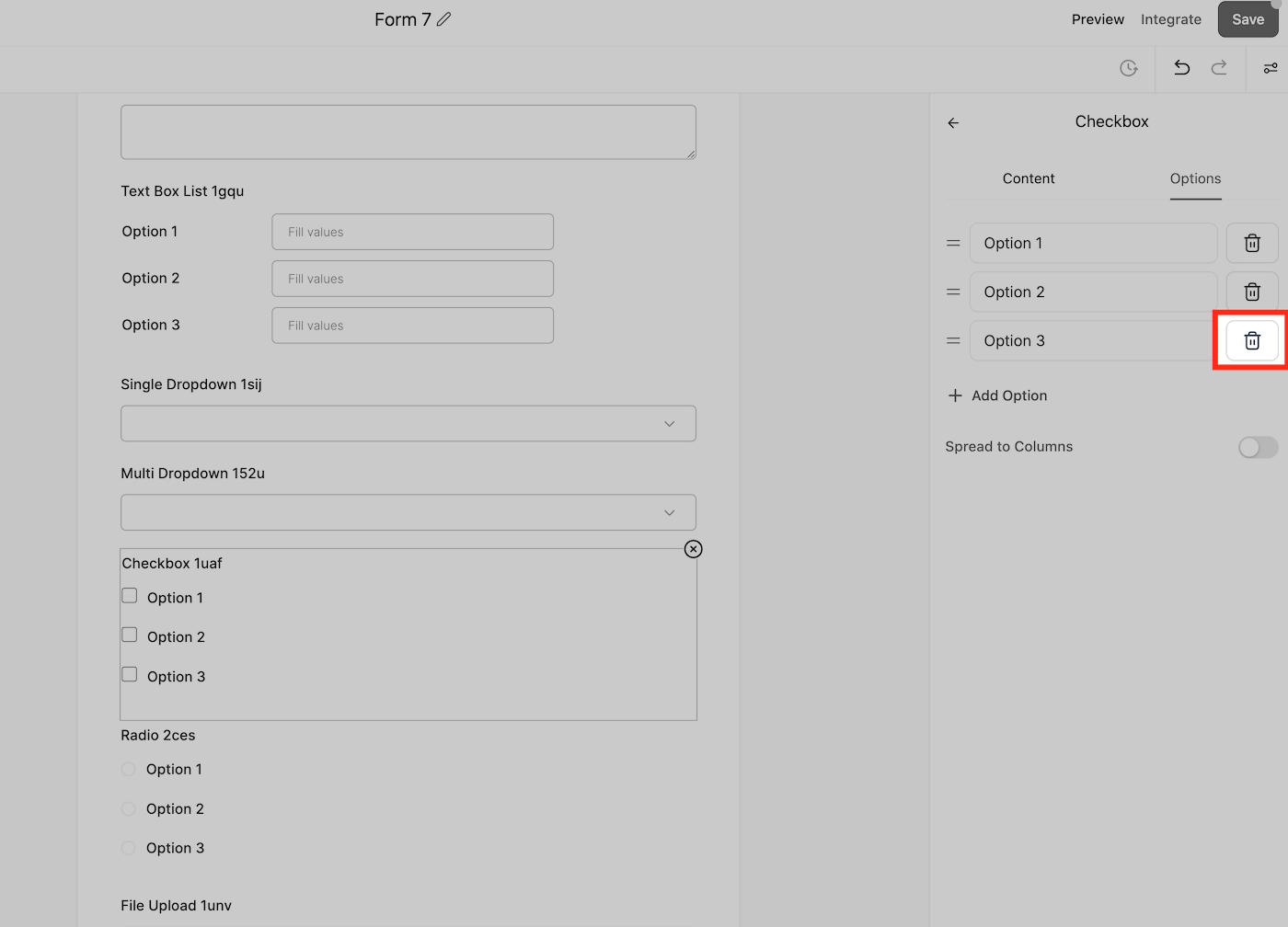
Removing Outdated or Irrelevant Custom Fields
If you’re seeing outdated custom fields in your form builder—even after deleting them from the form—they may still exist in your CRM’s custom fields list.
To fully remove them:
- Navigate to Settings > Custom Fields.
- Locate the outdated field in the list.
- Click the Trash icon to permanently delete it.
Warning: Deleting a custom field from this section removes it from all forms, surveys, and contacts where it was used.When a custom field contains the word "score" in its name, the system automatically interprets it as a numeric scoring element. This happens across:
- Forms
- Surveys
- Quizzes
This behavior is hardcoded and tied to how we currently identify scoring elements in its implementations.
Related Articles
Was this article helpful?
That’s Great!
Thank you for your feedback
Sorry! We couldn't be helpful
Thank you for your feedback
Feedback sent
We appreciate your effort and will try to fix the article