HighLevel Social Planner lets you create, schedule, and publish standard YouTube Videos and YouTube Shorts from the same workspace used for your other social channels. After connecting an eligible YouTube channel, you can upload video content, configure YouTube-specific settings, and choose when the post should publish. Social Planner also supports privacy settings, follow-up comments, and custom thumbnails for eligible standard YouTube Videos. This guide walks through the complete YouTube publishing workflow and current upload requirements.
TABLE OF CONTENTS
- What is YouTube Publishing in Social Planner?
- Key Benefits of YouTube Publishing
- Prerequisites and Limitations
- How To Set Up YouTube Publishing in Social Planner
- YouTube Video and Shorts Requirements
What is YouTube Publishing in Social Planner?
YouTube publishing in Social Planner lets you manage supported YouTube Videos and Shorts directly from HighLevel. After connecting your YouTube channel, you can upload a video, choose the appropriate post type, configure
YouTube-specific publishing options, and schedule the content without leaving Social Planner.
Key Benefits of YouTube Publishing
Publishing YouTube content through Social Planner brings YouTube into the same workflow used to manage your other connected social channels.
Videos and Shorts: Publish standard YouTube Videos or short-form YouTube Shorts from Social Planner.
Scheduled Publishing: Choose when your YouTube content should publish instead of uploading it manually at publishing time.
YouTube-Specific Controls: Configure the title, description, privacy level, video type, and other supported publishing options.
Centralized Social Management: Manage YouTube alongside your other connected social accounts from one Social Planner workspace.
Follow-Up Comments: Add a follow-up comment when needed as part of the YouTube publishing workflow.
Prerequisites and Limitations
YouTube authorization depends on channel ownership, while publishing depends on meeting YouTube and Social Planner media requirements.
Before you begin:
The Google account used during authorization must own the YouTube channel you want to connect.
The Primary Owner of the YouTube channel must complete the connection to Social Planner.
Users with only Manager or other delegated access cannot authorize the channel through the third-party integration.
An active YouTube connection is required before content can be scheduled or published to the channel.
YouTube Videos and Shorts uploaded through Social Planner can be up to 1 GB.
YouTube Shorts can be up to 3 minutes long.
A vertical 9:16 aspect ratio is recommended for Shorts.
Custom thumbnails are supported for eligible standard YouTube Videos.
Custom thumbnail uploads are not supported for YouTube Shorts through this workflow.
YouTube thumbnails can be PNG or JPEG and up to 2 MB.
The YouTube connection does not have a fixed expiration period. It remains active until it is revoked, disconnected, or otherwise becomes invalid.
How To Set Up YouTube Publishing in Social Planner
Connect the YouTube channel first, then use the Social Planner composer to configure and schedule the Video or Short.
Step 1: Connect Your YouTube Channel
Connecting the channel authorizes HighLevel to publish YouTube content on behalf of the channel.
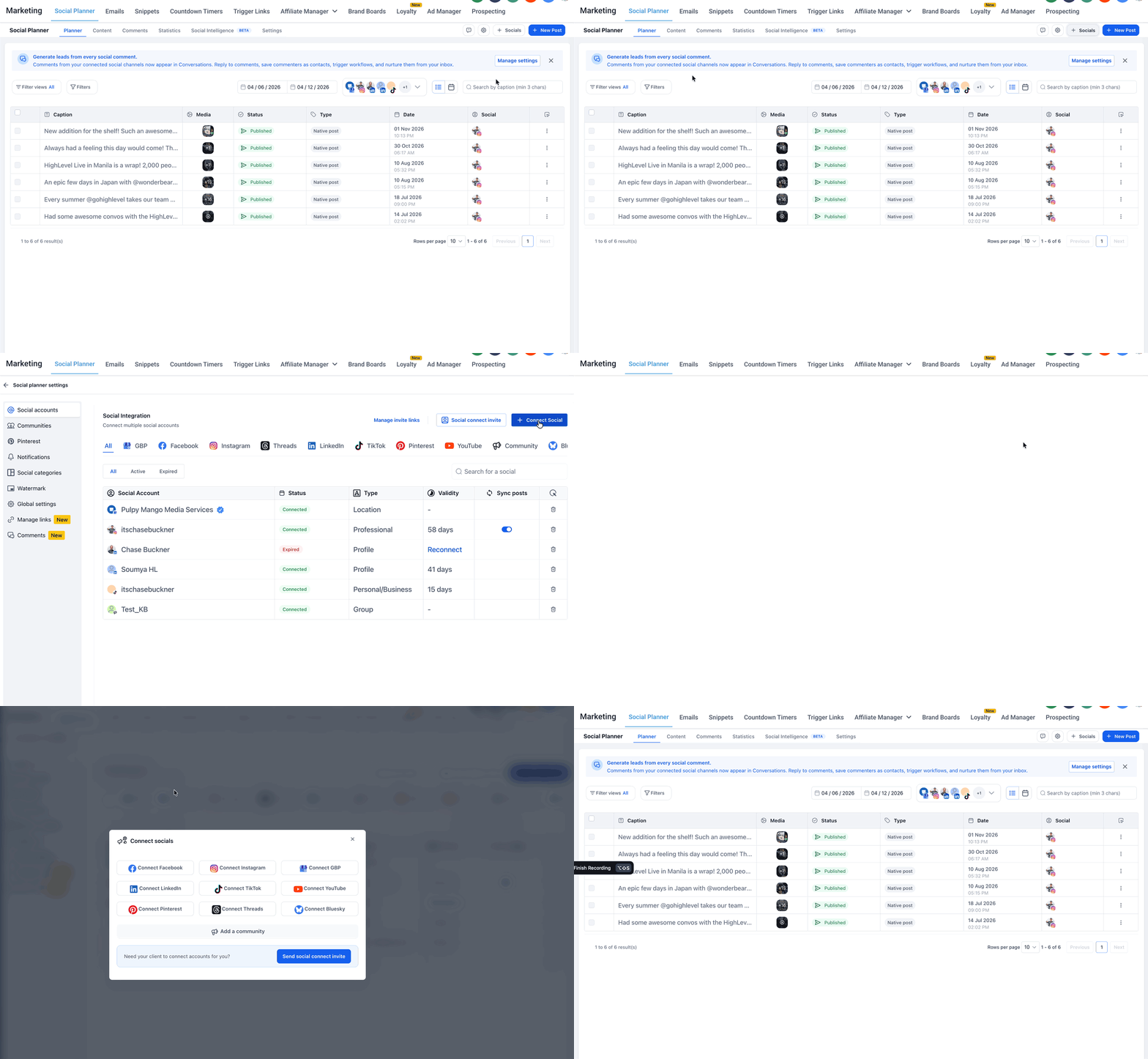
From the HighLevel Sub-Account, go to Marketing → Social Planner.
Click the Settings gear.
Open Social Accounts.
Click + Connect Social.
Select YouTube from the available social platforms.
Sign in with the Google account that owns the YouTube channel.
Approve the requested Google and YouTube permissions.
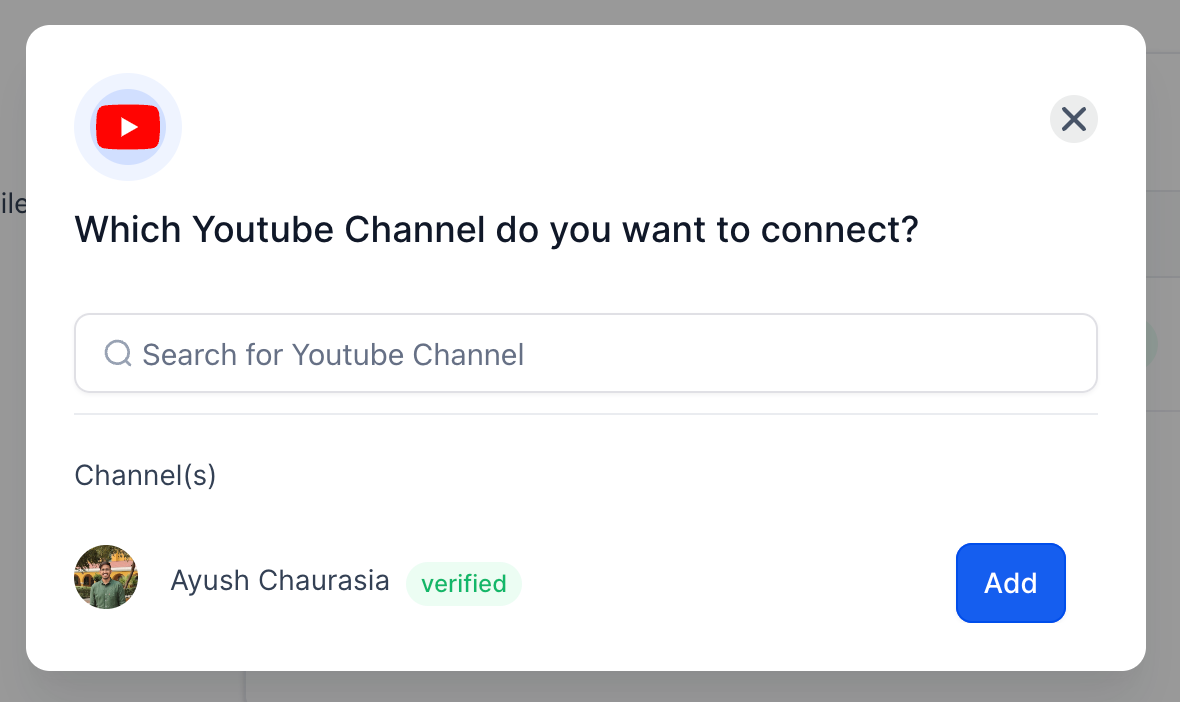
Select the YouTube channel you want to connect.
Complete the authorization process.
Confirm that the YouTube channel appears as a connected account in Social Planner.
Important: YouTube requires the channel's Primary Owner to authorize third-party connections. A user with only Manager access cannot complete this connection.

If you are unsure whether the selected Google account owns a YouTube channel, sign in to YouTube and review the channels associated with that Google account.
Step 2: Create a New YouTube Post
The Social Planner composer lets you create YouTube content after the channel is connected.
Go to Marketing → Social Planner.
Click + New Post.
Select Create New Post.
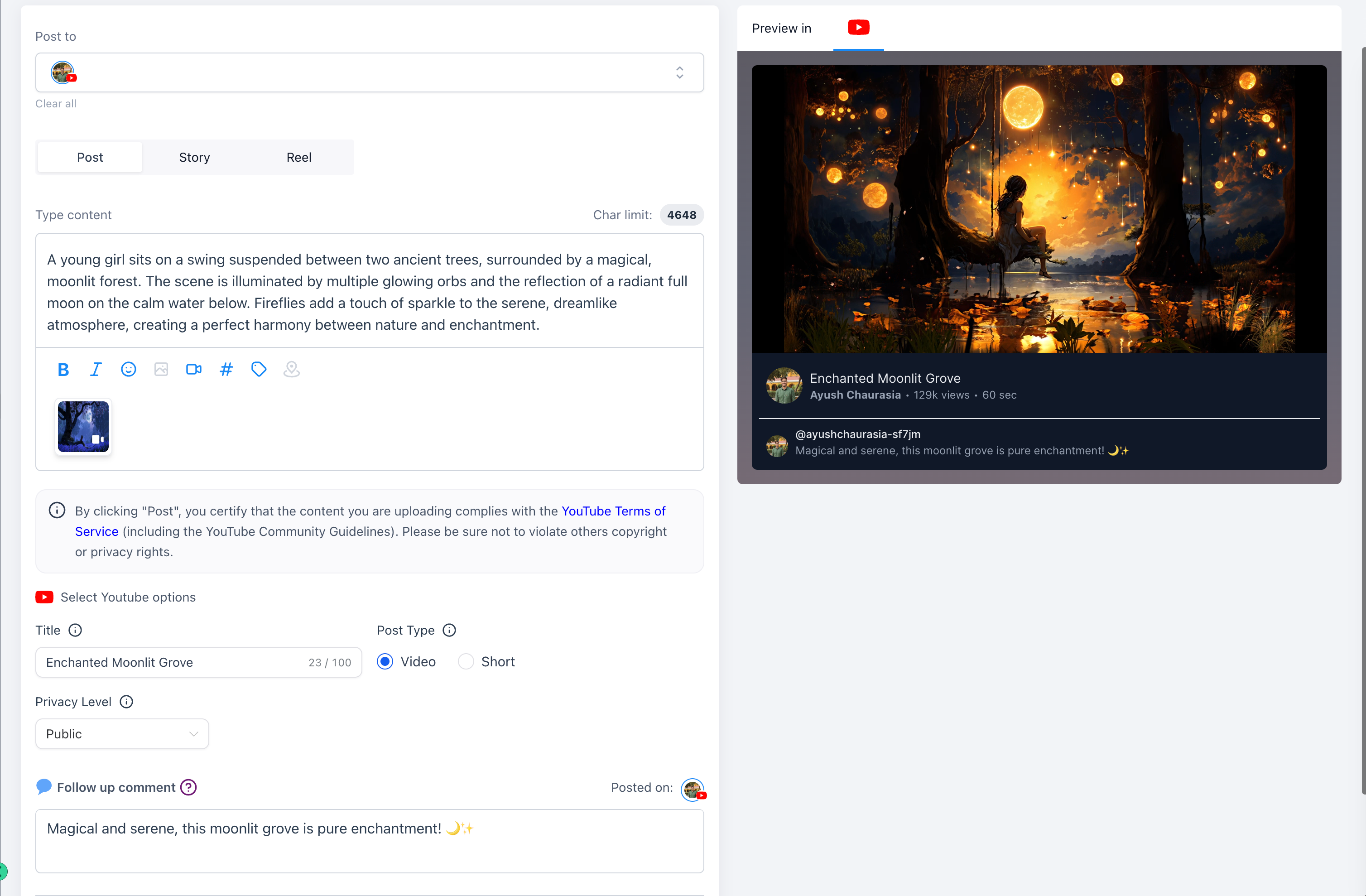
Select the connected YouTube channel you want to publish to.
Step 3: Add Your Video Content
Add the video and supporting content that should appear with the YouTube post.
Upload your video to the post.
Enter the video description in the caption field.
Add any supported hashtags or emojis you want to include.
Confirm that the uploaded video does not exceed the 1 GB Social Planner limit.
Step 4: Choose Video or Shorts
Selecting the correct YouTube post type controls how Social Planner prepares the content for YouTube.
Choose one of the available options:
Video for a standard YouTube Video.
Shorts for a YouTube Short.
When Shorts is selected, HighLevel currently appends #shorts to the title by default.
Step 5: Add the YouTube Title
YouTube requires a title before the Video or Short can be published.
Enter the title for your YouTube Video or Short in the title field.
Step 6: Choose the Privacy Level
YouTube privacy controls determine who can view the Video or Short after it is published.
Select one of the supported privacy options:
Public
Private
Unlisted
Step 7: Add a Follow-Up Comment
A follow-up comment lets you add an additional comment as part of the supported Social Planner publishing flow.
Add a follow-up comment if needed before scheduling the post.
Step 8: Schedule or Publish the Post
Review the selected channel, video, title, description, privacy setting, and other YouTube options before publishing.
Choose the appropriate publishing option in Social Planner to publish the content immediately or schedule it for a later date and time.
YouTube Video and Shorts Requirements
Reviewing the media requirements before publishing helps prevent failed uploads and unsupported thumbnail or Shorts configurations.
| Requirement | YouTube Video | YouTube Shorts |
|---|---|---|
| Maximum upload size | 1 GB | 1 GB |
| Maximum Shorts duration | — | 3 minutes |
| Recommended Shorts aspect ratio | — | 9:16 vertical |
| Custom thumbnail | Supported for eligible/verified users | Not supported through this workflow |
| Thumbnail format | PNG or JPEG | — |
| Maximum thumbnail size | 2 MB | — |
| Privacy options | Public, Private, Unlisted | Public, Private, Unlisted |
Frequently Asked Questions
Q: Why can't a YouTube channel Manager connect the channel?
YouTube requires the channel's Primary Owner to authorize third-party API connections such as Social Planner. Manager or other delegated access can be used within YouTube, but it cannot complete this external authorization.
Q: Why isn't my YouTube channel appearing when I connect my Google account?
Confirm that you signed in with the Google account that owns the YouTube channel. If the account does not have a YouTube channel, there will be no channel available for HighLevel to connect.
Q: Does the YouTube connection expire automatically?
The YouTube connection does not have a fixed expiration period. It remains active until authorization is revoked, the account is disconnected, or the connection otherwise becomes invalid.
Q: Can I upload a custom thumbnail for a YouTube Short?
No. Custom thumbnail uploads are not supported for YouTube Shorts through this Social Planner workflow. Custom thumbnails are supported for eligible standard YouTube Videos.
Q: Can I bulk schedule YouTube content?
Yes. Social Planner's Advanced CSV scheduling supports YouTube-specific post settings, including supported fields for the YouTube title, privacy setting, and video type. Review the Advanced CSV guide before preparing bulk YouTube posts.
Related Articles
Was this article helpful?
That’s Great!
Thank you for your feedback
Sorry! We couldn't be helpful
Thank you for your feedback
Feedback sent
We appreciate your effort and will try to fix the article