Reviews AI helps businesses manage and respond to customer reviews more efficiently while maintaining control over how AI-generated responses are used. Reviews AI can be set to Off, Suggestive, or Auto Responses, allowing businesses to choose between disabling AI responses, generating assisted suggestions, or automatically responding to reviews. Agencies can manage these modes for individual or multiple sub-accounts from Agency → AI Suite → AI Setup, while changes made from Reputation → Settings → Reviews AI in the sub-account automatically stay synchronized with the Agency view. This guide explains how to manage Reviews AI access and response modes, configure Suggestive and Auto Responses, understand pricing, and manage Reviews AI across sub-accounts.
TABLE OF CONTENTS
- What is Reviews AI?
What is Reviews AI?
Reviews AI helps businesses respond to customer reviews using AI while controlling how much automation is applied. Businesses can use Suggestive mode to generate AI-assisted reply suggestions or Auto Responses to send responses automatically based on their configured Reviews AI settings. Reviews AI can also be set to Off when AI-assisted review responses are not needed.
Key Benefits of Reviews AI
Reviews AI gives agencies and sub-accounts flexible control over AI-assisted review responses while making it easier to manage settings across multiple accounts.
- Centralized Agency Control: Manage Reviews AI for sub-accounts from Agency → AI Suite → AI Setup without opening each sub-account individually.
- Bulk Management: Select one or multiple sub-accounts and update their Reviews AI response mode from the Agency view.
- Flexible Response Modes: Choose Off, Suggestive, or Auto Responses based on how much AI assistance or automation each sub-account needs.
- Automatic Synchronization: Changes made from Agency → AI Suite → AI Setup are reflected in the Sub-Account view, and changes made under Reputation → Settings → Reviews AI are reflected back in the Agency view.
- Sub-Account Control: Individual sub-accounts can continue managing their own Reviews AI response mode from Reputation → Settings → Reviews AI.
- Feature-Level Control: Agencies can completely disable Reviews AI for a sub-account from Sub-Accounts → Features & Limits → Reviews AI when AI-powered review responses should not be available.
Manage Reviews AI from Agency AI Suite
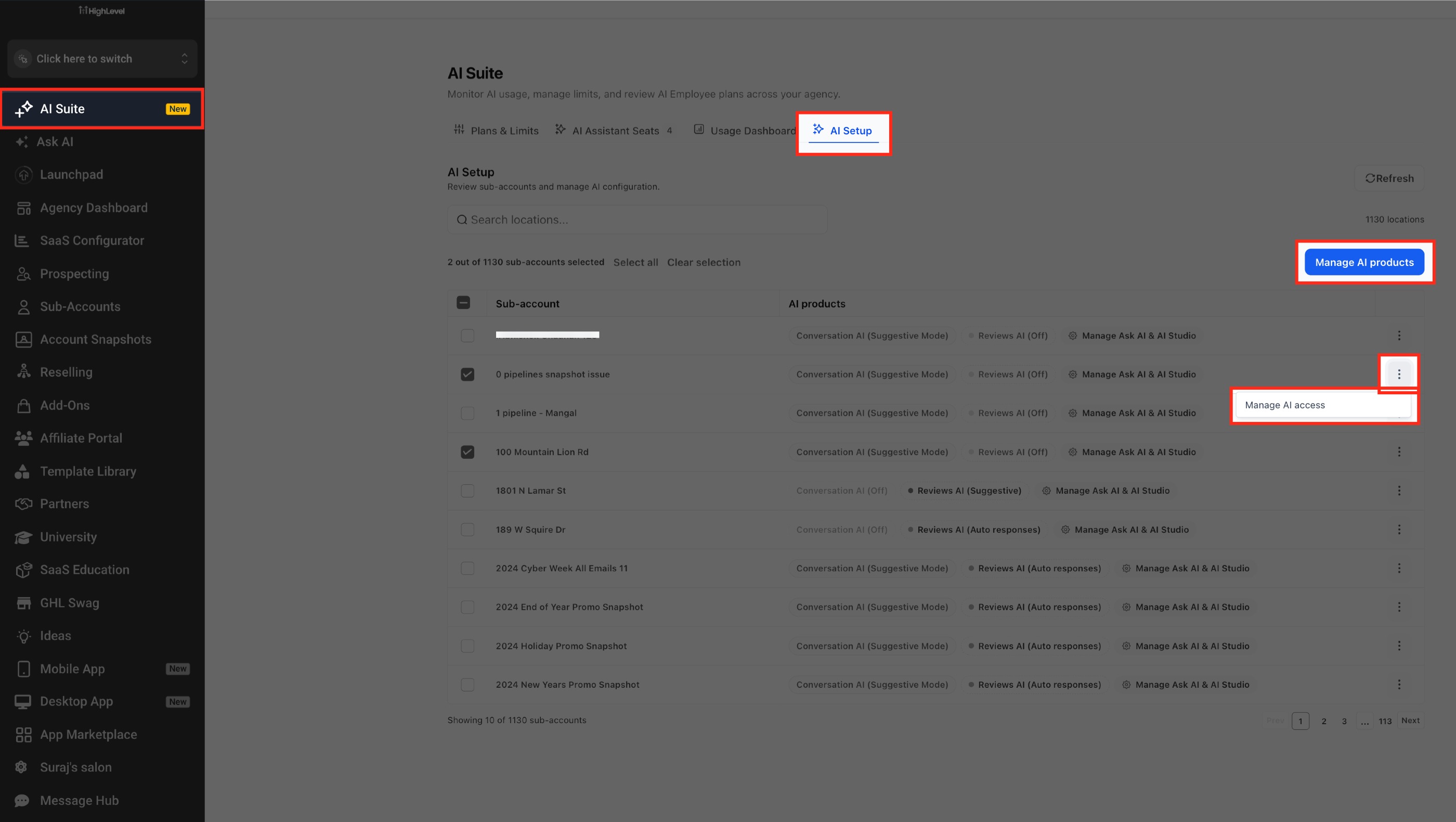
Agency users can manage the Reviews AI response mode for sub-accounts from one place. This makes it easier to control Reviews AI across multiple accounts without opening each sub-account individually.
1. From Agency View, go to AI Suite.
2. Select AI Setup.
3. Locate the sub-account you want to manage.
4. Click the three-dot menu for the sub-account.
5. Select Manage AI access.
You can also select multiple sub-accounts when you need to update Reviews AI modes in bulk.
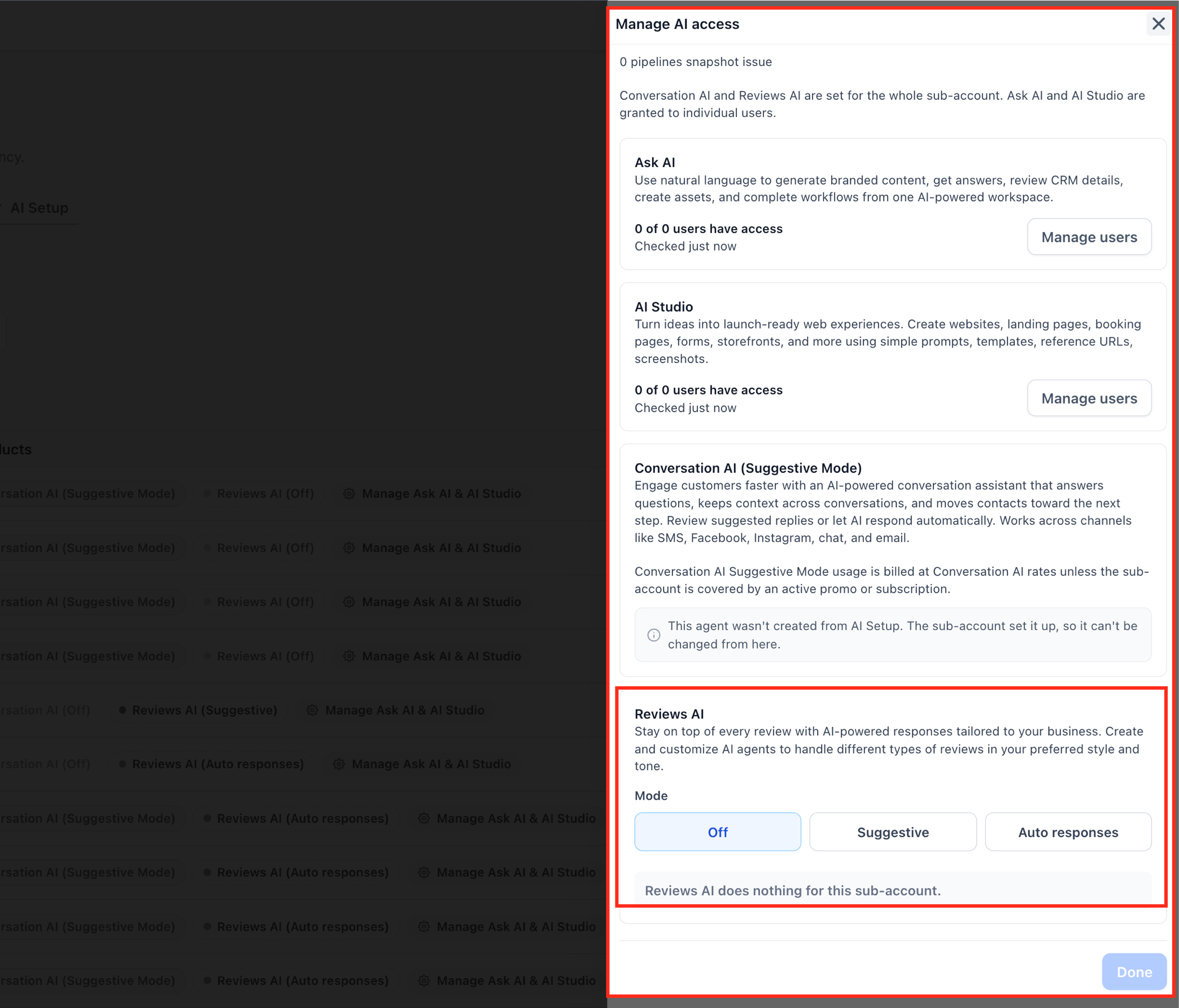
6. Under Reviews AI, select the required mode:
- Off: Turns off Reviews AI responses.
- Suggestive: Provides AI-assisted suggestions for review responses.
- Auto responses: Allows configured Reviews AI Agents to respond automatically.
7. Click Done.
Reviews AI Settings Stay in Sync
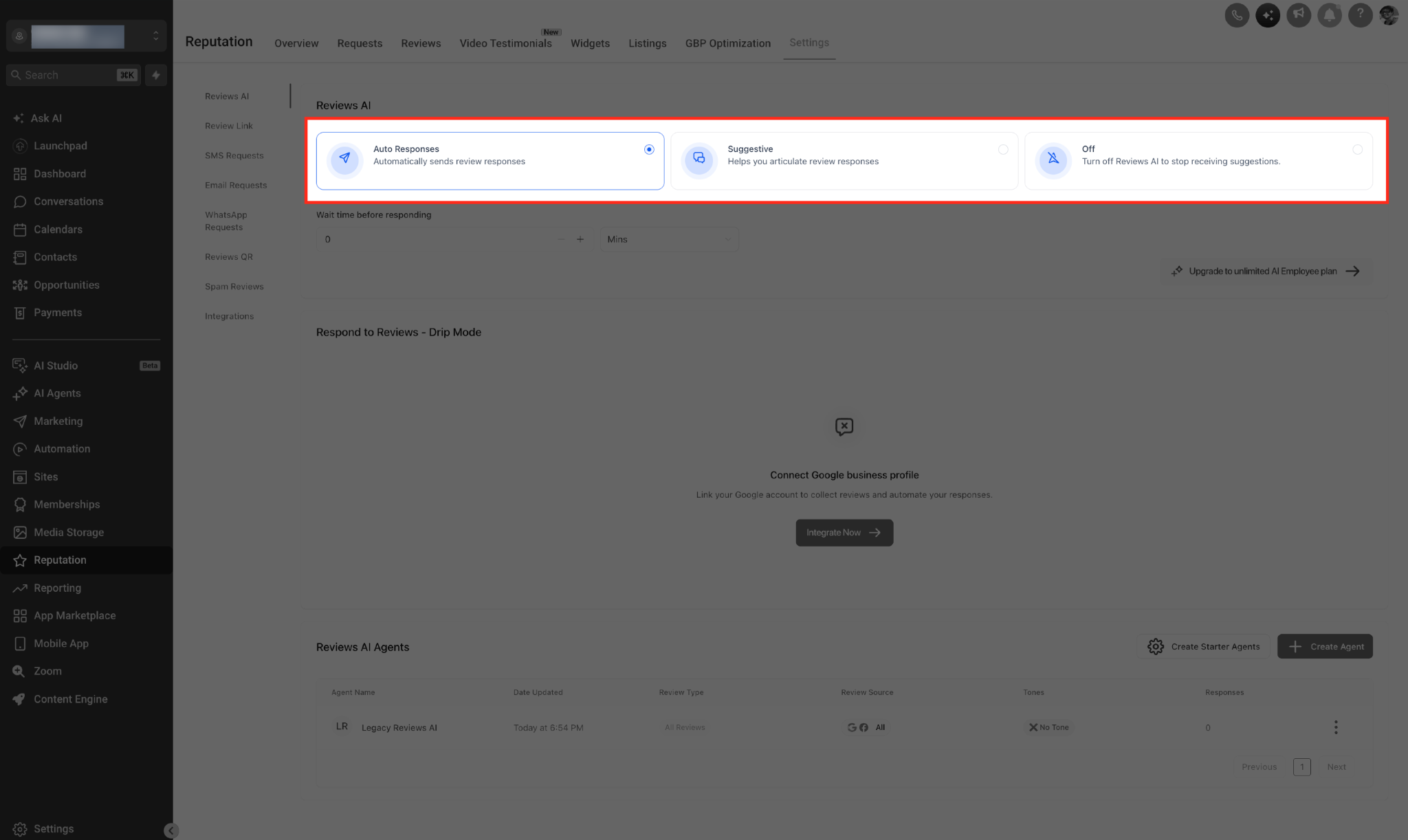
Reviews AI mode settings stay synchronized between the Agency and Sub-Account views. Agencies can manage the response mode centrally, while individual sub-accounts can continue managing their own Reviews AI mode.
From the sub-account, go to:
Reputation → Settings → Reviews AI
Select one of the following modes:
- Auto Responses
- Suggestive
- Off
When a sub-account changes its Reviews AI mode, the updated selection is automatically reflected in Agency → AI Suite → AI Setup. Changes made from the Agency view are also reflected in the sub-account.
Disable Reviews AI for a Sub-Account
Agency users can completely disable Reviews AI for a sub-account when the feature should not be available. This feature-level control prevents Reviews AI functionality from being used in that sub-account.
Go to:
Agency → Sub-Accounts → select the sub-account → Features & Limits → Reviews AI
When Reviews AI is disabled:
- Reviews AI settings are hidden.
- AI Reply is hidden.
- Regenerate is hidden.
- Manual AI-generated review replies are blocked.
- Auto Responses are blocked.
- Reviews AI Drip Campaign replies are blocked.
This feature-level control is separate from selecting Off as the Reviews AI response mode.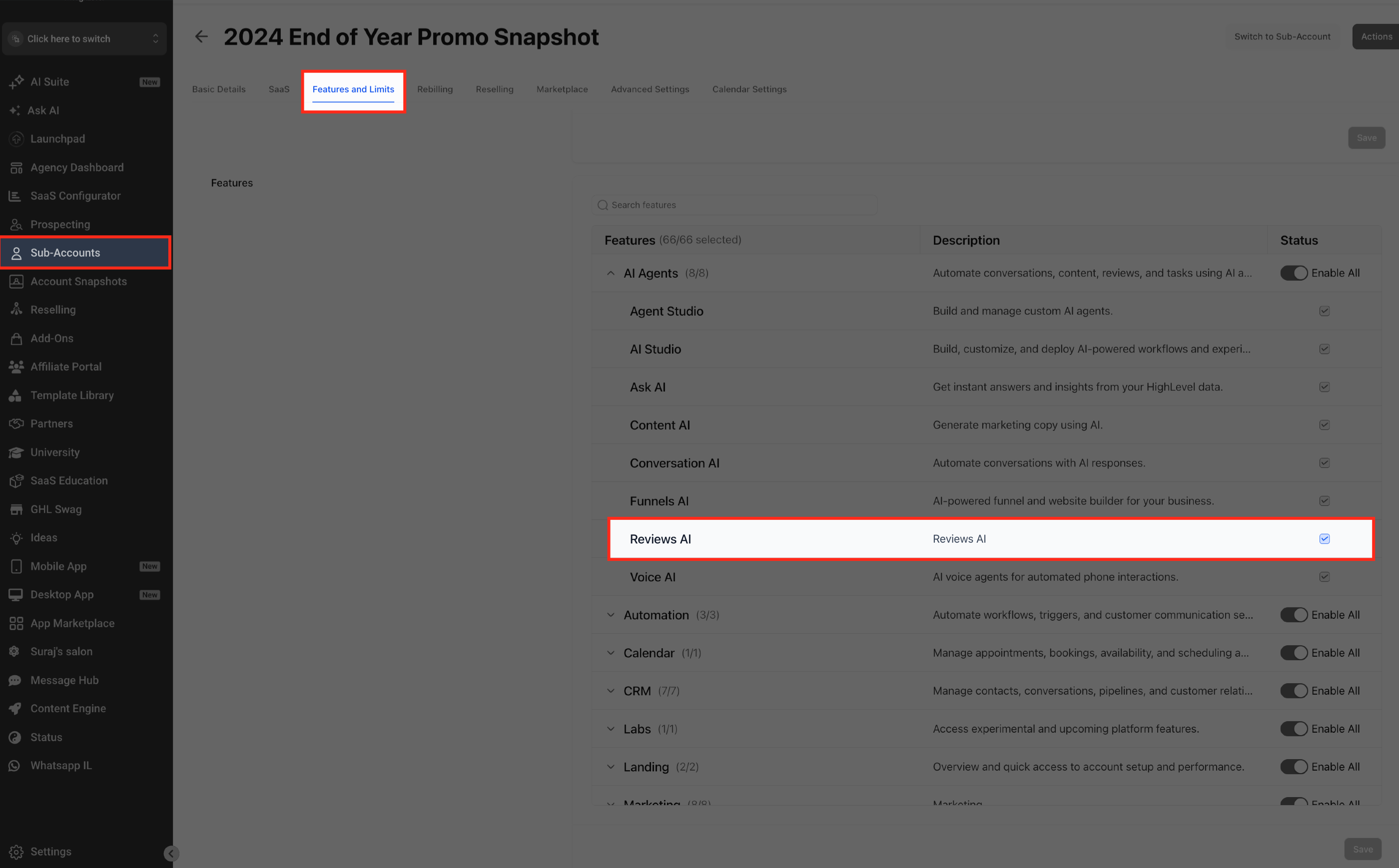
Getting Started with Reviews AI
Accessing Reviews AI: To get started, log in to your account and navigate to Reputation tab. The Reviews AI feature is available on the Reviews Section.

a) Suggestive Mode: Crafting Authentic Responses
Suggestive Mode helps you compose personalised and genuine review responses. It provides suggestions based on the review content, making it easier to engage with your customers authentically. In suggestive Mode users have to select the AI Reply button, and the Reviews AI will generate unique review responses.
Note: You can generate up to four AI reply suggestions for each review at no charge. After you use all four attempts, selecting AI Reply reopens the latest suggestion instead of generating a new one.

Note: You can regenerate the review responses. Each regeneration will cost 0.01$ after the first three free trials are consumed.
b) Auto-Response Mode: Streamlining Your Review Management
Auto-Response Mode is designed for efficiency. It allows you to automate the review response process, saving you time while maintaining a professional and personalised touch.
With Auto-Pilot Mode, you have the power to:
- Customise automated responses based on star ratings.
- Define the wait time before sending each response.
- Add a personal touch with review response footers, including thank-you notes or your business name.
- Tailor auto responses for specific sources, such as Facebook and Google.

Pricing
Reviews AI charges for sent AI-assisted replies rather than generated suggestions.
Suggestive Mode
You can generate up to four AI reply suggestions for each review at no charge.
After you use all four attempts, selecting **AI Reply** reopens the latest suggestion instead of generating another response.
For Pay-Per-Use accounts, a charge applies when you send a reply that uses an AI-generated suggestion.
If you substantially rewrite the AI suggestion in your own words before sending it, the response is treated as a manual reply and does not incur the Reviews AI charge.
Each sent AI-assisted reply is billed once. Retrying or resending the same reply does not create a duplicate charge.
If you send another reply to the same review using a new AI suggestion, that reply is treated as a separate billable AI response.
Automatic Replies
Auto-Pilot and Drip Mode continue to follow their existing billing behavior. One charge applies for each AI reply that is sent.
Best Practices for Reviews AI:
- Tailoring Responses to Your Brand: Customise suggested responses to align with your brand's tone and personality.
- Monitoring and Customising Auto-Response Responses: Regularly review and adjust Auto-Pilot responses to ensure they reflect your brand's values and standards.
- Engaging with Customers Beyond Reviews: While Reviews AI can handle responses efficiently, don't forget the importance of deeper customer engagement beyond review replies.
Re-billing the costs to your clients and making a profit:
Once you have enabled Reviews AI in your agency account, it will automatically enable all your clients to use it. You can bill your clients at cost or add an additional markup of your choosing.
How to turn on re-billing for my clients?
- Ensure you have enabled Reviews AI for your Agency first.
- If the sub-account isn't in SaaS Mode already, switch the sub-account into SaaS Mode by going into your Agency account > Accounts tab > Scroll to the sub-account > Click the three dots icon and select "Switch to SaaS." Please refer to this article to learn How to convert a location to SaaS.
- In Agency account > Accounts tab > Scroll to the Sub-Account > Click the View Details link > Scroll to the Reviews AI Re-Sell Settings section and toggle it on.
- Use the slider to set the amount of markup you like to make and hit save.
- Rinse and repeat for all your Sub-Accounts where you wish to re-bill for usage.
How does re-billing work?
- Agencies pay HighLevel and get invoices with HighLevel branding
- Sub-accounts (your clients) pay you (the agency) and get invoices with your branding. The money is deposited in your Stripe account connected to your agency level. How do I connect my agency's Stripe account to collect payments from my clients?
This is very similar to other products that use re-billing or reselling models in the platform. Just like LC Phone or LC Email re-billing, re-billing of the Content AI also utilises "credits" from the agency wallet & the location wallet, respectively.

Frequently Asked Questions
Q; Where can agencies manage Reviews AI for sub-accounts?
From Agency View, go to AI Suite → AI Setup. Locate the sub-account, open the three-dot menu, select Manage AI access, and configure the Reviews AI mode.
Q: What Reviews AI modes are available?
Reviews AI supports three response modes:
- Off: Turns off Reviews AI responses.
- Suggestive: Provides AI-assisted suggestions for review responses.
- Auto Responses: Allows configured Reviews AI Agents to respond automatically.
Q: Can I update Reviews AI for multiple sub-accounts at once?
Yes. Agency users can select multiple sub-accounts in AI Suite → AI Setup and update their Reviews AI mode in bulk.
Q: Where can a sub-account change its Reviews AI mode?
From the Sub-Account, go to Reputation → Settings → Reviews AI. The available options are Auto Responses, Suggestive, and Off.
Q: Do Reviews AI settings stay synchronized between Agency and Sub-Account views?
Yes. When the Reviews AI mode is changed from the Sub-Account, the updated selection is automatically reflected in Agency → AI Suite → AI Setup Changes made from the Agency view are also reflected in the Sub-Account.
Q: What is the difference between setting Reviews AI to Off and disabling Reviews AI from Features & Limits?
Setting Reviews AI to Off changes the response mode. Disabling Reviews AI from Agency → Sub-Accounts → Features & Limits → Reviews AI removes access to Reviews AI functionality for that sub-account.
When Reviews AI is disabled at the feature level, Reviews AI settings, AI Reply, and Regenerate are hidden. Manual AI replies, Auto Responses, and Reviews AI Drip Campaign replies are also blocked.
Q: Does disabling Reviews AI from Features & Limits affect Drip Campaign replies?
Yes. When Reviews AI is disabled from Agency → Sub-Accounts → Features & Limits, Reviews AI Drip Campaign replies are blocked.
Was this article helpful?
That’s Great!
Thank you for your feedback
Sorry! We couldn't be helpful
Thank you for your feedback
Feedback sent
We appreciate your effort and will try to fix the article