Bot Goals help your Conversation AI agent guide conversations toward specific outcomes, such as collecting contact details, booking appointments, or triggering workflows. This article focuses only on the Bot Goals settings inside a Conversation AI agent and how to test those settings before using them in live conversations.
TABLE OF CONTENTS
- What are Bot Goals in Conversation AI?
- Key Benefits of Bot Goals
- Information Collection
- Update Contact Field Mapping
- Skip if Already Filled
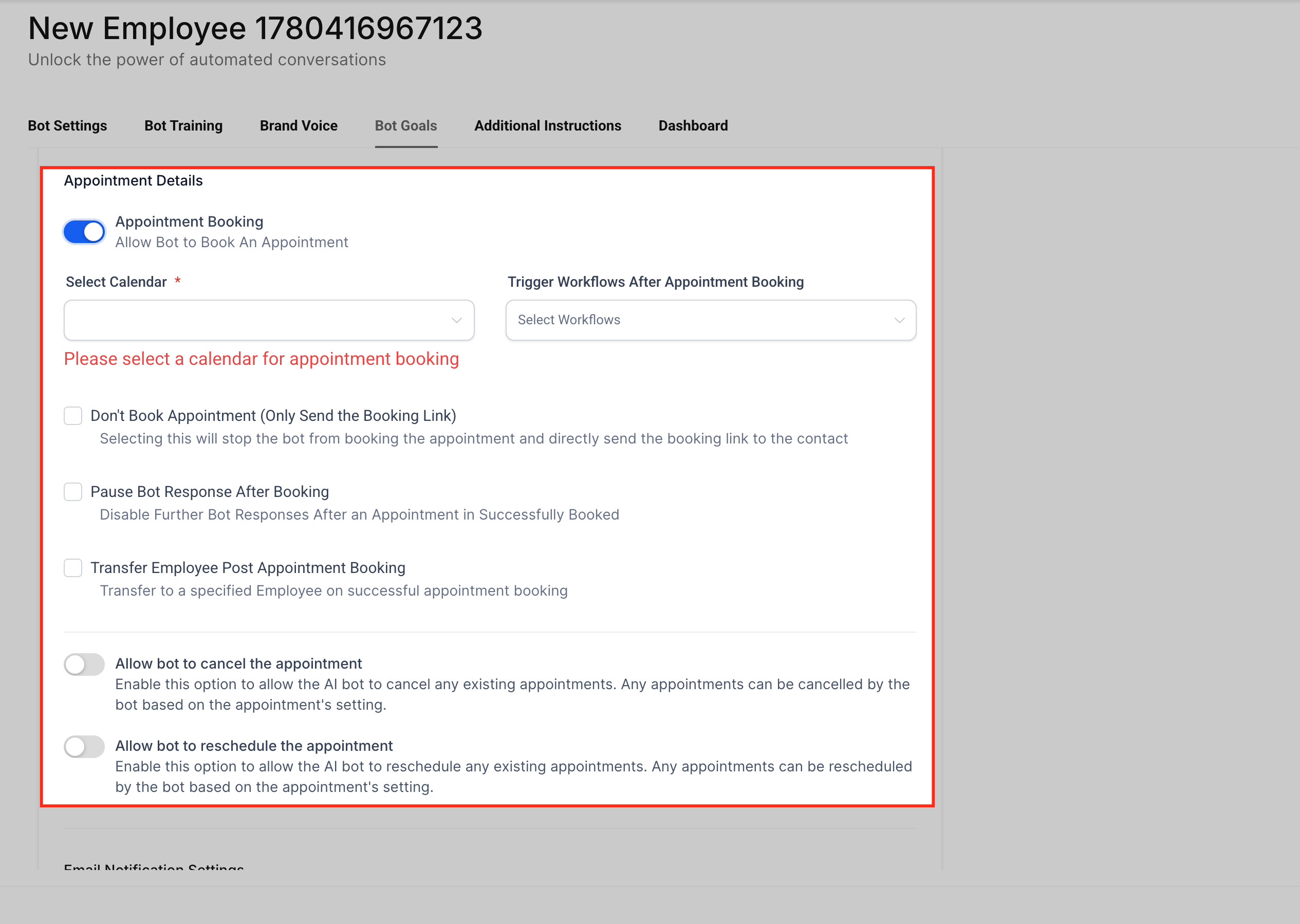
- Appointment Booking
- Trigger Workflow
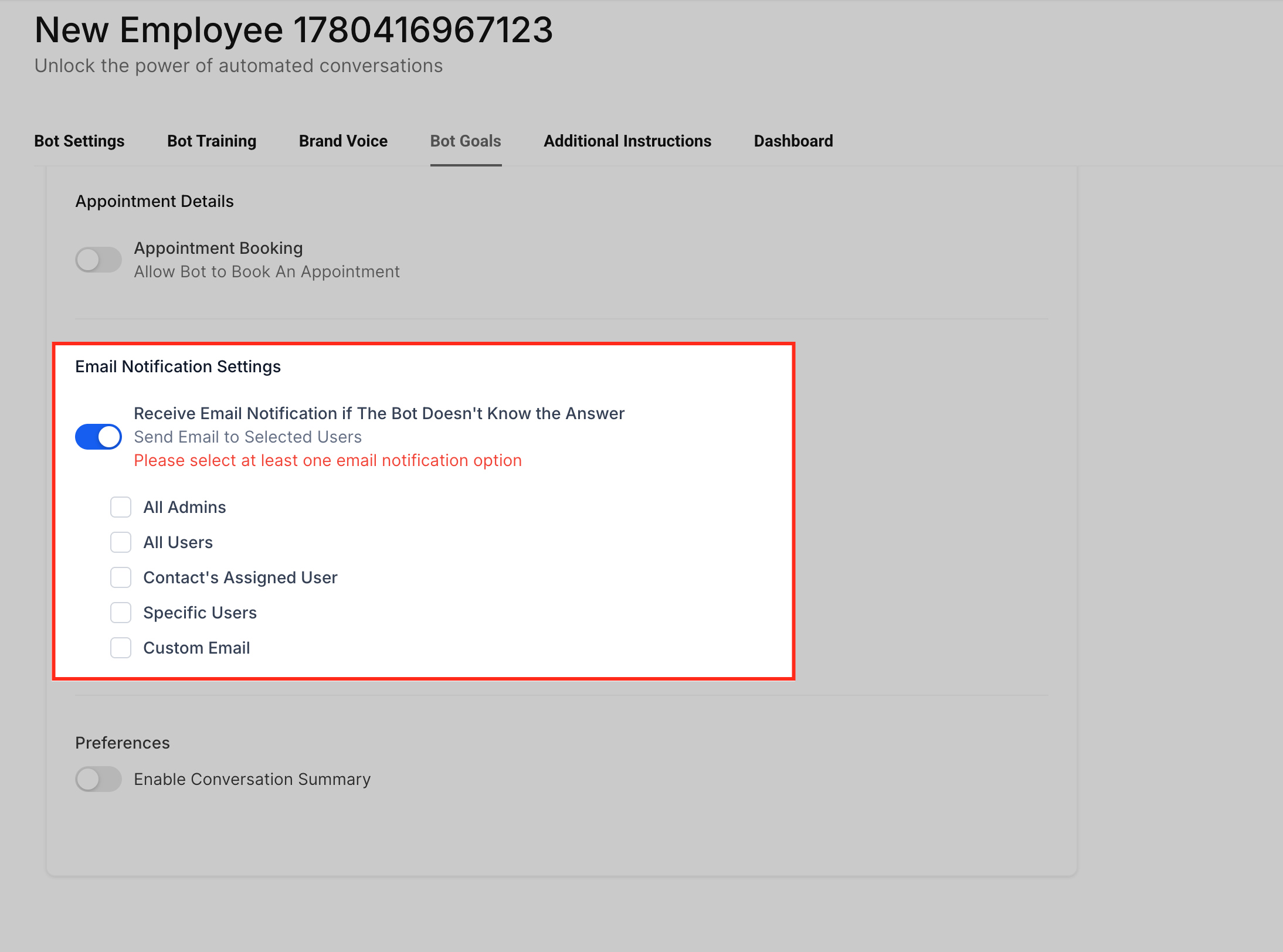
- Email Notification Settings
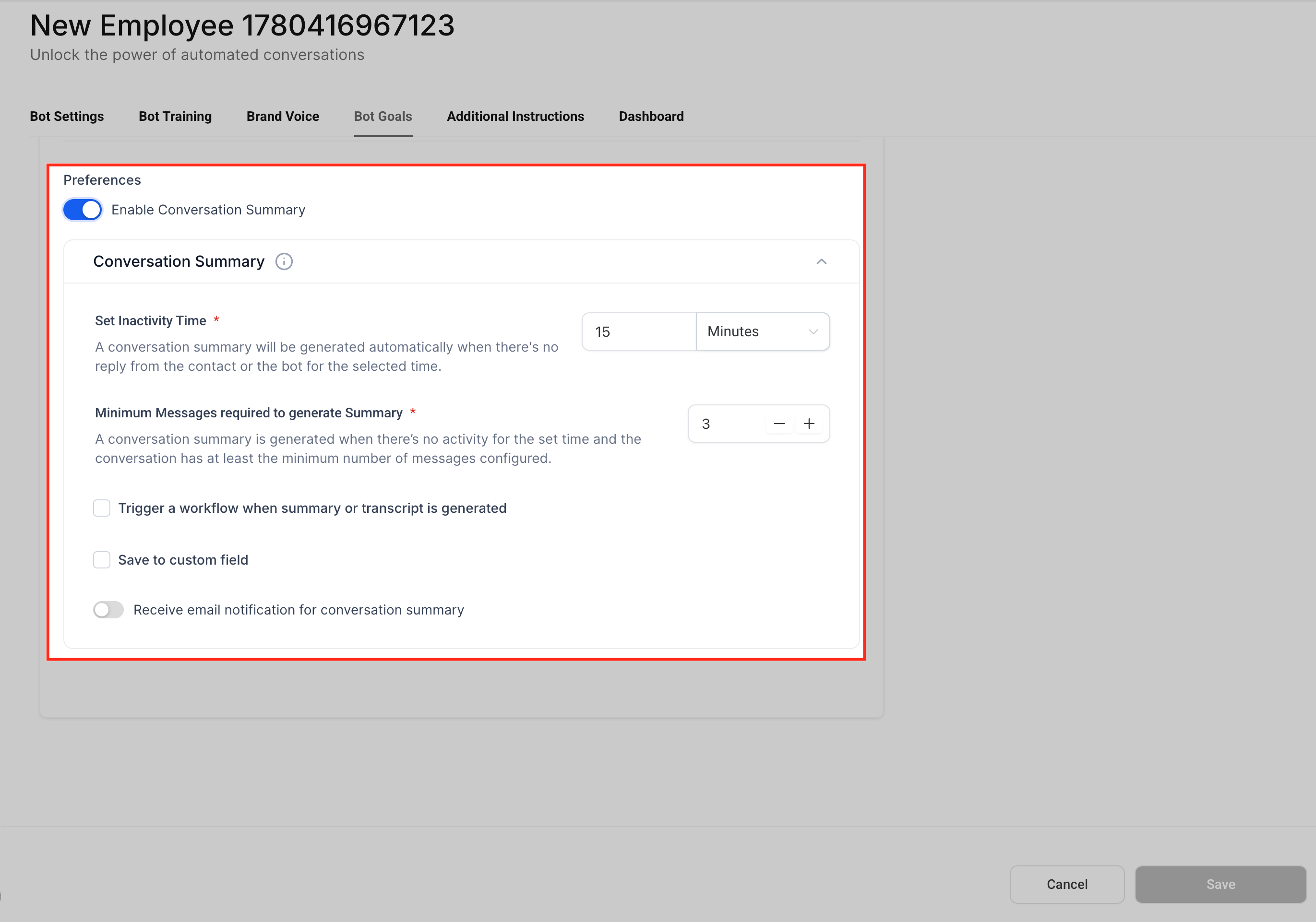
- Enable Conversation Summary
- How To Set Up Bot Goals
- Troubleshooting Bot Goals
- Frequently Asked Questions
What are Bot Goals in Conversation AI?
Bot Goals define what your Conversation AI agent should accomplish during a conversation. Instead of only answering questions, the agent can collect important contact information, help contacts book appointments, trigger follow-up workflows, and notify your team when it needs help.
Bot Goals are configured inside each Conversation AI agent. Other settings, such as Bot Training, Brand Voice, Bot Settings, and Additional Instructions, may affect how the agent responds, but this article focuses on the settings available in the Bot Goals tab.
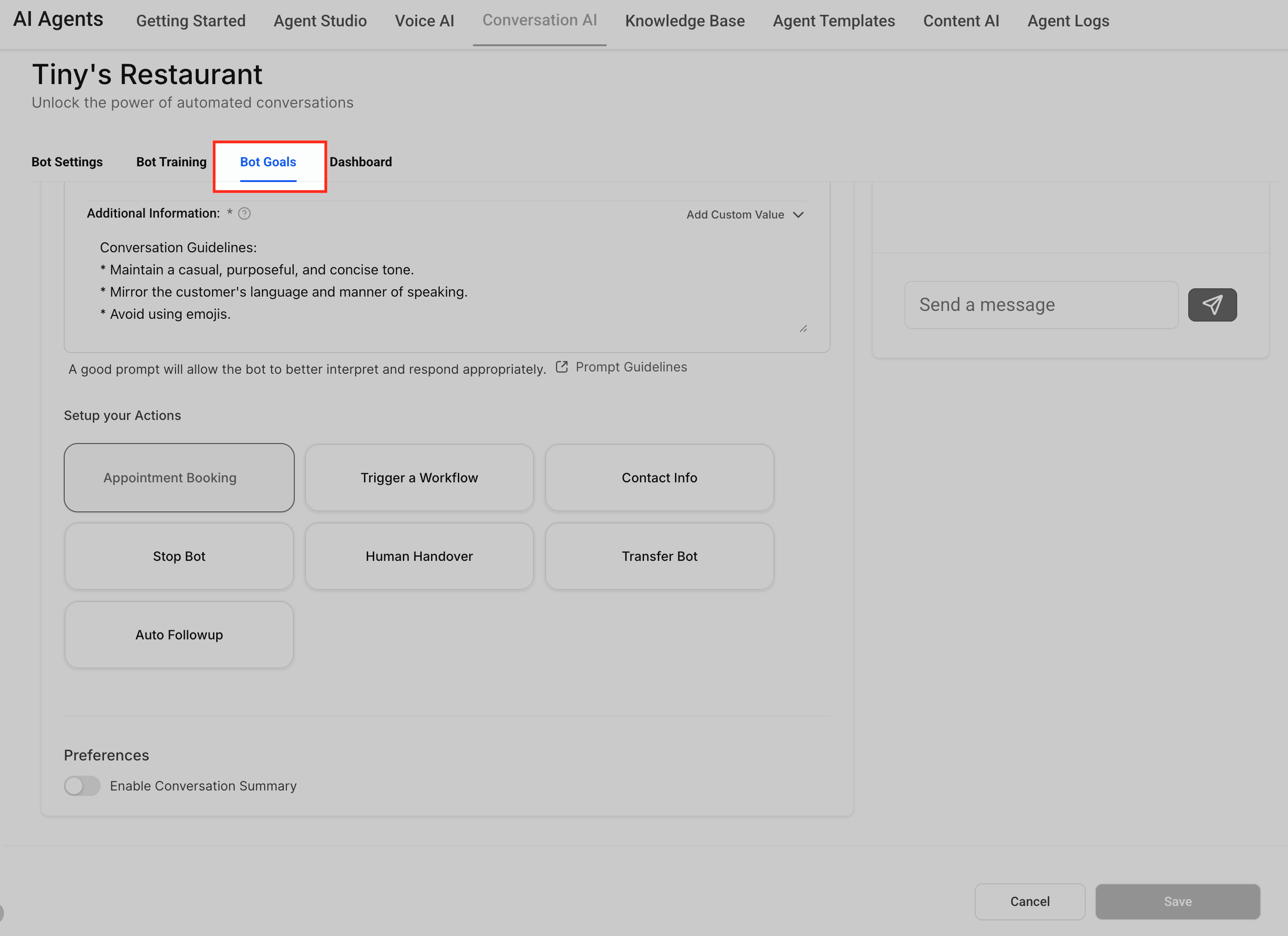
Screenshot: Bot Goals tab inside a selected Conversation AI agent.
Key Benefits of Bot Goals
Bot Goals help turn AI conversations into useful business actions. By configuring these settings, your agent can collect the right details, reduce manual follow-up, and move contacts toward the next step in your process.
- Guided conversation outcomes: Helps the agent move conversations toward clear goals, such as information collection or appointment booking.
- Contact data collection: Allows the agent to ask for important details and save them to the contact record.
- Cleaner customer experience: Helps avoid repeated questions by skipping fields that already contain information.
- Automation handoff: Lets the agent trigger workflows when a conversation meets the right condition.
- Team visibility: Can notify your team or summarize conversations when human review is needed.
Information Collection
Information Collection controls which details the agent should ask for during the conversation. These details can help qualify contacts, complete missing contact records, and give your team better context before follow-up.
Common fields may include:
- Name
- Phone
- Street Address
- City
You can also add custom questions or objectives when the agent needs to collect information that is specific to your business process.
Examples:
- Ask what service the contact is interested in.
- Ask for the preferred appointment day.
- Ask whether the contact is a new or returning customer.
- Ask for the property type before scheduling an estimate.
Screenshot: Bot Goals tab showing Information Collection with standard fields and custom questions/objectives.
Update Contact Field Mapping
Update Contact Field mapping controls where the collected answer is saved on the contact record. Mapping each question to the correct field helps keep contact records accurate and makes the collected information available for follow-up, workflows, and reporting.
Recommended setup:
- Add or select the question/objective.
- Open Update Contact Field.
- Choose the field where the answer should be saved.
- Confirm the selected field matches the type of information being collected.
- Test the bot to confirm the answer updates the correct contact field.
Example:
If the agent asks, “What city are you located in?”, map the answer to the City contact field.
Screenshot: Update Contact Field dropdown showing a selected contact field for a question/objective.
Skip if Already Filled
Skip if Already Filled prevents the agent from asking for information that already exists on the contact record. This keeps conversations smoother and helps avoid asking contacts to repeat details they have already provided.
Use this setting for fields such as name, email, phone number, address, or any other mapped field that may already be saved on the contact record.
Example:
If a contact already has an email address saved, the agent can skip the email question and continue to the next missing detail or objective.
Screenshot: Bot Goals question/objective showing the Skip if Already Filled option enabled.
Appointment Booking
Appointment Booking allows the agent to help contacts move from conversation to scheduling. This is useful when the goal of the conversation is to book a consultation, demo, estimate, service appointment, or other calendar-based meeting.
Before enabling this setting, make sure the calendar you want to use is already configured. Booking behavior may depend on calendar availability, routing, and appointment settings.
Use Appointment Booking when the agent should:
- Identify that the contact wants to schedule.
- Collect required booking details.
- Guide the contact toward available appointment options.
- Help convert the conversation into a booked appointment.
Screenshot: Appointment Booking toggle inside the Bot Goals tab.
Related article: Appointment Booking in Conversation AI
Trigger Workflow
Trigger Workflow allows the agent to start a workflow when the conversation meets a defined condition. This helps connect AI conversations to follow-up automation, internal notifications, lead routing, tagging, pipeline updates, or other workflow actions.
Before using this setting, make sure the workflow is already created and ready to use.
Common use cases:
- Trigger a sales follow-up workflow when a contact asks for pricing.
- Trigger a support workflow when a customer asks for help.
- Trigger an internal notification when the agent identifies an urgent request.
- Trigger a lead qualification workflow after required information is collected.
Screenshot: Trigger Workflow setting inside the Bot Goals tab showing workflow selection.
Related article: Trigger a Workflow within Conversation AI
Email Notification Settings
Email Notification Settings help alert your team when the agent cannot answer a question or when a conversation may need human review. These notifications can help prevent missed questions and identify gaps in bot training.
Use email notifications when your team should review unresolved questions, improve training content, or follow up manually with a contact.
Examples:
- Notify a support inbox when the agent does not know the answer.
- Alert a team member when a sensitive or high-value question is asked.
- Review unanswered questions and add better training content later.
Screenshot: Email Notification Settings inside the Bot Goals tab.
Enable Conversation Summary
Conversation summaries help your team quickly understand what happened during a bot-handled conversation. A summary can make it easier to review the customer’s request, collected details, and next steps without reading the full conversation thread.
Enable Conversation Summary when your team needs fast context for follow-up, handoff, review, or performance monitoring.
Common uses:
- Summarize lead qualification conversations.
- Help staff understand a conversation before replying manually.
- Review whether the agent completed the intended goal.
- Save time when auditing AI-handled conversations.
Screenshot: Enable Conversation Summary option inside the Bot Goals tab.
How To Set Up Bot Goals
These settings guide the agent to ask the right questions, save important answers to the correct contact fields, and take follow-up actions such as booking an appointment, triggering a workflow, or notifying your team. Review each setting carefully before saving so the agent’s behavior matches the outcome you want.
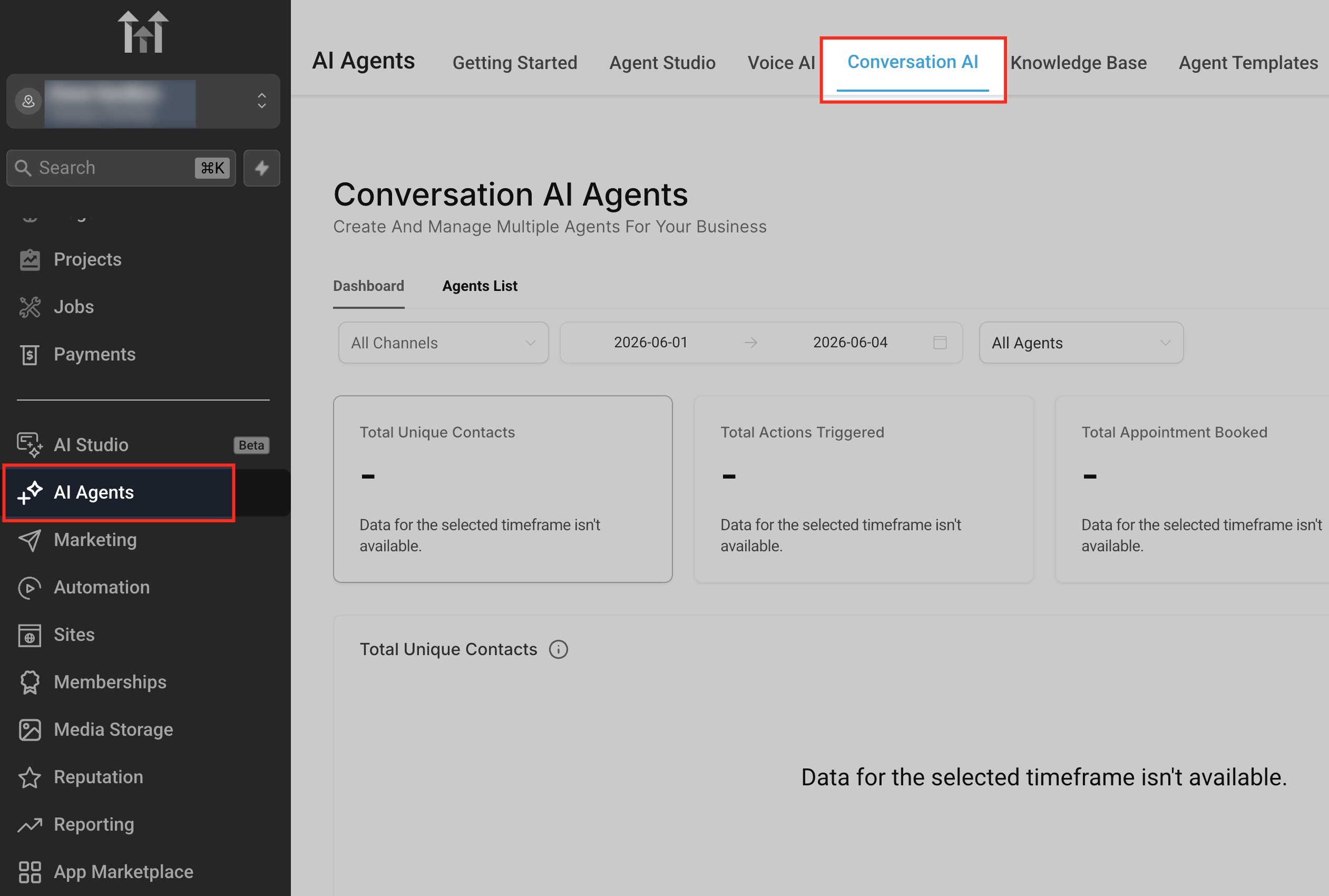
Go to Conversation AI
Navigate to AI Agents > Conversation AI. This is where Conversation AI agents are created and managed. Each agent can have its own goals, training, channels, and behavior settings.
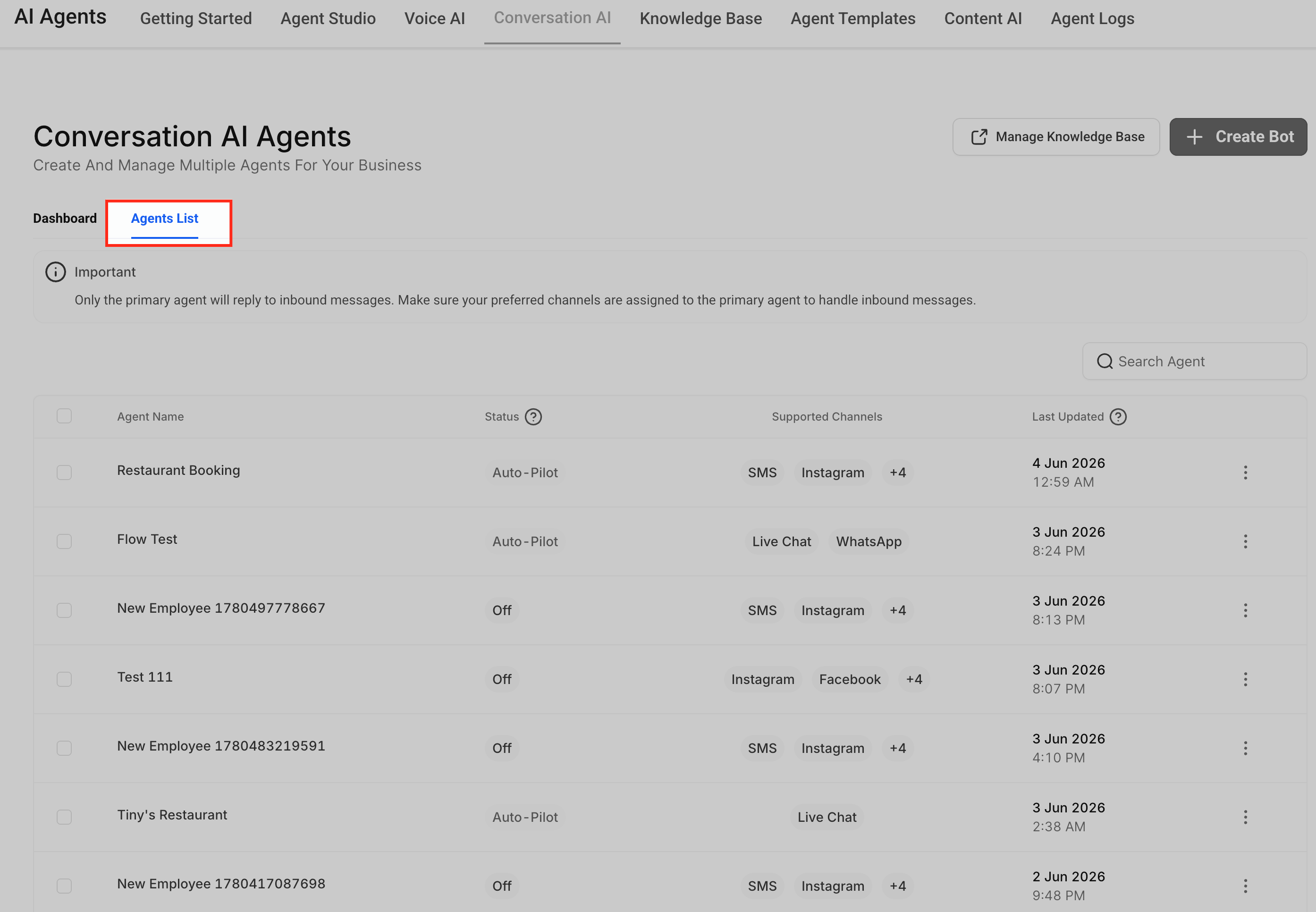
Open the Agents List
Click Agents Listto view your existing Conversation AI agents. The Agents List helps you choose which bot you want to configure. Since Bot Goals are configured per agent, changes made here only apply to the selected agent.
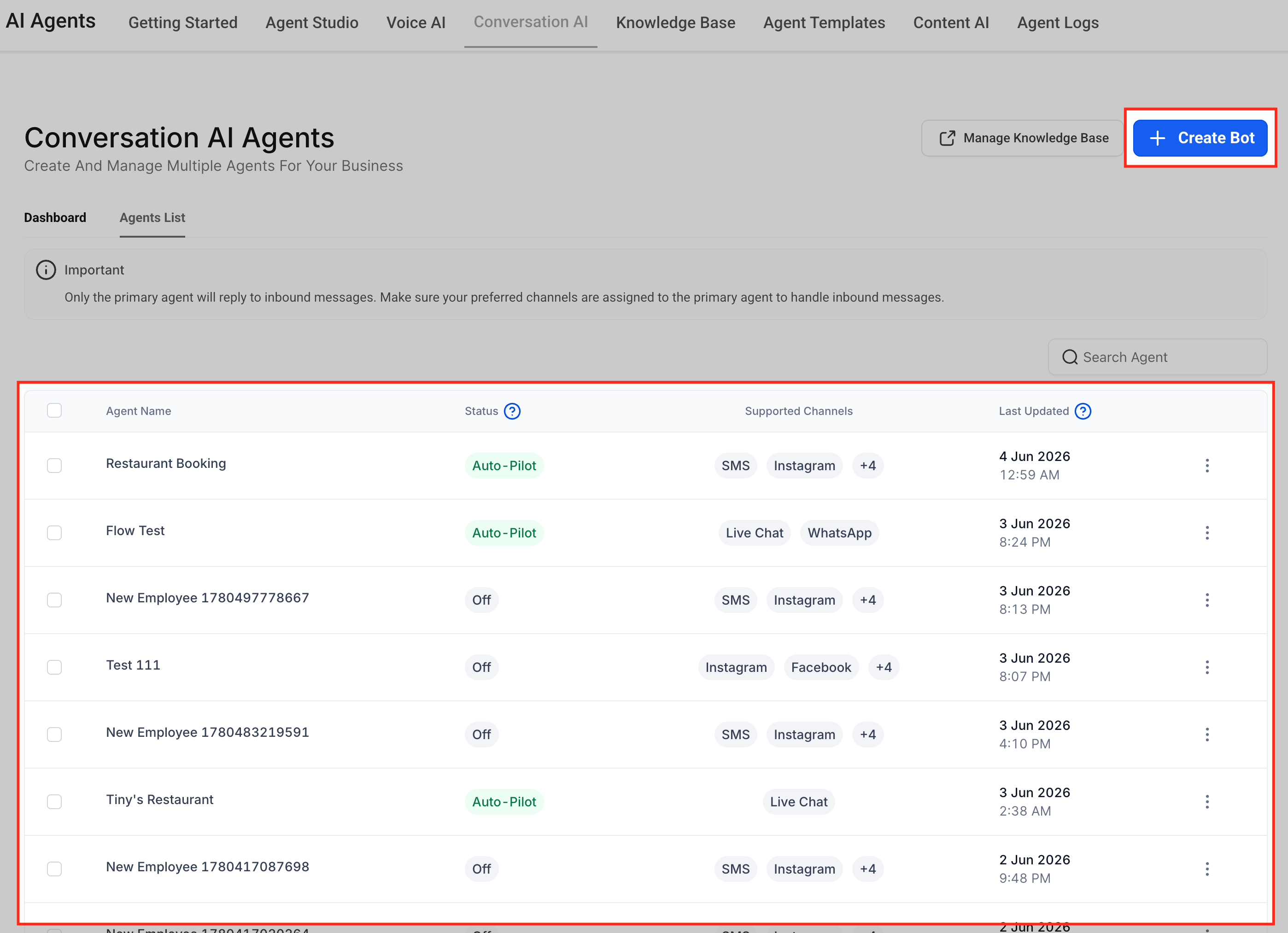
Select an agent
Click the agent you want to configure. If you do not have an agent yet, click Create Botto create one first. Choose the agent that should collect information, book appointments, or trigger automations. Selecting the correct agent is important when you have different bots for different locations, channels, services, or business use cases.
Open the Bot Goals tab
Inside the agent editor, click Bot Goals. The Bot Goals tab controls the outcomes the agent should work toward during conversations. This is where you define what information the agent should collect and which actions it should take after identifying the contact’s intent or needs.
Configure Information Collection
In the Information Collection area, choose the standard fields the agent should collect, such as name, email, phone, street address, or city.
Information Collection helps the agent complete missing contact details during the conversation. These fields are commonly used for lead qualification, appointment booking, follow-up, and customer support handoff.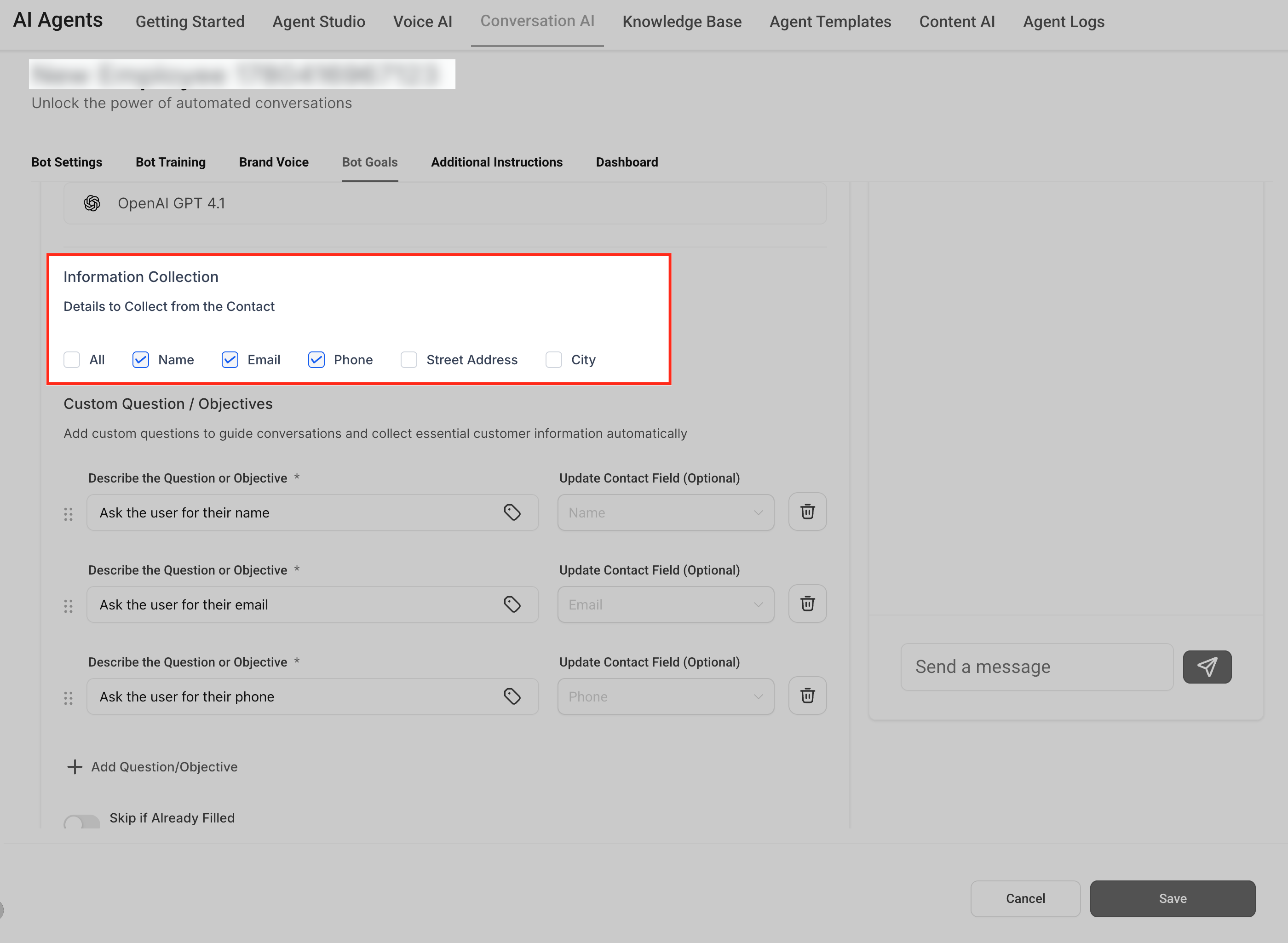
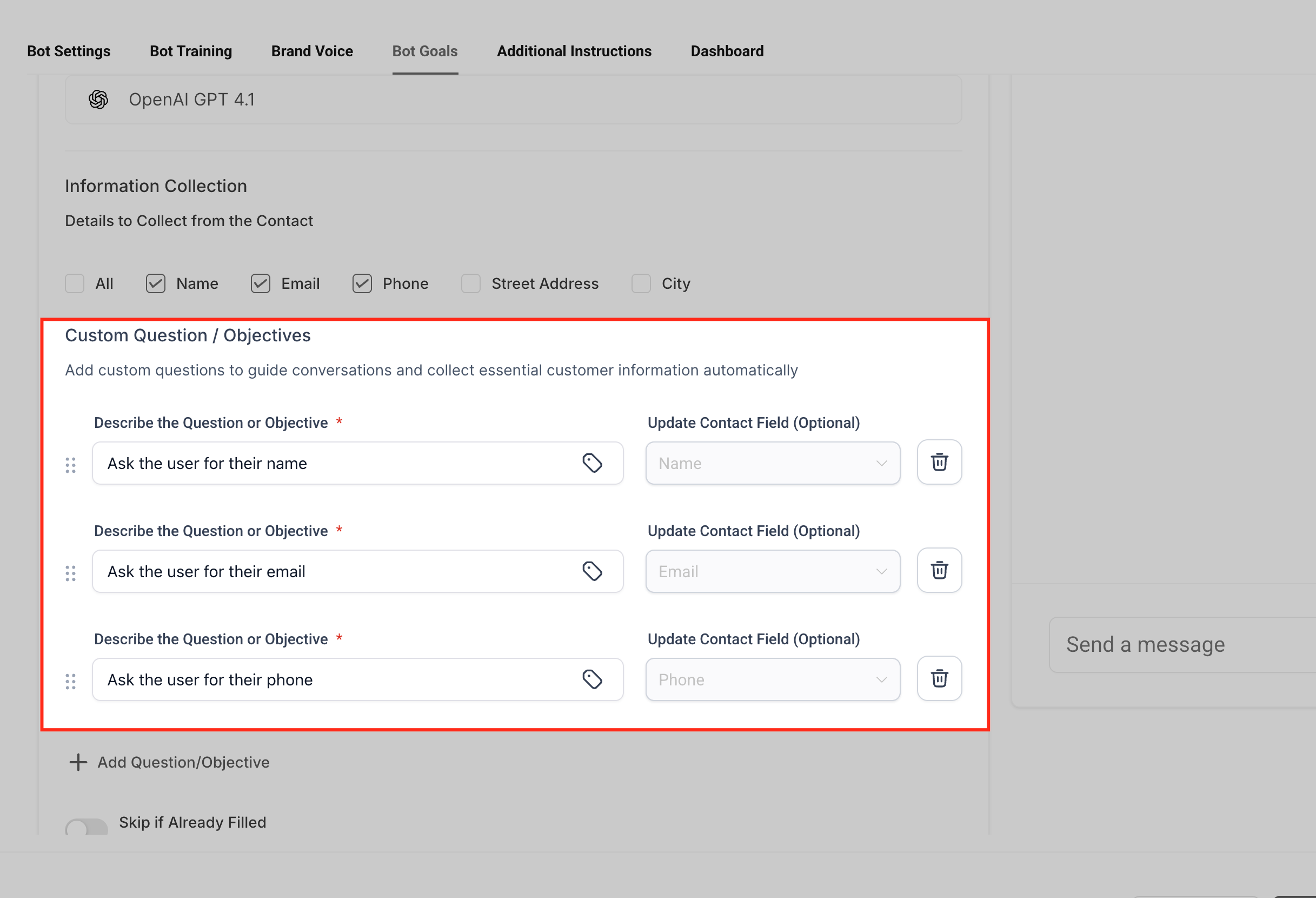
Add custom questions or objectives
Add any custom questions or objectives the agent should ask during the conversation. Custom questions allow the agent to collect details that are specific to your business. These are useful when standard contact fields are not enough to qualify the contact or prepare your team for the next step.
Examples:
- Ask what service the contact is interested in.
- Ask for the preferred appointment day.
- Ask whether the contact is a new or returning customer.
- Ask for the property type before scheduling an estimate.
- Ask for the issue or reason for contacting the business.
Map answers to contact fields
Use Update Contact Field to choose where each collected answer should be saved on the contact record. Field mapping connects the answer from the conversation to the correct place in the CRM. This is important because workflows, segmentation, reporting, and team follow-up often depend on accurate contact fields.
Example:
If the agent asks, “What city are you located in?”, map the response to the City field.
Important: If a question is not mapped to a contact field, the agent may still ask the question, but the answer may not automatically update the intended contact record field.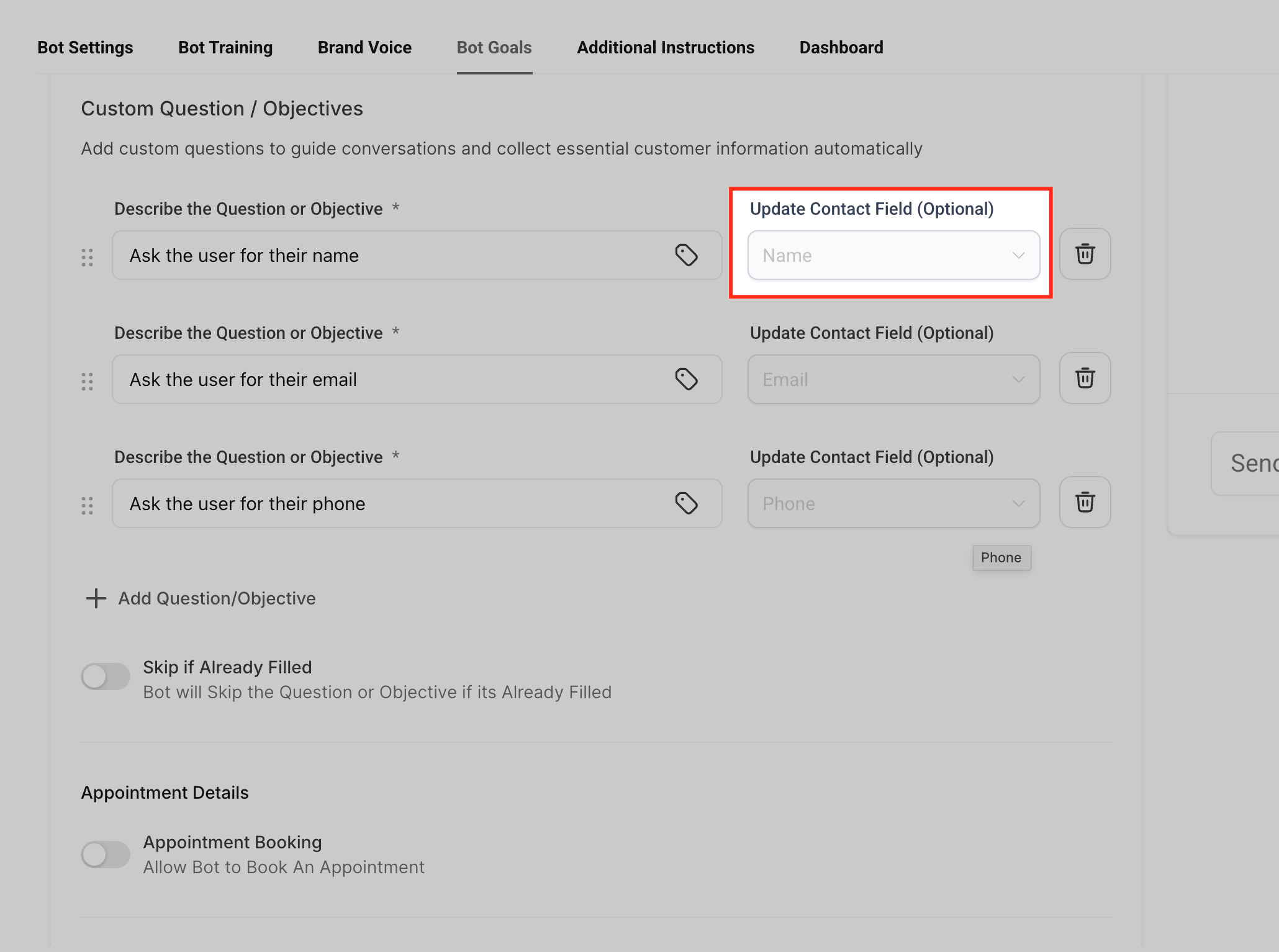
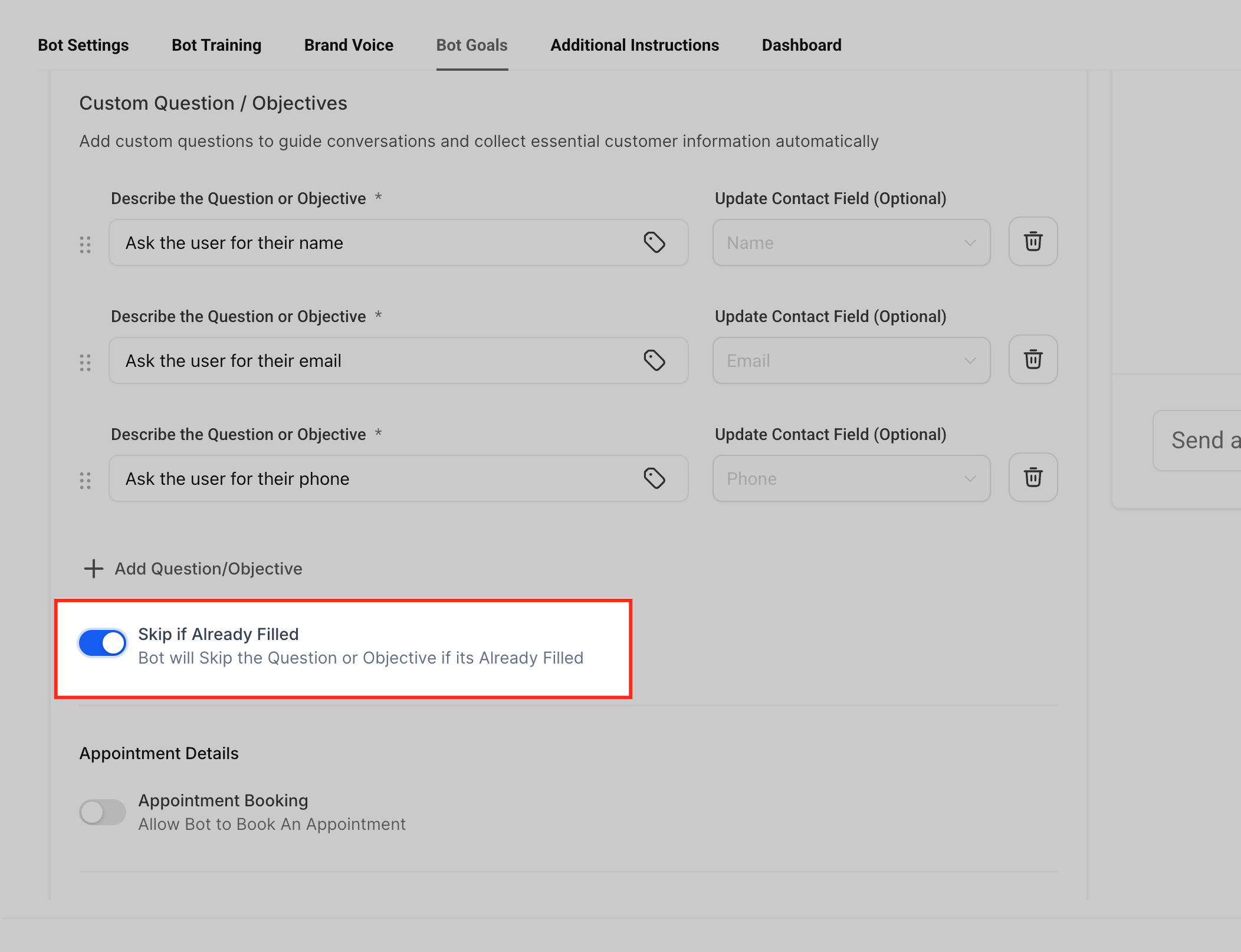
Enable Skip if Already Filled
Turn on Skip if Already Filledwhen the agent should avoid asking for information that already exists on the contact record.
This setting creates a smoother customer experience by preventing repeated questions. For example, if the contact’s email address is already saved, the agent can move on to the next missing detail instead of asking for the email again.
Use this setting for fields that may already exist, such as name, email, phone number, city, or address.
Enable Appointment Booking, if needed
Turn on Appointment Bookingif the agent should help contacts schedule appointments. Appointment Booking is useful when the conversation goal is to convert a contact into a scheduled consultation, demo, estimate, service visit, or meeting. Before enabling this setting, confirm that the correct calendar is configured and available for the agent to use.
Configure Trigger Workflow, if needed
Select or configure Trigger Workflow if the agent should start an automation based on the conversation.
Trigger Workflow connects the conversation to follow-up automation. Use it when a conversation should automatically create a next step, such as notifying your team, tagging a contact, updating a pipeline, sending a follow-up message, or starting a lead qualification process.
Before using this setting, make sure the workflow is already created and ready to use.
Configure Email Notification Settings
Set up Email Notification Settings if your team should be notified when the agent does not know an answer or when a conversation may need review.
Email notifications help prevent unanswered questions from being missed. They are also useful for improving the bot over time because your team can review what the agent could not answer and add better training content later.
Enable Conversation Summary, if needed
Turn on Conversation Summary if your team needs a summarized version of bot-handled conversations for faster review or follow-up.
Conversation summaries help team members quickly understand the contact’s request, collected details, and likely next step without reading the full message thread. This is especially helpful when a human user takes over after the bot conversation.
Save your changes
Review the configured goals, then click Save. Saving applies the Bot Goals settings to the selected agent. Any unsaved changes may be lost if you leave the page or switch to another area before saving.
Test the Bot Goals setup
Use the test panel to send sample customer messages and confirm the agent asks the right questions, updates the correct fields, and triggers the expected actions.
Testing helps you catch issues before customers interact with the agent. Try testing different scenarios, such as a new lead with no contact information, an existing contact with some fields already filled, a contact asking to book an appointment, and a contact asking something the bot may not know.
Troubleshooting Bot Goals
Bot Goals issues are usually caused by missing permissions, incomplete field mapping, calendar setup issues, workflow configuration issues, or incomplete testing. Use these checks to identify the most common causes.
Issue | What to Check |
|---|---|
Bot Goals tab is missing | Confirm your user role has permission to manage Conversation AI agents and goals. |
Agent is not asking the expected questions | Review the selected fields, custom questions/objectives, and saved Bot Goals settings. |
Contact fields are not updating | Confirm each question is mapped to the correct field under Update Contact Field. |
Agent asks for information already saved | Confirm Skip if Already Filled is enabled and the contact data exists in the mapped field. |
Appointment Booking does not start | Confirm Appointment Booking is enabled and the calendar is configured correctly. |
Workflow does not trigger | Confirm the workflow is ready and the trigger condition is clear. |
Email notification is not received | Confirm the notification settings and recipient email address are correct. |
Conversation summary is missing | Confirm Conversation Summary is enabled and the conversation meets the summary requirements. |
Frequently Asked Questions
Q: What do Bot Goals control?
Bot Goals control the outcomes the Conversation AI agent should work toward, such as collecting information, booking appointments, triggering workflows, sending notifications, and creating summaries.
Q: Are Bot Goals the same as Bot Training?
No. Bot Goals define what the agent should accomplish. Bot Training helps the agent answer questions accurately using knowledge sources, FAQs, and business information.
Q: Can Bot Goals update contact fields?
Yes. Use Update Contact Field to map collected answers to the correct contact fields.
Q: What happens if I do not map a question to a contact field?
The agent may still ask the question, but the answer may not update the intended field on the contact record.
Q: Why is the agent asking for information the contact already has?
Check whether Skip if Already Filled is enabled and confirm the existing information is saved in the mapped field.
Q: Can Bot Goals book appointments?
Yes. Appointment Booking can help the agent guide contacts toward scheduling when the calendar setup is complete.
Q: Can Bot Goals trigger workflows?
Yes. Trigger Workflow can start a selected workflow when the conversation meets the configured condition.
Q: Should I test Bot Goals before enabling the agent for live conversations?
Yes. Testing helps confirm the agent asks the right questions, saves information correctly, and triggers the expected actions.
Related Articles
Was this article helpful?
That’s Great!
Thank you for your feedback
Sorry! We couldn't be helpful
Thank you for your feedback
Feedback sent
We appreciate your effort and will try to fix the article