The Add Contact Info feature allows users to easily add contact information directly from the AI conversation. By capturing information like business details, addresses, and dates directly from the contact’s responses, you can reduce manual data entry and keep contact records update.
TABLE OF CONTENTS
- What is the Add Contact Info Bot Action?
- Key Benefits of the Add Contact Info Action
- How To Set up the Add Contact Info Action
- Frequently Asked Questions
- Related Articles
What is the Add Contact Info Bot Action?
The Add Contact Info bot action helps you collect important details during a Conversation AI chat and automatically save them to the contact record. This makes it more efficient to maintain accurate and up-to-date information about your customers and leads.
Important: This feature only updates the empty fields in a contact information. Contact's email and phone are automatically updated so this action is not required for adding or updating email or phone.
Tip: After saving contact info, explicitly ask the customer for their contact details in the bot’s prompt. If this instruction isn't included in the prompt, the bot will not ask for the required information, and the contact field won't be updated.Key Benefits of the Add Contact Info Action
Faster Data Capture: Collect details like address, business info, or date of birth as part of a natural conversation.
Cleaner CRM Records: Save information directly to the contact profile so your team doesn’t need to re-type it.
Better Personalization: Use captured details to tailor responses, follow-ups, and appointment flows.
Flexible Fields: Update both standard fields and supported custom field types for your specific use case.
How To Set Up the Add Contact Info Action
Step 1: Open the Agent
Navigate to AI Agents > Conversation AI > Agents List. Open the agent you would like to edit.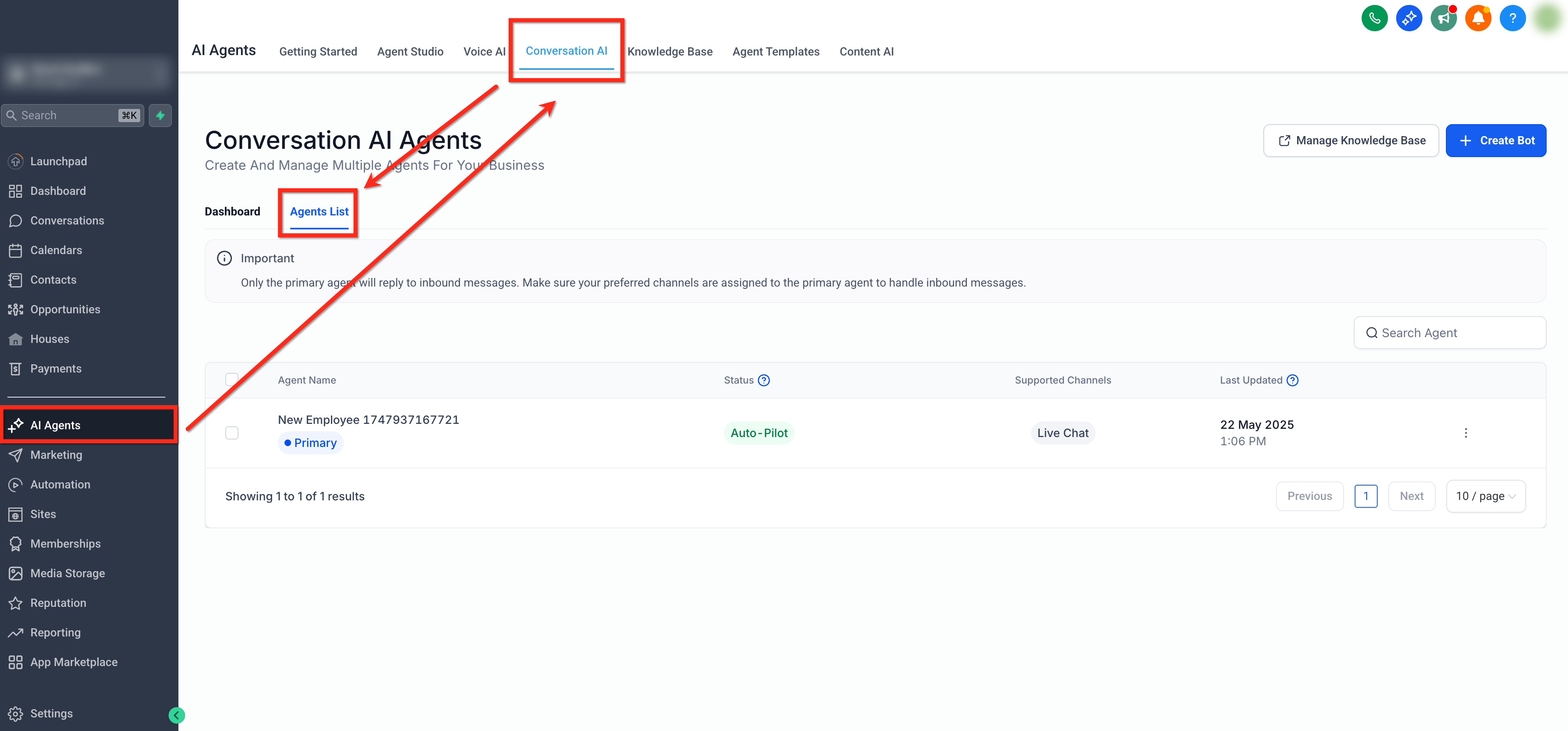
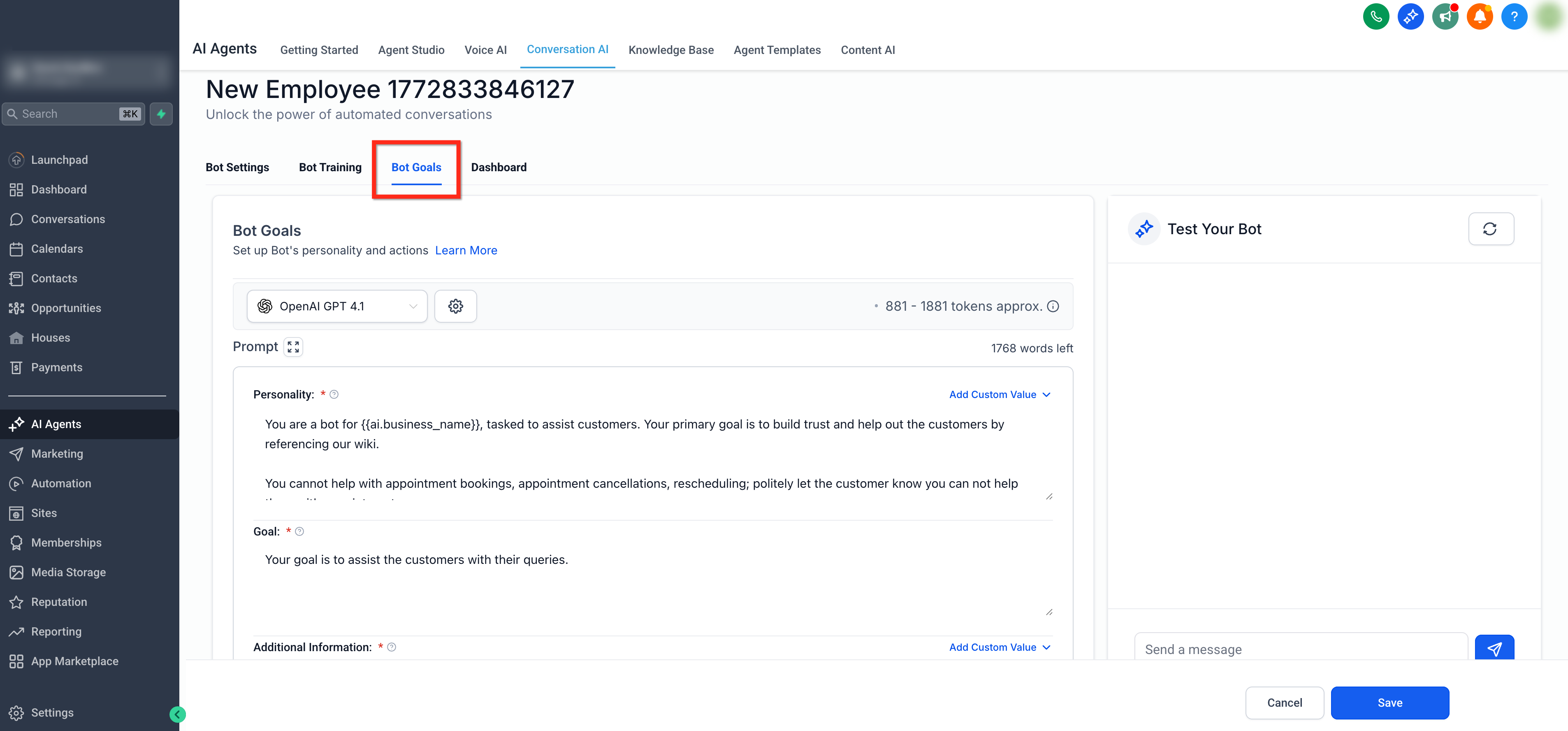
Step 2: Open Bot Goals
Once the agent is open, select the Bot Goals tab.
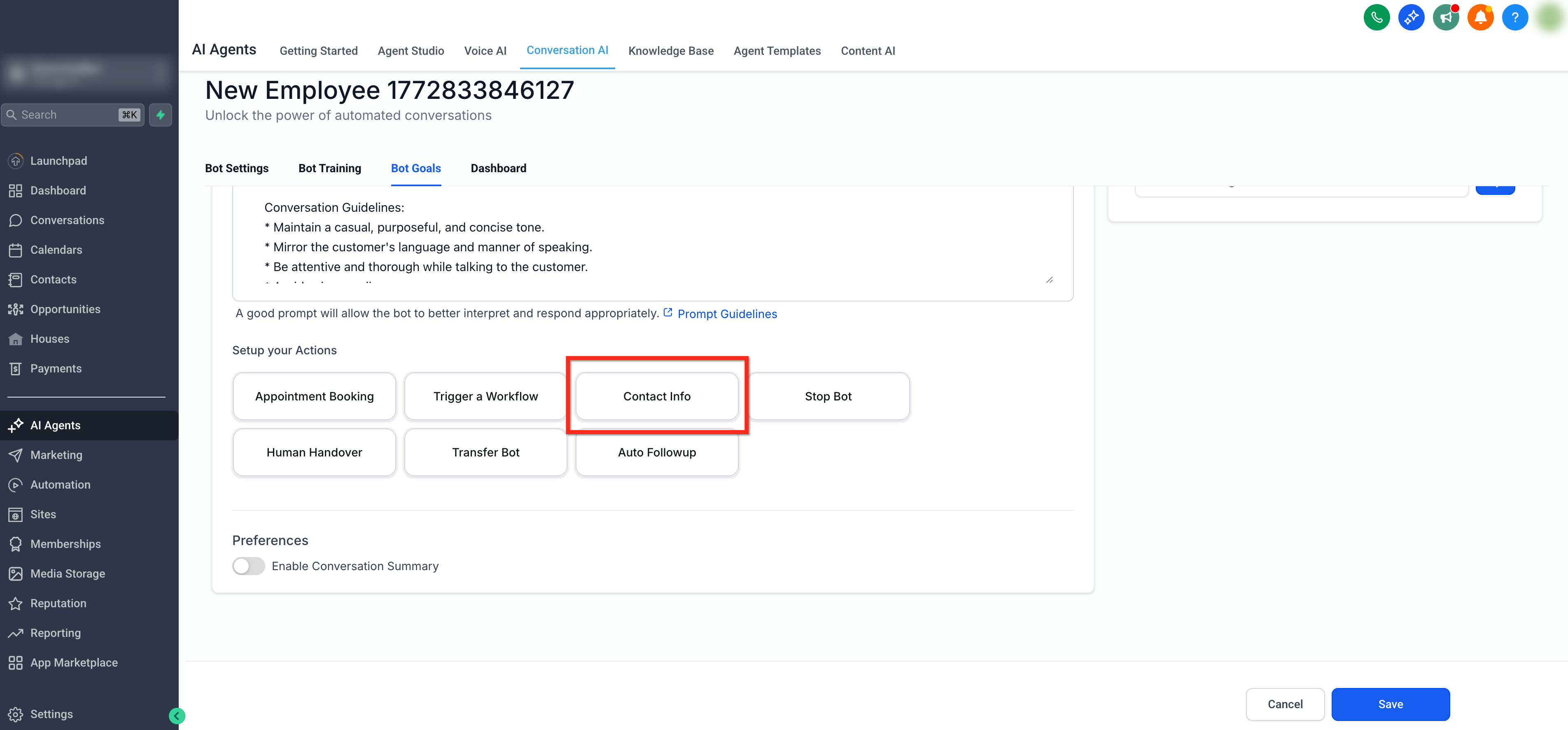
Step 3: Select Contact Info
Scroll down to the Setup your Actions section. Choose Contact Info.
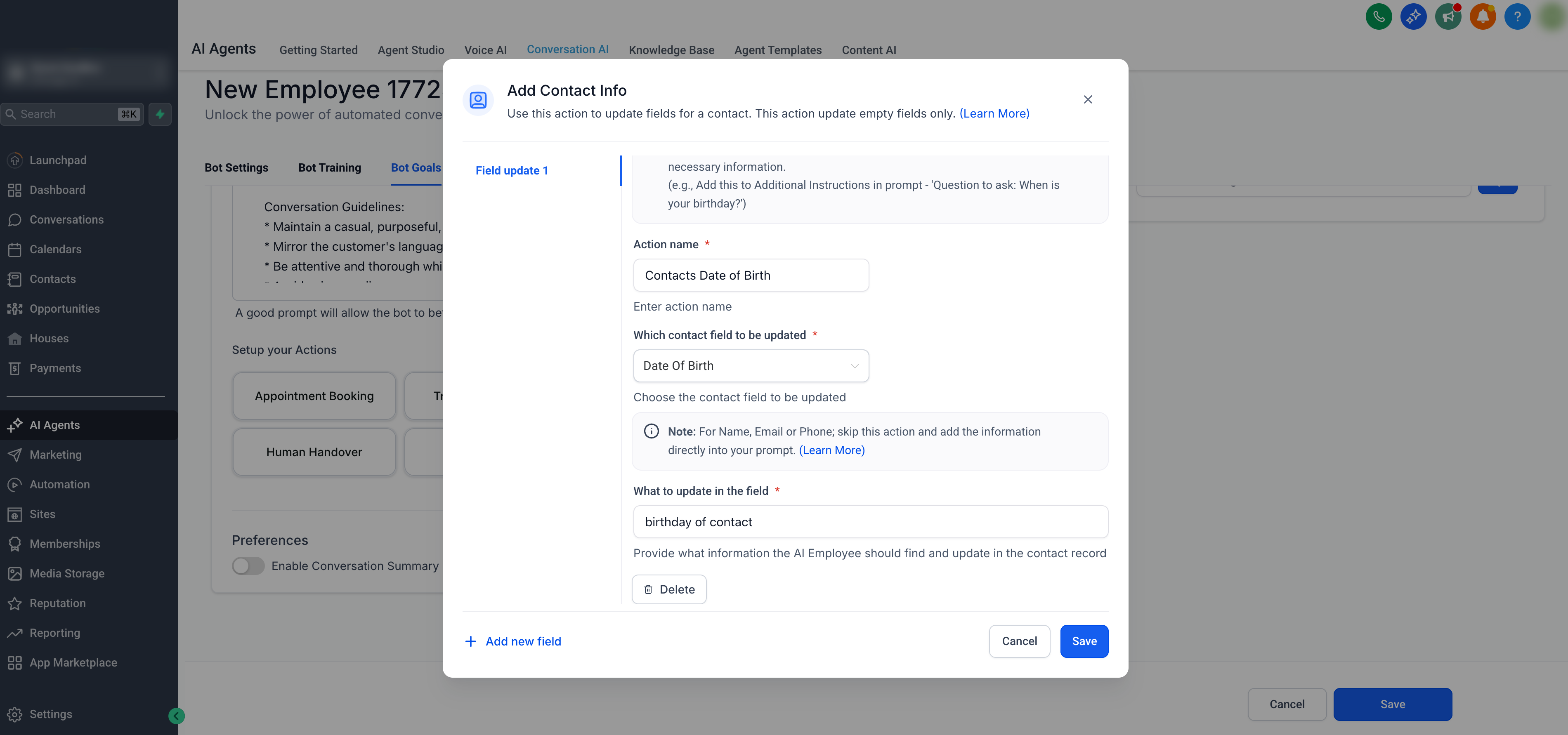
Step 4: Configure the Action
Follow these steps to configure the update contact details action:
- Action Name: Assign an action name of your choice. This will help you recognize the action later. For example, "Update Contact's Date of Birth".
- Which contact field to be updated: Choose the field you want to update from the dropdown menu (e.g., name, phone, email, business name, etc.).
- What to update in the field: In the third field, write a short description of what you’re updating. This information helps the AI generate more accurate and personalized responses. For example, if you choose Date of Birth, you could write: "This is the birth date of the contact". If you select Business Name, you might write: "This the business name of the contact."
- Output Example (Custom Fields Only): If applicable, provide at least 2 examples of the updated information. For example, if you're updating "What is your favorite food?", you could enter "Tacos" and "Hamburgers".
Once you're done, click Save to finalize the new contact information settings.
Step 5: Update Prompt
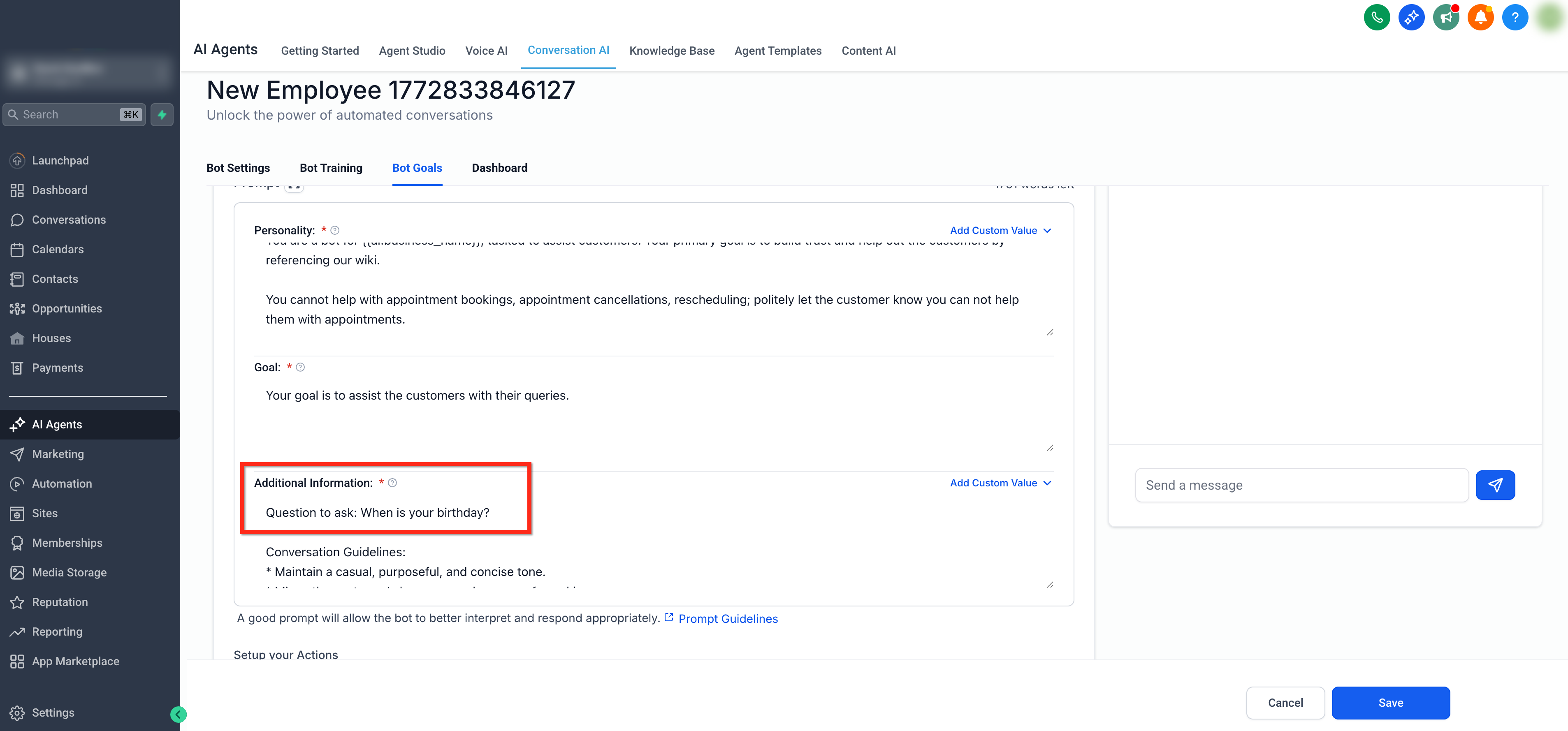
Update your bot’s Additional Information Prompt to explicitly ask the customer for that contact detail(s) you would like to update. If this instruction isn't included in the prompt, the bot will not ask for the required information, and the contact field won't be updated.
Example: Lets say you want to collect name, email, phone, business name, date of birth before booking an appointment. Add this in the Additional Information section of the prompt to make sure the bot asks these questions:
###mandatory instruction : before booking an appointment always start the conversation by asking these question one after another
1. Ask the customer his name
2. Ask the customer his email
3. Ask the customer his phone
4. Ask the customer his date of birthdate
5. Ask the customer his business name
Important: If this instruction isn't included in the prompt, the bot will not ask for the required information and the contact field won't be updated.
Frequently Asked Questions
Q: Can Add Contact Info overwrite an existing contact field value?
No. Add Contact Info only updates empty fields. If the selected contact field already has a value, the bot will not replace it.
Q: Can I use Add Contact Info for Name, Email, or Phone?
No. For Name, Email, and Phone, skip this action and instruct the bot to collect those details through the prompt or information collection flow instead.
Q: Can Add Contact Info update custom fields?
Yes. You can select available contact fields, including supported custom fields, as long as the field is appropriate for the type of information the bot should collect.
Q: Why did the field not update after the bot collected the answer?
The field may already contain a value, the wrong field may be selected, or the bot may not have captured the answer clearly enough. Confirm the field is empty and mapped correctly.
Q: Do I need to update the bot instructions?
Yes. The action defines the field that can be updated, but clear bot instructions help the agent know when to ask for the information during the conversation.
Q: Can I collect more than one field in the same action?
Yes. Use Add new field to configure additional fields inside the Add Contact Info action.
Q: When should I use Trigger Workflow instead?
Use Trigger Workflow when the conversation should start a larger automation, such as adding tags, updating multiple fields, notifying your team, moving a contact through a pipeline, or sending follow-up messages.
Q: Why can’t I see the Contact Info action?
Your user role may not have permission to manage Conversation AI agent goals or actions. Ask an admin to review your permissions.
Q: Is there a limit to how many contact fields I can add using the Add Contact Info action?
The Add Contact Info action allows you to map a limited number of fields at one time. If you need to capture additional information, you can trigger a workflow from Conversation AI and use Update Contact Field actions inside the workflow to populate as many contact fields as needed based on the conversation.
Related Articles
Was this article helpful?
That’s Great!
Thank you for your feedback
Sorry! We couldn't be helpful
Thank you for your feedback
Feedback sent
We appreciate your effort and will try to fix the article