Create custom images for your social media posts directly in HighLevel using Content AI. Simply describe the image you want, choose your preferred style, and generate visuals that complement your content. Whether you're promoting a product, announcing an event, or building brand awareness, AI Image Generation helps you create engaging visuals without requiring advanced design skills.
TABLE OF CONTENTS
- What is Image Generation Using Content AI?
- Key Benefits of Image Generation Using Content AI
- Image Generation Options and Styles
- Best Practices for Writing Image Prompts
- How to Generate Images Using Content AI in Social Planner
- Frequently Asked Questions
- Related Articles
What is Image Generation Using Content AI?
Image Generation using Content AI is an AI-powered feature that transforms written descriptions into custom images for social media posts. Instead of searching for stock photos or designing visuals from scratch, you can describe what you want to create and generate images directly within HighLevel's Social Planner.
You can select an image style, generate multiple variations, and choose the result that best matches your requirements. The selected image can then be added to your social media post for publishing or scheduling.
Key Benefits of Image Generation Using Content AI
AI Image Generation simplifies visual content creation by allowing you to turn ideas into images using natural language descriptions. This helps businesses, marketers, and agencies create customized social media visuals while reducing the time and effort involved in traditional image design.
- Faster Image Creation: Generate custom images from written descriptions without designing visuals manually.
- Customizable Visual Styles: Choose from photography, digital art, and fine art styles to create images that match your content and brand.
- Multiple Image Variations: Generate different versions of an image, compare the results, and select the most suitable option.
- Integrated Social Media Workflow: Create, refine, and add AI-generated images directly within Social Planner without switching between applications.
Image Generation Options and Styles
Image Generation provides several settings that help you control how Content AI creates visuals. Understanding these options allows you to describe your ideas more effectively and select images that align with your social media content.
| Setting | Description |
|---|---|
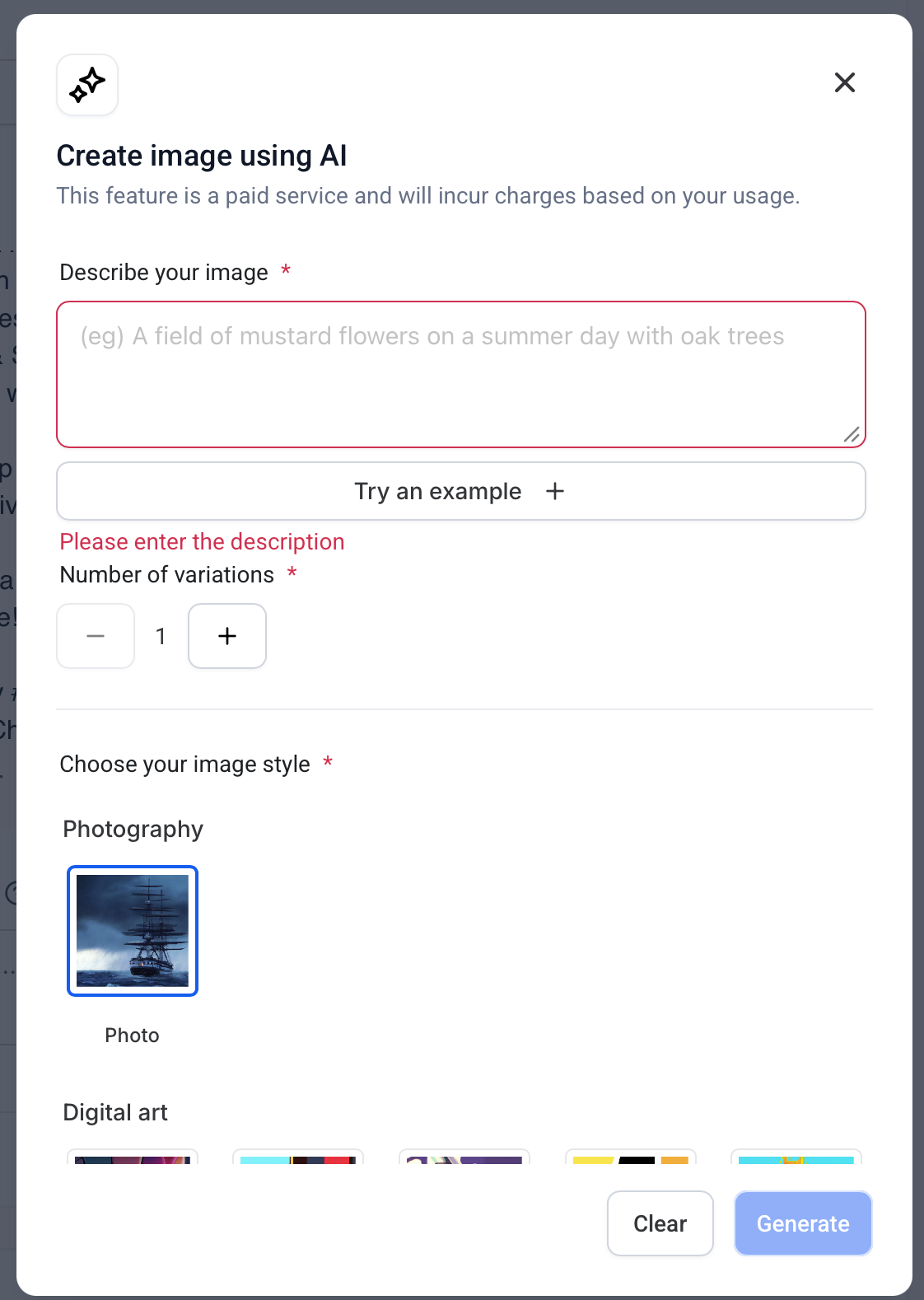
| Describe Your Image | Enter a natural language description of the image you want to create, including details about the subject, surroundings, colors, and composition. |
| Try an Example | Use an example prompt to explore how image descriptions work or get inspiration for your own image. |
| Number of Variations | Choose how many versions of the image you want Content AI to generate. |
| Choose Your Image Style | Select a visual style to determine the artistic appearance of the generated image. |
The available styles are displayed in the image-generation interface.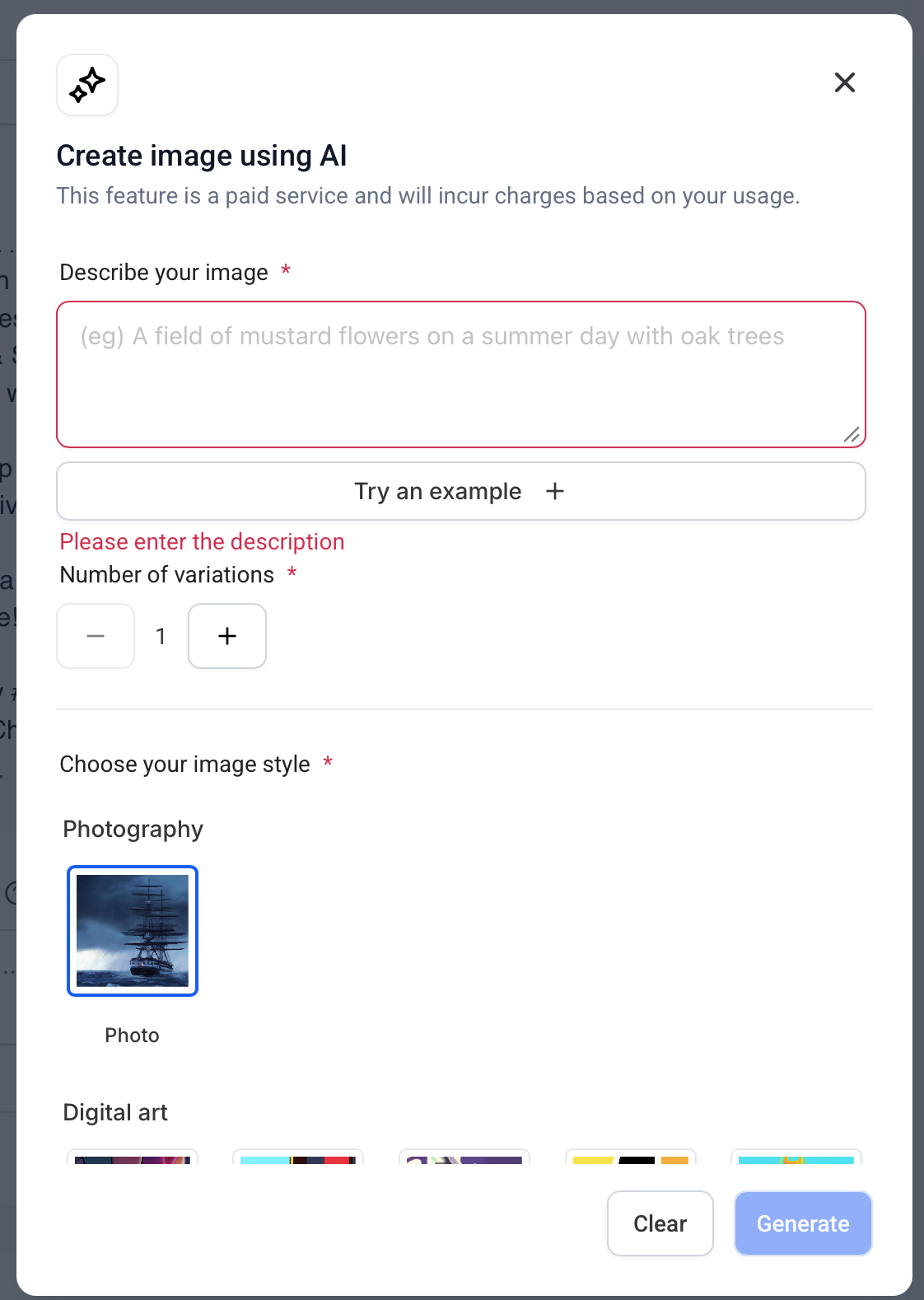
Best Practices for Writing Image Prompts
Clear and descriptive prompts help Content AI generate images that more closely match your expectations. Including specific details about the subject, environment, lighting, and visual style gives the AI useful guidance while reducing unexpected results.
| Best Practice | Description | Example |
|---|---|---|
| Describe the Visual Instead of the Promotion | Focus on the objects, environment, and overall appearance you want to generate instead of relying entirely on promotional phrases. | Instead of "20% discount on running shoes," use "A pair of modern running shoes displayed on a wooden platform with a gym bag and soft studio lighting." |
| Use Clear and Specific Descriptions | Include details about the subject, surroundings, colors, lighting, and arrangement to guide image generation. | "A bright coffee shop interior with wooden tables, green plants, large windows, and morning sunlight." |
| Specify the Intended Style | Describe the artistic or photographic style you want, such as realistic photography, watercolor, digital illustration, or minimalist artwork. | "A watercolor illustration of a peaceful mountain lake surrounded by pine trees." |
| Avoid Relying on Symbols or Complex Text | Promotional wording, numbers, and symbols may not always produce the intended results. Focus on describing the visual elements clearly. | Instead of "50% OFF TODAY," use "A minimalist promotional background with a pair of sneakers on a neutral pedestal." |
| Experiment With Variations | Adjust the composition, lighting, colors, or style when the initial image does not match your expectations. | Change "A modern living room" to "A modern living room with beige furniture, large windows, indoor plants, and warm afternoon lighting." |
How to Generate Images Using Content AI in Social Planner
Creating images with Content AI is a simple process that begins inside Social Planner's post composer. By entering an image description, choosing your preferred settings, and reviewing the generated results, you can add custom visuals to your social media posts without leaving HighLevel.
Before You Begin: Ensure that View & manage content AI is enabled under Settings > My Staff > Edit User > Roles & permissions > Account Tools. Content AI access also depends on the account's billing configuration.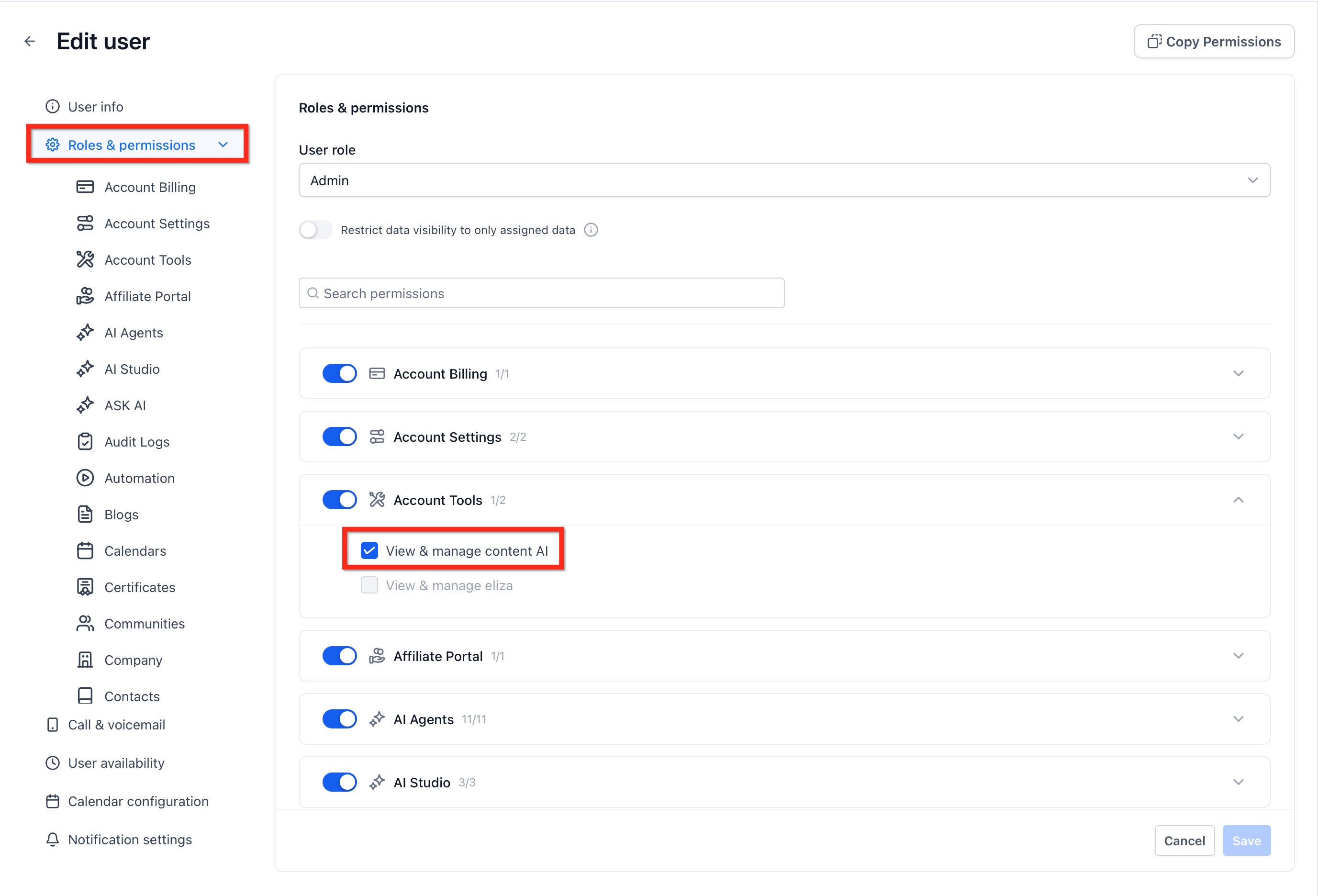
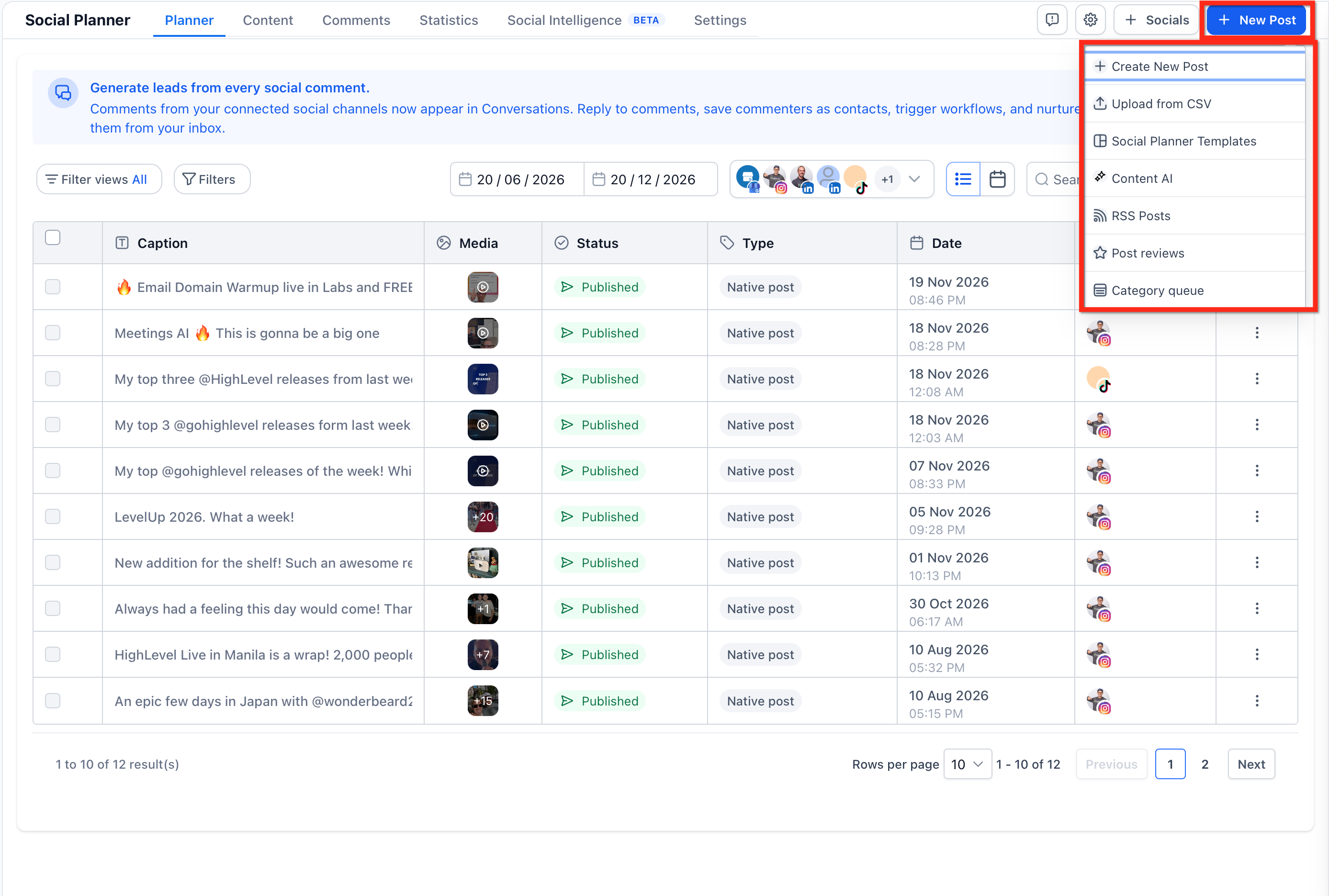
- Navigate to Marketing > Social Planner, click + New Post, and select Create New Post.
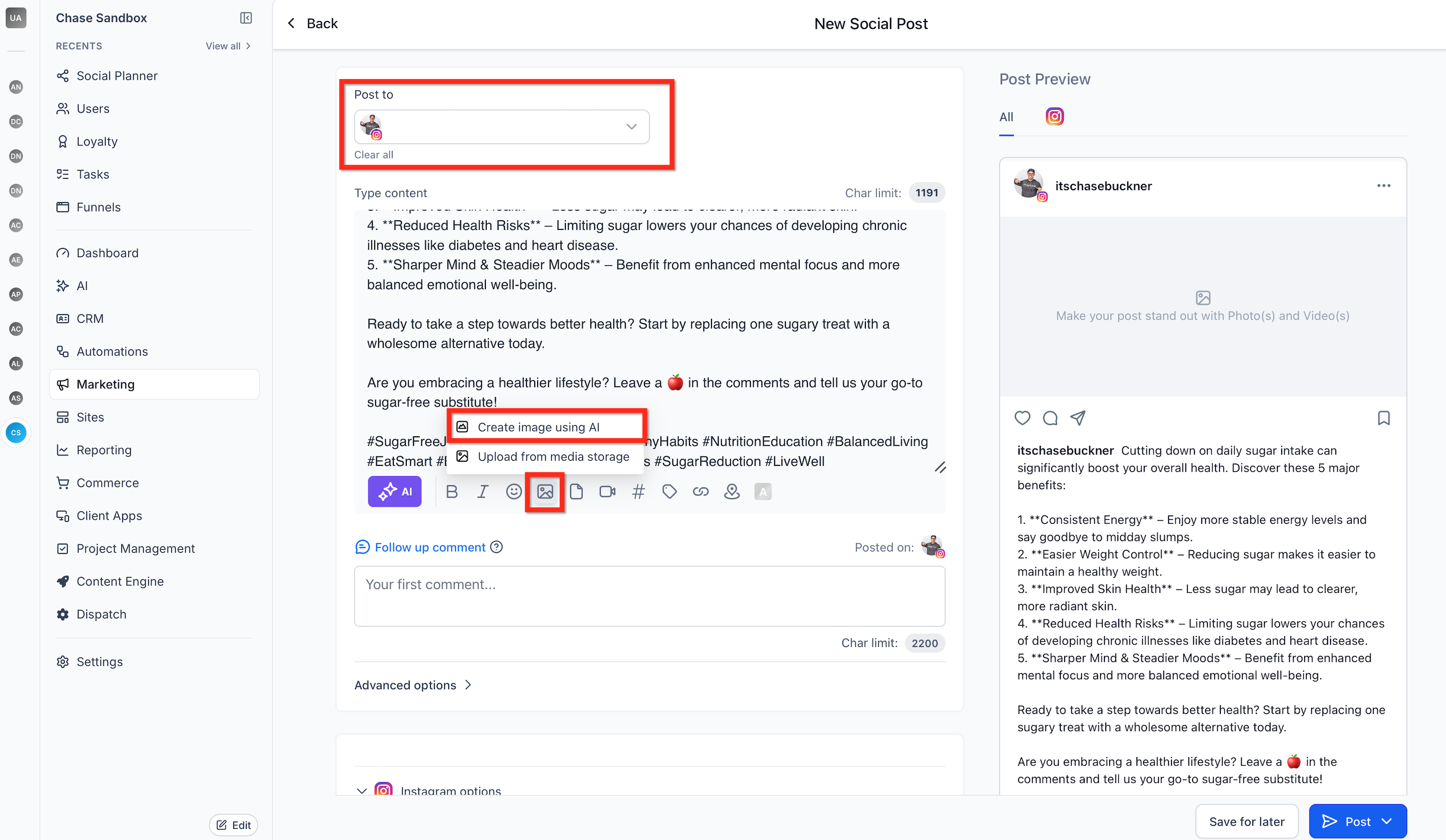
- In the New Social Post composer, select the connected social media account under Post to.
- Click the Image icon in the content editor and select Create image using AI.
- In the Create image using AI window, enter a description in Describe your image, choose the Number of variations, and select your preferred option under Choose your image style. Click Generate.
Example Image Generation Scenarios
The following examples demonstrate how different descriptions, variation counts, and image styles can be used to generate visuals for social media posts.
Example 1: Fruit Salad
Enter "A vibrant fruit salad in a glass bowl", select 2 variations, and choose the 3D Model style, if available.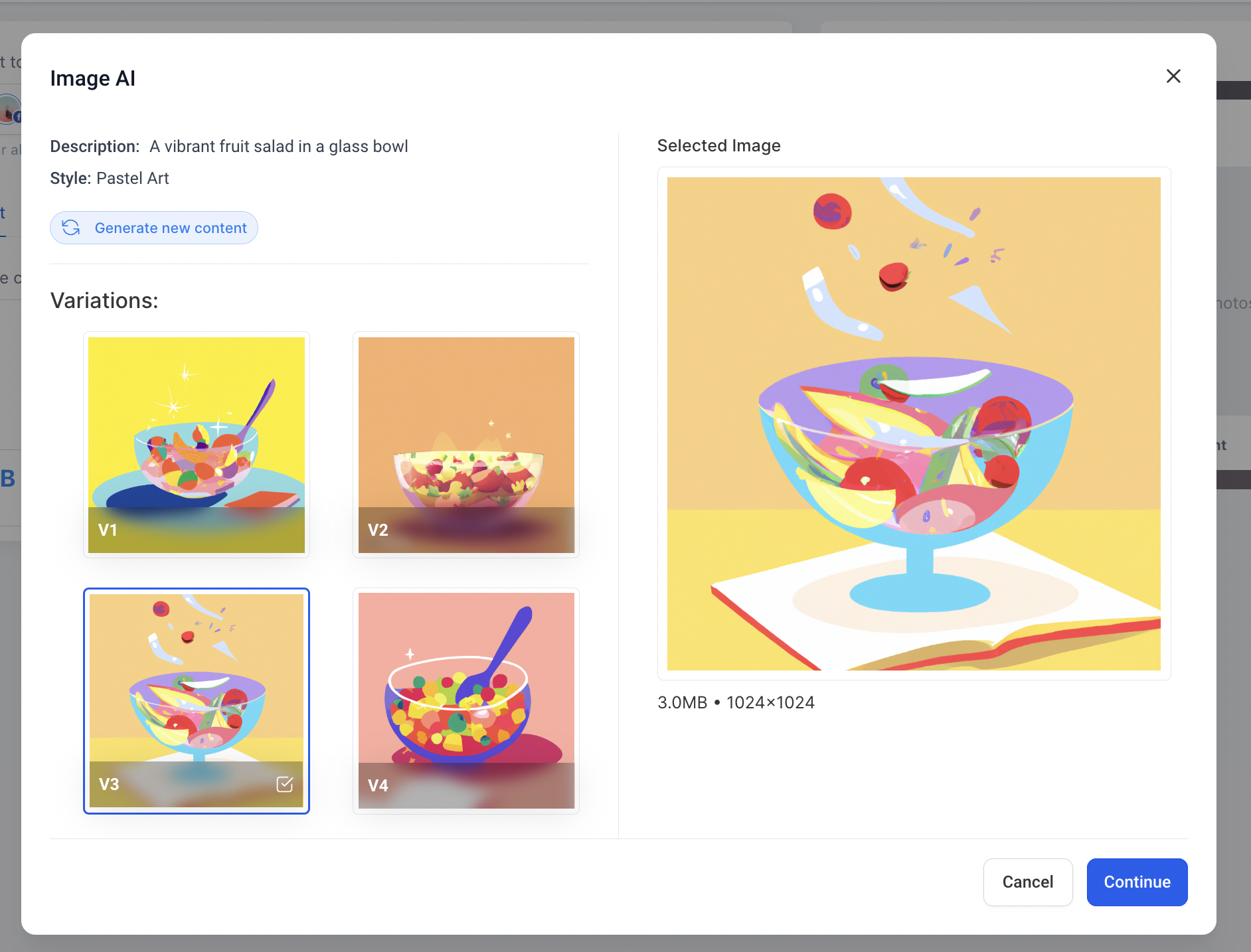
Example 2: Mountain Sunrise
Enter "Serene sunrise over a mountain range", select 4 variations, and choose the Photo style.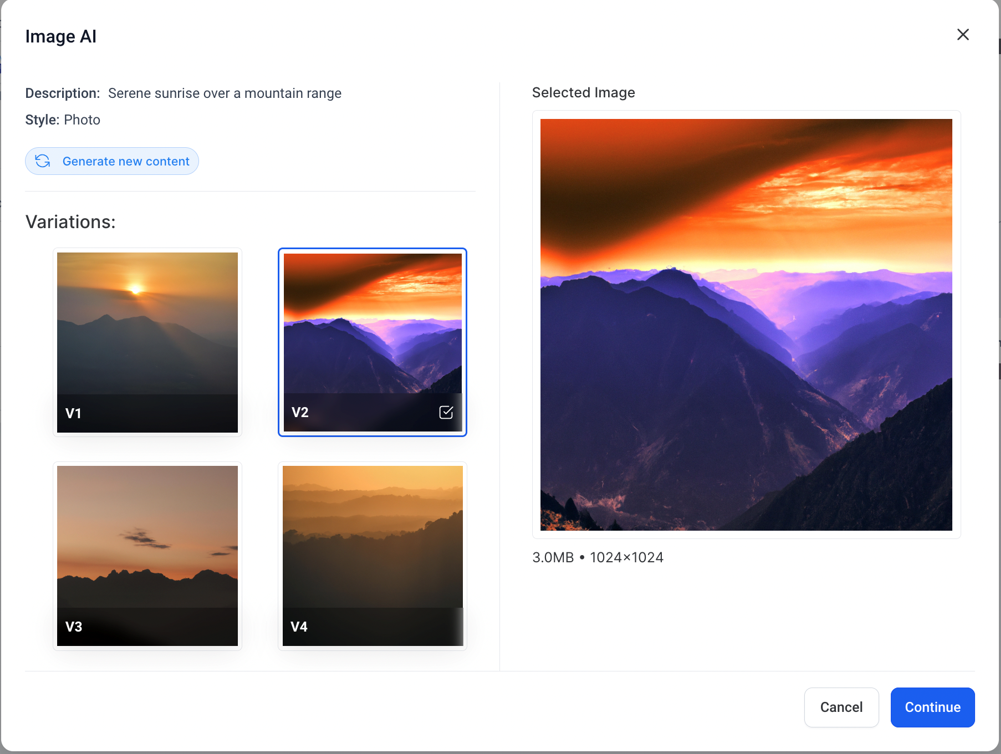
- Review the generated image variations and select the one that best matches your requirements. If you want additional results, click Generate new content to regenerate images. You can also use Edit with Ask AI to refine the selected image. Once satisfied, click Continue.
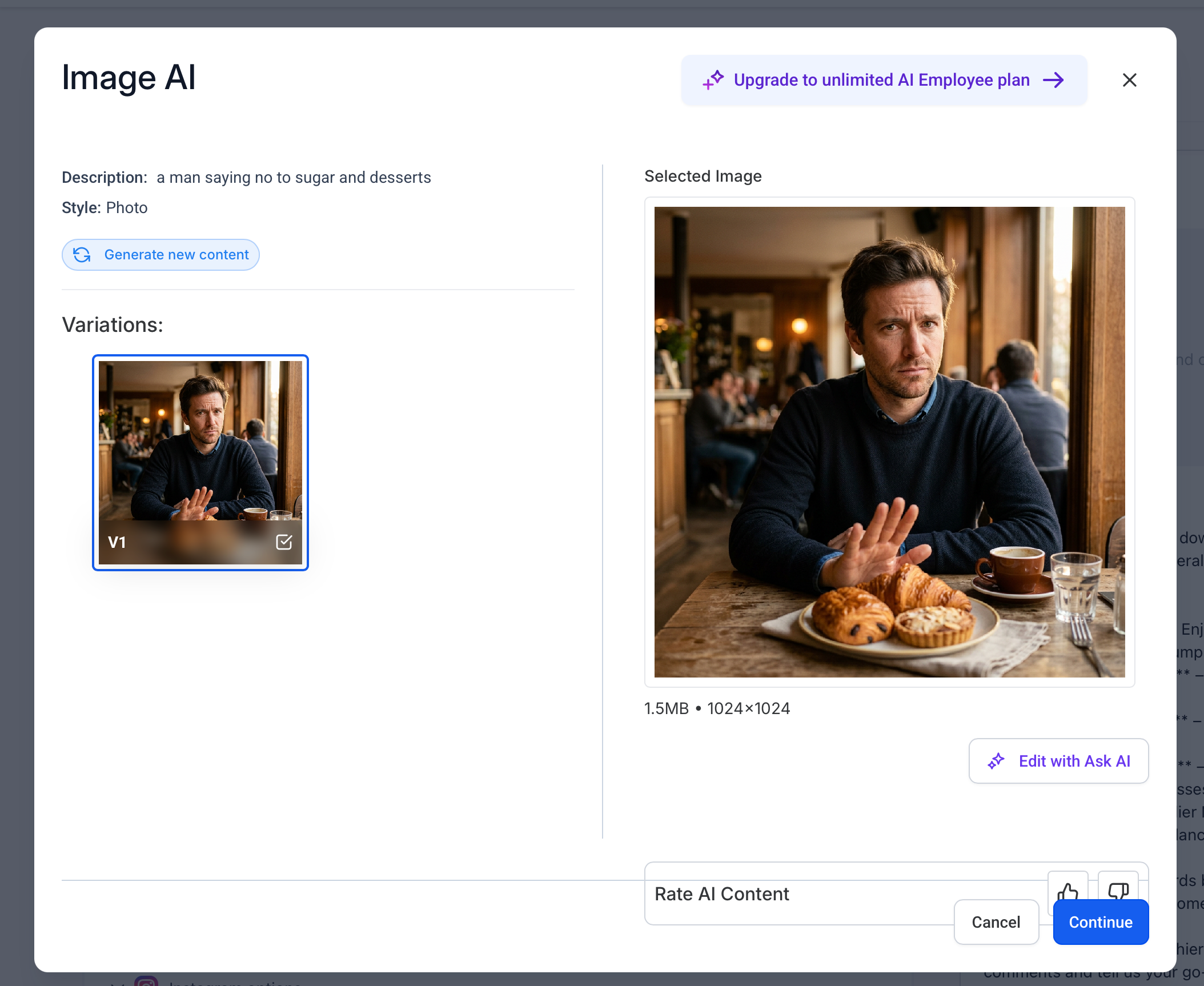
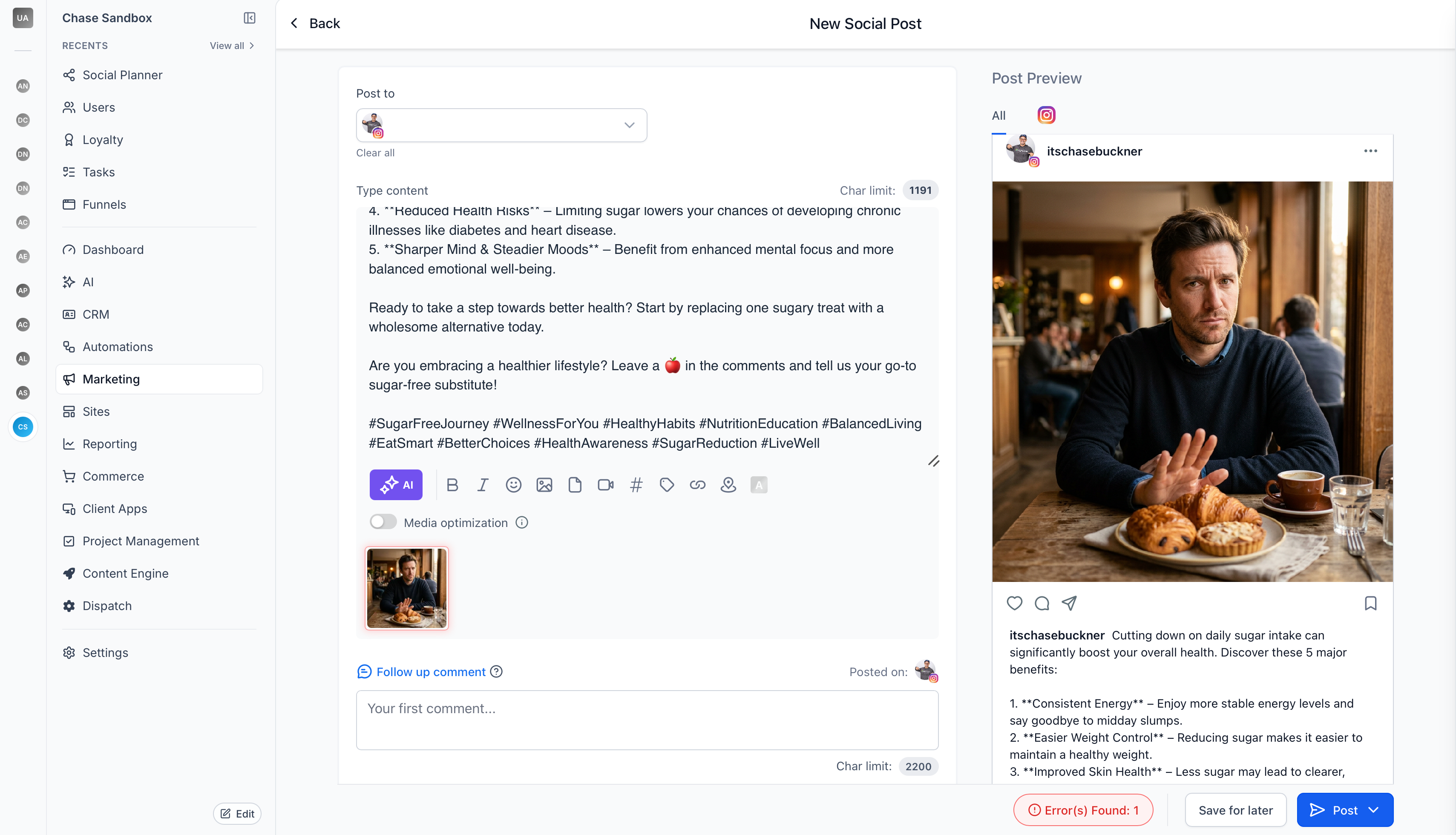
- Review the selected image in the New Social Post composer, add or update your caption, and choose Save for later or Post to complete the workflow.
Note: If you also want to generate your social media captions using AI, refer to Content AI with Social Planner for instructions on creating post content using guided questions and Brand Voice.Frequently Asked Questions
Q: Why can't I see the Create image using AI option in Social Planner?
Confirm that your user has the View & manage content AI permission enabled and that the account has access to Content AI. If the option remains unavailable, contact your account administrator or HighLevel Support.
Q: What should I do if the generated image doesn't match my description?
Try refining your prompt with more specific details, selecting a different image style, or clicking Generate new content to generate additional results.
Q: Can I edit an AI-generated image after creating it?
Yes. You can use Edit with Ask AI to modify supported AI-generated images by describing changes such as adjusting the background, modifying objects, or refining visual elements.
Q: Are there additional charges for generating AI images?
Content AI availability and charges depend on your user type and account's billing configuration. Agency users may have included access subject to fair use, while sub-account users can access the feature through an eligible AI Employee subscription or pay-per-use billing. Refer to AI Product Pricing for current details.
Related Articles
- Content AI with Social Planner
- How to Generate and Edit Images Using Ask AI
- Getting Started - Setup Social Planner
- Social Planner Content Guidelines - Image, Video, and Text
- AI Product Pricing
- AI Usage Limits
Was this article helpful?
That’s Great!
Thank you for your feedback
Sorry! We couldn't be helpful
Thank you for your feedback
Feedback sent
We appreciate your effort and will try to fix the article