Content AI text and image generations are now available in HighLevel Agent Logs, alongside other AI products. Users can review original requests, generated outputs, variations, and execution details in one place. This makes it easier to track generations and troubleshoot unexpected results.
TABLE OF CONTENTS
- What is Content AI in Agent Logs?
- Key Benefits of Content AI in Agent Logs
- Understanding Content AI Generation Logs
- How to View Content AI Generations in Agent Logs
- Frequently Asked Questions
- Related Articles
What is Content AI in Agent Logs?
Content AI in Agent Logs provides a centralized record of text and image generations. Each generation creates a separate log containing the original request, generated response, and available execution details, reducing the need to return to the original generation interface.
Key Benefits of Content AI in Agent Logs
Reviewing Content AI generations through Agent Logs helps users understand how content was generated and investigate issues more efficiently.
- Centralized Tracking: Review Content AI Text and Image activity alongside other AI products.
- Easier Troubleshooting: Inspect requests, responses, and execution timelines to investigate unexpected results.
- Variation Tracking: Compare multiple text responses using numbered variation cards.
- Generation Context: Identify where content was generated and its intended platform.
Understanding Content AI Generation Logs
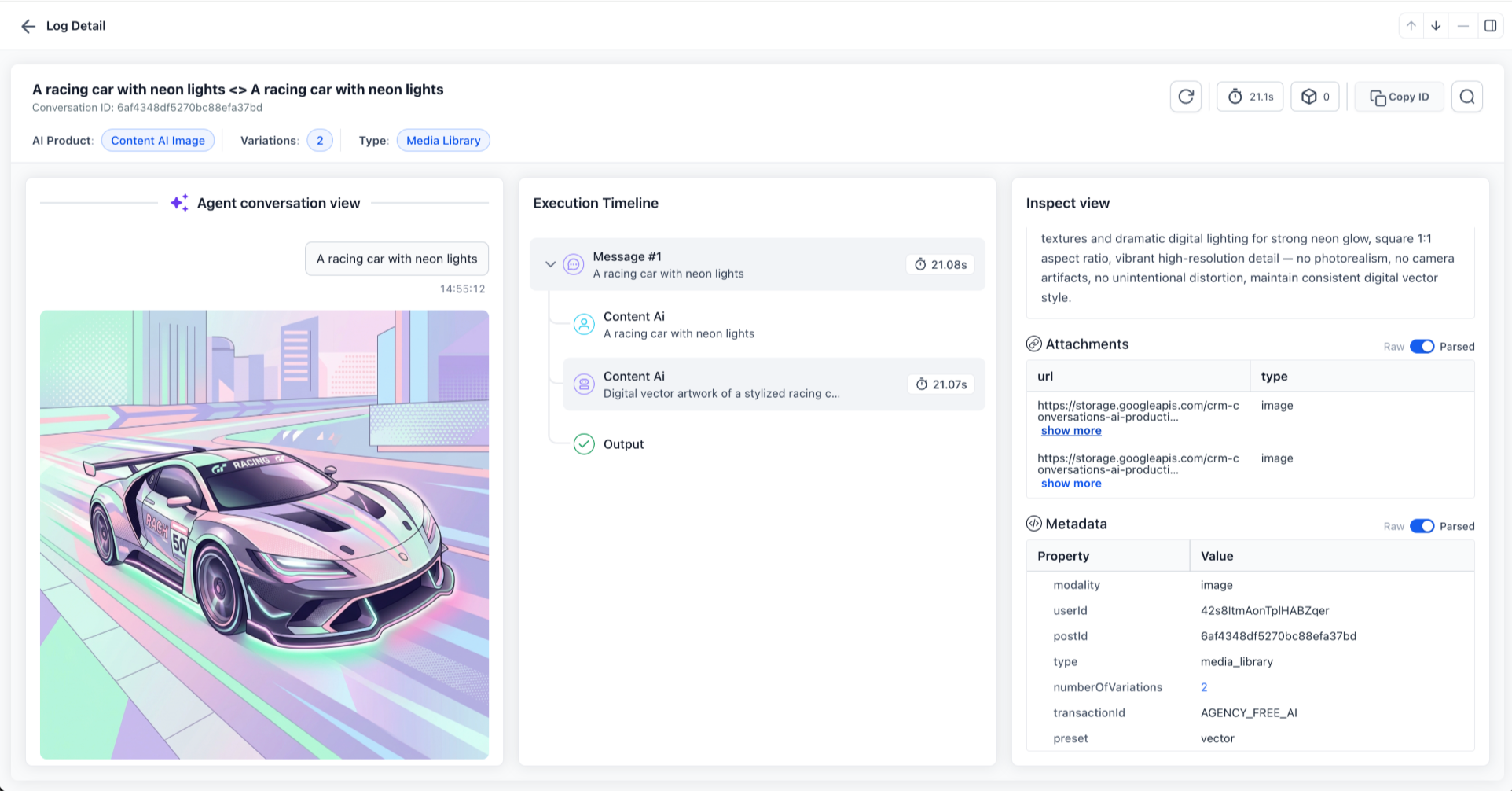
Content AI logs display generation-specific information, including text variations, image attachments, and metadata. The available details depend on the generation type and user permissions.
Content AI Text vs. Content AI Image
| Feature | Content AI Text | Content AI Image |
|---|---|---|
| Generated output | Text responses | Generated images |
| Multiple variations | Numbered cards | Image attachments |
| Original request | Visible | Visible |
| Execution timeline | Available | Available |
| Generation details | Type, Platform, and Variations when recorded | Type, Platform, and Variations when recorded |
Generation Metadata and Visibility
Generation metadata helps identify the source and context of AI-generated content. Some information appears only when recorded, while token visibility depends on the user's account type.
| Field | Description |
|---|---|
| Variations | Number of generated variations. |
| Type | Where the content was generated, such as Social Planner or Media Library, when recorded. |
| Platform | Intended destination, such as Facebook, when recorded. |
| Token Usage | Visible to agency users but hidden from sub-account users. |
| Model Name | Not displayed in the CRM view. |
| Image Prompt Rewrite | Available internally, not in the CRM view. |
Additional details:
- Multiple text variations appear as numbered cards but are treated as one complete response for search and supported exports.
- Older Content AI logs remain accessible when no AI Product filter is selected.
- Internal export and metrics filters support Content AI, Content AI Text, and Content AI Image. This does not imply that all CRM users have access to those export capabilities.
How to View Content AI Generations in Agent Logs
Content AI must be enabled for your location to display its product filters. Once enabled, you can locate generations, review outputs, and inspect execution details through the Sessions view.
- Navigate to AI Agents > Agent Logs in your HighLevel sub-account.
- Open the Sessions tab and select the relevant date range.
- Click the AI Product filter and select Content AI Text or Content AI Image.
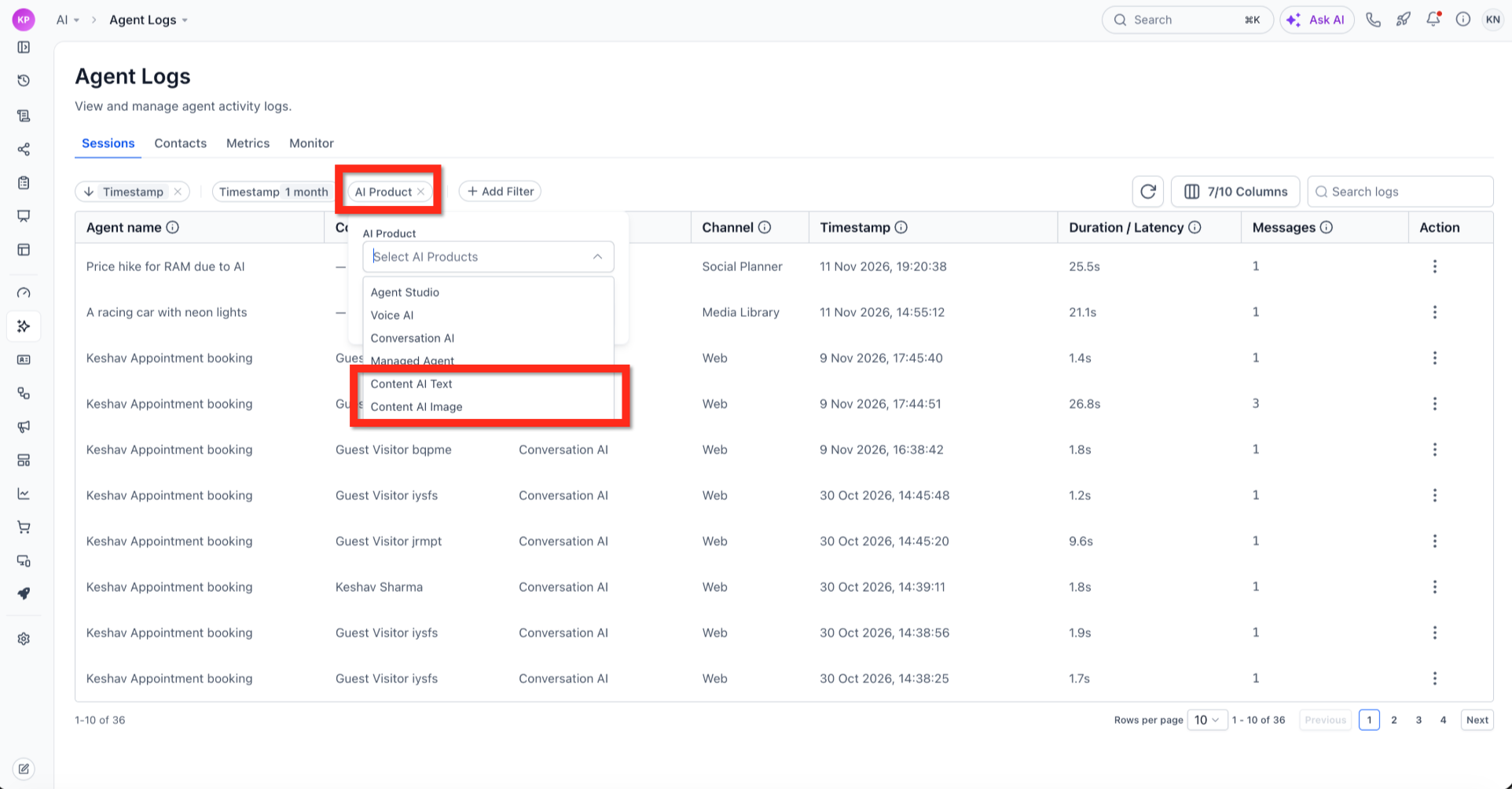
- Select a generation from the filtered results to review its original request, generated output, and available metadata.
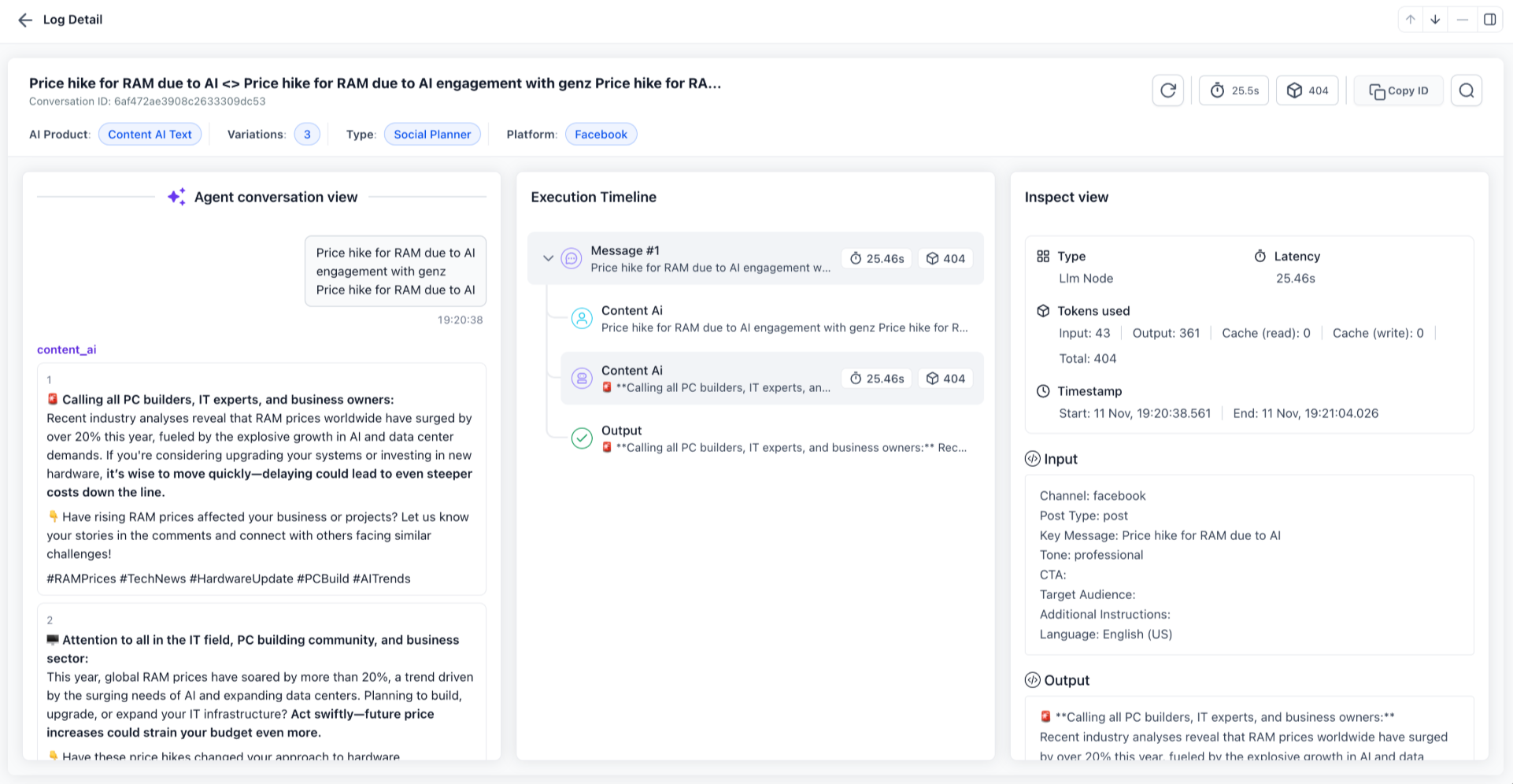
- Review the Execution Timeline and Inspect View to examine available inputs, outputs, latency, and additional generation details.
Tip: If you cannot find an older Content AI generation, clear the AI Product filter and review the unfiltered logs.Frequently Asked Questions
Q: Why are Content AI Text and Content AI Image missing from my product filters?
These options appear when Content AI is enabled for the location. Confirm that Content AI is enabled and that you have the necessary access.
Q: Does the Platform field confirm that generated content was published?
No. It identifies the intended destination when recorded. Check the publishing status in the relevant tool, such as Social Planner.
Q: Can I edit generated content directly from Agent Logs?
Agent Logs is intended for reviewing generation activity. Use the original content creation workflow to edit or publish content.
Q: Can I export Content AI logs from the CRM?
Content AI is supported in internal data exports, but customer-facing CRM export availability is not confirmed by this release.
Q: Can Agent Logs verify the accuracy of AI-generated content?
No. Agent Logs displays the original request, generated output, and execution details. Generated content should still be reviewed for accuracy before publishing.
Related Articles
Was this article helpful?
That’s Great!
Thank you for your feedback
Sorry! We couldn't be helpful
Thank you for your feedback
Feedback sent
We appreciate your effort and will try to fix the article