Kickstart your Snapshot setup with HighLevel’s Integrated Onboarding Experience. Inside the Snapshot module, you’ll find quick tips, short videos, and links to trusted help docs so you can create, import, and manage Snapshots without leaving the app. It’s a faster, friendlier path to first success for you and your team.
What is the Integrated Onboarding for Snapshots?
The Integrated Onboarding Experience introduces a guided, in-app learning layer inside HighLevel’s Snapshot module. It helps first-time users understand core Snapshot actions such as creating, importing (loading), sharing, refreshing, and pushing updates without leaving the app. By surfacing concise tips and links to deeper documentation, it reduces time-to-value and prevents “blank page” confusion.
The Integrated Onboarding Experience appears when you open Agency View → Account Snapshots and have not yet created or imported a Snapshot. It presents quick explanations and learning resources so you can confidently complete your first Snapshot workflow and reference help again whenever needed.
Key Benefits of the Integrated Onboarding Experience
These benefits highlight how the in-app guide shortens setup time, makes key Snapshot actions discoverable, and standardizes onboarding for teams.
Faster first success: Go from “what’s a Snapshot?” to completing your first Snapshot quickly with guided prompts and links to help.
Embedded micro-learning: Watch short videos or jump to help docs from within the Snapshot module to stay focused on the task.
Consistent ramp-up for teams: Give every new teammate a predictable path to learn Snapshot basics, reducing support and training time.
Workspace-friendly guidance: The onboarding layer appears when you need it and stays out of the way once you’re working.
On-demand references: Reopen guidance later to revisit steps or dive into related Snapshot articles as your needs grow.
First-Interaction Helper
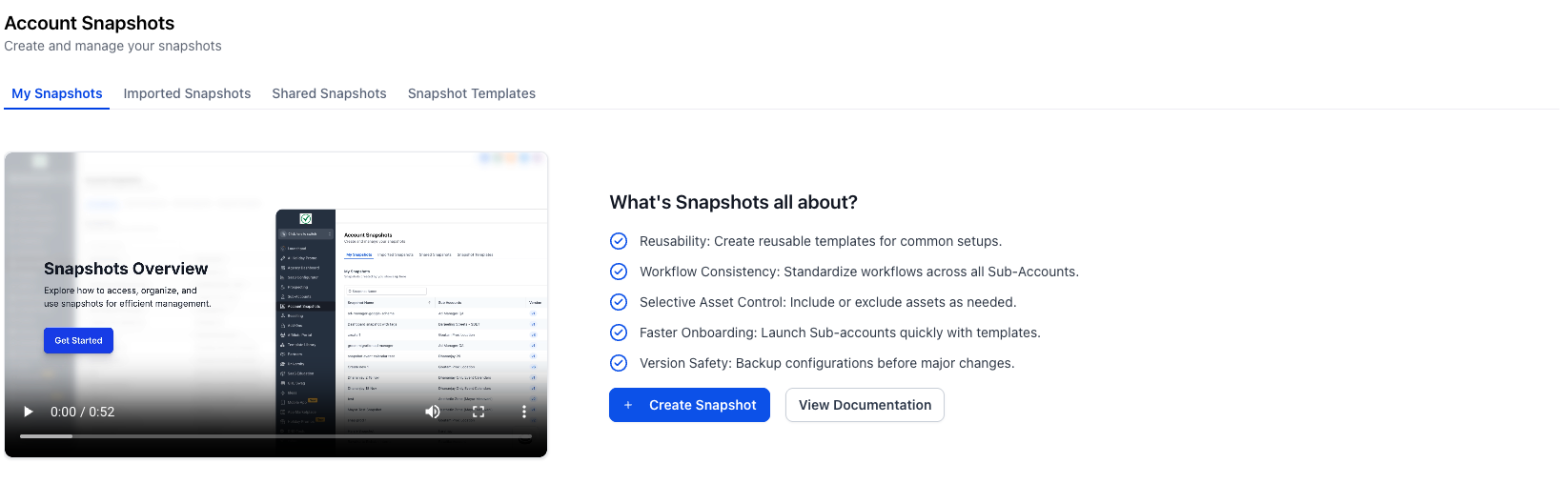
The First-Interaction Helper prevents uncertainty when the Snapshot list is empty by explaining core concepts and pointing directly to the next step—creating or importing a Snapshot.
What you’ll see on an empty list:
A concise “What is a Snapshot?” explainer.
A primary action to start your first Snapshot workflow.
Quick links to learn about Create, Import (Load), Share, Refresh, and Push Updates.
On-Demand Learning Panel
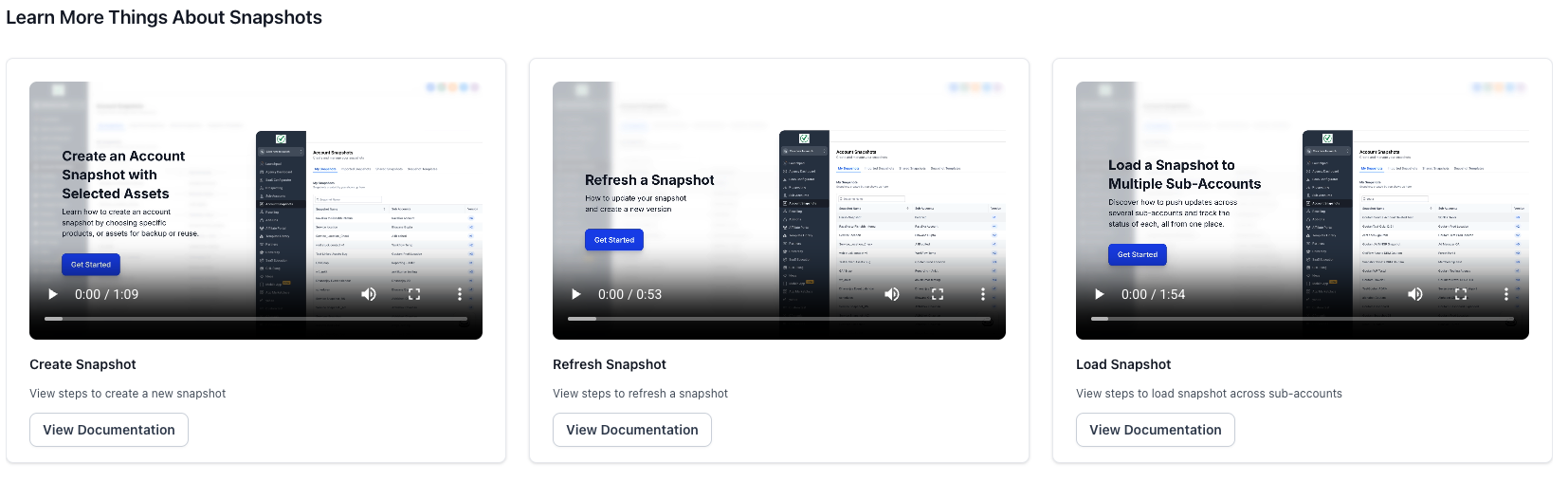
After you begin using Snapshots, a compact learning surface remains available so you can revisit essential topics, replay short videos, or open deeper KB articles without leaving your workflow.
What it provides:
Concise tips for Create, Import (Load), Share, Refresh, and Push Updates.
Links to recommended KB articles for best practices and deeper steps.
A focused learning surface to avoid context switching to external tabs.
How To Use the Integrated Onboarding Experience
Following these steps ensures you reach first success quickly and know where to find help later.
Go to Agency View → Account Snapshots.
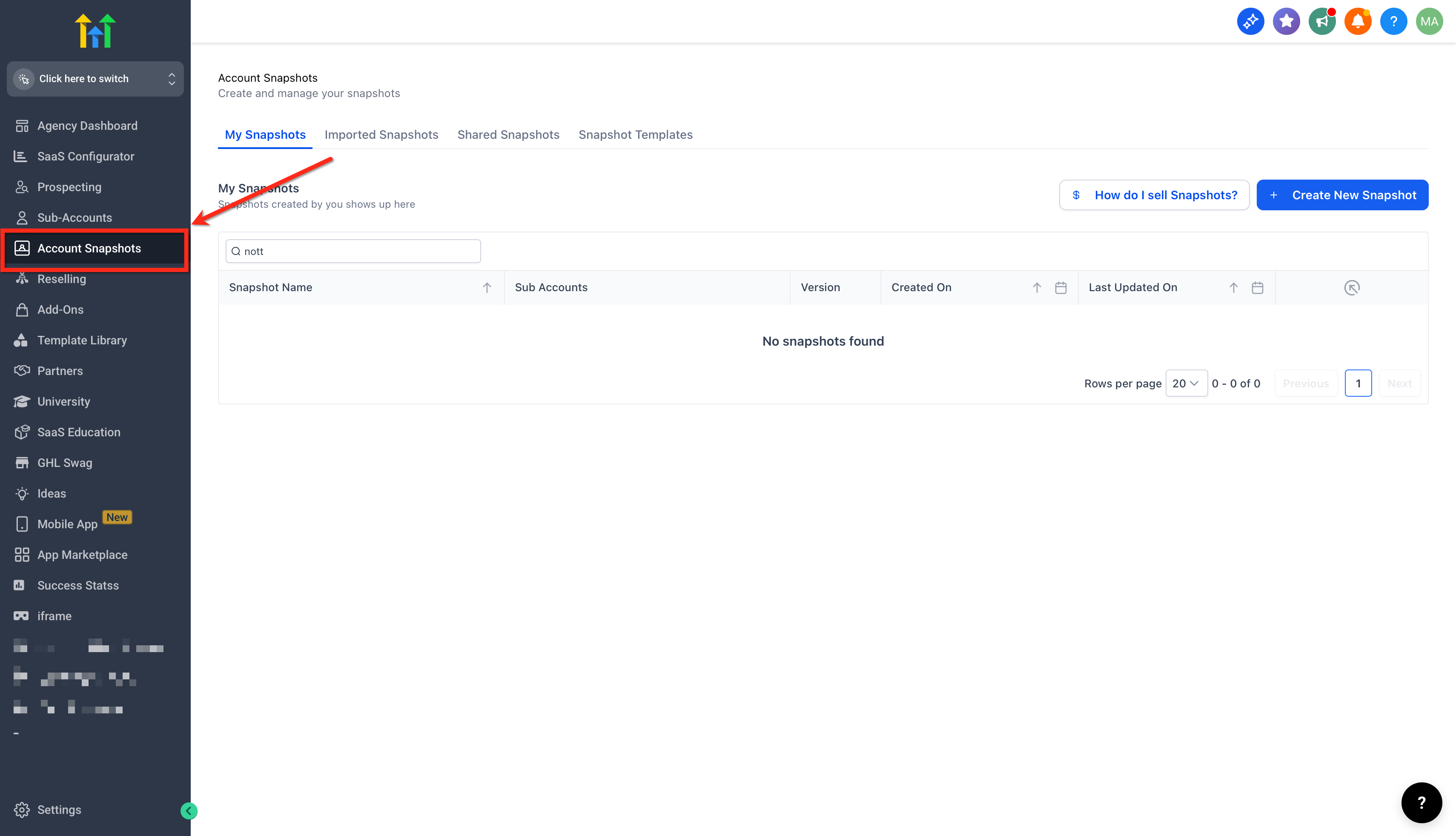
If no Snapshots exist, the First-Interaction Helper opens automatically.
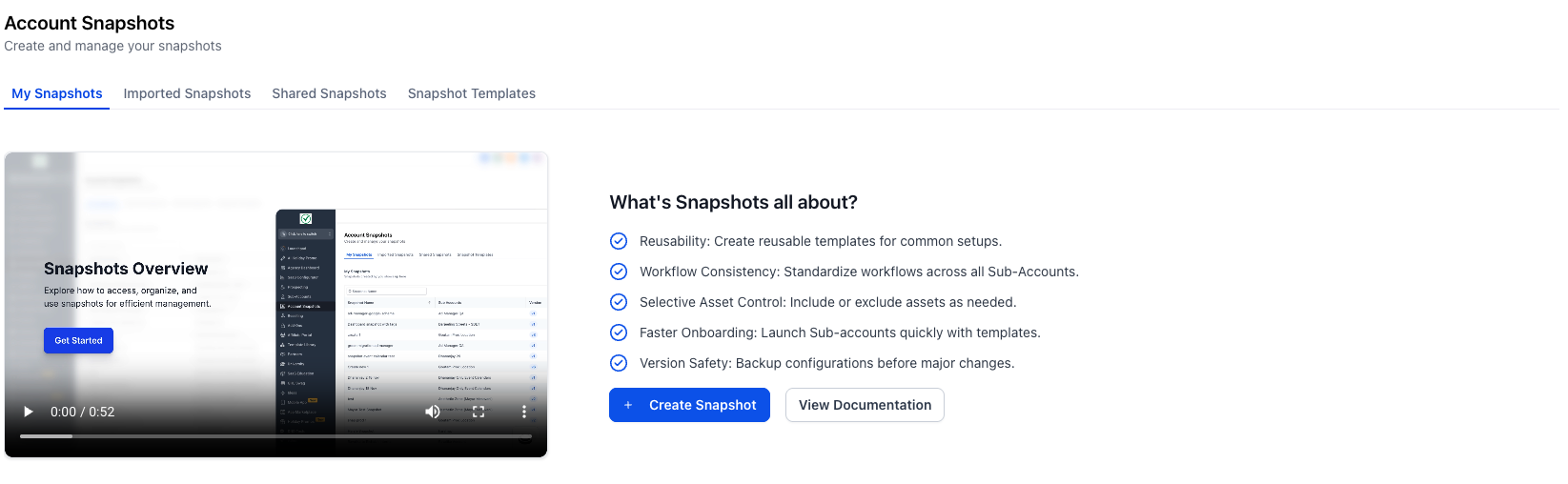
Select Create Snapshot (or choose Import/Load if you’re bringing an existing Snapshot) and complete the standard wizard.
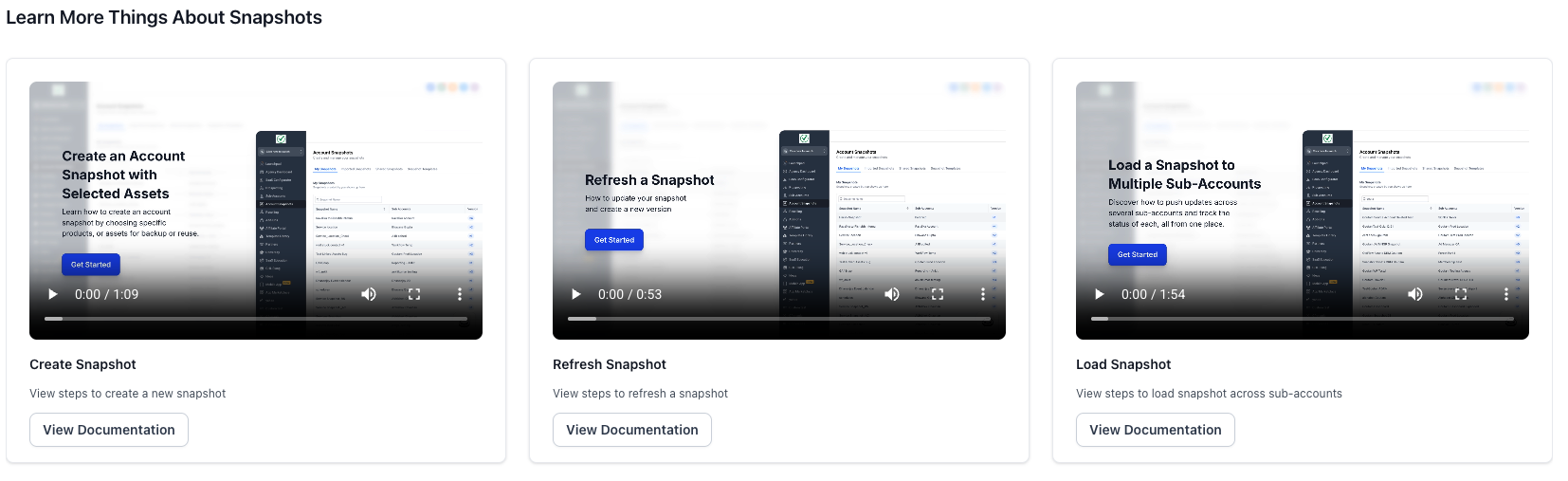
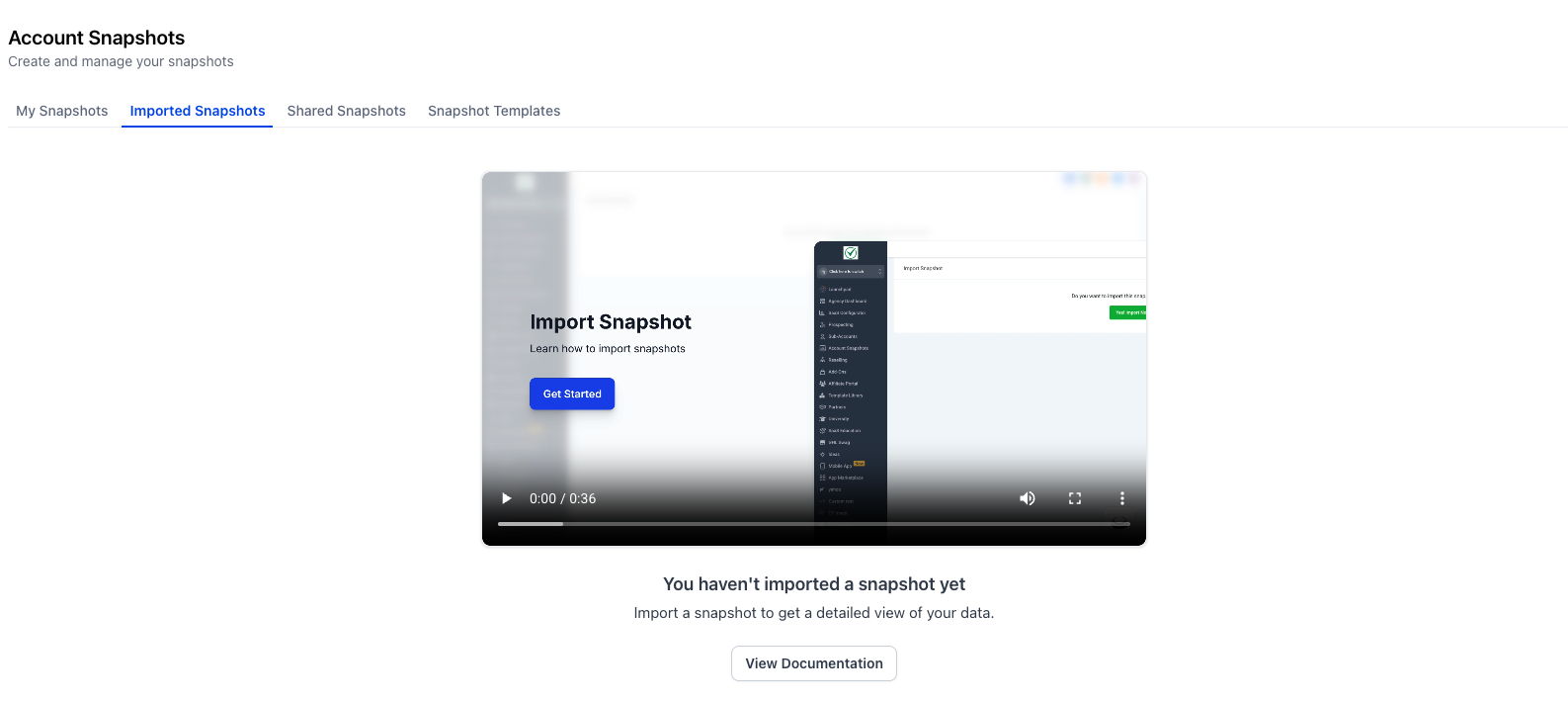
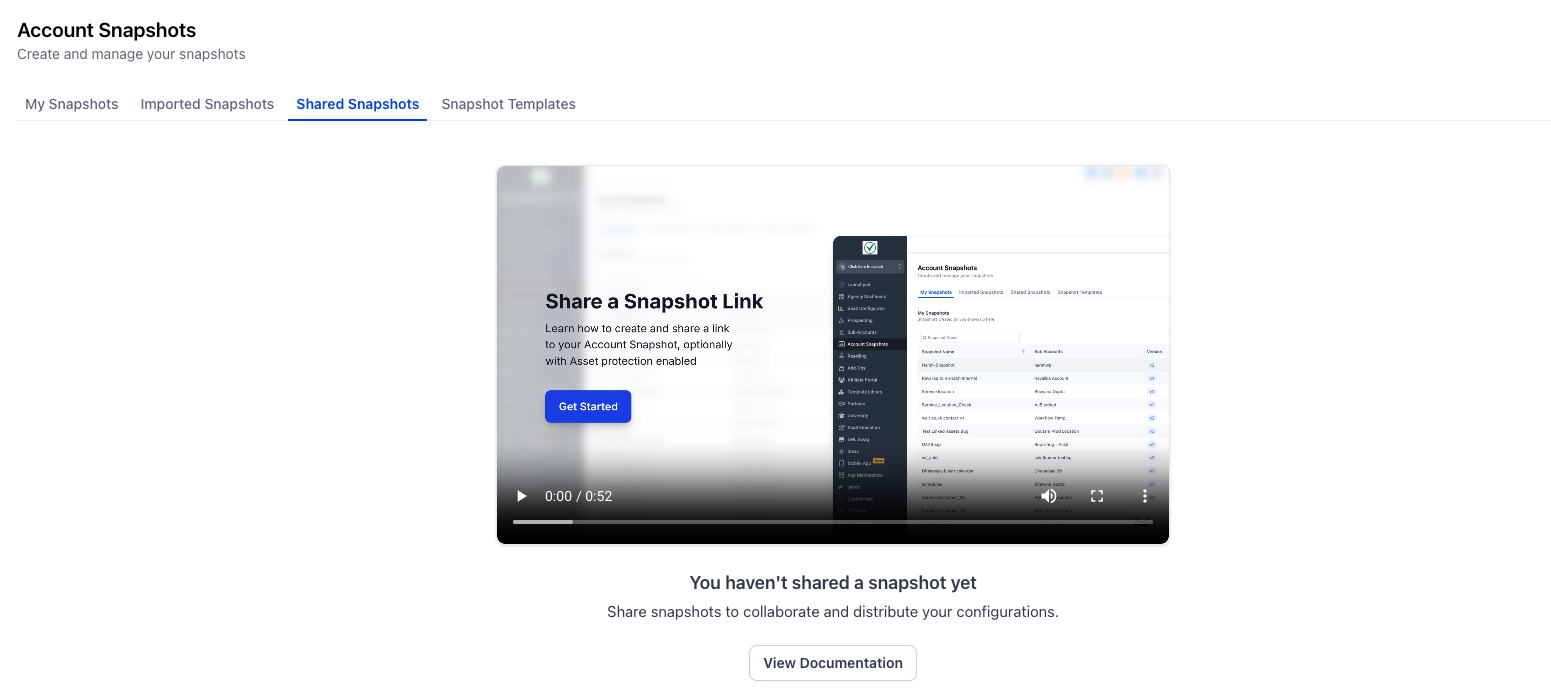
After completing your first Snapshot, you’ll find the Help wizard in each Snapshots sub-section :My Snapshots, Imported Snapshots, and Shared Snapshots so you can reopen learning materials any time.
Use the On-Demand Learning Panel to jump to topics like Share, Refresh, and Push Updates when you’re ready.
Frequently Asked Questions
Q: Who can see the Integrated Onboarding Experience?
Users with access to Agency View → Account Snapshots will see onboarding on first use when no Snapshots exist. If you don’t see it, verify your role/permissions.
Q: Can I bring the guidance back after I’ve created a Snapshot?
Yes. A compact access point remains available so you can reopen tips and related articles on demand.
Q: Does the onboarding change how I create or manage Snapshots?
No. It provides guidance and learning links. Core actions—Create, Import (Load), Share, Refresh, Push Updates - still happen in the Snapshot interface.
Related Articles
Was this article helpful?
That’s Great!
Thank you for your feedback
Sorry! We couldn't be helpful
Thank you for your feedback
Feedback sent
We appreciate your effort and will try to fix the article