Learn how to create Announcement Channels in Communities, manage posting permissions, and understand the latest notification enhancements for members. This guide walks through setup, permissions, and how notifications work so you can keep your community informed without important updates getting buried in conversations.
TABLE OF CONTENTS
- What are Announcement Channels?
- Before You Begin
- Quick Start: Create Your First Announcement Channel
- Role-Based Permissions
- Notification Enhancements
- Related Articles
What are Announcement Channels?
Announcement Channels are read-only community channels designed for important updates. Unlike standard discussion channels, only Community Owners and Admins can publish announcements while members can view, react, and stay informed without adding replies.
This makes Announcement Channels ideal for product updates, maintenance notices, onboarding information, event reminders, and other important communications.
Key Benefits of Announcement Channels
Announcement Channels help keep important information organized while reducing distractions from ongoing discussions.
- Admin-only posting: Prevent members from posting in announcement channels.
- Improved visibility: Keep important updates separate from conversations.
- Public or Private access: Share announcements with everyone or selected members.
- Pinned announcements: Highlight critical information at the top of the channel.
- Flexible configuration: Convert an Announcement Channel back into a standard discussion channel at any time.
Before You Begin
Announcement Channels can only be created by Community Owners or Community Admins.
Before creating one, make sure:
- You have Owner or Admin permissions.
- You already have a Community created.
- You know whether the channel should be Public or Private.
Quick Start: Create Your First Announcement Channel
Creating an Announcement Channel only takes a few minutes.
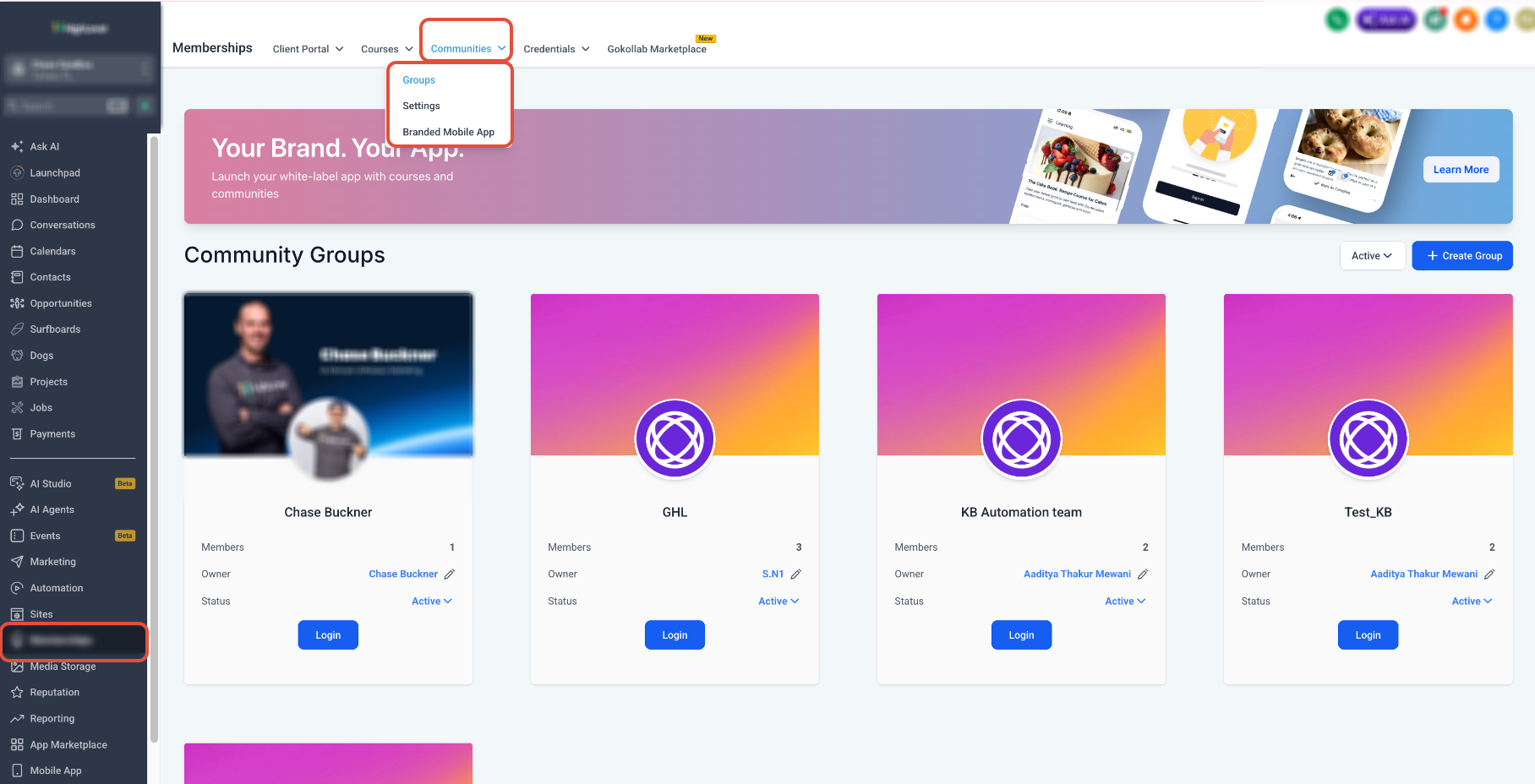
- Navigate to Communities and open the desired community.
- Open Channel Management.
- Click Create Channel, or edit an existing channel.
- Enable Announcement Channel.
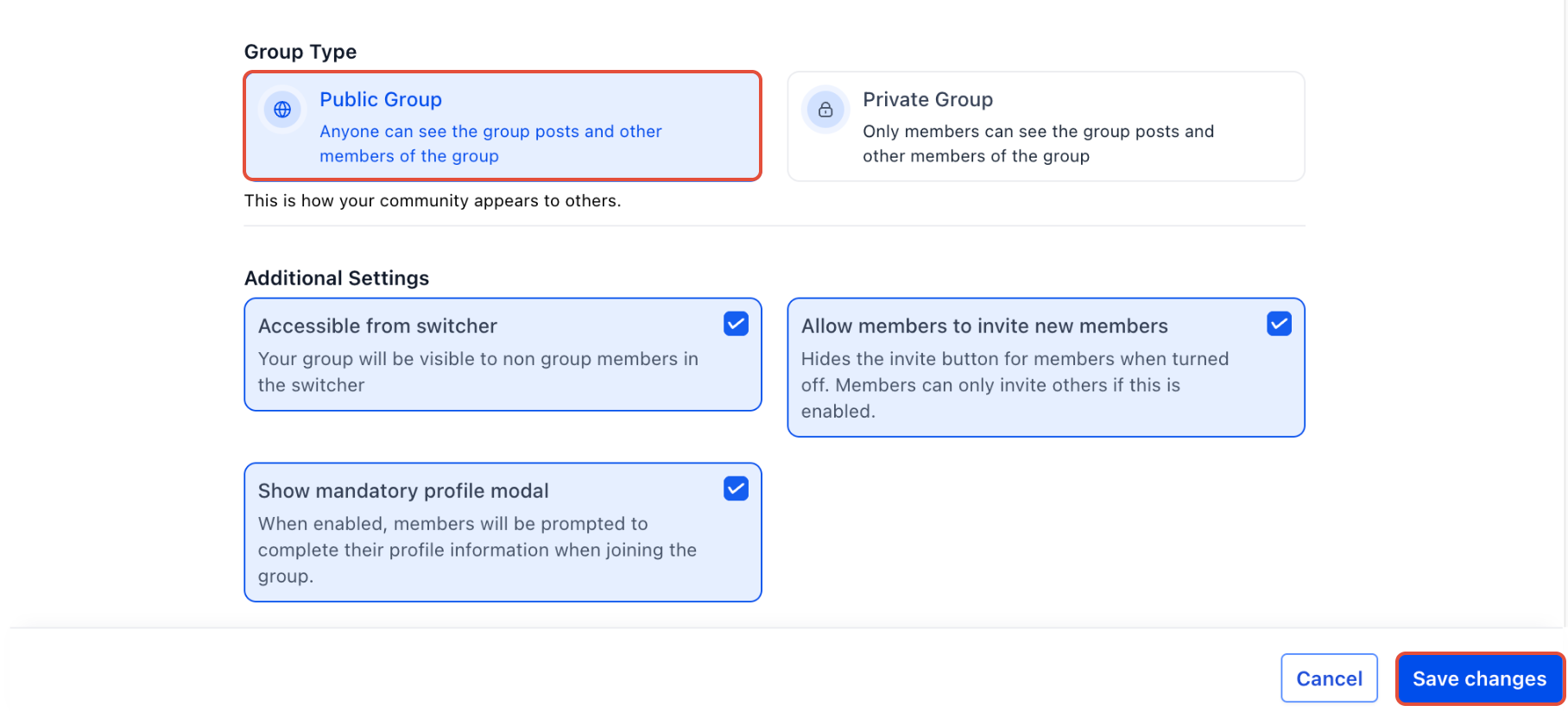
- Choose whether the channel should be Public or Private.
- Save your changes.
- Publish your first announcement.
Configure Channel Visibility
Choose who can access the Announcement Channel.
Public
Visible to every member of the community.
Private
Visible only to members you invite.
Post Your First Announcement
After creating the channel:
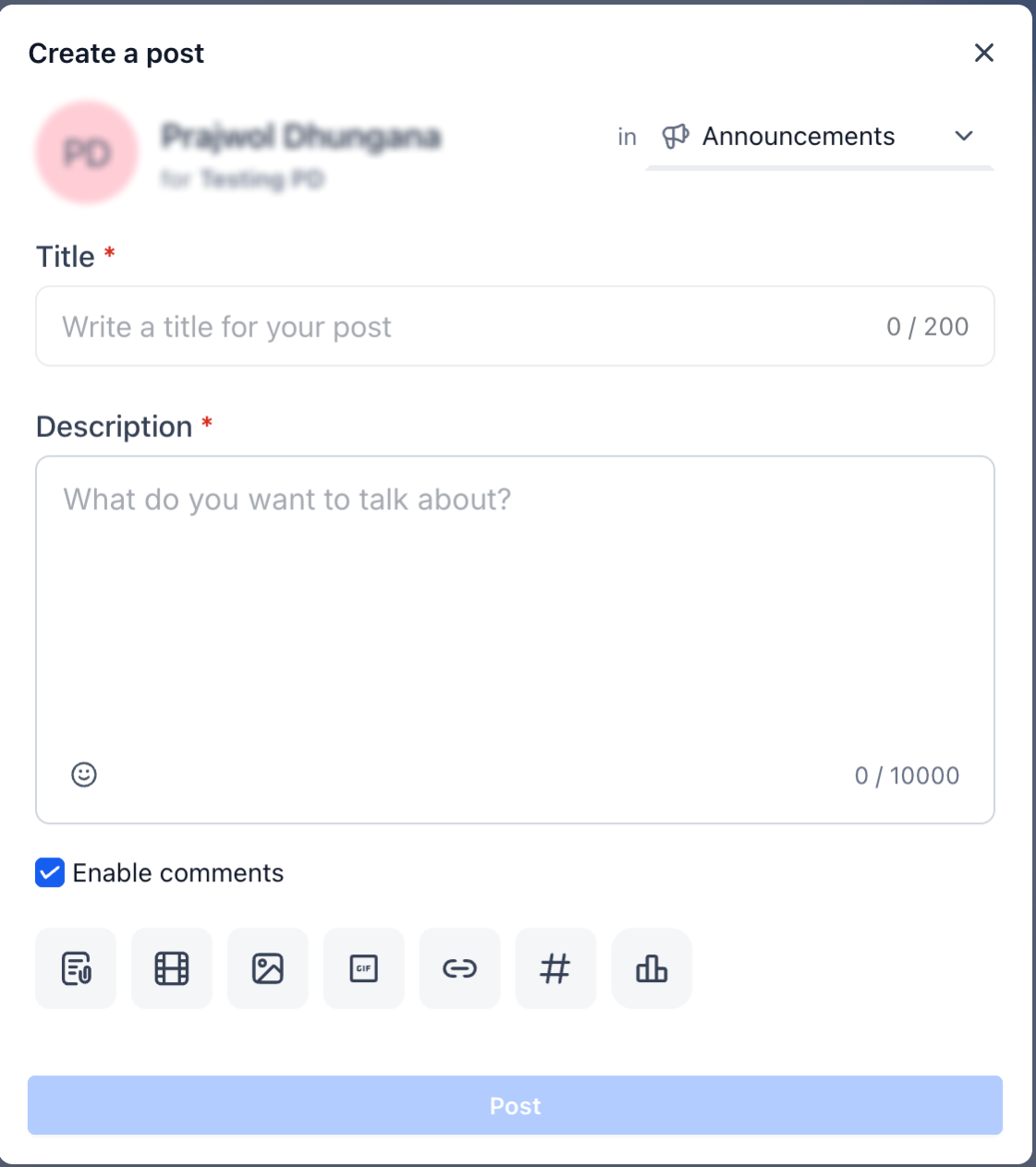
- Open the Announcement Channel.
- Create a post.
- Publish the announcement
. - Pin the post if you’d like it to remain at the top.
Only Owners and Admins can publish announcements.
Members will see the channel as read-only.
Member Experience
Members cannot create posts inside an Announcement Channel.
Instead they can:
- Read announcements
- React to posts (if reactions are enabled)
- View pinned announcements
They will not see a message composer.
Role-Based Permissions
Role-based permissions ensure only authorized users can publish announcements.
Role | Can Post | Can Pin Posts | Can Read |
|---|---|---|---|
Owner | ✓ | ✓ | ✓ |
Admin | ✓ | ✓ | ✓ |
Member | ✗ | ✗ | ✓ |
You can disable Announcement Mode at any time to convert the channel back into a standard discussion channel.
Notification Enhancements
The latest Communities update also introduces improved notifications that help members stay engaged with new content and achievements.
Announcement Notifications
When an announcement is published, members receive notifications based on their notification preferences.
Notifications may include:
- In-App notifications
- Push notifications
Members must have notifications enabled on their device to receive push notifications.
Level Upgrade Notifications
Members receive notifications whenever they level up inside a community.
Notification types include:
- In-App
- Push
Level-Based Course Unlock Notifications
When a member reaches the required level for a course, they’ll automatically receive:
- In-App notification
- Email notification
- Push notification
Time-Based Course Unlock Notifications
Courses scheduled to unlock at a future date automatically notify members through:
- In-App notification
- Email notification
- Push notification
Frequently Asked Questions
Q: Can members post inside an Announcement Channel?
No. Only Community Owners and Admins can publish announcements while the channel is configured as an Announcement Channel.
Q: Can I convert an Announcement Channel back into a regular discussion channel?
Yes. Disable the Announcement Channel setting in Channel Management to restore normal posting permissions.
Q: Can I create multiple Announcement Channels?
Yes. You can create multiple Announcement Channels within the same community.
Q: Can Announcement Channels be private?
Yes. Configure the channel as Private to limit visibility to invited members.
Q: Do pinned announcements stay at the top?
Yes. Pinned announcements remain at the top of the channel until they are unpinned.
Q: Are announcement notifications sent automatically?
Members receive notifications based on their notification preferences and supported notification channels.
Q: Will members receive push notifications?
Yes, if push notifications are enabled for both the community and the member’s device.
Related Articles
- How to Set Up, Customize, and Manage Communities
- Content Management in Communities
- Community Notification Preferences
Was this article helpful?
That’s Great!
Thank you for your feedback
Sorry! We couldn't be helpful
Thank you for your feedback
Feedback sent
We appreciate your effort and will try to fix the article