Setup Guide WhatsApp Business Profile Management Learn how to set up and update your WhatsApp Business profile — including your profile picture, business description, address, and contact details. |
What you'll learn
|
TABLE OF CONTENTS
- Overview
- Video Walkthrough
- How to Update Your Profile Picture
- How to Update Business Information
- How Customers View Your Profile
- Frequently Asked Questions
Overview What is WhatsApp Business Profile Management? |
Your WhatsApp Business Profile is the public-facing page that customers see when they tap your business name or number inside a conversation. It includes your profile picture, business name, category, description, website, email address, and physical address.
Keeping your profile up to date builds trust and credibility with customers — it confirms your business is legitimate, active, and easy to reach. A well-maintained profile also improves engagement and makes your business easy to identify in a crowded inbox.
You can manage all of this directly from your CRM without needing to log in to Meta Business Manager.
Video Walkthrough Watch a full walkthrough of the WhatsApp Business Profile setup |
How to Update Your Profile Picture Change the profile image displayed on your WhatsApp Business number |
Your profile picture is the first visual impression customers get of your brand. Follow the steps below to update it.
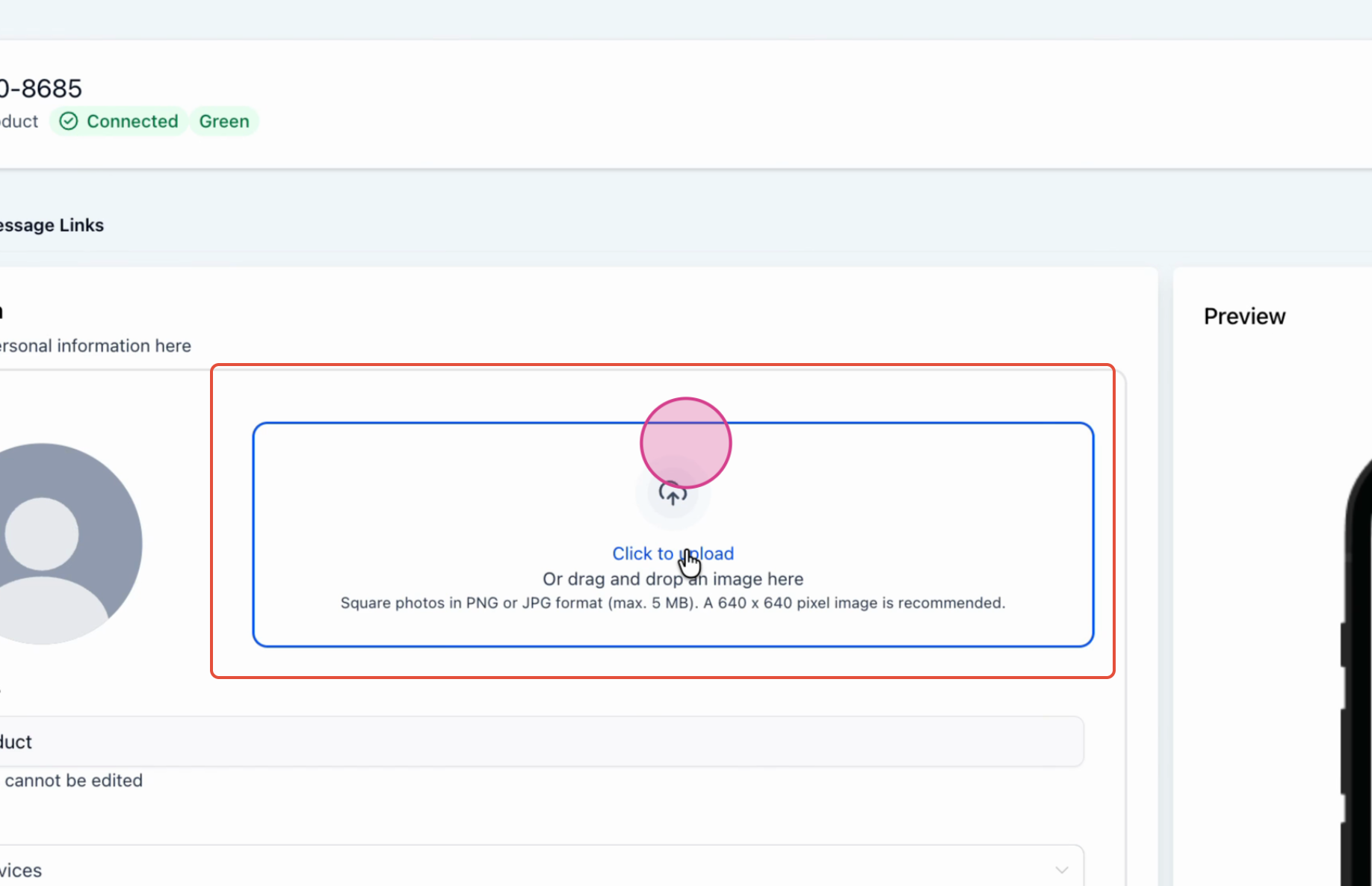
Image Requirements: Profile photos are automatically cropped to a square with a maximum edge of 640px and a maximum file size of 5MB. Images smaller than 192px in either dimension may have resizing issues. A 640x640px image is recommended for best results.
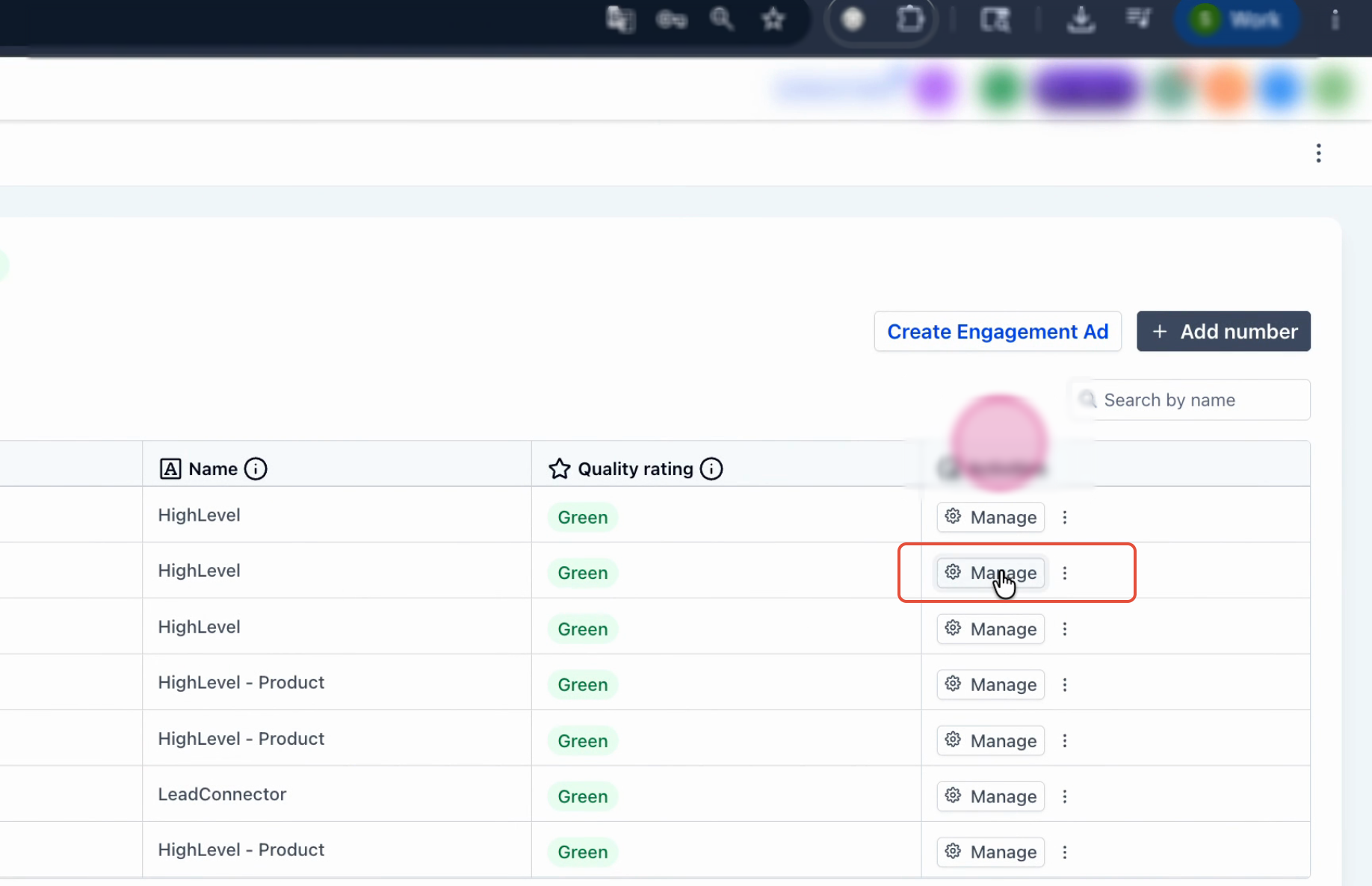
Step 1 Click Manage in your WhatsApp Business settings panel
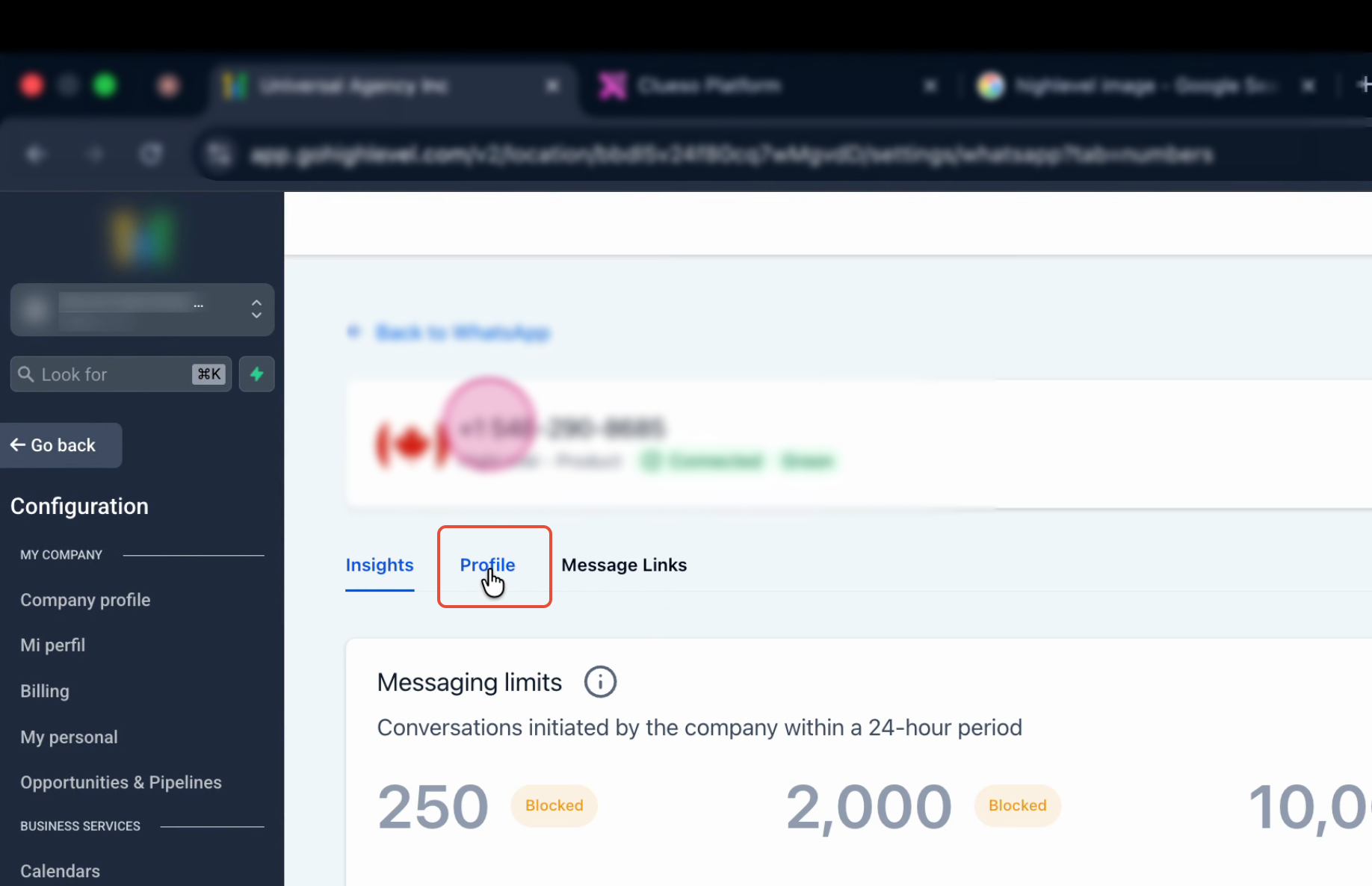
Step 2 Click Profile from the menu
Step 3 Click the profile picture area to begin editing — then click Upload to choose your business logo or brand image. The picture saves automatically once uploaded
Step 4 Update your Address so customers know where to find your business
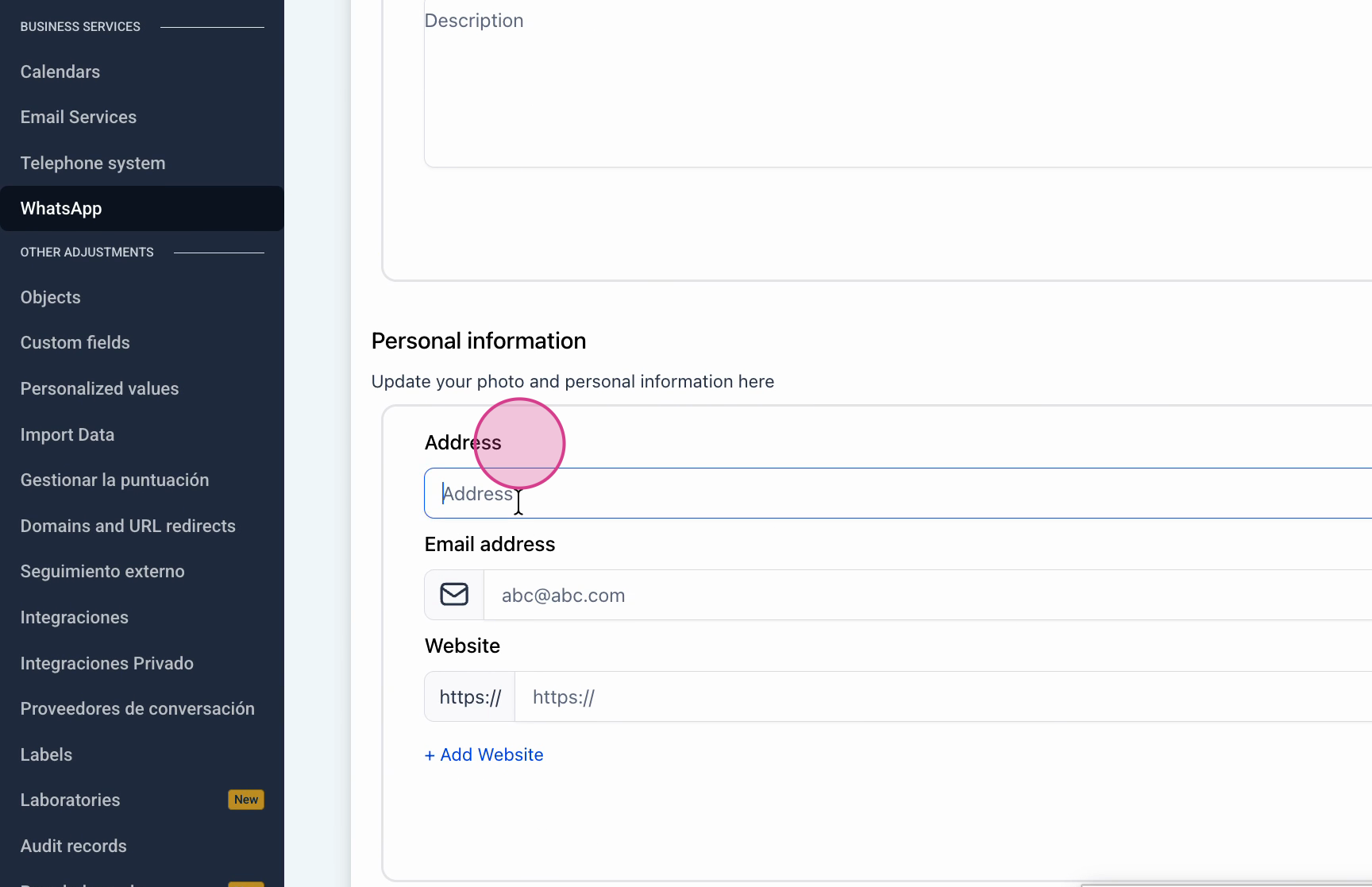
Step 5 Update your Email ID so customers have a direct way to contact you
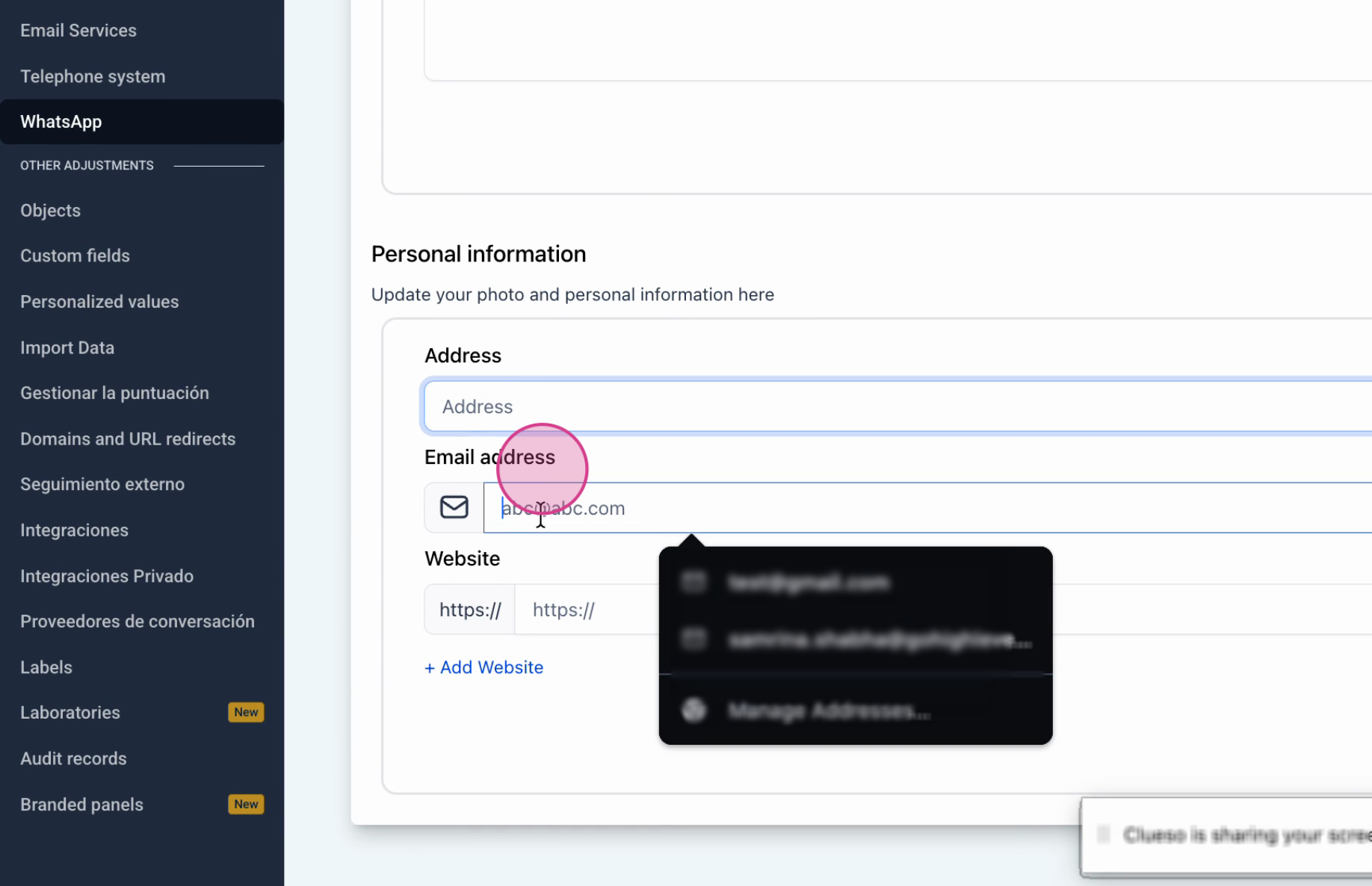
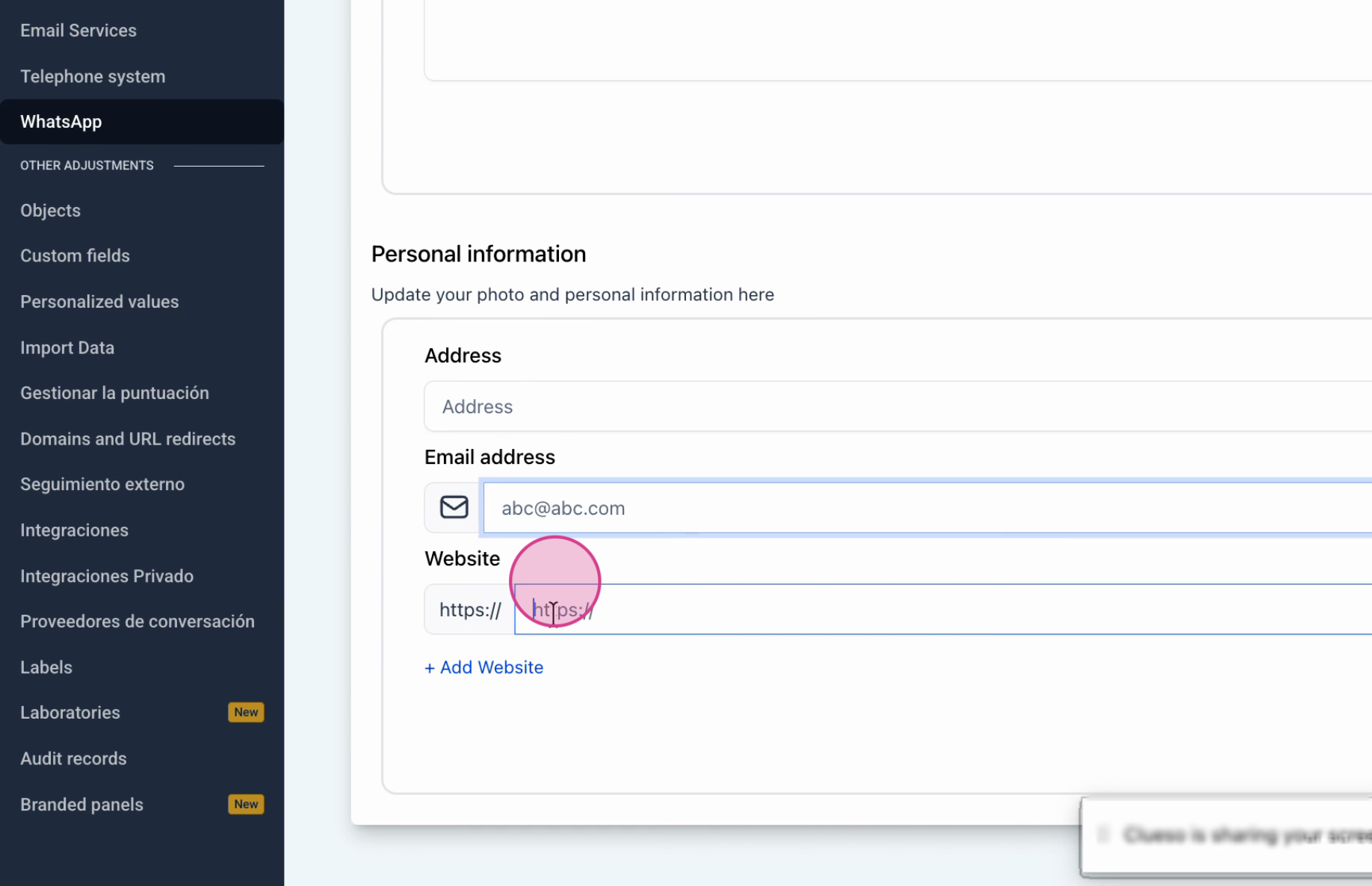
Step 6 Add or update your Website URL so customers can learn more about your business
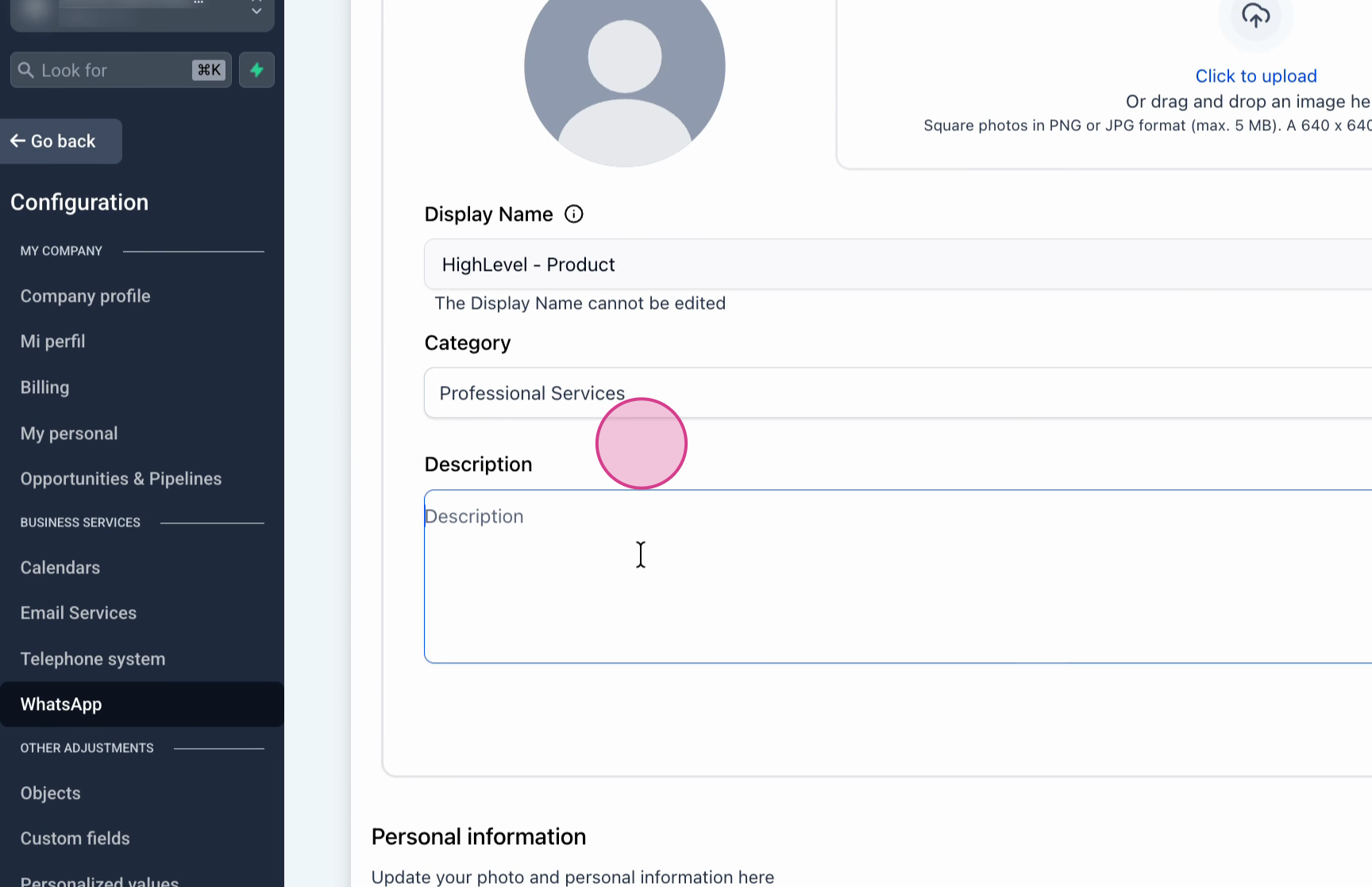
Step 7 Update your Description — a brief explanation of what your business does. This is one of the first things customers read on your profile
Check your profile regularly to make sure all details are accurate. A complete profile with a clear description, address, and contact details helps customers trust your business and engage more confidently.
How Customers View Your Profile What your customers see when they tap on your business name |
Customers can view your business profile at any time by tapping your business name or number at the top of a conversation thread in WhatsApp. This shows them your full profile including your picture, description, category, address, website, and email.
This means the information you fill in is always visible and accessible — making it essential to keep it accurate and professional.
|  |
A complete, professional profile makes customers more likely to trust your business and respond to your messages. Always keep your description, category, and contact details up to date.
Frequently Asked Questions Common questions about WhatsApp Business Profile Management |
Q: Why is it important to keep my WhatsApp Business profile updated? Your profile is the first visual and informational impression customers get of your brand. A complete and up-to-date profile builds trust, confirms your business is legitimate, and makes it easy for customers to contact or learn more about you. |
Q: What are the recommended dimensions and file size for the profile picture? Meta recommends a 640x640px square image with a maximum file size of 5MB. Images smaller than 192px in either dimension may have cropping or resizing issues. JPEG and PNG formats are supported. |
Q: Will customers see my profile updates immediately? Yes. Profile changes take effect as soon as you click Save. Any customer who views your profile after that point will see the updated information. |
Q: Do I need to update my profile in Meta Business Manager separately? No. All profile changes made through your CRM are pushed directly to your WhatsApp Business Account via the Meta API. You do not need to make separate changes in Meta Business Manager. |
Q: Can I manage multiple WhatsApp numbers' profiles from the same place? Yes. If you have multiple WhatsApp numbers connected, each number has its own profile. Go to Settings > WhatsApp > Numbers and select the relevant number to update its profile independently. |
Q: Why does my profile picture look different from what I uploaded? WhatsApp automatically crops all profile pictures to a square before displaying them. If your image is not square, the cropping may cut off part of the image. To avoid this, always upload a 640x640px square image. |
You are all set! A complete WhatsApp Business Profile improves customer trust and engagement. Keep your description, contact details, and profile picture up to date to make the best impression. If you run into any issues updating your profile, contact our support team. |
Was this article helpful?
That’s Great!
Thank you for your feedback
Sorry! We couldn't be helpful
Thank you for your feedback
Feedback sent
We appreciate your effort and will try to fix the article