Outlook Two-Way Email Sync creates a bidirectional connection between a user’s personal Outlook inbox and HighLevel, allowing supported one-to-one email conversations to stay synchronized across both platforms. Messages sent from HighLevel can appear in Outlook, while replies and emails from existing contacts can sync back into HighLevel Conversations, helping users maintain a complete contact history without constantly switching between systems.
TABLE OF CONTENTS
- Key Benefits of Outlook Two-Way Email Sync
- How to Connect Outlook Two Way Email sync?
- How Outlook Two-Way Email Sync Works
- Emails Started in HighLevel
- Emails Received From Existing HighLevel Contacts
- Emails Sent From Outlook to a New Contact
- Other functionalities
- Email Types and Sender Behavior
- Outlook Two-Way Sync Limitations
- Frequently Asked Questions
- Related Articles
Key Benefits of Outlook Two-Way Email Sync
- Centralized conversations: Keep supported Outlook email conversations visible in HighLevel alongside other contact activity.
- Two-way communication: Send individual emails from HighLevel and keep supported replies synchronized with Outlook.
- Existing-contact synchronization: Incoming Outlook emails from existing HighLevel contacts can appear in Conversations automatically.
- Contact creation with BCC: Add a new contact and conversation to HighLevel when initiating an Outlook email to someone who is not already a contact.
- Personal sending identity: Use the connected Outlook account for supported one-to-one emails rather than relying on the sub-account email provider for those messages.
How to Connect Outlook Two Way Email sync?
1. Open the appropriate sub-account in HighLevel, then go to Settings > My Profile,
2. Scroll to Email (2-way sync), select Outlook, and click Connect.
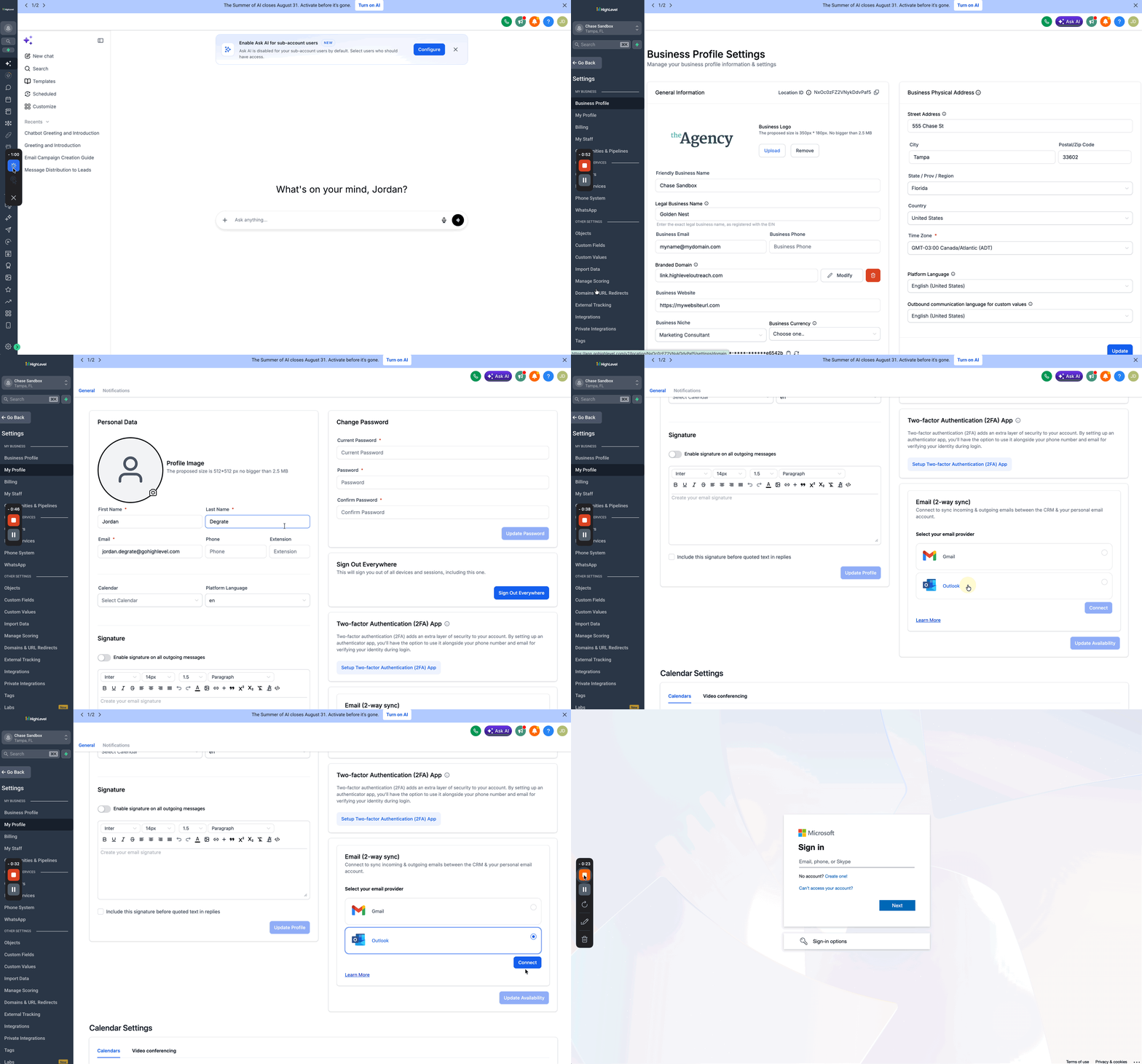
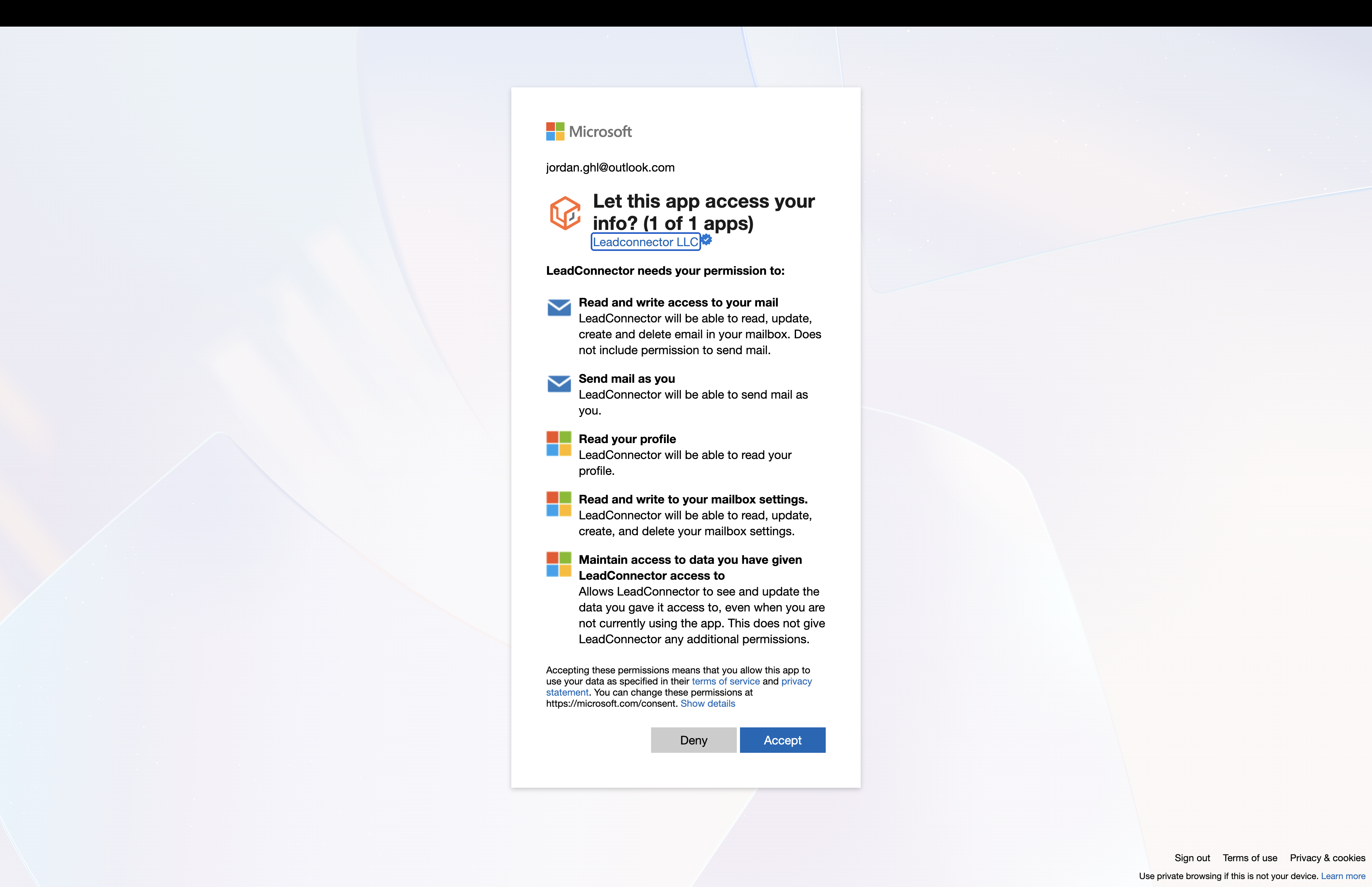
4. Sign in with the Outlook or Microsoft 365 account you want to connect, review and approve the permissions
requested by HighLevel/LeadConnector,
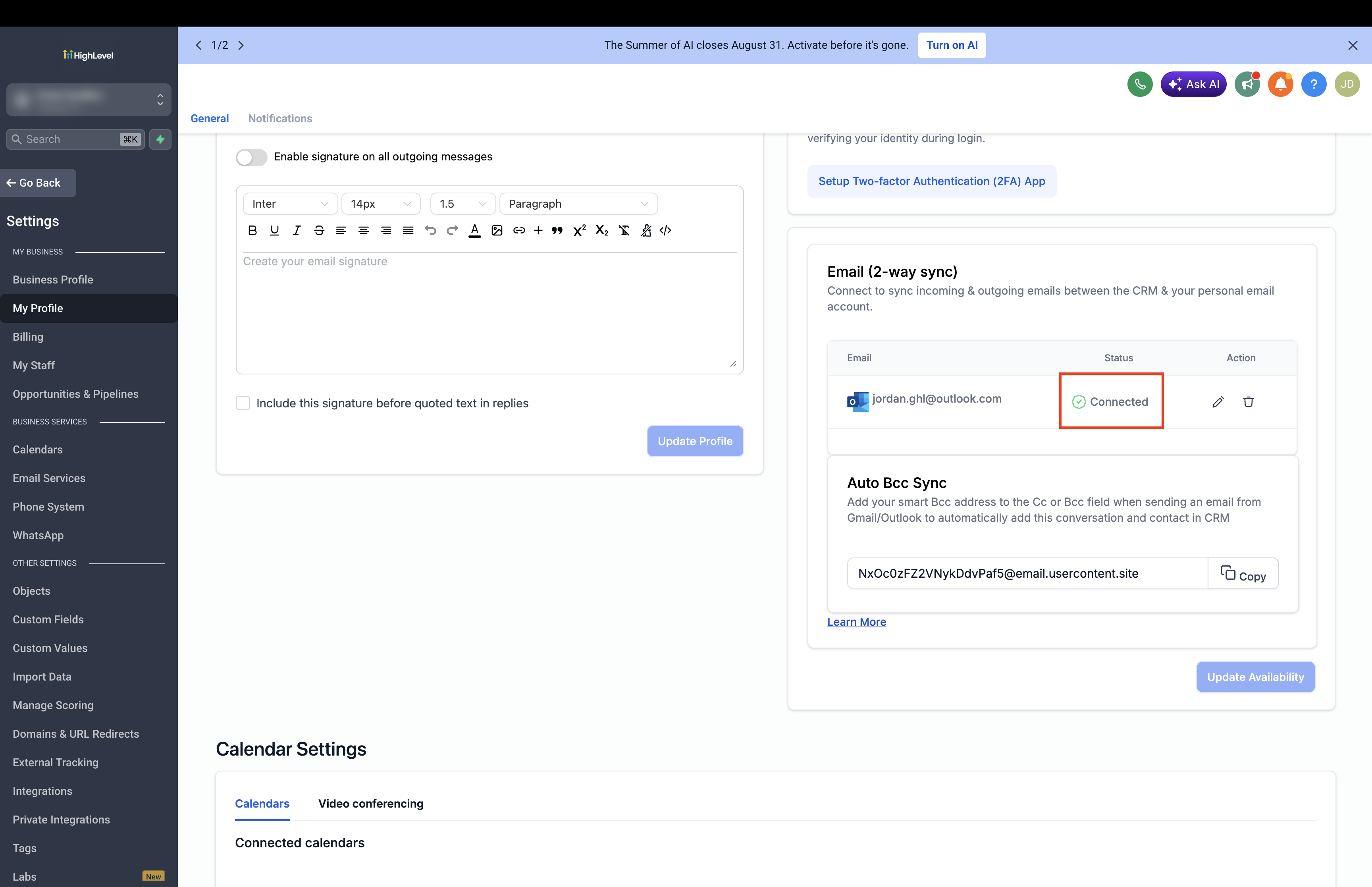
5. Return to Settings > My Profile > Email (2-way sync) and confirm that the Outlook email address appears as connected.
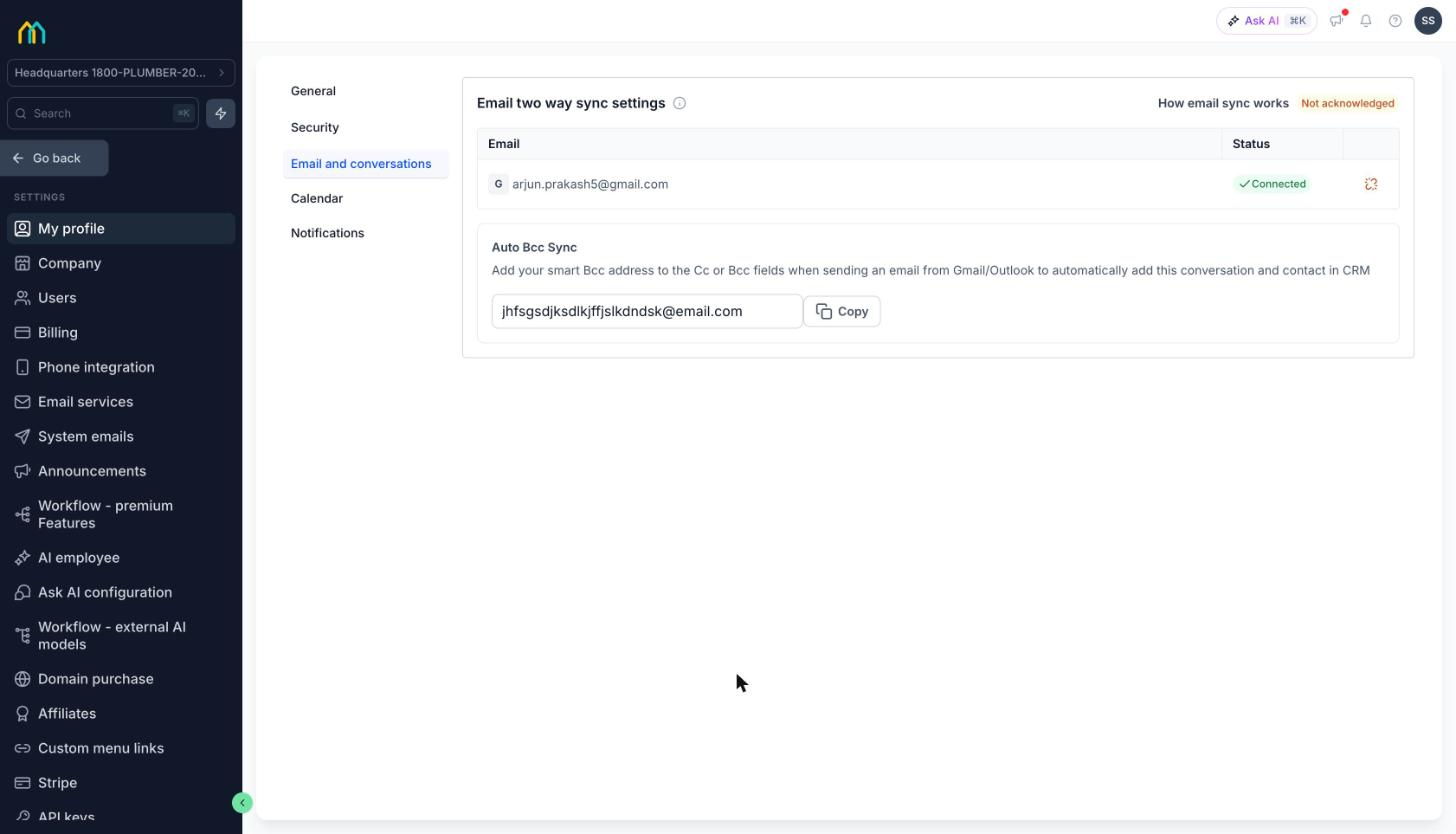
In "Settings" > "My Profile" scroll down to the section "Email (2-way sync)" to view your email in the connection status.
Want to keep some email out? You do not have to connect the whole inbox. Add your Bcc address to the Cc or Bcc field of an individual email instead, and only that conversation comes into the CRM.
What to Expect After You Connect
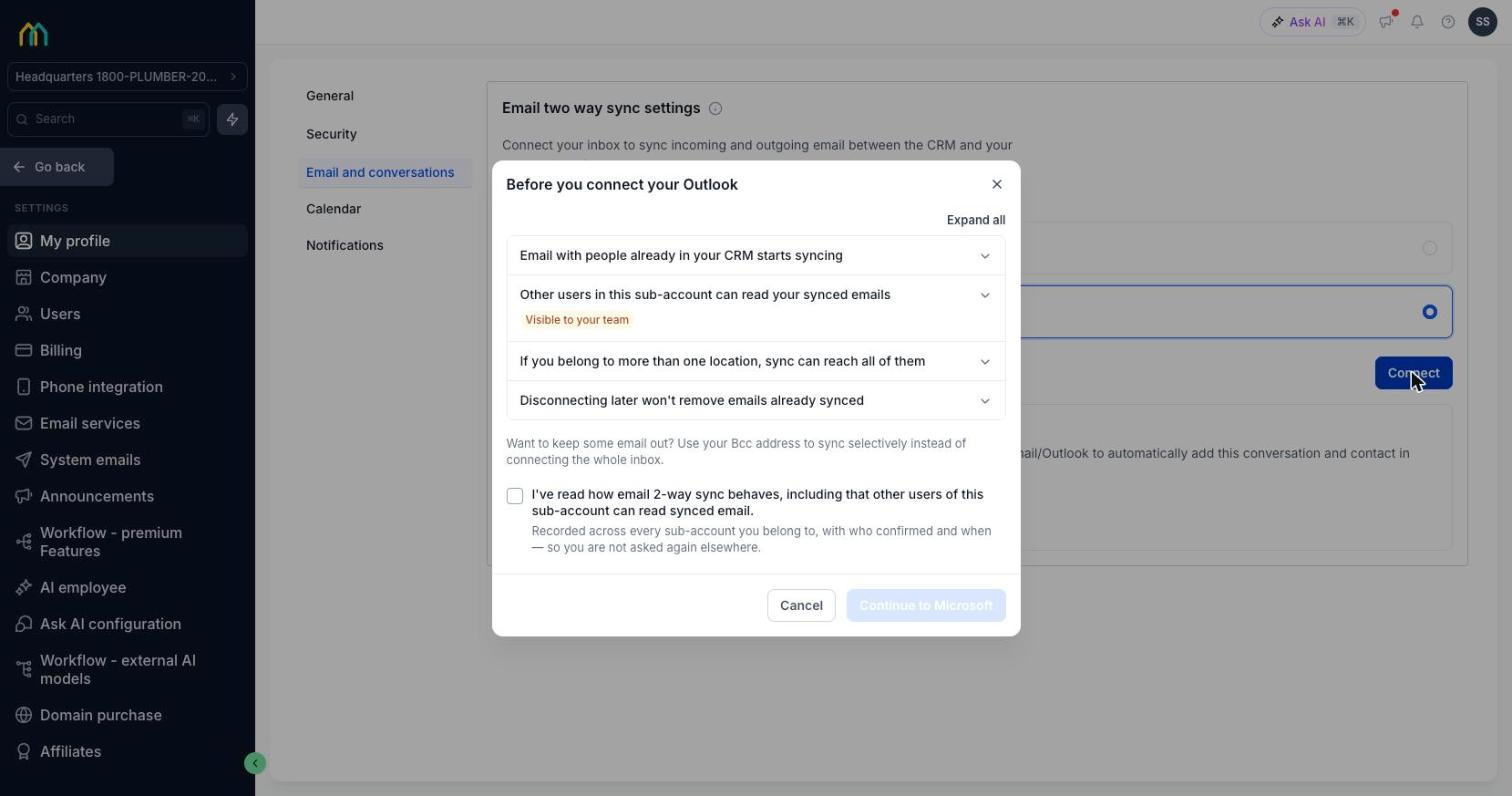
Connecting your inbox changes what enters the CRM and who can see it.
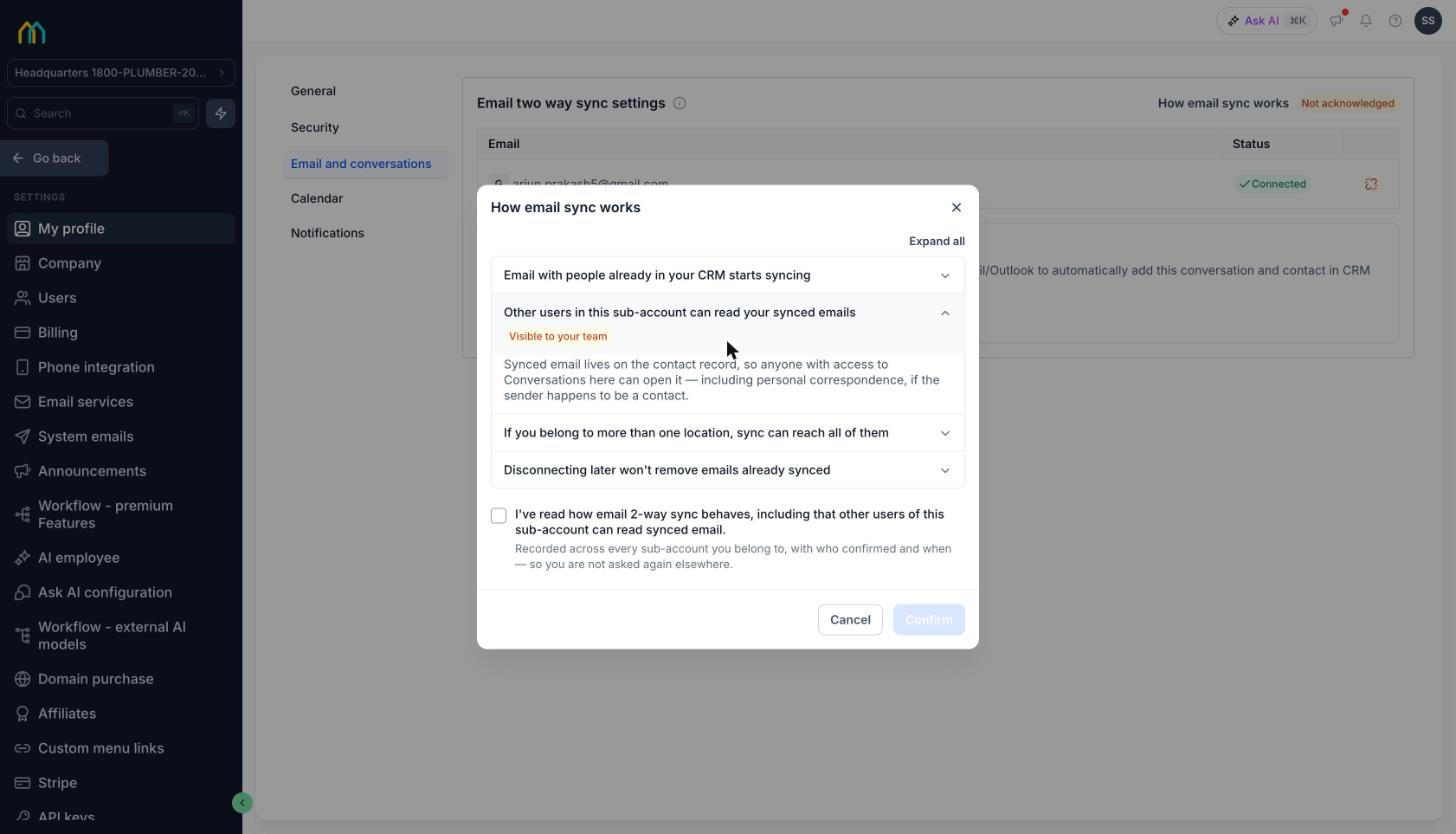
1. Email with people already in your CRM starts syncing. Messages you exchange with existing contacts appear in Conversations, on that contact's record. Email from someone who isn't a contact won't sync — add your Bcc address to pull those in. Email between you and other users of this sub-account never syncs.
2. Other users in this sub-account can read your synced emails. Synced email lives on the contact record, so anyone with Conversations access here can open it. See Who Can See Your Synced Emails below.
3. If you belong to more than one location, sync can reach all of them. Your inbox connects to your user account rather than a single location. Sync can be switched off per location under that location's conversation settings.
4. Disconnecting later won't remove emails already synced. Disconnecting stops new email from syncing; what's already in the CRM stays. Past email isn't imported, and bulk and workflow emails keep sending from this sub-account's provider rather than your inbox.
Who Can See Your Synced Emails
Synced email is stored on the contact record, not in a private mailbox. Any user with Conversations access in this sub-account can open the thread and read it, including attachments. That includes:
- Personal correspondence, where the sender happens to be a contact
- Email where you were only cc'd or bcc'd alongside a contact
- Email that synced before today, not only email from this point onward
It does not include email between you and other users of the same sub-account, which never syncs, or email with people who are not contacts in the CRM.
Important Note: There is no per-message privacy setting. Once an email syncs it is visible to everyone with Conversations access in that sub-account, and disconnecting your inbox does not remove it.
Confirming You Have Read This
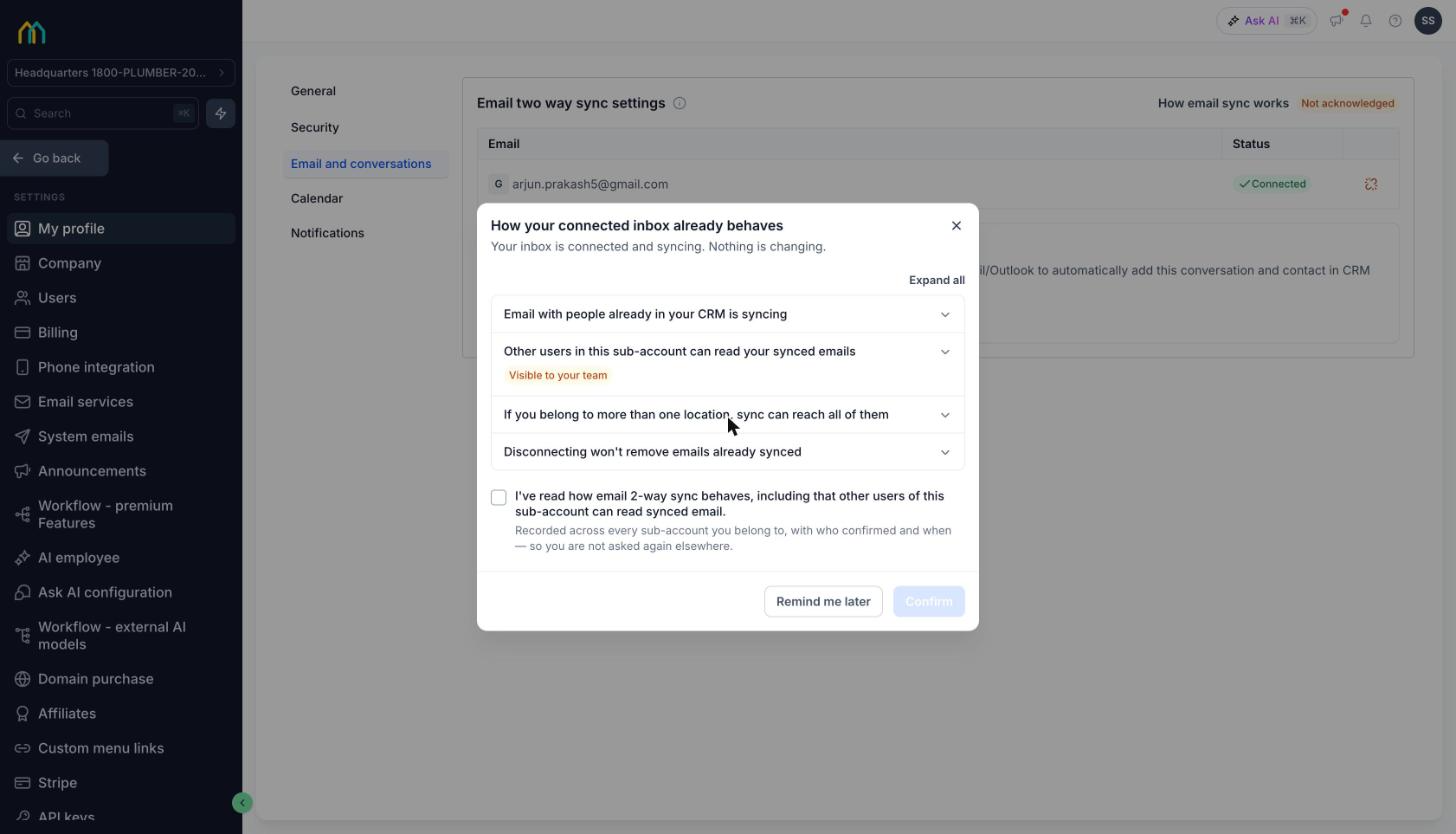
These four points appear in Before you connect your Outlook when you first connect an inbox, and as a one-time notice if your inbox was already connected before this update. Either way, you confirm you have read them before continuing.
Until you confirm, Not acknowledged appears beside the section heading. Nothing stops working — sync continues and your settings stay available. On the notice for an already-connected inbox you can also choose Remind me later, and reopen it at any time from How email sync works.
Important Note: Confirming records who confirmed and when, and applies across every sub-account you belong to, so you are not asked again elsewhere. It does not change any setting, and it does not switch sync on or off.
How Outlook Two-Way Email Sync Works
The way a message enters the conversation determines whether it can synchronize automatically. Knowing these common scenarios helps prevent confusion when a message appears in Outlook but does not immediately appear in HighLevel.
Emails Started in HighLevel
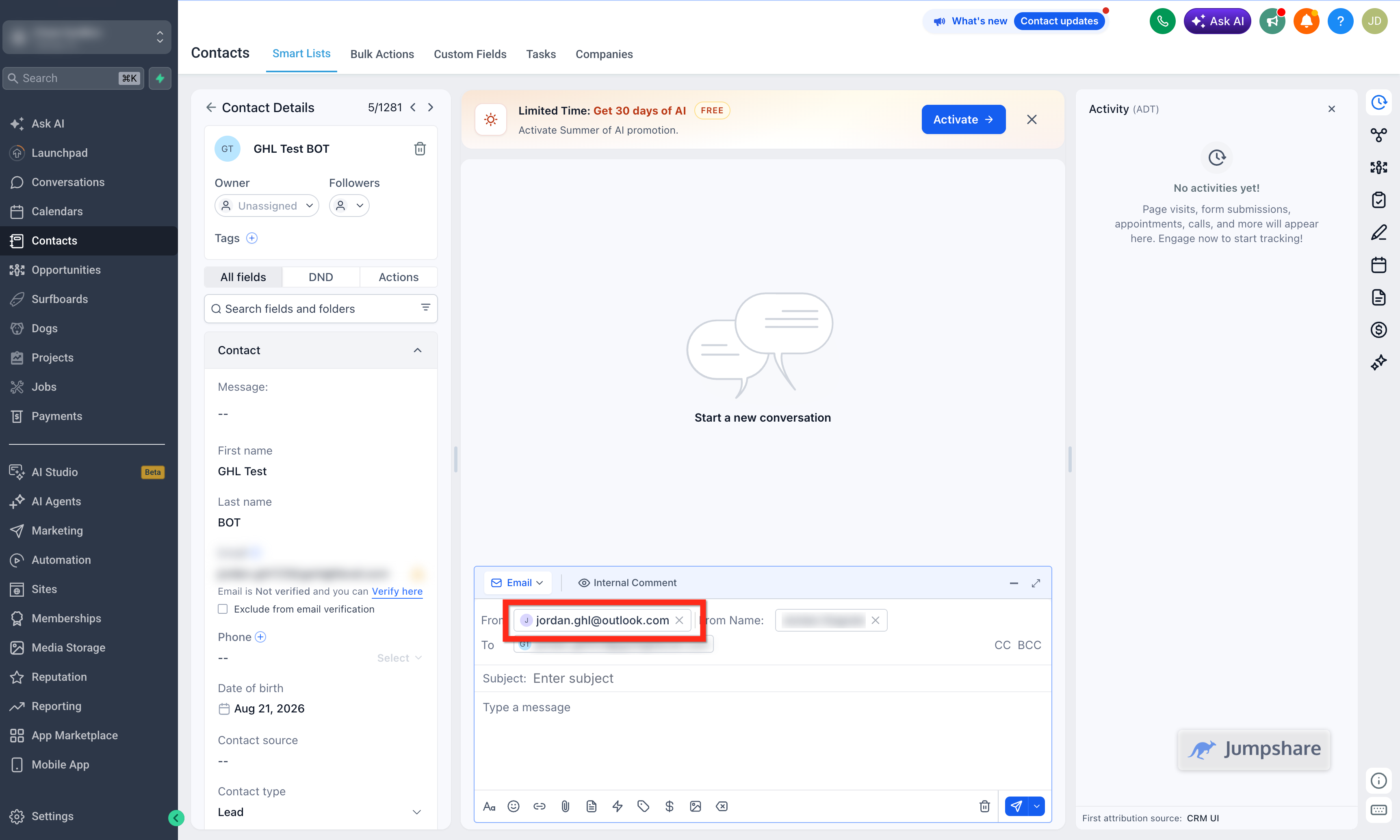
When you send an individual email from HighLevel using your connected Outlook account, the email thread can remain synchronized between HighLevel and Outlook. Subsequent supported replies in that thread can continue appearing in both places.
Emails Received From Existing HighLevel Contacts
When an existing HighLevel contact sends an email to the connected Outlook inbox, the incoming message can synchronize into that contact's conversation in HighLevel. Replies in the supported thread can continue syncing between the two platforms.
Emails from contacts who are also users in the same sub-account are not synchronized. This protects potentially confidential communication between HighLevel users.
Emails Sent From Outlook to a New Contact
Outlook two-way sync does not reliably capture every cold inbound or outbound email involving someone who is not already represented as a HighLevel contact. When sending a new email from Outlook to someone who is not yet a contact, use the HighLevel BCC address in the Cc or Bcc field. This can create the contact and conversation in HighLevel so future supported communication can synchronize.
- Sync the contact.

All subsequent messages in the email thread (initiated from the CRM) will be in sync. Outbound
emails sent from your email will start reflecting in the CRM and vice versa.


Please note
Attachments of up to 3 MB size work across this sync, any attachments larger than this size will cause the message to not sync over.
Supported file types: JPG,JPEG,PNG,MP4,MPEG,ZIP,RAR,PDF,DOC,DOCX,TXT
Other functionalities
Update Email: This helps users change their connected email ID to another one without disconnecting the previous connection.

New outbound emails from the CRM will start syncing with the newly added email address. Upcoming messages in the previously connected email ID (same thread) will stop syncing between the CRM & personal email.
Disconnect Email: This will disconnect their connection and stop the sync with the CRM. Once disconnected, emails or messages will not sync between both platforms.

Email Types and Sender Behavior
Outlook Two-Way Email Sync is intended primarily for direct, one-to-one conversations. Bulk and automated messages use different sending infrastructure, so they should not be expected to behave like personal Outlook conversations.
- Individual emails: Supported one-to-one emails can use the connected Outlook account and synchronize with the personal inbox.
- Bulk emails: Bulk email sending is handled separately from personal two-way sync and may use the configured sub-account email provider.
- Workflow and automation emails: Automated emails are sent through the configured sub-account-level provider rather than through the user's personal Outlook two-way sync. These messages do not synchronize with the Outlook inbox in the same way as individual emails.
Troubleshoot Outlook Two-Way Email Sync
My Profile Is Missing
The My Profile tab is available when the user is added to the sub-account currently being viewed. If you cannot see My Profile:
- Confirm that you are inside the intended sub-account rather than the agency-level view.
- Verify that your user has been added to that sub-account.
- If appropriate for your access level, use Login As for a user of that sub-account.
- Return to Settings and check for My Profile again.
Outlook Two-Way Sync Limitations
- Emails from contacts who are also sub-account users are not synchronized because they may contain confidential user-to-user communication.
- Gmail/Outlook two-way sync does not reliably capture cold inbound email from unknown senders; HighLevel documents inbound email from existing contacts as supported for this configuration.
- Workflow and automation email is sent through the configured sub-account email provider rather than the personal Outlook connection.
- Removing or disconnecting a synchronized account stops new synchronization, but previously synchronized email remains available.
- Historical messages from before a personal inbox connection was established are not backfilled through two-way sync.
Frequently Asked Questions
Q: Does connecting Outlook import my historical email?
No. Messages from before the integration was connected are not synchronized retroactively. Only supported conversations after the connection is established can sync.
Q: Why can I not see My Profile?
The My Profile tab is available when the user has been added to the sub-account currently being viewed. Verify that you are in the correct sub-account and that your user has access to it before troubleshooting Microsoft permissions.
Q: What should I do if Reconnect is not displayed?
Verify that you are in the correct sub-account and that the Outlook mailbox appears under Settings > Email Services. If the mailbox is present but the expected reconnect or account-management control is still missing, contact HighLevel Support instead of repeatedly reauthorizing Microsoft permissions.
Q: When should I contact HighLevel Support?
Contact HighLevel Support if reconnecting does not restore synchronization, the same permission error continues after verifying the correct Microsoft account and permissions, or the expected HighLevel controls are unavailable. Include the affected email address, error details, screenshots, provider, approximate start time, and troubleshooting steps already completed.
Q. Can other users in my sub-account see emails synced from my personal inbox?
Yes. Synced email is stored on the contact record and is visible to any user with Conversations access in that sub-account, including attachments. There is no per-message privacy control. The one exception is email between you and other users of the same sub-account, which never syncs.
Q. If I disconnect, are my synced emails removed from the CRM?
No. Disconnecting stops new email from syncing. Everything already synced stays on the contact record and remains visible. Disconnecting is not a way to remove email from the CRM, and email from before you connected is never imported in the first place.
Q. What does "Not acknowledged" mean beside my email sync settings?
It means you have not yet confirmed the notice describing how your connected inbox behaves. Nothing is switched off and sync continues as normal. Open How email sync works to read the four points and confirm. Confirming records who confirmed and when, applies across every sub-account you belong to, and does not change any of your settings.
Related Articles
- Getting Started - Connect Personal Inbox
- Email Failure: Insufficient Permission for 2-Way Sync
- Connect Google to Use Gmail for Email
- Inbound Email Workflow Trigger in HighLevel
Was this article helpful?
That’s Great!
Thank you for your feedback
Sorry! We couldn't be helpful
Thank you for your feedback
Feedback sent
We appreciate your effort and will try to fix the article