The Update Contact Field workflow action lets you write new values to standard or custom contact fields—or clear values on custom fields—directly from a workflow. With the latest enhancement, you can now use Dynamic Custom Values for additional field types, allowing workflows to set live values from earlier steps or stored fields without hard-typing text or numbers.
TABLE OF CONTENTS
- Overview
- How to Add the Update Contact Field Action
- Action Configuration
- Action Name
- Select Action Type
- Update Field Data
- Clear Field Data
- Using Dynamic Values in Update Contact Field
- Supported Field Types
- How to Use Dynamic Values
- Example Use Case
- Updating Multiple Fields
- Field Type Considerations & Validation
- Frequently Asked Questions
- Related Articles
Overview
HighLevel’s Update Contact Field action updates data on a contact record at the exact point the workflow runs. You can either update a field with a value or clear an existing value, and all changes are visible in Execution Logs.
This action is commonly used to keep contact data accurate for personalization, segmentation, reporting, and downstream workflow logic.
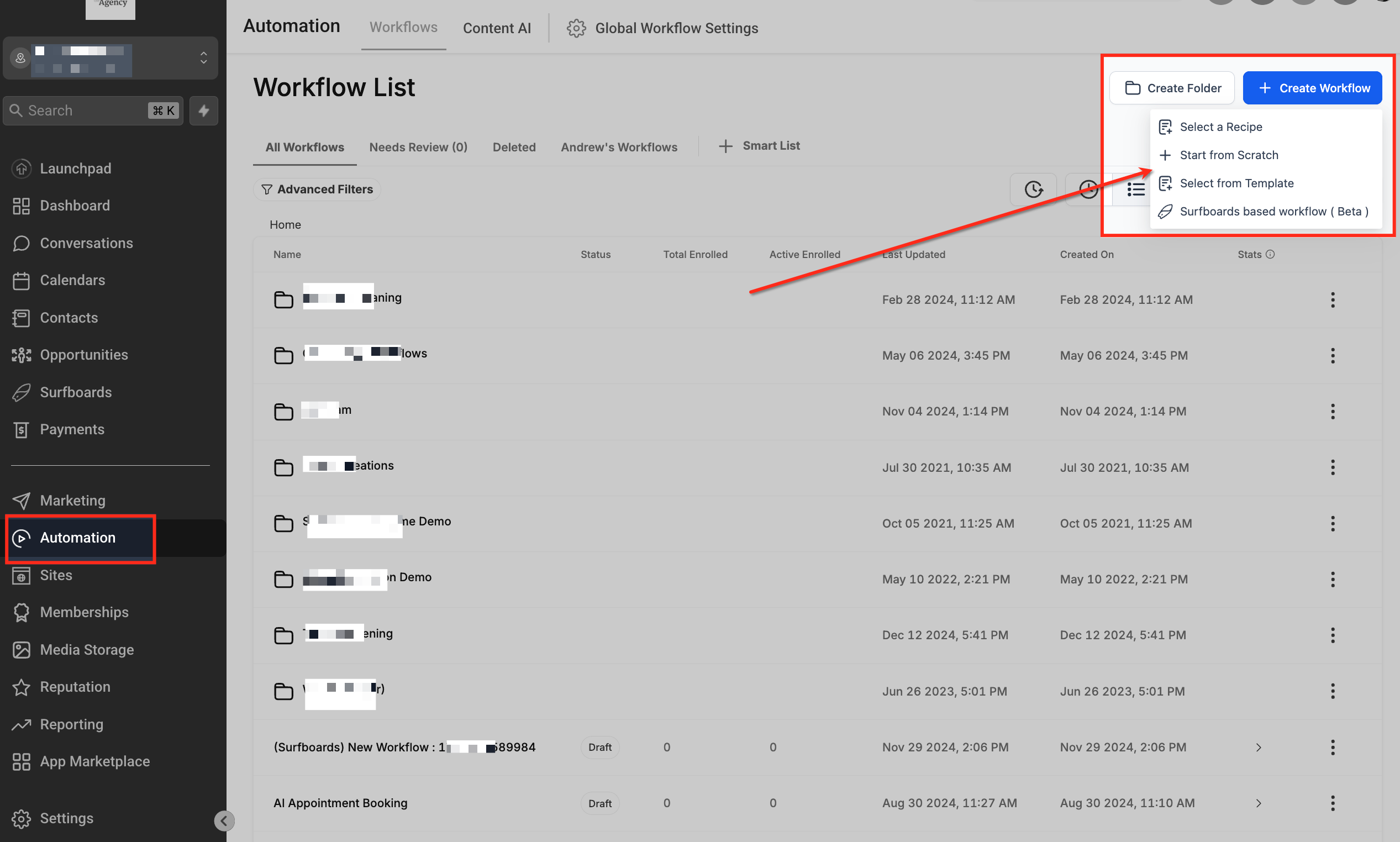
How to Add the Update Contact Field Action
Go to Automation → Workflows.
Open an existing workflow or create a new one.
Click the + icon where you want to add an action.
From the Actions panel, select Update Contact Field.
Action Configuration
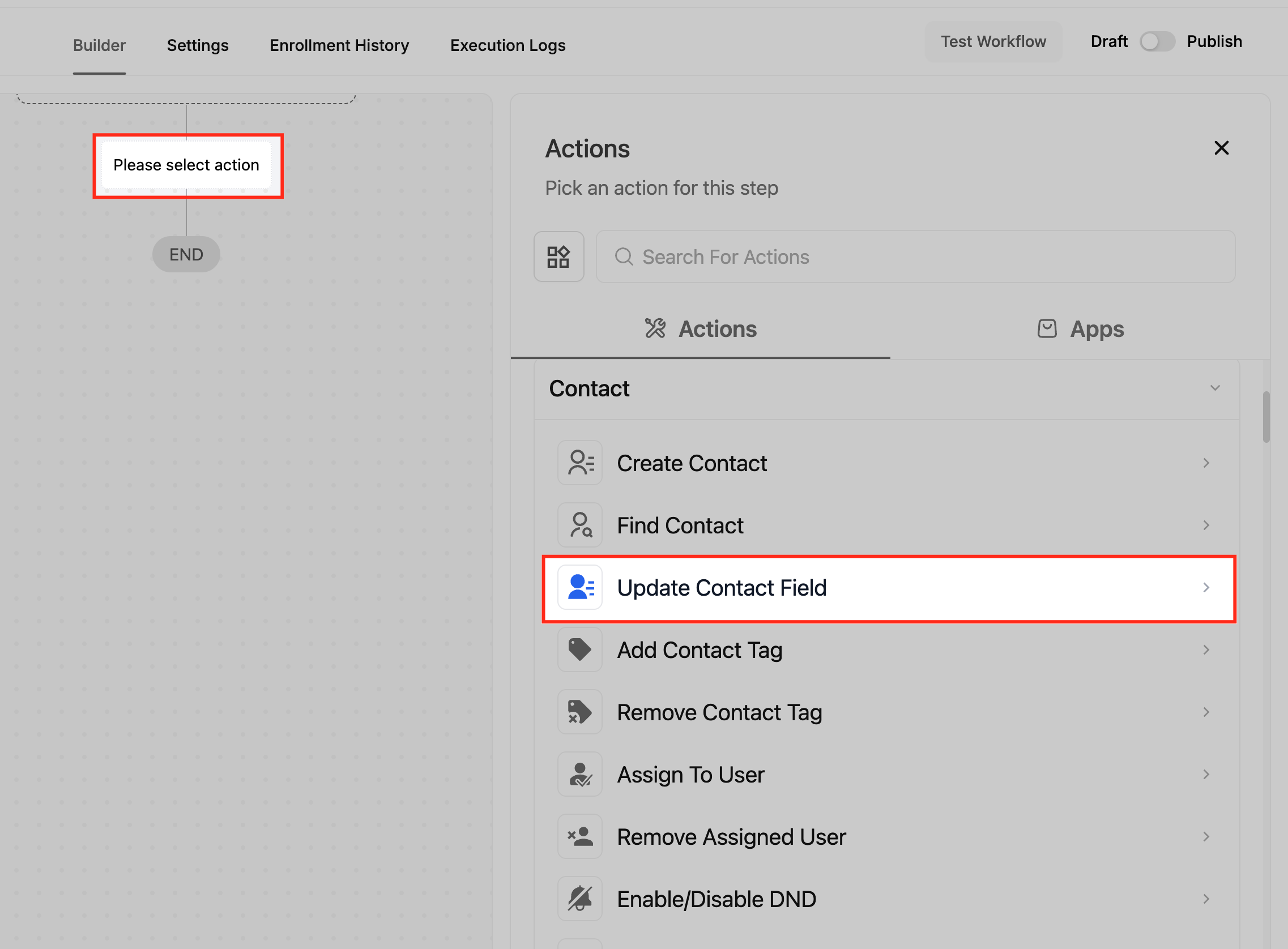
Action Name
Give the action a descriptive name so it’s easy to identify later in the workflow canvas and Execution Logs.
Select Action Type
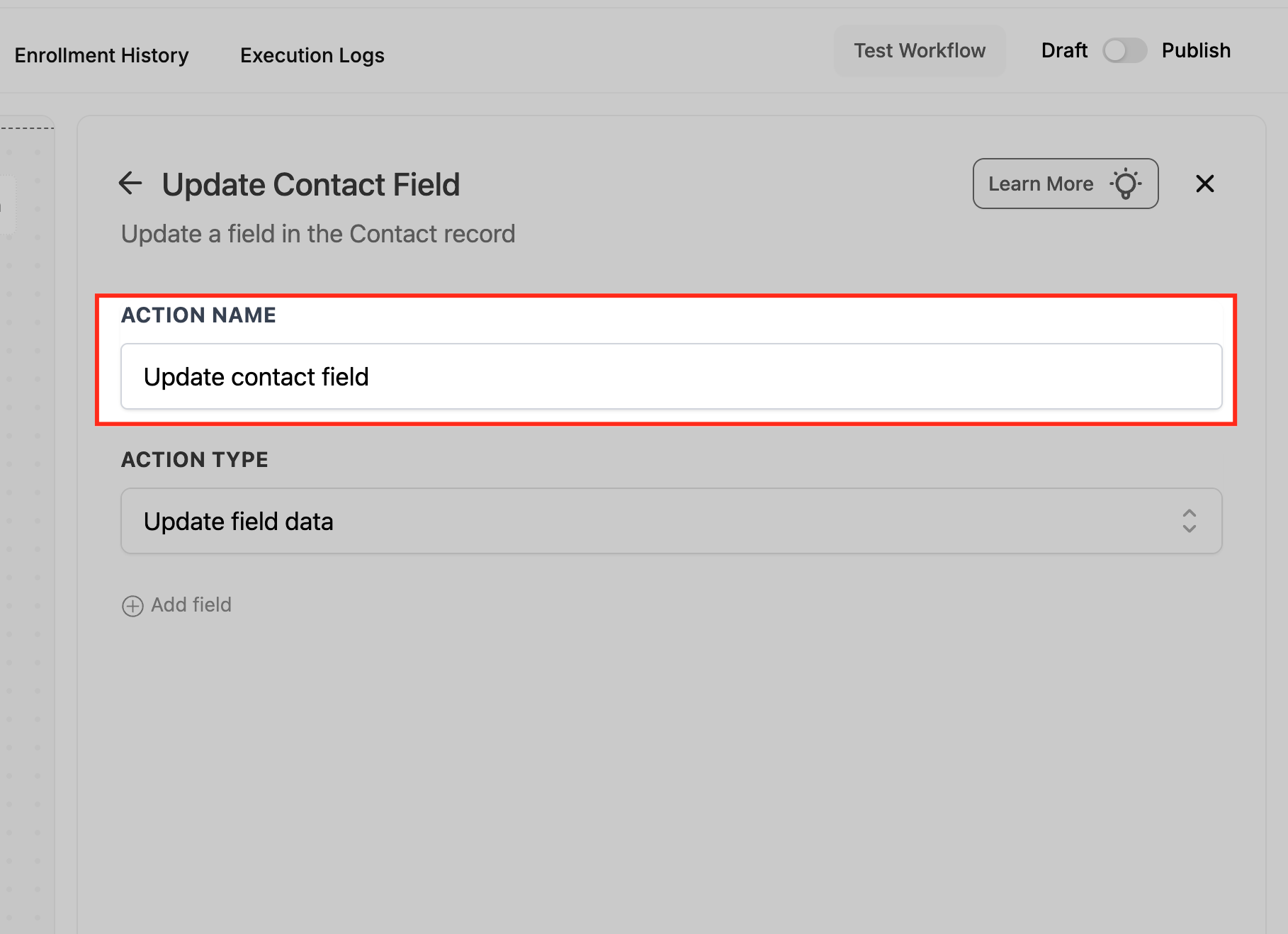
Choose how the action should behave. Your selection controls which configuration options appear next.
Action Type options:
Update field data – write a new value to a field
Clear field data – remove the stored value (custom fields only)
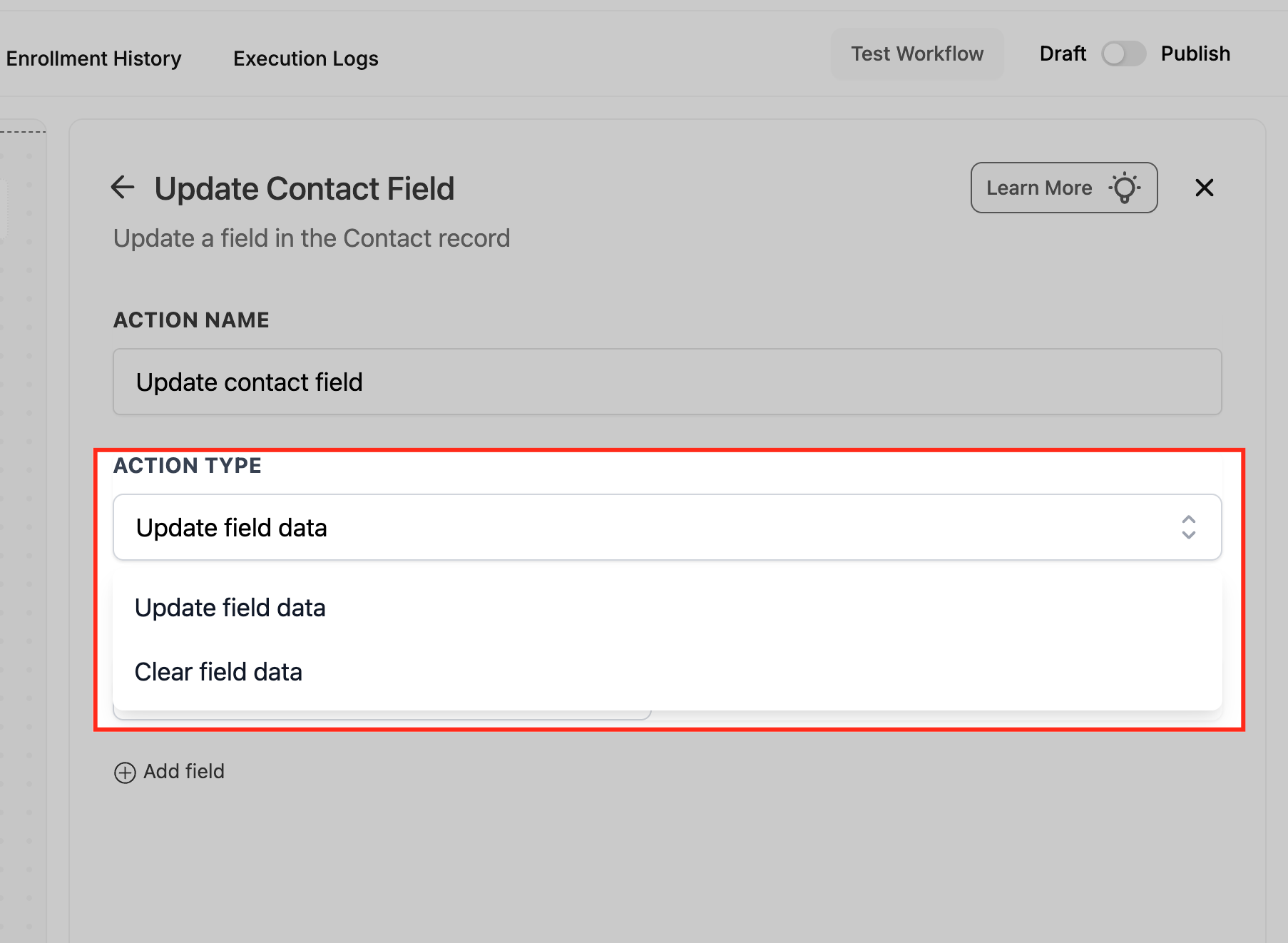
Update Field Data
Use this mode to overwrite a contact field’s value.
Select the contact field you want to update.
Enter a value using either:
A static value, or
A Dynamic Value (live data from the workflow or contact)
The new value replaces the existing value when the workflow reaches this step.
Clear Field Data
Use this mode to remove the stored value from a custom contact field.
Choose Clear field data as the Action Type.
Select one or more custom fields to clear.
When the action runs, the field value is set to empty.
Caution: Clearing values can affect Smart Lists, filters, and workflow conditions. Always review dependencies before publishing.
Using Dynamic Values in Update Contact Field
You can now use Dynamic Values to set contact fields using live outputs from earlier workflow steps or stored contact fields. This removes the need to hard-type values and avoids duplicate logic.
Dynamic Values resolve at runtime for each individual contact.
Supported Field Types
Dynamic Values are supported for the following field types in Update Contact Field:
Numeric – scores, counts
Select / Dropdown (no option ID required here)
Monetary – totals, amounts
Important:
Select / Dropdown fields do not require option IDs when updating contact fields.
(This is different from If/Else conditions, where option IDs are required.)
How to Use Dynamic Values
Add an Update Contact Field action to your workflow.
Choose Update field data as the Action Type.
Select the target contact field.
In the value input, switch to Dynamic Value.
Pick a value from:
An earlier workflow step’s output, or
A stored contact field.
Save and publish the workflow.
Example Use Case
After a patient confirms an appointment, the workflow captures the confirmation type (for example, Follow-up or New Visit). That value is then written dynamically into a custom contact field, keeping records accurate and ensuring the correct follow-up communication.
Updating Multiple Fields
You can update more than one field in a single action:
Click Add field to include additional field rows.
For clarity and auditing, some teams prefer separate actions for Update vs Clear.
Field Type Considerations & Validation
To avoid errors, make sure values match the field type:
Text / Number: Use appropriate formats.
Date: Use valid date values or date-based dynamic values.
Dropdown / Checkbox / Radio: Value must match an existing option.
Email / Phone: Provide properly formatted values.
Fields must already exist. This action does not create new fields.
Frequently Asked Questions
Q: Can I update standard contact fields like Email or Phone?
Yes. Update field data supports both standard and custom contact fields.
Q: Can I clear standard contact fields?
No. Clear field data supports custom contact fields only.
Q: Can I update multiple fields in one action?
Yes. Use Add field to update multiple fields in the same action.
Q: How are Dynamic Values different from tokens?
Dynamic Values let you select live outputs from earlier workflow steps or fields. Tokens still work, but Dynamic Values remove the need to manually type or map values.
Q: What happens if I use the wrong format?
The update may fail validation. Review field types and check Execution Logs.
Q: Will clearing a value affect Smart Lists or workflows?
Yes. Clearing a value can change list membership or branching logic.
Related Articles
Was this article helpful?
That’s Great!
Thank you for your feedback
Sorry! We couldn't be helpful
Thank you for your feedback
Feedback sent
We appreciate your effort and will try to fix the article