Connecting your Facebook Pages to HighLevel Social Planner allows you to create, schedule, and publish posts directly to your Facebook business Pages. You can connect multiple Pages, including those managed through different Facebook accounts.
This article explains the connection process, required permissions, and how to resolve common connection issues.
TABLE OF CONTENTS
- What Is Facebook Page Integration in Social Planner?
- Key Benefits of Connecting Facebook Pages
- Requirements for Connecting Facebook Pages
- How to Connect Facebook Pages to Social Planner
- Frequently Asked Questions
What Is Facebook Page Integration in Social Planner?
Facebook Page integration connects your Facebook business Pages to HighLevel Social Planner. Once connected, you can manage and publish content to your selected Pages without switching between platforms.
Note: Social Planner supports Facebook Pages, not personal Facebook profiles, for publishing.
Key Benefits of Connecting Facebook Pages
Connecting Facebook Pages to Social Planner helps simplify content publishing and account management.
Centralized Publishing: Create, schedule, and publish Facebook Page posts from Social Planner.
Multiple Page Management: Connect and manage multiple Facebook Pages from one location.
Flexible Account Connections: Connect Pages managed through different Facebook accounts.
Simplified Content Scheduling: Plan and organize Facebook posts alongside other connected social accounts.
Requirements for Connecting Facebook Pages
Facebook authorization allows HighLevel to access the Pages you manage and publish content on your behalf. Using the correct Facebook account and granting the required permissions helps prevent missing Pages and connection errors.
Before connecting, ensure that:
You have a Facebook account with the required access to the Pages you want to connect.
Your Facebook account has the necessary Page management and content permissions.
You can sign in to the Facebook account associated with those Pages.
You grant the requested permissions during the Facebook authorization process.
Important: When Facebook asks which Pages to authorize, grant access to all Pages associated with your account. This does not automatically connect every Page to Social Planner, but it keeps them available for selection. When reconnecting, retain previously authorized Pages to avoid disrupting existing connections.
For additional details, refer to Why You Should Grant Access to All Pages When Connecting a Social Account.
How to Connect Facebook Pages to Social Planner
Facebook Pages can be connected directly through Social Planner. Completing the authorization process and selecting the appropriate Pages ensures they become available for publishing.
Step 1. Go to Connect social Option
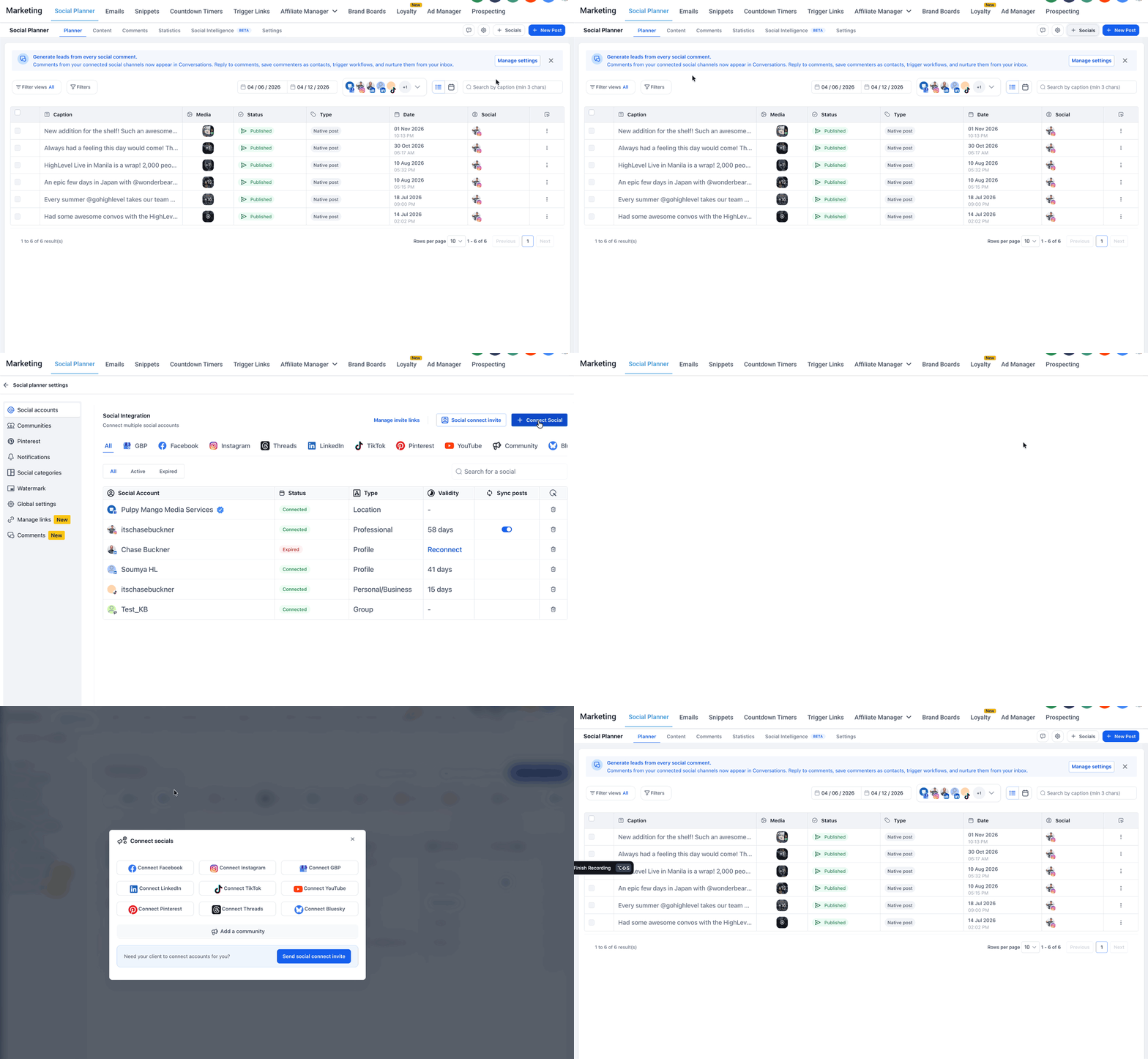
To get started, please go to Social Planner. In the top right corner of Social Planner, there is a Setting option (Gear icon). Please navigate to Settings by clicking it.
From Social Planner, you can connect or manage social accounts in three ways:

• Click + Socials to open the Connect socials window directly.
• Click the gear icon to open Social planner settings.
• Click the Settings tab to open Social planner settings, then click + Connect Social.
Step 2. Select Facebook as a Social Platform
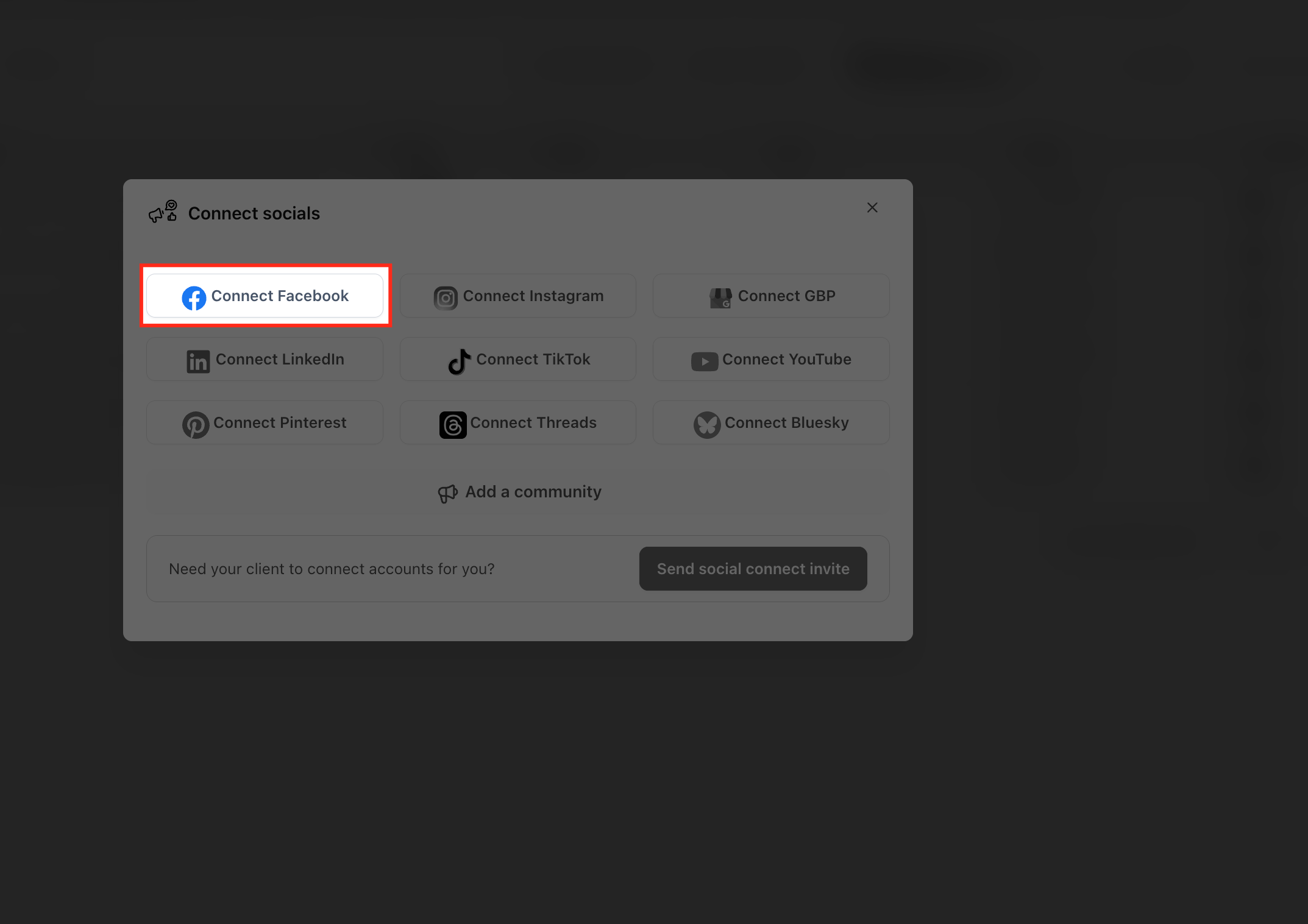
Click Facebook Option. This will take you to Facebook Login Page where you will be required to enter your login information.
Step 3. Give permissions to fetch Facebook page(s)
If you're connecting any profile for the first time, you will have to make sure you give all the permissions to it. Please click Continue to complete the authorization process for fetching the Facebook page(s).

Step 4. Select Facebook Page(s) to connect
It will list all the Facebook pages for this profile, select the list of the ones you wish to connect for Social Planner.

Step 5. Verify your connection
Last but not least, all of the selected pages in the previous step will be listed down showing a successful connection; as shown in the image below.
Following these instructions, you can add as many pages as you wish from the same or different Facebook profiles.

Frequently Asked Questions
Q: Can I connect multiple Facebook Pages to Social Planner?
Yes. You can connect multiple Facebook Pages, provided the Facebook accounts used for authorization have the required Page access and permissions.
Q: Can I connect Facebook Pages managed by different Facebook accounts?
Yes. Sign in with the Facebook account that has access to each Page and complete the authorization process.
Q: Why is my Facebook Page not appearing during connection?
The Facebook account may lack the required Page access, or the Page may not have been included in the authorization permissions. Review the Page permissions and reauthorize the account if necessary.
Q: Will granting access to all my Facebook Pages automatically connect them all?
No. Granting permission makes the Pages available for connection. You still choose which Pages to connect to each HighLevel sub-account.
Q: Why did a previously connected Facebook Page stop working after I connected another Page?
Reauthorizing the same Facebook account without selecting previously authorized Pages can revoke their access. Reconnect the account and include all required Pages during authorization.
Q: Can I publish to my personal Facebook profile using Social Planner?
No. Facebook publishing through Social Planner supports Facebook Pages rather than personal profiles.
Was this article helpful?
That’s Great!
Thank you for your feedback
Sorry! We couldn't be helpful
Thank you for your feedback
Feedback sent
We appreciate your effort and will try to fix the article